


Readers like you help support this site. When you make a purchase using links on our site, we may earn an affiliate commission. All opinions remain our own.
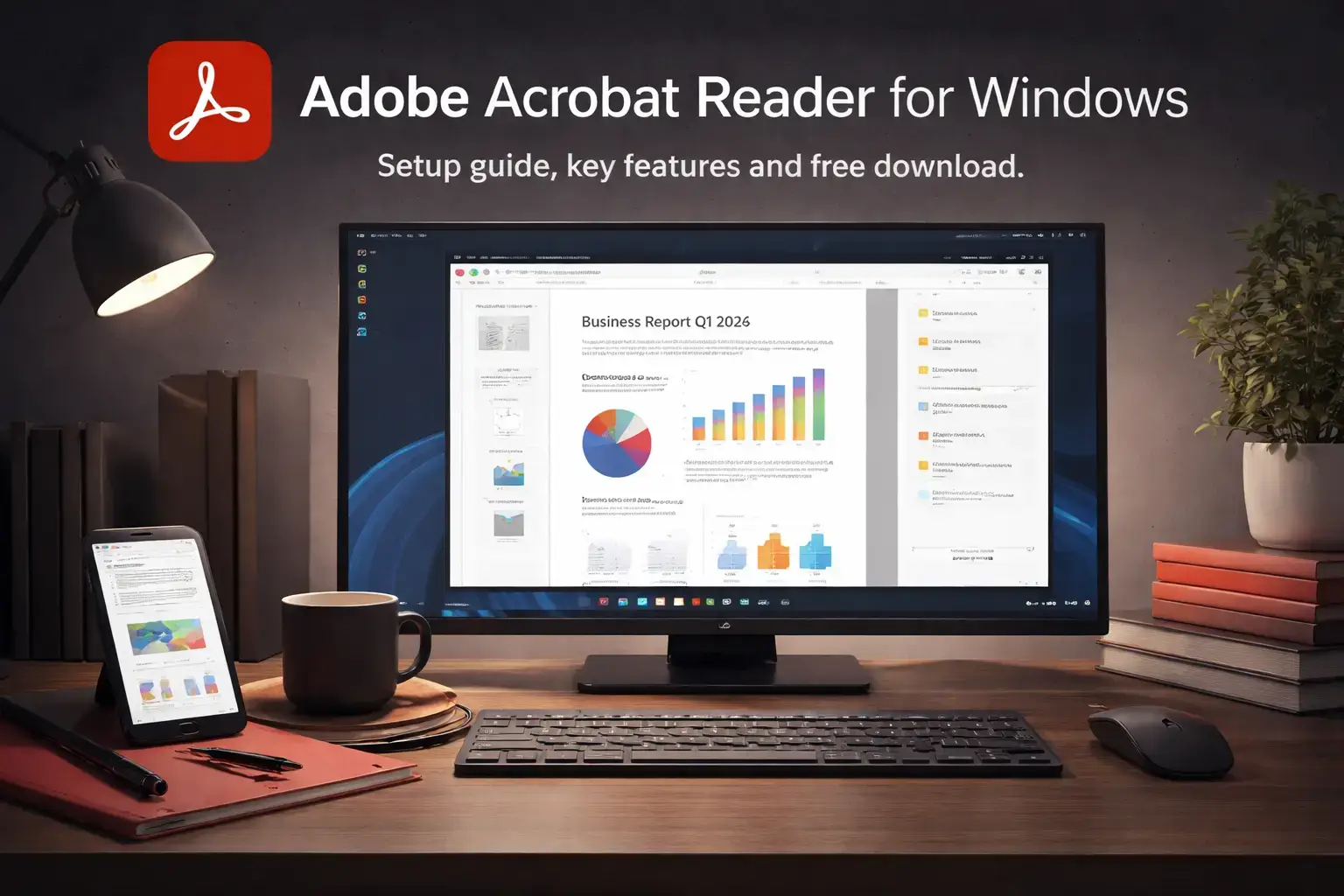
Adobe Acrobat Reader is the free PDF viewer from Adobe, available for Windows 10 and Windows 11 via Microsoft Store or the official website Adobe.com. It is the tool most people already have installed when someone sends them a PDF. You can read, scroll, zoom, search, annotate, fill forms, and sign documents without paying anything.
The free version covers most of what everyday users need. What it cannot do is edit the text or images inside a PDF file. For that, you need to upgrade to Acrobat Standard or Acrobat Pro, both of which are paid subscriptions.
Adobe Acrobat Reader has been around since 1993. It is the original, and the version most people refer to when they say “Adobe Reader.” Adobe renamed it from Adobe Reader to Adobe Acrobat Reader in 2015, then dropped the “DC” suffix in 2022.
Already using it? Tell us in the poll below. Got questions? Reach out to us directly.
What You Need to Know
- Adobe Acrobat Reader is free. Viewing, annotating, signing, and sharing PDFs all cost nothing.
- You cannot edit text or images inside a PDF with the free version. That requires a paid plan.
- An Adobe account is optional for basic use, but required for cloud storage, document sharing, and the AI Assistant.
Price
Free
Developer
Adobe
Windows
10 / 11
Also On
Mac, iOS, Android
File Size
~300 MB
Download Adobe Acrobat Reader (Free)
How to Get Adobe Acrobat Reader on Windows
To download and install Acrobat Reader, you can get it either from the official website, adobe.com or from the Microsoft Store, below are the steps.
- Step 1. Go to get.adobe.com/reader and click the Download Acrobat Reader button.
- Step 2. Uncheck any optional offers on the download page if you do not want them.
- Step 3. Open the downloaded installer file from your Downloads folder.
- Step 4. Follow the on-screen prompts. The install is straightforward with no settings to configure.
- Step 5. Click Finish when done. Acrobat Reader will open and is ready to use.
You can also get it from the Microsoft Store if you prefer app-managed updates. Both installs are the same product.

What Is Adobe Acrobat Reader?
Adobe Acrobat Reader is the free PDF viewer that Adobe has shipped since 1993. It is the standard tool for opening PDF files on Windows, and for good reason. The PDF format itself was created by Adobe, so the Reader is the tool that sets the standard for how PDFs are supposed to look and behave.
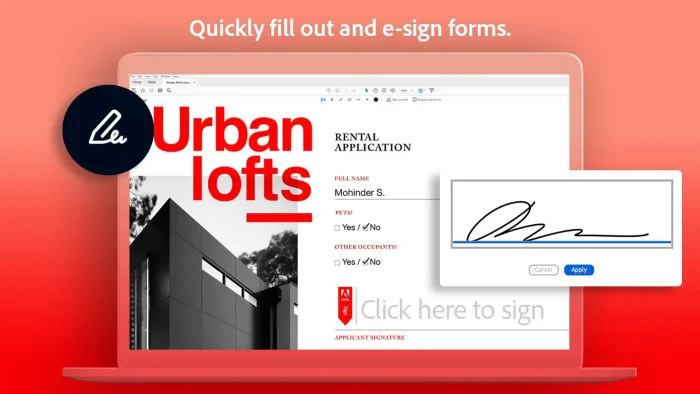
The free version is genuinely capable. You can read any PDF, search inside it, highlight text, add comments and sticky notes, fill out forms, and sign documents with a drawn or typed signature. Where the free version stops is editing. You cannot change the text in a PDF, replace images, rearrange pages, or convert a PDF to Word or Excel without a paid plan.
Adobe offers two paid tiers above the free Reader: Acrobat Standard (editing and conversion) and Acrobat Pro (everything in Standard plus OCR, which turns scanned pages into searchable text, redaction to permanently black out sensitive information, accessibility tools, and AI features). Most home users will never need anything beyond the free Reader.
Key Features
PDF Viewing
Open any PDF file. Zoom in and out, scroll through long documents, search for any word or phrase, and jump to specific pages. Works with PDFs from any source.
Annotation Tools
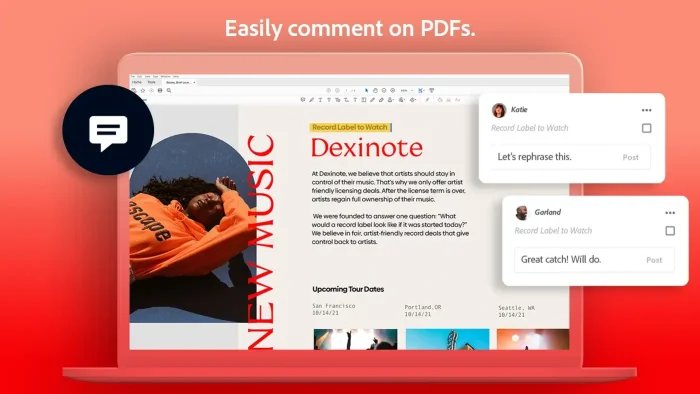
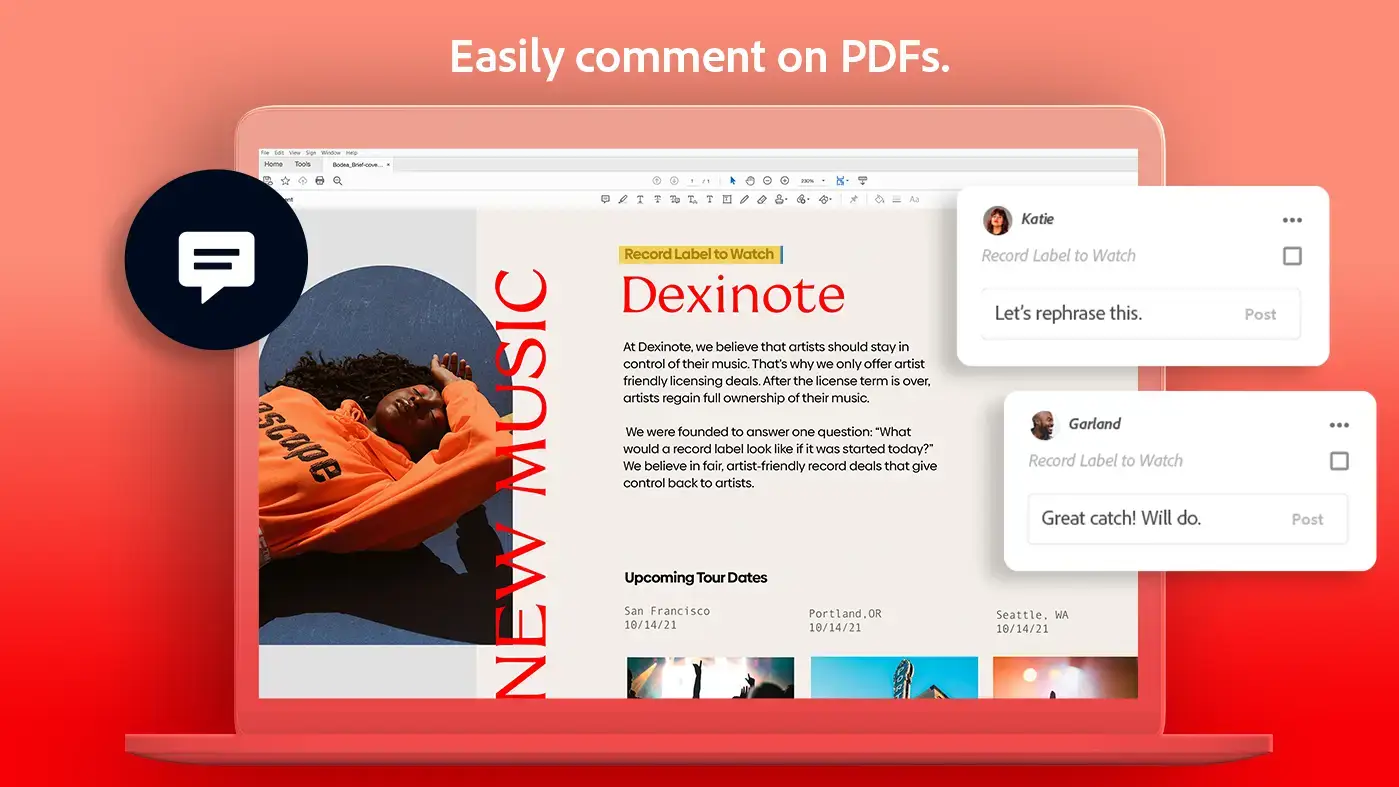
Highlight text, underline, strikethrough, add sticky notes, and draw freehand. All annotations are saved in the PDF and visible to anyone you share it with.
Form Filling
Type into interactive PDF forms and save the completed file. Acrobat Reader also has smart autofill that suggests answers from your previous form responses.
Digital Signatures
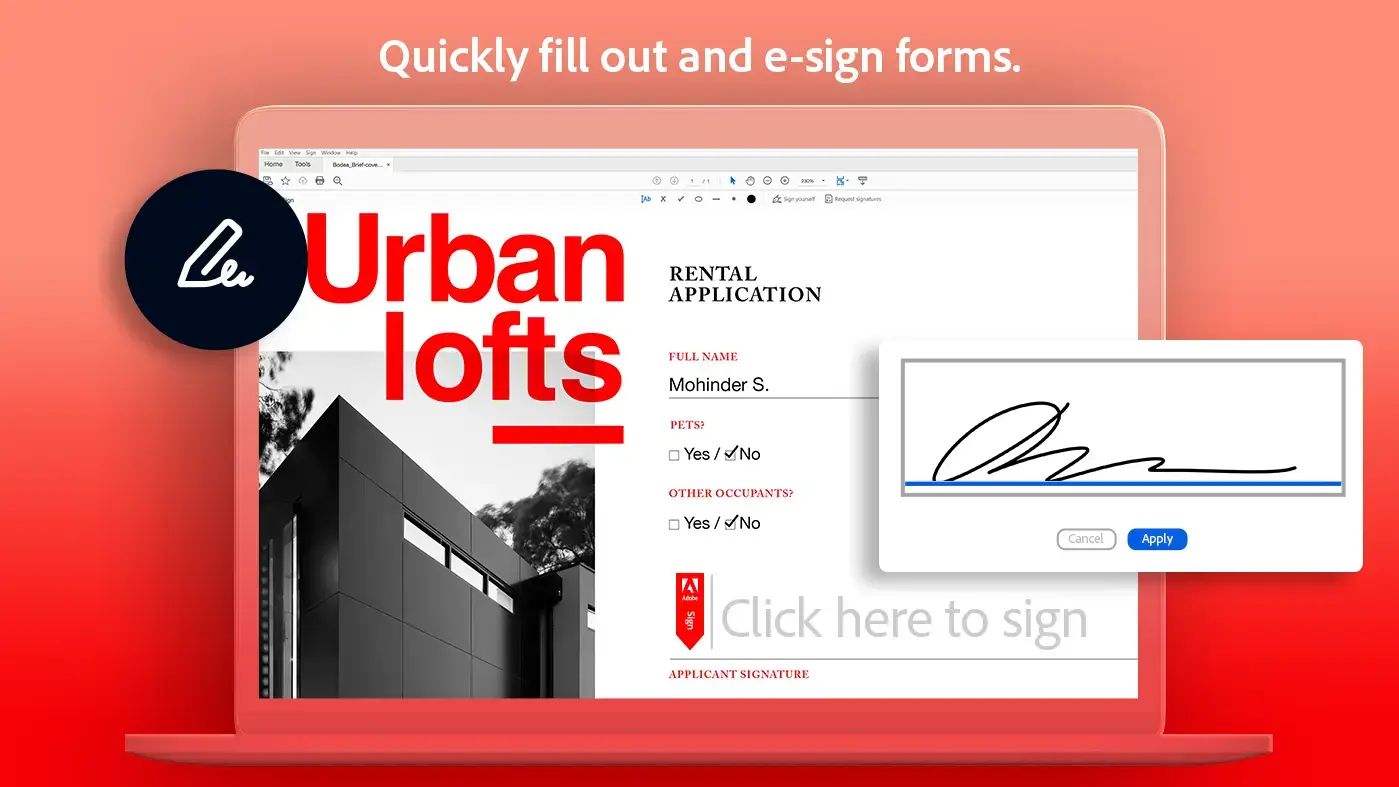
Sign PDFs by typing your name, drawing a signature, or uploading an image of your signature. The signed file saves as a standard PDF that anyone can open.
Share and Collaborate
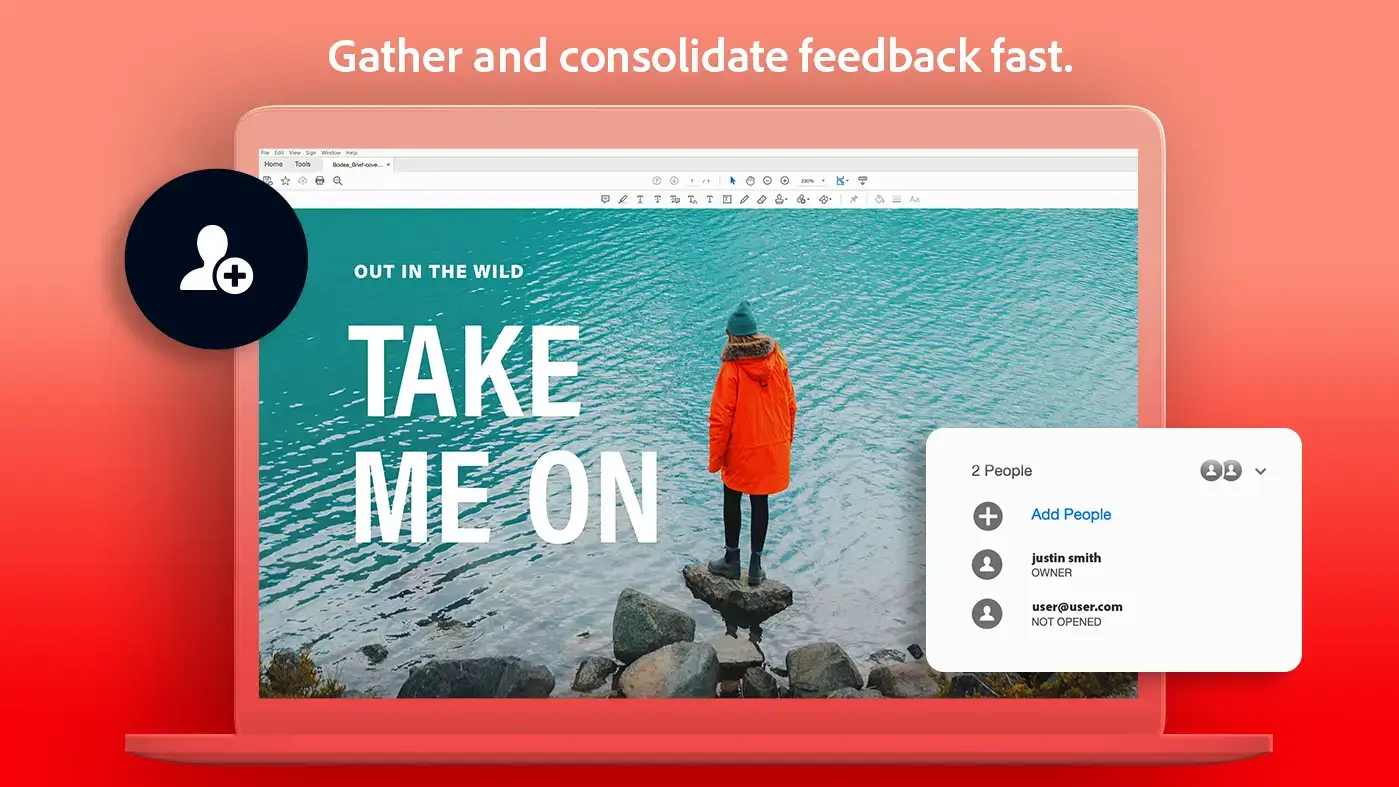
Send a PDF to anyone using the Share feature. The recipient does not need an Adobe account to view or leave comments. Comments sync back to your copy automatically.
AI Assistant (Paid add-on)
Ask questions about a PDF and get cited answers. Summarize long documents in one click. Available to users with an Acrobat Standard or Pro subscription. Not included in the free Reader.
System Requirements
| Requirement | Details |
|---|---|
| Operating System | Windows 10 version 1809 or later (32-bit and 64-bit) / Windows 11 (64-bit only) |
| Processor | Intel or AMD, 1.5 GHz or faster |
| RAM | 2 GB minimum |
| Storage | 900 MB free disk space (64-bit) / 4.5 GB (32-bit) |
| Display | 1024×768 minimum screen resolution |
| Internet | Required for cloud features, sharing, and AI tools. Not required for offline PDF viewing. |
Plans and Pricing
| Plan | Price | What’s Included |
|---|---|---|
| Acrobat Reader | Free | View, annotate, sign, fill forms, share PDFs. No editing. |
| Acrobat Standard | from $12.99/mo | Everything in Reader plus PDF editing, file conversion (to/from Word, Excel, PowerPoint), and e-signature tracking. |
| Acrobat Pro | from $19.99/mo | Everything in Standard plus OCR (turns scanned pages into searchable text), redaction (permanently blacks out sensitive content), advanced accessibility tools, PDF comparison, and AI Assistant. |
Prices shown are annual plan rates. Monthly billing costs more. Check adobe.com/acrobat/pricing for current numbers.
How Adobe Acrobat Reader Works
Open a PDF
Double-click any PDF file on your computer. Acrobat Reader opens it automatically if set as the default viewer.
Read and navigate
Scroll, zoom, search for keywords, or jump to a specific page using the page number box.
Annotate or sign
Use the toolbar to highlight text, add comments, fill forms, or add your signature.
Save and share
Save the annotated file to your computer or share it directly from Reader. Recipients see your comments without needing an Adobe account.
Adobe Acrobat Reader vs. the Alternatives
| Tool | Price | Best For | Can Edit PDFs? |
|---|---|---|---|
| Adobe Acrobat Reader | Free | Viewing, annotating, signing | No |
| Adobe Acrobat Pro | from $19.99/mo | Full PDF editing, text extraction from scans, AI tools | Yes |
| Drawboard PDF | Free / paid tiers | Stylus and pen annotation on touch screens | Limited |
| Microsoft Edge | Free (built-in) | Quick viewing without installing anything | No |
Tips for Getting Started
Tip 1. Set Acrobat Reader as your default PDF viewer
After installing, right-click any PDF file on your computer, choose Open with, then Set as default. Every PDF will now open in Acrobat Reader instead of Edge or another app. This saves the extra step of choosing the app every time.
Tip 2. Use Ctrl+F to search inside any PDF
Press Ctrl+F to open the search bar inside Acrobat Reader. It works just like searching a web page. Every match in the document is highlighted and you can step through them one by one. Useful for long contracts, reports, or manuals.
Tip 3. Sign documents without printing them
Open the Fill and Sign tool from the toolbar. Click where your signature needs to go, then type your name or draw it with your mouse. Save the file and send it back. No printing, scanning, or faxing needed.
Tip 4. Uncheck optional extras during install
The Adobe download page sometimes bundles optional software like McAfee Security Scan. Look at the checkboxes before you click Download and uncheck anything you do not want. The Reader itself is clean and does not need them.
Tip 5. Keep auto-updates enabled
Adobe releases security patches for Acrobat Reader regularly. PDFs are a common attack vector and older versions have known vulnerabilities. Go to Help, then Check for Updates, and leave automatic updates turned on. It runs silently in the background.
Quick Poll
Which PDF tool do you use most on Windows?
Screenshots
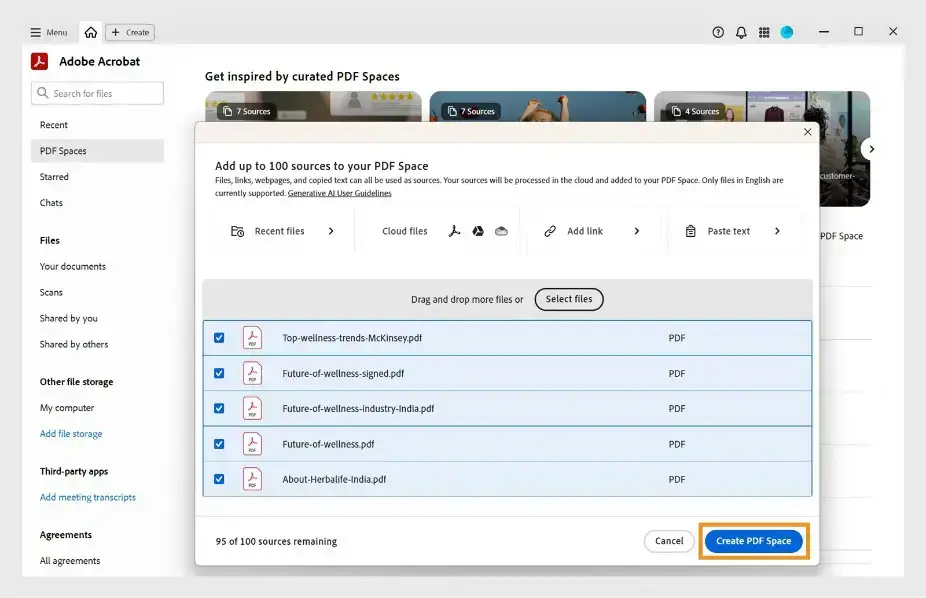
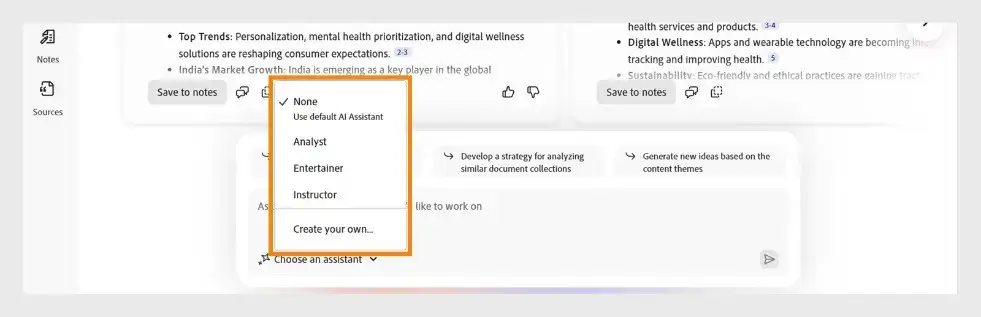
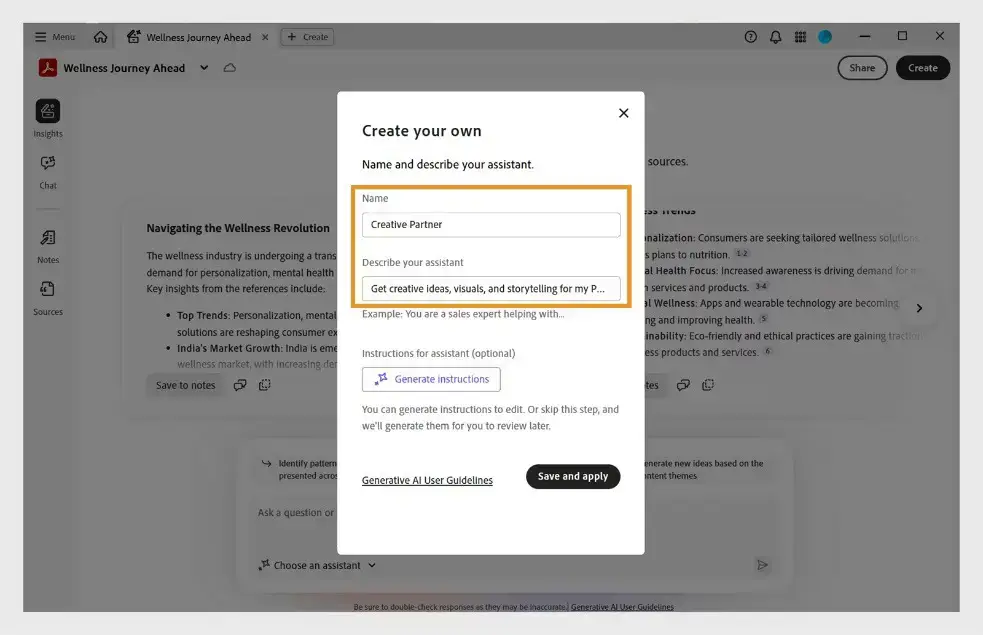
Adobe Acrobat Reader running on Windows 11, showing the annotation toolbar, fill and sign tools, and the PDF navigation panel.
FAQ
Is Adobe Acrobat Reader free?
Yes. Adobe Acrobat Reader is free to download and use on Windows. The free version covers PDF viewing, annotation, form filling, and digital signatures. Paid plans (Acrobat Standard and Acrobat Pro) add PDF editing, file conversion, and AI features.
What is the difference between Adobe Acrobat Reader and Adobe Acrobat Pro?
Acrobat Reader is the free PDF viewer. It lets you read, annotate, sign, and share PDFs but you cannot edit the text or images inside a PDF. Acrobat Pro is a paid subscription that adds editing, file conversion, OCR (which turns scanned pages into text you can search and copy), redaction (permanently blacking out sensitive information), and AI tools.
Does Adobe Acrobat Reader work on Windows 11?
Yes. Adobe Acrobat Reader runs on Windows 10 (version 1809 or later) and Windows 11, both 32-bit and 64-bit. The 64-bit version requires Windows 10 v1809 or later, or Windows 11.
Do I need an Adobe account to use Acrobat Reader?
You can install and use Acrobat Reader without an account for basic PDF viewing. An Adobe account is required to access cloud features like document storage, sharing, and the AI Assistant.
What happened to Adobe Reader? Is it the same as Acrobat Reader?
Yes, they are the same product. Adobe rebranded Adobe Reader to Adobe Acrobat Reader in 2015 when it introduced Document Cloud. More recently, Adobe dropped the “DC” suffix and the product is now simply called Adobe Acrobat Reader.
Support and Community
Official links for help, updates, and discussion.
- Adobe Acrobat Reader official help and tutorials
- Adobe Acrobat Reader community forum
- r/acrobat on Reddit
More Adobe apps for Windows: Adobe Photoshop Express · Adobe Photoshop Elements · Adobe Premiere Pro · Drawboard PDF