

Readers like you help support this site. When you make a purchase using links on our site, we may earn an affiliate commission. All opinions remain our own.


You can download Autodesk Civil 3D 2026 on your Windows PC with a 30-day free trial via our trusted affiliate link, with subscriptions starting at $320/month or $2520/year.
Built by Autodesk since 2008, it works on Windows 10 and 11, used by millions for civil engineering design.
If you’re an engineer, surveyor, or planner working on roads, railways, or drainage, you need a tool that’s precise and efficient.
This guide covers installing it on Windows, its key features, and tips to get started.
Share your favorite Civil 3D tip below, or contact us for help.
How to Download & Install Autodesk Civil 3D on PC
To get Autodesk Civil 3D 2026 on your Windows PC, download it via our trusted affiliate link. Here’s how:
- Official Affiliate Link
- Visit the page: Autodesk Civil 3D.
- Click Download to start your 30-day free trial.
- Run the installer (about 3 GB) and sign in with an Autodesk account.
- Choose trial or subscribe to activate.
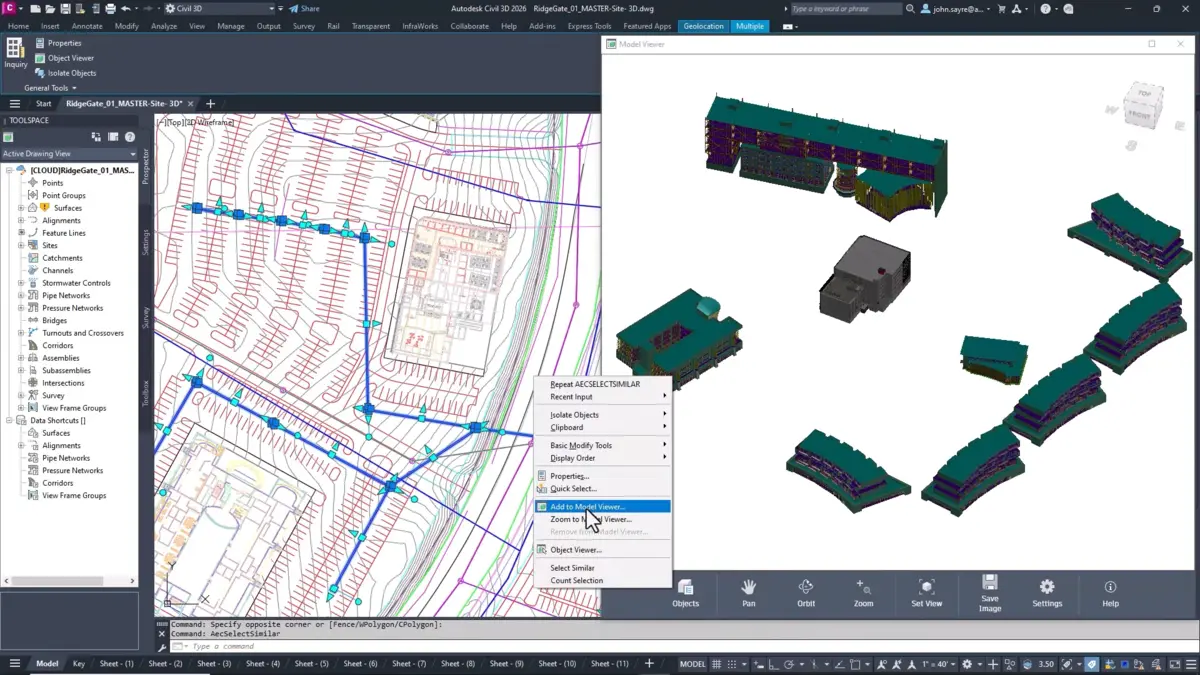
Quick Tip: 💡 Use the 3D Model Viewer to check your design in real-time for quick feedback.
Buy & Download via Official Site
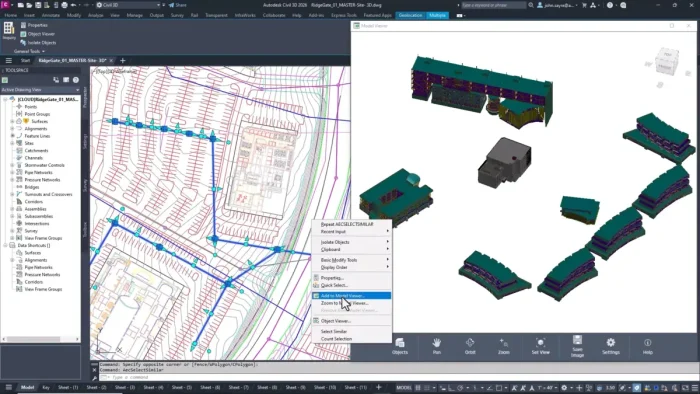

What is Autodesk Civil 3D About?
Autodesk Civil 3D, launched by Autodesk in 2008, is a civil engineering design and documentation app for creating 3D models of infrastructure like roads, bridges, and drainage systems.
It includes Dynamo for automation and ReCap Pro for point cloud integration.
Users on X praise its speed and coordinate tools, ideal for engineers and surveyors.
Core Features: Design and document infrastructure with precision.
Why Use Autodesk Civil 3D on Windows?
It’s industry-standard, fast, and boosts collaboration on complex projects.
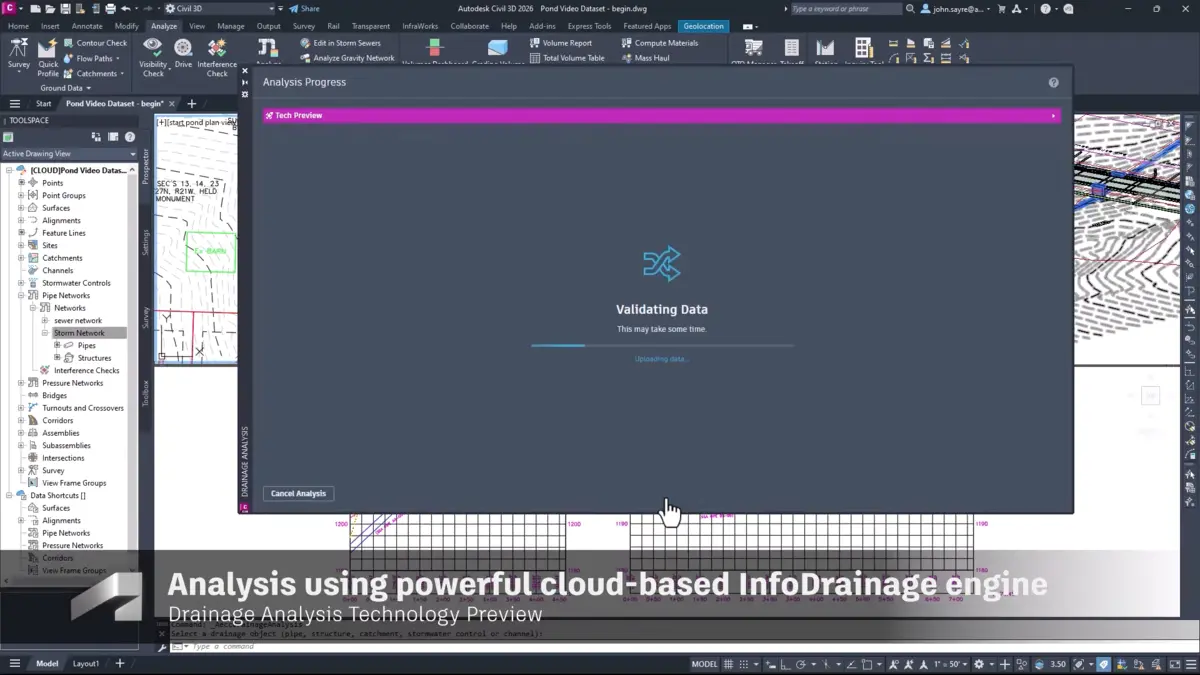
- Automate drainage design with Dynamo nodes
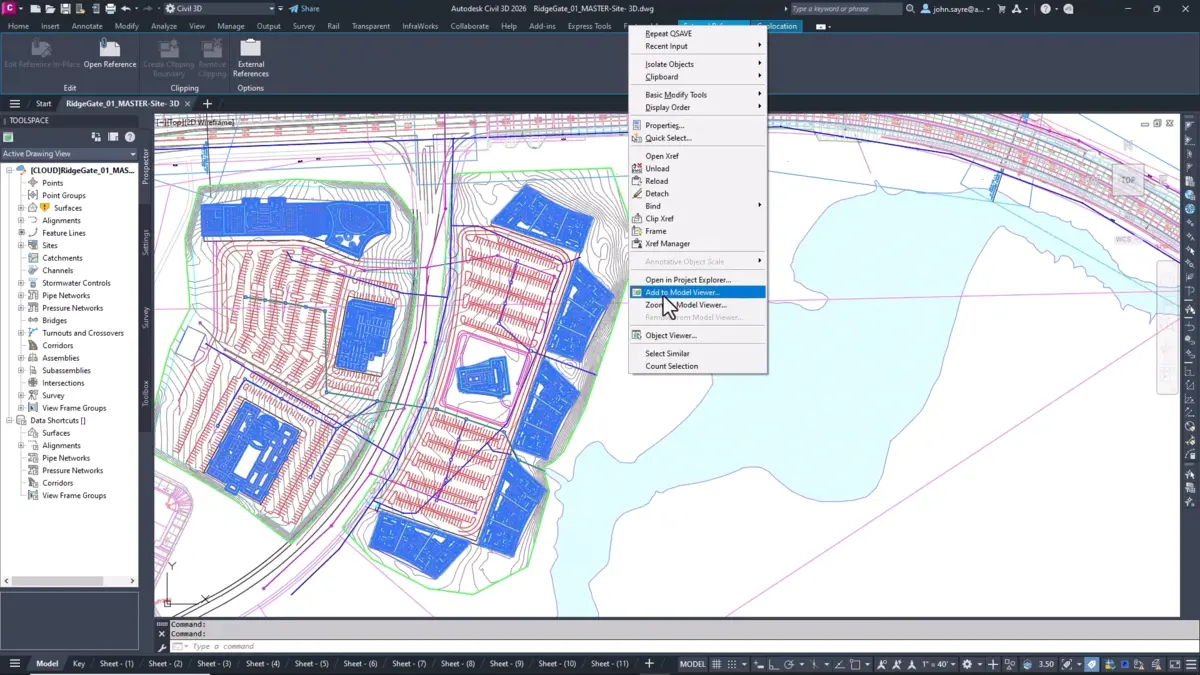
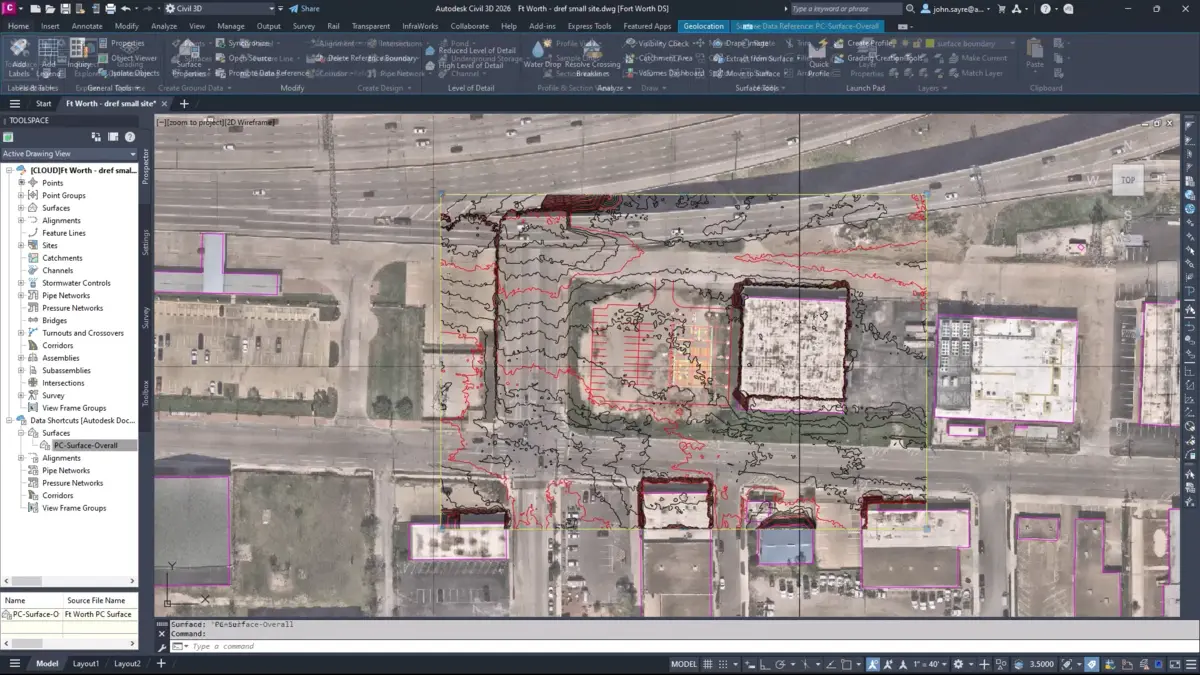
- Reference partial surface data for faster workflows
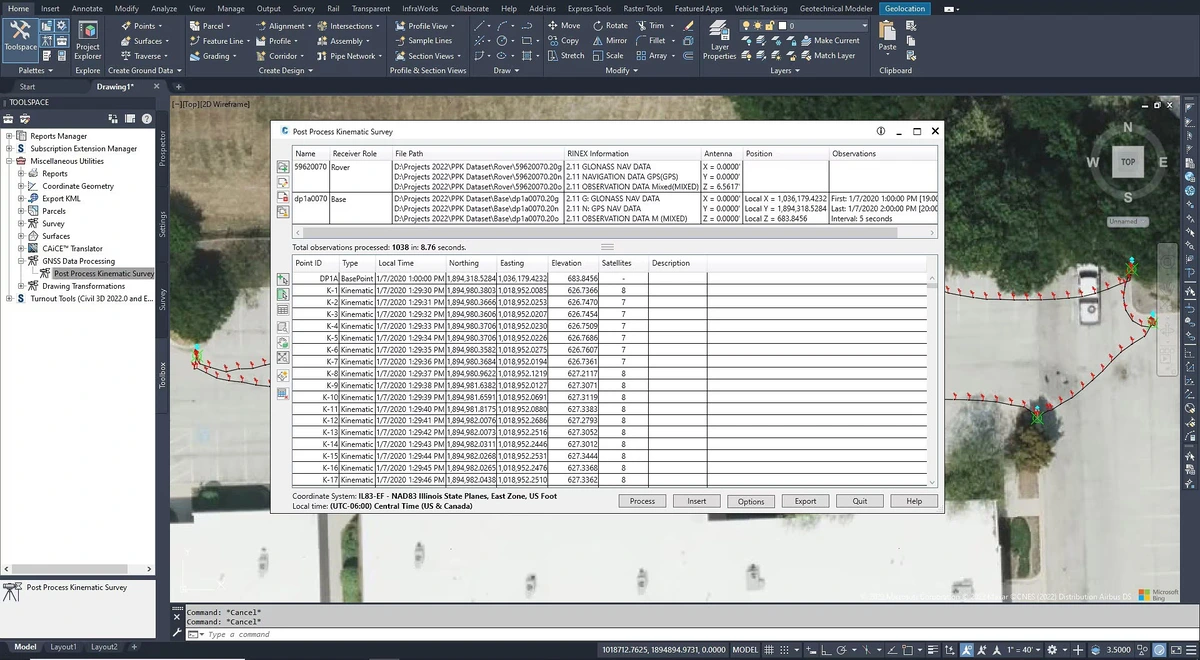
- Transform coordinates for accurate alignments
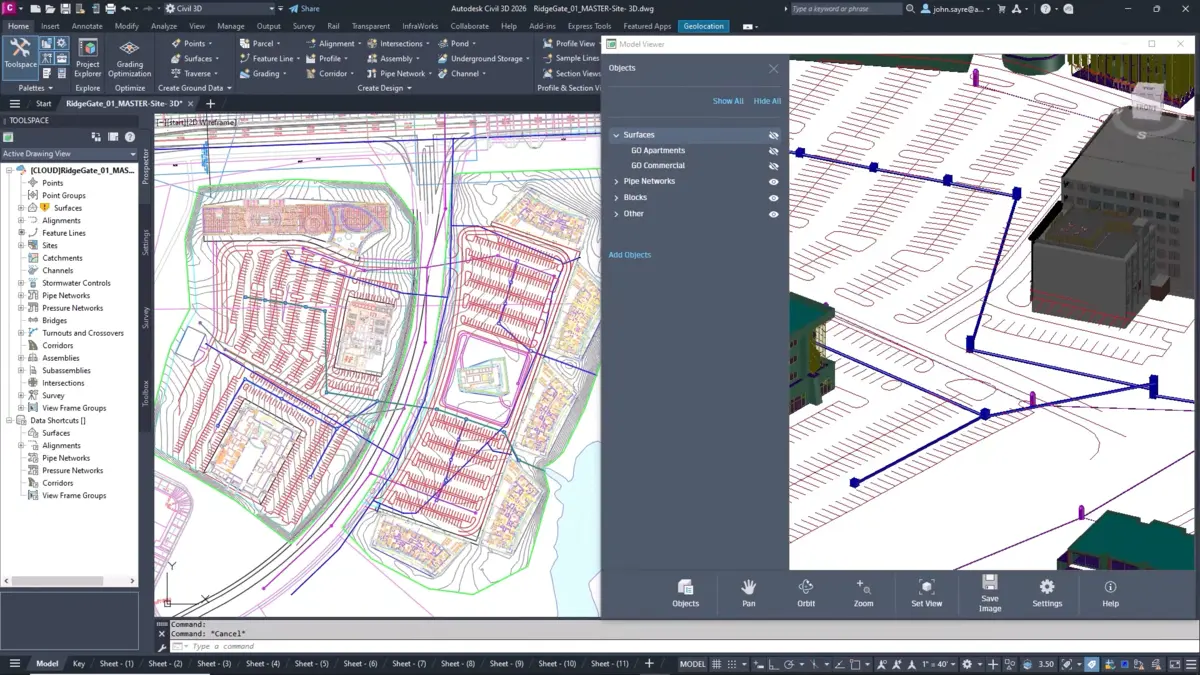
- Visualize designs with 3D Model Viewer
- Integrate point clouds with ReCap Pro
Get Civil 3D 2026 with a discount
Popular Projects and Industries Using Civil 3D
Civil 3D is used in major infrastructure projects and industries, including:
- Projects: California High-Speed Rail (AECOM), Crossrail (UK), Dubai Metro Expansion
- Industries: Transportation (roads, railways), Water Management (drainage, dams), Urban Planning
Quick Start Guide for Autodesk Civil 3D
New to Civil 3D? Get going quick:
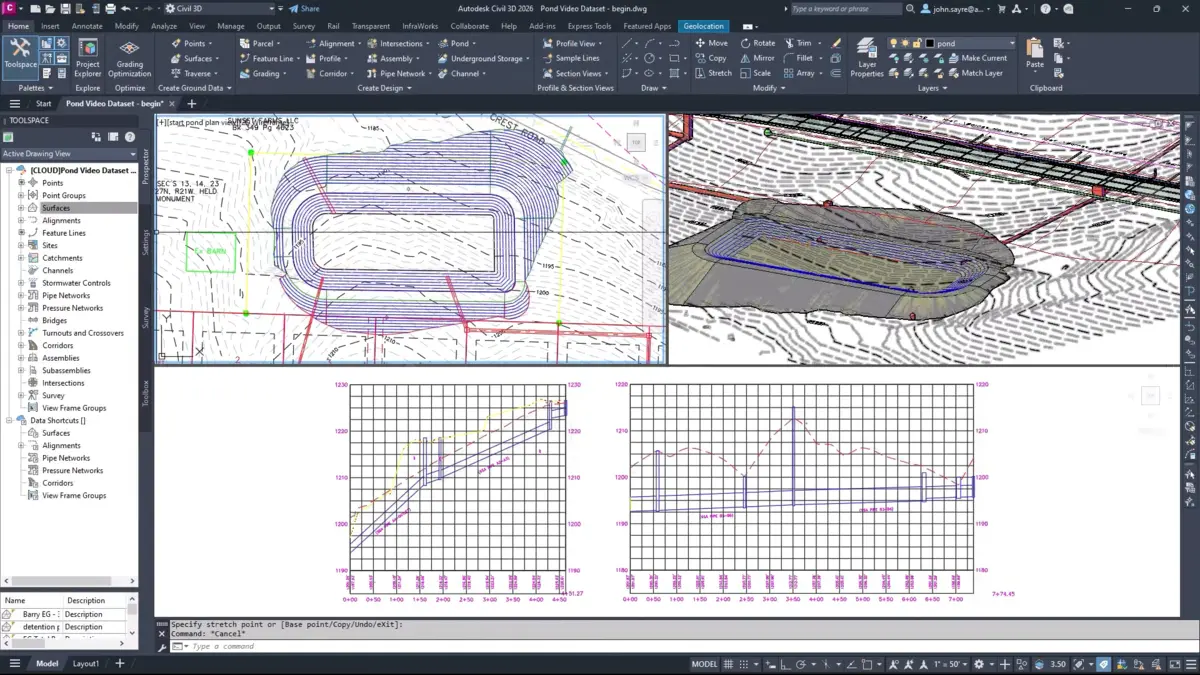
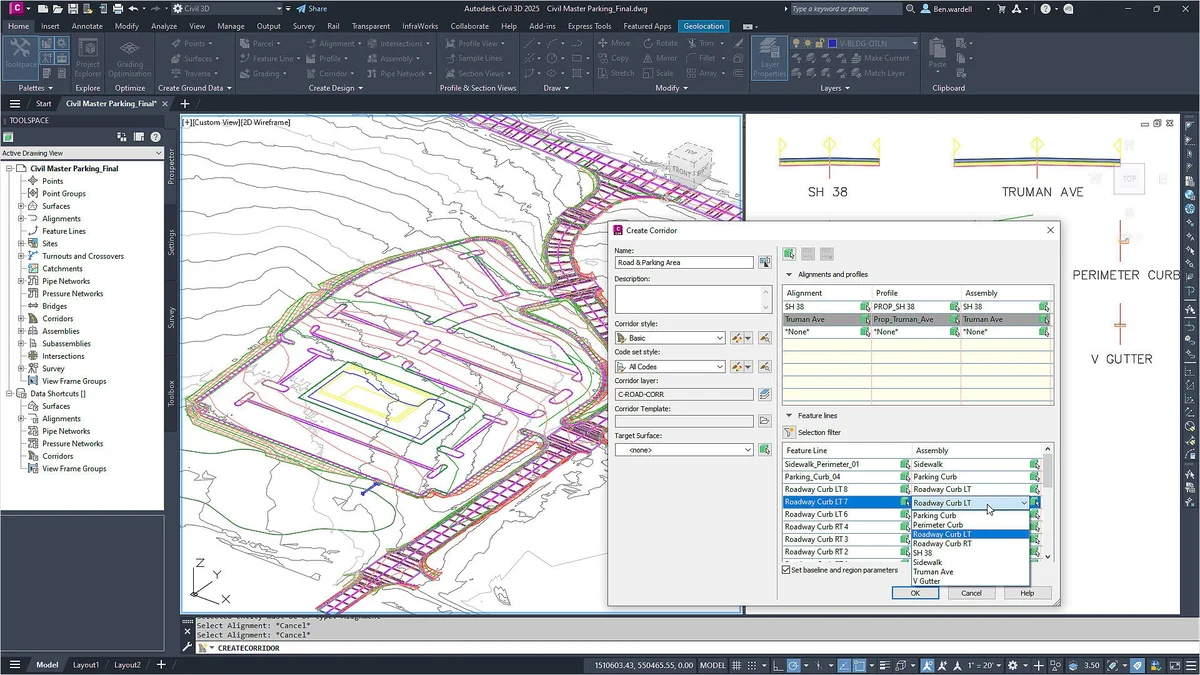
- Create a corridor for a road in the Design workspace.
- Use Dynamo to automate a drainage catchment.
- Import a point cloud via ReCap Pro for terrain.
Best Settings for Autodesk Civil 3D on PC
Tweak these for a better experience:
- Performance: Enable hardware acceleration in Options.
- Design: Set NAVD 88 datum in Coordinate Settings.
- Collaboration: Use Autodesk Docs for cloud syncing.
Common Issues & Fixes for Autodesk Civil 3D
- Slow Corridors: Reduce surface data or update drivers.
- Dynamo Errors: Ensure Dynamo Core 3.4.1 is installed.
- Point Cloud Fails: Reprocess in ReCap Pro.
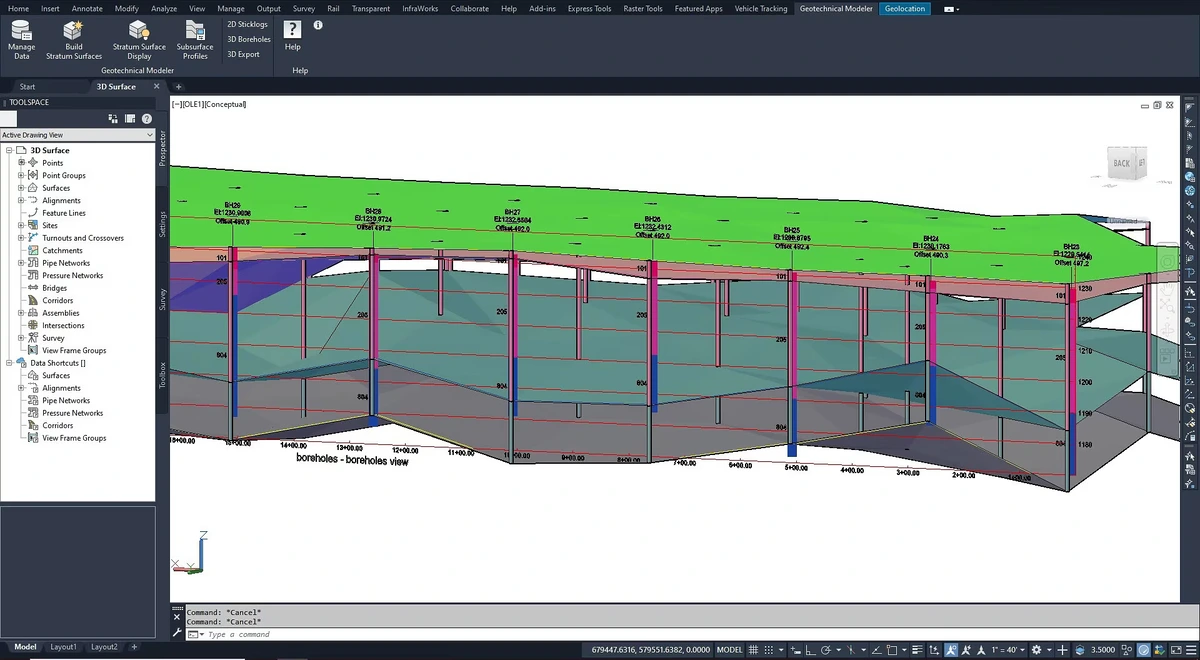
Autodesk Civil 3D Screenshots



Autodesk Civil 3D Beginner’s Video
Watch this quick guide to learn how to use Autodesk Civil 3D on your PC:

Buy Civil 3D from Autodesk with our special discount
System Requirements for Autodesk Civil 3D on Windows
- OS: Windows 10, 11 (64-bit)
- CPU: Multi-core Intel or AMD, 3 GHz or faster
- RAM: 16 GB minimum, 32 GB recommended
- Storage: 20 GB free
- Other: Internet, 1920×1080 display, DirectX 11 GPU
Autodesk Civil 3D on Windows FAQ
- Is Civil 3D free for students? Yes, one-year access via Autodesk Education.
- Does it support point clouds? Yes, with ReCap Pro integration.
- Can it handle large surfaces? Yes, with partial data referencing.
Support and Community
Explore More Windows Apps: Autodesk 3ds Max, Autodesk Maya, AutoCAD, Revit