

Readers like you help support this site. When you make a purchase using links on our site, we may earn an affiliate commission. All opinions remain our own.

The best photo editors for Windows right now are Luminar Neo, Affinity Photo, GIMP, and Canva.
Three of those four cost nothing. Affinity Photo is now completely free. Luminar Neo puts AI tools front and center. And a handful of one-time-purchase apps have gotten genuinely good.
This list covers 15 photo editors for Windows, from free tools to professional subscription software. We ranked them by how useful they are to real Windows users in 2026, not by how long they have been around. GIMP is not #1 here. Luminar Neo is, and we will explain why.
Already using one of these? Tell us what you think. Got a question before you choose? Reach out and we will help.
What you need to know
- Affinity Photo is now free. Canva acquired Affinity and dropped the price to zero in 2025. It is the biggest shift in free photo editing in years.
- Luminar Neo leads on AI. Sky replacement, skin retouching, light adjustment, and generative tools all in one app. Subscription or one-time purchase.
- You do not need a subscription. GIMP, Paint.NET, Photopea, Darktable, and Affinity Photo are all free. PaintShop Pro and ACDSee are one-time buys.
What we look for
- Windows compatibility – works on Windows 10 and Windows 11 without workarounds
- Price model – free tier, one-time purchase, or subscription with clear value
- AI tools – useful AI features, not just a marketing label
- Learning curve – honest about who the tool is actually for
- RAW support – matters for photographers shooting in RAW format
What are the Top Photo Editors for PC?
Editor’s Pick
#1 – Luminar Neo
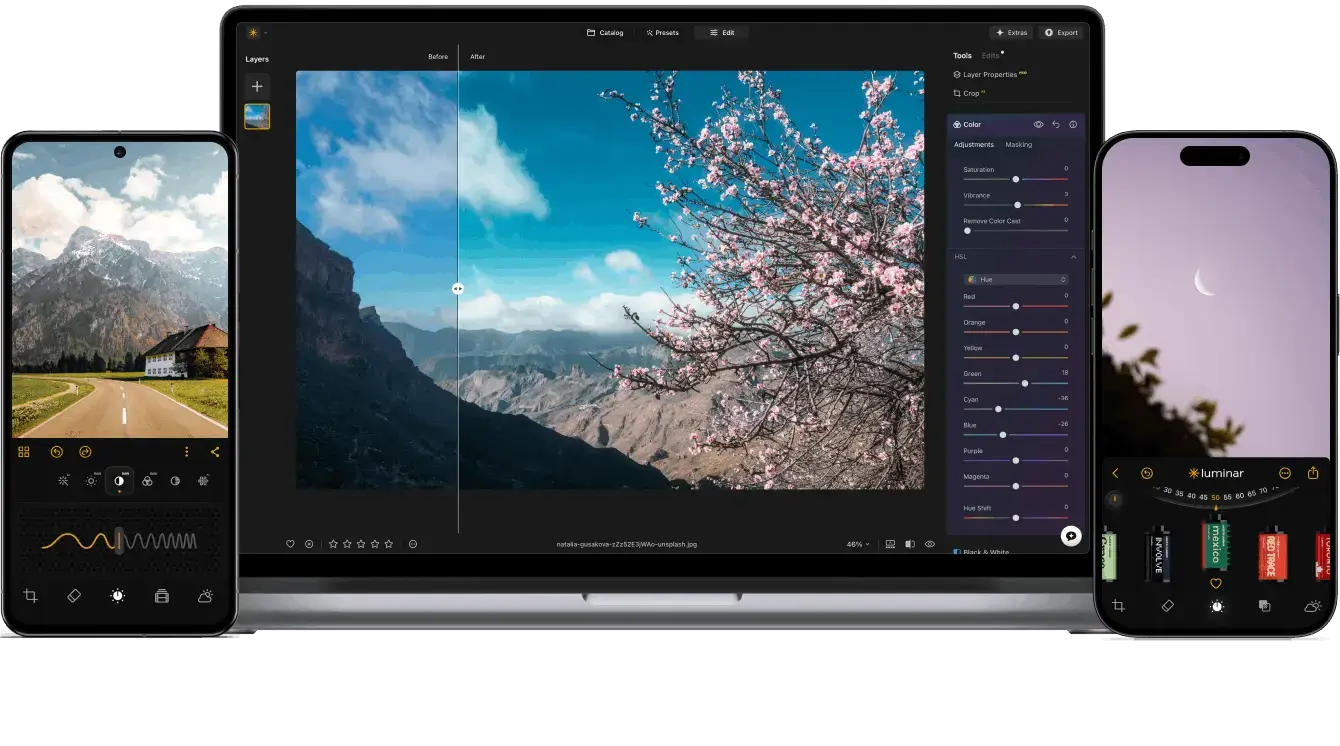

Luminar Neo is the most complete AI photo editor available for Windows right now. It launched when AI editing was still a gimmick and helped make it a standard feature. Sky replacement, skin retouching, background removal, light depth adjustment, and AI object tools (GenErase removes objects, GenExpand stretches the frame, GenSwap replaces subjects) are all built in. You do not need plugins or extensions for any of it.
The pricing is flexible. You can buy a one-time license for $99 (desktop only) or $139 (desktop and mobile). Pay once, own it forever. Subscriptions start lower but add up. The one-time license is the better deal for most people.
It handles RAW files, works as a standalone editor or a plugin inside Lightroom and Photoshop, and runs well on mid-range Windows hardware. The AI tools are fast and the results are realistic rather than over-processed.
#2 – Affinity Photo (by Canva)
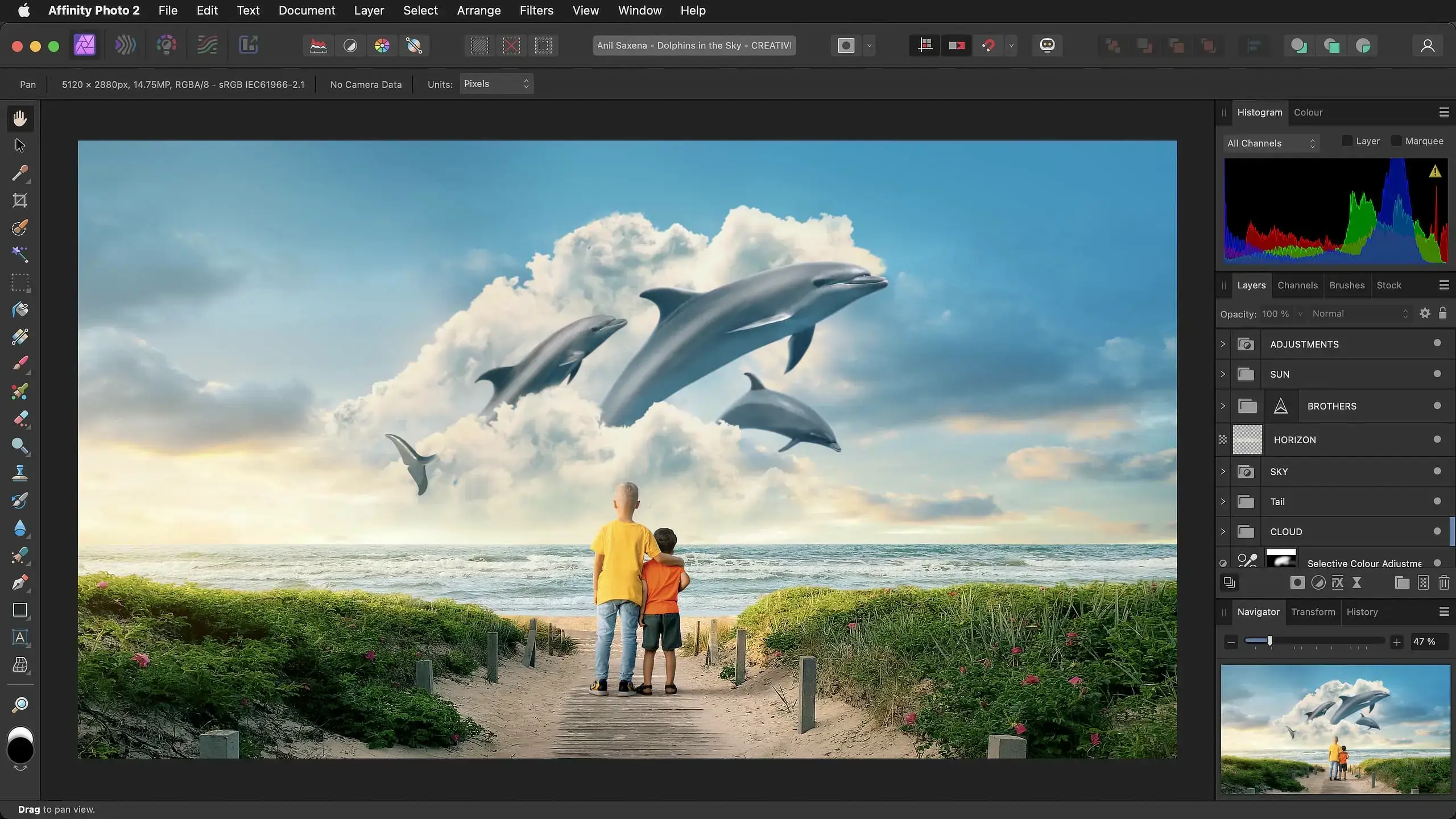

Affinity Photo used to cost $70. In 2025, Canva acquired the Affinity suite (Photo, Designer, Publisher) and made the whole thing free. No catch, no watermarks, no feature limits. This is the most significant free software news in photo editing in years.
What you get for free: layers, masks, RAW editing, HDR merging, focus stacking, batch processing, and a full retouching toolkit. It runs natively on Windows and handles large files without breaking a sweat.
If you have been paying for Photoshop just for the layer-based editing, Affinity Photo is the most direct replacement you will find at any price, let alone free.
#3 – Adobe Lightroom
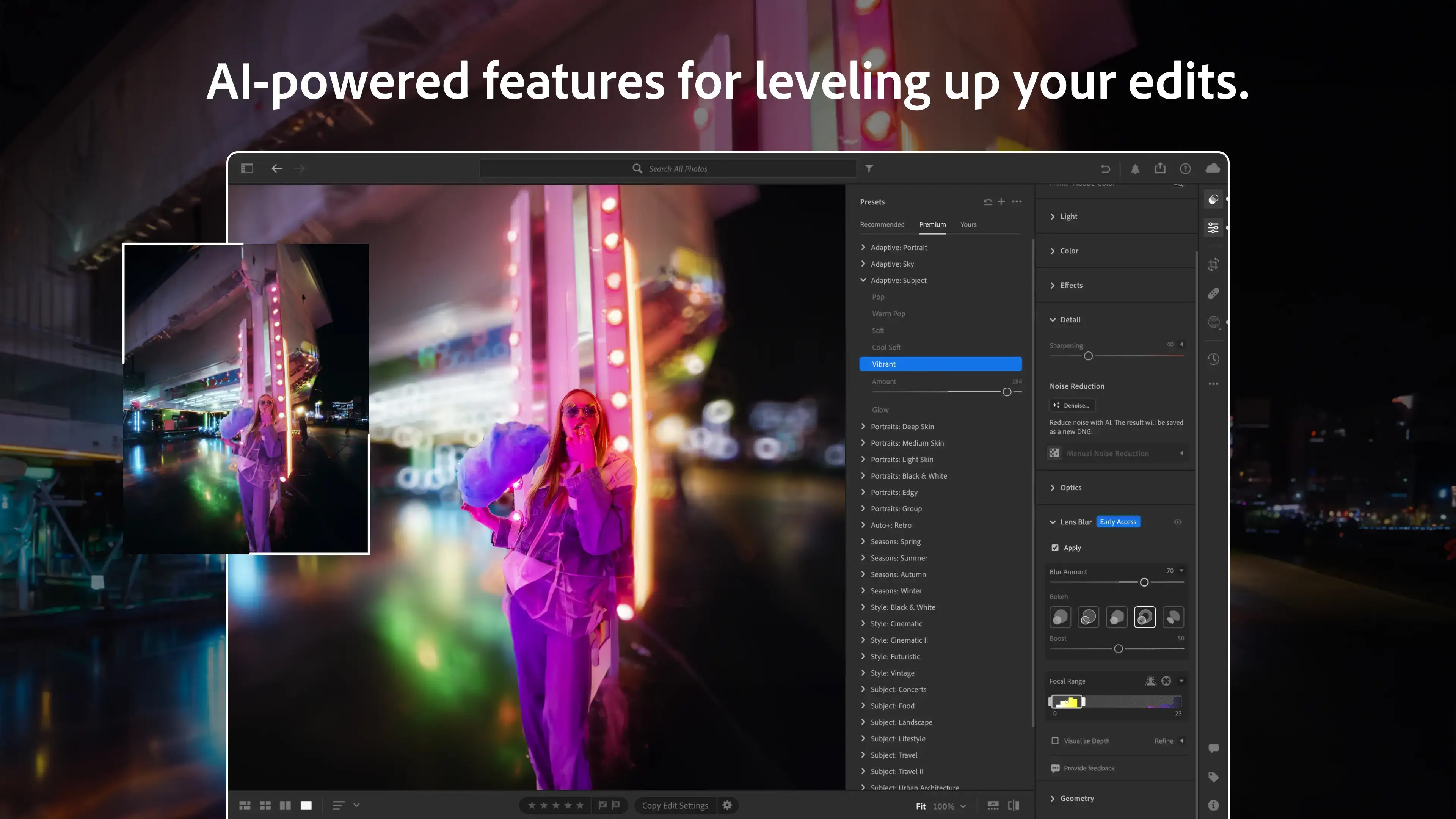

Lightroom is where most photographers live. Over 30 million Creative Cloud subscribers use it, and the reason is simple: nothing else combines photo organization, RAW editing, and multi-device sync as smoothly. The desktop app (Lightroom Classic) is the version most serious photographers prefer, as it keeps your files local rather than cloud-dependent.
AI features added in recent updates include a one-click remove tool, generative background removal, lens blur, and denoise. The Photography Plan at $19.99/month bundles Lightroom and Photoshop together, which is the best value if you need both.
The subscription cost is the main complaint. If you can live with that, Lightroom is still the most complete photo management and editing combo available.
#4 – Adobe Photoshop
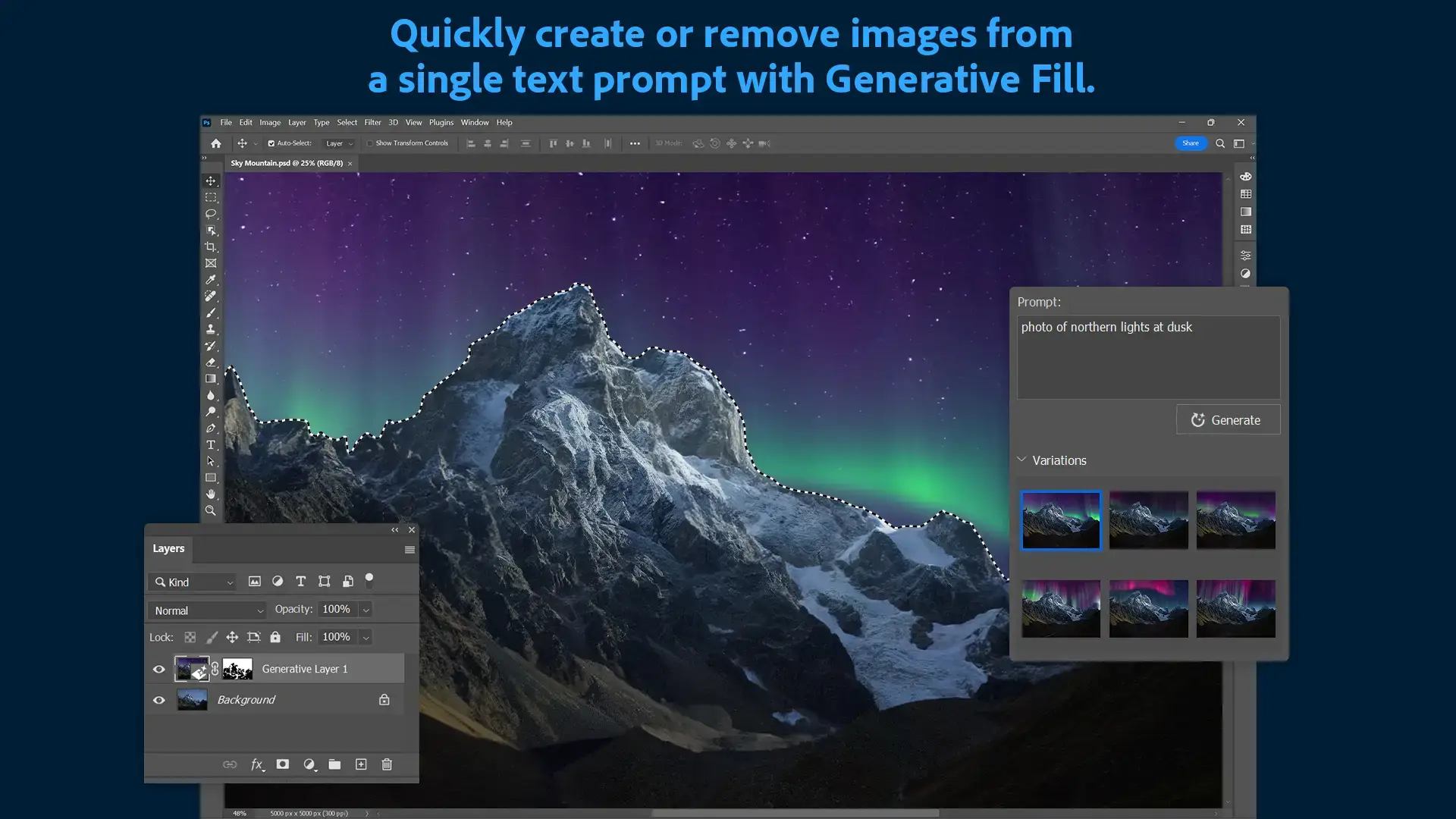

Photoshop is still the benchmark for pixel-level editing. Compositing, advanced masking, retouching, and print-ready design work are where it has no real rival. The addition of Adobe Firefly generative AI (Generative Fill, Generative Expand) has made it faster to work on complex edits that used to take hours.
The best way to get it is the Photography Plan at $19.99/month, which includes both Lightroom and Photoshop. Photoshop alone costs $22.99/month, which makes the Photography Plan the obvious choice for most people.
If you only need basic editing or photo organization, Photoshop is overkill. But if your work involves compositing, retouching, or graphic design alongside photography, nothing touches it.
#5 – Capture One
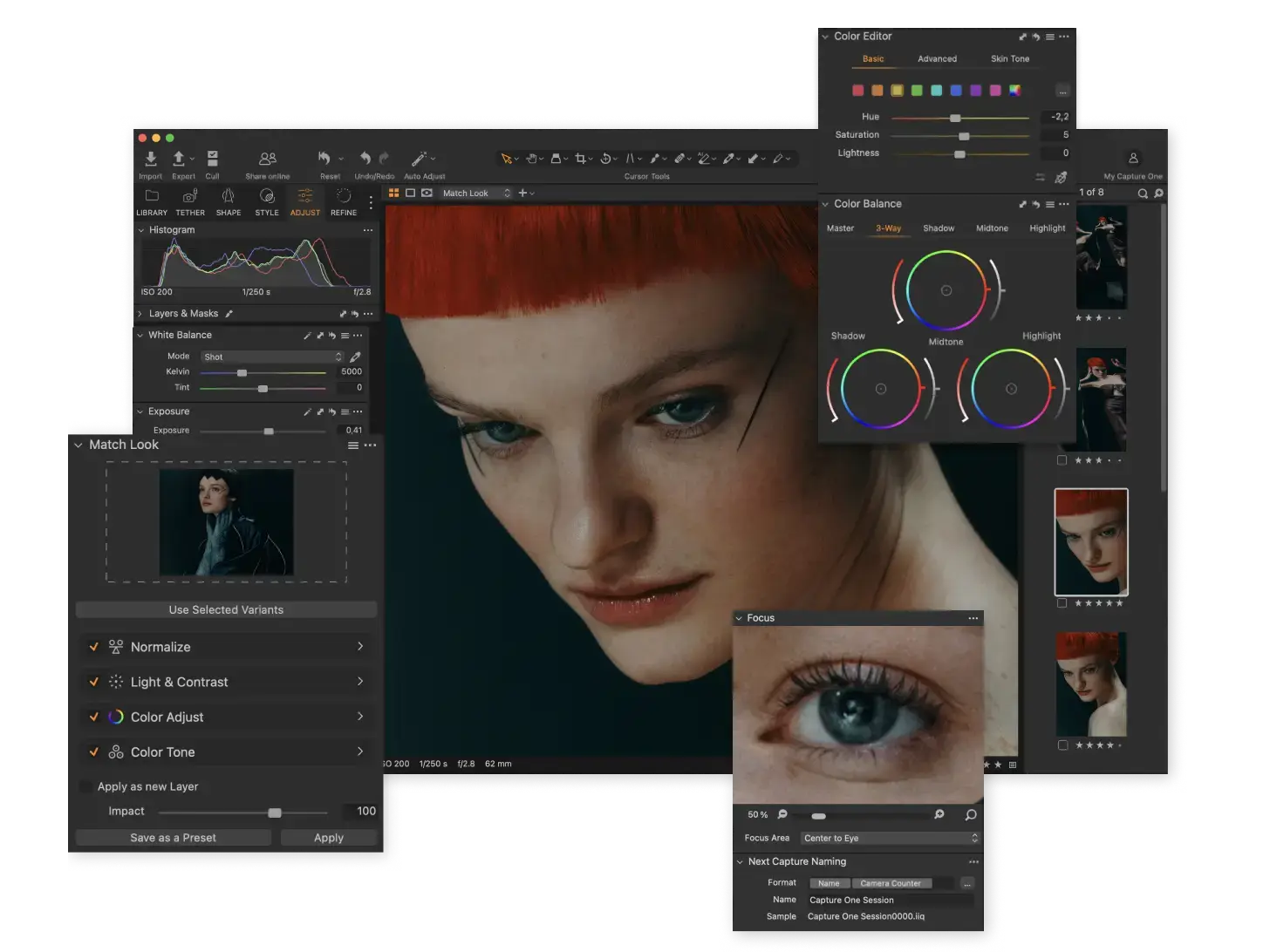

Capture One is the choice for photographers who care most about color accuracy. Its RAW processing engine produces noticeably better color rendering than Lightroom in side-by-side comparisons, particularly with skin tones and complex color gradients. Studio and commercial photographers have been moving to it for exactly this reason.
Tethered shooting (connecting your camera directly to your PC during a shoot and seeing images appear in real time) is a standout feature not available in most other editors. Capture One Pro costs $24/month or $179/year, with a 30-day free trial available.
The interface has a steeper learning curve than Lightroom. But if color is your priority and you shoot in a studio environment, this is the better tool.
#6 – Corel PaintShop Pro
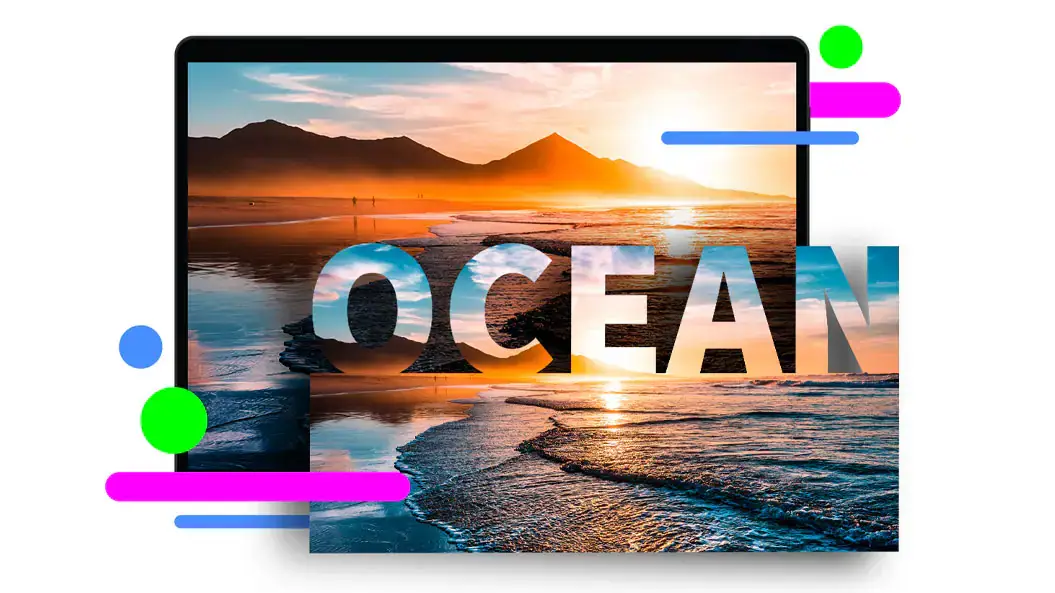

PaintShop Pro is the best argument for avoiding a subscription. $79.99 one-time gets you layers, masks, vector tools, AI upsampling, AI denoise, HDR merging, and a full retouching toolkit. It has been around for decades and has gotten genuinely good. Not just “good for the price” but good on its own terms.
Windows only is worth noting upfront. It will not run on Mac, and it is not browser-based. That is a feature for some people: it is a dedicated Windows app built specifically for the platform, and it shows in performance.
Corel also has CorelDRAW Graphics Suite if you need vector design alongside photo editing. But for photos alone, PaintShop Pro is the smarter, cheaper pick.
#7 – Topaz Photo AI
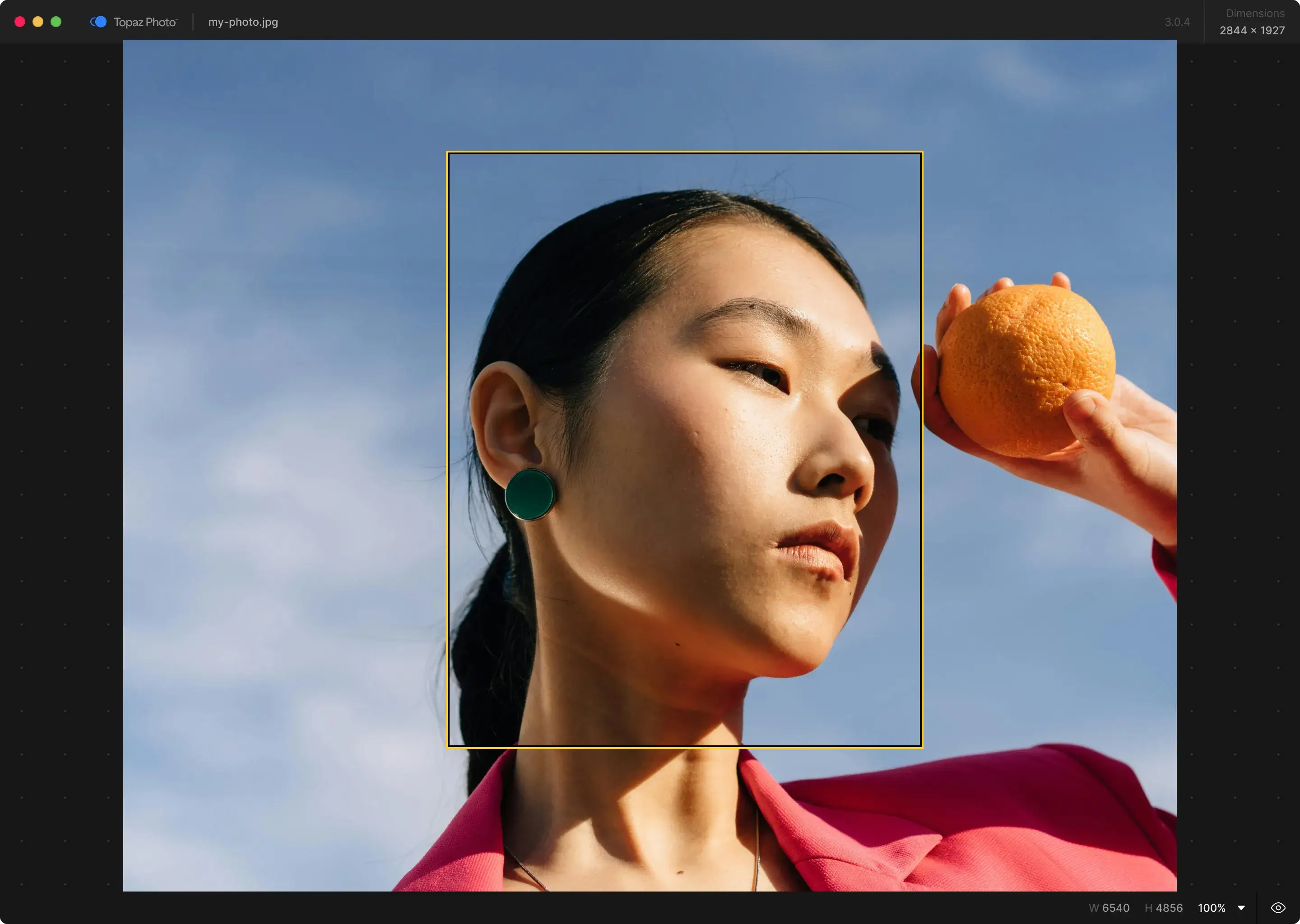

Topaz Photo AI does one thing better than any other app on this list: it makes low-quality images better. Upscaling a small image to print size, sharpening motion blur, removing noise from photos taken in low light or at night. These are tasks where Topaz consistently outperforms the AI tools built into Lightroom, Luminar, or Photoshop.
It is not a full photo editor. You still need something else for color grading and retouching. But as a specialist tool that runs alongside your main editor, it earns its place. Topaz moved to a subscription model in late 2025 at $9.99/month or $199/year.
Wildlife photographers, sports photographers, and anyone regularly dealing with blurry or noisy shots will find the most value here.
#8 – GIMP
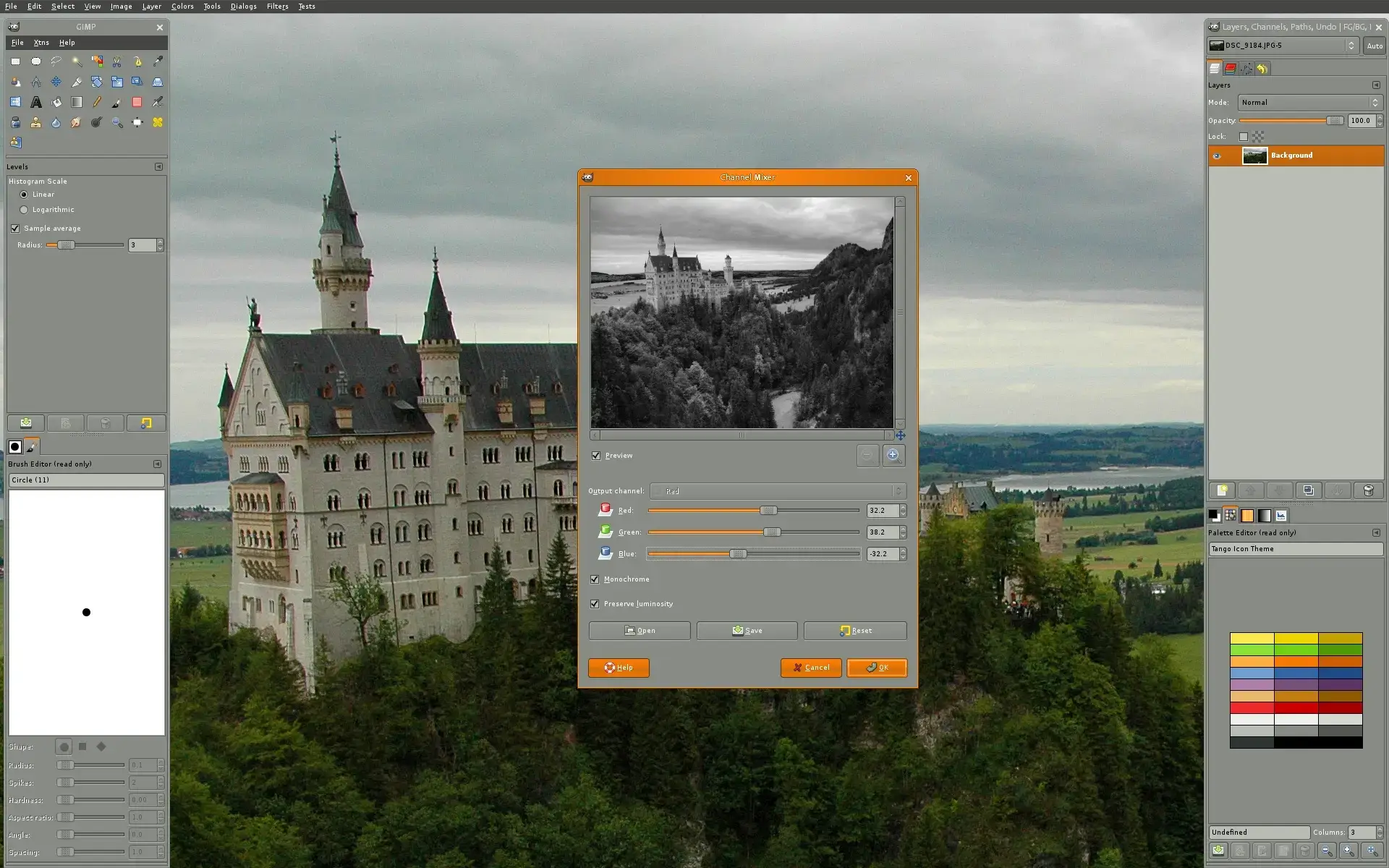

GIMP is the longest-standing free photo editor in existence. It has layers, masks, curves, levels, custom brushes, paths, and a plugin system that lets you extend it almost indefinitely. For a zero-cost tool, the feature depth is remarkable.
The honest caveat: the interface takes getting used to. GIMP predates modern UI conventions, and it shows. If you come from Photoshop, expect a few hours of adjustment before it clicks. Once it does, you will find it capable of almost anything.
GIMP is #8 here, not because it is bad, but because Affinity Photo is now free and has a better interface. For users who prefer open source software on principle, GIMP is still the right choice.
#9 – Paint.NET
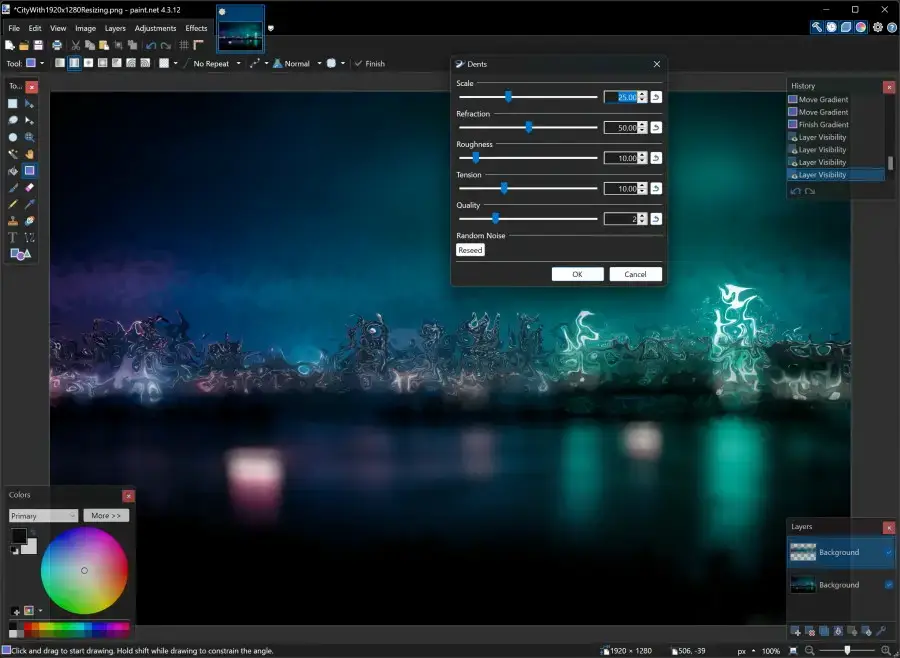

Paint.NET is the fastest free photo editor on this list. It opens instantly, runs smoothly on older hardware, and does not hog memory. If your PC is on the older side or you just want something lightweight for quick edits, Paint.NET is the right pick.
It supports layers, unlimited undo history, and plugins that add extra features like noise reduction and gradient effects. The built-in tools cover everything most casual users need: cropping, color correction, text, cloning, and basic retouching.
It is not the tool for professional photographers. But for fast, no-fuss editing on Windows, it is hard to beat at any price.
#10 – Photopea
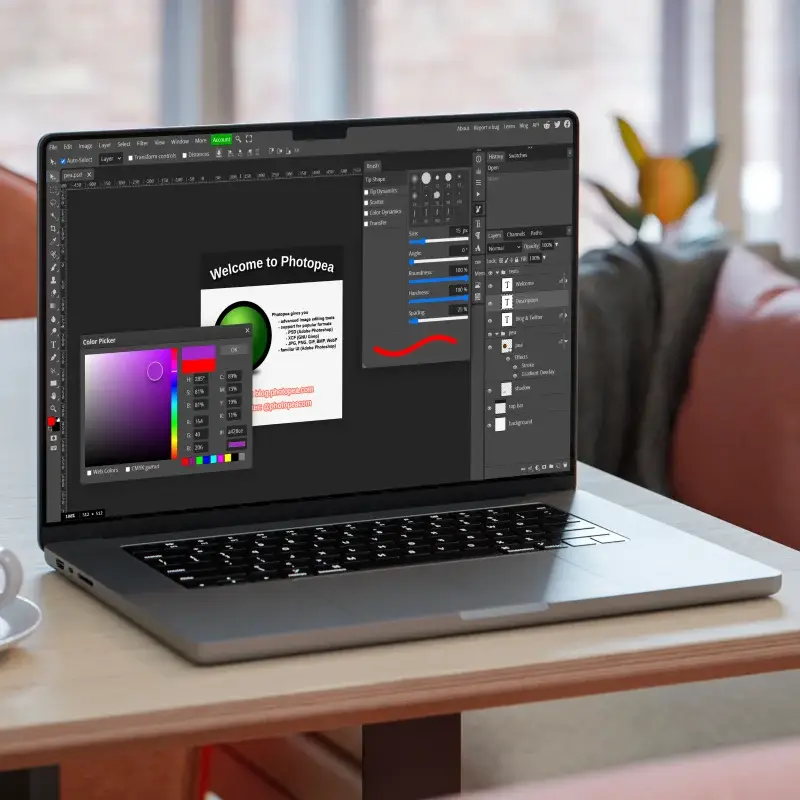

Photopea runs entirely in your browser. No download, no install, no account required. The interface mirrors Photoshop almost exactly: same panel layout, same toolbar, same keyboard shortcuts. If you have used Photoshop before, you can pick up Photopea in minutes.
It opens PSD, XCF, Sketch, and RAW files directly. That makes it useful not just for editing, but for opening files from other people that you do not have the original software for. The free version has ads. A paid plan at $9/month removes them and adds extra cloud storage.
The main limitation is that it requires a stable internet connection and does not handle very large files as smoothly as a native app. For everything else, it punches well above its price.
#11 – Fotor
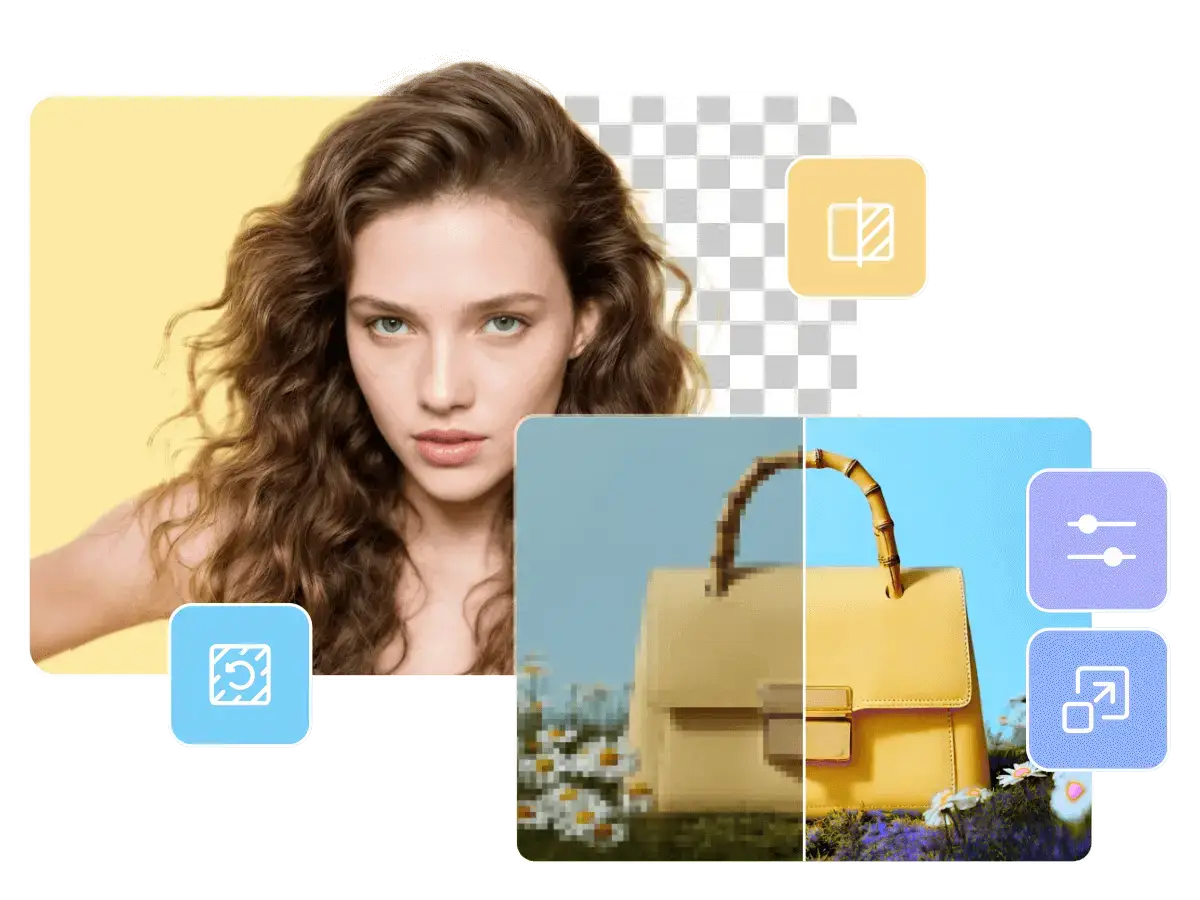

Fotor is the editor for people who want AI tools without the complexity of Luminar Neo or the cost of Adobe. Background removal, portrait retouching, AI image generation, and HDR effects are all accessible through a clean, beginner-friendly interface.
The free tier is limited. Exports include watermarks on non-HD images and you get one AI enhancement per day. The Pro plan at $8.99/month when billed annually removes all of that and adds batch editing. It is available as a desktop app, web app, and mobile app, so your edits follow you across devices.
If you spend more time making social media graphics and quick photo fixes than doing serious photography, Fotor fits that workflow better than most tools on this list.
#12 – Canva
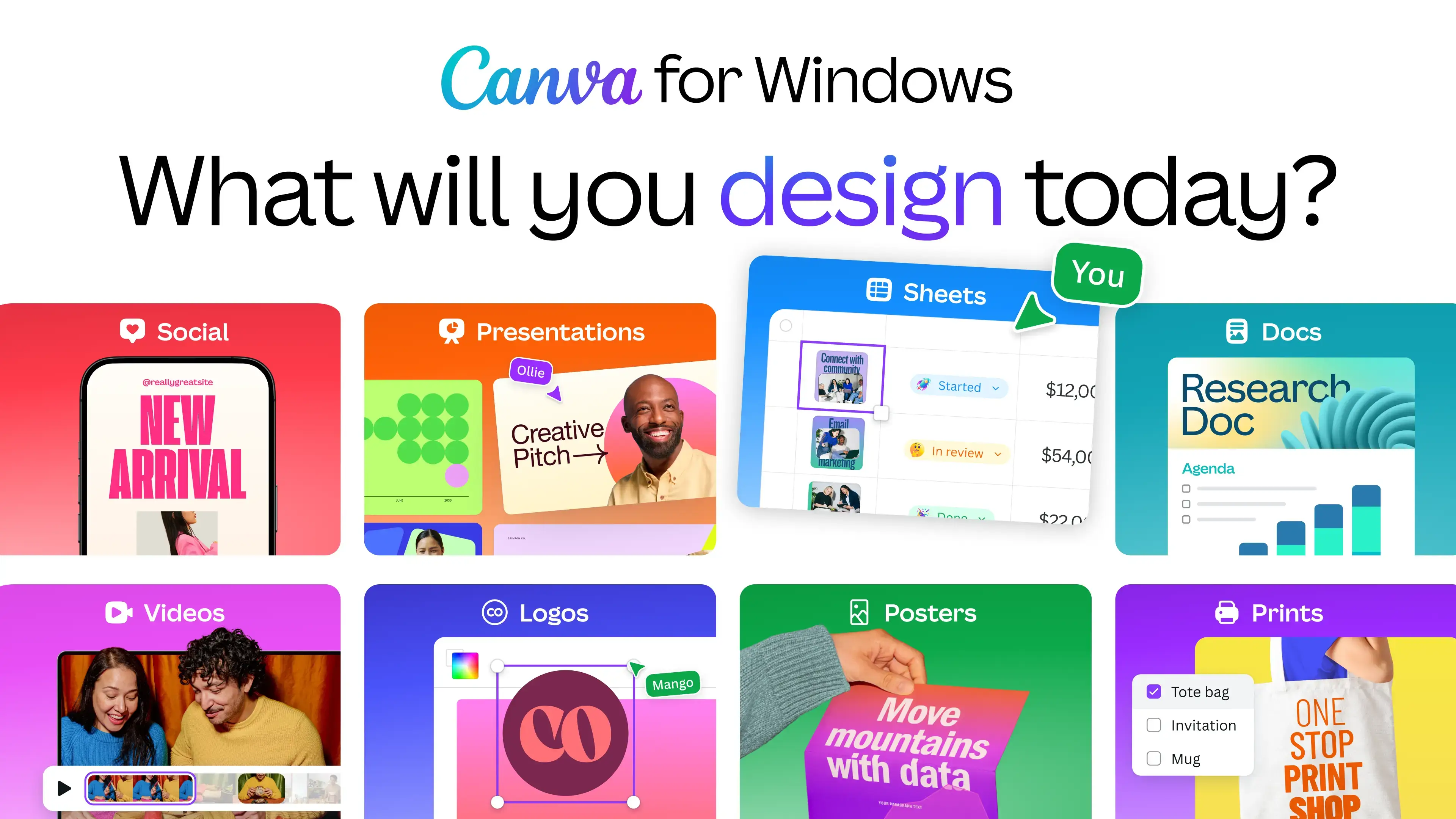
Canva is not a photo editor in the traditional sense, but millions of Windows users use it for exactly that purpose. Templates, AI Magic Edit, Magic Erase, background removal, and a huge library of assets make it the fastest way to produce polished images without any design experience.
The free tier is generous. You get access to thousands of templates, basic AI tools, and unlimited exports without a watermark. Pro at $15/month unlocks the full template library, more AI credits, and brand kit features.
Canva is not the right tool for RAW editing, retouching, or anything requiring fine pixel control. But for everything else, it is faster than any other option on this list.
#13 – Darktable
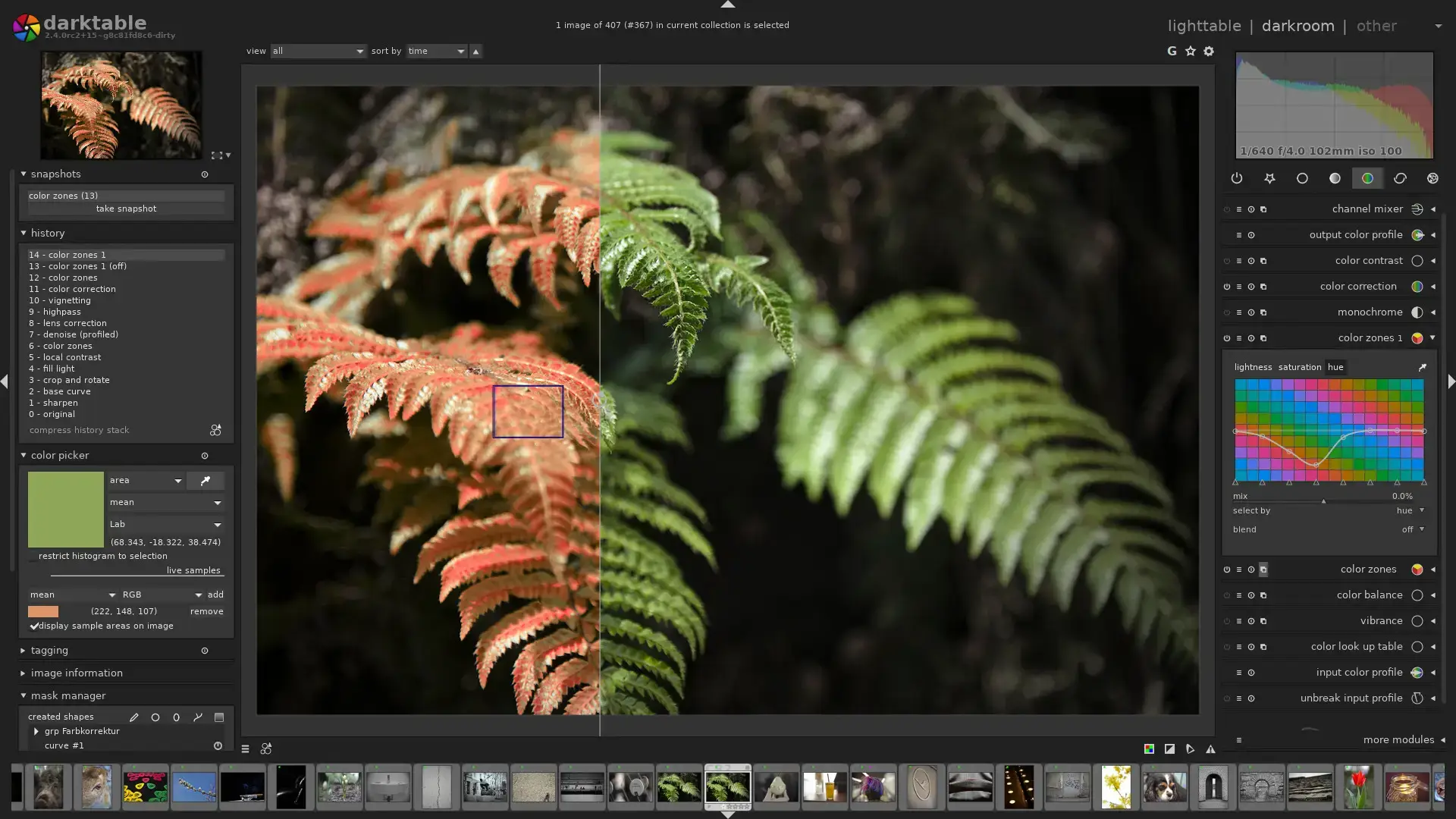
Darktable is what you use when you want a free alternative to Adobe Lightroom. It has a library section for organizing and tagging your photos, and an editing section where you adjust colors, exposure, and detail. RAW files from most camera brands are supported. Every edit you make is stored as a set of instructions rather than baked into the photo itself, so your original files are never changed.
What that means in practice: you can go back months later and undo or change any edit without losing any image quality. Nothing is permanent until you export.
The interface is dense and not beginner-friendly. But for photographers who shoot RAW and want a free Lightroom alternative, Darktable is the best option available.
#14 – Adobe Photoshop Express
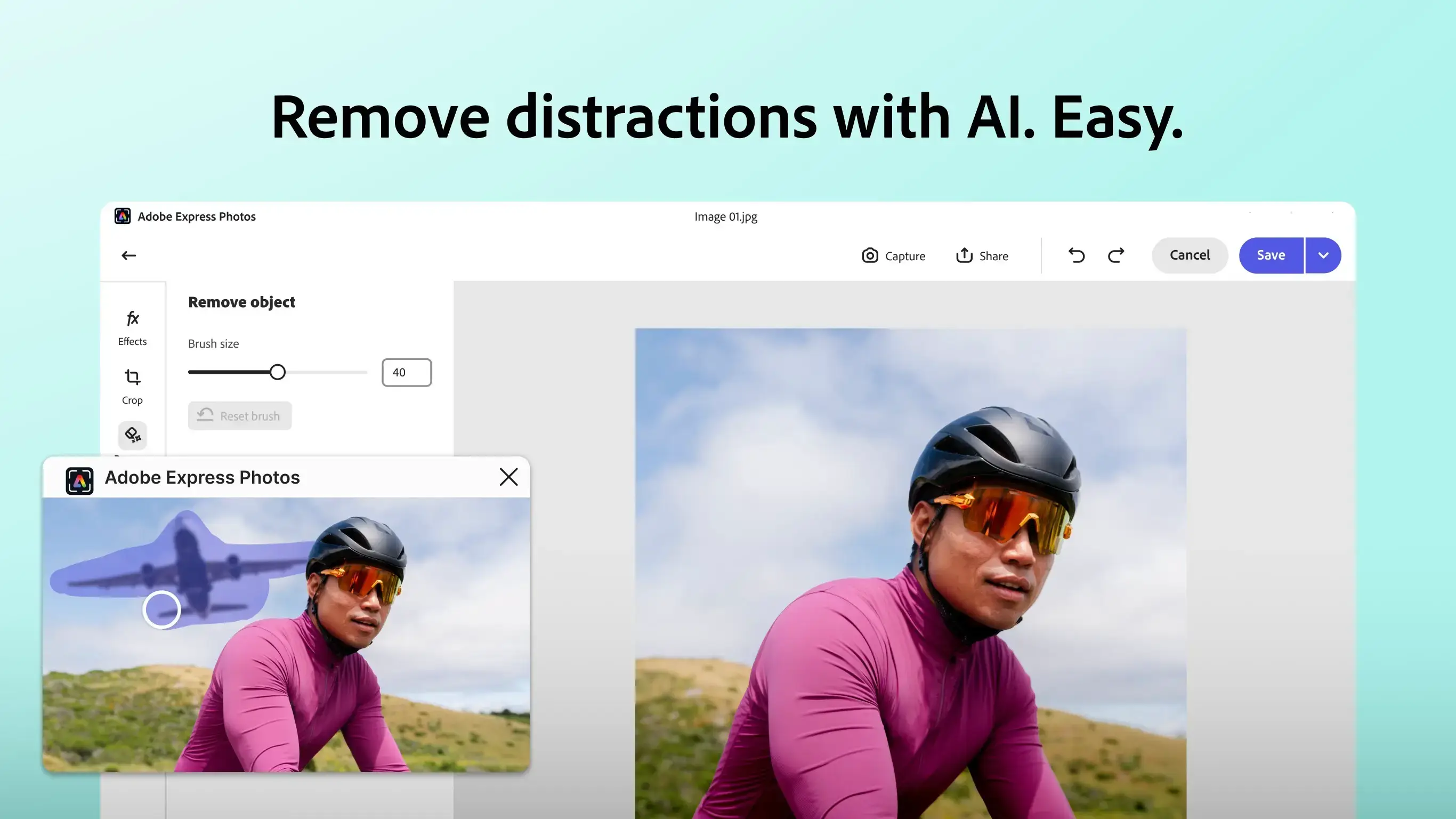

Photoshop Express is the lightweight, free version of Photoshop built specifically for quick edits. It is available on the Microsoft Store and runs well on Windows 10 and 11. Filters, cropping, red-eye removal, blemish fix, noise reduction, and basic color correction are all in there.
It is not a replacement for full Photoshop. There are no layers, no masks, no advanced selection tools. But if you need a fast, clean editor that integrates with your Adobe account and syncs edits, it works well for that narrow use case.
Best treated as a companion app rather than a primary editor. Useful if you are already in the Adobe ecosystem.
#15 – ACDSee Photo Studio

ACDSee Photo Studio Ultimate combines a digital asset manager (a tool for organizing, tagging, and searching large photo collections) with a full layer-based photo editor. It is the closest thing to a Lightroom replacement that you can buy outright without a subscription.
$149.99 one-time gets you RAW editing, layers, AI tools, face detection, and batch processing. An annual subscription is available at $89/year if you prefer that model. The one-time license includes one year of updates.
If you manage thousands of photos and refuse to pay Adobe monthly, ACDSee is the most complete one-time-purchase solution available.
Which One Should You Pick?
Frequently Asked Questions
What is the best free photo editor for Windows?
Affinity Photo by Canva is the best free photo editor for Windows right now. It was a paid app ($70) until Canva made the full suite free in 2025. You get layers, RAW support, masks, and professional-grade tools at no cost.
What is the best photo editor for beginners on Windows?
Canva is the easiest starting point for beginners. It runs in your browser or as a desktop app, needs no installation skills, and has thousands of templates to work from. For beginners who want to grow into real editing, Luminar Neo is the best step up.
Is there a one-time purchase photo editor for Windows?
Yes. Corel PaintShop Pro costs $79.99 as a one-time buy. ACDSee Photo Studio Ultimate is $149.99 one-time. Both give you a full feature set without a recurring subscription.
Do any of these photo editors support RAW files?
Yes. Affinity Photo, GIMP, Darktable, Capture One, Luminar Neo, Adobe Lightroom, and ACDSee Photo Studio all support RAW files from most camera brands. Darktable is the best free RAW editor on this list.
Can I edit photos on Windows without installing anything?
Yes. Photopea is a browser-based editor that works like Photoshop and runs entirely online. No download required. It opens PSD, RAW, and most common image formats directly in your browser.
Support and Community
- r/photoshop – general photo editing discussion and help
- r/GIMP – GIMP-specific community and tutorials
- r/LightroomClassic – Lightroom Classic users and workflow tips
How They Compare
| Editor | Price | Free Tier | AI Tools | RAW Support | Best For |
|---|---|---|---|---|---|
| Luminar Neo | From $79/yr or $99 one-time | Trial only | Yes – extensive | Yes | AI editing |
| Affinity Photo | Free | Full app, free | Limited | Yes | Free power users |
| Adobe Lightroom | From $11.99/mo | Mobile only | Yes | Yes | Library management |
| Adobe Photoshop | $19.99/mo (Photography Plan) | No | Yes – Firefly | Yes | Pro retouching |
| Capture One | $24/mo or $179/yr | 30-day trial | Limited | Yes | Studio / color |
| PaintShop Pro | $79.99 one-time | Trial only | Yes – AI tools | Yes | No subscription |
| Topaz Photo AI | $9.99/mo or $199/yr | Trial only | Yes – specialist | Yes | Upscaling/denoise |
| GIMP | Free | Full app, free | Via plugins | Yes | Open source |
| Paint.NET | Free | Full app, free | No | No | Lightweight edits |
| Photopea | Free / $9/mo (no ads) | Yes, browser | Limited | Yes | No install needed |
| Fotor | Free / Pro $8.99/mo | Yes, limited | Yes | No | Social media |
| Canva | Free / Pro $15/mo | Yes, generous | Yes – Magic tools | No | Beginners |
| Darktable | Free | Full app, free | No | Yes | Free RAW editing |
| Photoshop Express | Free | Full app, free | Limited | No | Quick Adobe edits |
| ACDSee Photo Studio | $149.99 one-time | 30-day trial | Yes | Yes | Large library management |
More Windows software guides: Best Free PDF Editors · Canva for Windows · Affinity Photo 2 for Windows