

Readers like you help support this site. When you make a purchase using links on our site, we may earn an affiliate commission. All opinions remain our own.
.exe installer, Gemma 3 is a raw AI model that requires this specific command-line engine to function on your PC.

This approach allows you to run Google’s latest AI completely offline and ensures your data remains private, perfect for analyzing sensitive documents or code.
Below is the direct method to install Ollama and launch Gemma 3 in under five minutes. You can always contact us or leave a comment below if you need any help.

System Requirements
Before installing, confirm your system can handle the inference workload. Local AI relies heavily on your Graphics Card (GPU) rather than your CPU.
| Component | Minimum | Recommended |
|---|---|---|
| Operating System | Windows 10 | Windows 11 (Latest Update) |
| RAM | 8 GB | 16 GB or higher |
| GPU (Graphics) | Integrated Graphics (Slow) | NVIDIA RTX 3060 or higher |
Step 1: Install Ollama for Windows
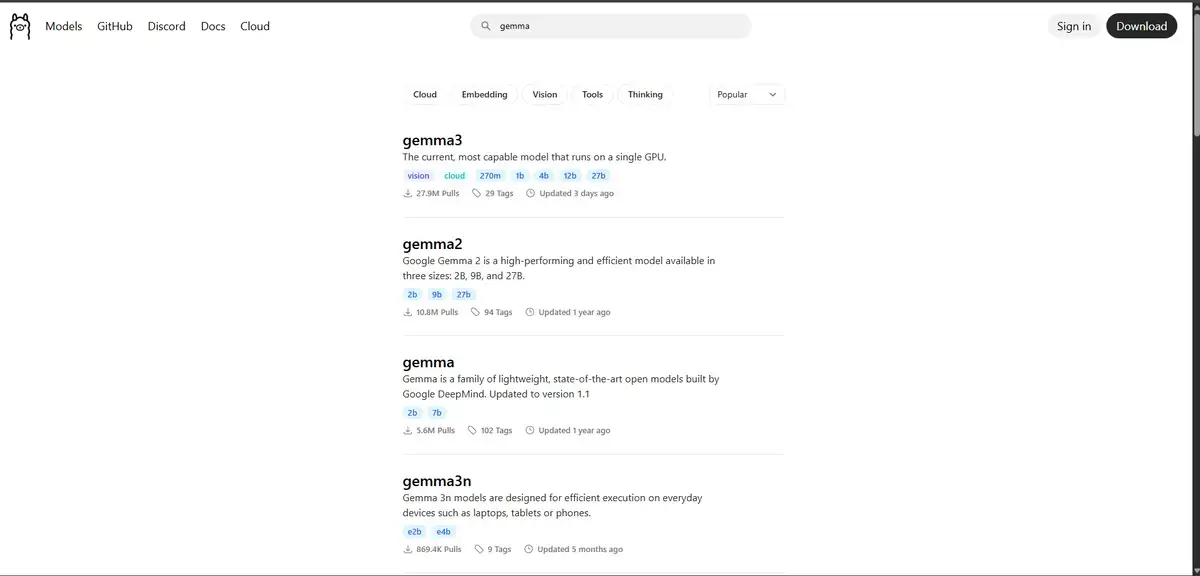
Ollama is the utility that downloads and runs the AI model. It is open-source and free to use.
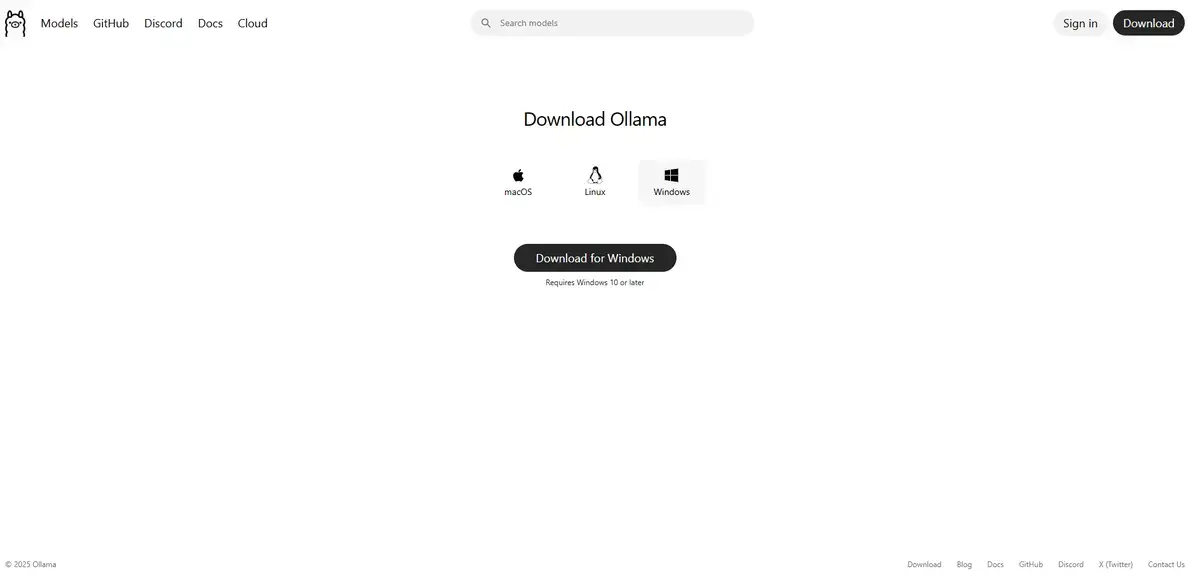
- Navigate to the official Ollama website.
- Click Download for Windows.
- Run the
OllamaSetup.exeinstaller. - Follow the on-screen prompts to complete the installation.
Step 2: Download and Run Gemma 3
Once installed, Ollama runs silently in the background. You do not open it like a regular app; instead, you control it via the Command Prompt.
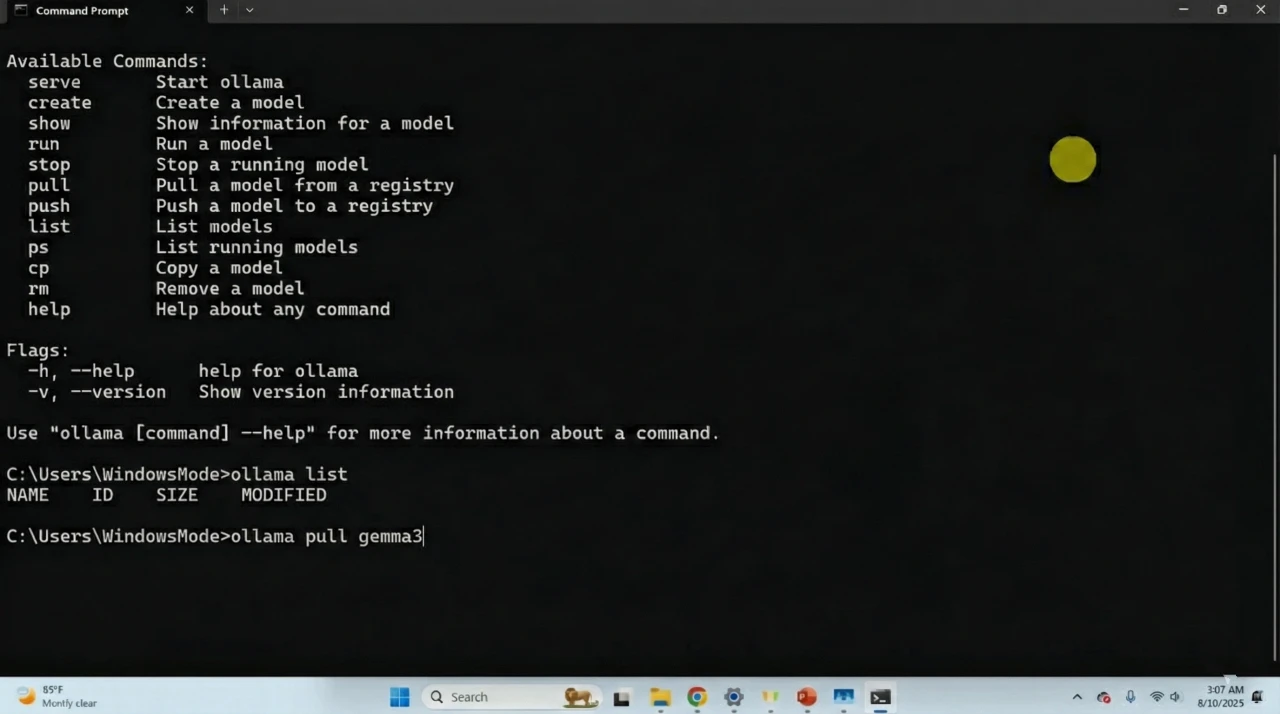
- Press the Windows Key on your keyboard.
- Type
cmdand press Enter to open the Command Prompt. - Type the following command exactly as shown and press Enter:
ollama run gemma3
Ollama will automatically download the Gemma 3 model files (approx. 4GB). Once the download finishes, the prompt will change, allowing you to chat with the AI immediately.
Step 3: What Can You Do? (First Run Examples)
Now that Gemma 3 is running, try these commands to test its capabilities. You can type these directly into the chat window.
1. The Logic Test
Test the model’s reasoning capabilities with a simple logic puzzle.
I have 3 apples. I eat 2, then buy 4 more. How many apples do I have left? Explain your reasoning step-by-step.
2. The Coding Assistant
Gemma 3 is optimized for coding tasks. Try pasting this prompt to generate a Python script:
Write a Python script that scans a folder for .jpg files and renames them with today's date (e.g., 2024-05-20_1.jpg). Add comments explaining each step.
3. The Private Editor
Since this runs locally, you can safely paste sensitive text for editing without fear of data leaks.
[Paste a rough email draft here]
Rewrite this email to sound more professional and concise. Remove any passive voice.
Why Run Gemma 3 Locally?
There are three main benefits to running Gemma 3 on your own hardware rather than in the cloud:
- Data Security: Your data never leaves your GPU. This is essential for developers or users working with sensitive information.
- Cost Efficiency: Once you have the hardware, the model is free to run. There are no monthly subscription fees.
- Latency: On a capable PC, local models often respond faster than cloud-based chatbots because there is no internet lag.
Troubleshooting Common Errors
If you encounter issues during the setup, check these common fixes:
- “Command not found”: If Windows does not recognize
ollama, restart your computer. This forces Windows to reload the system variables. - Slow Performance: If the AI is slow to reply, check your Task Manager. If your GPU usage is low, the model may be running on your CPU, which is significantly slower.
Further Reading & Resources
Explore these official sources and communities to learn more about advanced configurations and updates.
- Official Documentation: Google Gemma Docs
- Technical Guide: Ollama GitHub & Docs
- Ollama Community: r/Ollama on Reddit
- Local AI Community: r/LocalLLaMA (Active Discussion)