

Readers like you help support this site. When you make a purchase using links on our site, we may earn an affiliate commission. All opinions remain our own.


Lively Wallpaper is a free app for Windows 10 and Windows 11 that lets you use animated and interactive wallpapers, with downloads available from the Microsoft Store and GitHub.
It supports videos, GIFs, webpages, screensavers, and more. It can also pause wallpaper playback automatically when fullscreen apps or games are running, which helps reduce CPU and GPU usage while you are busy doing something else.
Lively stands out because it is free, open source, and more flexible than most animated wallpaper apps. You can start with a simple video loop, use a live webpage as your desktop background, or turn wallpapers into screensavers without paying for a subscription or one-time license.
This guide explains what Lively supports, which version you should install, how it affects performance, what can go wrong, and whether it is a better fit for you than Wallpaper Engine.
What You Need to Know
- Lively Wallpaper is free and open source.
- The Microsoft Store version is the safest and easiest install for most users.
- The GitHub installer can be a better choice if you want the latest installer build, application wallpapers, or screensavers that can run without the main app staying open.
- Lively can pause wallpaper playback during fullscreen apps and games, and it can also be configured to pause on battery power or during remote desktop sessions.
- Simple video wallpapers are usually light. Complex webpages and interactive app wallpapers can use noticeably more RAM, CPU, or GPU while you are on the desktop.
Price
Free
Developer
rocksdanister
Windows
10 / 11
License
GPL-v3
Screensavers
Supported
Who Should Use Lively Wallpaper?
Lively is a good fit if you want animated wallpapers without paying for Wallpaper Engine and without installing something that feels bloated. It works well for casual users who just want a video loop or GIF on the desktop, and it also appeals to tinkerers who want webpages, shaders, screensavers, scripts, or interactive wallpapers.
- Use it if: you want a free and flexible live wallpaper app that supports more than just videos.
- Skip it if: you mainly want a huge ready-made library of community wallpapers with minimal setup. Wallpaper Engine is stronger there.
- Choose the installer version if: you want application wallpapers, Unity or Godot app wallpapers, or screensavers that can run independently.
- Be careful if: you are on a low-spec PC or older laptop. Lively is efficient for simple wallpapers, but heavy webpages and interactive content still use resources while they are active.
How to Install Lively Wallpaper on Windows
The Microsoft Store is the best starting point for most people. It installs a signed build, handles updates in a familiar way, and avoids SmartScreen prompts. The GitHub installer is also legitimate, but it is unsigned and may trigger a Windows warning during setup.
Which version should you download?
- Microsoft Store: best for most users. Requires Windows 10 version 1809 or later. No extra setup is required.
- GitHub installer (.exe): useful if you want the standalone installer, application wallpapers, or screensavers that do not depend on the main app staying open. Requires Windows 10 version 1903 or later and may show a SmartScreen warning.
- Step 1. Open the Microsoft Store page for Lively Wallpaper and click Get.
- Step 2. Wait for the installation to finish, then launch Lively from the Start menu.
- Step 3. Pick one of the built-in wallpapers to test the app first.
- Step 4. To add your own wallpaper, drag and drop a supported video, GIF, webpage URL, or wallpaper package into the app.
- Step 5. Open the settings panel and configure pause rules, multi-monitor behavior, and screensaver options to match your setup.
Using the installer version?
Lively’s Getting Started guide says the installer version may need additional dependencies, but the setup wizard handles them for you. Follow the prompts during installation and let the setup finish before launching the app.
One important difference
If you want to run Windows applications or Unity and Godot projects as wallpapers, the official Lively wiki says that feature is not available in the Microsoft Store version. Use the installer version instead.
Is Lively Wallpaper Safe?
Lively is an open-source project, and its main codebase is public on GitHub. The Microsoft Store version is signed, which is why it installs more cleanly on Windows. The standalone installer from GitHub is not signed, so Windows SmartScreen may warn you before it runs.
The bigger safety question is not the app itself, but the content you feed into it. Videos and GIFs are generally straightforward. Webpages and application wallpapers behave more like mini apps running behind your desktop, so they can use more memory and should only come from sources you trust.
Lively’s own application wallpaper documentation also warns against running random applications as wallpaper unless you are sure they are safe.
What Is Lively Wallpaper?
Lively Wallpaper is a Windows app that lets you replace the normal static desktop background with something animated or interactive. Instead of showing only a still image, it can render video, GIFs, webpages, shaders, and some application-based content behind your icons and taskbar.
That broader format support is what makes it more interesting than a basic live wallpaper app. You can use it for a simple moving background, but you can also use it for music visualizers, interactive webpages, live weather-style scenes, or wallpapers that react to system data.
The project is free, open source, and actively maintained. Official Lively materials describe it as a WinUI 3-powered wallpaper and screensaver app for Windows, with support for multi-monitor layouts, performance pause rules, and creator tools for more advanced wallpapers.
Key Features
Multiple Wallpaper Types
Lively supports videos, GIFs, webpages, screensavers, shaders, and other wallpaper formats. The installer version can also handle certain application wallpapers, including Unity and Godot projects.
Pause Rules for Performance
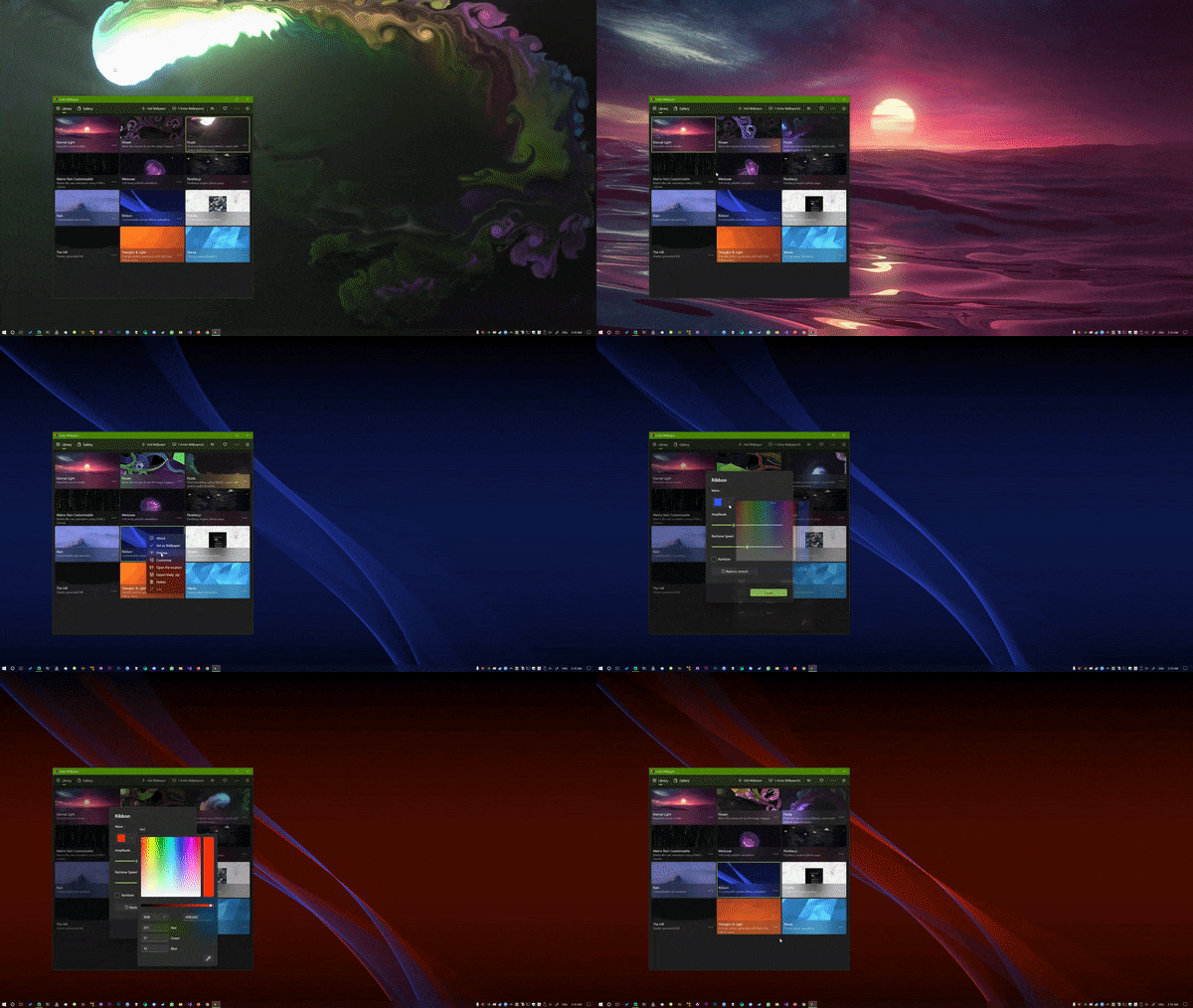
Official Lively documentation says wallpaper playback pauses when fullscreen applications or games run, and it can also be configured to pause on battery power, when a chosen app is active, or during remote desktop sessions.
Multiple Monitor Support
Use one wallpaper across all displays, mirror the same wallpaper, or assign different wallpapers to different monitors. Lively is designed to handle ultrawide and multi-monitor setups.
Screensaver Support
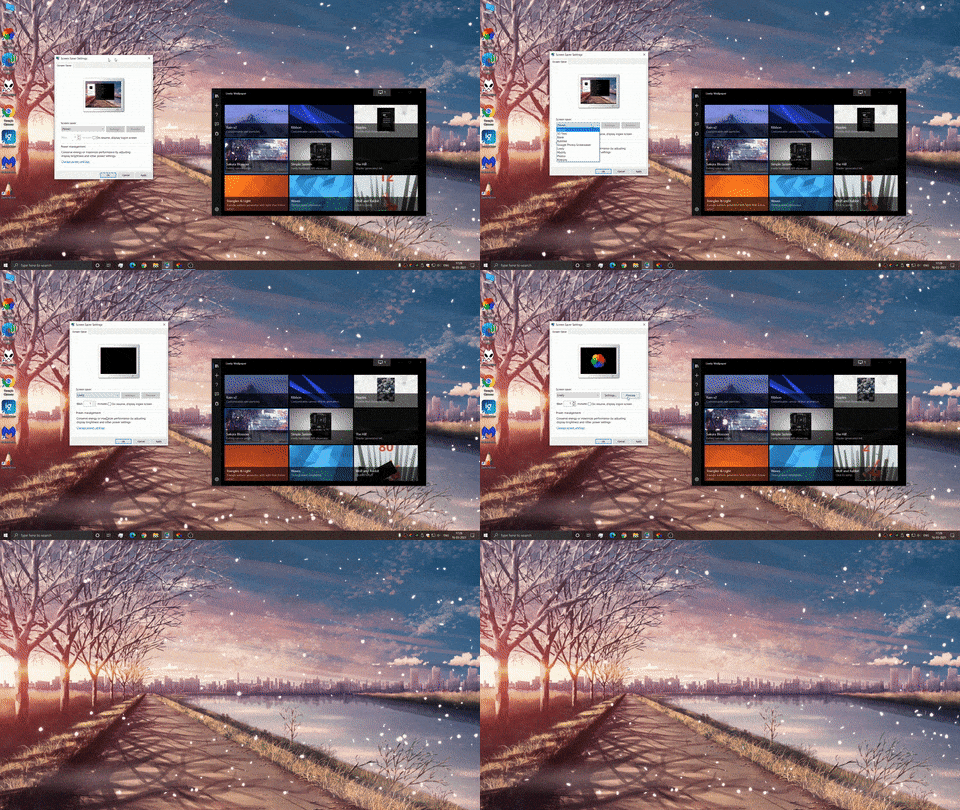
Lively can use wallpapers as Windows screensavers. The official screensaver guide notes that the Store version needs the Lively app to remain running in the background, while the installer version can run screensavers independently.
Command Line and Automation
Lively’s wiki includes command line controls for scripts and automation. That is useful if you want wallpapers to change based on shortcuts, time of day, or other workflow triggers.
Creator-Friendly Tools
Official feature pages highlight creator tools for widgets, music visualizers, shaders, and other richer wallpapers. That makes Lively more appealing if you want to build or customize your own content instead of only downloading ready-made wallpapers.

What You Can Do After Install
| Area | What you can do |
|---|---|
| Wallpaper content | Use videos, GIFs, webpages, shaders, and other supported wallpaper formats. The installer version also supports application wallpapers. |
| Multi-monitor layout | Set different wallpapers per screen, mirror the same wallpaper, or span content across all displays. |
| Performance rules | Pause on fullscreen apps, on battery power, during remote desktop, or based on application focus and custom rules. |
| Screensaver | Use wallpapers as Windows screensavers, with different behavior depending on whether you use the Store version or installer version. |
| Automation | Control Lively through command line tools and scripts for workflow-based wallpaper changes. |
| Audio and visuals | Use music visualizers, system-data wallpapers, and other richer visual effects depending on the wallpaper type. |
System Requirements
Lively’s official Getting Started guide lists separate minimum Windows versions for the Store and installer builds, along with minimum CPU, RAM, GPU, DirectX, and storage requirements.
| Requirement | Details |
|---|---|
| OS (Microsoft Store) | Windows 10 version 1809 or later, or Windows 11 |
| OS (Installer) | Windows 10 version 1903 or later, or Windows 11 |
| Processor | Intel i3 or equivalent |
| Memory | 4 GB RAM minimum |
| Graphics | Intel HD Graphics 4600 or above |
| DirectX | Version 10 or above |
| Storage | 1 GB available space |
| Internet | Not required for normal offline wallpapers after install, but needed for webpage wallpapers and online content sources |
Common Issues and Compatibility Notes
Windows SmartScreen warning during install
The GitHub installer may trigger a SmartScreen warning because it is unsigned. The official README explicitly notes this. If you want to avoid the prompt, use the Microsoft Store version instead.
Video wallpapers not working on Windows N, KN, or some Education editions
Lively’s video documentation says some Windows N, KN, and Education editions may need additional media codecs for video wallpaper playback. If video wallpapers fail but GIFs or webpages work, that is one of the first things to check.
Webpage wallpapers using extra memory
Web wallpapers are often more demanding than simple MP4 loops because they render like lightweight browser content. If your PC has limited RAM or you notice stutter, switch to video or GIF wallpapers first.
Application wallpapers need the installer version
The official application wallpaper guide says this feature is not available in the Microsoft Store build. It also warns that wallpaper playback pause is currently disabled for application wallpapers because of bugs, so those advanced wallpapers need a bit more care than normal ones.
Live wallpapers not showing on some older Windows setups
Lively’s Getting Started guide says that on some older versions of Windows, you may need to enable Animate controls and elements inside windows in Performance Options. High Contrast Mode can also disable visual features that Lively depends on.
Lively Wallpaper vs Wallpaper Engine
Wallpaper Engine is the most common paid alternative to Lively. Both are capable tools, but they suit slightly different users.
| Feature | Lively Wallpaper | Wallpaper Engine |
|---|---|---|
| Price | Free | Paid |
| Community wallpaper library | Smaller built-in library, plus easy import of your own content | Large Steam Workshop library |
| Video wallpapers | Yes | Yes |
| Webpage wallpapers | Yes | Yes |
| Application or game wallpapers | Yes, but installer version only | Yes |
| Auto-pause during fullscreen apps | Yes | Yes |
| Open source | Yes | No |
| Command line control | Yes | Yes |
Which one makes more sense?
Choose Lively Wallpaper if you want a free, open-source tool and you are happy importing your own wallpapers or experimenting with webpages, shaders, and scripts.
Choose Wallpaper Engine if you care more about browsing a huge ready-made wallpaper library through Steam Workshop and do not mind paying for it.
Tips for Getting Started
Start with a short MP4 or GIF first
This is the easiest way to test how Lively behaves on your system. A short looping video is usually lighter and easier to troubleshoot than a webpage or app wallpaper.
Turn on battery pause on laptops
Lively can pause playback on battery power. That setting matters much more on laptops than desktops and is one of the easiest ways to keep the app practical for daily use.
Add app-specific pause rules for games that need them
Fullscreen detection works well, but custom rules give you more control for games or apps that behave differently. This is especially useful on multi-monitor setups.
Use webpages carefully on low-memory PCs
Web wallpapers can look great, but they are often heavier than simple video loops. If your PC has modest RAM, test one webpage wallpaper at a time before filling a multi-monitor setup with them.
Try the screensaver option if you like ambient desktops
Lively is not just a wallpaper app. It also supports using wallpapers as screensavers, which makes it more useful if you want your PC to look good both when active and when idle.
Screenshots
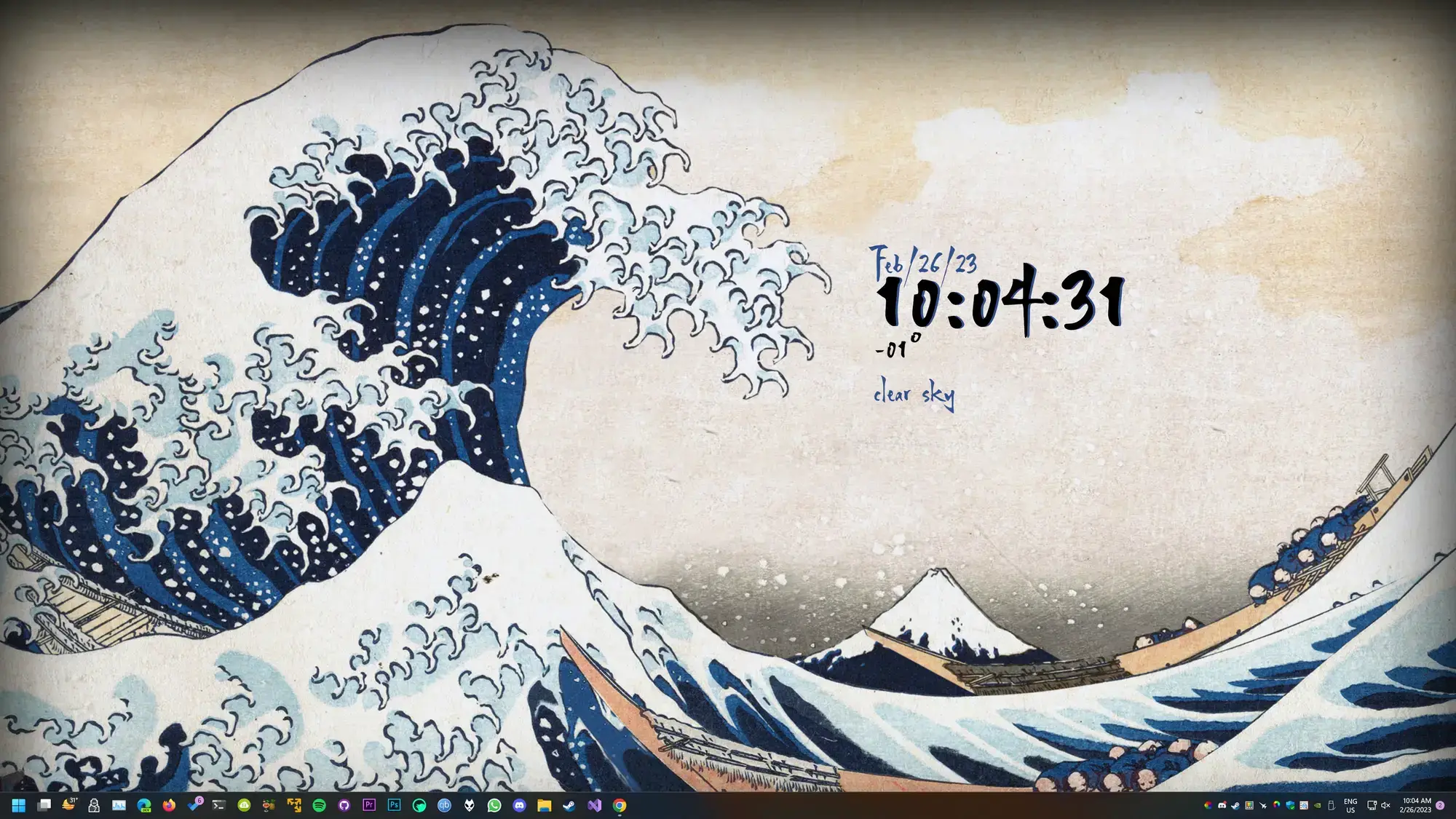
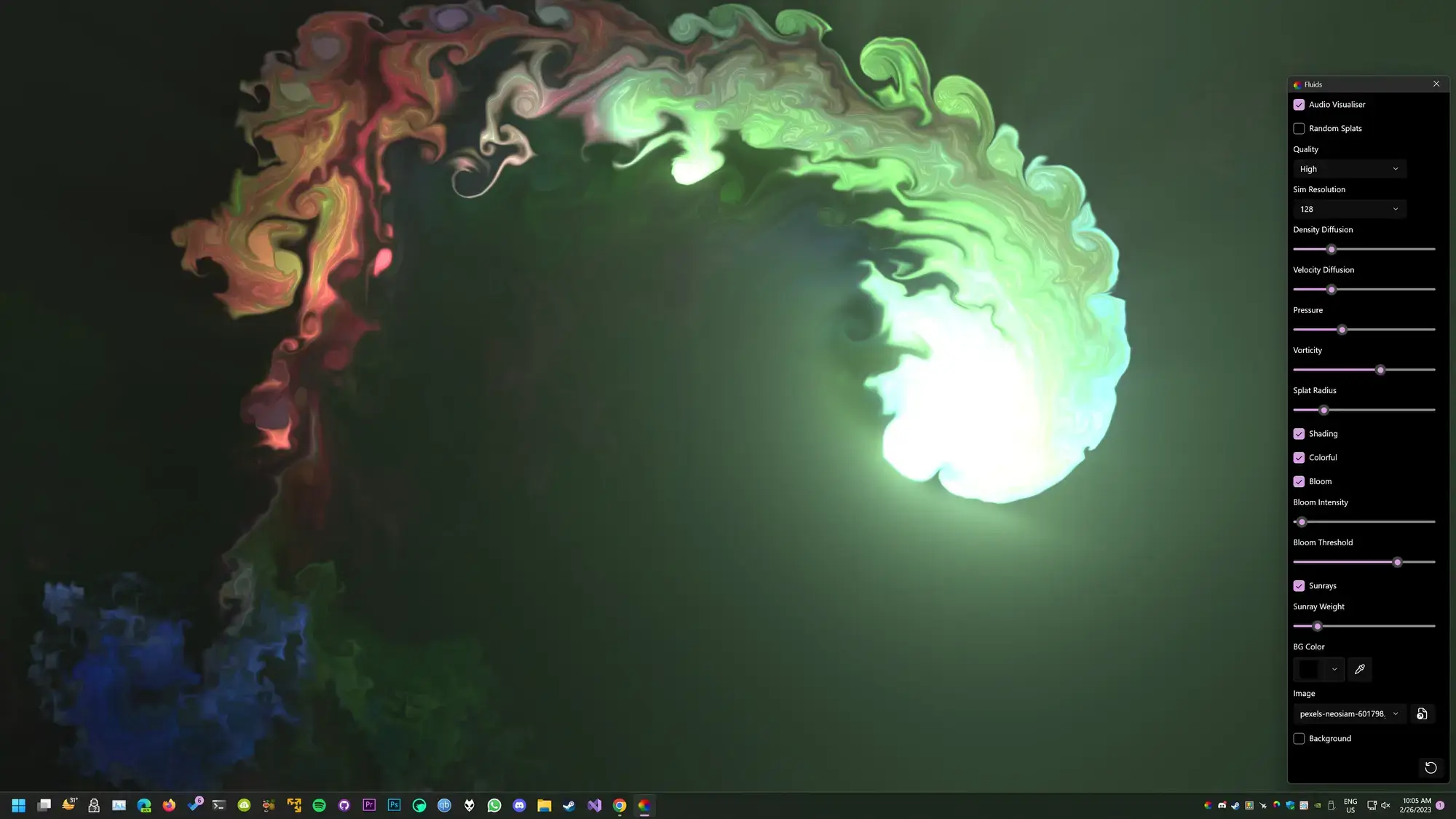
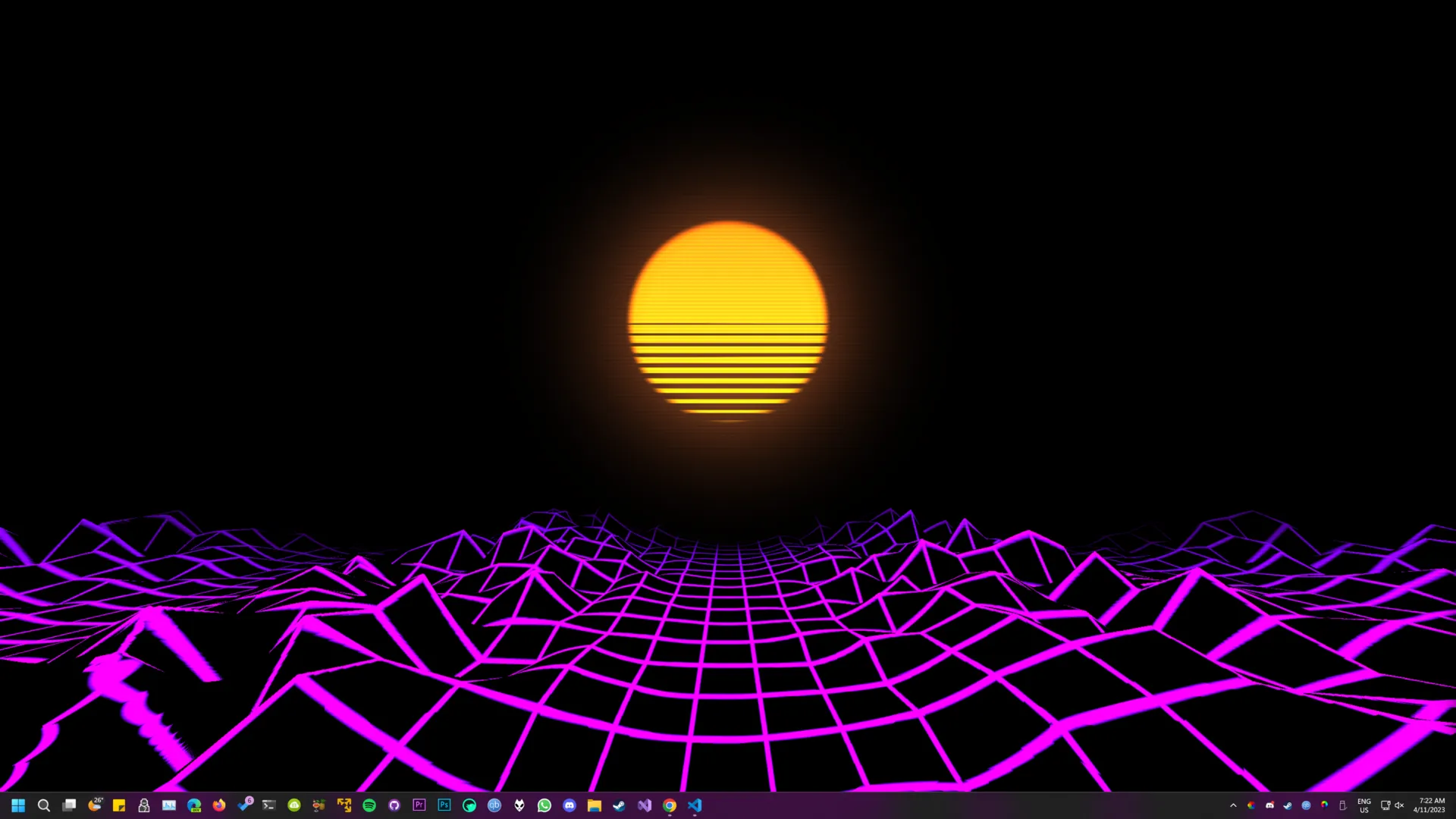
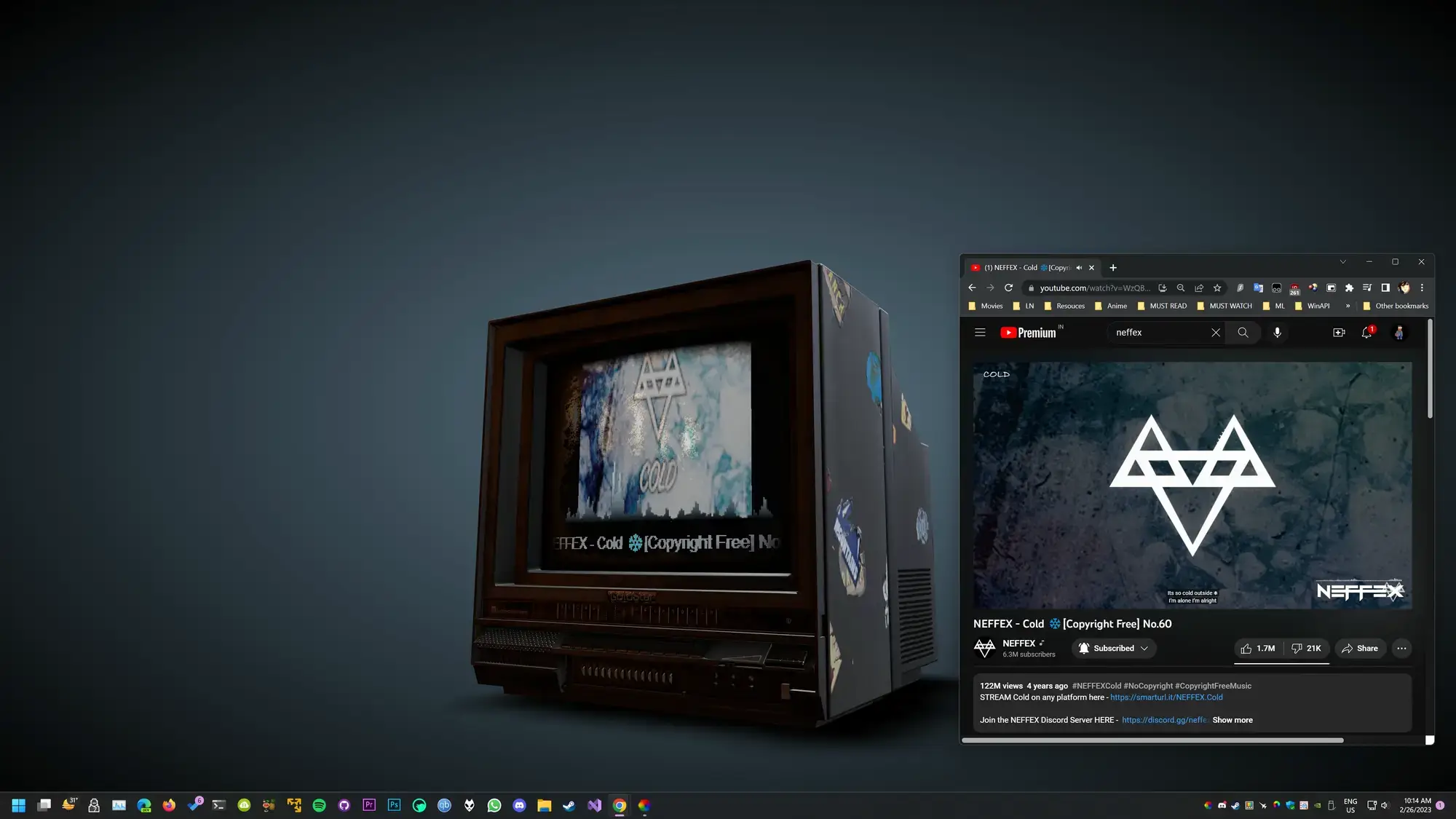
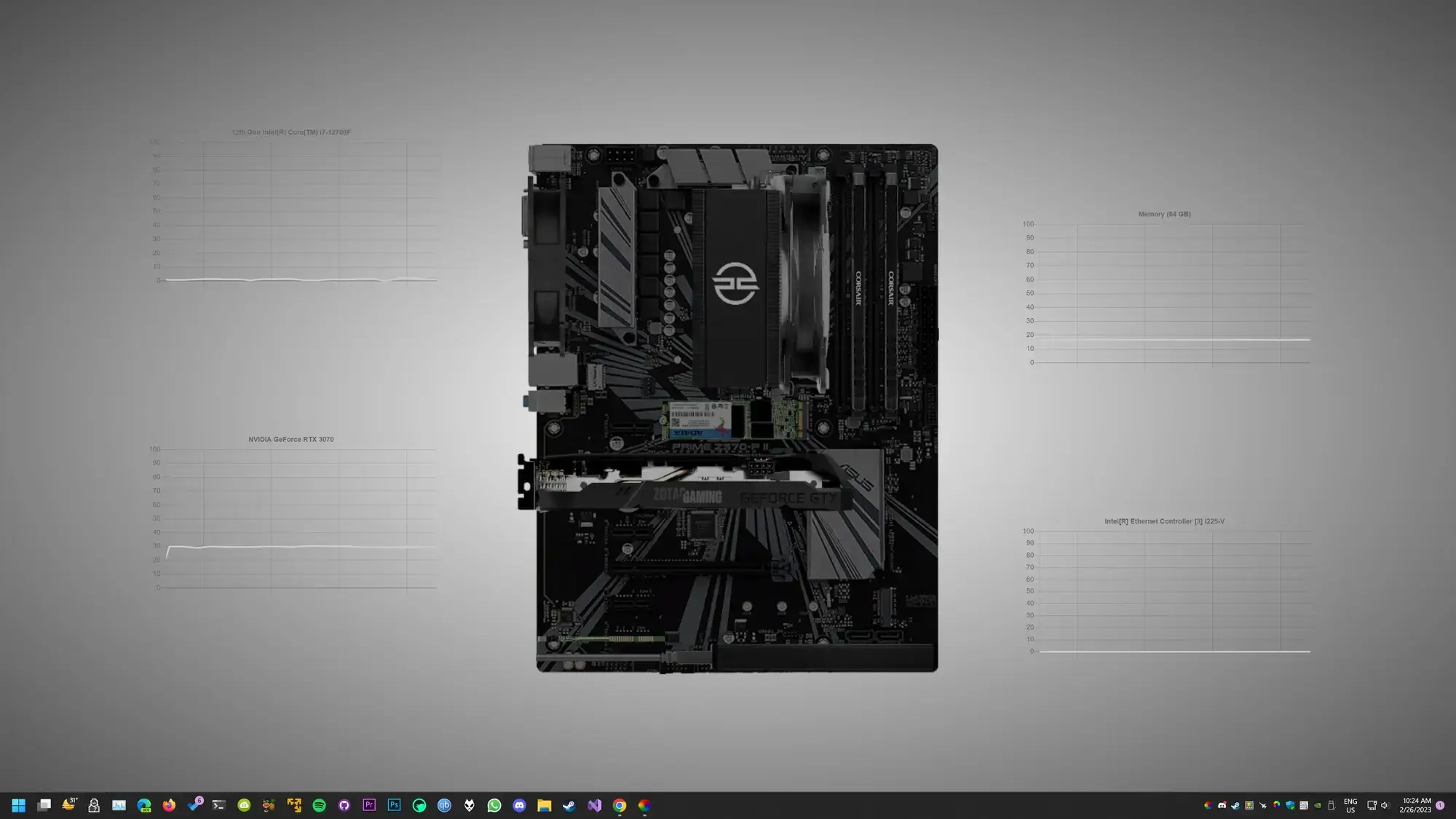
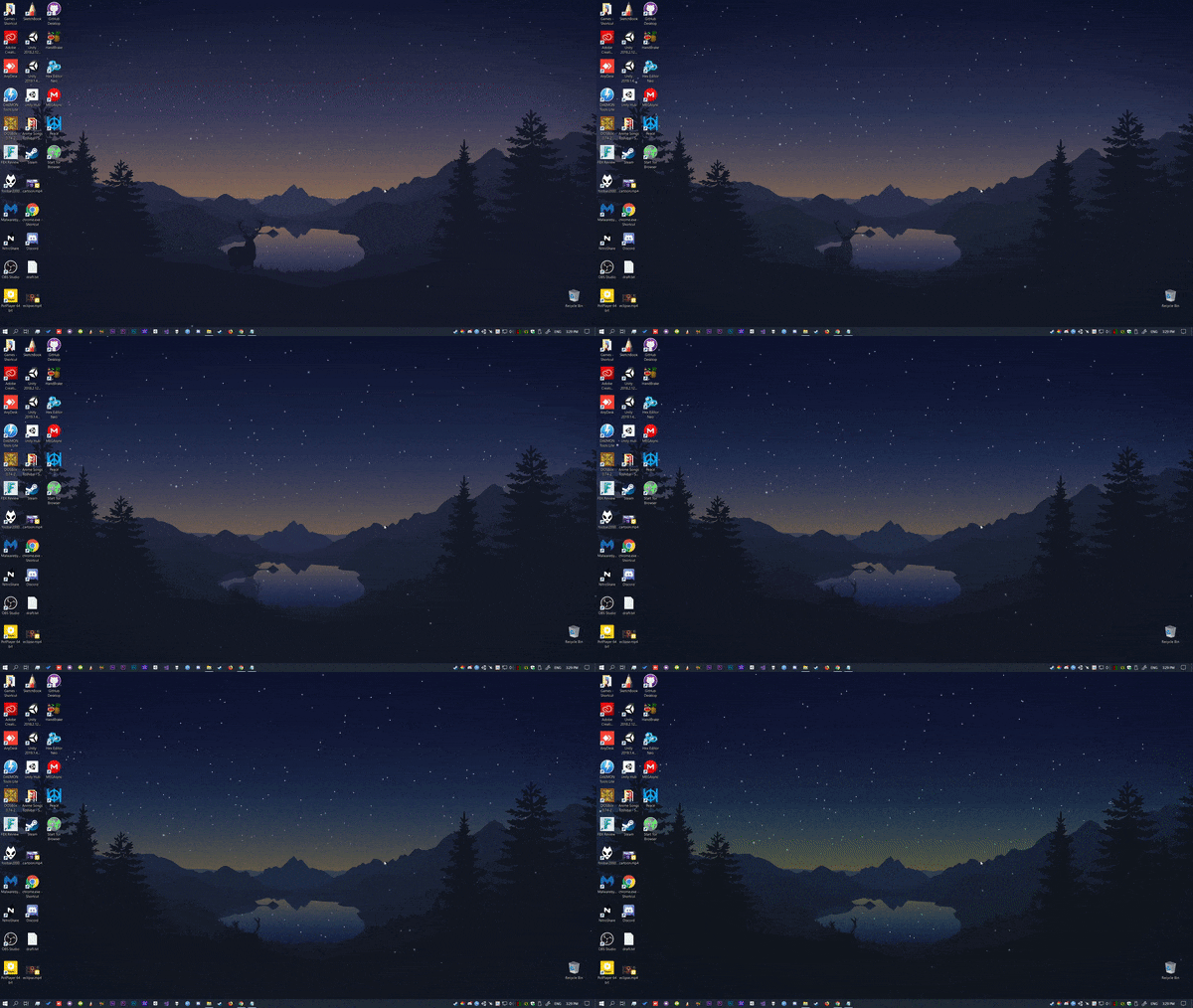
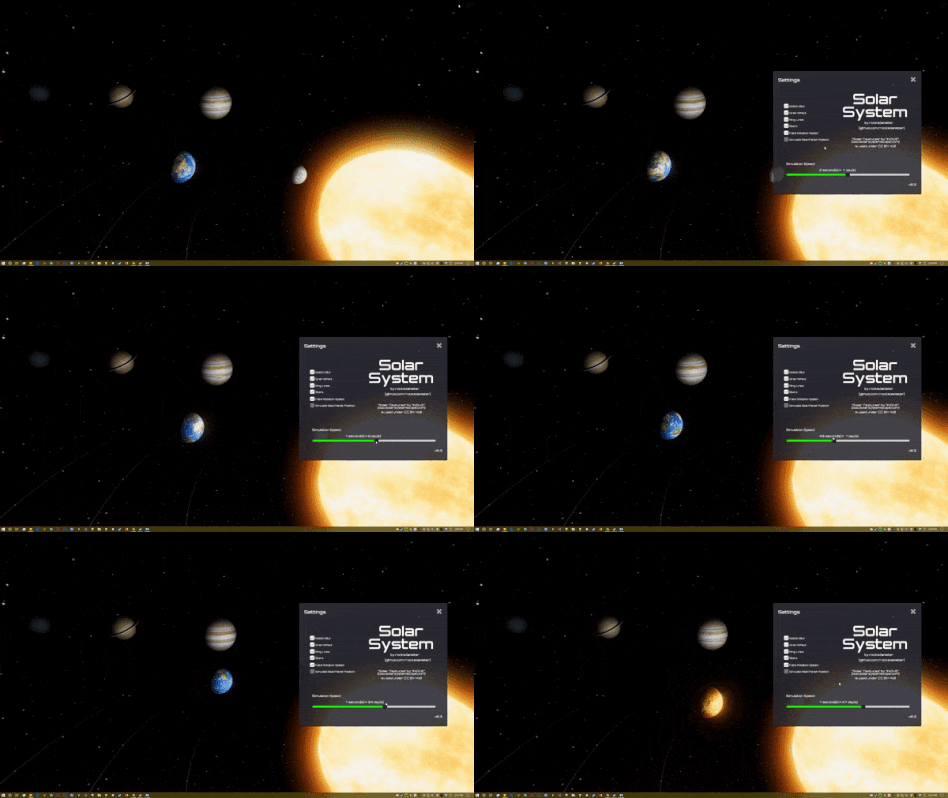
Lively Wallpaper running on Windows 11, showing the wallpaper gallery, an active animated wallpaper, the multi-monitor layout options, and the playback pause settings.

Frequently Asked Questions
Is Lively Wallpaper free?
Yes. Lively Wallpaper is free and open source under the GPL-v3 license.
Will Lively Wallpaper slow down my PC or affect gaming?
It depends on the wallpaper type while it is active on the desktop. Simple video loops are usually light, while complex webpages and interactive content can use more resources. Lively can pause wallpaper playback when fullscreen apps or games are running, which is why it is usually practical for gaming setups.
What types of wallpaper does Lively support?
Official Lively documentation covers videos, GIFs, webpages, screensavers, shaders, and other wallpaper types. The installer build also supports application wallpapers, including certain Unity and Godot content.
Does Lively Wallpaper work with multiple monitors?
Yes. Lively is designed for multiple monitors, including ultrawide displays, and lets you mirror, span, or assign different wallpapers to different screens.
Does Lively Wallpaper work on Windows 10?
Yes. The Microsoft Store version requires Windows 10 version 1809 or later, while the installer version requires Windows 10 version 1903 or later.
Is Lively Wallpaper safe to use?
The app itself is open source and the Microsoft Store build is signed. The GitHub installer may trigger SmartScreen because it is unsigned. As with any app that can run webpages or applications, you should only use wallpaper content from sources you trust.
Can I use application wallpapers from the Microsoft Store version?
No. Lively’s application wallpaper guide says this feature is not available in the Microsoft Store version. Use the installer build if you need that feature.
How is Lively Wallpaper different from Wallpaper Engine?
Lively is free, open source, and good for users who want flexibility and custom content. Wallpaper Engine is paid, not open source, and stronger if you mainly want a huge ready-made wallpaper library through Steam Workshop.
Do screensavers work the same in both versions of Lively?
No. According to Lively’s screensaver guide, the Microsoft Store version needs the Lively app to keep running in the background for screensavers to work, while the installer version can run screensavers independently.
Support and Community
If you need help, start with official resources first. GitHub Discussions and the main repository are better for real support and bug tracking. Reddit is more useful for browsing setups, ideas, and community sharing.
- Official Lively Wallpaper website – overview, downloads, gallery, and project information
- GitHub Discussions – questions, feature requests, and community help
- Lively on GitHub – source code, releases, wiki, and bug reports
- r/LivelyWallpaper on Reddit – community setups, wallpaper sharing, and ideas
More Windows software guides: Wallpaper Engine for Windows · Best Free Windows Software · Seelen UI for Windows · TranslucentTB for Windows