

Readers like you help support this site. When you make a purchase using links on our site, we may earn an affiliate commission. All opinions remain our own.
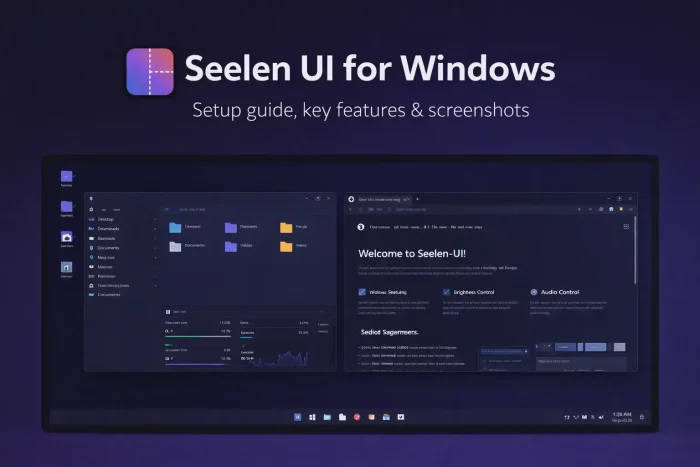

Seelen UI is a free, open-source desktop customization app for Windows 10 and Windows 11. It can replace parts of the default Windows desktop with its own dock or taskbar, tiling window manager, app launcher, widgets, themes, and other interface modules.
Unlike small tweak tools that only change one part of Windows, Seelen UI is designed to act more like a customizable desktop layer. You can use several modules together or enable only the ones you actually want.
This guide explains what Seelen UI does, who it is best for, how to install it safely, which problems you may run into, and what to expect on Windows 10 and Windows 11.
What You Need to Know
- Seelen UI is free and open source.
- The Microsoft Store is the best install option for most users.
- Winget installs the same signed MSIX package (a secure Windows app format) used by the Store.
- The setup.exe installer can be useful on Windows 10, but it is less ideal because it is not signed and may trigger antivirus warnings.
- Seelen UI does not patch Windows system files, but it can conflict with other taskbar or desktop customization tools.
Price
Free
License
Open Source
Windows
Windows 10 / 11
Install Methods
Store, winget, GitHub
Best For
Full desktop customization
Who Should Use Seelen UI?
Seelen UI makes the most sense if you want more than a minor visual tweak. It is aimed at people who want a more customized desktop layout, faster keyboard-driven launching, better window organization, or a desktop that feels less like stock Windows.
- Use it if: you want a custom dock or taskbar, tiling windows, launcher shortcuts, themes, widgets, or a more personalized desktop workflow.
- Skip it if: you only want one very small tweak, such as a transparent taskbar or a simple snapping improvement.
- Be careful if: you already use Start11, StartAllBack, MicaForEveryone, or other apps that modify the Windows shell.
How to Install Seelen UI on Windows
For most people, the Microsoft Store is the best place to start. It gives you a signed build and handles updates in a straightforward way. If you prefer the command line, winget installs the same signed MSIX package. GitHub releases are useful when you want the latest files directly, but not every installer option is equal.
Best install options
- Microsoft Store: best for most users.
- Winget: good if you prefer PowerShell or Windows Terminal.
- .msix from GitHub: signed package for manual install.
- setup.exe from GitHub: useful in some cases, especially on Windows 10, but less ideal because it is not signed.
- Step 1. Open the Microsoft Store page for Seelen UI.
- Step 2. Click Get and let Windows finish the installation.
- Step 3. Launch Seelen UI from the Start menu.
- Step 4. On first run, choose the modules you want to enable. You do not need to turn everything on at once.
- Step 5. Apply a theme, test the dock or taskbar, and then add the launcher or tiling features once you are comfortable with the layout.
Prefer the terminal?
Install Seelen UI with winget:
winget install --id Seelen.SeelenUI
Windows 10 note
Seelen UI relies on Microsoft Edge WebView2. On Windows 11, that runtime is normally already present. On Windows 10, the setup.exe installer includes WebView2, which can make setup easier on some systems. On very fresh Windows installs, Seelen UI may open to a white or dark screen until Windows Update finishes pending components and the PC is restarted.
Store updates vs GitHub releases
Microsoft Store and winget builds can sometimes appear a little later than GitHub releases because updates need approval before they go live. If you want the simplest install, use the Store. If you always want the newest release first, check GitHub.
Is Seelen UI Safe?
Seelen UI works through Windows APIs and desktop events rather than patching core system files. That makes it a safer category of customization tool than apps that directly modify the operating system.
That does not mean it will behave perfectly on every PC. Because Seelen UI interacts with the desktop shell, it can still conflict with other software that changes the taskbar, tray, appearance, or keyboard shortcut behavior. In practice, the bigger risk is compatibility, not Windows damage.

What Is Seelen UI?
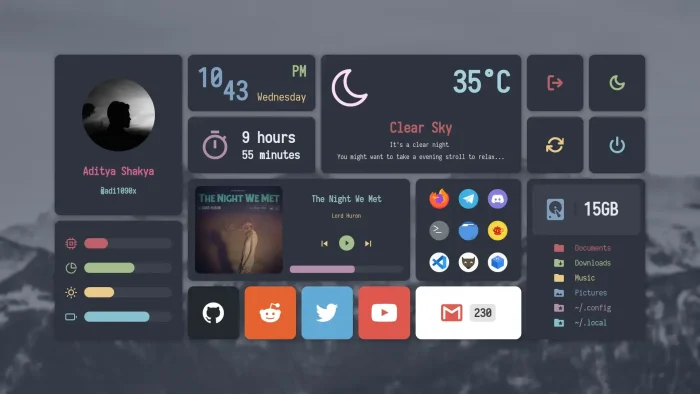
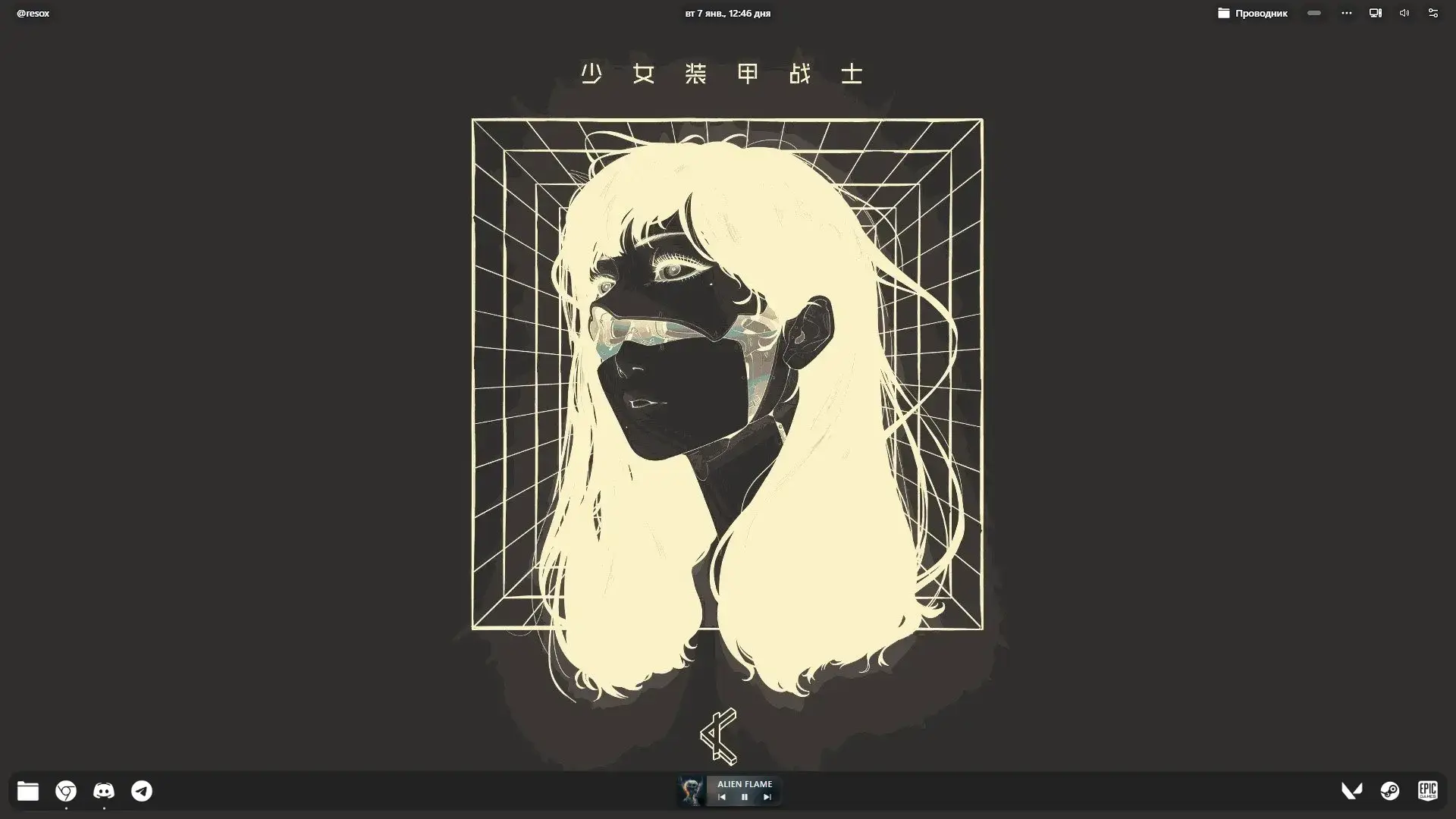
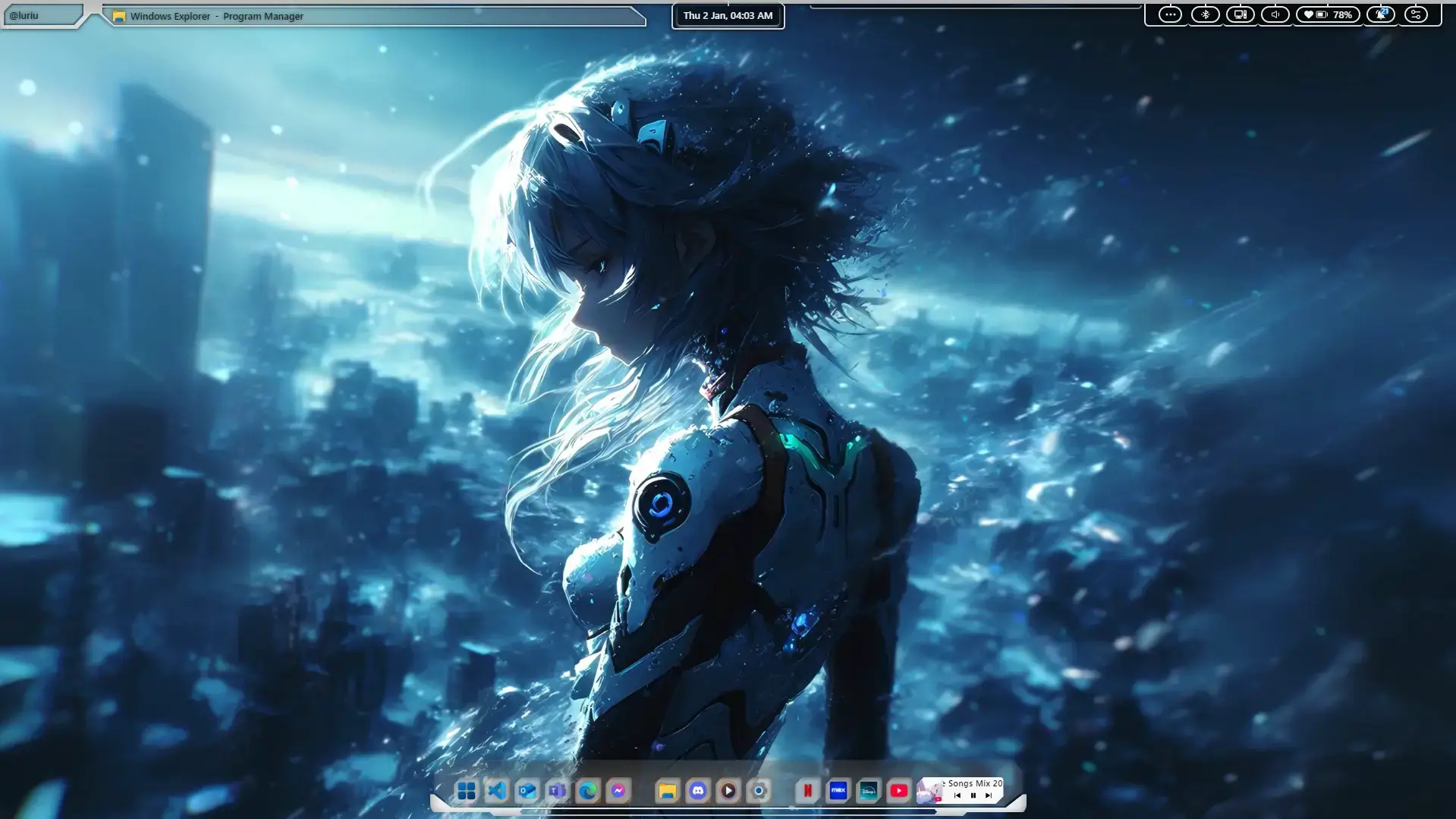
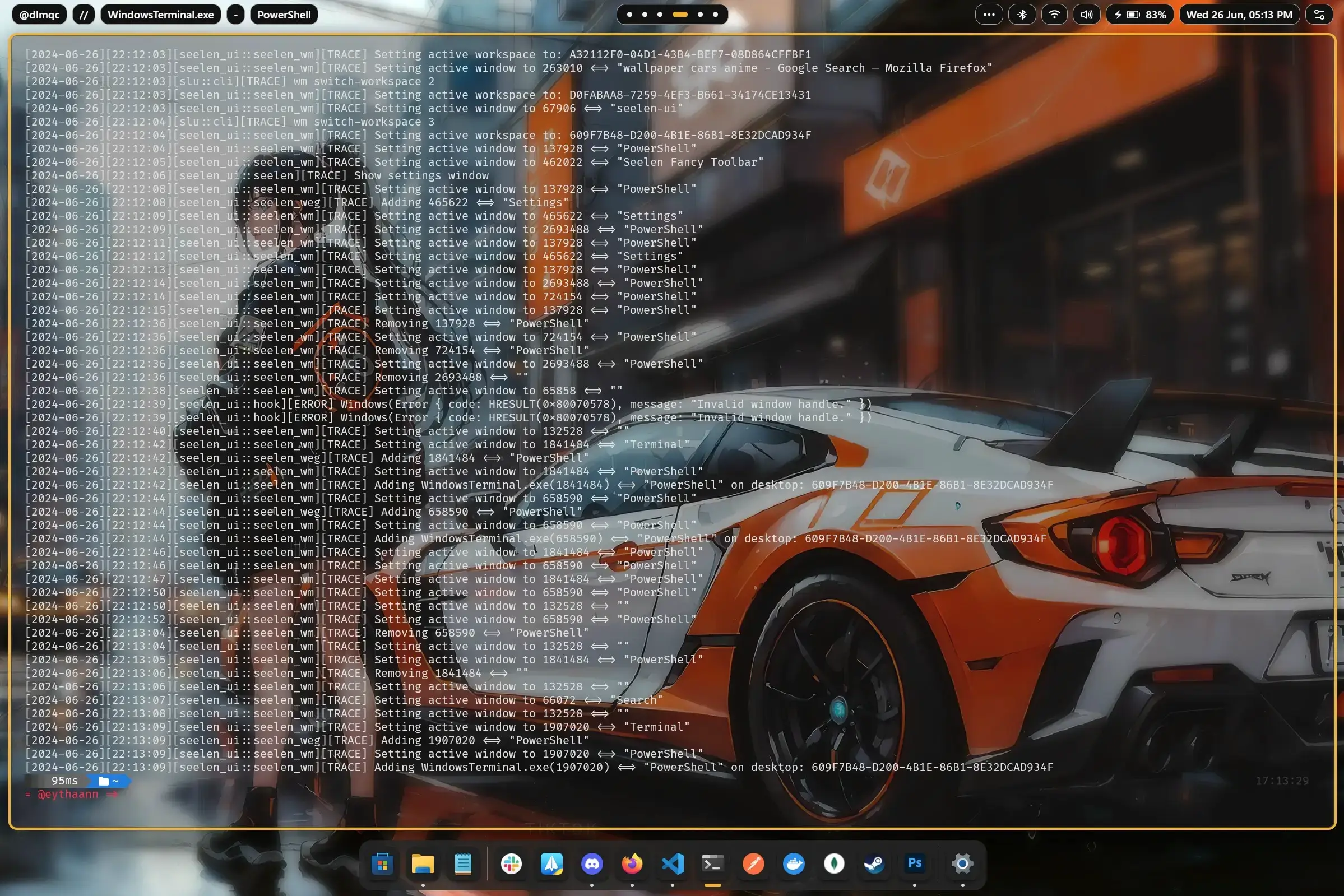
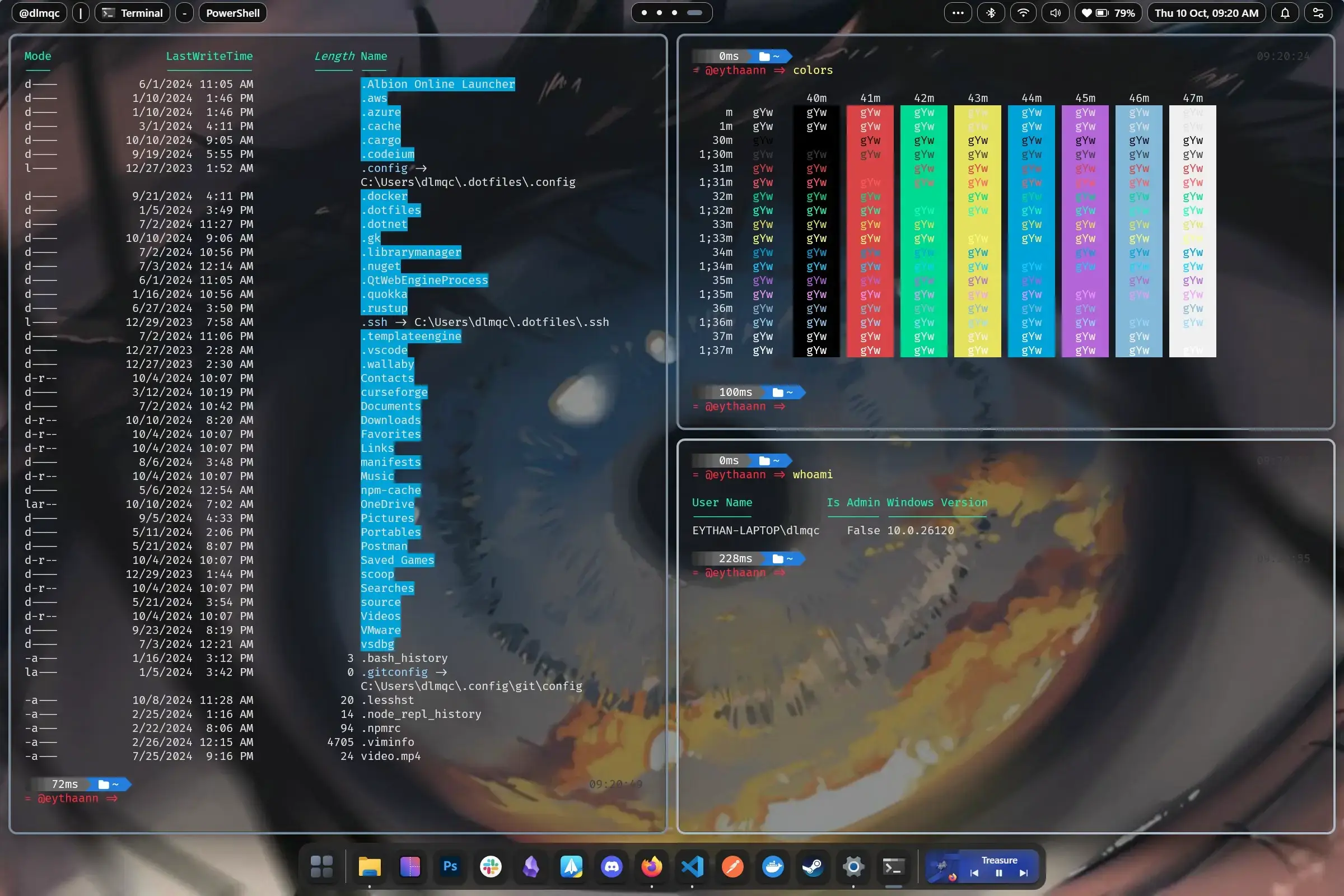
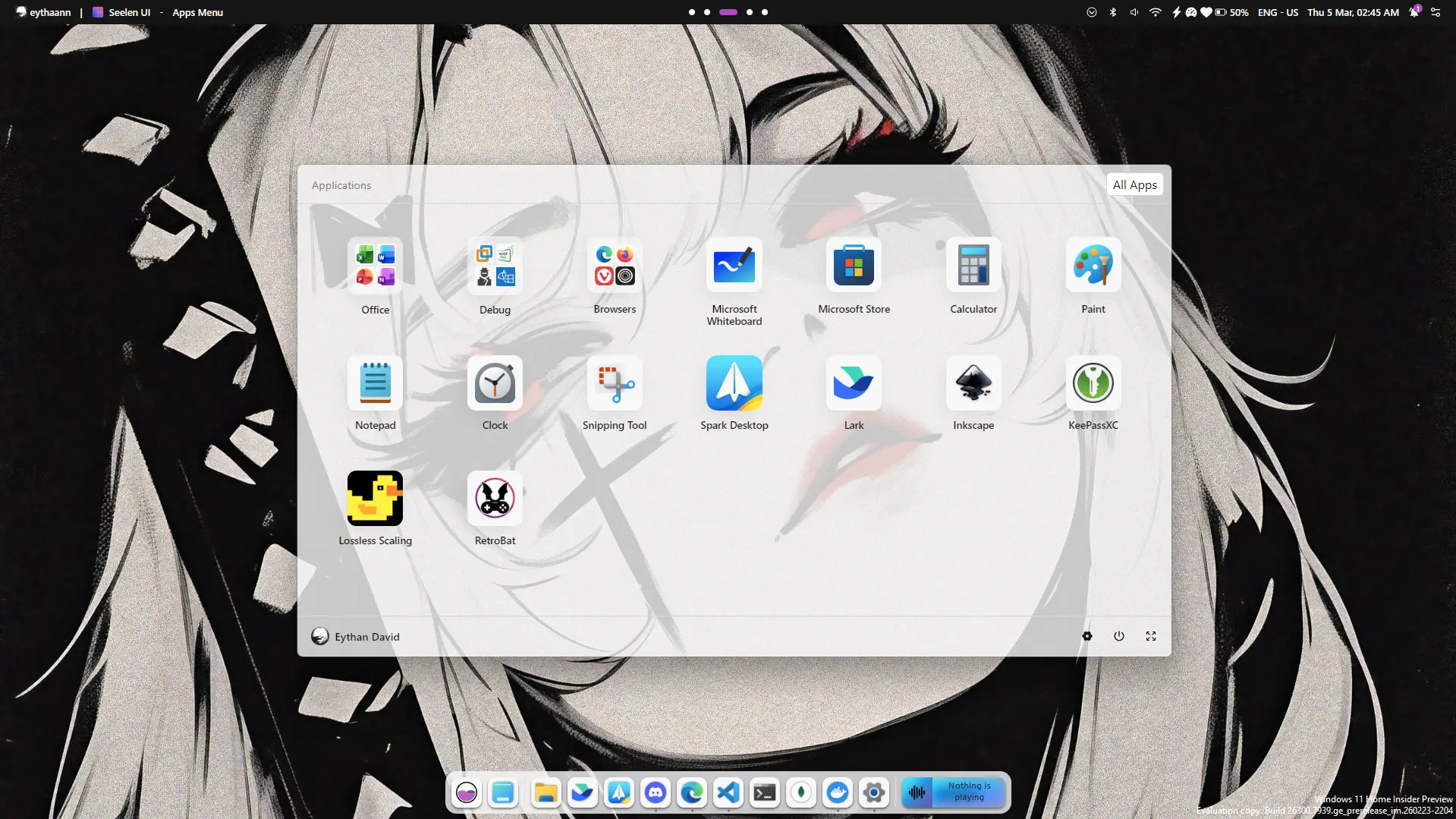
Seelen UI is a Windows desktop customization platform that lets you change more than just the look of the taskbar. It can add a dock or toolbar, a tiling window manager, a keyboard-driven launcher, media controls, widgets, themes, and other interface elements that work together as one desktop setup.
That broader scope is what makes it different from smaller customization tools. Seelen UI is not just a theme pack or a visual skin. It is closer to a modular desktop environment for Windows, where you can start small with one module or build a much more customized setup over time.
It also has a wider ecosystem around it. Beyond the core app, users can browse themes, icon packs, widgets, plugins, wallpapers, and other resources that change how the desktop behaves and looks after installation.
Key Features
Custom Dock or Taskbar
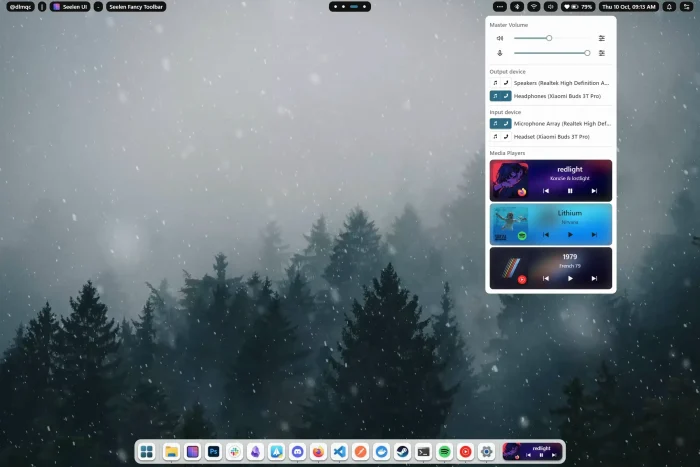
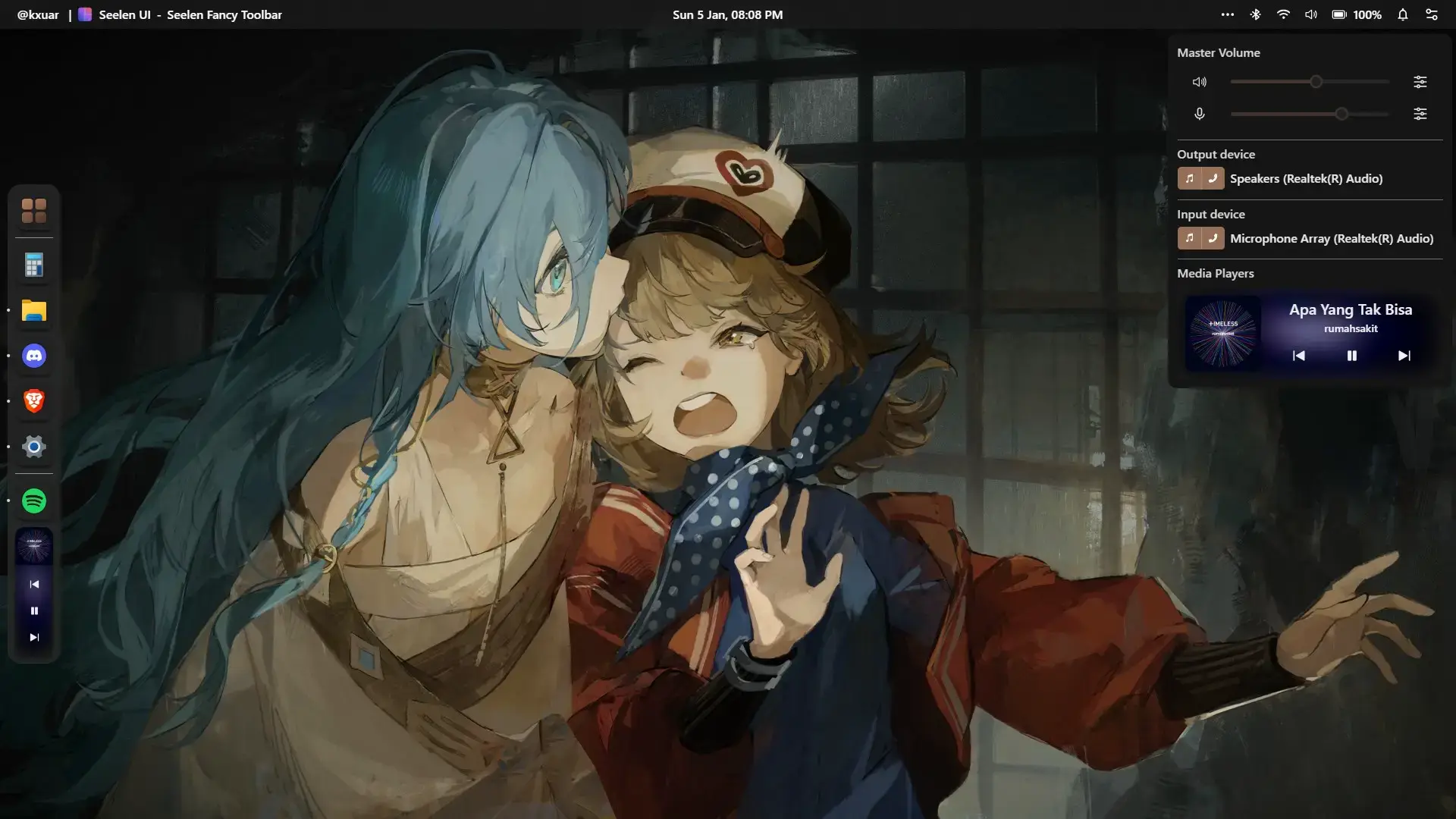
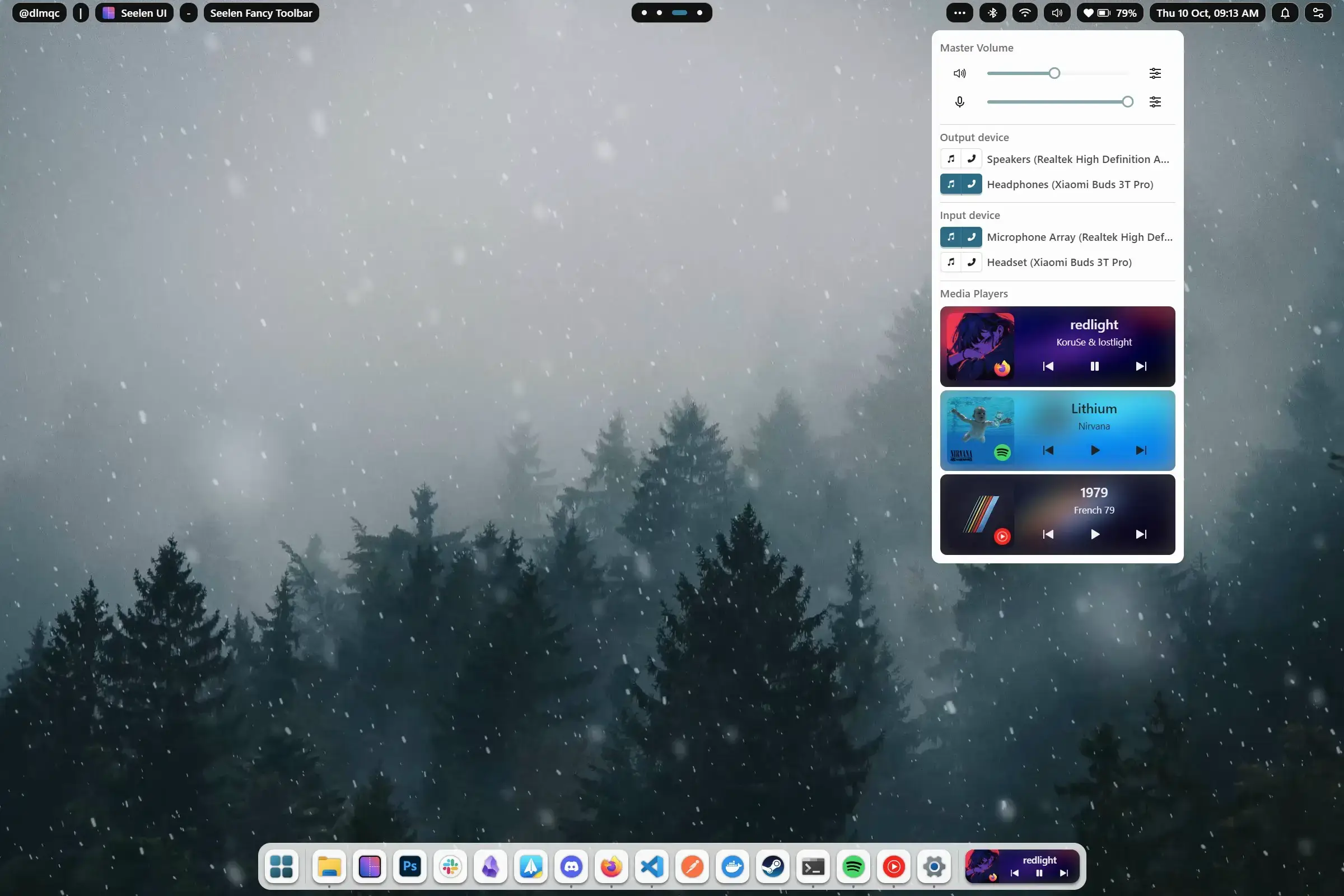
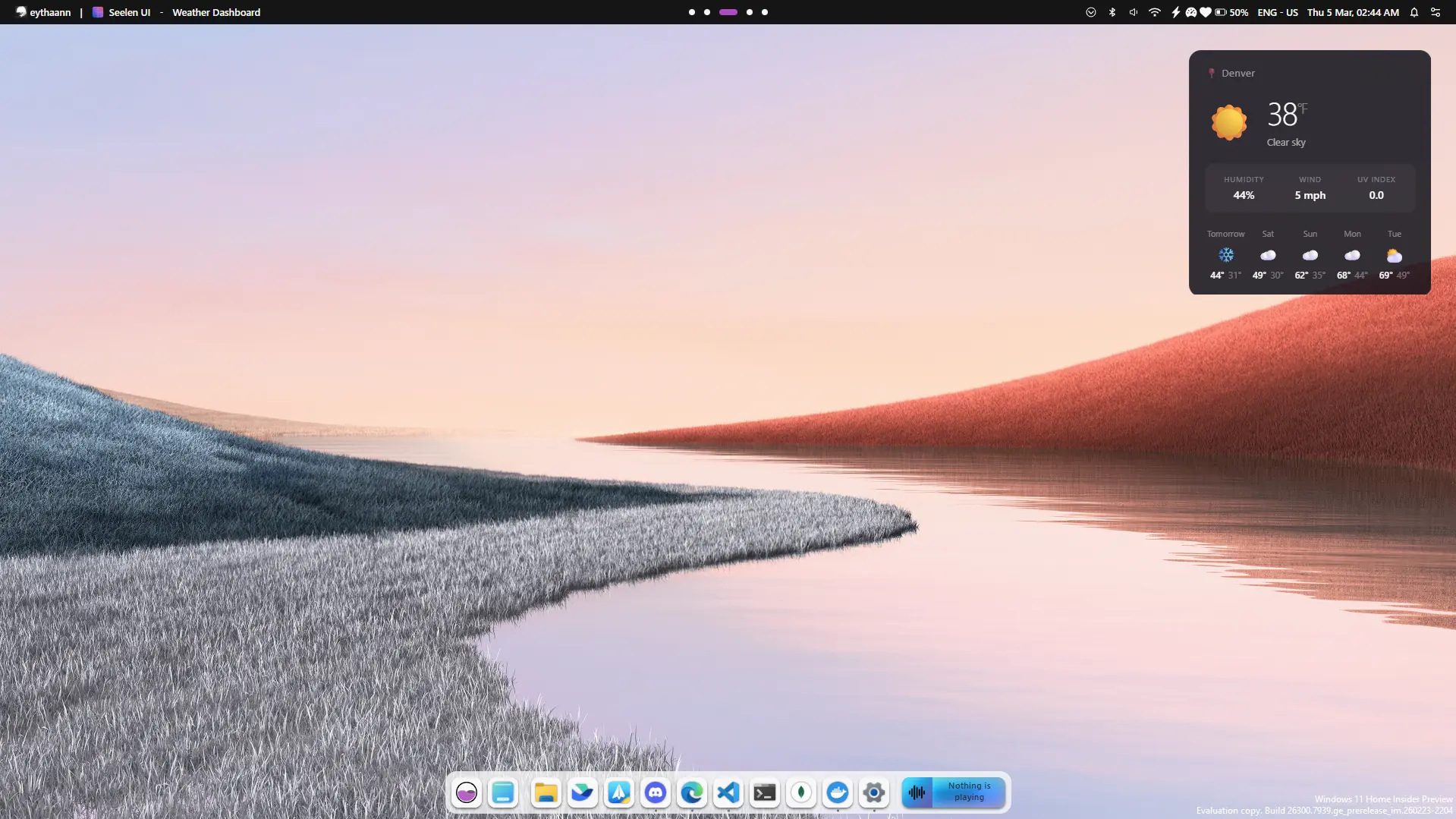
Seelen UI can replace the default Windows taskbar with its own dock or toolbar-style layout. You can change the look, placement, modules, and overall styling to fit the rest of your setup.
Tiling Window Manager
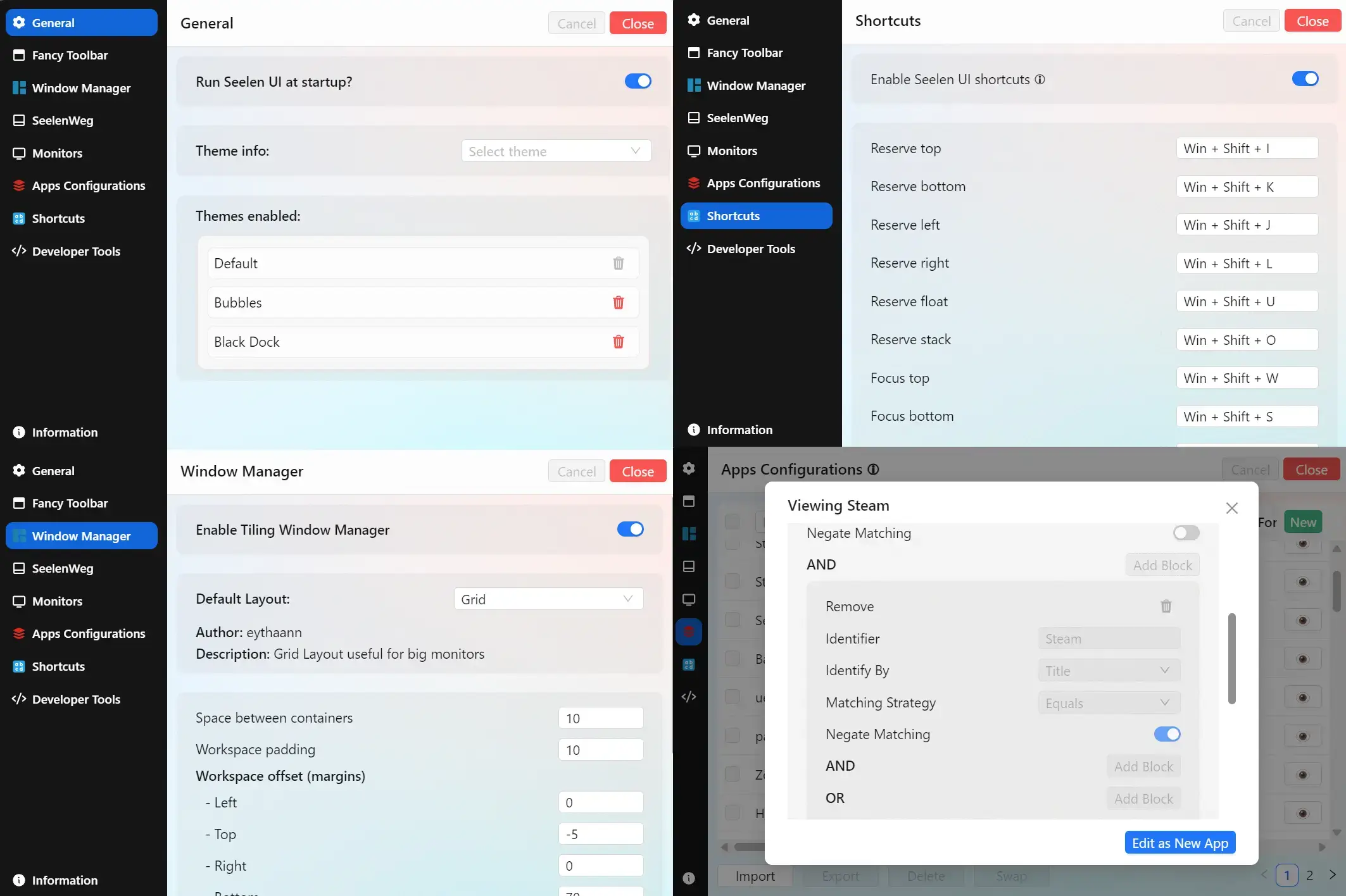
Seelen UI can arrange windows automatically so they fill the screen more efficiently. This is useful if you often work with multiple apps at once and want less dragging and resizing by hand.
Keyboard App Launcher
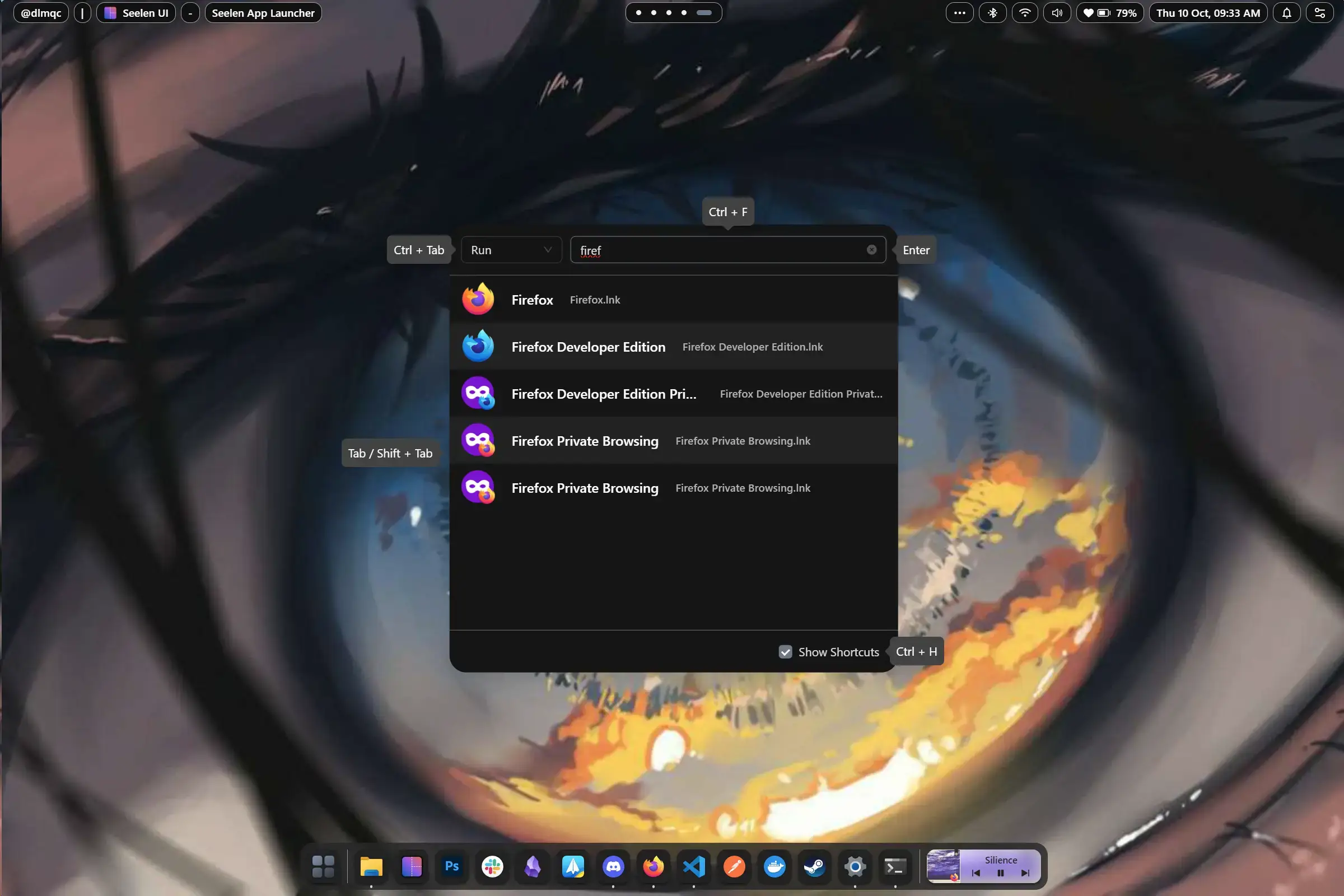
A fast launcher lets you open apps, files, or commands by typing instead of clicking through the Start menu. It is especially useful for keyboard-heavy workflows.
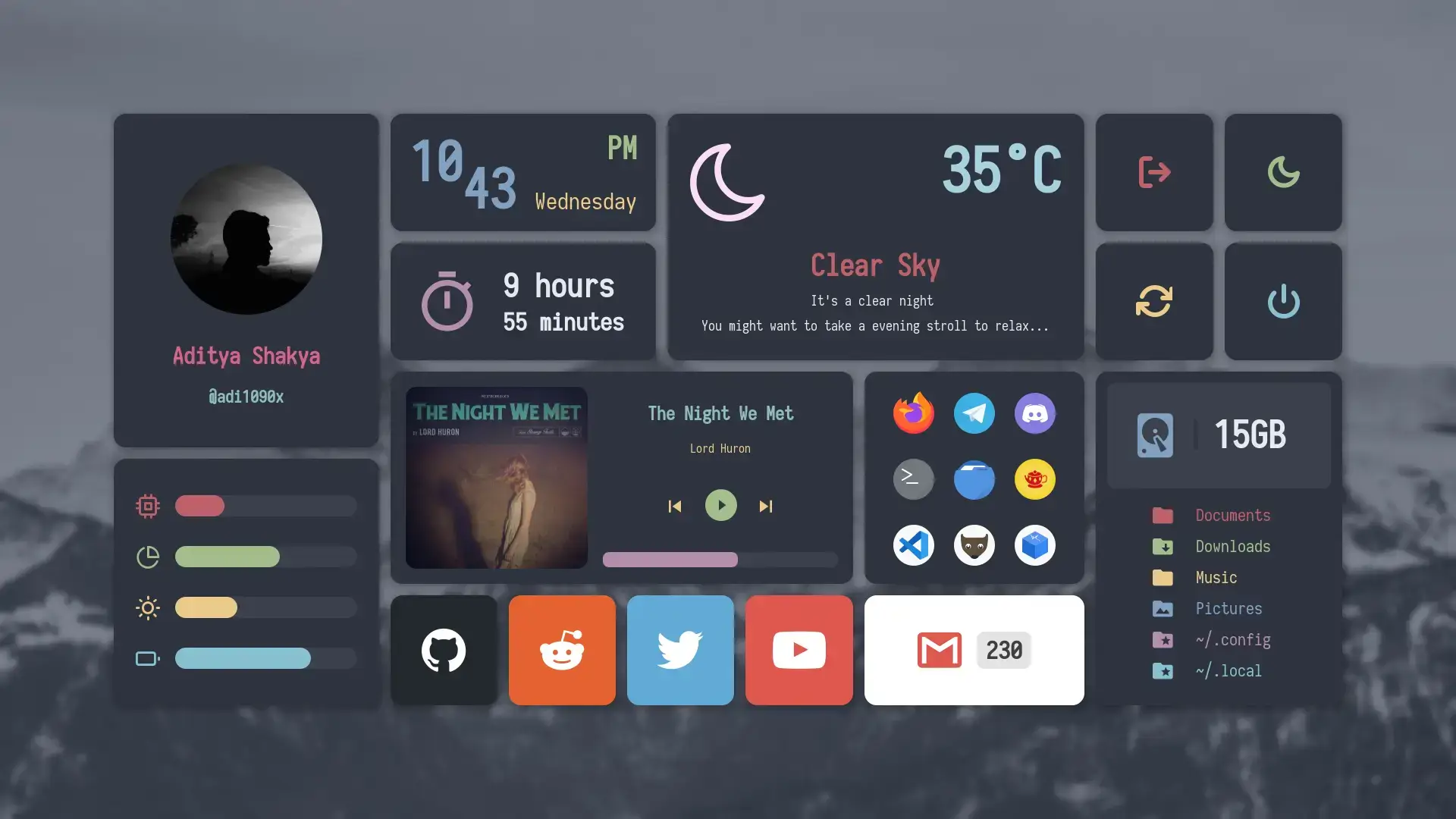
Widgets and Media Controls
Seelen UI can add extra desktop modules such as widgets and media controls, letting you keep useful information or playback controls visible without opening extra windows.
Themes and Visual Styling
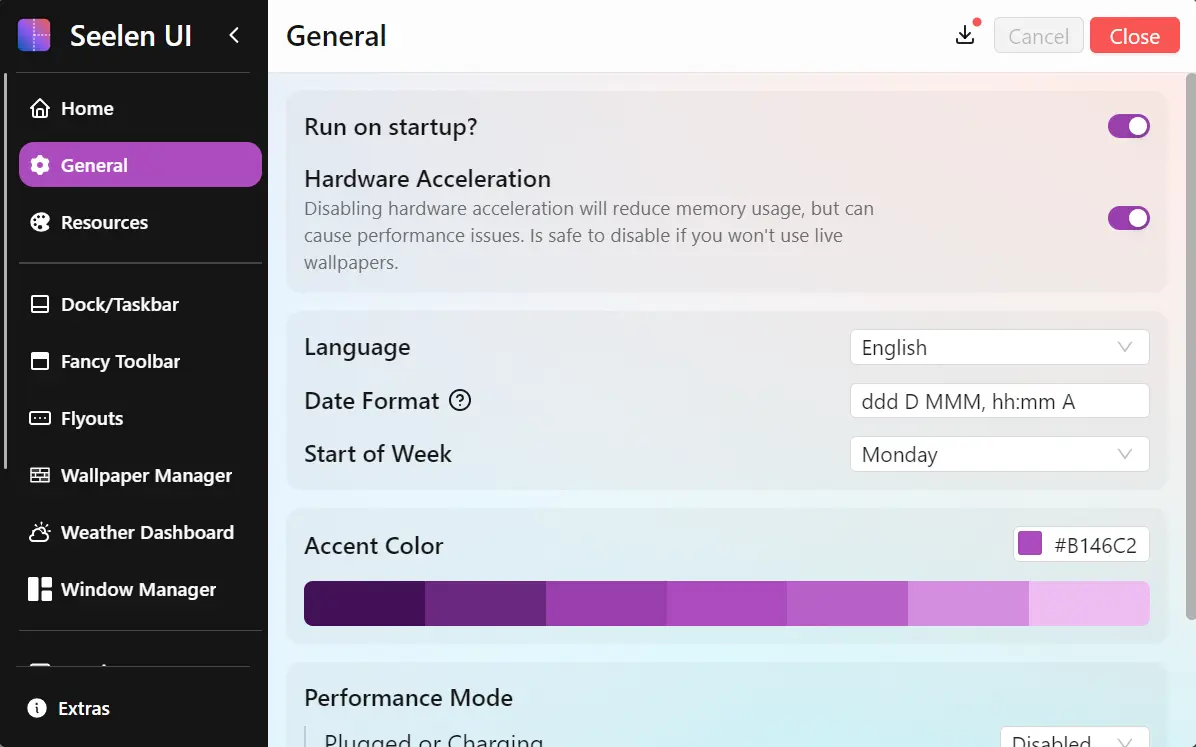
You can apply themes across multiple Seelen UI modules instead of styling each part separately. That helps keep the dock, widgets, launcher, and other elements visually consistent.
Modular Setup
You do not need to use every feature. If you only want the launcher, only the dock, or only tiling, you can build around that instead of overhauling your entire desktop on day one.
What You Can Customize After Install
| Area | What you can change |
|---|---|
| Dock / taskbar | Layout, position, look, modules, tray behavior, and theme styling. |
| Window management | Tiling behavior, layouts, floating windows, and workspace-style organization. |
| Visual style | Themes, icon packs, wallpapers, sound packs, and custom styling resources. |
| Extra functionality | Widgets, plugins, launcher behavior, media controls, and toolbar modules. |
System Requirements
Seelen UI runs on modern Windows 10 and Windows 11 PCs. The key dependency is Microsoft Edge WebView2, which is already present on most Windows 11 systems and can be bundled with the setup.exe installer on Windows 10.
| Requirement | Details |
|---|---|
| Operating system | Windows 10 version 17763.0 or higher, or Windows 11 |
| Memory | 4 GB minimum, 8 GB recommended |
| Input devices | Keyboard and mouse |
| WebView2 | Required. Usually present on Windows 11. Included with setup.exe on Windows 10. |
| Internet | Not required for normal use after installation |
| Account required | No |

Common Issues and Compatibility Notes
Gray or dark screen after launch
This can happen if another appearance tool is interfering with Seelen UI. If you already use MicaForEveryone or a similar visual tweak app, disable it first and then try Seelen UI again.
System tray problems
If the tray is missing icons or behaves strangely, check whether Start11, StartAllBack, or another taskbar replacement is installed. These apps can hook into the same Windows areas that Seelen UI uses.
Games with anti-cheat
Some anti-cheat systems may react badly to global shortcut tools. If a game uses strict anti-cheat protection, disable Seelen UI shortcuts before launching it and turn them back on later if needed.
Virtual desktops note
Seelen UI uses its own workspace-style approach rather than mirroring native Windows virtual desktops exactly. If you rely heavily on Win + Tab virtual desktops, expect a different workflow here.
Tips for Getting Started
Start with one module first
Seelen UI can change a lot at once. If you enable everything on day one, it may feel harder to learn. Start with the dock or taskbar, then add tiling, then the launcher, and then other modules once you understand the basics.
Give the launcher a real trial
A launcher only becomes useful when you use it for most of your app opening. Try using it for a few days before deciding whether it fits your workflow.
Expect some adjustment time with tiling
If you have never used a tiling window manager before, it may feel unusual at first. Spend a little time learning the layouts and shortcuts before you judge whether it is useful.
Keep your other shell tweaks to a minimum
If you are testing Seelen UI, turn off other taskbar, tray, or appearance modifiers first. That makes troubleshooting much easier if something looks wrong.
Browse community themes and setups
One of the easiest ways to understand Seelen UI is to look at what other users have already built. Community examples make it much easier to see what is possible before you start changing everything yourself.
Screenshots
Frequently Asked Questions
Is Seelen UI free?
Yes. Seelen UI is free and open source. There are no paid tiers, subscriptions, or locked premium features.
Does Seelen UI work on Windows 10?
Yes. Seelen UI supports Windows 10 and Windows 11. On Windows 10, setup can be easier with the setup.exe installer because it includes the WebView2 runtime.
Does Seelen UI modify Windows system files?
No. Seelen UI works through Windows APIs and desktop events rather than patching core system files. That makes it less risky than deep system modification tools, though conflicts with other shell apps are still possible.
What is a tiling window manager?
A tiling window manager arranges open windows automatically so they use screen space more efficiently. Instead of stacking windows on top of each other, it places them side by side or in a grid.
Does Seelen UI support native Windows virtual desktops?
Not in exactly the same way as standard Win + Tab virtual desktops. Seelen UI uses its own workspace-style approach, so power users should expect a different workflow.
Does Seelen UI need an internet connection?
No. Seelen UI works offline after installation for normal use. You only need internet access for downloading the app, updates, or extra resources such as themes and plugins.
How do I install Seelen UI on Windows?
The easiest way is through the Microsoft Store. You can also install it with winget by running winget install --id Seelen.SeelenUI in Terminal or PowerShell. GitHub releases are also available if you prefer a manual installer.
Support and Community
Seelen UI has an active community around it, which is useful when you want themes, setup ideas, troubleshooting help, or release updates. GitHub is best for releases and bug tracking, while the official website and Discord are better for guides, resources, and community examples.
- Seelen Discord Server – setup help, shared themes, community discussion
- Seelen UI on GitHub – source code, releases, issues, and development updates
- Seelen official website – install options, docs, resources, and project overview
More Windows customization guides: Best Free Windows Software · TranslucentTB for Windows · Customize Windows 11 Taskbar · WinRAR for Windows