

Readers like you help support this site. When you make a purchase using links on our site, we may earn an affiliate commission. All opinions remain our own.


Windows Terminal is Microsoft’s free, modern, and high-performance app for command-line users, designed to replace the old, single-window interfaces of Command Prompt and PowerShell. It boosts productivity by allowing you to run multiple command-line shells in a single tabbed window.
You can download Windows Terminal for free on any Windows PC, requiring Windows 10 (version 1903 or higher) or Windows 11, and an internet connection.
If you are a student, developer, or system administrator who frequently uses PowerShell or Command Prompt, this app is mandatory for a smoother, faster workflow.
This guide covers downloading it, its core features, and a quick start to using its power.
Share your Terminal setup below, or contact us for help.
How to Download Windows Terminal on PC
To get the official Windows Terminal on your Windows PC, download it directly from the Microsoft Store. Here’s the step-by-step process:
- Microsoft Store (Recommended)
- Visit the official page: Windows Terminal.
- Click the Get or Install button.
- Wait for the application to download and install automatically (it’s a small, quick download).
- Launch the app from your Start menu and look for the dropdown menu next to the
+button to see all your available profiles (PowerShell, Command Prompt, etc.).
Quick Tip: 💡 Always use the Microsoft Store link for the latest, secure version.
🗳️ Readers’ Poll
We want to know your opinion on how you use the Windows Terminal;
What is Windows Terminal App About?
Windows Terminal is an open-source, tabbed console emulator developed by Microsoft for Windows 10 and 11. It’s designed to bring multiple command-line interfaces together into one powerful, modern application.
Unlike the legacy Command Prompt or PowerShell applications, Windows Terminal offers:
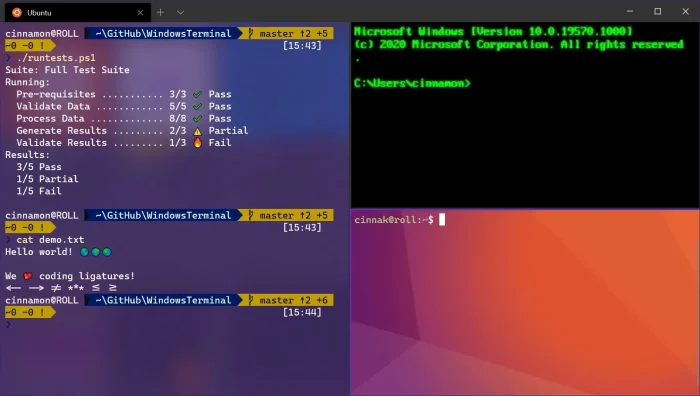
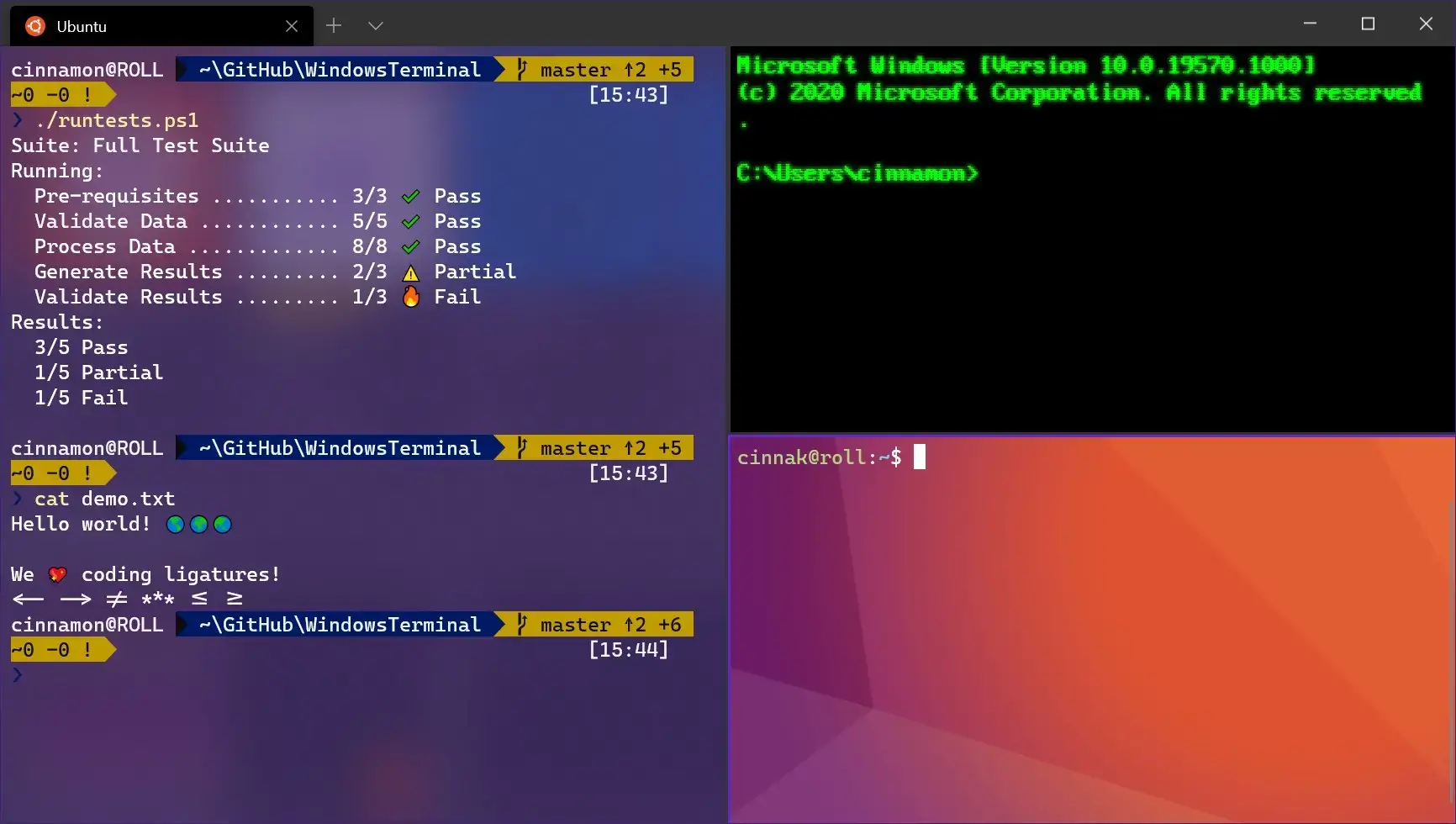
- Multi-Tabbed Interface: Run Command Prompt, PowerShell, and even a Linux distribution (via WSL) in separate tabs within the same window.
- Aesthetics: Supports GPU-accelerated text rendering, custom fonts, emojis, and transparent backgrounds.
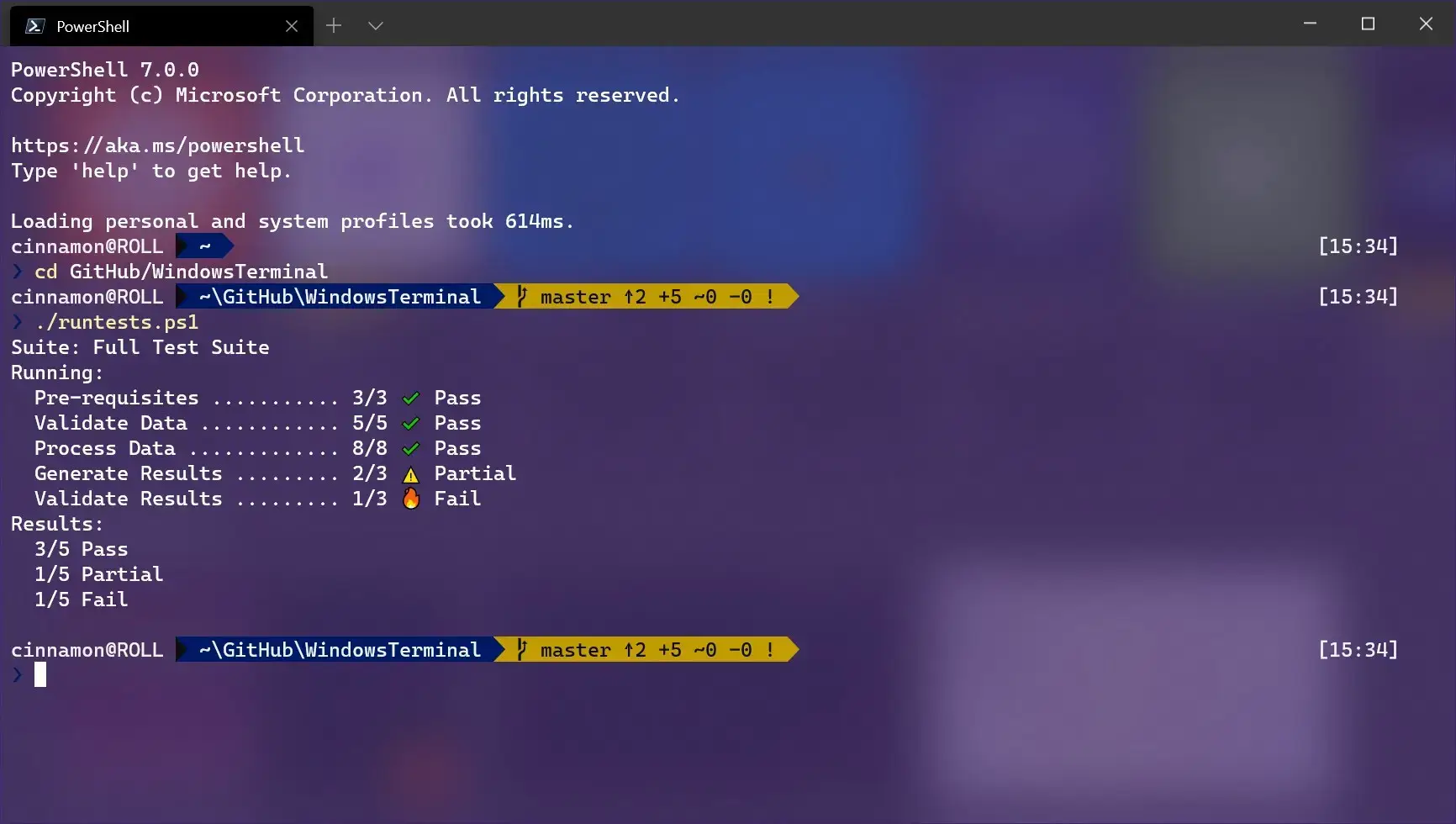
- Profiles: You can instantly switch between profiles (PowerShell, Command Prompt, Azure Cloud Shell, etc.) using a simple dropdown menu.

Core Features: The Terminal Advantage
Here’s what Windows Terminal does and why it matters for your workflow:
- Split Panes: Divide a single tab into multiple resizable sections to monitor tasks simultaneously (great for running a server and monitoring logs).
- Custom Shortcuts: Use easy keyboard shortcuts to navigate tabs, open new profiles, or search for text.
- Text Rendering: Better font rendering (including support for Cascadia Code) makes text clearer and less straining on the eyes.
- WSL Integration: Automatically detects and integrates any Linux distributions you have installed (Ubuntu, Kali, etc.).
Quick Start Guide for Windows Terminal
You don’t need to be a developer to get immediate value from Windows Terminal app.
- Open a New Tab: Click the
+button or useCtrl + Shift + Tto open a new tab. - Change Shell: Click the down arrow next to the
+to open a specific profile (e.g., switch from PowerShell to Command Prompt). - Split the View: Use
Alt + Shift + -(split horizontally) orAlt + Shift + +(split vertically) to open a second command line next to your first.
Common Issues & Fixes for Windows Terminal
- App Not Installed: Ensure your Windows 10 version is 1903 or newer; otherwise, the Microsoft Store will not allow installation.
- Not Launching as Default: If Windows still opens the old console, open Terminal settings and ensure the “Default Terminal Application” is set to Windows Terminal.
- Missing Profiles: If you don’t see PowerShell or WSL, ensure they are correctly installed on your system. Terminal automatically detects installed shells.
What does Windows Terminal look like?

Windows Terminal Beginner’s Video
Watch this quick introduction to understand the core concepts and see the multi-tab interface in action:
System Requirements for Windows Terminal
- OS: Windows 10 (version 1903 or higher) or Windows 11
- Storage: Small download (less than 100 MB)
- Other: Internet connection for download
Windows Terminal FAQ
- Is Windows Terminal free? Yes, it is a free, open-source app developed by Microsoft.
- Does it replace Command Prompt? No, it hosts Command Prompt, PowerShell, and other shells, but it does not replace the underlying executables.
- Is it good for gaming? While not directly for gaming, it’s useful for power users who need to run server commands or diagnostic tools while gaming.
Next Steps: Explore More Windows Power Tools
Now that you’ve upgraded your command line, prepare to master your PC with our guides on essential Microsoft tools:
- Mastering the Windows Taskbar: Alignment, Customization, and Registry Hacks
- Boost Your PC Performance: The Microsoft PC Manager Guide
- Create instant free forms, quizzes, surveys and collect data with Microsoft Forms