

Readers like you help support this site. When you make a purchase using links on our site, we may earn an affiliate commission. All opinions remain our own.
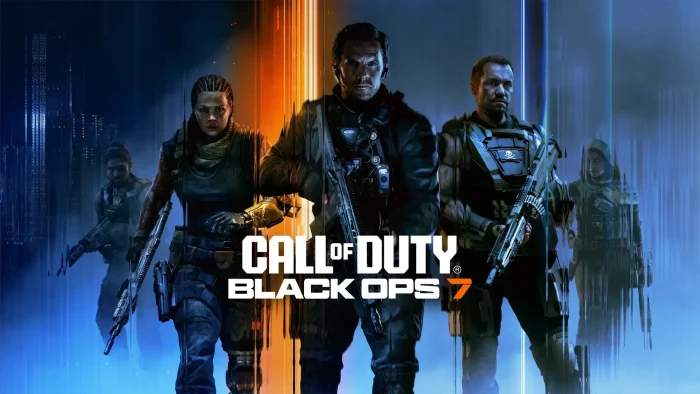

Available on Steam, Battle.net, Microsoft Store and consoles, this title delivers a signature Black Ops experience with an innovative co-op campaign, massive multiplayer, and the return of round-based Zombies.
The game launched recently and is already being played by millions globally. It is developed by Treyarch and Raven Software, and is the eighth main entry in the Black Ops sub-series, set ten years after the events of Black Ops II.
The narrative follows JSOC Commander David Mason and his team as they investigate the mysterious return of the infamous villain Raul Menendez, while also confronting a new global threat, the tech giant known as The Guild. The game is described as the biggest Black Ops ever.
If you enjoy high-octane military shooters with deep lore, relentless multiplayer action, and co-operative horror survival, Call of Duty: Black Ops 7 is the definitive 2025 shooter experience.
This guide covers how to install it on Windows, its key features, and essential beginner tips for diving into its three core modes.
Have questions or your own strategies to share? Leave a comment below or contact us.
Download and install Call of Duty: Black Ops 7 on PC
Call of Duty: Black Ops 7 is available on Steam, Battle.net, Microsoft Store and the Xbox app for PC. Here’s how to install it:
- Method: Steam
- Open the store page: Call of Duty: Black Ops 7 on Steam.
- Click Add to Cart and complete the checkout process.
- In your Steam Library, click Install and select your preferred drive.
- Wait for the download to complete.
- Launch the game from your Library and start your mission.
- Method: Battle.net
- Open the Battle.net launcher and navigate to the Call of Duty section.
- Select Call of Duty: Black Ops 7 and click Install.
- Follow the on-screen prompts to complete the installation.
- Method: Microsoft Store
- Open the Microsoft Store app or visit: Call of Duty: Black Ops 7 on Microsoft Store.
- Click Install or Buy to purchase and download the game.
- The game will automatically install to your designated drive.
- Launch directly from the Start menu or Microsoft Store library.
Get Call of Duty: Black Ops 7 on Steam | Get on Microsoft Store


What is Call of Duty: Black Ops 7?
Call of Duty: Black Ops 7 is a first-person shooter that continues the iconic Black Ops storylines while introducing groundbreaking new gameplay modes. The game is built upon three core pillars: a mind-bending co-operative campaign, a fast-paced and expansive multiplayer suite, and a classic round-based Zombies survival experience.
The core gameplay retains the signature Black Ops feel but evolves it with new mechanics. The Omnimovement system returns, now enhanced with new vertical mobility options. The tactical sprint is no longer a default ability but is now accessed via a perk, shifting the strategic balance of loadouts.
Unlike some previous entries, Black Ops 7’s campaign is designed from the ground up for co-op, supporting 1-4 players, with dynamic difficulty that scales based on the size of your squad. Completing the campaign’s main missions unlocks additional content and replayable experiences.
Key Features
- Co-Op Campaign: A full narrative experience designed for 1-4 players, featuring shared hallucinations and a descent into the psyches of the main characters, set across global locations from Japan to the Mediterranean.
- Massive Multiplayer: Launches with numerous core maps, large-scale battle modes, and a wide variety of game types including new additions and returning favorites. The classic Prestige mode returns, allowing players to reset their progression for rewards.
- Round-Based Zombies: The fan-favorite traditional Zombies mode is back on massive maps alongside new variants for added challenge and replayability.
- Weapon Build Sharing: A new community feature that allows players to share their custom weapon loadouts with others via a simple code.
- PC-Optimized Experience: Includes deep customization with numerous options, support for ultrawide monitors, and a built-in benchmark tool to analyze your hardware performance.
Who would like this game?
This game is perfect for fans of the Black Ops series and fast-paced military shooters. It’s an excellent choice for players who enjoy cooperative story campaigns, competitive multiplayer with deep progression, and team-based survival modes against zombie hordes.
Why play on Windows?
Playing on PC provides the definitive experience for Call of Duty: Black Ops 7, thanks to extensive graphics customization, support for high-refresh-rate monitors, and precision mouse and keyboard controls. The platform also offers enhanced security and is finely tuned for performance on a wide range of hardware.

Tips for PC beginners
- Enable TPM 2.0 and Secure Boot: This is a mandatory security requirement to even launch the game. Check your PC’s BIOS/UEFI settings to ensure these features are enabled before you try to play.
- Use the Built-In Benchmark: Before jumping into matches, run the in-game PC Benchmark Tool to analyze your system’s performance and get personalized graphics setting recommendations for the smoothest experience.
- Master Movement Mechanics: Practice the advanced movement abilities to access unexpected sightlines, evade enemies, and traverse maps more quickly than your opponents.
- Experiment with Hybrid Combat Specialties: In multiplayer, don’t just stick to one perk category. Mixing perks from different specialties can unlock powerful hybrid bonuses that suit unique playstyles.
- Manage Your Install Size: Use the CoD HQ app to install only the parts of the game you plan to play to save significant storage space on your drive.
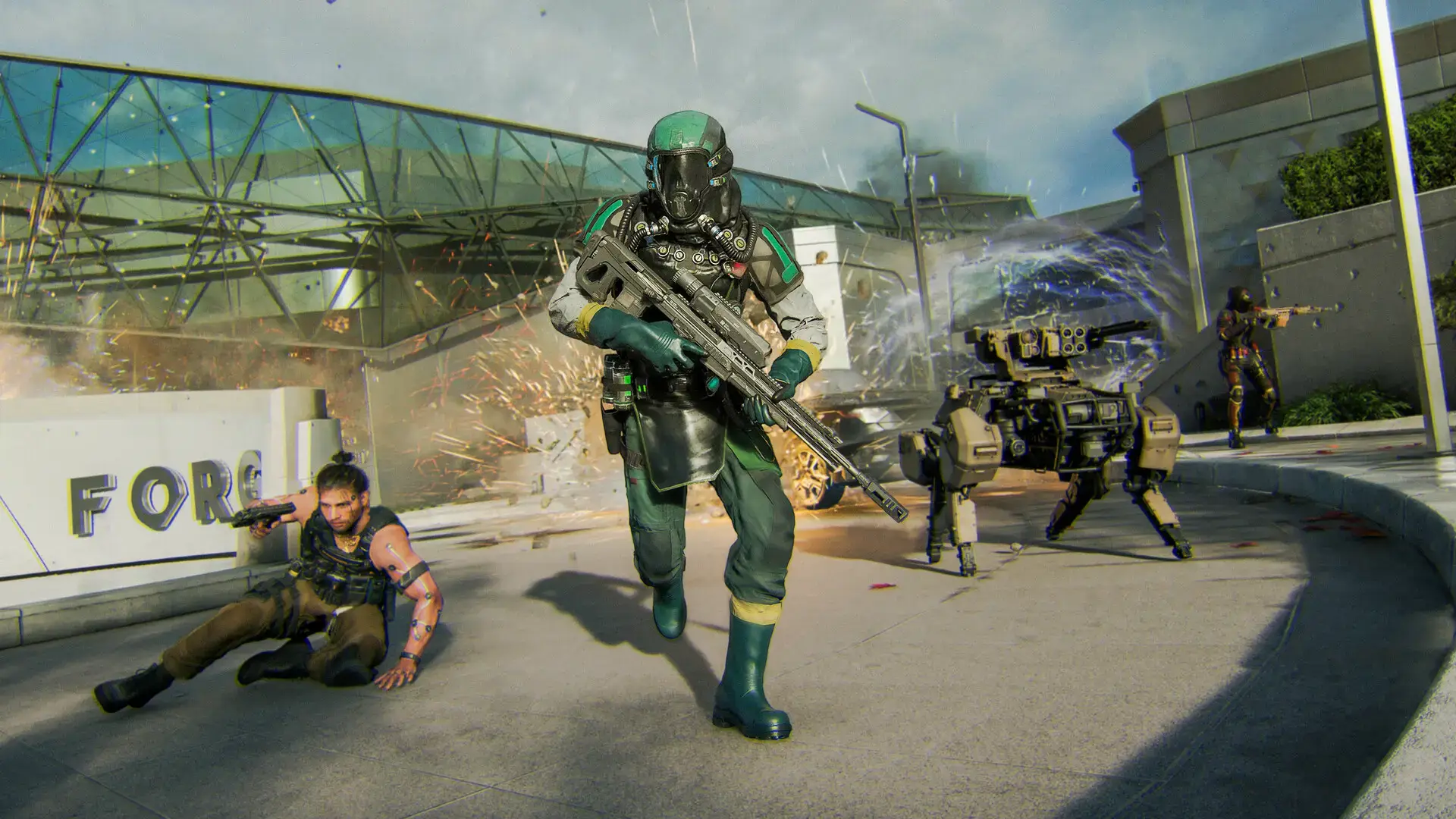
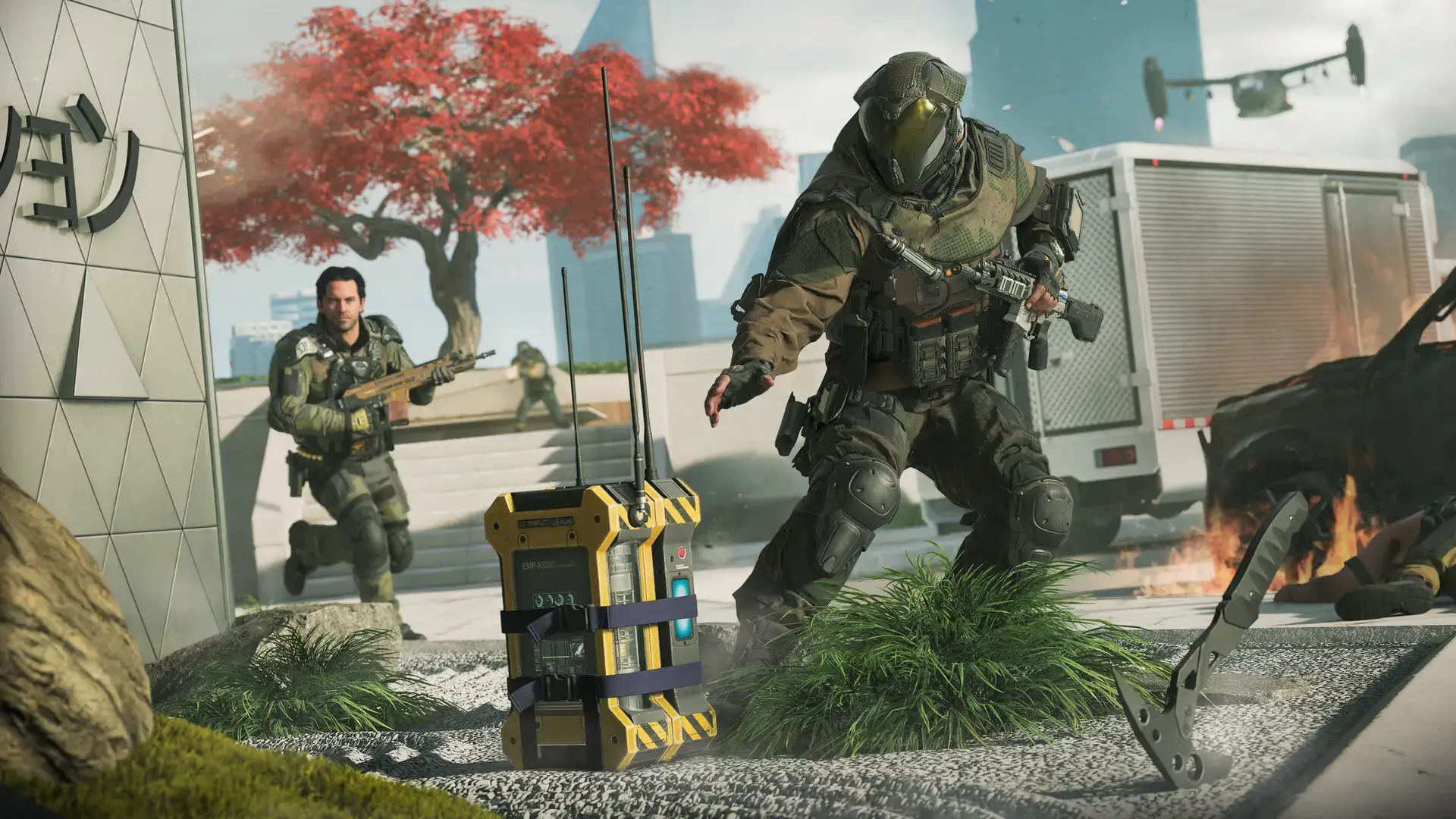
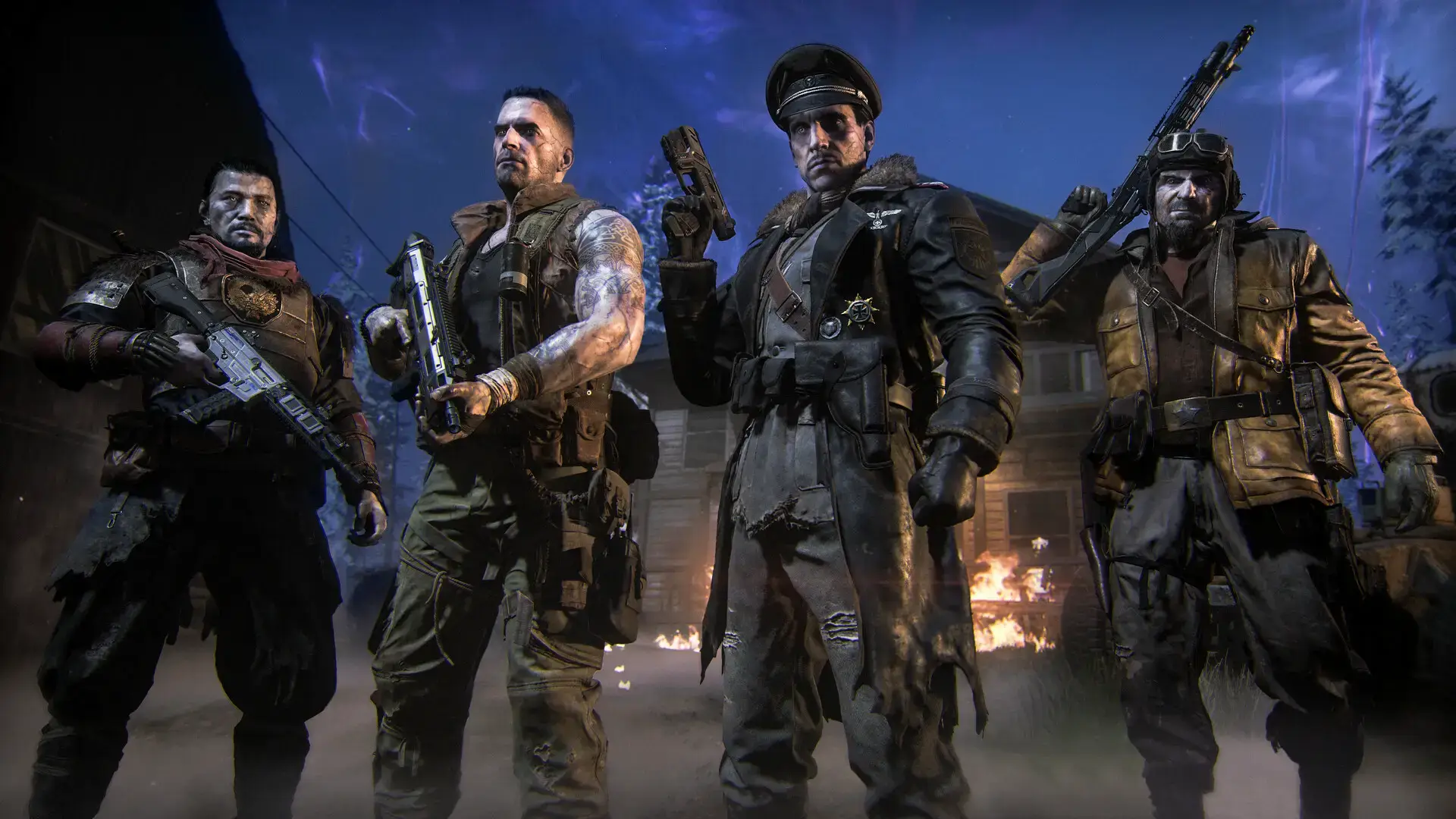
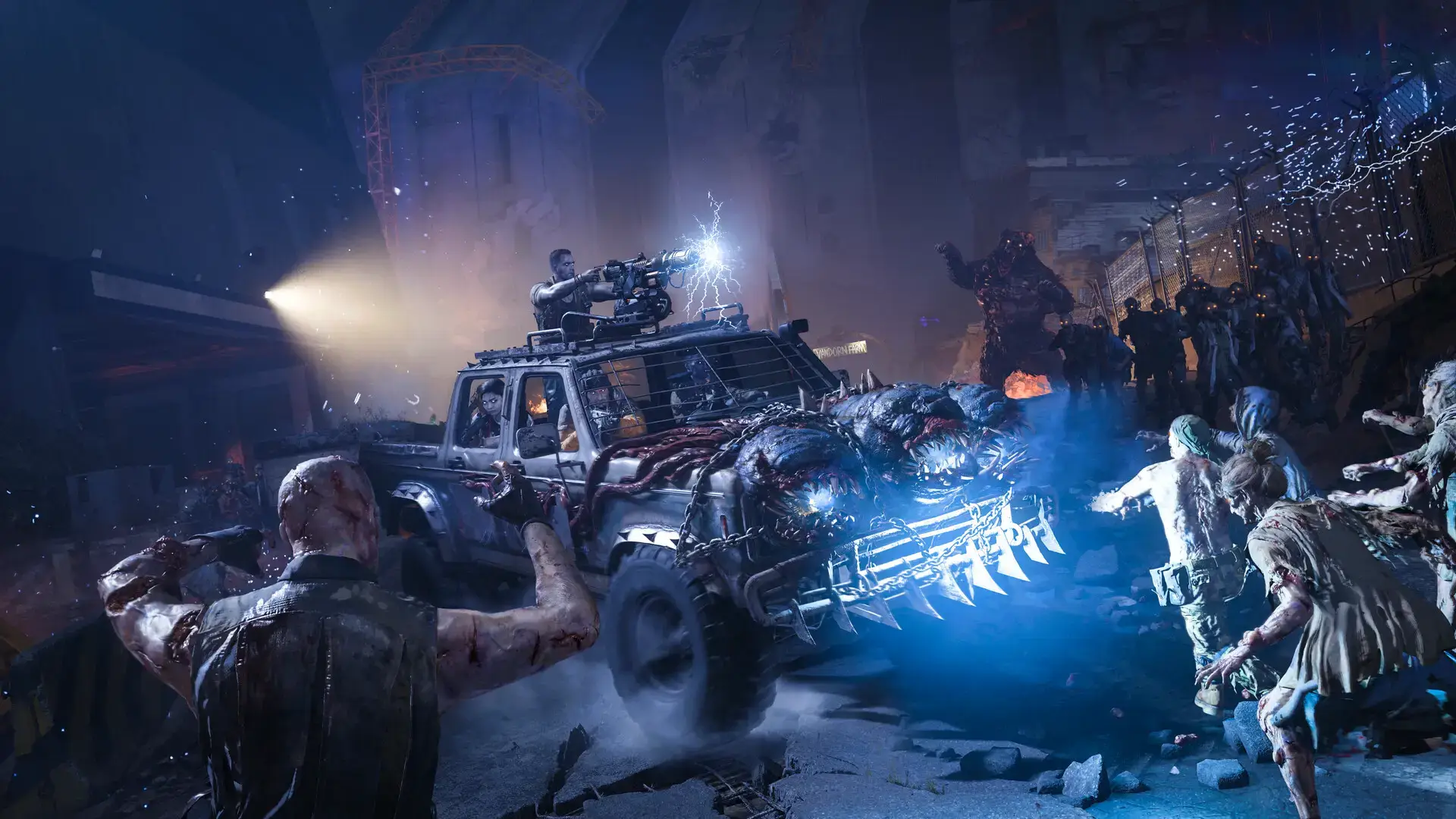
Call of Duty: Black Ops 7 Gameplay Screenshots






Call of Duty: Black Ops 7 Official Trailer
Watch the official PC trailer to see the stunning visuals and intense action.
Call of Duty: Black Ops 7 PC Requirements
Minimum:
- OS: Windows 10 64-bit (latest update)
- CPU: AMD Ryzen 5 1400 or Intel Core i5-6600
- RAM: 8 GB
- GPU: AMD Radeon RX 470 or NVIDIA GeForce GTX 970 / 1060
- DirectX: Version 12
- Storage: SSD with 116 GB available space
Recommended:
- OS: Windows 11 64-bit (latest update)
- CPU: AMD Ryzen 5 1600X or Intel Core i7-6700K
- RAM: 12 GB
- GPU: AMD Radeon RX 6600XT or NVIDIA GeForce RTX 3060
- DirectX: Version 12
- Storage: SSD with 116 GB available space
Call of Duty: Black Ops 7 on Windows FAQ
- What are the unique PC security requirements? The game requires TPM 2.0 and Secure Boot to be enabled on your system. This is a mandatory check to run the game.
- Can I play on a handheld PC? Yes, the game is officially tuned and supported for Windows-based handhelds with optimized UI and controls for a seamless portable experience.
- How does the co-op campaign work? The entire campaign can be played solo or with up to 3 other players. The game’s difficulty adjusts dynamically based on the number of players in your squad.
- What is included in the Vault Edition? The Vault Edition includes bonus content like the Nemesis Pack, BlackCell Battle Pass, and additional cosmetic items available through Amazon and other retailers.
- Does it support cross-play? Yes, Call of Duty: Black Ops 7 features full cross-play support, allowing PC players to team up with or compete against friends on PlayStation and Xbox consoles.
Support and Community
Explore more Windows games: Assetto Corsa Rally · Tom Clancy’s Rainbow Six Siege for PC · Call of Duty: Black Ops 6 · Best Action Games