

Readers like you help support this site. When you make a purchase using links on our site, we may earn an affiliate commission. All opinions remain our own.


You can download Day One for free on your Windows PC via the Microsoft Store, with optional Premium subscriptions starting at $34.99/year for features like multiple journals.
Developed by Automattic, it works on Windows 10 and 11, trusted by users for its end-to-end encryption and elegant design.
If you’re a writer, parent, or dreamer documenting life, you need a tool that’s secure and simple.
This guide covers installing it on Windows, its key features, and tips to get started.
Share your favorite journaling moment below, or contact us for help.
How to Download Day One on PC
To get the Day One app on your Windows PC, download it from the Microsoft Store. Here’s how:
- Microsoft Store
- Visit the page: Day One.
- Click Download to install the free app (about 150 MB).
- Launch from the Store or Start menu, sign in, and start journaling.
- Add photos, videos, or audio to enrich your entries.
Quick Tip: 💡 Set up daily writing prompts in Settings to spark inspiration for your entries.
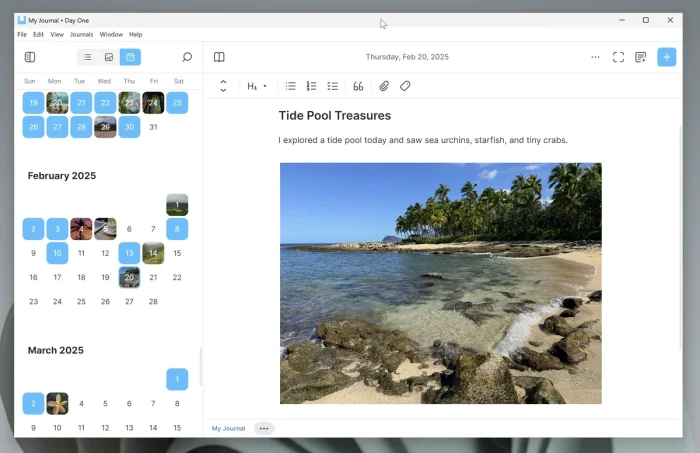

What is Day One About?
Day One, developed by Automattic since 2011, is an award-winning journaling app for capturing memories with text, photos, videos, and audio.
It features end-to-end encryption, cloud sync, and a distraction-free interface.
Users on X praise its privacy and ease but note Premium costs for features like multiple journals.
It’s ideal for personal diaries, gratitude logs, or memory keeping, with quotes from the New York Times calling it “a completely private digital space.”
Core Features: Journal securely with a beautiful, private app.
Why Use Day One on Windows?
It’s elegant, secure, and perfect for thoughtful writing.
- Write unlimited text entries with no limits
- Attach photos, videos, or audio to entries (Premium)
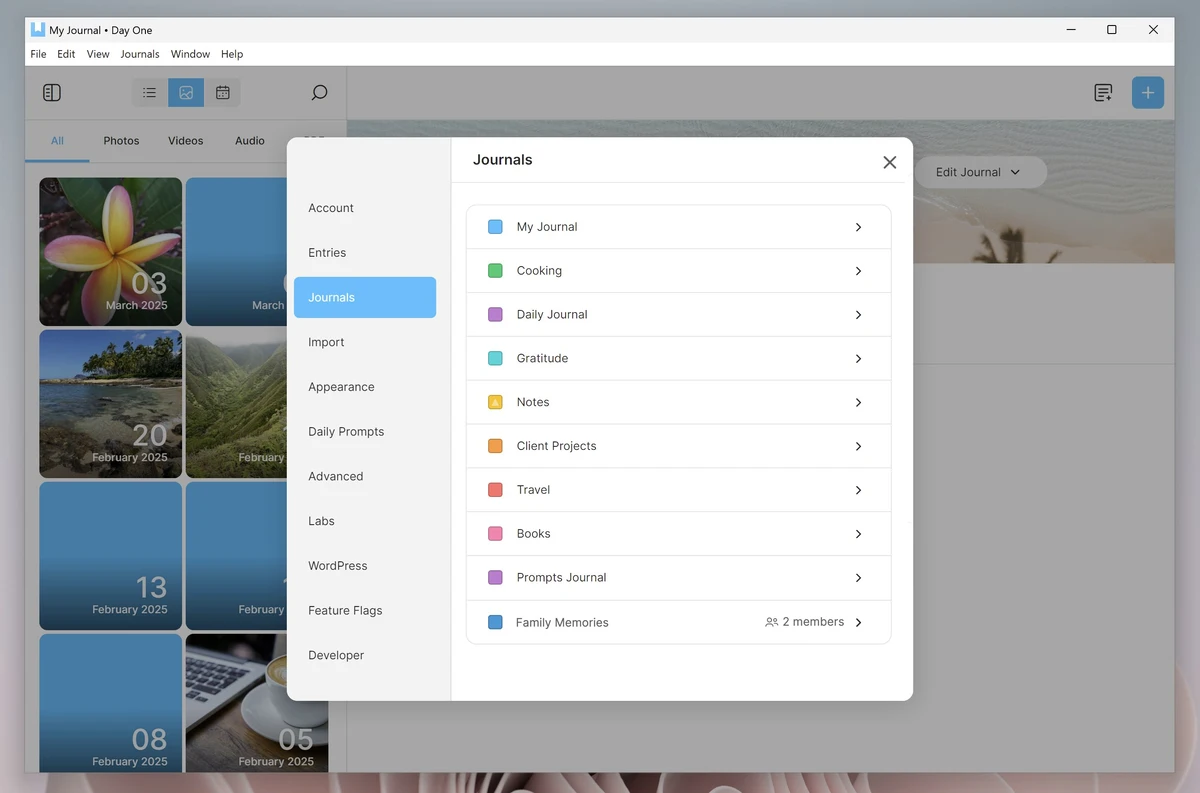
- Create multiple journals for different themes (Premium)
- Sync securely with end-to-end encryption
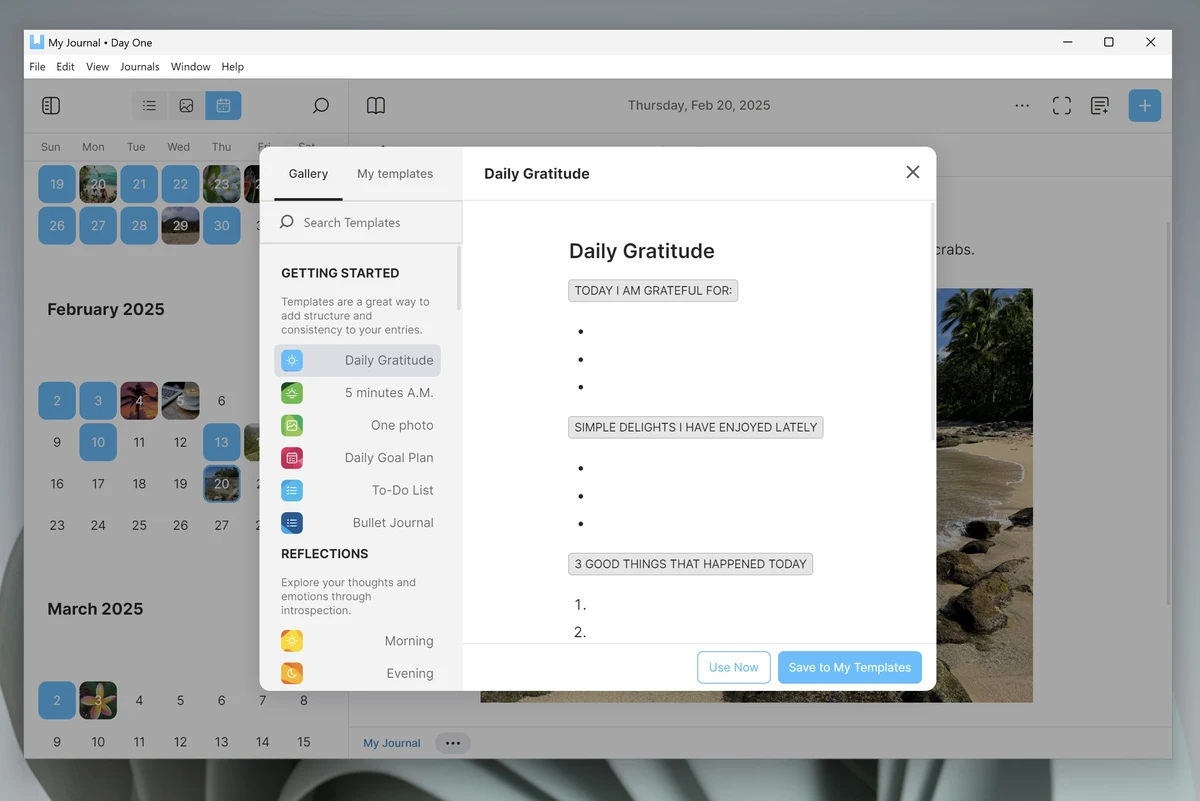
- Use templates or prompts for guided journaling
Popular Use Cases for Day One
Day One is used for various journaling tasks, including:
- Use Cases: Writing daily reflections, tracking gratitude or moods, documenting parenting moments, creating travel diaries, preserving life milestones
Quick Start Guide for Day One
New to Day One? Get going quick:
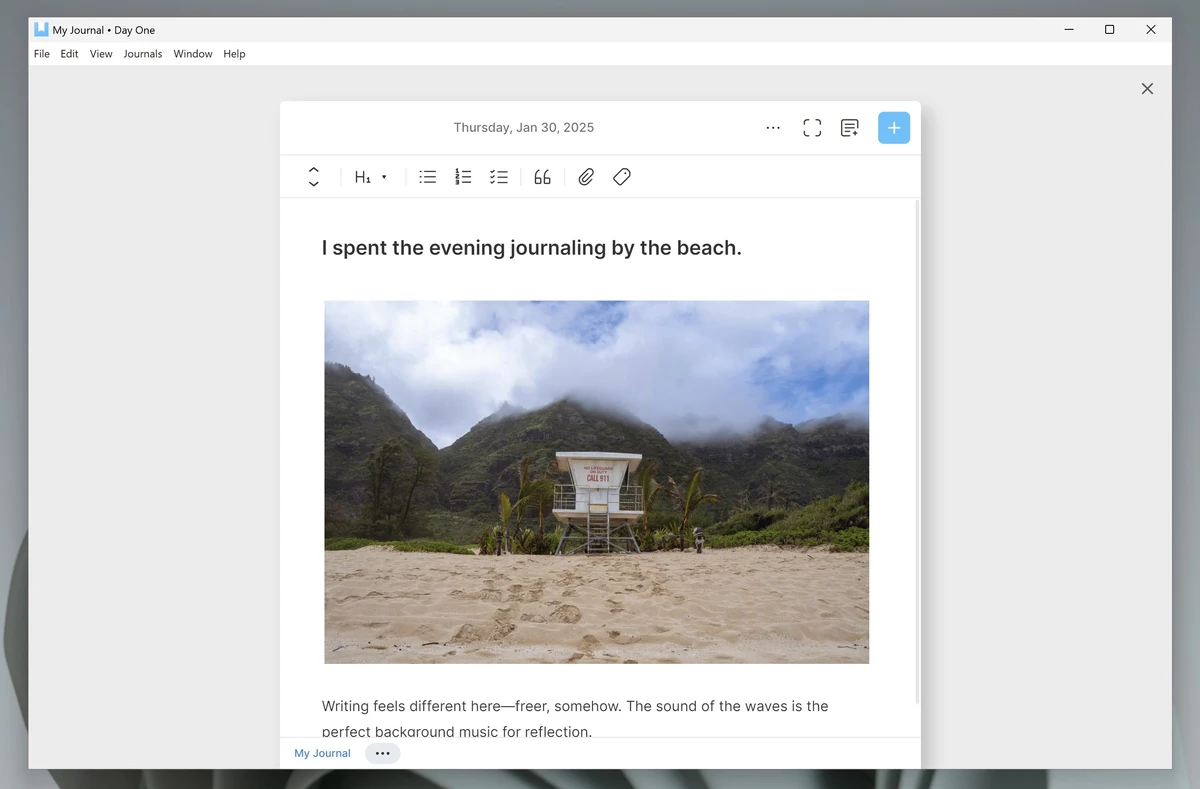
- Open the app and write a new journal entry.
- Add a photo or video to capture the moment.
- Tag entries for easy organization.
Best Settings for Day One on PC
Tweak these for a better experience:
- Sync: Enable cloud sync in Settings for cross-device access.
- Security: Turn on biometric lock for added privacy.
- Prompts: Activate daily prompts for writing inspiration.
Common Issues & Fixes for Day One
- Premium Features Locked: Subscribe to Premium ($34.99/year) for multiple journals or media.
- Sync Issues: Check internet connection or re-authenticate cloud service.
- Import Limitations: Format Excel data as JSON for imports, as direct Excel import isn’t supported.
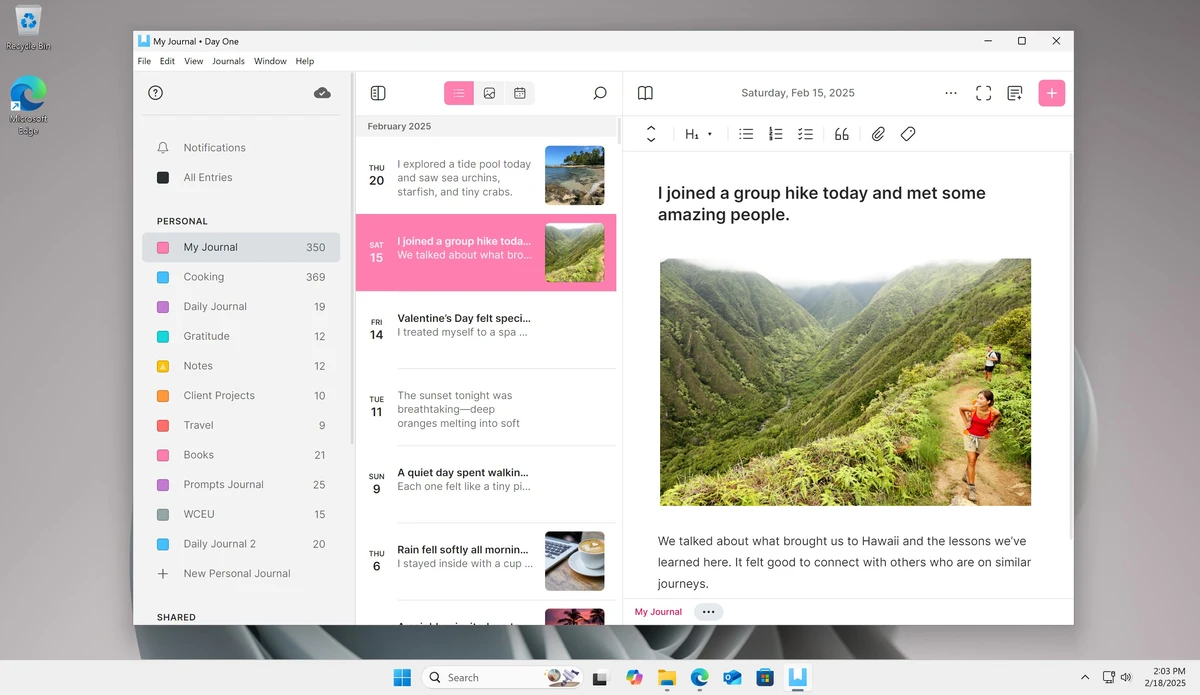
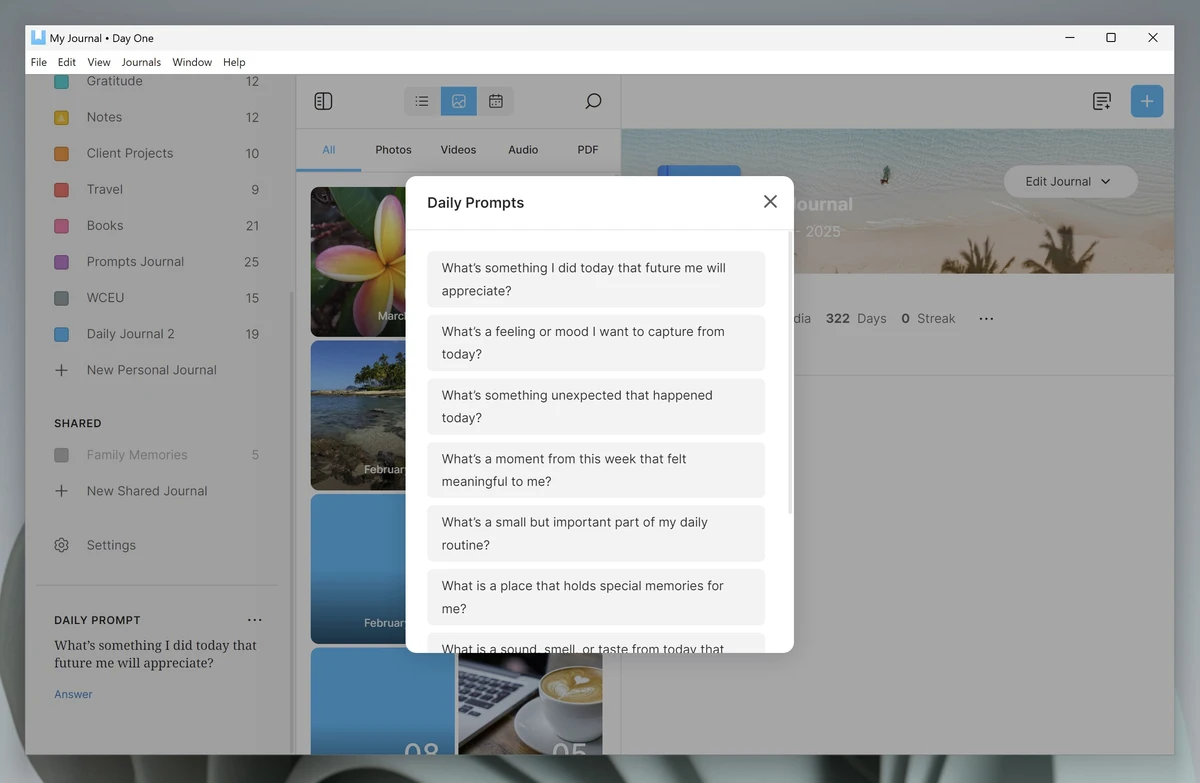
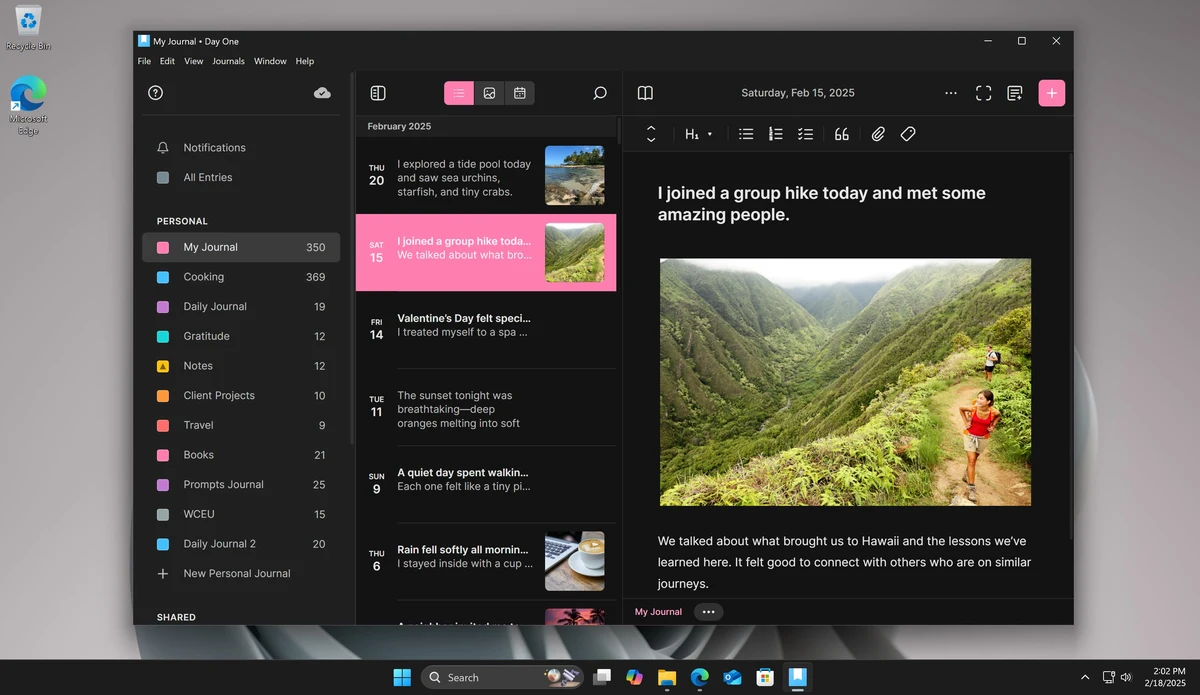
Day One Screenshots

Day One Beginner’s Video
Watch this quick guide to learn how to use Day One on your PC:
https://www.youtube.com/watch?v=8PsKP9iH8tM
System Requirements for Day One on Windows
- OS: Windows 10 (version 16299.0 or higher), 11
- CPU: 1 GHz or faster
- RAM: 2 GB minimum, 4 GB recommended
- Storage: 500 MB free
- Other: Internet for cloud sync and Premium features
Day One on Windows FAQ
- Is Day One free? Free app, with Premium at $34.99/year for extra features.
- Is it private? Yes, with end-to-end encryption.
- Can I add photos or videos? Yes, with a Premium subscription.
Support and Community
Explore More Journaling Apps: Diarium, Microsoft Journal