

Readers like you help support this site. When you make a purchase using links on our site, we may earn an affiliate commission. All opinions remain our own.


You can download Discord for free on your Windows PC via the Microsoft Store or Discord’s official site, with optional Nitro plans starting at $9.99/month for perks like custom themes.
Developed by Discord Inc. since 2015, it works on Windows 10 and 11, trusted by over 150 million users.
If you’re a gamer, student, or creator building a community, you need a tool that’s fun and flexible.
This guide covers installing it on Windows, its key features, and tips to get started.
Share your favorite Discord server below, or contact us for help.
How to Download Discord on PC
To get the Discord app on your Windows PC, download it from the Microsoft Store or Discord’s site. Here’s how:
- Microsoft Store
- Visit the page: Discord.
- Click Download to install the free app (about 120 MB).
- Launch from the Store or Start menu and sign in with a Discord account.
- Join a server or start chatting with friends.
- Discord Website
- Visit the page: Discord Download.
- Click Download for Windows (about 120 MB).
- Run the installer and sign in with a Discord account.
- Open the app to connect with communities.
Quick Tip: 💡 Pin your favorite servers to the sidebar for quick access to your communities.
Download via Microsoft Store | Download via Discord
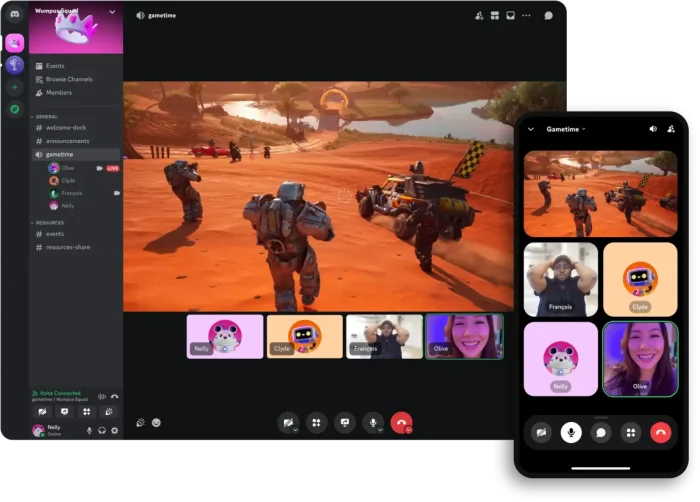

What is Discord About?
Discord, launched by Discord Inc. in 2015, is a free chat app for text, voice, and video, designed for communities and friends.
It supports servers with topic-based channels, low-latency voice calls, and screen sharing.
Recent updates in April 2025 added DM Themes and Wallpapers Viewer for Nitro users.
Users on X praise its versatility but note some features require Nitro. It’s ideal for gaming, studying, or creative collaboration.
Core Features: Connect through customizable servers and real-time chats.
Why Use Discord on Windows?
It’s free, user-friendly, and perfect for group communication.
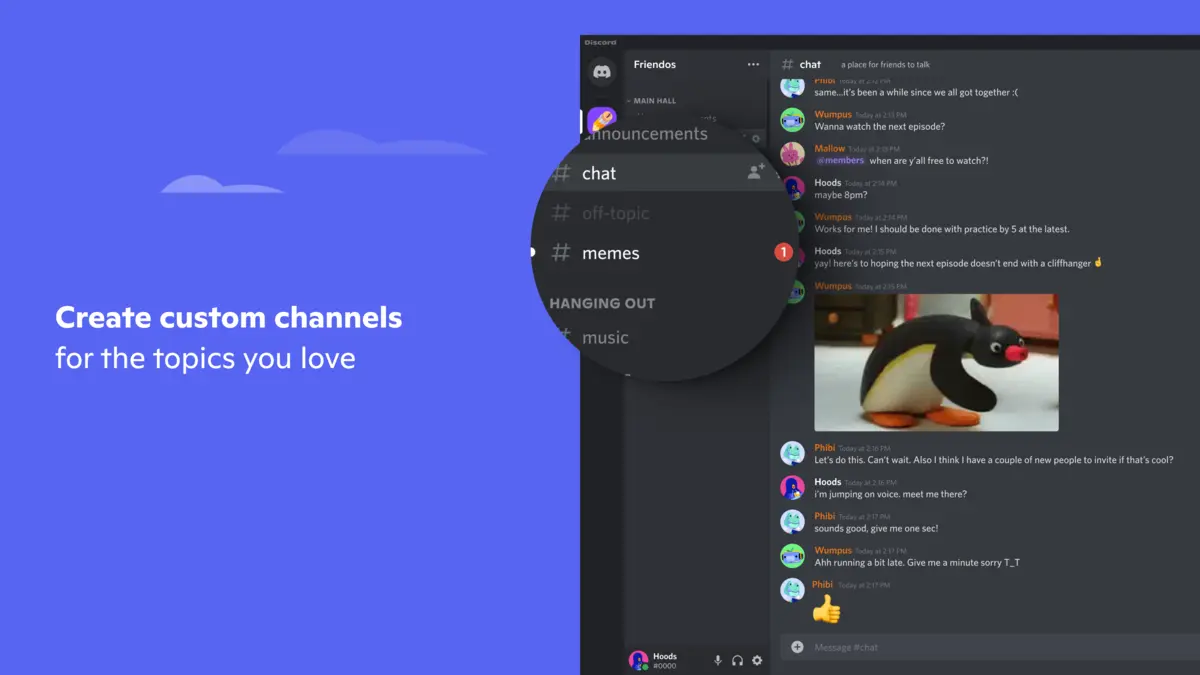
- Create or join servers with topic-based channels
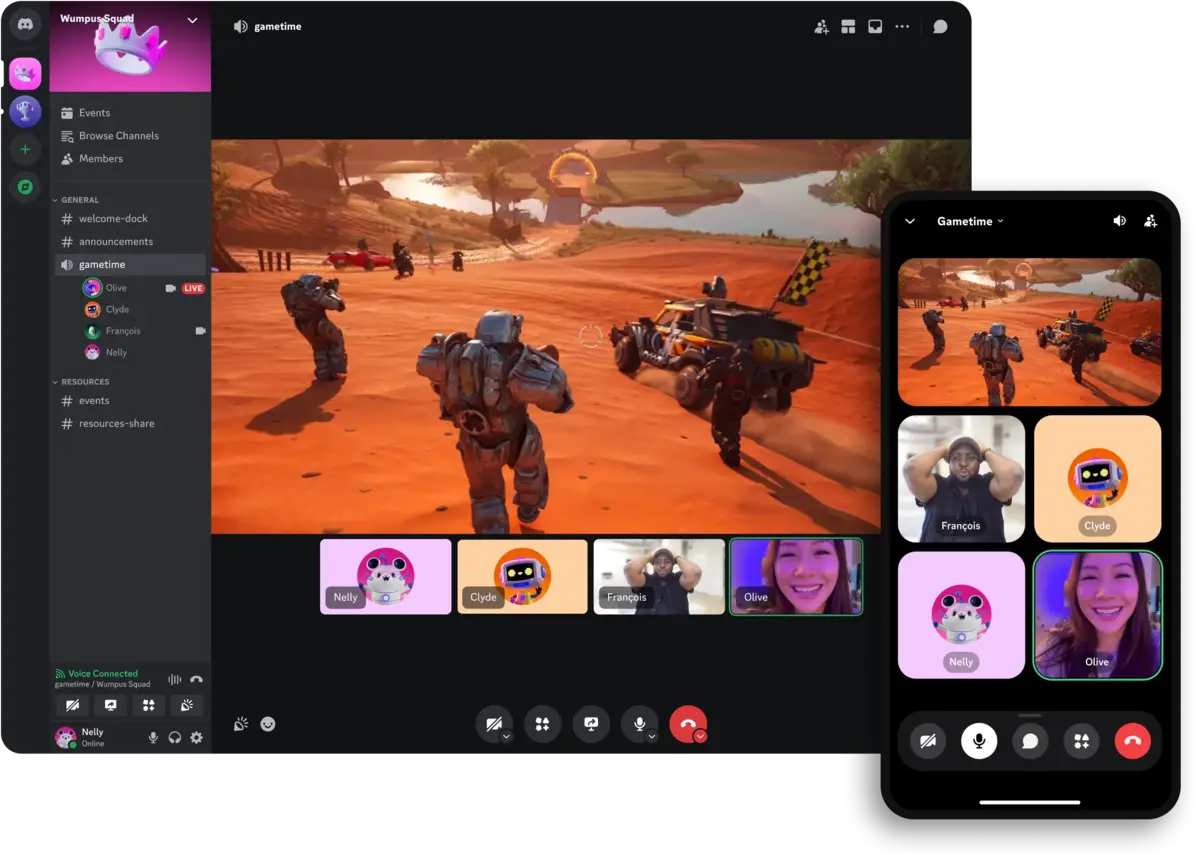
- Use voice and video for low-latency calls
- Share screens for gaming or presentations
- Customize with bots and Nitro themes
- Stream games or collaborate in real time
Popular Communities and Use Cases for Discord
Discord is used across communities and tasks, including:
- Communities: Gaming (clans, esports), Education (study groups, classes), Creative (art, writing groups)
- Use Cases: Hosting game nights, organizing study sessions, running fan clubs, coordinating team projects
Quick Start Guide for Discord
New to Discord? Get going quick:
- Join a server via an invite link or create your own.
- Set up voice or video in a channel for quick chats.
- Add a bot like MEE6 for moderation or fun commands.
Best Settings for Discord on PC
Tweak these for a better experience:
- Notifications: Mute non-essential servers in Settings.
- Voice: Adjust input sensitivity for clear voice chats.
- Themes: Enable DM Themes (Nitro) for custom looks.
Common Issues & Fixes for Discord
- Nitro-Only Features: Upgrade to Nitro for themes or higher streaming quality.
- Audio Issues: Check input/output devices in Voice Settings.
- App Crashes: Update app or clear cache in Settings.
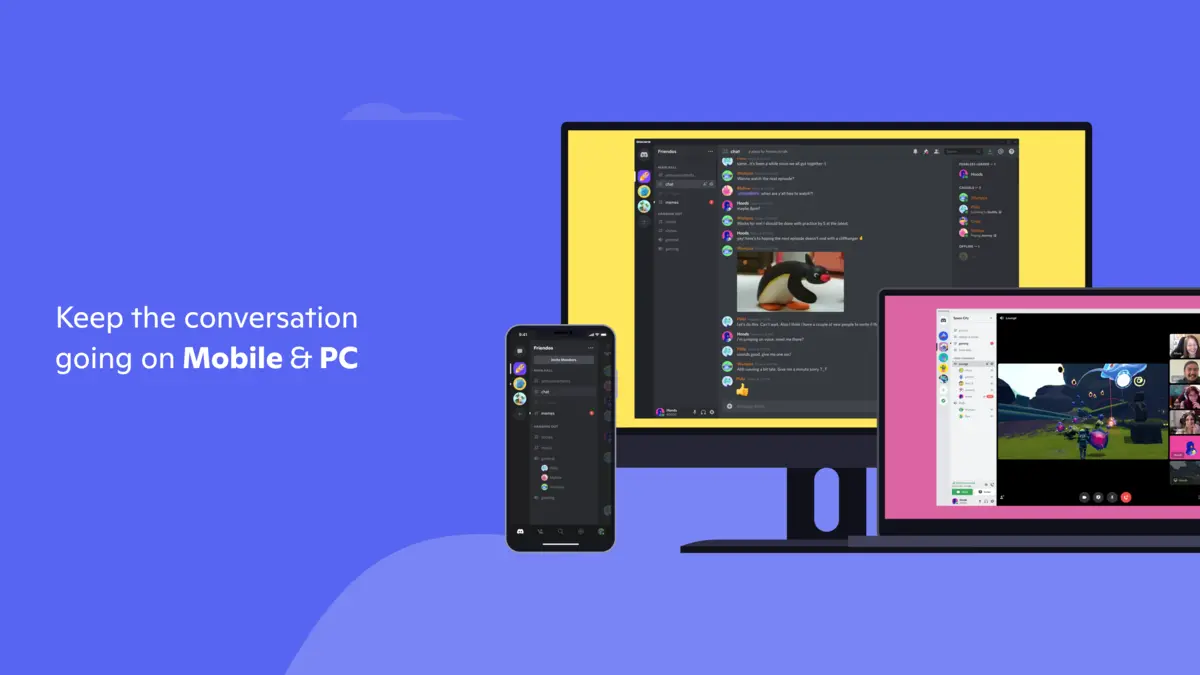
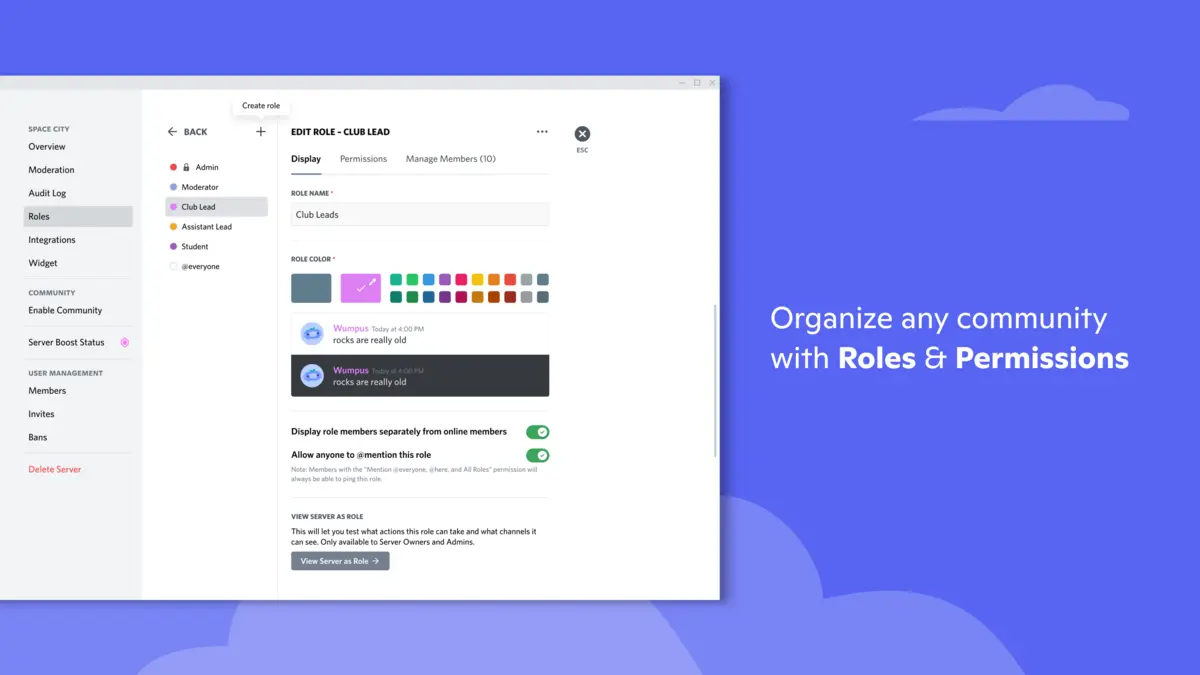
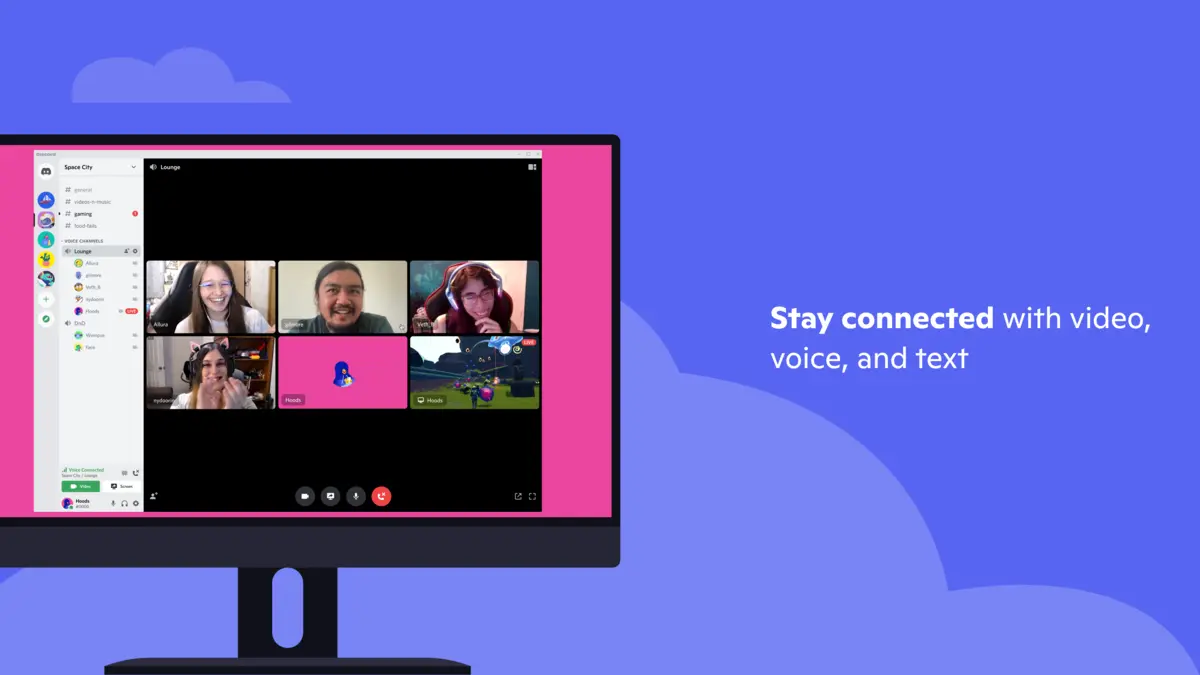
Discord Screenshots


Discord Beginner’s Video
Watch this quick guide to learn how to use Discord on your PC:

System Requirements for Discord on Windows
- OS: Windows 10 (version 18362.0 or higher), 11
- CPU: 1 GHz or faster
- RAM: 4 GB minimum, 8 GB recommended
- Storage: 500 MB free
- Other: Internet for full functionality
Discord on Windows FAQ
- Is Discord free? Yes, with optional Nitro plans for extra features.
- Can I use it for non-gaming? Yes, perfect for study or creative groups.
- Does it support video calls? Yes, with screen sharing and streaming.
Support and Community
Explore More Windows Apps: Perplexity, Microsoft Mesh, WhatsApp, Threads for PC &