Readers like you help support this site. When you make a purchase using links on our site, we may earn an affiliate commission. All opinions remain our own.
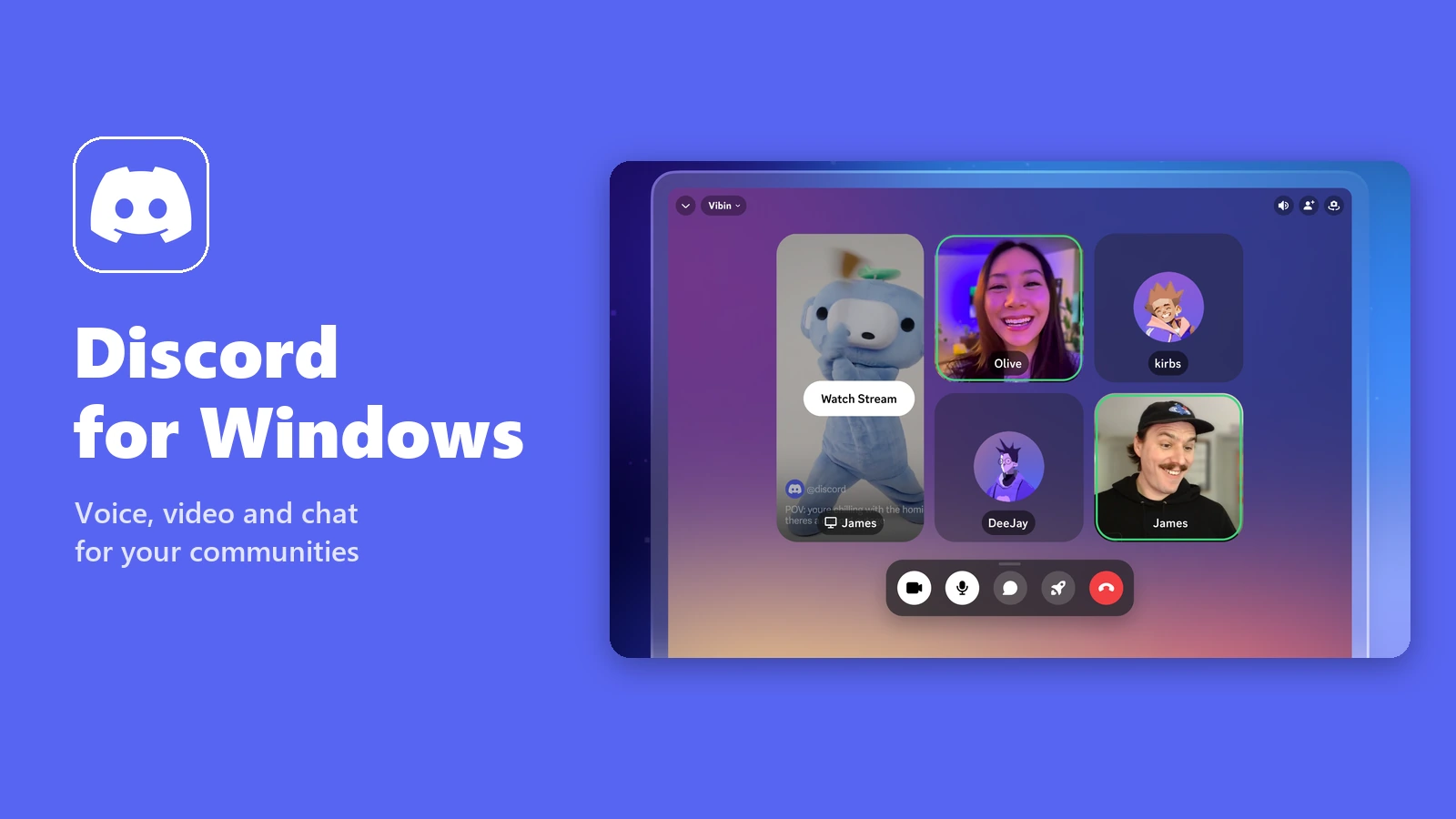
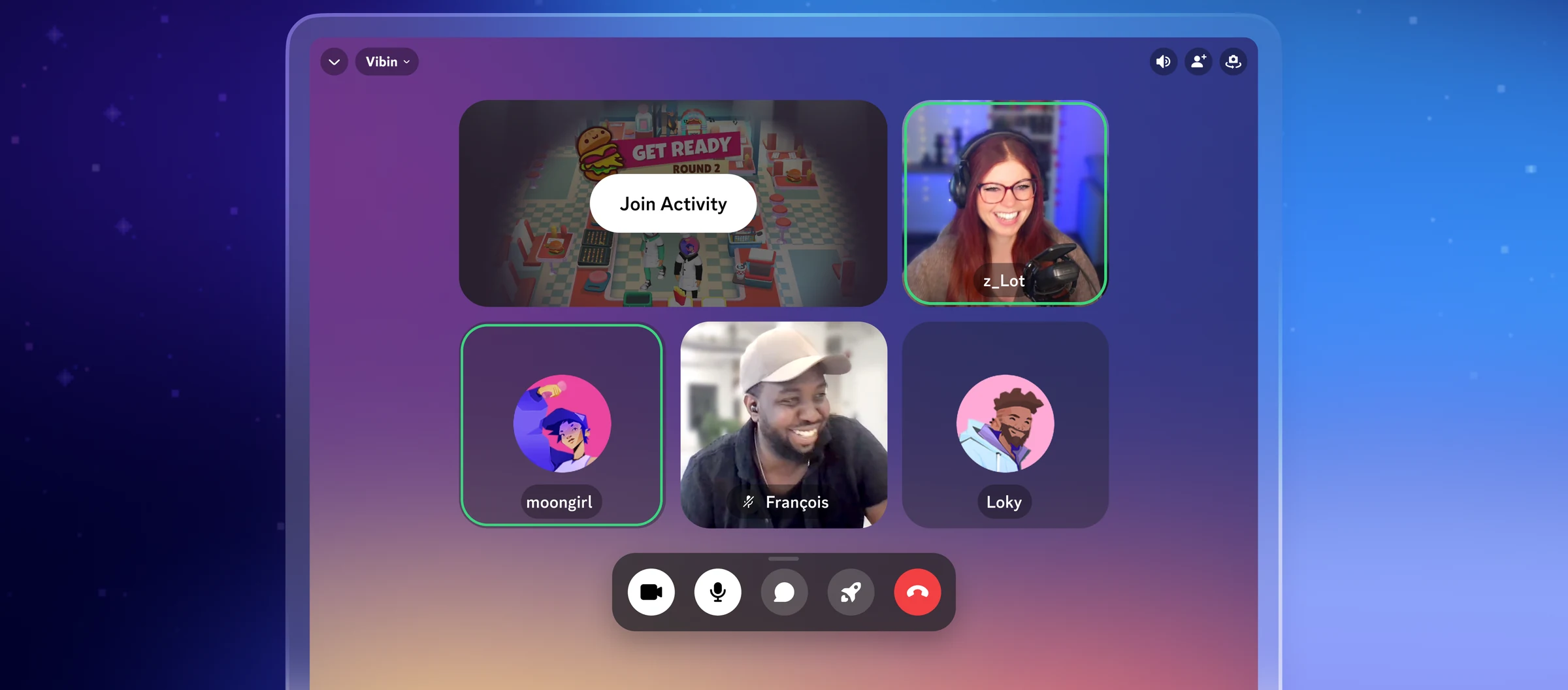
A Discord voice channel on PC, with friends on camera and one person streaming. App screenshot: Discord, from its Microsoft Store listing.
Discord for Windows is the free voice, video and text chat app from Discord, available from discord.com or the Microsoft Store. You join servers built around a game, a class or a hobby, then talk in text channels or drop into a voice channel whenever your friends are around.
Voice channels are what set it apart from other chat apps. You do not call anyone: you click into a channel, and whoever is there can hear you. You can share your screen or stream a game to the same channel.
It needs 64-bit Windows 10 or Windows 11. The app is free, and Discord sells two optional subscriptions, Nitro Basic and Nitro.
This guide covers how to install it, what you get for free versus Nitro, and how to fix the mic, streaming and loading problems people hit most. Got a question we missed? Reach out to us directly.
What Is Discord?
Discord is a chat app organized into servers, which are invite-only spaces for a group of people. A server might be your friend group, a game’s fan community, a study group or a creator’s community.
Each server is split into channels. Text channels work like group chats on a single topic, and voice channels are open rooms you can join and leave at any time. You can also message people directly, outside any server.
Discord started as a place for gamers, and gaming is still where it shines. You will find just as many servers for school, coding, art and music.
What You Can Do in Discord on PC
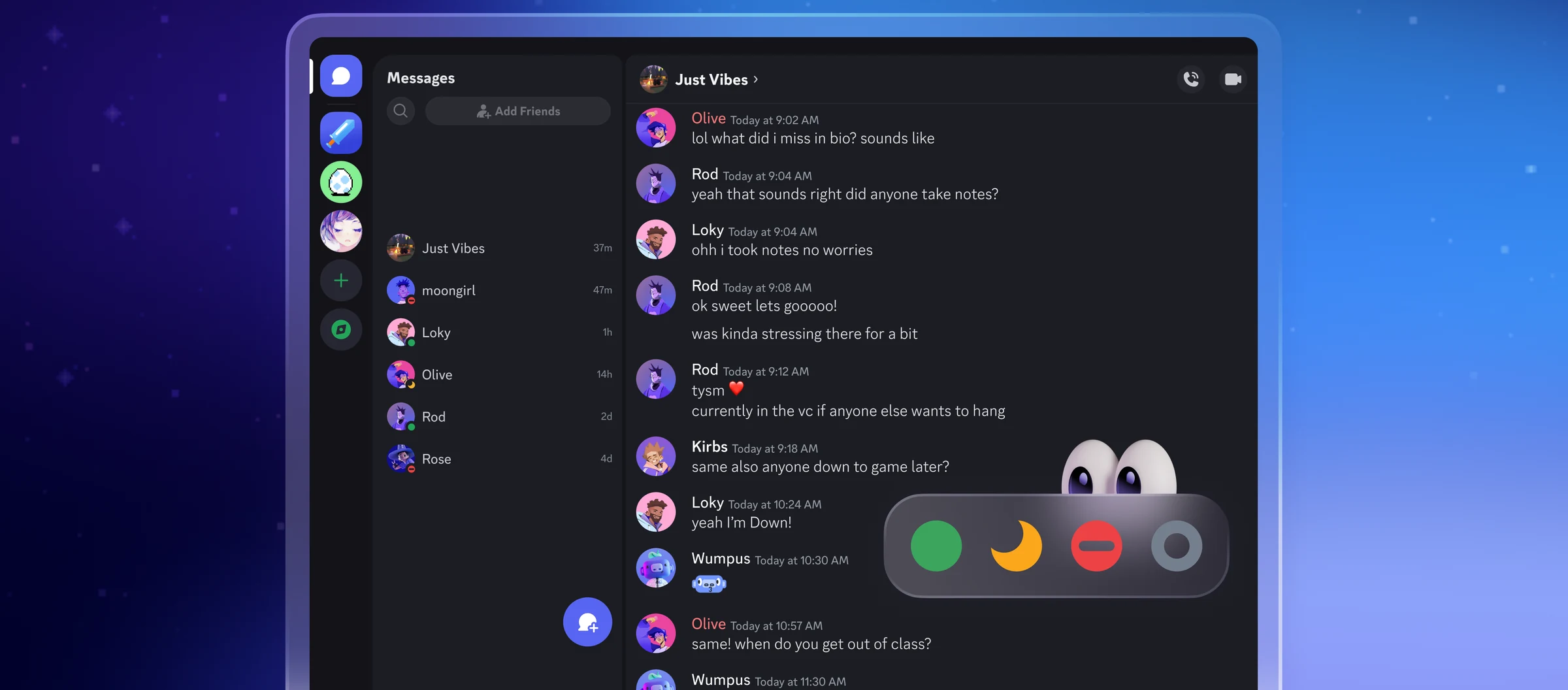
These screenshots come from Discord’s own Microsoft Store listing and show the app on a computer.
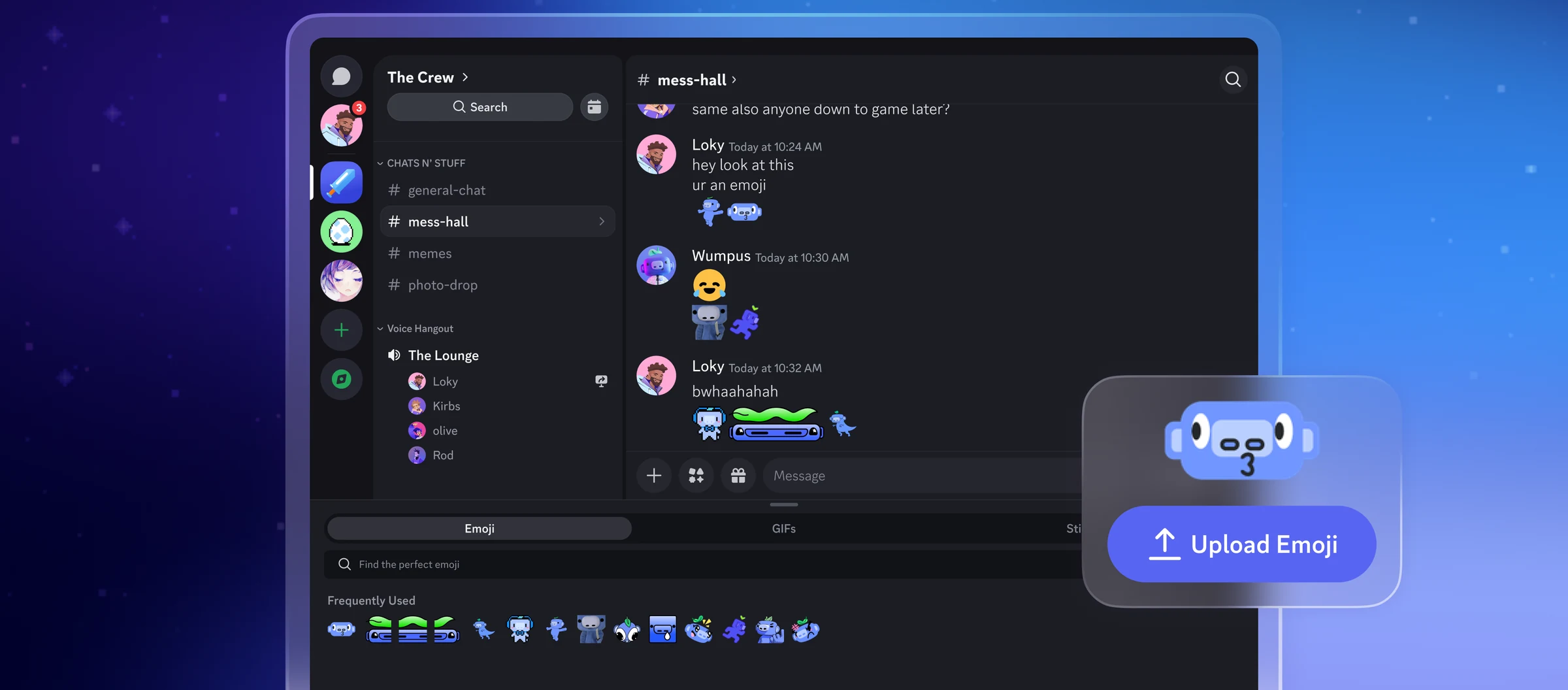
Chat in channels, with your own emoji
Each server lists its channels on the left, and the chat fills the middle. Servers can upload their own custom emoji and stickers, which is a big part of how communities talk on Discord.
You can drop files into a chat too. Free accounts can send files up to 20 MB.
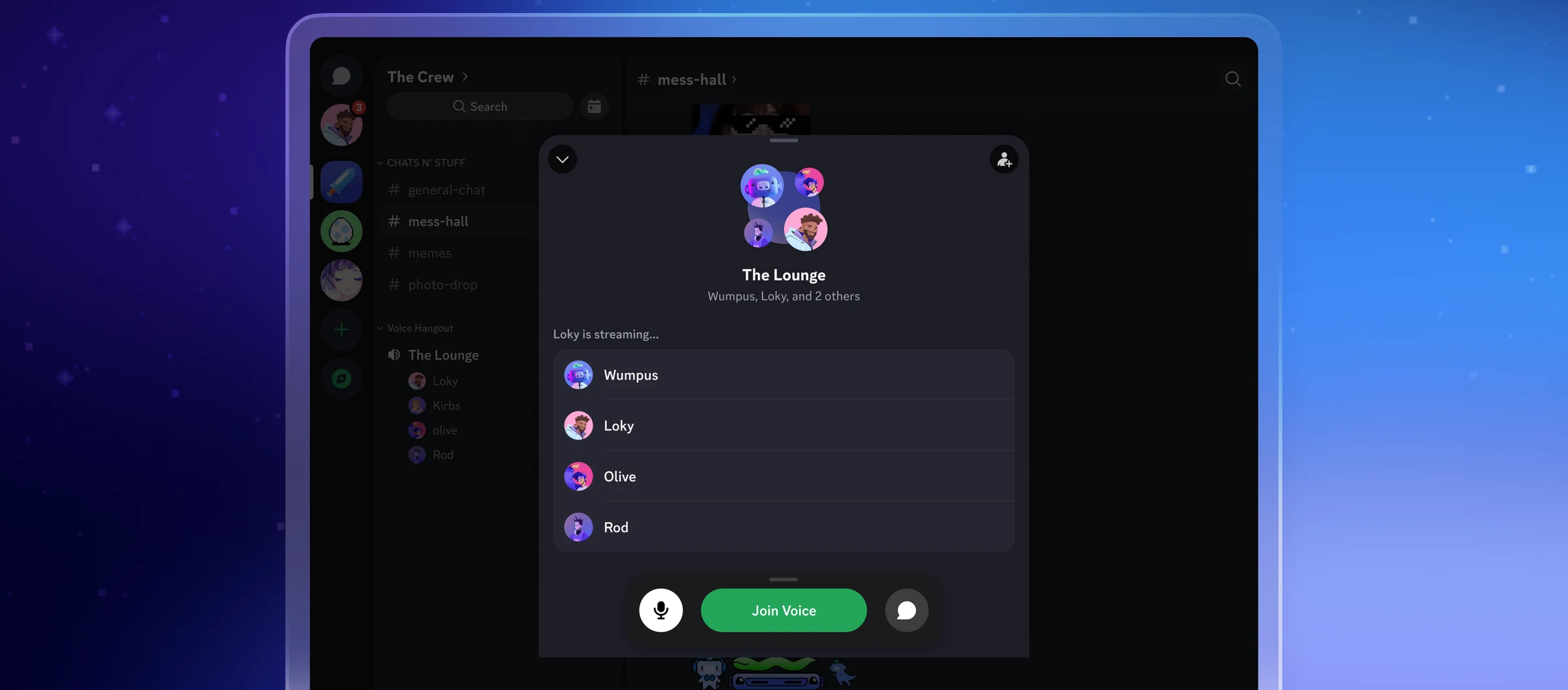
Drop into a voice channel
Click a voice channel to see who is inside, then click Join Voice. There is no ringing and no invite, so friends can come and go while you play.
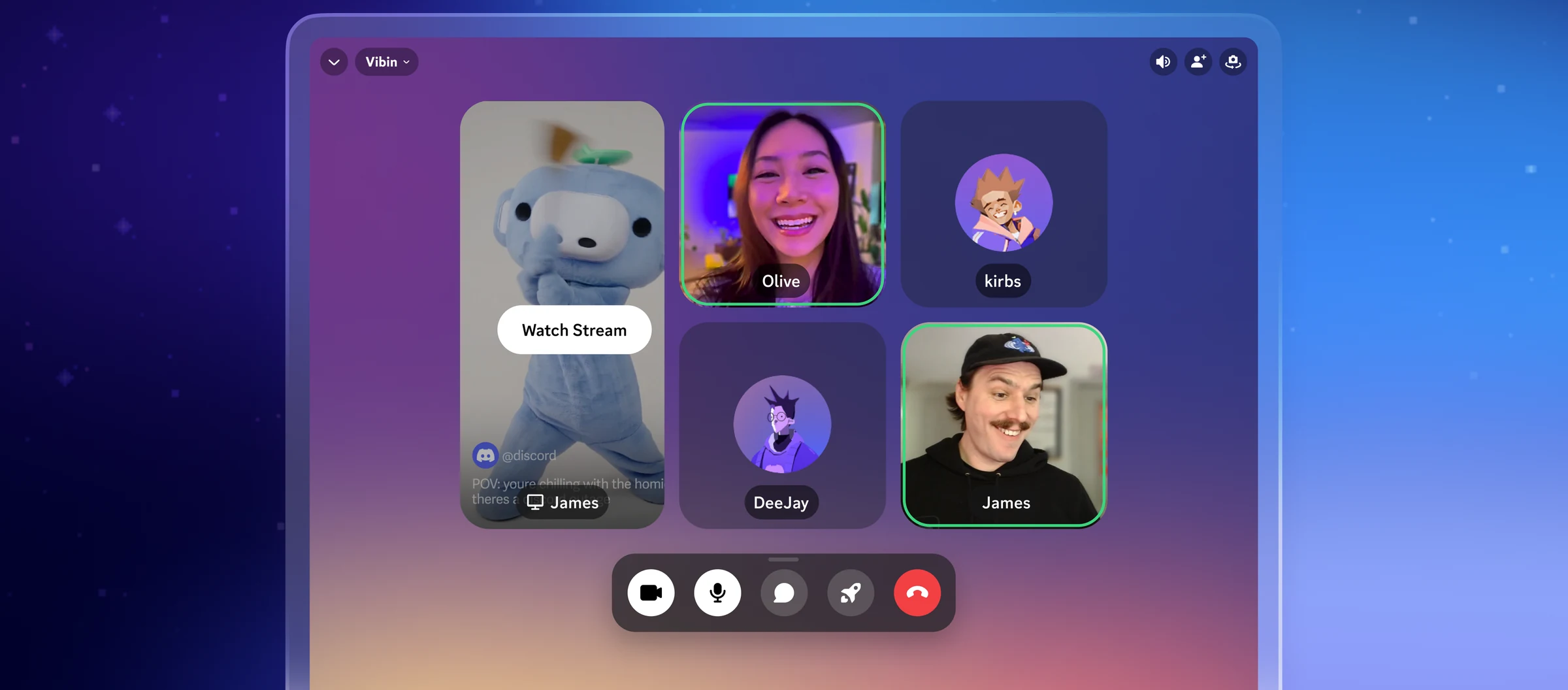
Video and screen sharing
Turn on your camera, or share a single window or your whole screen to everyone in the channel. Discord calls this Go Live when you stream a game.
Free accounts stream at up to 720p and 30 frames per second. Nitro unlocks HD streaming.
Play and watch together
Activities run small games and shared apps right inside a voice call. Everyone clicks Join Activity and plays without installing anything else.
How to Download and Install Discord
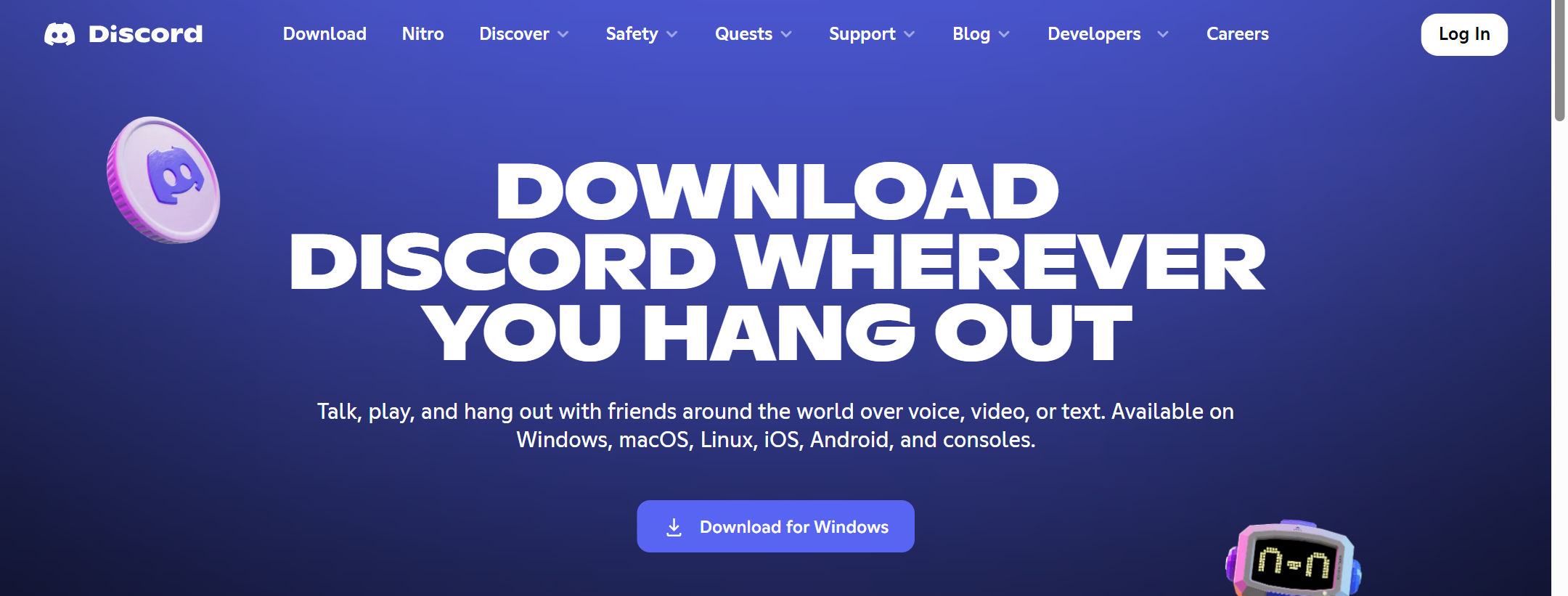
Discord recommends its desktop app over the browser for the best experience. Download it straight from Discord.
1 Go to the Discord download page at discord.com/download and click Download for Windows.
2 Open DiscordSetup.exe from your Downloads folder. It installs and opens on its own.
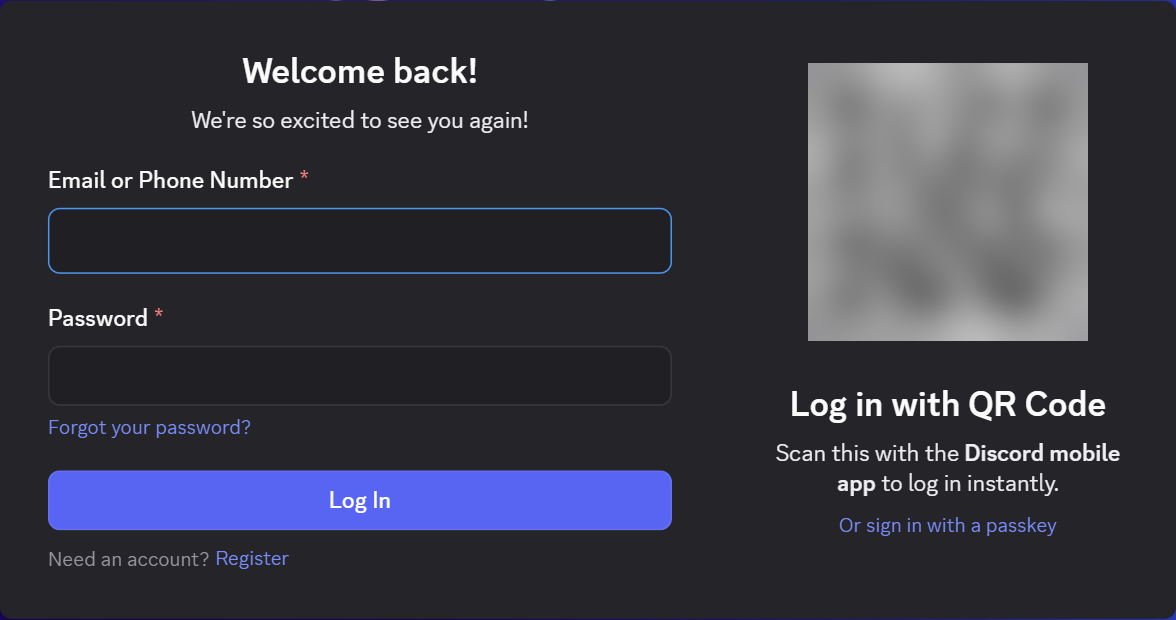
3 Log in or register. Use your email or phone number and password, sign in with a passkey, or scan the QR code with the Discord app on your phone.
4 Join your first server from an invite link a friend sends you, or click the plus button to create your own.
Prefer the Microsoft Store?
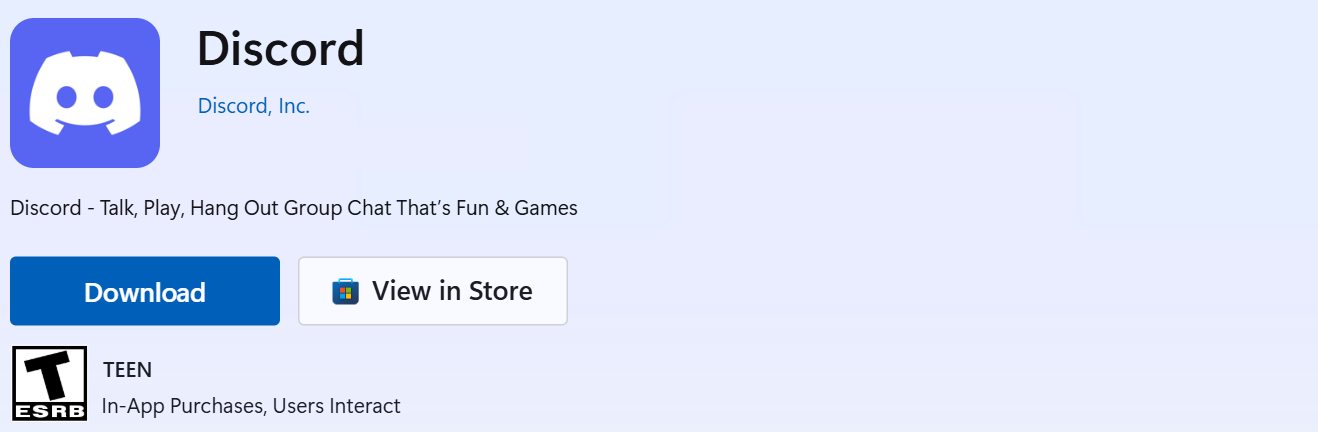
Discord is on the Microsoft Store too, published by Discord, Inc. The Store simply downloads and runs Discord’s own installer, so you end up with the same app and the same updates.
Can’t install anything? Discord also runs in a browser at discord.com/app. It needs Chrome 108, Edge 86, Firefox 142, Opera 72 or Safari 15.4 or newer.
Discord Free vs Nitro Basic vs Nitro
Everything that makes Discord useful is free: servers, voice, video, screen sharing and DMs. Nitro Basic and Nitro are optional subscriptions that mostly add bigger uploads, HD streaming and ways to customize your profile. Here is what changes, from Discord’s own Nitro pages.
Discord sets Nitro prices by country and changes them from time to time, so we do not list one here. Your own price shows in the app under User Settings, then Nitro. Both plans come monthly or yearly, and you can cancel any time.
Our take
Most people never need Nitro. The free app already covers voice, video, screen sharing and chat. Nitro makes sense if you stream games to friends and want them sharp, send big video clips, or live in a lot of servers. If you already pay for Xbox Game Pass, check whether Nitro’s Starter Edition is offered where you live before you decide.
Common Problems and Fixes
These fixes come from Discord’s own troubleshooting guide and support articles.
Stuck on the loading screen
Fully quit Discord and open it again. If it still hangs, turn off hardware acceleration under User Settings, then Advanced, or run Discord as administrator. Check discord.com’s status page too, in case Discord itself is down.
Friends cannot hear you
Check that Windows lets Discord use your microphone, then pick the right input device under User Settings, then Voice and Video. If that fails, switch the audio subsystem between Standard and Legacy on the same page.
Your game does not show up to stream
Discord can only stream games its game detection recognizes. Add it by hand under User Settings, then Game Activity, then Add it.
Discord will not update on an older PC
Discord stopped supporting 32-bit Windows in June 2024, and Windows 7 and 8 in March 2024. It may still open, but it no longer gets updates. Use Discord in your browser instead.
Tips for Getting Started
1 Use push to talk if friends hear an echo. Discord suggests it for echo and feedback, along with lowering your input sensitivity in Voice and Video settings.
2 Set your status before a busy session. Click your avatar at the bottom left and pick Online, Idle, Do Not Disturb or Invisible.
3 Log in with the QR code. Open the Discord app on your phone and scan the code on the PC login screen, so you never type your password on a shared computer.
4 Turn off auto-playing GIFs if Discord feels slow. Go to User Settings, then Accessibility, and switch off GIF autoplay and animated emoji.
5 Only join servers from invites you trust. Leave and report any server that floods you with links or asks for your password.
Watch: Discord for Beginners
This walkthrough from Family Tech explains servers, channels, direct messages and the basic settings new users ask about.
Frequently Asked Questions
What are the system requirements for Discord on Windows?
How old do you have to be to use Discord?
Can I use Discord without downloading it?
Does Discord Nitro include Xbox Game Pass?
How do I uninstall Discord?
Support and Community
- Discord, the developer’s own site.
- Discord Troubleshooting Guide, Discord’s own fixes for connection, audio and install problems.
- Discord Support: Nitro and Nitro Basic, the full list of what each plan includes.
- r/discordapp on Reddit, the large user-run community for the Discord app.
More Windows software guides: Slack for Windows · Xbox Game Bar · WhatsApp for Windows · Telegram Desktop · Microsoft Teams · Zoom Workplace · Snapchat for Windows
Discover more from Windows Mode
Subscribe to get the latest posts sent to your email.













Add your first comment to this post