Readers like you help support this site. When you make a purchase using links on our site, we may earn an affiliate commission. All opinions remain our own.
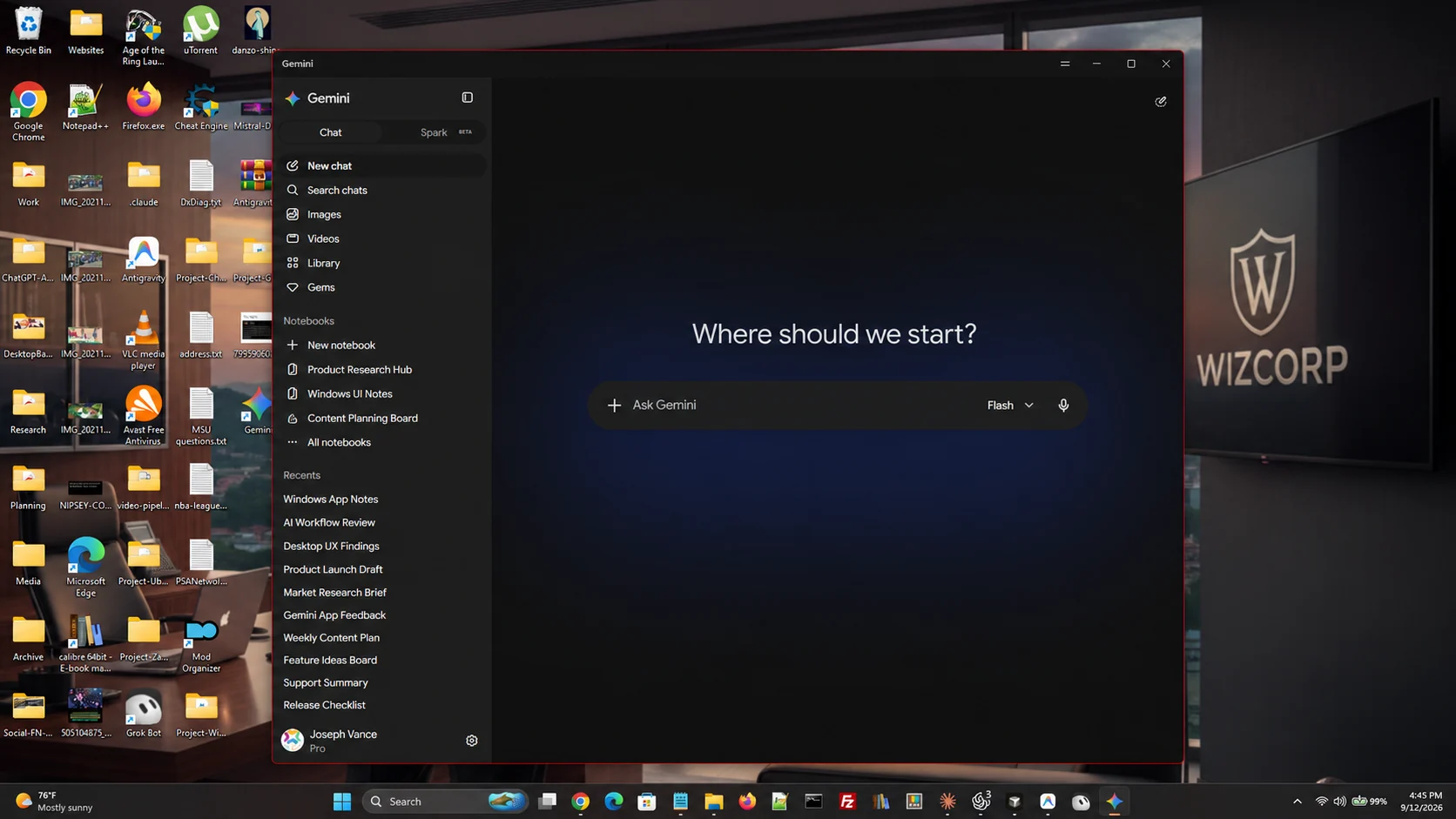
Gemini for Windows is Google’s desktop app for its AI assistant, available as a free download from Google’s own site. It installs as a normal Windows program, sits in your taskbar and system tray, and opens in a window over whatever you are working on.
The keyboard shortcut is the reason to install it rather than keeping a browser tab open. Press Alt + Space and the app appears on top of your current window, ready for a prompt. Close it and you are back where you were, with nothing to find again in a row of tabs.
Google released it on September 10, 2026, for Windows 11 and Windows 10, on both Intel or AMD and ARM machines. A Mac version arrived earlier in the year. On October 13, 2026, Google added its newest model, Gemini 4 Argon, for Google AI Pro and Ultra subscribers. You sign in with a personal Google account, or a work or school account where an administrator has Gemini enabled.
This guide covers the practical side of running it. What the app includes, what Gemini 4 Argon and Antigravity add, how to install it, the shortcut clash worth knowing about, what the plans cost, and how it sits next to Microsoft Copilot. Got a question it does not answer? Reach out to us directly.
What You Need to Know
- It is free to install. The app costs nothing and works on a free Google account. Paid Google AI plans raise your usage limits and unlock extra features, they are not required to use the app.
- Alt + Space is the whole point. The shortcut opens Gemini over your current window from anywhere in Windows, and you can change it in settings.
- Gemini 4 Argon needs a paid plan. Google’s newest model reached the app on October 13, 2026, for Google AI Pro and Ultra. Free accounts use the Flash-Lite model.
- You download it from Google, not the Microsoft Store. The installer comes straight from Google’s Gemini site as GeminiSetup.exe.
- Your account does the heavy lifting. Chats, notebooks and connected Google apps all live in your Google account, so the desktop app and the web version stay in step.
What Is the Gemini App for Windows?
It is a dedicated program that gives you Gemini without opening a browser. You install it once, and from then on the assistant is a keystroke away no matter which app has focus.
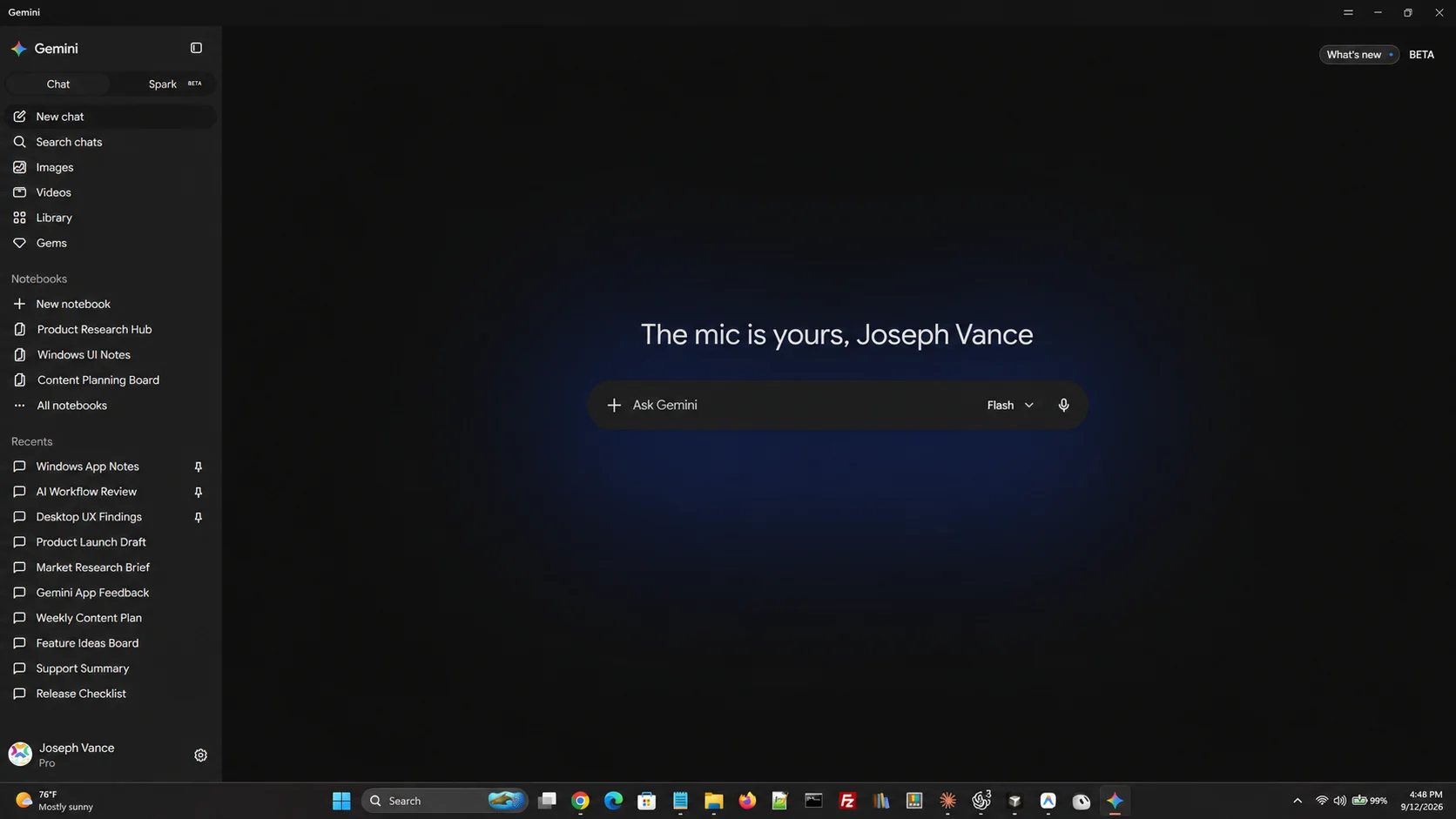
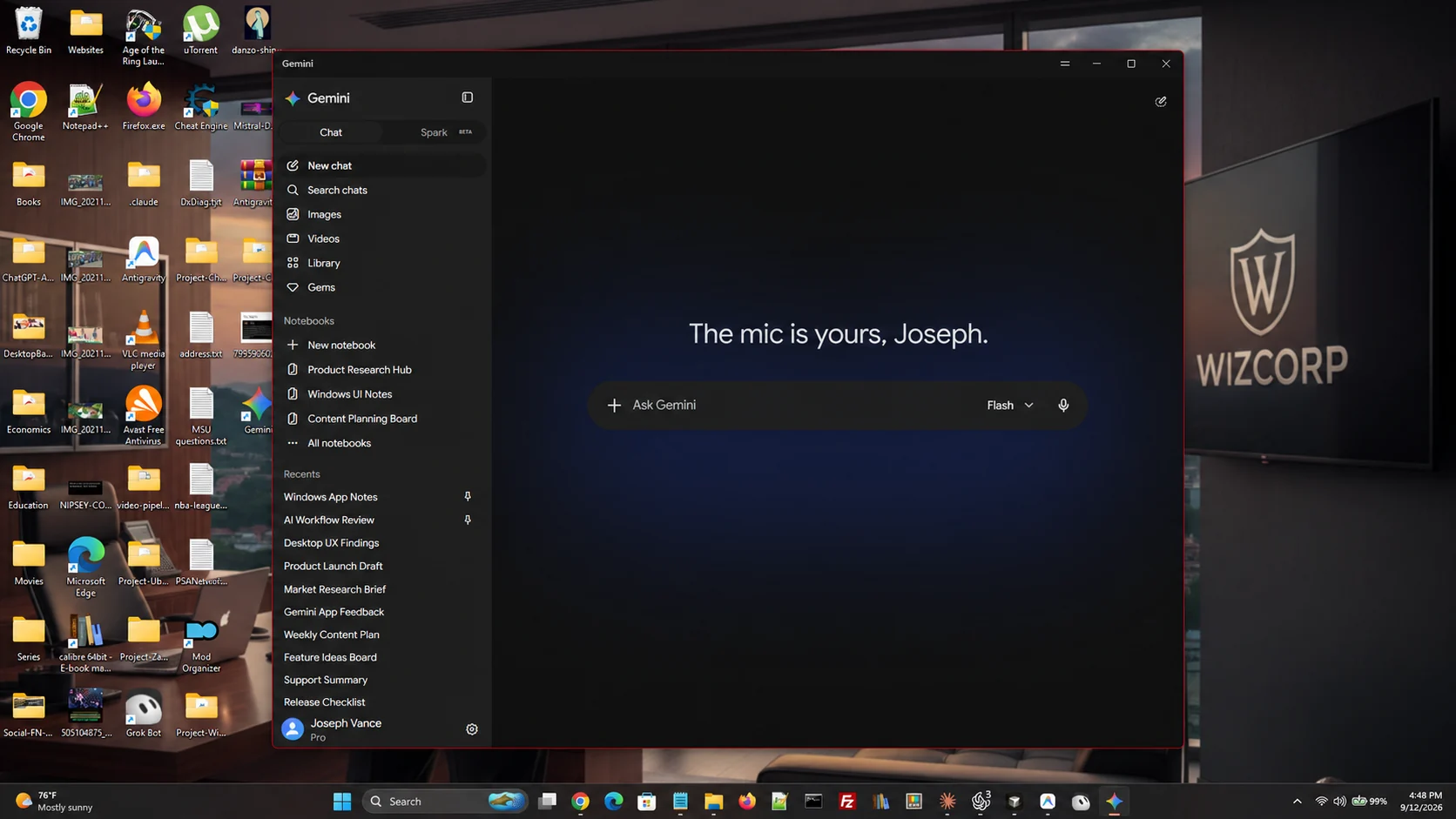
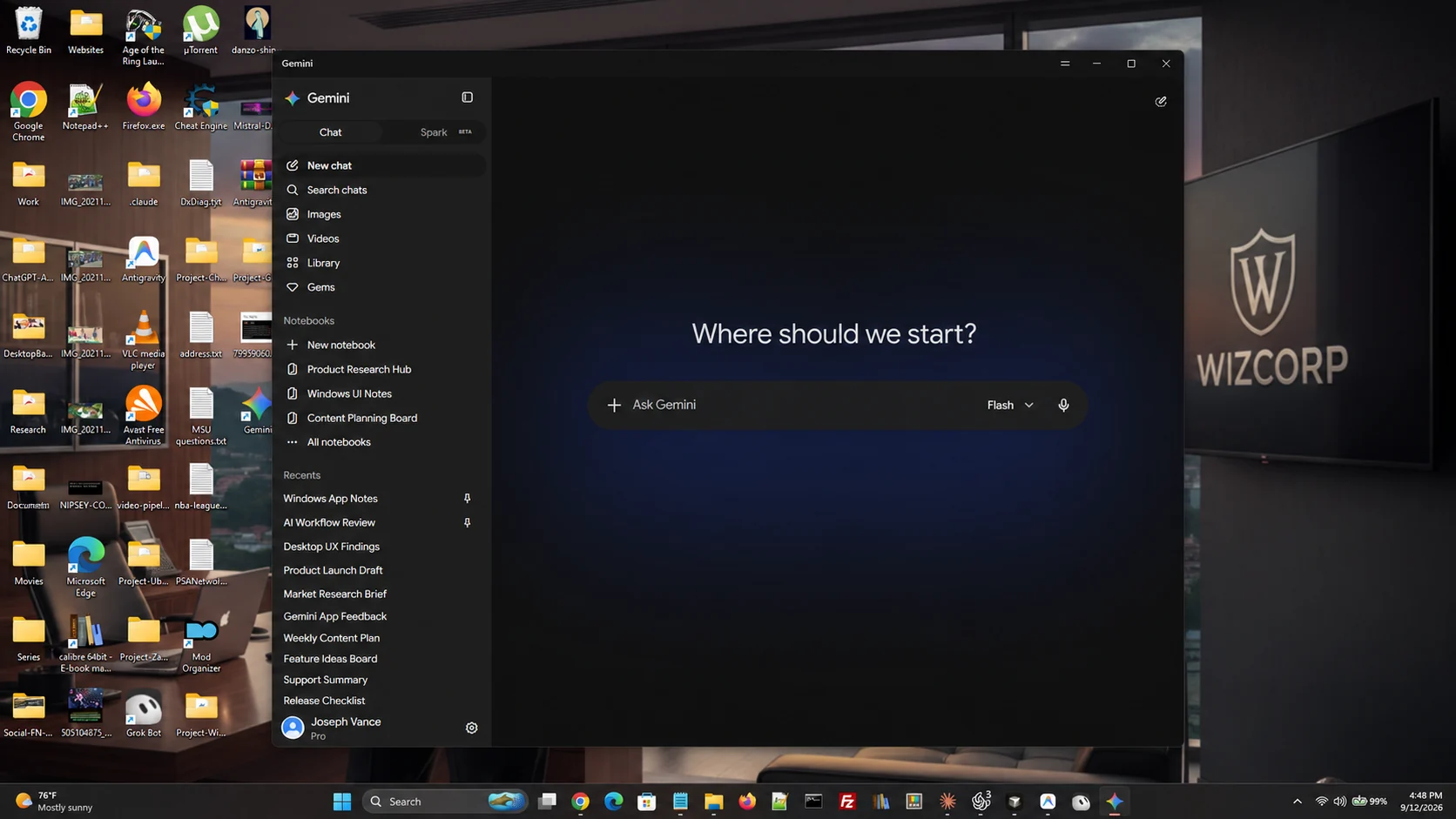
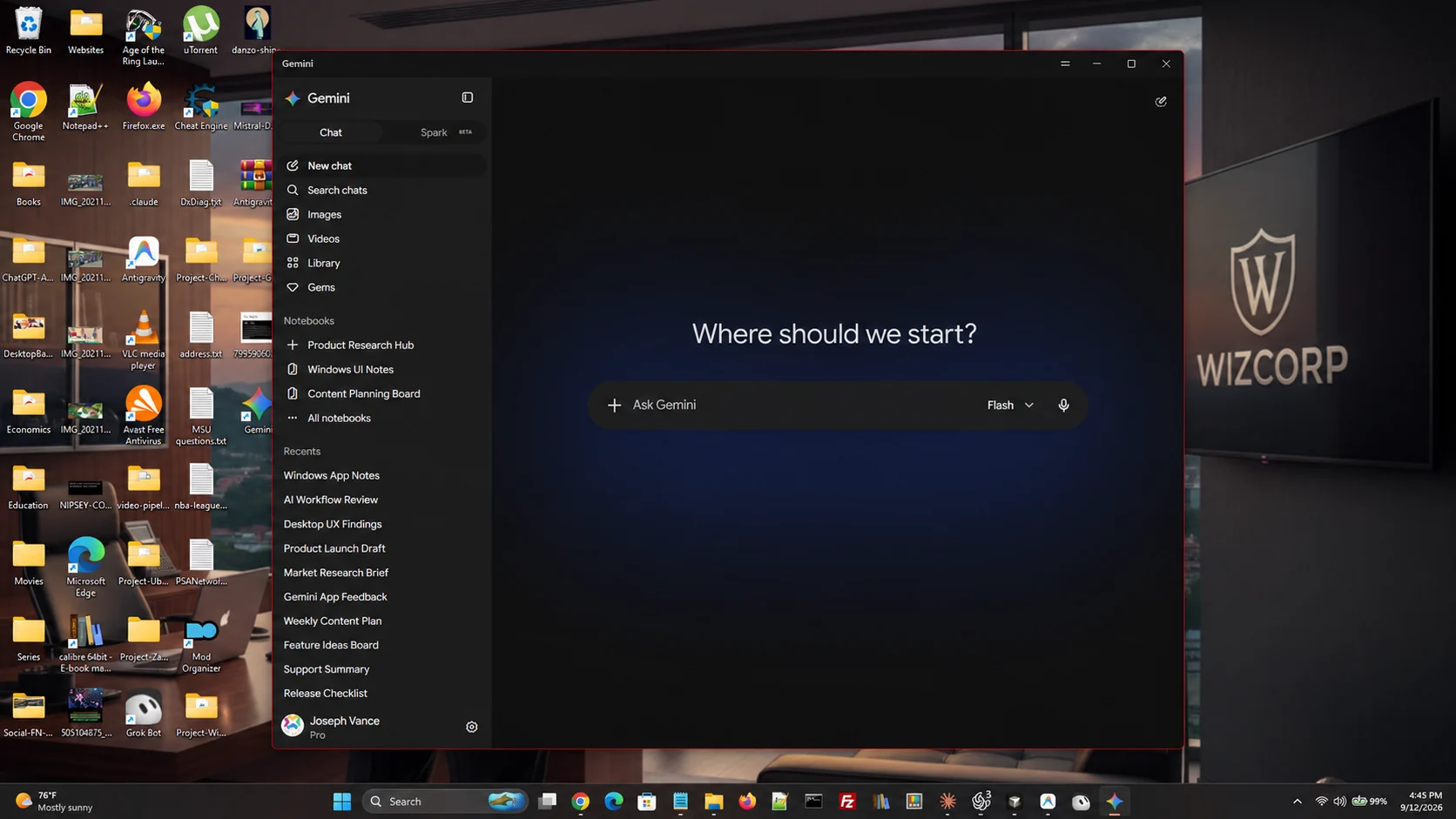
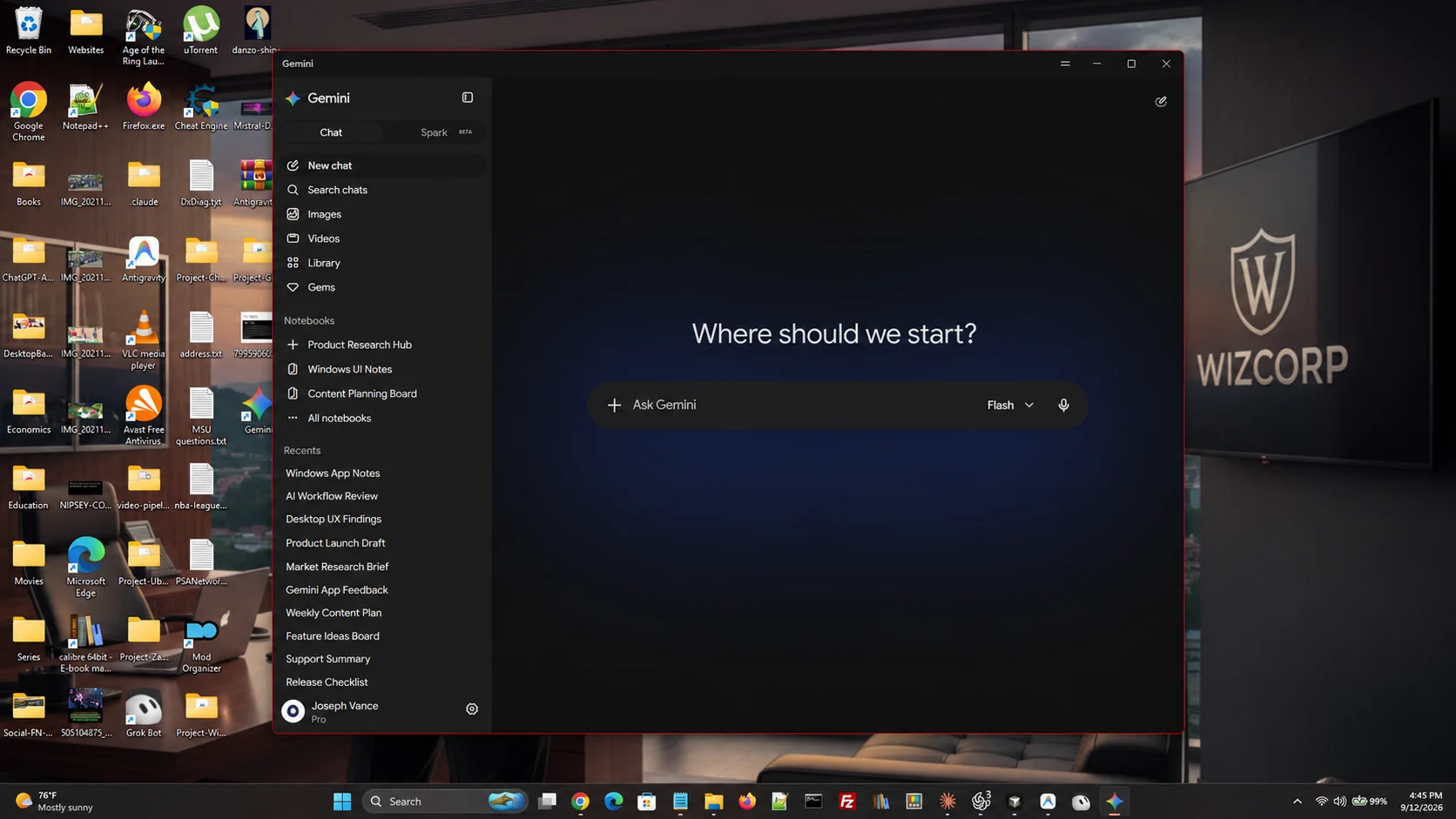
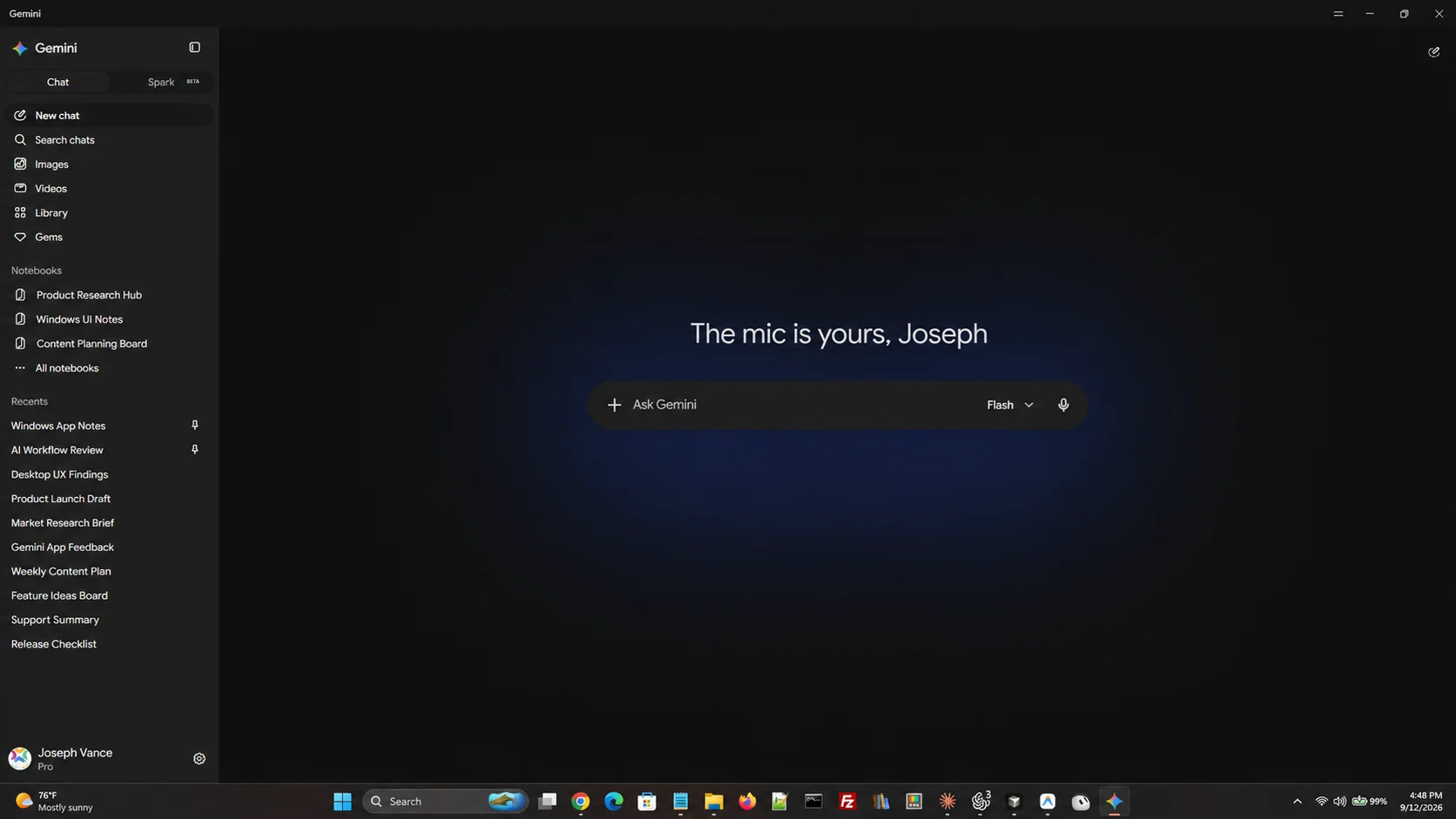
Inside, the layout matches what you already know from the web. A sidebar holds New chat, Search chats, Images, Videos, Library and the new Customize page, with your Notebooks and a list of recent conversations underneath. A Chat and Tasks switch moves you to the agent side of the app, which Google called Gemini Spark until October 2026. The prompt box carries a model picker and a microphone button.
Because everything is tied to your Google account, there is no separate setup to do. Sign in and your existing chats, notebooks and connected apps are already there. Start something on the desktop and you can finish it on your phone.
Key Features
The app brings Gemini’s main tools to the desktop and adds one thing the website cannot do: a shortcut that works everywhere.
Alt + Space from anywhere
Press the shortcut in any app and Gemini opens on top of it. You can also open it from the taskbar or the system tray, and change the shortcut in settings.
Chat with a model picker
The prompt box lets you switch models. Flash is the quick default. Pro and Ultra subscribers also get Gemini 4 Argon for long, hard jobs.
Gemini Tasks
Flip from Chat to Tasks, describe a job, and Gemini works through it. Schedules, skills and connected apps all feed into it.
Notebooks and Skills
Notebooks keep a long project in one place instead of spread across chats. Skills are saved instructions Gemini reuses, and they are taking over from Gems.
Images and video
Generate and edit images from the desktop, and create video clips from a prompt. Video generation sits behind a paid Google AI plan.
Connected Google apps
Switch on the services you want Gemini to read, then ask about their contents. Gmail, Drive, Docs, Keep, Photos and YouTube Music each have their own toggle. The Customize page adds more than 40 outside apps.
What Is New: Gemini 4 Argon and Antigravity
Google’s October 13, 2026 update brought a new top model to the app and put its coding agent one click away.
Gemini 4 Argon
Google’s newest model, built for long jobs like reading a dense financial report or turning scattered notes into a slide deck. Pick it from the model menu if you pay for Google AI Pro or Ultra.
Flash stays the default and is plenty for quick questions. Paid plans still have usage limits, so save Argon for the work that needs it.
Antigravity inside Gemini
Antigravity is Google’s coding agent. An Antigravity button at the top of the app opens it without leaving Gemini. You approve its plan, go back to your chat, and it builds and tests the code in the background.
Google launched the button on the Mac app first and says more desktop features reach Windows over time.
No Antigravity button on your PC yet? The standalone Antigravity app runs on Windows today and gives you the same agent. Our Google Antigravity for Windows guide covers the setup.
How to Install Gemini on PC
The app is not in the Microsoft Store. You download the installer from Google’s Gemini site and run it like any other desktop program.
1 Open the official page. Go to gemini.google/desktop in any browser.
2 Download the Windows installer and save the GeminiSetup.exe file.
3 Run the installer and follow the prompts on screen.
4 Open Gemini from the Start menu once setup finishes.
5 Sign in with your Google account. A work or school account needs Gemini enabled by an administrator.
6 Test the shortcut. Press Alt + Space to check it opens, and set a different one in settings if it does not.
Note: download only from Google’s own Gemini site. Search results for popular apps fill up with lookalike installers, and an AI assistant that holds your Google sign-in is a bad thing to get wrong.
The Alt + Space Shortcut Clash
This is the first thing most people will hit, and it is worth knowing before you install. Alt + Space is already taken on a lot of Windows PCs.
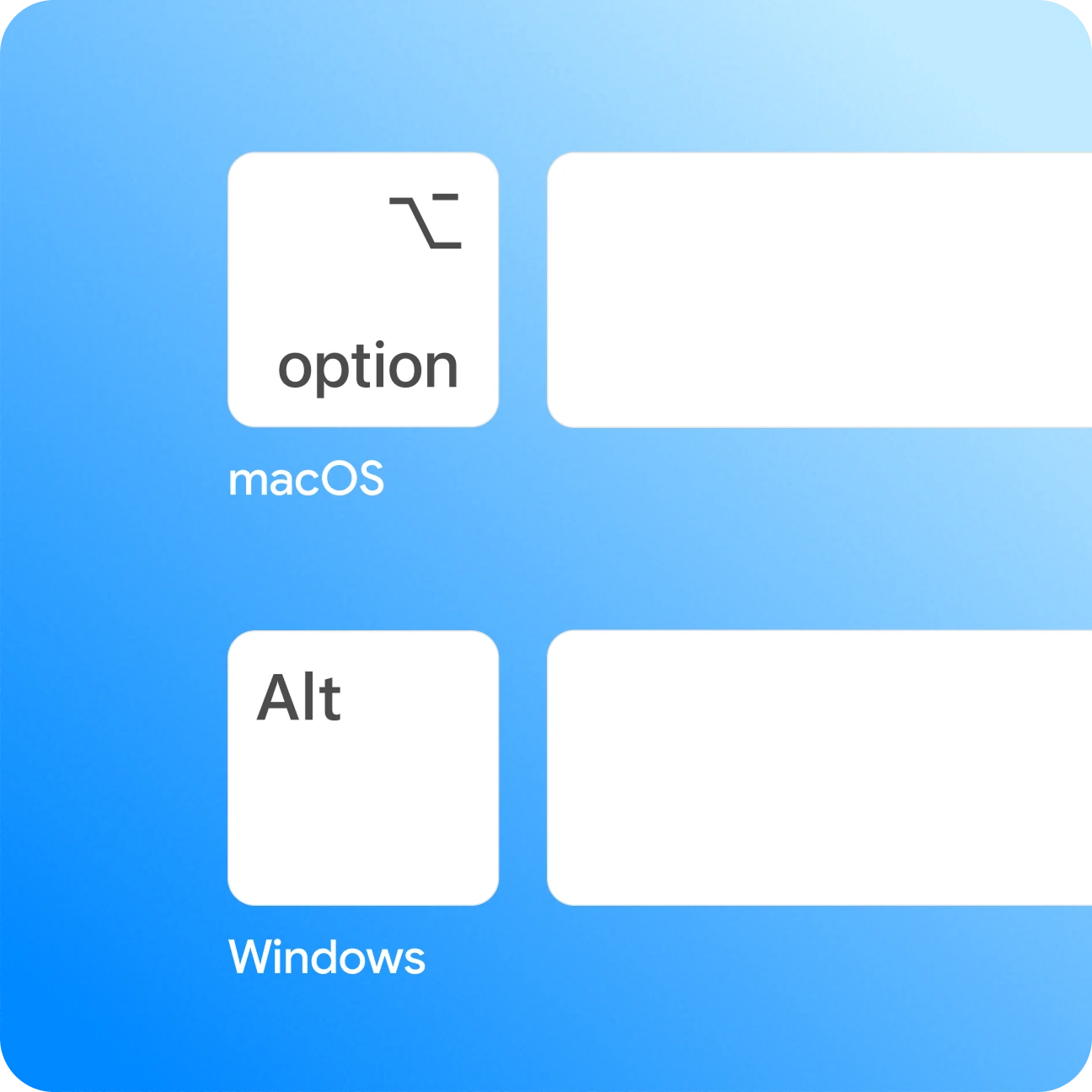
Microsoft Copilot uses the same combination to open its quick view, and PowerToys Run uses it too. Windows itself has used Alt + Space for the window menu for decades. If two of those are running, one of them loses.
The fix is to decide which app owns the shortcut and change the other one. Gemini lets you set a different shortcut in its settings, so that is usually the easiest one to move.
If you would rather keep Alt + Space for Gemini, change the shortcut in PowerToys Run instead, and remap the Copilot key in Windows settings. Pick one owner and move the rest, rather than guessing which app will answer.
Gemini Tasks: Skills, Schedules and Apps
Tasks is the part of the app that does more than answer. Google called it Spark until October 2026, and it now sits behind the Chat and Tasks switch.
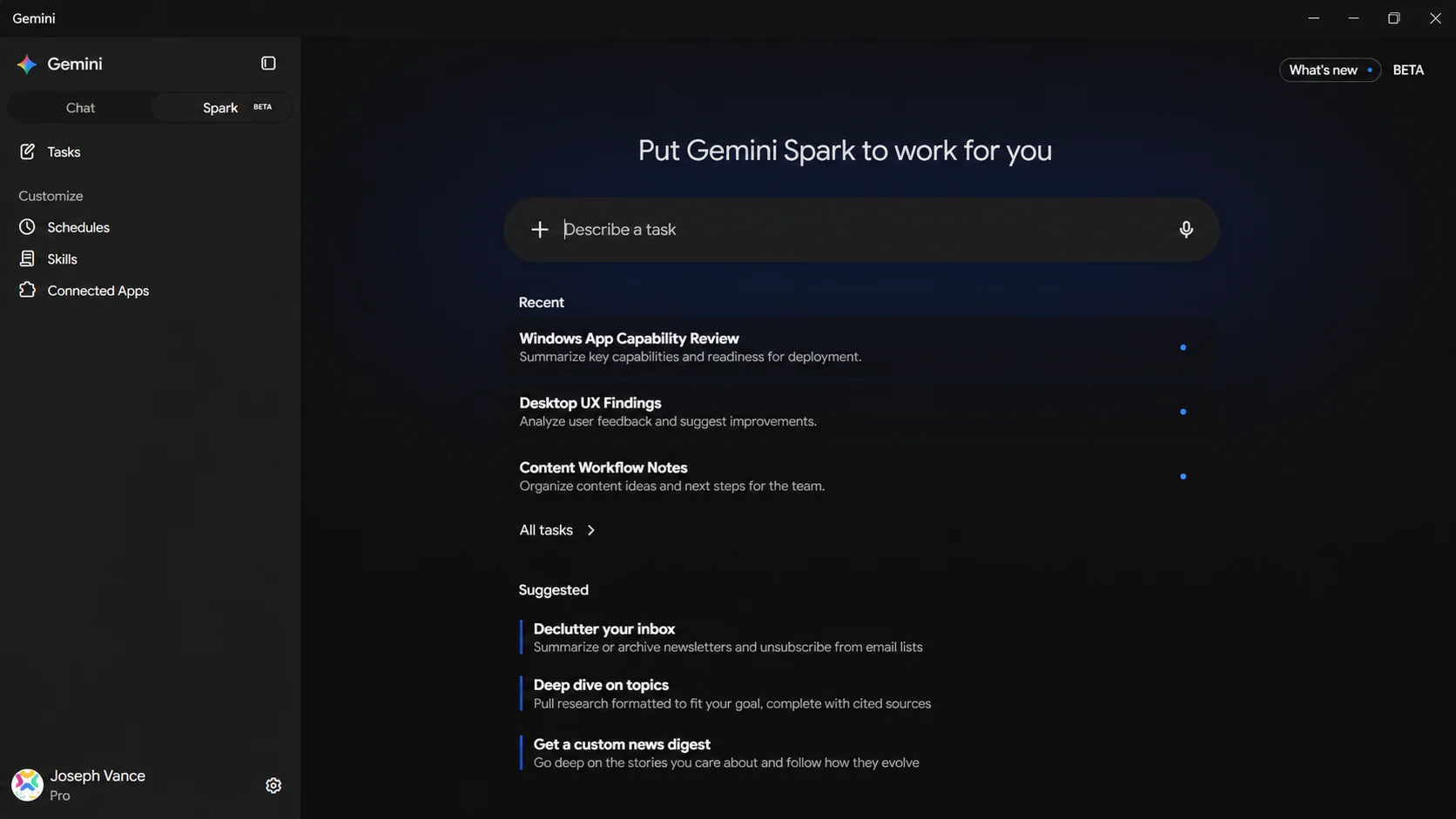
You describe a job in plain words and Gemini works through it, then shows the result in a list you can come back to.
Set a job to run daily or weekly on chosen days at a rough time. Google notes schedules run at approximate times and stop if you hit your usage limit.
Reusable instructions with a name, a description of when to use them, and the steps to follow. Gemini applies a matching skill on its own, or you can call one with a slash. Skills replace Gems, and Google moves your old Gems over for you.
The Customize page in the left menu holds your response style, your skills and more than 40 apps, from Gmail and Drive to outside services. You choose what Gemini can see.
Tasks is rolling out by country, language and plan, and Google AI Ultra gets new Tasks features first. Check the What’s new panel inside the app to see what has reached your account.
What Windows Gets Next
Google ships most new desktop features to the Mac app first and says Windows gets them over time. So the Mac app is a fair preview of where the Windows version is heading.
Four worth watching: the Antigravity button, sharing a window so Gemini can see what is on screen, dictation that types into any app, and pointing Tasks at a local folder. Google lists all four for the Mac app today.
Local folder access is the one that would change how the app fits into a working day, since it is the difference between asking about your files and pointing Gemini at them.
Plans and Pricing
The app itself is free and works on a free account. Paid Google AI plans raise your usage limits and add features, and they apply across Gemini everywhere, not just on the desktop. Prices below are Google’s US monthly rates and can change, so check the plans page before you subscribe.
Every paid plan can be shared with up to five other people. Workspace customers get the app switched on by default, and an administrator can turn it off in the Admin console.
Gemini vs Microsoft Copilot on Windows
Copilot is the assistant most Windows 11 users already have, so it is the honest comparison. The real question is not which is smarter, it is which account holds your work.
If your mail and documents live in Gmail and Drive, Gemini reaches them and Copilot does not. If you live in Outlook and OneDrive, the opposite is true. Pick the one that sits on the same side as your files.
Installing Gemini does not mean removing Copilot. Plenty of people will keep both and give each its own shortcut, which is exactly why the clash above is worth sorting out on day one.
Microsoft also has an answer to Gemini Notebook, formerly NotebookLM. Copilot Notebooks let you add files to a project in OneNote and get answers, study guides and audio overviews from them. Our Copilot Notebooks guide compares the two side by side.
Tips for Getting Started
1 Sort the shortcut first. Set it to something free before you build the habit, because relearning it later is harder than choosing well now.
2 Connect apps one at a time. Turn on Gmail or Drive only when you have a reason to, so you always know what the assistant can read.
3 Use Notebooks for anything that spans days. A long project in a notebook keeps its context, where the same work spread across chats loses it.
4 Write a Skill for the thing you ask twice. Any instruction you keep retyping is a candidate, and Gemini will apply it without being asked.
5 Save Argon for the hard jobs. Keep Flash for quick questions and switch to Argon when a task is long or tricky, so your plan’s limits go where they count.
See Gemini for Windows in Action
This walkthrough covers the download, the install, signing in, and the Alt + Space shortcut in use on a real desktop.
Screenshots
The shots below walk through the start screen, the notebooks list, the navigation sidebar and the app running maximized.
-
- Gemini windows app open over desktop from
-
- Gemini windows new chat start screen from
-
- Gemini windows notebooks and recents list from
-
- Gemini windows chat sidebar navigation from
-
- Gemini windows fullscreen chat view from
FAQ
What are the system requirements for the Gemini app on Windows?
Can I change the Alt + Space shortcut?
Is Gemini 4 Argon free in the Gemini app?
Does the Gemini app for Windows work offline?
Can I sign in with a work or school Google account?
How do I uninstall the Gemini app on Windows?
Is the Gemini Windows app the same as Gemini in Chrome?
Can I open Antigravity inside the Gemini app on Windows?
Support and Community
If something behaves differently on your machine, these are the places worth checking before anywhere else.
- Gemini for desktop, Google’s own page for the app and the current download.
- Use the Gemini app on Windows, the official help article with requirements and setup steps.
- Gemini Apps Help Community, where other users and Google’s product experts answer questions.
- r/GeminiAI on Reddit, an active community where people compare models, share prompts and flag problems with the app.
More Windows software guides: ChatGPT for Windows · Claude for Windows · Microsoft Copilot for Windows · Copilot Notebooks · Best Free Windows AI Software · Google Antigravity for Windows
Discover more from Windows Mode
Subscribe to get the latest posts sent to your email.















Add your first comment to this post