Readers like you help support this site. When you make a purchase using links on our site, we may earn an affiliate commission. All opinions remain our own.

Microsoft Copilot is a free AI assistant app for Windows 10 and 11.
Microsoft Copilot is Microsoft’s free AI assistant for Windows, available from the Microsoft Store or in your browser at copilot.microsoft.com. You ask it questions, have it write or rewrite text, create images, and explain what is on your screen. You can type or just talk to it.
The Windows app is what sets it apart from a browser chatbot. Press the Copilot key or Windows key + C and it opens on top of whatever you are doing, ready to read your screen or find a file on your PC. Many new Windows 11 PCs come with it already installed.
The app is free with a Microsoft account. Paid Microsoft 365 plans raise the usage limits and add Copilot inside Word, Excel, PowerPoint and Outlook. Copilot Pro, the old $20 add-on, is no longer sold.
This guide covers the install, what the free app does, which plan adds what, and how Copilot compares with ChatGPT, Gemini and Claude. Questions? Reach out to us directly.
What Is Microsoft Copilot?
Copilot is Microsoft’s AI chat assistant, similar to ChatGPT. You ask in plain words and it answers, writes, summarizes, plans, and creates images.
The name covers two things that are easy to mix up. The Copilot app on Windows is free for anyone with a Microsoft account. Copilot inside Word, Excel, PowerPoint and Outlook comes with a paid Microsoft 365 plan. Both use the same assistant, just in different places.
Your chats sync across Windows, the web, and the iPhone and Android apps, so you can start on your PC and pick up on your phone. Microsoft is also rebuilding Copilot around new Home, Code and Autopilot areas, which we cover in The New Microsoft Copilot: Home, Code and Autopilot.
How to Get Microsoft Copilot on Windows
Check first: on many Windows 11 PCs, Copilot is already pinned to the taskbar or in the Start menu. If not, the Microsoft Store has it for free.
1 Open the Copilot listing on the Microsoft Store, or search for Copilot in the Store app.
2 Click Get or Install and wait for it to finish.
3 Open Copilot from the Start menu, or press the Copilot key or Windows key + C.
4 Sign in with your Microsoft account. Signing in unlocks chat history, longer conversations, image creation and voice.
No install needed? Copilot also runs in any browser at copilot.microsoft.com, with the same account and the same chat history. The Windows app adds the keyboard shortcut, screen sharing and file search.
What the Copilot App Can Do on Windows
These are the features of the free Windows app, taken from Microsoft’s own Copilot on Windows guide.
Ask, write and summarize
Ask questions in plain words, draft an email, rewrite a paragraph in a different tone, or paste a long article and ask for the key points.
Create pictures from a description
Describe what you want and Copilot makes an image. It is handy for a quick social post, a slide background or an idea sketch. Free use has lower limits than paid plans.
Show Copilot your screen
Copilot Vision can see a browser window or app you share with it, then answer questions about it or walk you through a task step by step.
Talk instead of typing
Turn on the opt-in “Hey, Copilot” wake word in Settings to start a voice chat hands-free. Copilot answers out loud.
Find files on your PC
Ask Copilot to find a file, open it or answer questions about it. It reads Word, Excel, PowerPoint, PDF, text and JSON files, including synced OneDrive files. You control this in Settings, under File Search and File Read.
Get help with Windows
Ask Copilot to make your screen easier to read or change a setting, and it points you to the right option in Windows Settings.
Copilot also works inside OneNote, where it summarizes notes and turns them into to-do lists. Copilot Notebooks go a step further: you add files for a project and Copilot answers from them. See our OneNote for Windows and Copilot Notebooks guides.
Free vs Microsoft 365: What You Get
The Copilot app is free. Paying gets you higher usage limits and Copilot inside the Office apps, through a Microsoft 365 plan. Microsoft stopped selling Copilot Pro and folded it into Microsoft 365 Premium.
Microsoft 365 Family ($12.99/month) has the same Copilot limits as Personal. On Family and Premium, which cover up to six people, only the subscription owner gets the AI features. Prices change, so confirm on Microsoft’s Copilot plans page before you buy.
Copilot vs the Alternatives
Pick Copilot if you live in Windows and Office. Pick one of the others if you want a specific strength. All of them have a free tier and a Windows app or web version.
Video
Watch a beginner walkthrough of Microsoft Copilot covering chat, image creation and the main settings.
Tips for Getting Started
1 Say what format you want. “Summarize this report in five bullet points” works much better than “help me with this document”.
2 Choose quick view or the full app. In Copilot, open Account, then Settings, then Copilot Keyboard Shortcuts to decide what Win + C opens.
3 Share your screen when you are stuck. Copilot Vision can read an error message or a confusing settings page and tell you what to click next.
4 Add a screenshot to your question. Click the + button in the message box and choose Take a Screenshot, then mark the part of the screen to share.
5 Check facts before you use them. Copilot can be wrong, especially on numbers, dates and recent news. Open the source links it gives you.
Quick Poll
Screenshots
These screenshots show the Copilot app on Windows, including the chat window and the options menu.
-
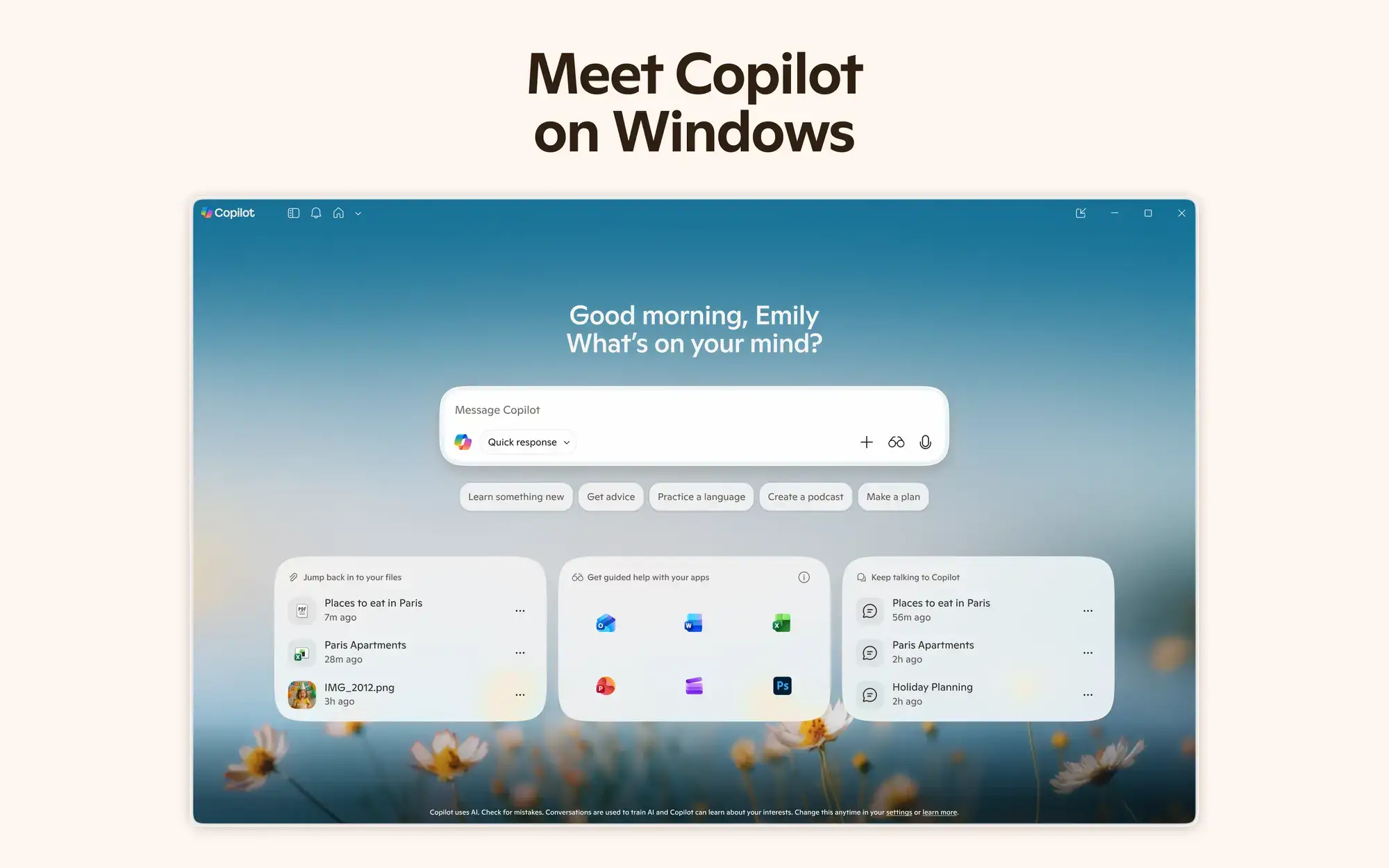
- Copilot home screen from Microsoft Copilot for Windows PC: Download Guide, Tips & Features
-
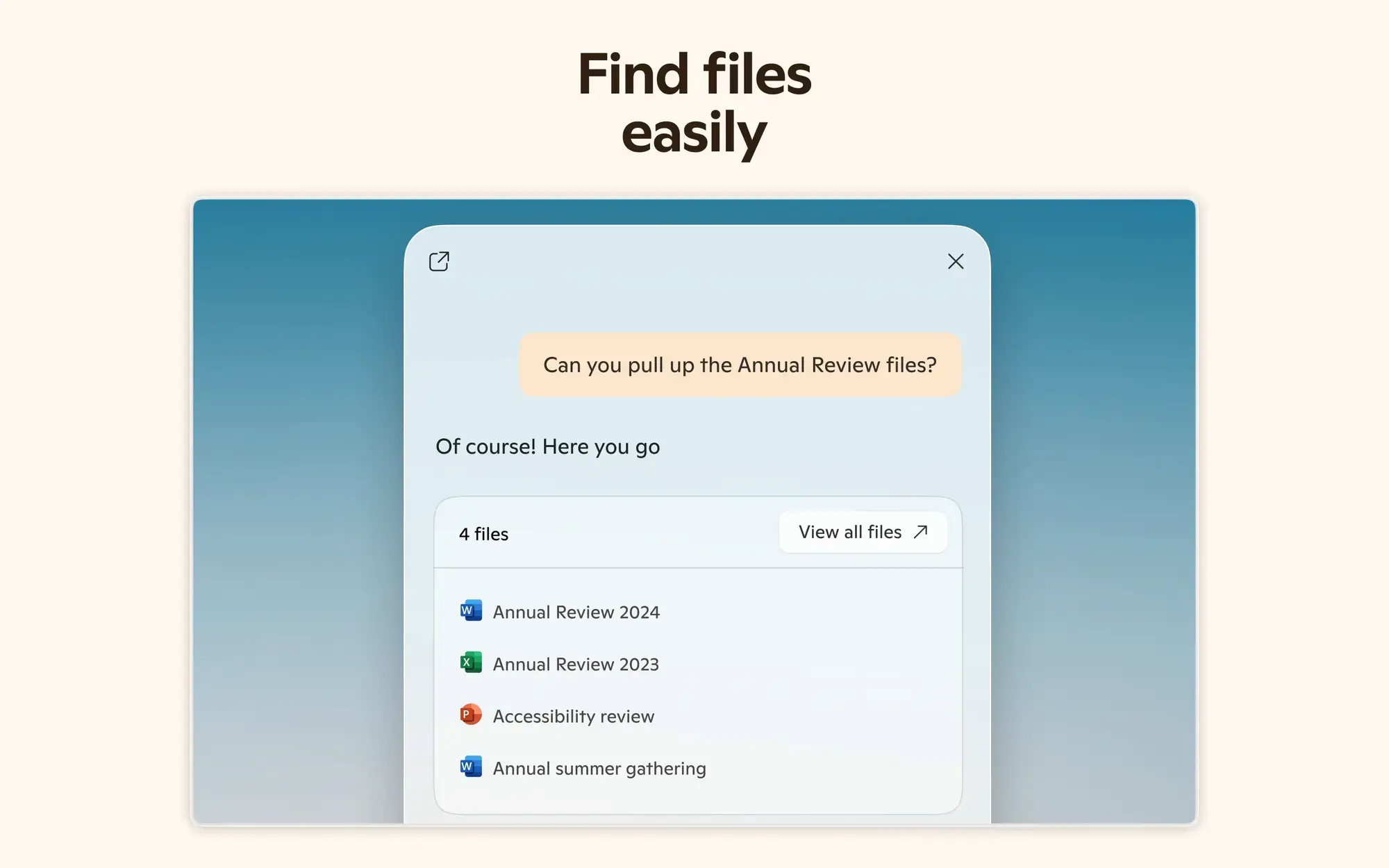
- Find files on your pc from Microsoft Copilot for Windows PC: Download Guide, Tips & Features
-
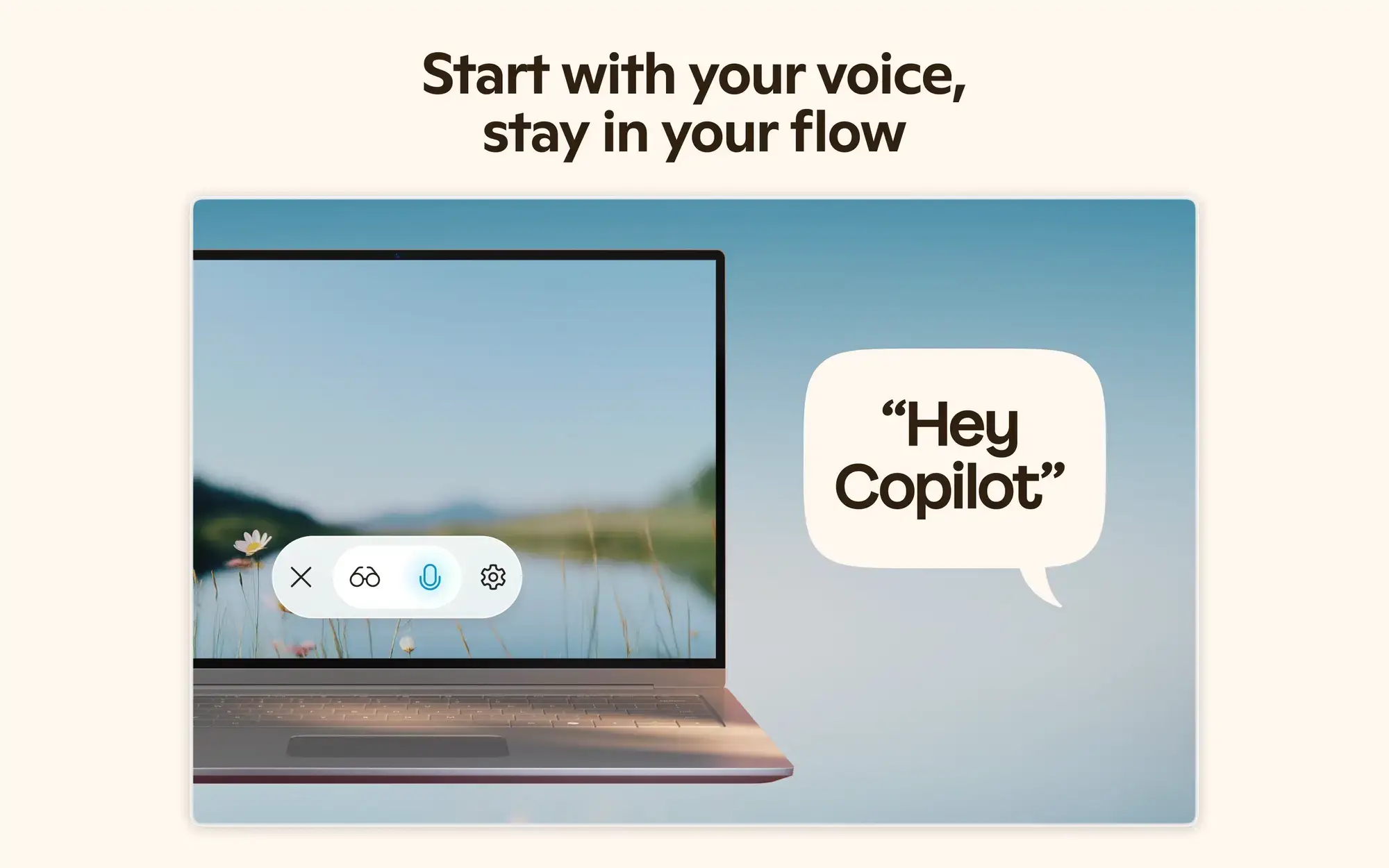
- Hey copilot from Microsoft Copilot for Windows PC: Download Guide, Tips & Features
-
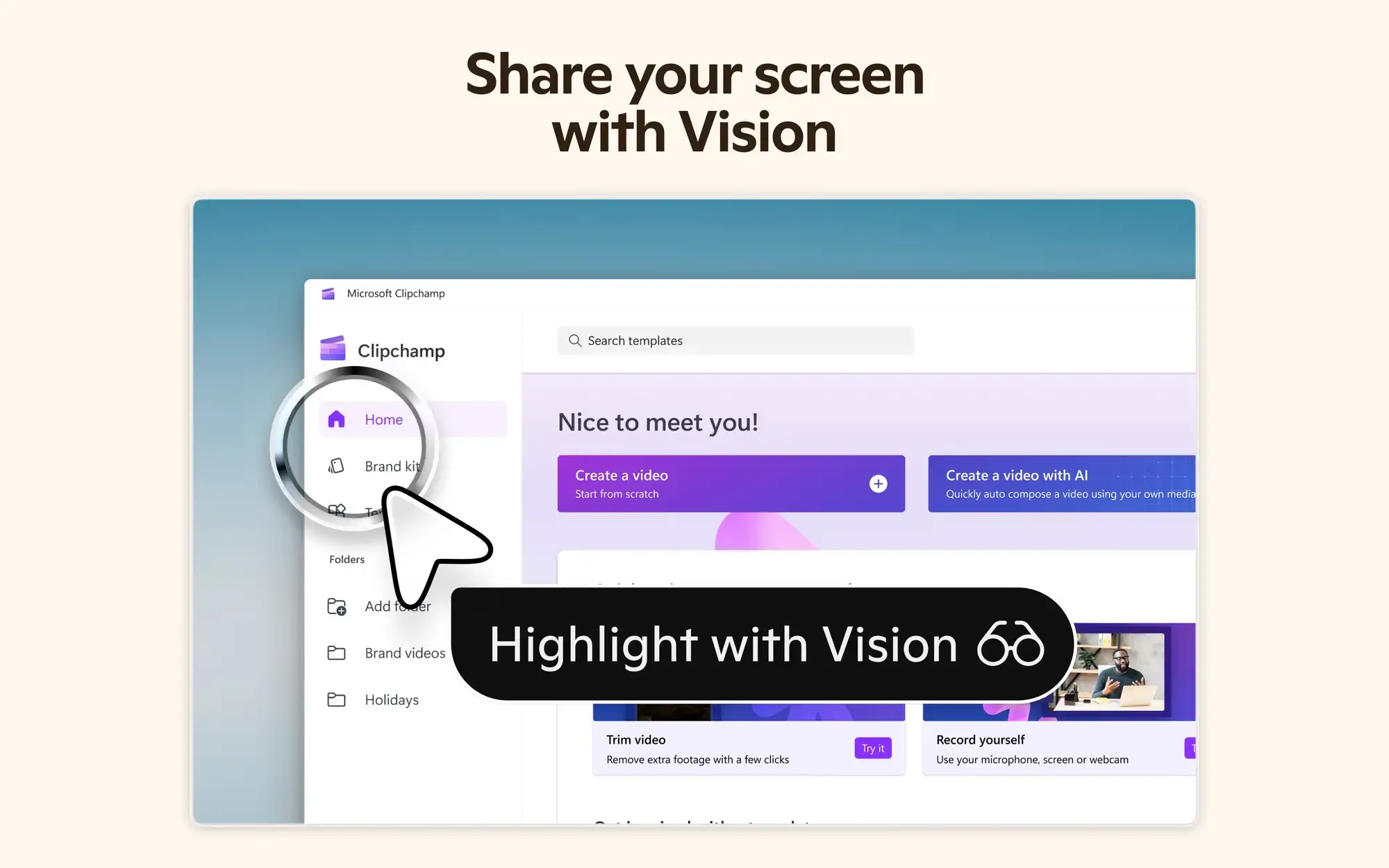
- Share screen with vision from Microsoft Copilot for Windows PC: Download Guide, Tips & Features
-
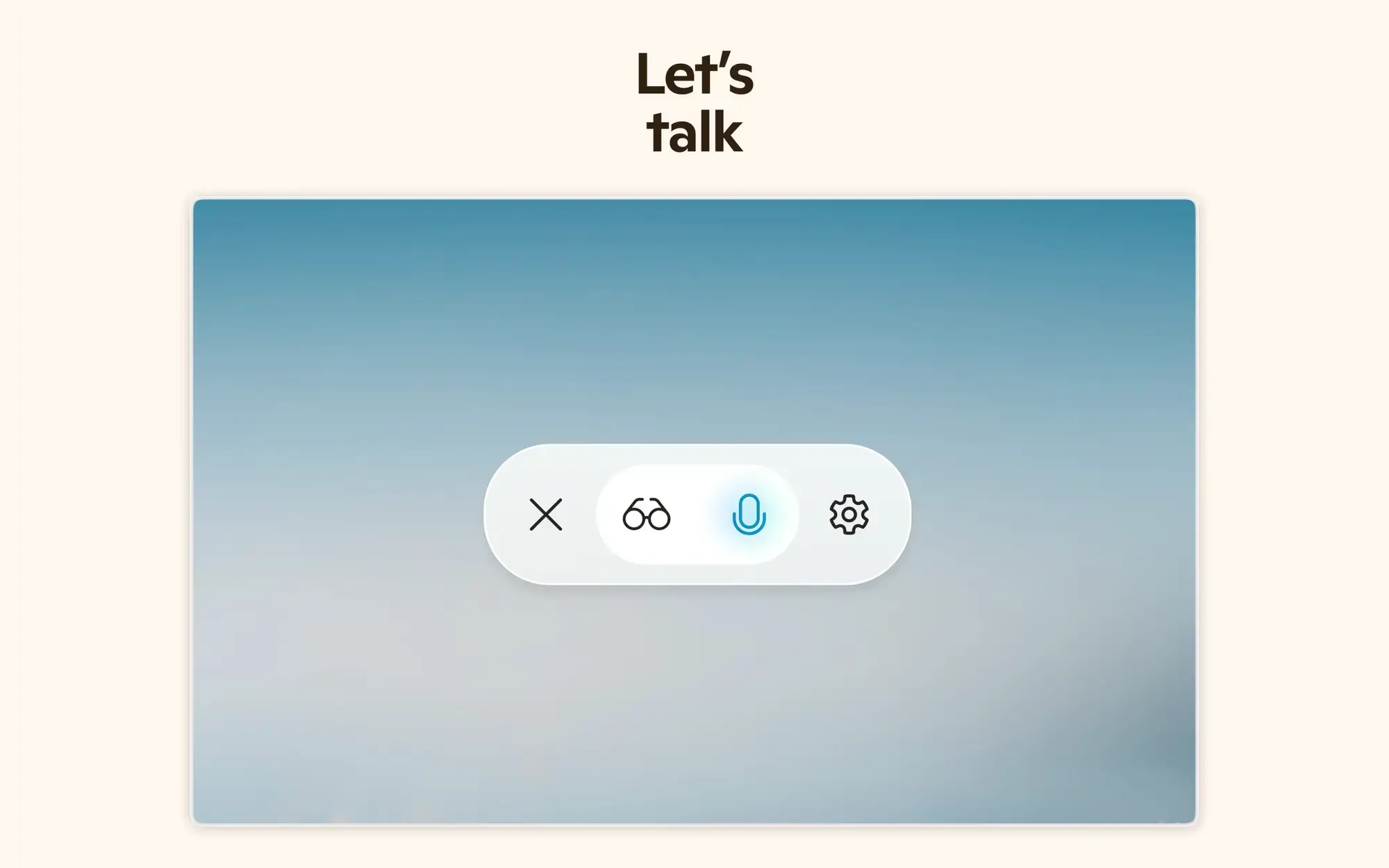
- Talk with audio from Microsoft Copilot for Windows PC: Download Guide, Tips & Features
-
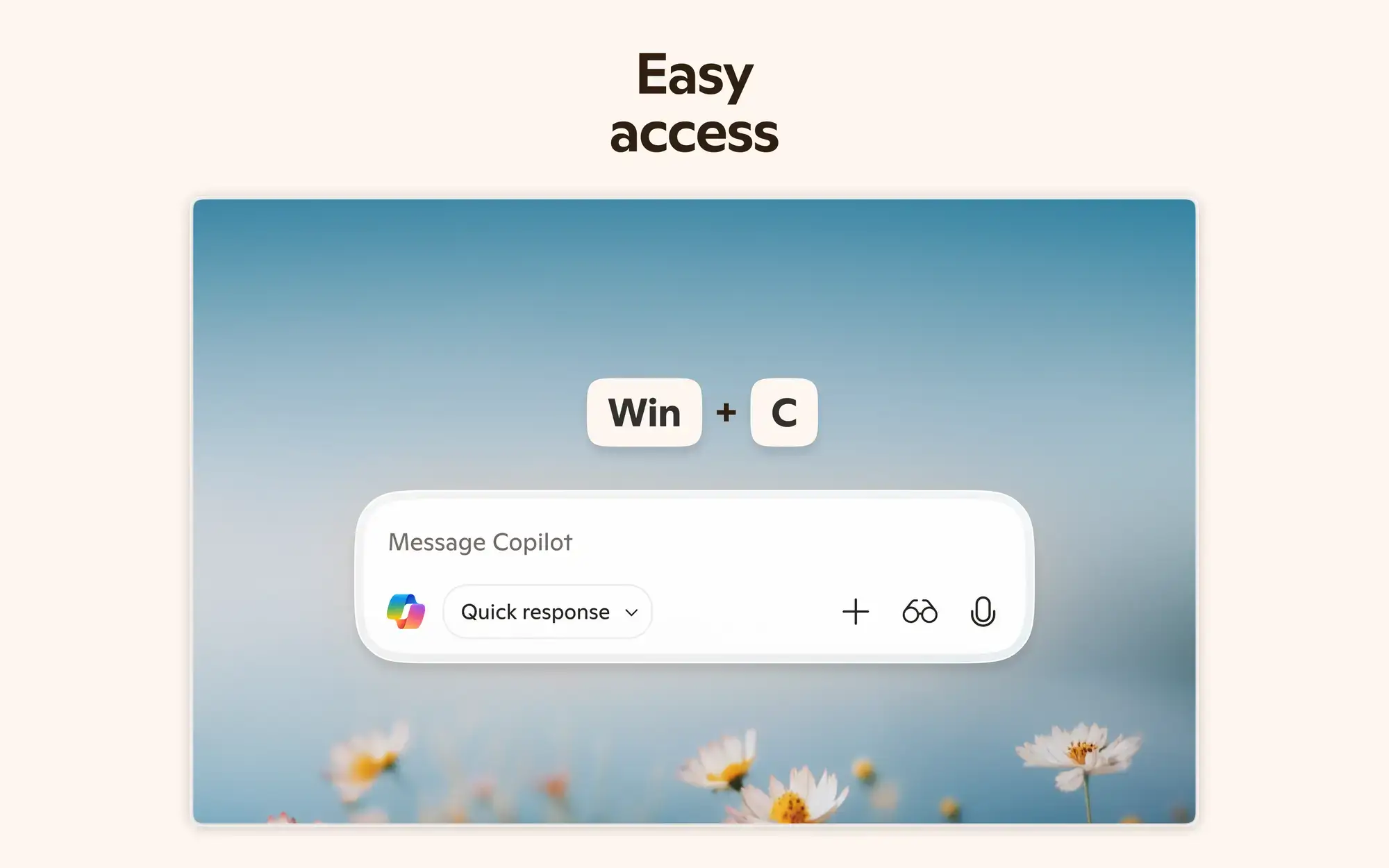
- Win+c command prompt from Microsoft Copilot for Windows PC: Download Guide, Tips & Features
Frequently Asked Questions
Is Microsoft Copilot free on Windows?
What are the system requirements for Copilot on Windows?
What happened to Copilot Pro?
How do I turn on Hey Copilot?
How do I remove Copilot from the taskbar?
Does Copilot work with a work or school account?
Support and Community
These places answer most Copilot questions.
- Microsoft Copilot, Microsoft’s own Copilot page for individuals.
- Getting started with Copilot on Windows, Microsoft’s official setup guide.
- r/CopilotPro on Reddit, a large community for Copilot tips and troubleshooting.
More Windows software guides: ChatGPT for Windows · Gemini for Windows · Claude for Windows · OneNote for Windows · Outlook for Windows · Copilot Notebooks · The New Microsoft Copilot
Discover more from Windows Mode
Subscribe to get the latest posts sent to your email.
















Add your first comment to this post