Readers like you help support this site. When you make a purchase using links on our site, we may earn an affiliate commission. All opinions remain our own.
OneNote is Microsoft's free digital notebook for typed notes, handwriting and web clips.
OneNote is Microsoft’s free note-taking app for Windows, available from the Microsoft Store or as part of Microsoft 365. You keep notes in notebooks, split them into sections and pages, and type, paste or draw anywhere on a page. Everything syncs to your phone and the web through OneDrive.
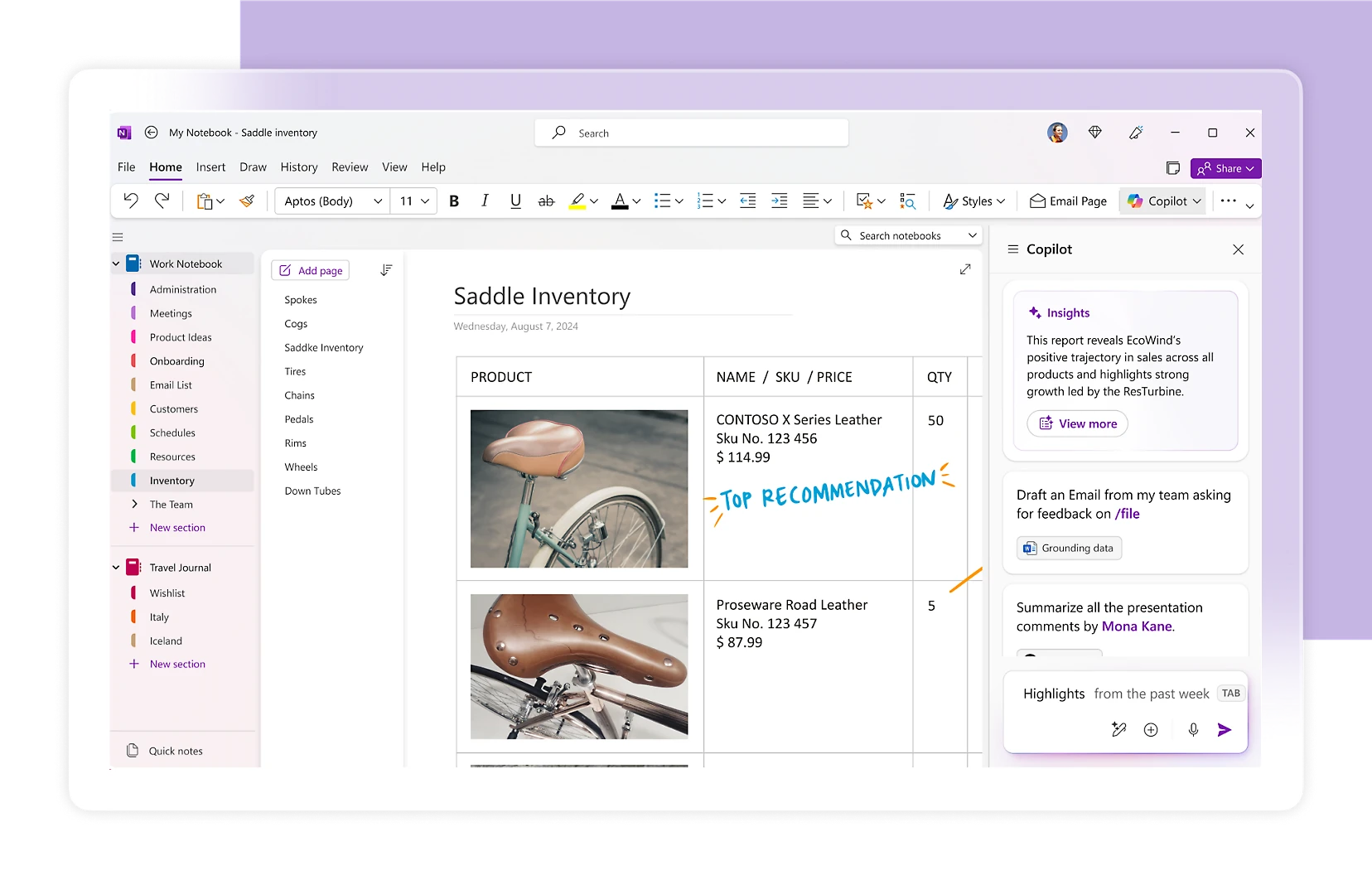
The page itself is what sets it apart. A OneNote page is a free canvas, so a typed list, a photo and a pen sketch can sit side by side wherever you put them. Most note apps make you write in one long column.
It runs on Windows 10 and Windows 11, including Arm laptops. The old OneNote for Windows 10 app stopped receiving support on October 14, 2025, and is now read-only.
This guide covers the install, how Copilot and Copilot Notebooks work in OneNote, what is free and what needs Microsoft 365, and the shortcuts worth learning first. Already a OneNote user? Tell us your favorite trick.
What Is OneNote?
OneNote is a digital notebook. It is organized like a paper binder: notebooks hold sections, shown as colored tabs, and sections hold pages.
You can click anywhere on a page and start typing, paste a screenshot, drop in a PDF printout, record audio or write with a pen. Search covers typed text, handwriting and even text inside pictures, so a photo of a whiteboard becomes something you can find later.
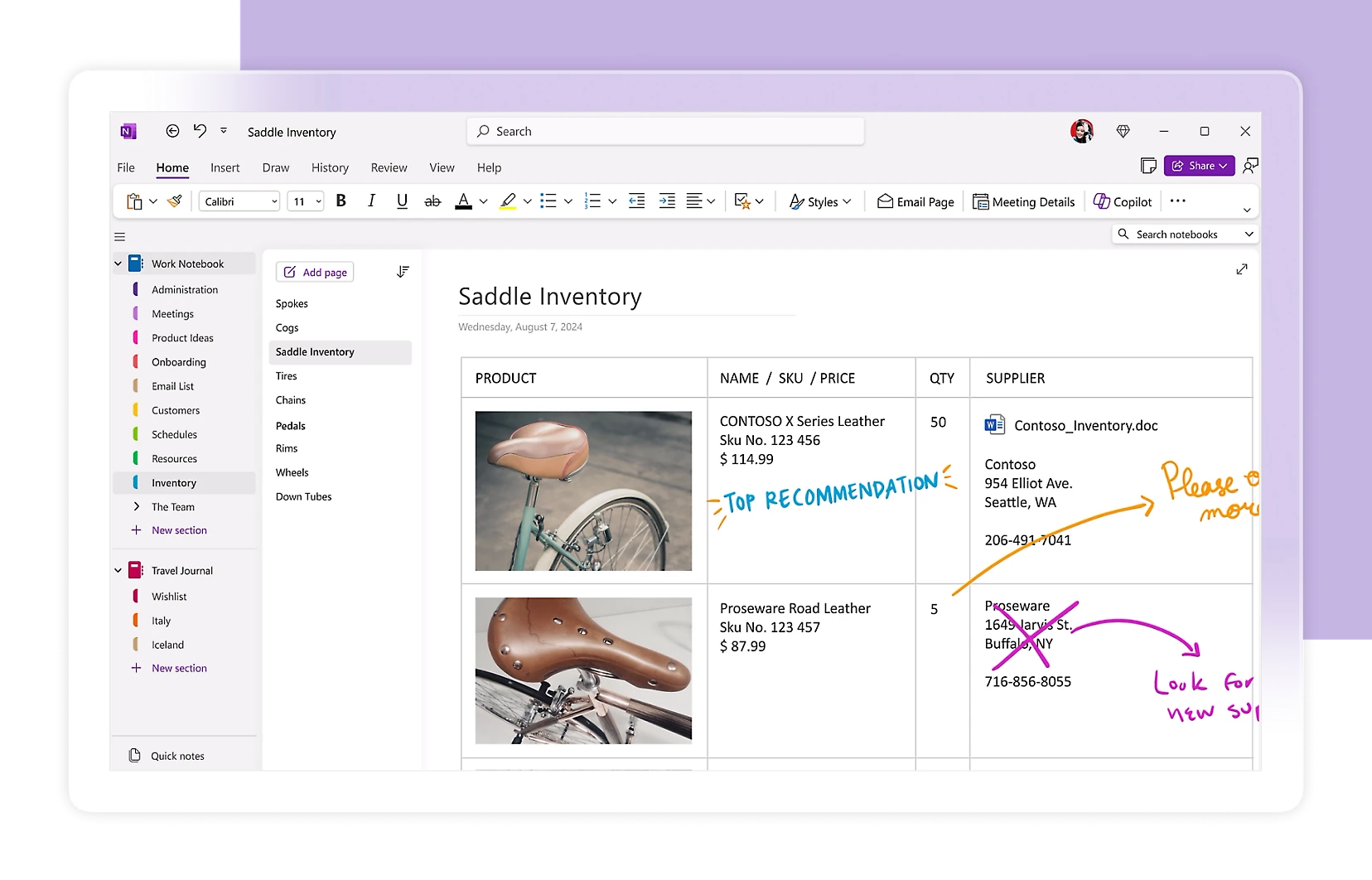
Typed text, photos and handwritten notes on one OneNote page. Image: Microsoft.
Notebooks save to OneDrive, Microsoft’s cloud storage, so the same notes open on your phone, on another PC and at onenote.com in a browser. You can also share a notebook and edit it with other people at the same time.
Key Features
These are the features that make OneNote worth using on a Windows PC, based on Microsoft’s own documentation.
Quick Notes from anywhere
Press Alt + Windows key + N to open a small Quick Note window without opening the full app. Quick Notes land in their own section, so you can sort them later.
Clip pages from your browser
The free OneNote Web Clipper for Edge and Chrome saves a full web page, a selected region or an article view straight into a notebook.
Tags and to-do boxes
Press Ctrl + 1 to add a check box to any line. Other tags mark items as Important, Question or Remember for later, and you can search by tag across every notebook.
Password-protect a section
Right-click a section tab and choose Password Protection to lock it. Microsoft cannot recover a forgotten section password, so store it somewhere safe.
Paste equations from the web
Copy an equation from a web page such as Wikipedia or a Copilot answer and paste it into OneNote. It lands as a real, editable equation instead of a picture or a jumble of symbols.
Choose how file links open
Links to Word, Excel, PowerPoint and OneNote files open in your browser by default. To open them in the desktop apps instead, go to File, Options, Advanced and change Link open preference.
Handwrite and draw like on paper
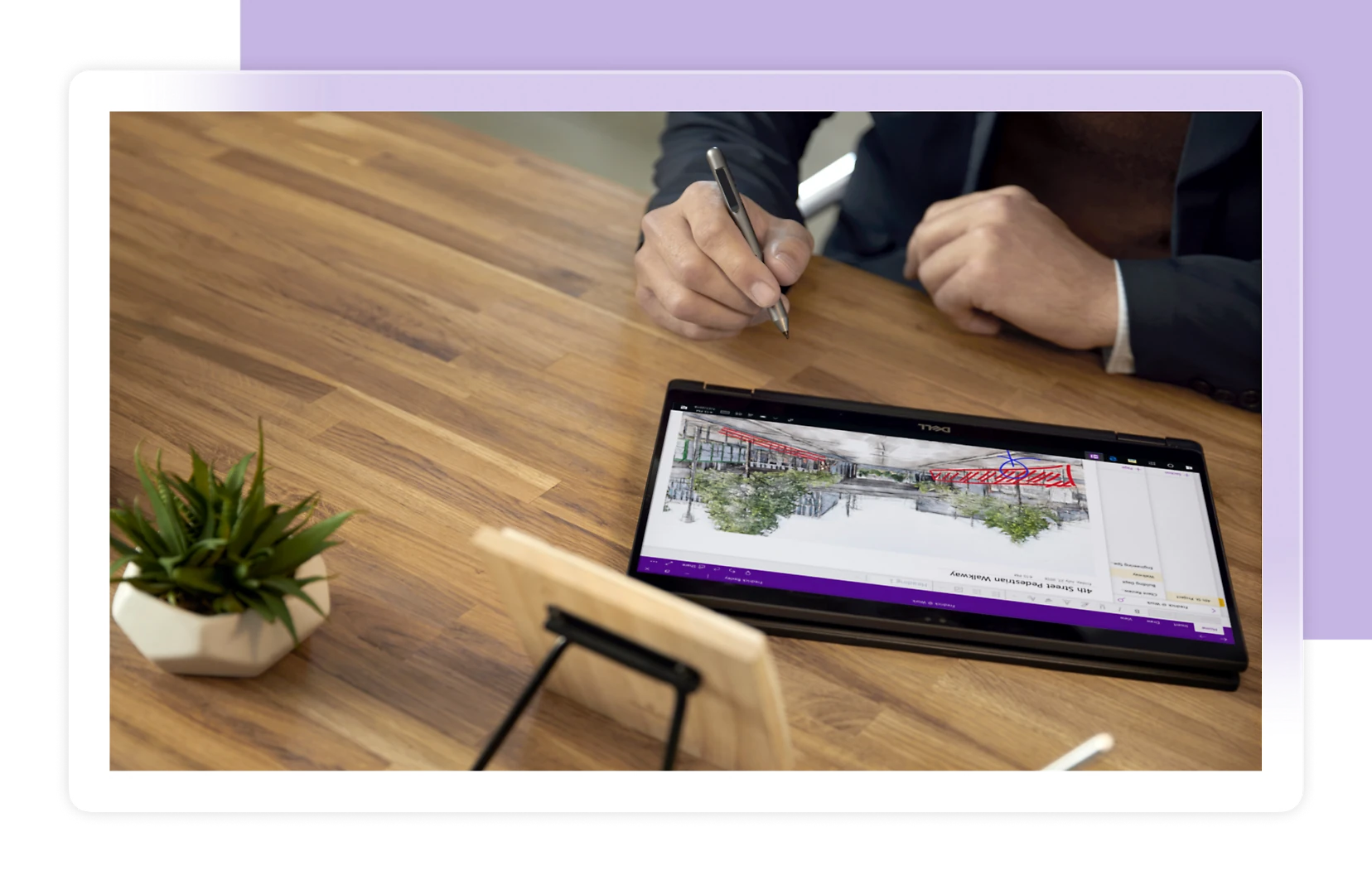
On a touchscreen or with a pen, the Draw tab gives you pens, highlighters and an eraser, plus ruled or grid backgrounds.
Ink to Text turns your handwriting into typed text, and Ink to Math turns a handwritten equation into a typed one.
Record and transcribe lectures
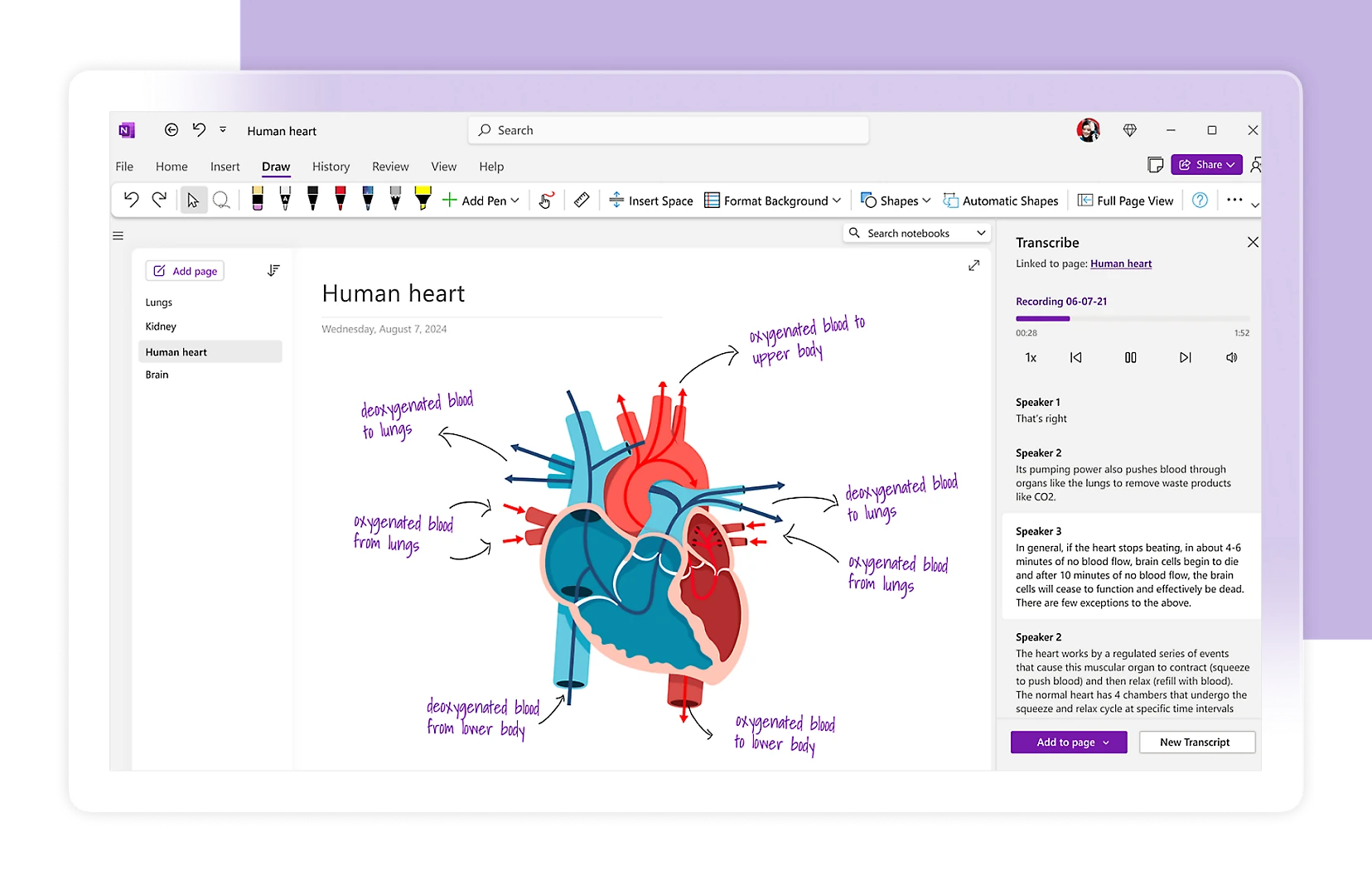
OneNote can record audio straight onto a page and play it back later.
With a Microsoft 365 subscription, the Transcribe button turns a recording or an uploaded audio file into a text transcript split by speaker. It needs an internet connection.
Sharing works on the free version too. Click Share, invite people by email, and everyone sees each other’s changes as they happen, with the author’s initials beside new edits.
How OneNote Works With AI
OneNote has two AI tools, and they do different jobs. Copilot in OneNote works on the page you have open. Copilot Notebooks build an AI workspace around a whole project. Both use Copilot, Microsoft’s AI assistant.
Ask Copilot about your notes
Click Copilot on the Home tab to open a chat pane beside your page. Microsoft lists what it can do: summarize a section or a selection, turn notes into a task list, rewrite messy notes so they read clearly, and draft agendas, plans or outlines from what you wrote.
A small Copilot icon also appears on the page itself, for a quick summary or rewrite without opening the pane.
One AI workspace per project
A Copilot Notebook collects your references in one place: OneNote pages, Word, Excel and PowerPoint files, PDFs, links and past Copilot chats. Ask questions about all of them at once, get summaries and action items, or listen to an audio overview.
Turn class notes into study aids
Inside a Copilot Notebook, Study Guide turns your notes, slides and PDFs into a summary page plus optional flashcards, quizzes and matching activities. Only you, and anyone you share the notebook with, can see them.
From notes to Office files
Copilot Notebooks can suggest a Word document, Excel workbook or PowerPoint deck based on your notebook. Pick a suggestion and Copilot builds a first draft for you to edit.
Open in OneNote
Copilot Notebooks also live in the Copilot app and stay in sync with OneNote. Start one in the Copilot app, then choose Open in OneNote when you want the full workspace.
Want the full walkthrough? Our Copilot Notebooks guide covers who gets them, how to build your first one and how they compare with Google’s Gemini Notebook.
Prompts to try first
- Summarize this section in five bullet points.
- Make a to-do list from my meeting notes on this page.
- Rewrite these notes so they are easier to read.
- Draft an agenda for next week’s project meeting based on these notes.
Which AI features you get depends on your account. A free Microsoft account gets OneNote itself, but not Copilot inside it.
AI credits run out. Personal, Family and Premium plans come with a monthly allowance of AI credits shared across Word, Excel, OneNote and other Microsoft apps. When they run out, Copilot stops until the next month. Microsoft’s Copilot subscription FAQ explains how credits work.
How to Get OneNote on Windows
If you already have Microsoft 365 installed, OneNote is probably on your PC. Open Start and search for OneNote first. Otherwise, the Microsoft Store has it for free.
1 Open the OneNote listing on the Microsoft Store, or open the Store app and search for OneNote.
2 Click Get or Install and wait for the download to finish.
3 Open OneNote from the Start menu.
4 Sign in with your Microsoft account. This is the same account you use for Outlook.com, Xbox or OneDrive.
5 Open or create a notebook. Notebooks you already have in OneDrive appear on their own. To start fresh, choose File, then New.
Two apps called OneNote? If your OneNote has a File tab at the top left, you have the current app. If it does not, you are on the retired OneNote for Windows 10, and the next section shows how to move.
Moving From OneNote for Windows 10
OneNote for Windows 10 reached end of support on October 14, 2025. It still opens, and you can read, copy and export your notes, but you cannot create, edit or sync anything in it.
Your notes are not lost. The old app always saved notebooks to OneDrive, so they open in the current OneNote as soon as you sign in with the same account. Microsoft says changes that never finished syncing were backed up automatically and show up in the new app.
Once every notebook opens in the new app, you can uninstall the old one from Settings, Apps, Installed apps. Microsoft’s page on what is happening to OneNote for Windows 10 has the details.
What Is Free and What Needs Microsoft 365
The app costs nothing, and the free version covers everyday note-taking. What a Microsoft 365 subscription adds is more cloud storage, Copilot and transcription. Prices change often, so check Microsoft’s OneNote page for current plans.
For text notes, 5 GB goes a long way. Audio recordings, scanned PDFs and big photos are what fill it, and once it is full, OneNote stops syncing new changes until you free space.
OneNote vs Notion
Notion is the note app people most often weigh against OneNote. Pick OneNote if you write by hand, take class or meeting notes, or want everything in Microsoft’s apps. Pick Notion if you want project databases and team wikis.
If Notion sounds like the better fit, our Notion for Windows guide covers the desktop app.
OneNote Keyboard Shortcuts Worth Learning
These come from Microsoft’s own shortcut list for OneNote on Windows. Learn the first three and you will use the app faster within a day.
Tips for Getting Started
1 Start with one notebook. A single notebook with a section per class or project is easier to search and keep tidy than ten small notebooks.
2 Use subpages for long topics. Drag a page slightly to the right in the page list to make it a subpage, so related notes stay grouped together.
3 Print documents into OneNote. Choose Insert, then File Printout, to drop a PDF or Word file onto a page as images you can write on with a pen.
4 Copy text out of pictures. Right-click a screenshot or photo in a note and choose Copy Text from Picture to grab the words in it.
5 Check sync before you switch PCs. Right-click a notebook name and choose Notebook Sync Status to see that everything reached OneDrive.
Video: New OneNote and Copilot Features
Watch Mike Tholfsen, a product manager at Microsoft, walk through new OneNote features, including Copilot Notebooks, study guides, the Open in OneNote button in the Copilot app, the link-opening setting and math pasting.
Frequently Asked Questions
What are the system requirements for OneNote on Windows?
Is OneNote really free?
Can I keep OneNote notebooks on my PC instead of OneDrive?
Does OneNote work offline?
What happens to my notes in OneNote for Windows 10?
Can I recover a forgotten OneNote section password?
Support and Community
These places answer most OneNote questions.
- Microsoft OneNote, Microsoft’s own product page for OneNote.
- OneNote help and learning, Microsoft’s official guides and troubleshooting articles.
- Keyboard shortcuts in OneNote, Microsoft’s full shortcut list.
- r/OneNote on Reddit, for tips and fixes from other OneNote users.
More Windows software guides: Notion for Windows · Microsoft Teams for Windows · Copilot Notebooks · Outlook for Windows · Microsoft Copilot for Windows
Discover more from Windows Mode
Subscribe to get the latest posts sent to your email.














Add your first comment to this post