Readers like you help support this site. When you make a purchase using links on our site, we may earn an affiliate commission. All opinions remain our own.
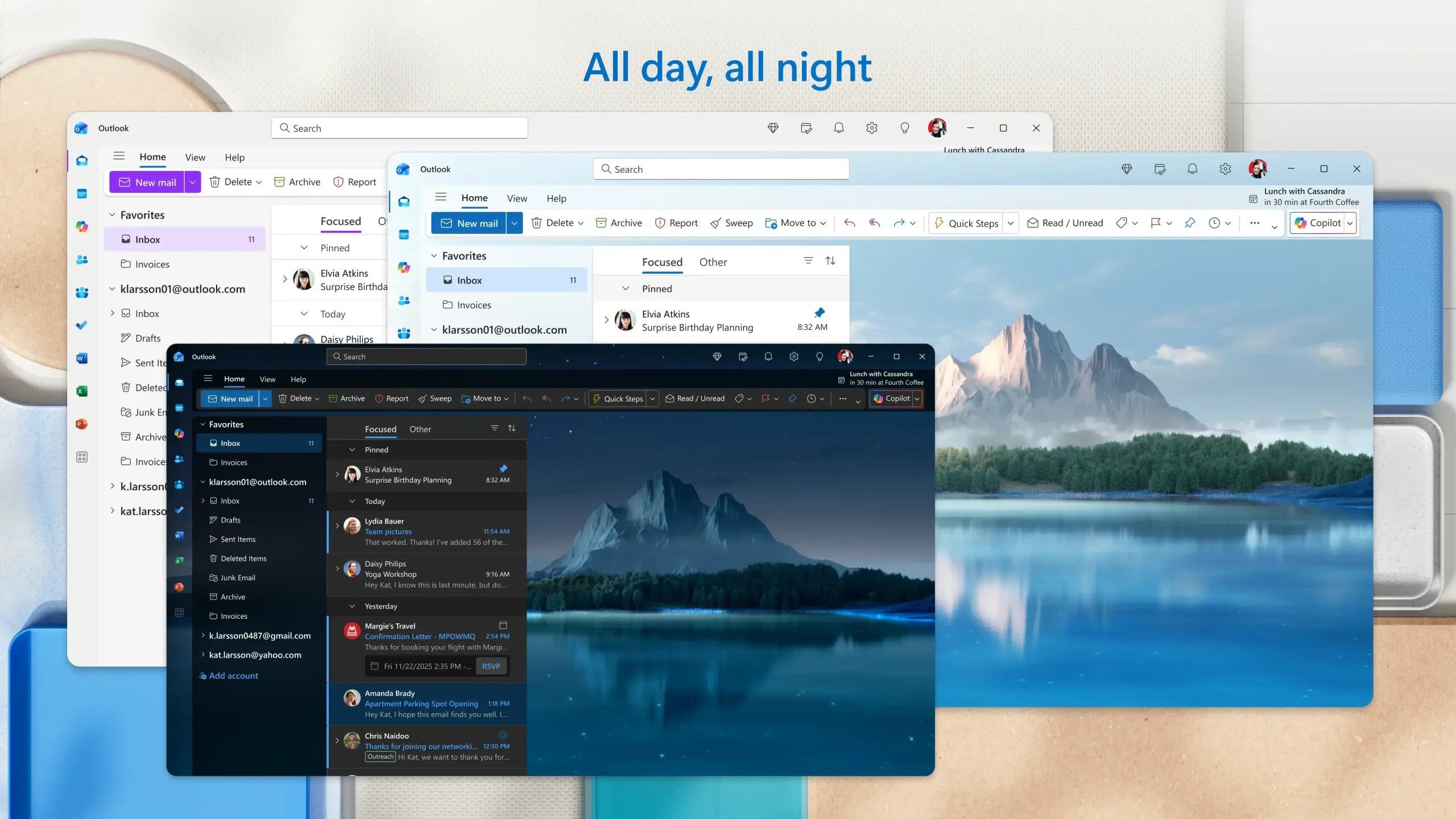
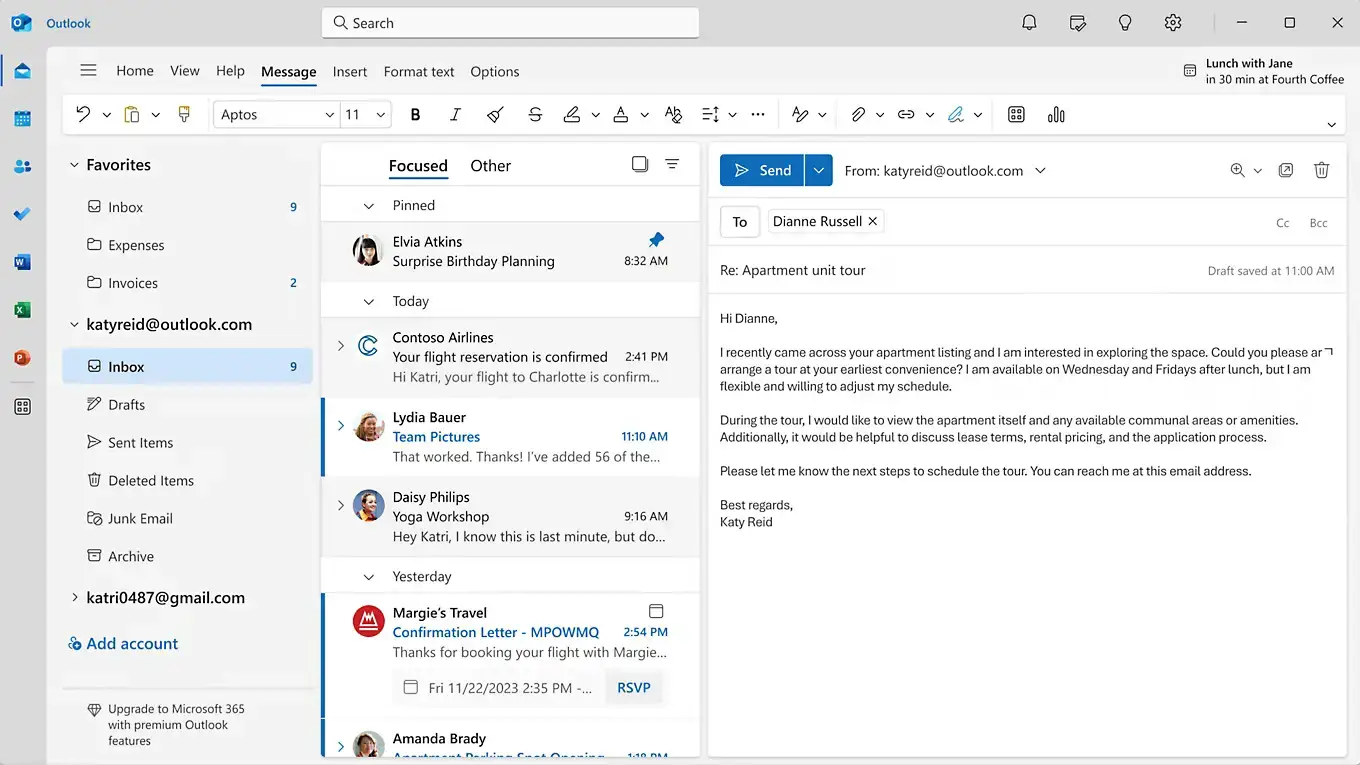
The new Outlook for Windows in light mode, with a photo theme, and in dark mode.
The new Outlook for Windows is Microsoft’s free email and calendar app, available from the Microsoft Store and already built into recent versions of Windows 11. It puts Outlook.com, Gmail, Yahoo, iCloud and work accounts in one window, with your calendar and contacts beside them.
It replaced the old Windows Mail and Calendar apps, and it is slowly taking over from classic Outlook too. Microsoft ships updates to it every week or two, so it changes far more often than classic Outlook. Offline mail, PST support and Copilot all grew a lot through 2026.
Made by Microsoft. Runs on Windows 10 and Windows 11, including Arm PCs. Free with a Microsoft account, with ads in the inbox unless you pay for Microsoft 365.
This guide covers how to get it, what changed in 2026, what Copilot can and cannot do in it, and how it compares to classic Outlook. Stuck on something? Reach out to us directly.
What Is the New Outlook for Windows?
The new Outlook is a rebuilt Outlook app that looks and works like Outlook on the web, packaged as a Windows app. It is the default mail app on Windows 11, and the Microsoft mail app that gets new features.
Windows Mail and Calendar stopped being supported on December 31, 2024. Classic Outlook, the version that comes with Office, has not gone away. Microsoft says it will support classic Outlook until at least 2029, and it pushed the date when businesses get moved to the new app by default to March 2027.
For home users the choice is simple: the new Outlook is free and it is where all the work is happening. For offices that depend on add-ins, macros or custom forms, classic Outlook is the safer pick, and the comparison further down shows why.
Key Features
These are the parts of the new Outlook you will use every day, whatever kind of account you have.
All your accounts in one app
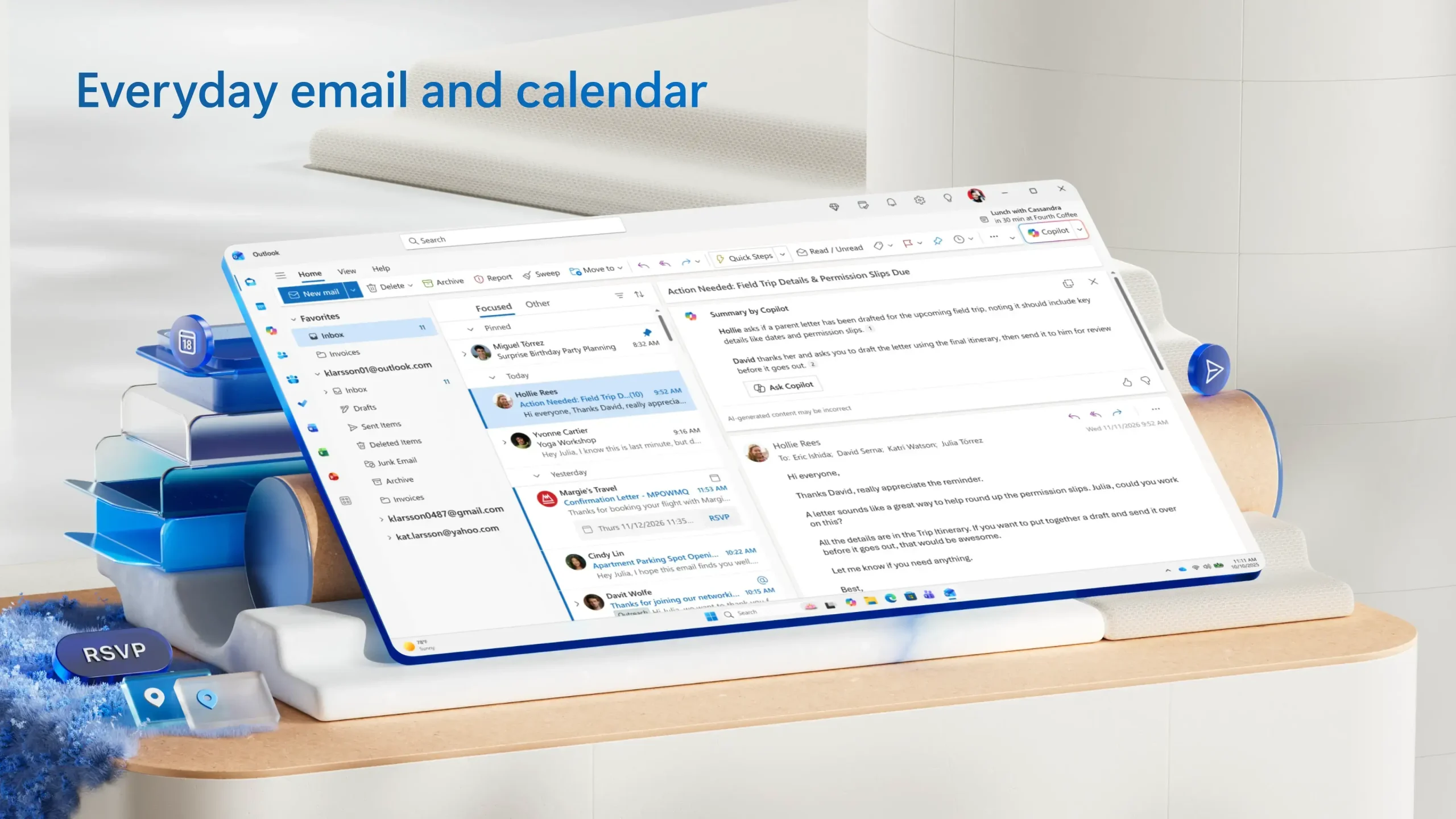
Add Outlook.com, Hotmail, Gmail, Yahoo, iCloud and any IMAP account. You can even drag emails from one account to another, and categories now work on Gmail, Yahoo and IMAP mail too.
Works offline
Read and write mail, open attachments, and manage your calendar without internet. It keeps the last 30 days of mail on your PC by default and syncs in the background, even when the app is closed.
Your old PST files come with you
PST files are the archive files classic Outlook saves your mail in. The new Outlook can open them, import them into your mailbox, and export mail back out to PST on a schedule.
Tools to tame the inbox
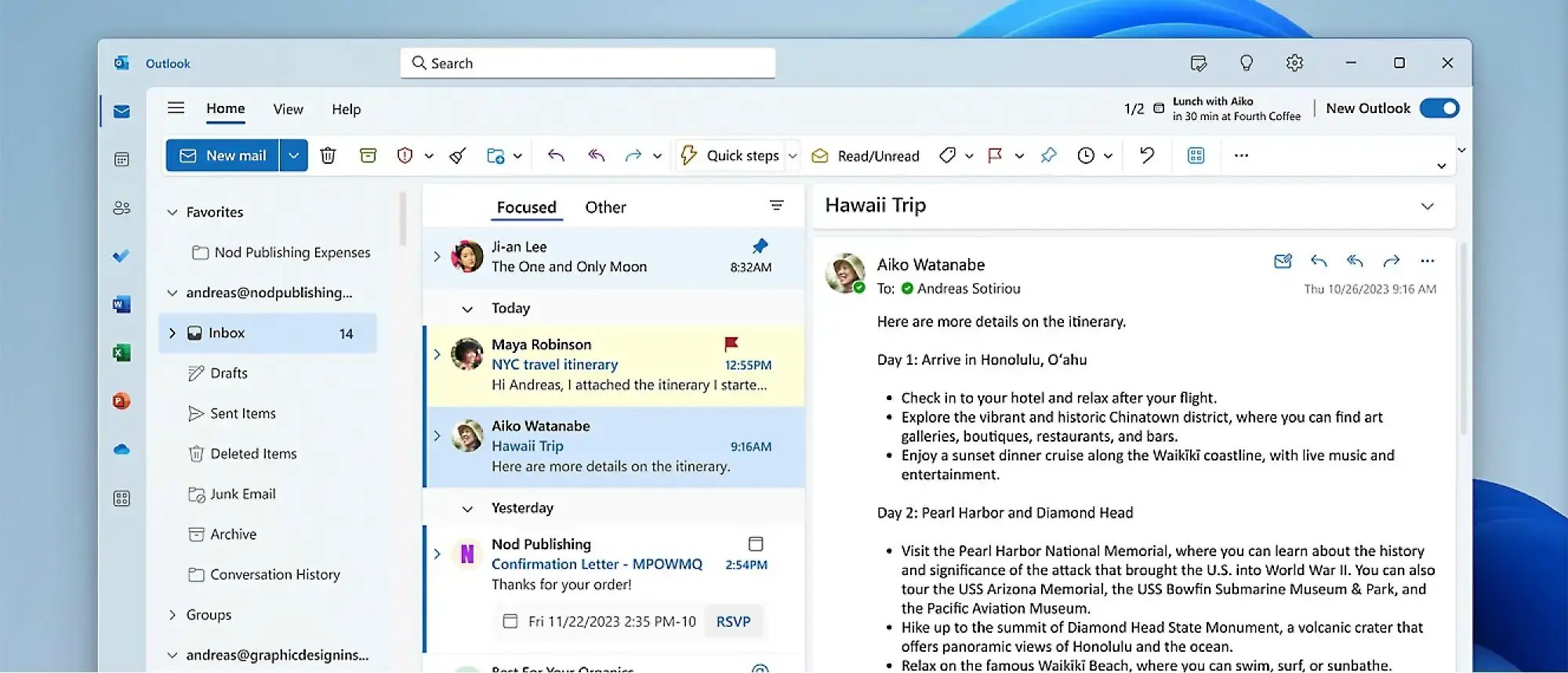
Pin emails to the top, snooze them for later, sweep a sender’s old mail away, and set rules that run on any folder. Search Folders and color-coded folders help you find things fast.
A calendar that keeps up
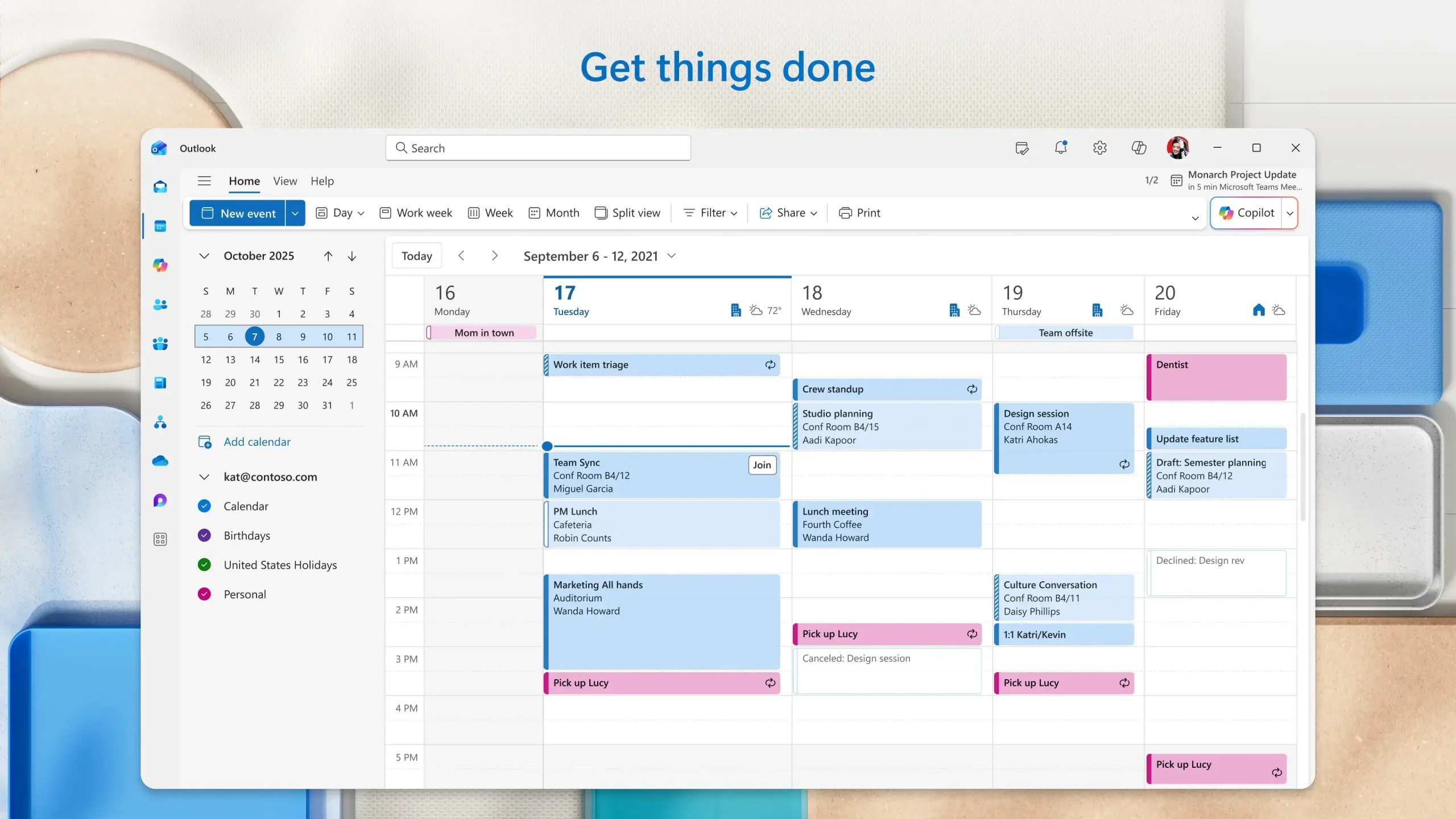
See several calendars side by side, get reminders even when Outlook is closed, reply to invites from the message list, and copy an event by holding Ctrl while you drag it.
Make it look like yours
Pick from more than 50 themes, switch between light and dark mode, resize the Favorites list, and show up to two lines of preview text per email.
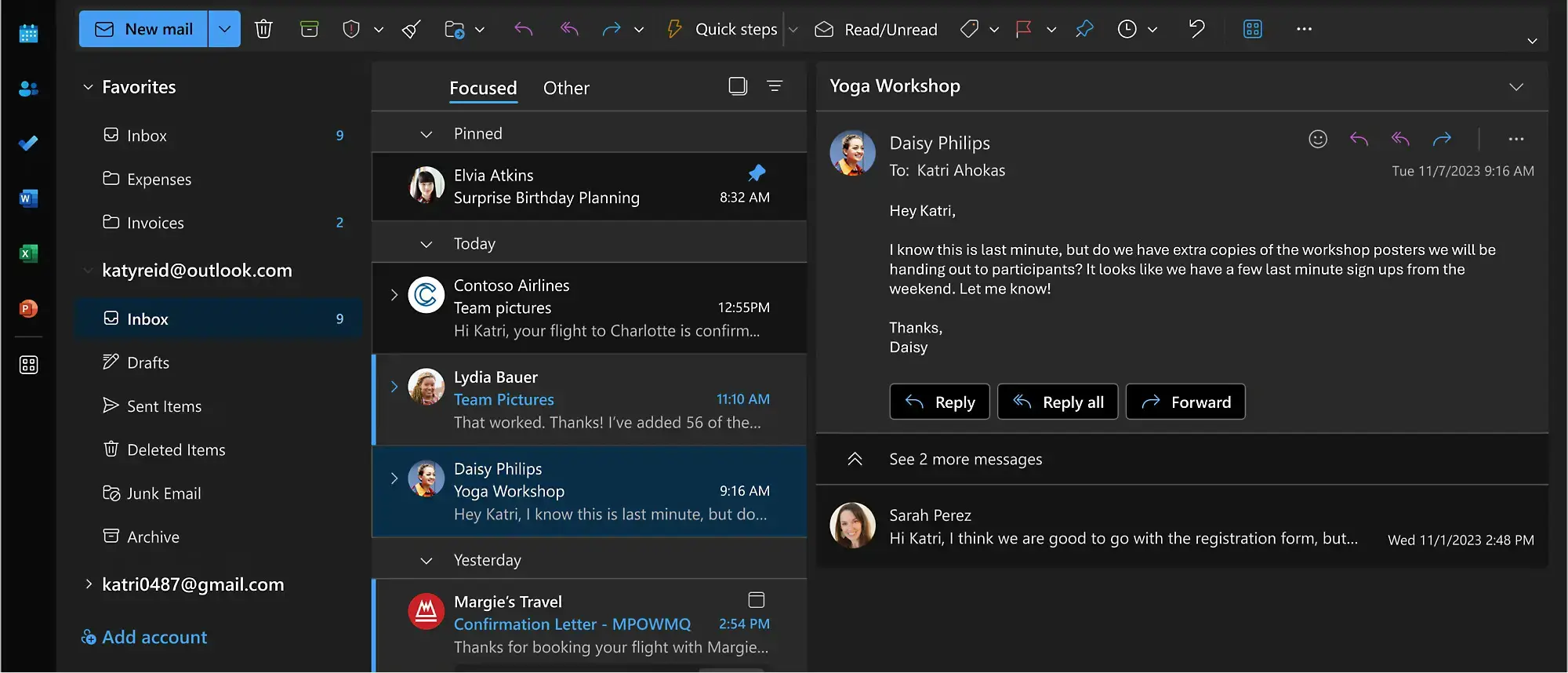
Dark mode in the new Outlook. You can keep the reading pane light while the rest stays dark.
New Outlook Updates in 2026
These updates landed between January and October 2026, according to Microsoft’s release notes. A few of them fix the biggest complaints people had about the app.
A look closer to classic Outlook
In October 2026 Microsoft added a layout style that sits closer to the classic Outlook design, plus a manual Sync button in the top bar’s overflow menu (the … button) for when mail seems stuck.
Full PST import
Since June 2026 you can import calendar events, contacts and tasks from a PST file, not just email. Go to Settings, then Files, then Import.
Better offline mode
You can now add attachments and pictures to emails while offline, delete or cancel meetings offline, and use the Focused and Other inbox tabs without a connection.
Quick Parts and templates
Save blocks of text you type often and drop them into any email. You can also save an email as a template or as an .oft file to reuse later.
More time to undo a send
The delay send option now goes up to 30 seconds, so you have a real window to pull back an email you regret.
Small things that add up
One summary alert instead of a pile of new-mail pop-ups, Markdown that keeps its formatting when you paste it, Ctrl+Y to jump to any folder, and a taskbar icon that changes to show Mail or Calendar.
How to Get the New Outlook on Windows
Check the Start menu first. On most Windows 11 PCs the new Outlook is already installed and just called Outlook. If it is not there, the Microsoft Store takes about a minute.
1 Open the Microsoft Store page for Outlook for Windows, or search for Outlook in the Store app.
2 Click Get or Install. The app is free.
3 Open Outlook from the Start menu.
4 Pick your email address from the suggested accounts, or type a different one, then click Continue.
5 Sign in and allow Outlook to access the account when Gmail, Yahoo or iCloud asks.
6 Add more accounts from Settings, then Accounts, then Add account.
Using classic Outlook or the old Mail app? Look for the New Outlook toggle in the top-right corner. Turn it on and the new app installs and offers to bring your settings over. Turn it off inside the new Outlook to go back. If your work or school account does not show the toggle, your IT team has hidden it.
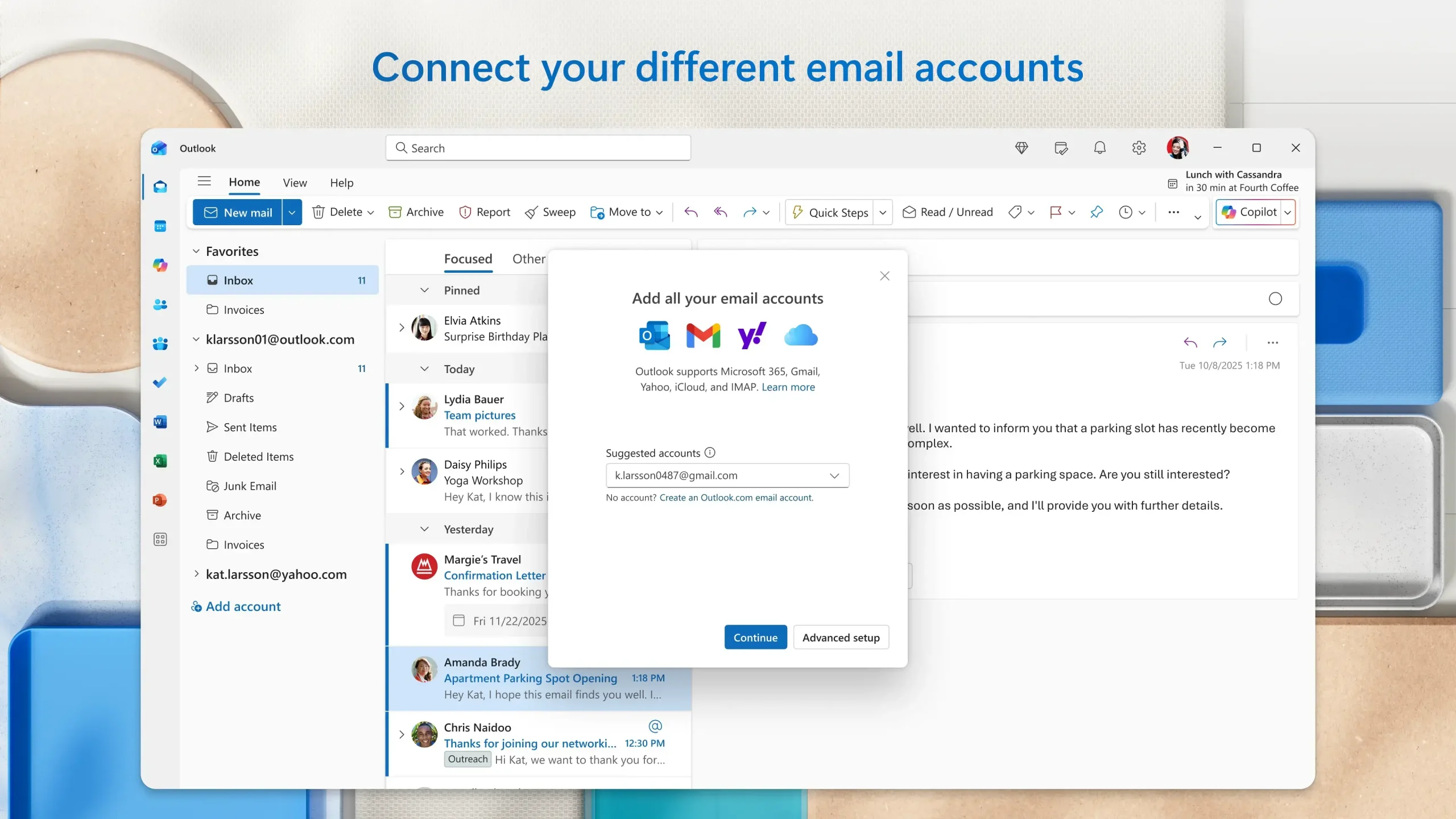
The account picker: Outlook suggests addresses it finds on your PC.
Free vs Microsoft 365: What You Get
The app itself costs nothing. What changes with a paid plan is the ads and how much Copilot can do. If you use a free Outlook.com, Hotmail or Gmail account with no Microsoft 365 plan, you will see ads at the top of your inbox. They carry an Ad label and you can delete them.
Microsoft 365 Basic also removes the ads but does not add Copilot features. If you pay for Microsoft 365 Personal or Family, Copilot works on every account you add to Outlook, Gmail included, as long as they are on the same PC.
Copilot in Outlook: What It Can Do
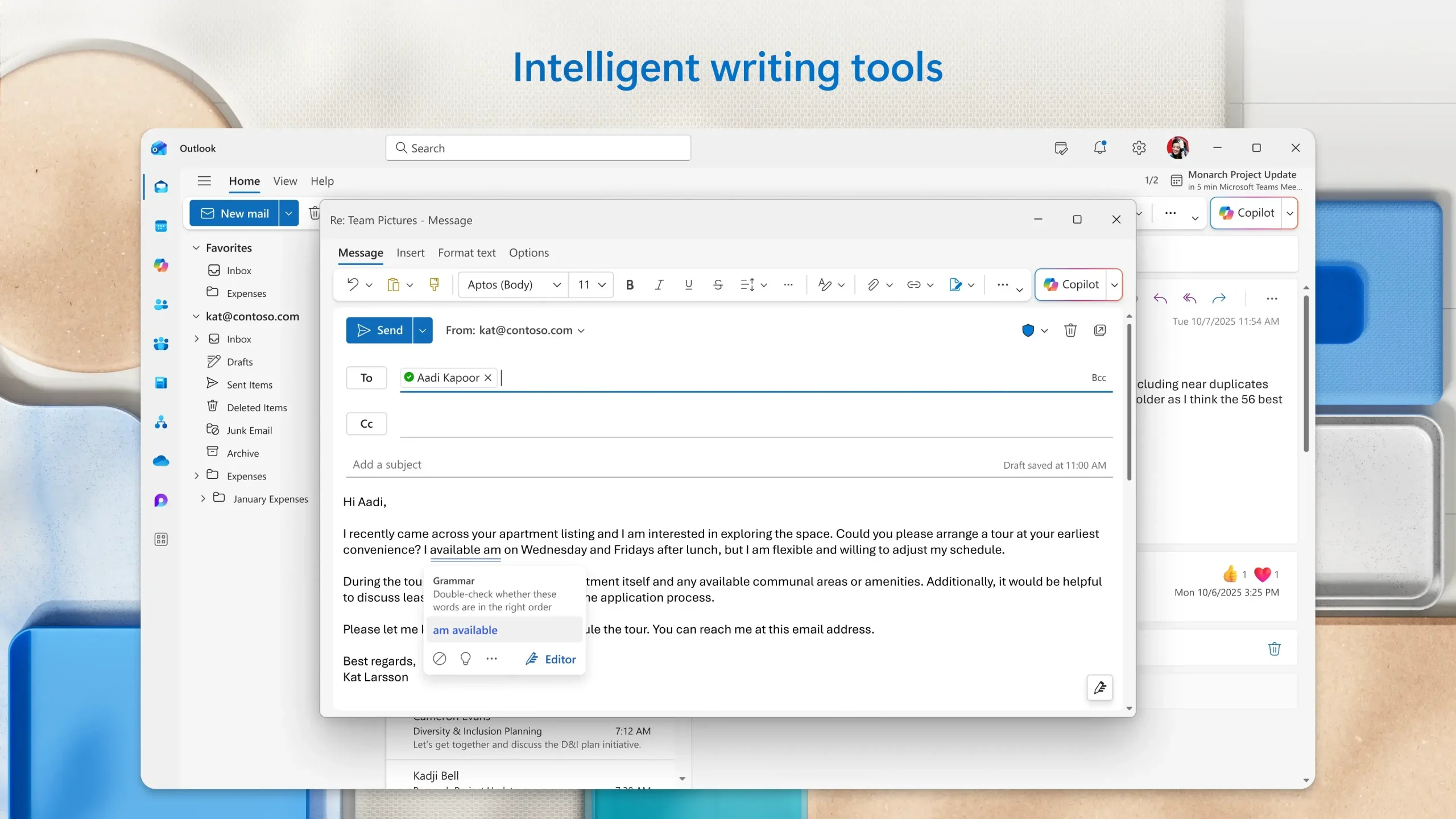
Copilot is Microsoft’s AI assistant, and in Outlook it lives in a side panel and in the toolbar while you write. On a draft, click Help me write or Help me reply and tell it what you want to say. You can also ask it to summarize a long thread or a PDF, Word or PowerPoint attachment.
On work accounts the bigger change is that Copilot can now take actions, not just write text. In Microsoft’s early access program it can sort your inbox, draft follow-ups, create rules, prepare you for a meeting, book focus time and move meetings when your calendar clashes. This needs a paid Microsoft 365 Copilot license from your employer, so most home users will not see it yet.
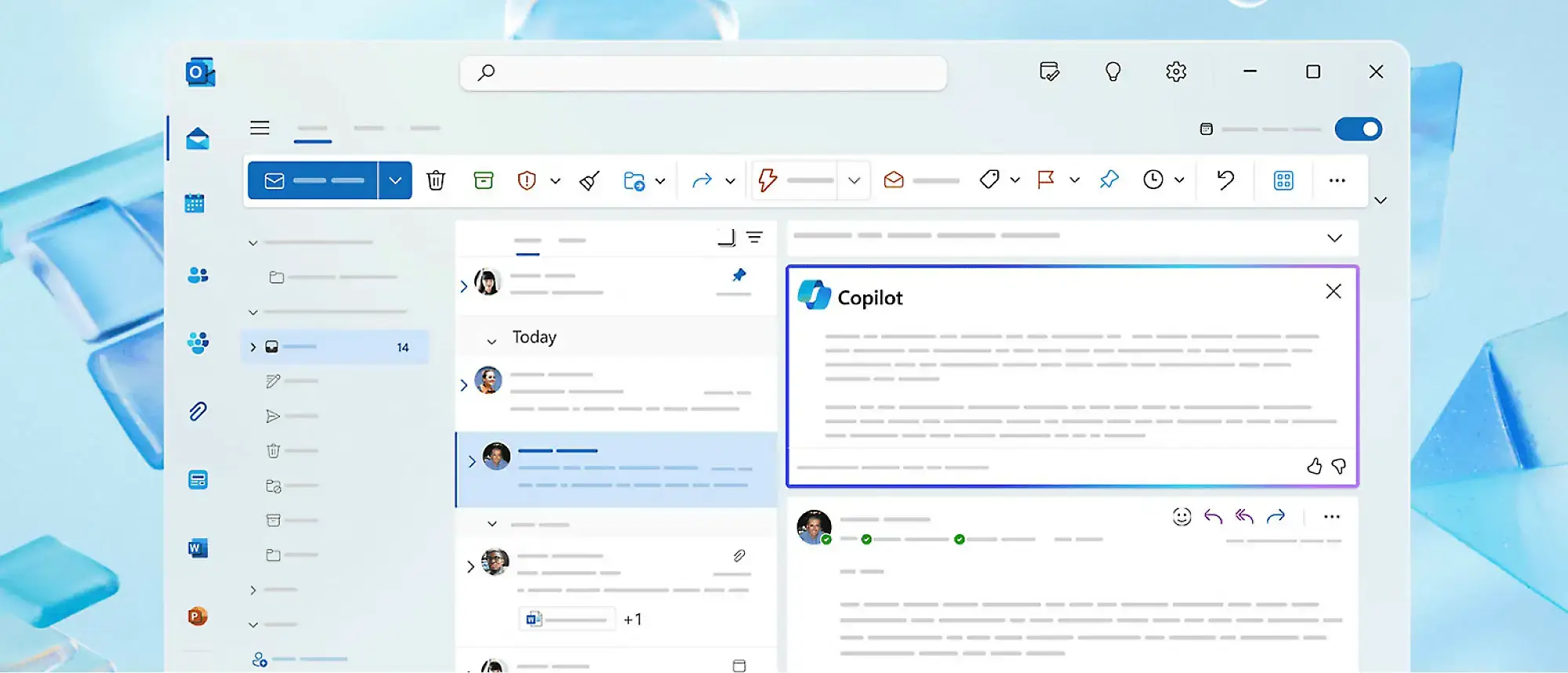
Copilot opens in a panel above the email you are reading.
Watch Mike Tholfsen walk through Copilot catching you up after a vacation, writing inbox rules, preparing for meetings and booking time on your calendar.
For a shorter look at Copilot taking actions in Outlook, jump to 2:33 in his summer 2026 Copilot roundup.
New Outlook vs Classic Outlook
Both apps are called Outlook, which is where most of the confusion comes from. The new Outlook is the free app for everyone; classic Outlook is the desktop app that comes with Office and Microsoft 365. Here is where they differ.
Missing from the new Outlook as of October 2026, per Microsoft’s own comparison page: COM add-ins, VBA macros, custom forms, voting buttons and multiple mail profiles. If your work relies on any of those, stay on classic until they arrive.
Common Issues and Fixes
The problems people run into most, and what actually fixes them.
Mail is not showing up
Click the … button at the top of the window and choose Sync to force a refresh. If one account keeps falling behind, remove it under Settings, then Accounts, and add it again.
Gmail or Yahoo will not connect
Sign in through the pop-up window instead of typing an app password, and allow Outlook access when asked. For other providers, use Advanced setup and pick IMAP.
No New Outlook toggle in classic Outlook
Your organization has hidden it. Ask your IT team, or install the app from the Microsoft Store if you are on a home PC.
You do not want Outlook running in the background
Background sync is on by default. Turn it off in Settings, then General, then Offline.
Tips for Getting Started
1 Turn on a longer undo window. Go to Settings, then Mail, then Compose and reply, and set the delay to 30 seconds. It gives you time to cancel a send.
2 Pin your most-used folders. Right-click a folder and add it to Favorites so it stays at the top of the list.
3 Press Ctrl+Y to jump to any folder. It opens a Go to Folder box, which beats scrolling a long folder list.
4 Save what you type often as Quick Parts. Addresses, sign-offs and standard replies go in once and drop into any email from the right-click menu.
5 Schedule emails for later. Click the arrow next to Send and choose Schedule send, so a late-night email lands in the morning.
Want to go deeper?
This Microsoft Outlook guide book covers rules, calendars and the features most people never find.
New Outlook Screenshots
More of the new Outlook on Windows: the calendar, AI writing help, and Gmail inside Outlook.
Community Poll
New Outlook FAQ
Is the new Outlook for Windows free?
What happened to the Windows Mail and Calendar apps?
Can I go back to classic Outlook?
Can I open my old PST files in the new Outlook?
Can I turn off Copilot in Outlook?
What are the system requirements for the new Outlook?
Support and Community
Where to go for help, news and the full list of changes.
- Outlook for Windows on Microsoft.com, Microsoft’s own page for the app and its plans.
- Getting started with the new Outlook, Microsoft’s official setup guide.
- New vs classic Outlook feature list, to check whether a feature you need is there yet.
- Outlook for Windows release notes, for every update as it ships.
- r/Outlook on Reddit, for help from other Outlook users.
More Windows software guides: OneNote for Windows · Microsoft Teams · Microsoft Copilot · Office 2021 · Microsoft Office Alternatives
Discover more from Windows Mode
Subscribe to get the latest posts sent to your email.












Add your first comment to this post