Readers like you help support this site. When you make a purchase using links on our site, we may earn an affiliate commission. All opinions remain our own.
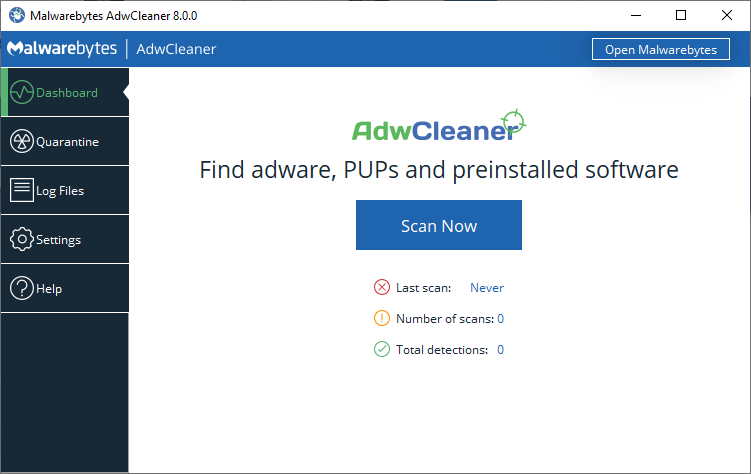
The AdwCleaner dashboard. One button runs the scan; the menu on the left holds Quarantine, logs and settings.
AdwCleaner is a free adware removal tool for Windows from Malwarebytes, available on the official Malwarebytes website. It finds and removes the junk that sneaks in with other downloads: pop-up adware, browser hijackers that change your homepage, unwanted toolbars and preinstalled apps.
It is not a full antivirus, and it is not meant to be. You run it when something looks wrong, it cleans up, and then it gets out of the way. There is nothing to install and nothing running in the background.
It runs on Windows 11, Windows 10 and Windows 8.1, and every removal can be undone from its Quarantine tab.
This guide covers how to run a scan, how to undo a removal, and the one button Malwarebytes says to leave alone. Stuck on a stubborn pop-up? Reach out to us directly.
What Is AdwCleaner?
AdwCleaner is an on-demand scanner for adware and potentially unwanted programs, or PUPs (apps you never really chose to install). Most of them arrive bundled with free software, hidden behind a pre-ticked box in someone else’s installer.
It also looks for browser hijackers, which change your homepage or search engine without asking, and for preinstalled software a PC maker added at the factory. It only runs when you open it. There is no real-time protection and no scheduled scan.
That makes it a good second opinion next to the antivirus you already have, whether that is Windows Security or a paid product.
Signs You Need AdwCleaner
Run a scan if any of these started happening, especially right after you installed something free.
Your homepage or search engine changed
Your browser opens a page you never set, or searches go through a search site you do not recognize.
Pop-ups appear outside the browser
Ad windows show up on your desktop, or notifications push deals and fake warnings.
New toolbars or extensions
Your browser has a toolbar, extension or shortcut you do not remember adding.
Apps you never installed
Unknown programs appear in your Start menu or startup list, including the trial software that came with a new PC.
How to Download and Run AdwCleaner
AdwCleaner is a single program file. You download it and run it; there is no setup wizard.
1 Open the AdwCleaner page on malwarebytes.com and click Free download.
2 Double-click the downloaded file in your Downloads folder. Its name starts with adwcleaner.
3 Click Yes when Windows asks for permission to make changes.
4 Click I Agree on the license agreement. The dashboard opens.
Tip from Malwarebytes: move the file to a folder called C:\AdwCleaner so you can find it next time. AdwCleaner keeps its logs and quarantine there too. Only download it from malwarebytes.com; repackaged copies on download sites cannot be checked.
How to Scan and Clean Your PC
A scan usually takes under a minute. Save your work first, because cleaning ends with a restart.
1 Click Scan Now on the dashboard.
2 Review the results. Untick anything you want to keep, then click Next.
3 Check the preinstalled software list if one appears. Tick only what you want gone, then click Quarantine.
4 Click Continue after saving and closing your work.
5 Click Restart now. AdwCleaner reopens after you sign in and shows the result.
6 Click Skip Basic Repair to finish. See the next section for why.
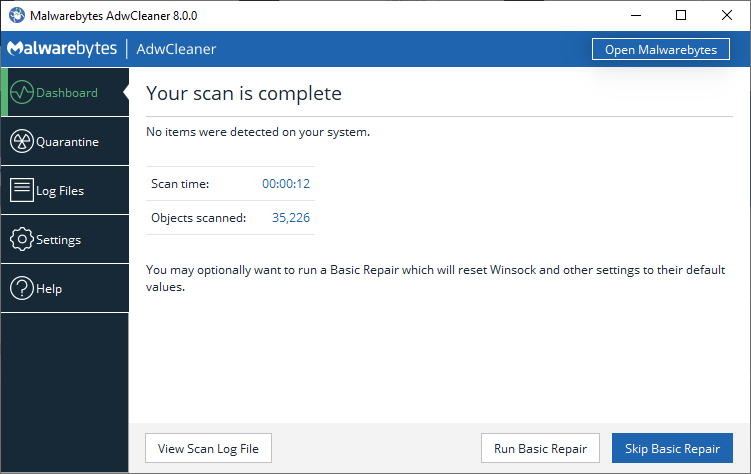
After the restart: the scan summary, with the Basic Repair choice at the bottom.
Should You Run Basic Repair?
Usually not. Malwarebytes’ own scan guide says to skip it unless a support agent tells you to run it. Basic Repair is not part of the cleanup. It is a separate set of resets for network and browser settings that malware sometimes tampers with.
Among other things it resets Winsock and TCP/IP (the parts of Windows that handle internet connections), the Windows Firewall rules, proxy settings and the hosts file (a list that can redirect websites). If you set any of those up on purpose, such as a VPN, custom firewall rules or a work proxy, Basic Repair can undo them.
It is worth trying when the internet stops working or websites keep redirecting after a cleanup. Otherwise, skip it.
How to Undo a Removal with Quarantine
AdwCleaner does not delete what it finds straight away. It moves each item to Quarantine and switches it off, so you can bring it back if it turns out you needed it.
1 Click Quarantine in the menu on the left.
2 Open the Items tab or the Preinstalled software tab, depending on what you want back.
3 Tick the item you want to keep.
4 Click Restore to put it back, or Delete to remove it for good.
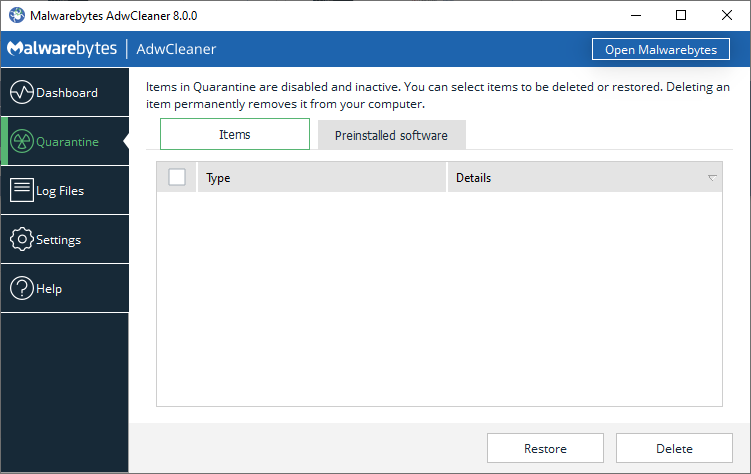
The Quarantine tab. Restore puts an item back; Delete removes it permanently.
AdwCleaner vs Malwarebytes Free and Premium
Malwarebytes makes three products that sound alike. AdwCleaner only handles adware and junkware; the main Malwarebytes app also handles viruses, trojans and ransomware. Here is the split, based on Malwarebytes’ own description.
Our take
For a hijacked browser or a pile of junk apps, AdwCleaner is the right tool: it is fast, free and leaves nothing behind. If you think you have something worse than adware, run a full scan with Malwarebytes or Windows Security instead. Our Malwarebytes Premium guide covers the paid app.
Is AdwCleaner Safe?
Yes. AdwCleaner is made by Malwarebytes, a long-running security company, and it is free with no ads. The only extra is a Download and Install button in the top bar that offers a Malwarebytes Premium trial. You can ignore it.
Two things are worth knowing. First, PUP is a judgment call, so AdwCleaner sometimes flags an app you actually use. Check the results list before you clean, and use Quarantine if something you wanted disappears. You can also right-click an item in the results and choose Report False Positive.
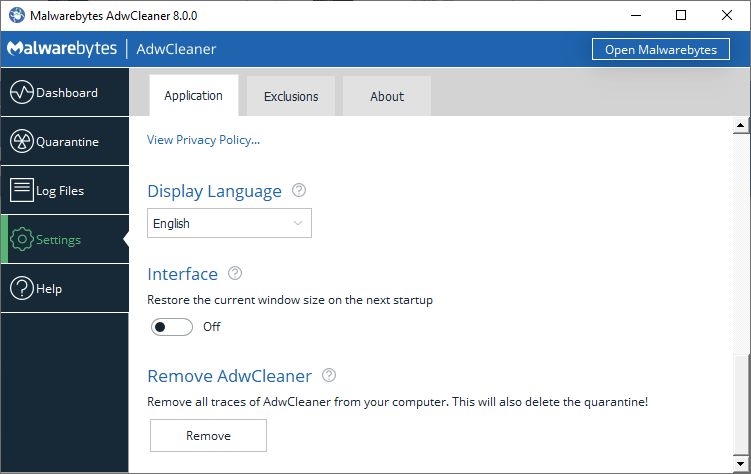
Second, AdwCleaner can send anonymous usage and detection statistics to Malwarebytes. You can turn that off under Settings, then Application, then Usage and Threat Statistics.
Tips for Getting Started
1 Download a fresh copy each time. The file goes out of date. A new download always has the newest detection list, and the Database setting keeps it updated while you scan.
2 Close your browser before you scan. Many adware items live inside browsers, and cleaning works best when they are not running.
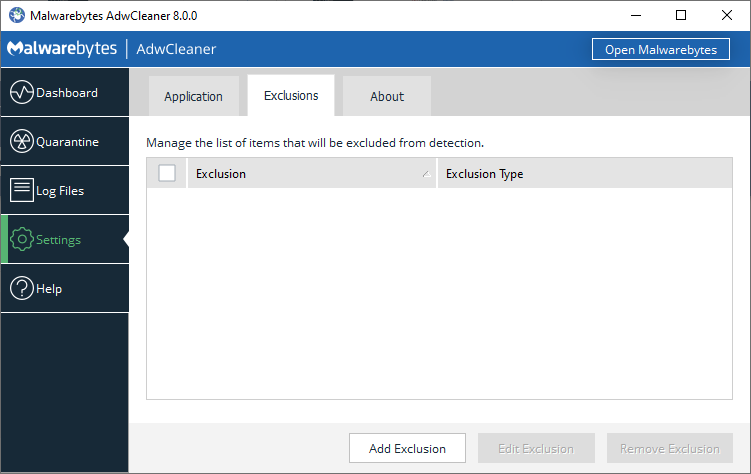
3 Add exclusions for apps you trust. If AdwCleaner keeps flagging a tool you use, add it under Settings, then Exclusions, so future scans skip it.
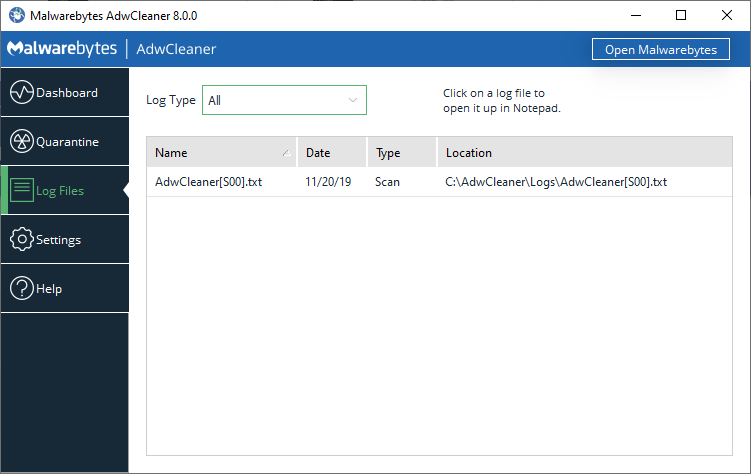
4 Read the log if something looks off. The Log Files tab lists every scan and cleanup as a text file you can open in Notepad.
5 Stop the problem at the source. Decline the extra offers in free installers. Our uTorrent guide shows what that looks like.
AdwCleaner System Requirements
Windows XP, Vista, 7 and 8 are no longer supported by the current version. Full details are on the Malwarebytes help page.
More AdwCleaner Screenshots
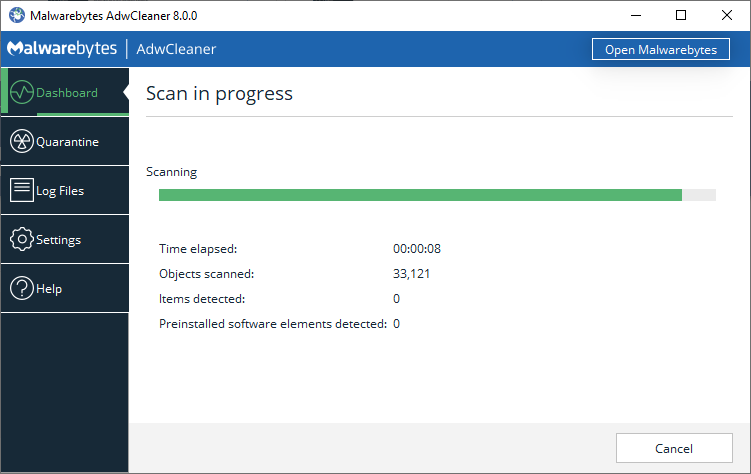
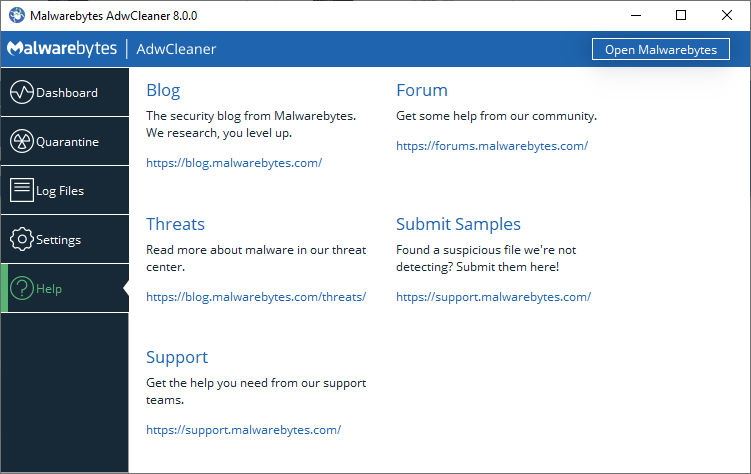
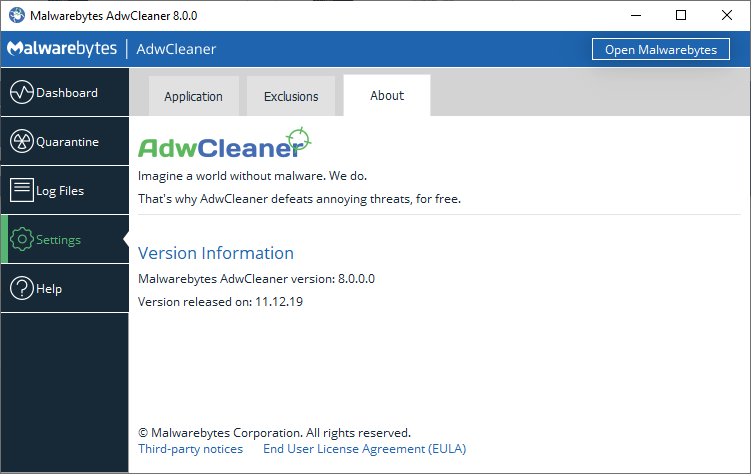
The scan in progress, log files, exclusions, settings, help and version screens. Click any image to see it full size.
Frequently Asked Questions
Is AdwCleaner completely free?
Can I use AdwCleaner with Windows Security or another antivirus?
Does AdwCleaner work on Windows 7?
How do I remove AdwCleaner completely?
Does AdwCleaner scan automatically?
Why did AdwCleaner flag a program I want to keep?
Support and Community
- malwarebytes.com, the developer’s official site.
- AdwCleaner guide in the Malwarebytes Help Center, with step-by-step articles for every tab.
- Malwarebytes forums, where staff and volunteers help clean up infected PCs.
- r/Malwarebytes on Reddit, the community Malwarebytes links from its own site.
More Windows software guides: Malwarebytes Premium · Best Antivirus Software · Microsoft PC Manager · Bitdefender for Windows
Discover more from Windows Mode
Subscribe to get the latest posts sent to your email.














adwcleaner is a great app to use on your grandmas/mom/dad or any other old person to quickly clean their browsers lol, trust me.