Readers like you help support this site. When you make a purchase using links on our site, we may earn an affiliate commission. All opinions remain our own.
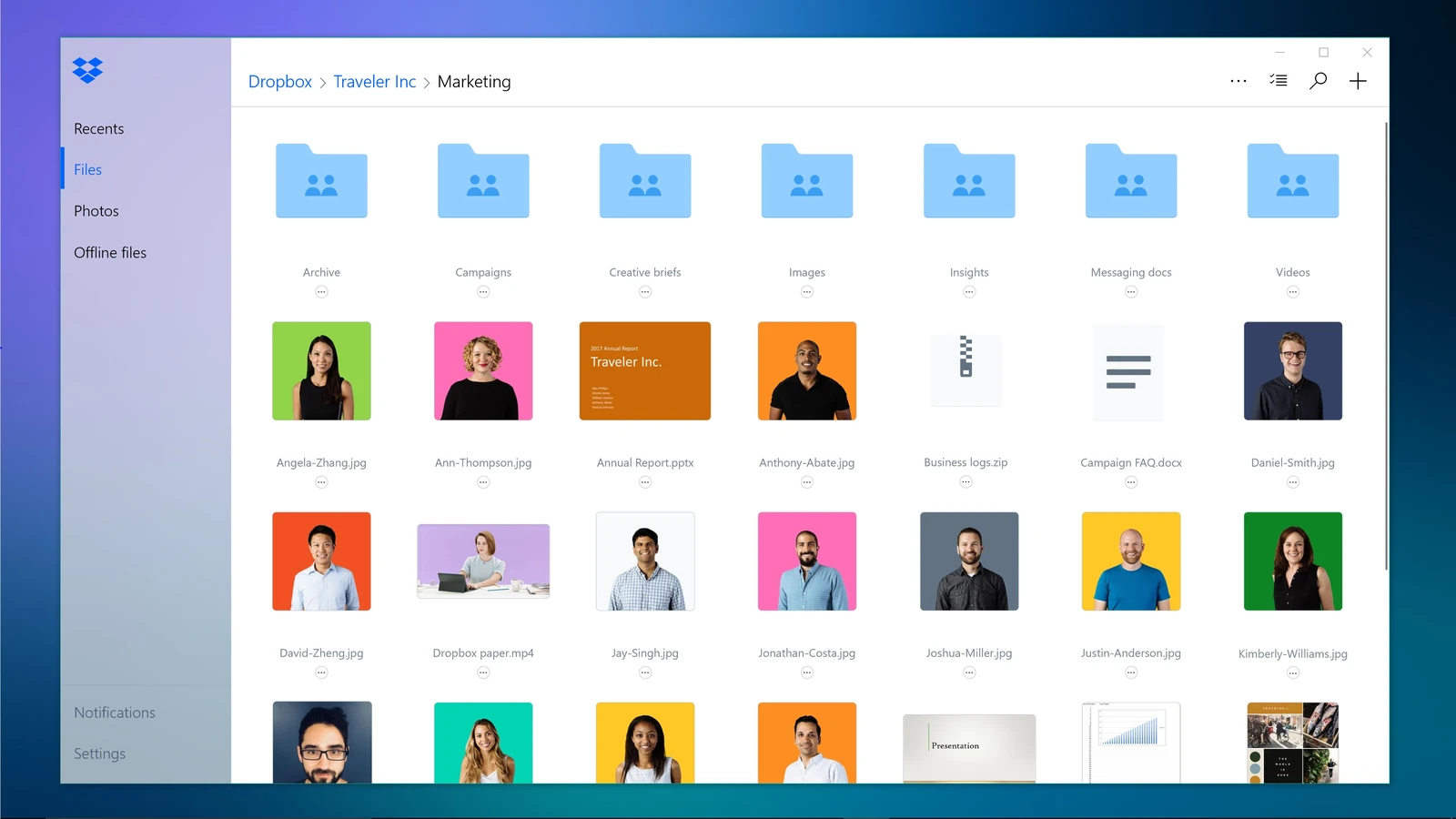
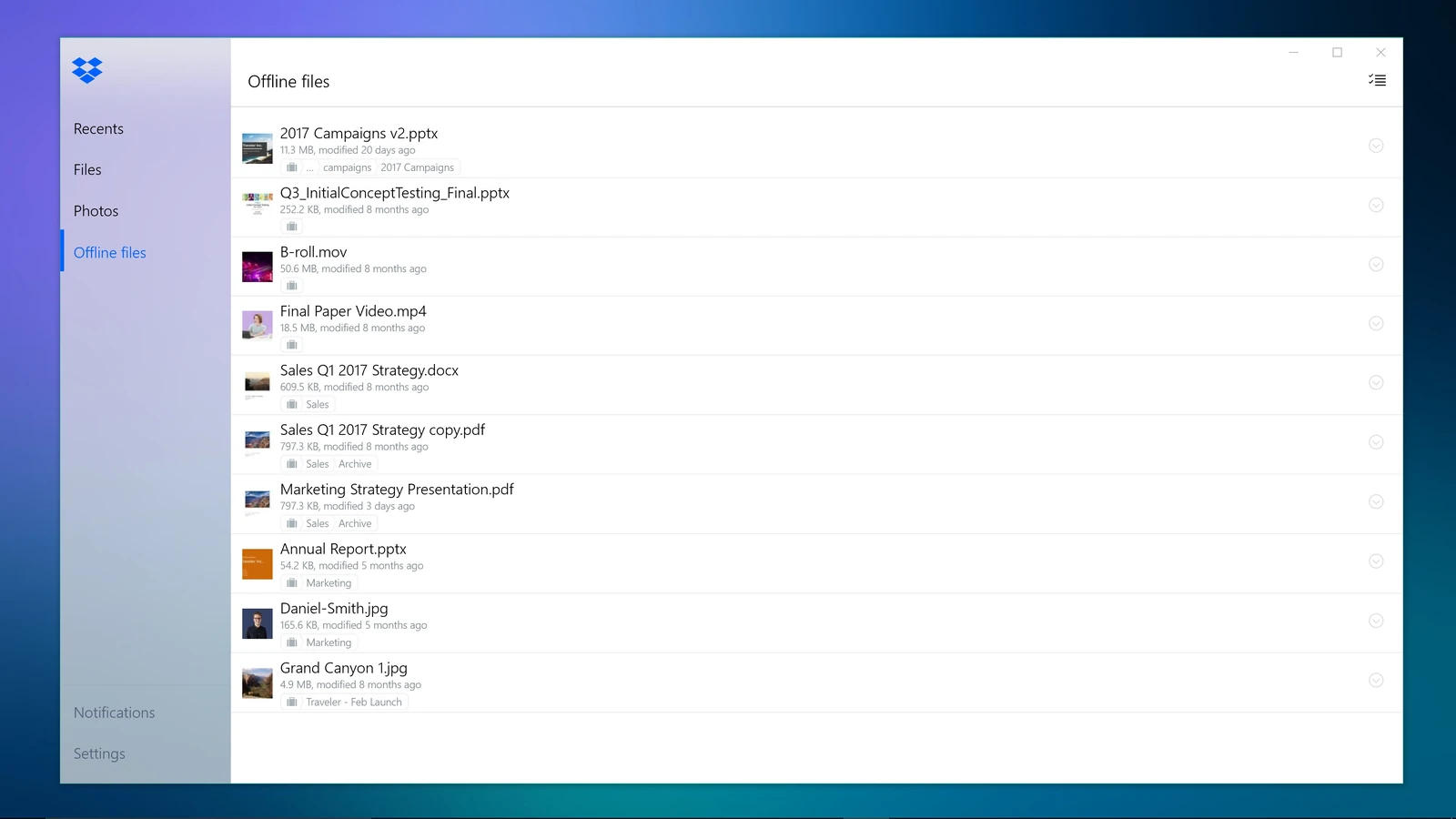
Dropbox Lite browses your Dropbox like the mobile app does. Screenshot: Dropbox, from its Microsoft Store listing.
Dropbox Lite is the free Dropbox app for Windows in S mode, made by Dropbox and available on the Microsoft Store. It lets you browse, preview, share and comment on the files in your Dropbox account. It works much like the Dropbox phone app, just on a PC screen.
The name hides an important limit. Dropbox Lite does not sync a Dropbox folder to your PC, so your files stay online unless you save a few for offline use. Dropbox built it for PCs in S mode, which can only install apps from the Microsoft Store.
It runs on Windows 10 (version 1809 or later) and Windows 11, on Intel, AMD and Arm PCs. A free Dropbox account gives you 2 GB of storage on up to three devices.
This guide covers what Lite can and cannot do, whether you need it or the full Dropbox app, and how to switch. Questions? Reach out to us directly.
What Is Dropbox Lite?
Dropbox Lite is Dropbox’s app for Windows in S mode, a locked-down version of Windows that only runs apps from the Microsoft Store. The regular Dropbox desktop app installs from dropbox.com, so it cannot run there. Lite fills that gap.
Dropbox describes it as working like its mobile app. You open the app to see your files, instead of finding a Dropbox folder in File Explorer. Files are not stored on your PC by default, so most of the time you need an internet connection to open them.
If your PC is not in S mode, Lite is the wrong pick. The full Dropbox app is also on the Microsoft Store, and it does everything Lite does plus real syncing.
Dropbox Lite or the Full Dropbox App?
Search the Microsoft Store for Dropbox and you get two apps: Dropbox Lite and Dropbox. They do different jobs, and only one of them syncs.
Our take
Dropbox Lite is fine for checking files, sharing a link or leaving a comment on a low-cost S mode laptop. For anything more, it feels like a website in a window. If you work from Dropbox every day, switching out of S mode and installing the full Dropbox app is worth the one-way step.
What You Can Do in Dropbox Lite
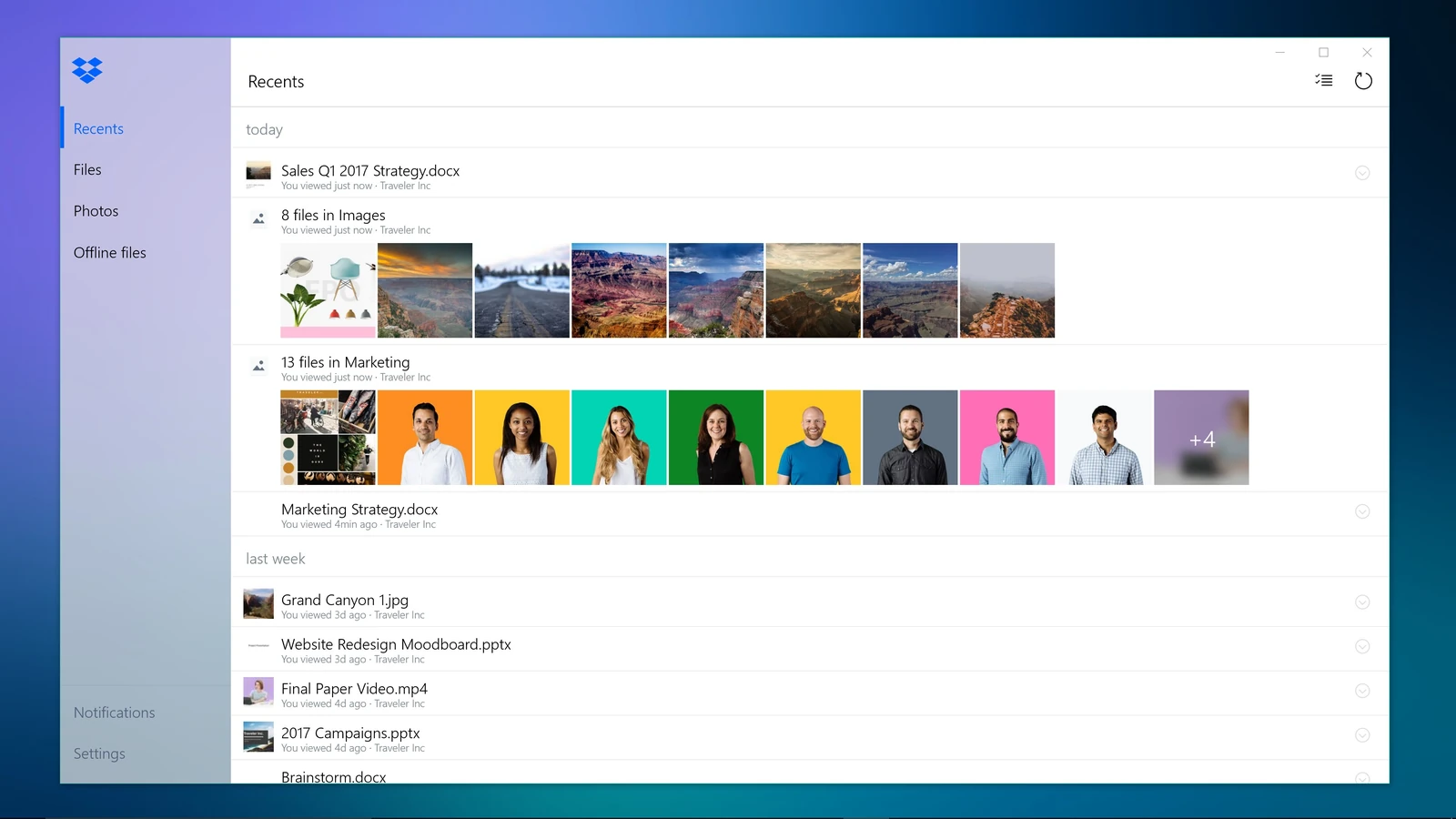
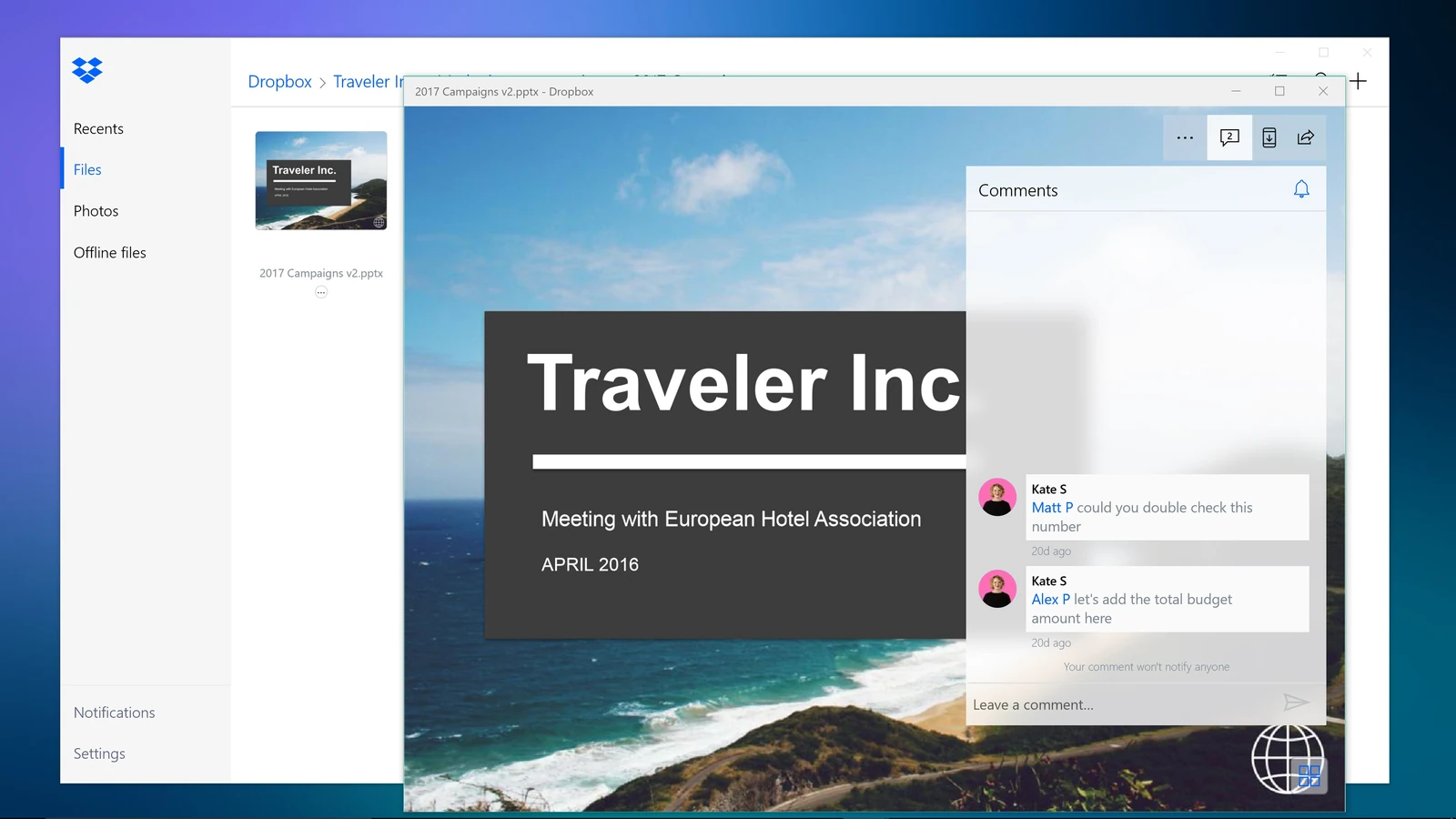
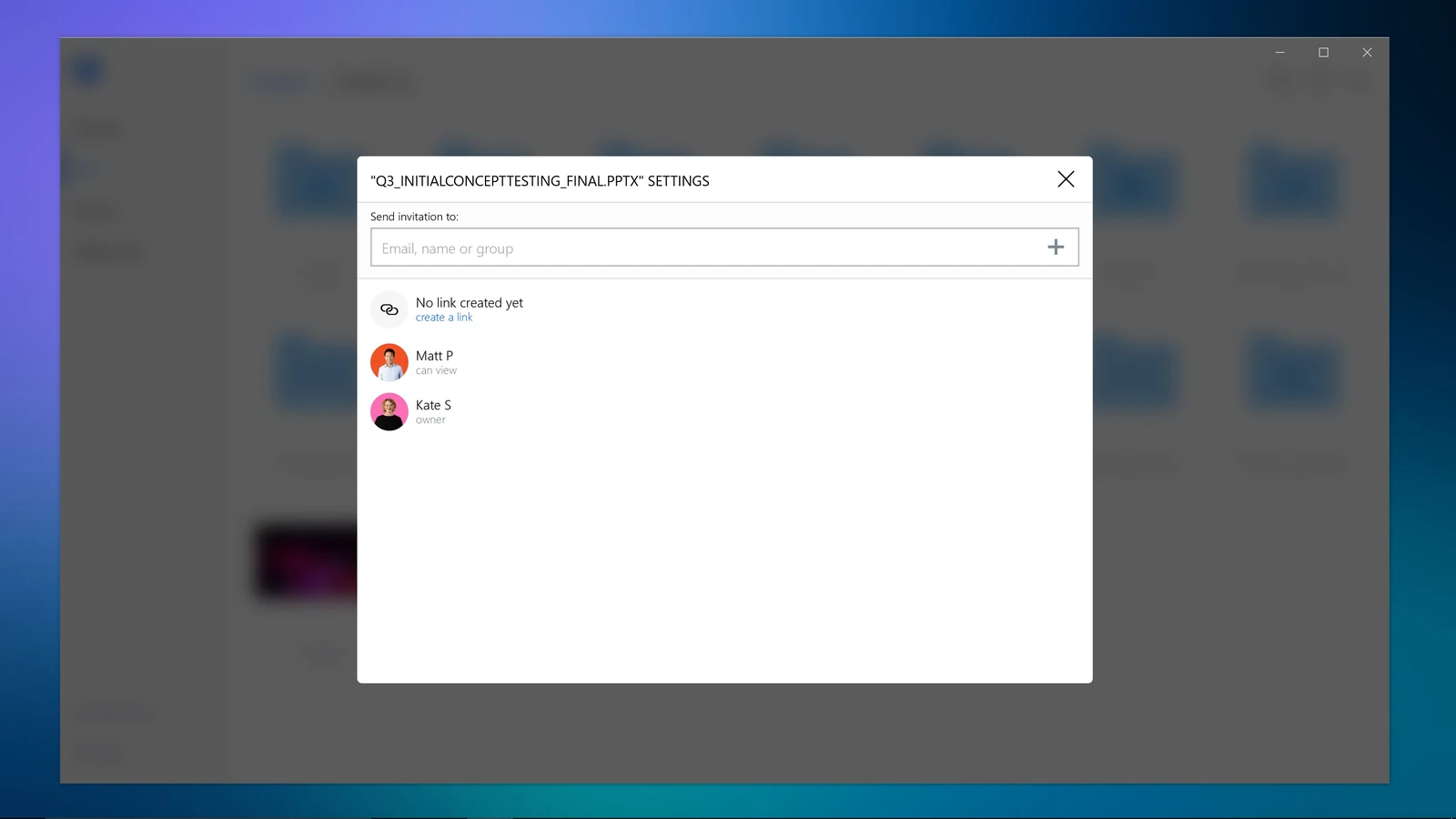
These screenshots come from Dropbox’s own Store listing and show the four main areas of the app.
Pick up where you left off
The Recents tab lists the files you opened lately and the photos other people added to shared folders. It is the quickest way back to a document you opened on your phone an hour ago.
Open files and leave comments
Lite previews Word, Excel and PowerPoint files, PDFs, photos and videos without downloading them first.
A comments panel sits beside the preview, so you can mention someone with @ and ask a question about a specific file.
Invite people or create a link
Open the share window on any file or folder to invite people by email or create a link anyone can open. The people who already have access are listed underneath, so you can check before you send.
Keep a few files for the road
Mark a file for offline use and it appears in the Offline files list, ready to open without internet.
This is the closest Lite gets to syncing. It covers a handful of files, not your whole Dropbox.
How to Install Dropbox Lite
Dropbox Lite only comes from the Microsoft Store. It is free, and you need a Dropbox account to use it.
1 Open the Dropbox Lite page on the Microsoft Store.
2 Click Get or Install. The Store downloads and installs it.
3 Open Dropbox Lite from the Start menu.
4 Sign in to your Dropbox account, or create a free one.
Check the name before you click Get. The Store lists Dropbox Lite and the full Dropbox app side by side. On a PC that is not in S mode, install the one called just Dropbox.
How to Switch From Dropbox Lite to the Full App
To get the real Dropbox folder in File Explorer, your PC has to leave S mode first. Microsoft does not charge for the switch, but you cannot go back to S mode afterwards. After that, your PC can install apps from anywhere, not just the Store.
1 Open Microsoft’s Switch out of S mode page from Microsoft Support. It opens the right page in the Microsoft Store.
2 Click Get on the Switch out of S mode page and wait for the confirmation message.
3 Uninstall Dropbox Lite from Settings, Apps, Installed apps.
4 Install the full Dropbox app from the Microsoft Store or from dropbox.com, then sign in.
Think before you switch on a school or work laptop. Some organizations keep PCs in S mode on purpose. If the PC is not yours, ask whoever manages it first. On your own PC, the main thing you give up is the rule that only Store apps can install.
Free Storage and the Three-Device Limit
A free Dropbox Basic account includes 2 GB of storage and works on up to three devices at a time. Dropbox counts each phone, tablet or computer where you sign in to a Dropbox app. Plan for your S mode laptop to take one of the three.
Log out of an old device
Sign in at dropbox.com, click your profile picture, then Settings and the Security tab. Your devices are listed under Devices, and you can log out of the ones you no longer use.
Paid plans lift both limits
Dropbox’s paid plans start at 2 TB of storage and let you sign in on as many devices as you need. Check Dropbox’s plans page for current prices.
Signing in on the dropbox.com website does not count toward the three devices, so a browser is a handy fallback when you are at the limit.
Tips for Getting Started
1 Save files for offline use before you travel. Lite needs internet for everything else, so pick the files you need on a plane or train while you are still online.
2 Pin it to the taskbar. There is no Dropbox folder in File Explorer to fall back on, so a taskbar icon is the fastest way in.
3 Use dropbox.com for big uploads. The website in Microsoft Edge handles large batches of files well, and it does not use up one of your three devices.
4 Share links instead of attachments. A Dropbox link keeps the file in one place, so everyone sees your latest version rather than a stale email copy.
Common Problems and Fixes
There is no Dropbox folder in File Explorer
That is how Lite works, not a bug. It never creates a synced folder. If you need one, switch out of S mode and install the full Dropbox app.
The full Dropbox installer will not run
Your PC is in S mode, which blocks apps from outside the Store. Use Dropbox Lite, or switch out of S mode first.
Asked to log out of a device
You are at the three-device limit on a free account. Log out of an old phone or PC from the Security tab in your Dropbox settings, then sign in again.
Files will not open
Lite needs internet to open anything you have not saved for offline use. Check your connection, or save the file offline next time you are connected.
Frequently Asked Questions
Is Dropbox Lite safe?
Can I use Dropbox Lite if my PC is not in S mode?
Does Dropbox Lite work on Arm laptops?
Can I upload files with Dropbox Lite?
How do I uninstall Dropbox Lite?
Support and Community
- Dropbox, the developer’s own site.
- Dropbox Help: Dropbox Lite, Dropbox’s own page on what the S mode app does.
- Dropbox Community, the official forum where Dropbox staff and users answer questions.
- r/Windows11 on Reddit, for questions about S mode and Windows itself.
More Windows software guides: Google Drive for Windows · iCloud for Windows · Microsoft PC Manager · AdwCleaner for Windows
Discover more from Windows Mode
Subscribe to get the latest posts sent to your email.












Add your first comment to this post