What’s new in the October 30 Windows 11 Insider builds? The biggest change is a privacy one: you can now allow or block the camera, microphone and location for each desktop app on its own, instead of one switch for all of them. Microsoft also gave the new Windows Search inline sliders, phone actions and result filters, and put Quick settings inside Xbox mode. It announced the builds in its Windows Insider Blog post.
None of this is on regular Windows 11 PCs yet. The privacy controls are in the Beta channel, the closest to release. The Search and Xbox mode changes are in the Experimental channel and roll out gradually, so not every Insider sees them straight away.
| Channel | Build |
|---|---|
| Beta | 26220.9836 |
| Beta (26H1 PCs) | 28020.3382 |
| Experimental | 26340.9843 |
| Experimental (26H1 PCs) | 28120.3393 |
| Experimental (Future Platforms) | 29698.1000 |
To see which build you’re on, press Windows + R, type winver and press Enter.
Block camera, mic and location for one desktop app at a time
Until now, Windows only let you pick apps one by one if they came from the Microsoft Store. Traditional desktop programs (the kind you download and install yourself) shared a single on or off switch. If you allowed one to use your webcam, you allowed them all.
In Beta build 26220.9836, each desktop app gets its own switch. Go to Settings > Privacy & security, then open Camera, Microphone or Location. You’ll see which apps asked for access and when they last used it.
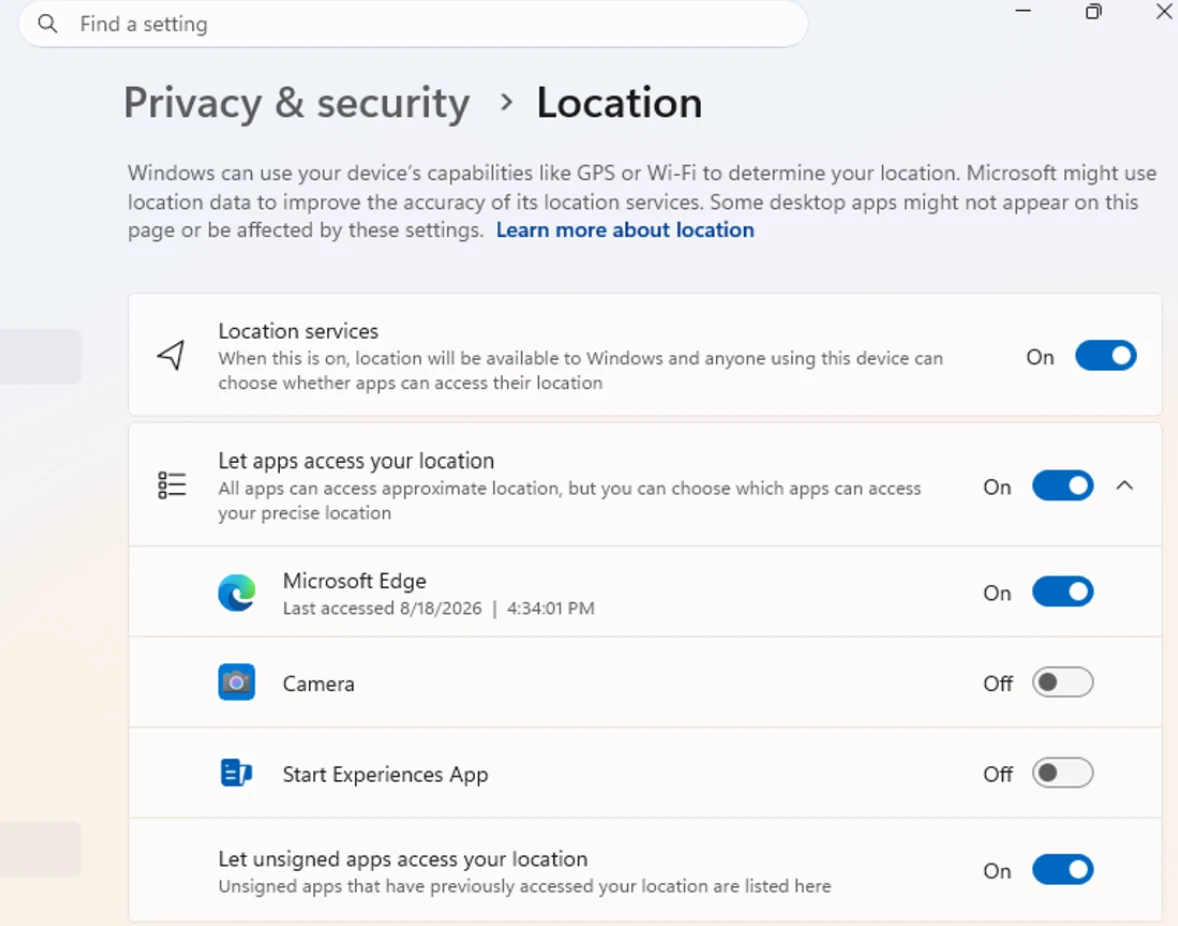
Nothing gets reset
- Apps you already allowed keep their access, and apps you blocked stay blocked.
- Apps that haven’t used the camera, mic or location yet will ask the first time they try.
- Company policies set by IT keep working as before.
Two quirks to know about. Some apps that run on shared system parts or inside a browser may show up under a different name than you expect. And apps Windows can’t verify are listed as Unsigned. Microsoft’s advice is simple: only give access to apps you recognize and trust.
Windows Search gets sliders, phone actions and filters
The new Windows Search that started rolling out to Insiders earlier this month now does more than find things. These additions are in the Experimental channel only.
Change settings right from the results
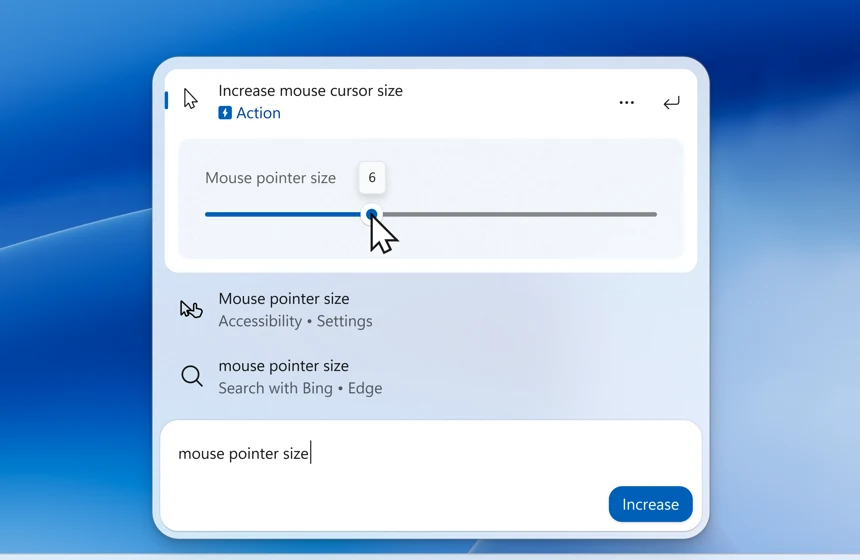
Type something like “brightness” or “mouse pointer size” and a slider appears in the result, so you can adjust volume, screen brightness or cursor size without opening Settings. Actions are labeled more clearly, and Search suggests related actions you might not know about.
Call, text and silence your phone
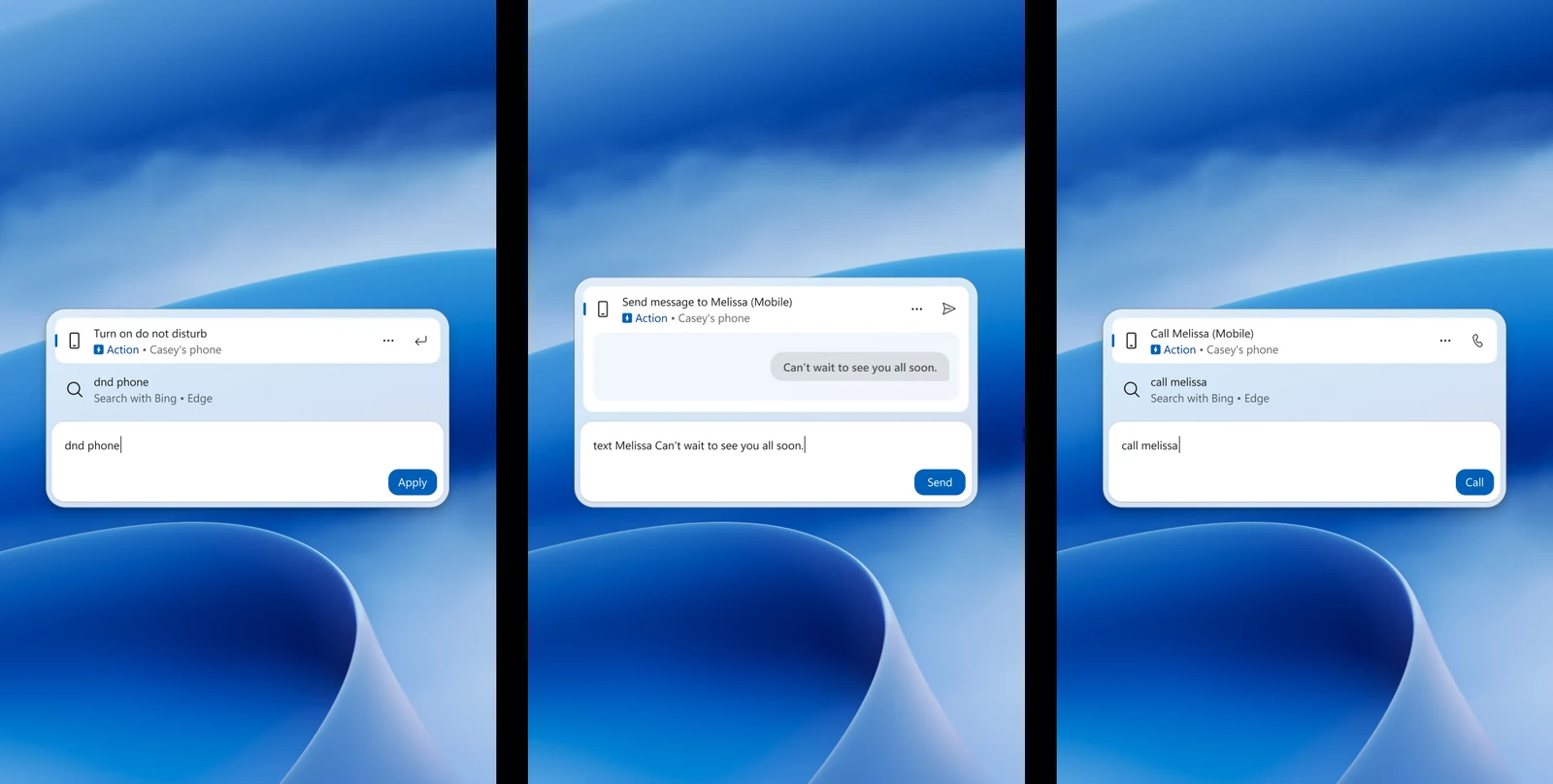
With a phone connected through Phone Link, you can call or text a contact and turn on Do Not Disturb straight from Search. Android works now. Microsoft says iPhone support is coming early next year.
Previews, quick answers and filters
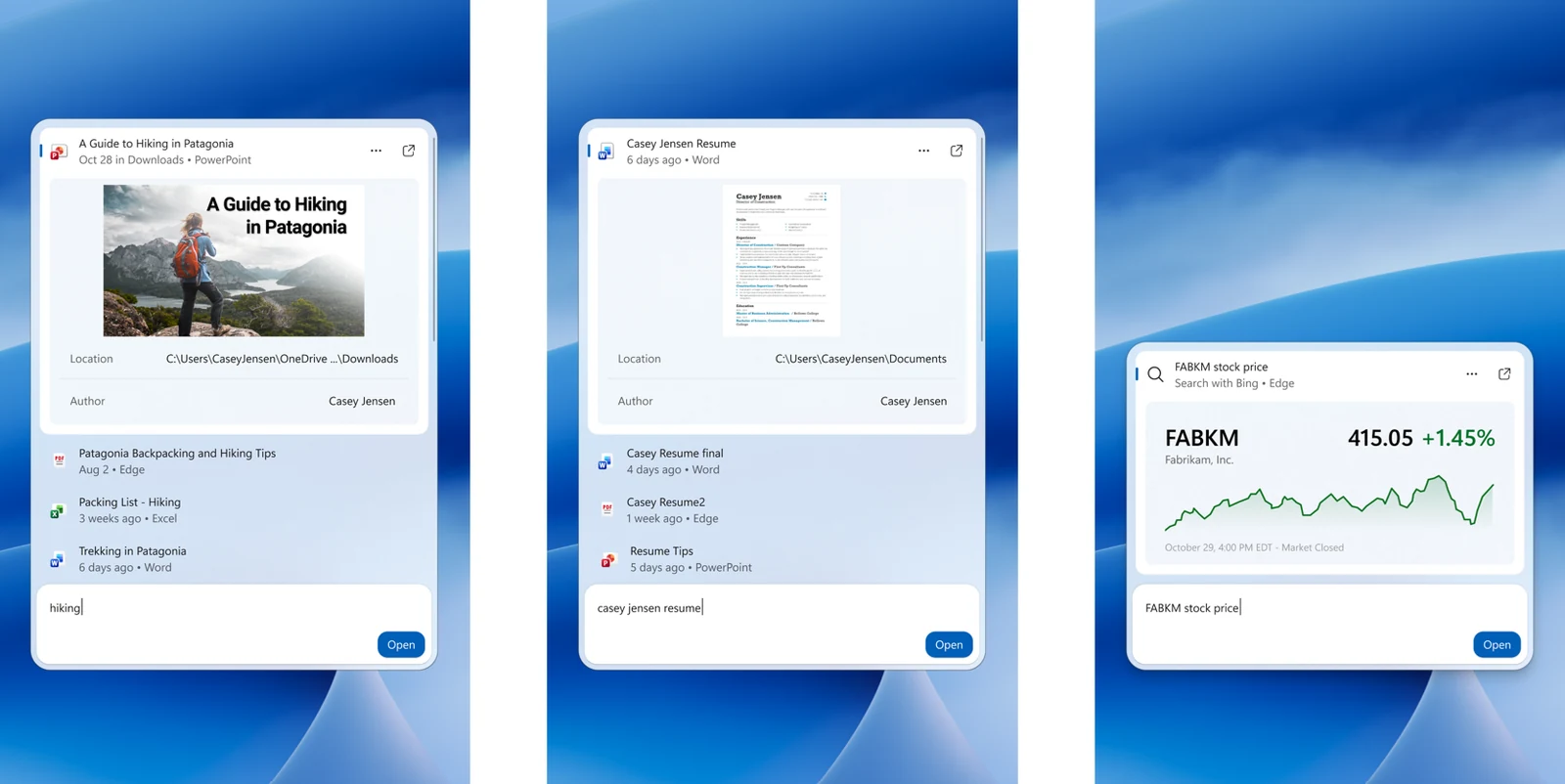
- File previews: see a document before opening it, along with its last modified date, location and author.
- Web answers: weather, stock prices and quick facts show up in the results.
- Store apps and games: suggestions from the Microsoft Store. You can turn these off in Settings > Privacy & security > Search.
- Filters: scroll for more results and narrow them to Files & Folders, Settings, Actions and more.
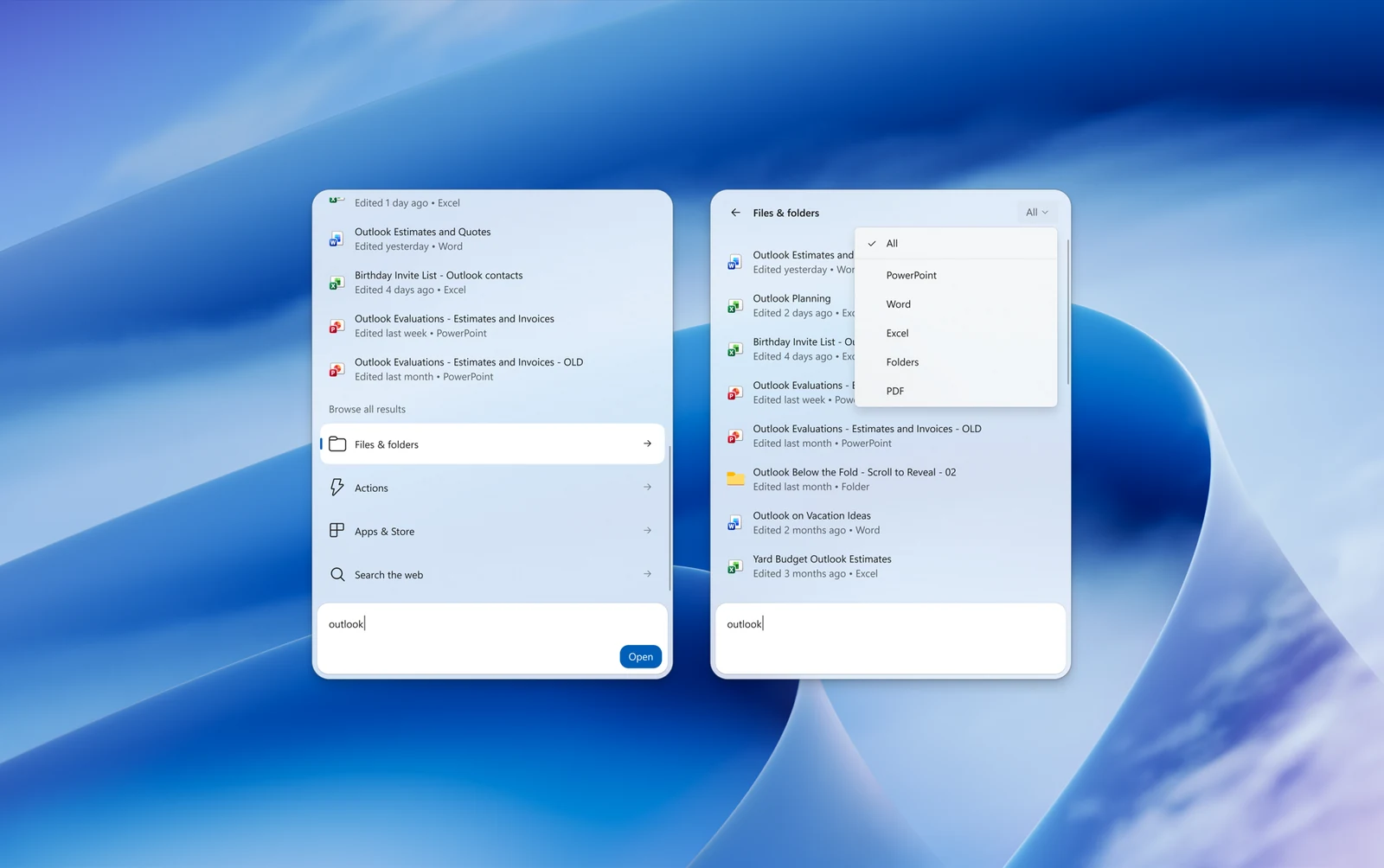
You can also right-click any result and give it a thumbs up or down, or remove items from the list Search shows before you type. One limit for now: the new Search opens at the bottom center of the screen, even if your taskbar sits elsewhere. Microsoft says it’s working on that.
Quick settings in Xbox mode, and other changes
If you use Xbox mode on a gaming PC or handheld, the Gaming Task View navigation bar now includes the full Quick settings panel. You can change Wi-Fi, Bluetooth, brightness and volume without leaving the controller-friendly screen. This is Experimental only.
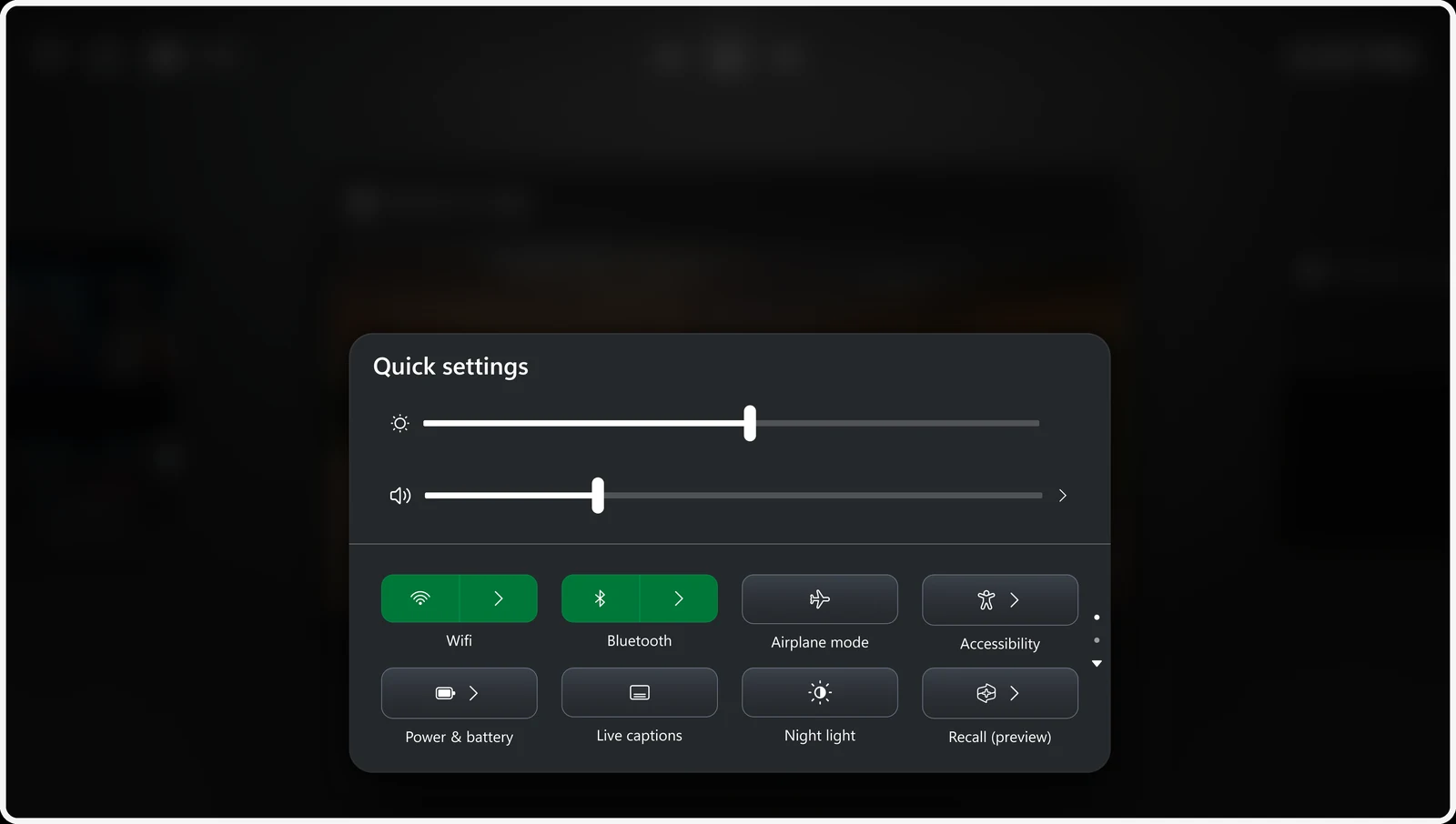
A handful of smaller changes are worth a quick look:
- Magnifier shortcut toggle (Beta): a new switch in Settings > Accessibility > Magnifier lets you stop Windows + Plus (+) from opening Magnifier by accident. It stays on unless you change it.
- Fixes (Beta): mouse personalization problems and wallpapers resetting after a restart should be resolved. File Explorer’s Recommended thumbnails are sharper, and the security key PIN screen is cleaner.
- Narrator (Beta): math reading now covers more languages, including Greek, Polish, Russian, Swedish and Vietnamese.
- Microsoft 365 in Settings (Experimental): Family subscribers can see shared cloud storage use under Settings > Accounts > Cloud storage, and eligible subscribers can upgrade without opening a browser.
- Private feedback for businesses: a new Intune policy keeps Feedback Hub posts from a company’s users visible only to Microsoft and that organization. Details are in the Feedback Hub release notes.
Known issue
Microsoft is looking into reports that the CPU speed in Task Manager stops updating on recent Experimental builds. It also paused the new solid loading spinner for boot, sign-in, restart, shutdown and updates while it fixes a bug.
When will everyone get these features?
Microsoft hasn’t given dates. Beta features like the per-app privacy switches tend to reach regular PCs sooner, while Experimental ones can change or be dropped. To try them now, join the Windows Insider Program, ideally on a spare PC rather than the one you depend on.
Catch up on last week’s round in our October 23 Insider builds roundup, which added phone controls and a speed test to Quick Settings.
Source: Windows Insider Blog and Microsoft’s Beta and Experimental release notes. Details checked November 1, 2026.
Discover more from Windows Mode
Subscribe to get the latest posts sent to your email.















Add your first comment to this post