Readers like you help support this site. When you make a purchase using links on our site, we may earn an affiliate commission. All opinions remain our own.
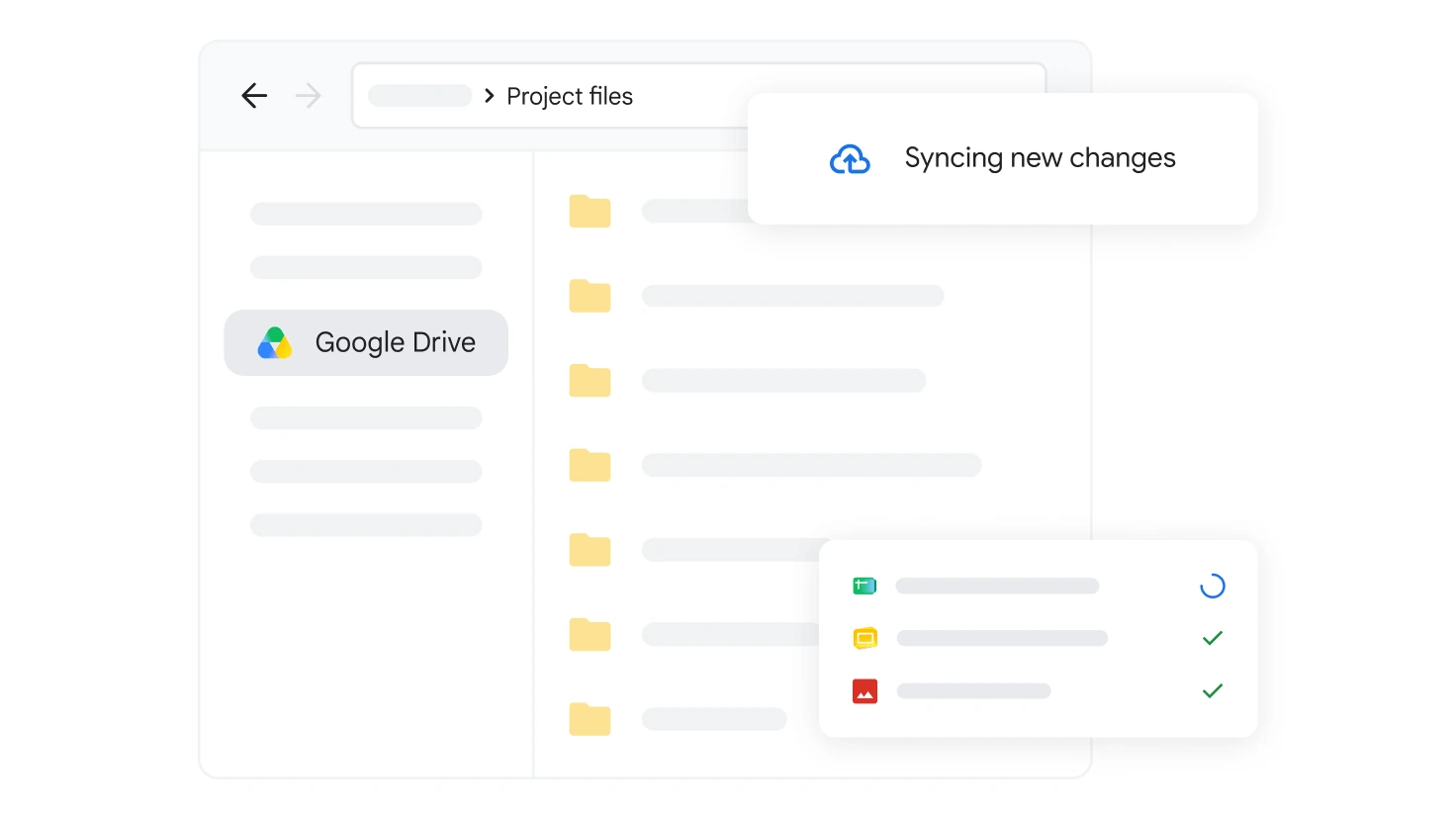
Google Drive for desktop adds your Drive to File Explorer and keeps it in sync. Image: Google.
Google Drive for desktop is Google’s free app that puts your Google Drive inside File Explorer on Windows, available from Google’s own website. Your Drive shows up as its own drive, usually G:, next to C:. You open, save and move files there like any other folder, and they sync to the cloud on their own.
The part most people miss is how it stores files. By default it streams them, so your whole Drive is visible but takes up almost no space on your PC. You can switch to mirroring if you want a full copy on your disk instead.
It runs on 64-bit Windows 10 and Windows 11, and on Arm laptops running Windows 11. Every Google account includes 15 GB of free storage, shared with Gmail and Google Photos.
This guide covers the install, stream vs mirror, what changed with Google Photos backup, and fixes for sync problems. Already using it? Tell us what you would add.
What Is Google Drive for Desktop?
Google Drive for desktop is the Windows app that connects your PC to Google Drive. It replaced Google’s older Backup and Sync app.
After you sign in, a Google Drive entry appears in File Explorer with My Drive, Shared drives and any other computers you back up. Changes you make on your PC sync to drive.google.com and to your phone, and the other way round. A small icon in the system tray (the area by the clock) shows sync status and holds the settings.
Google Docs, Sheets and Slides files still open in your browser. Everything else, such as Word files, PDFs and photos, opens in the app you normally use for it.
What You Can Do With It
These are the features that matter on a Windows PC, taken from Google’s own documentation.
Your Drive as a drive letter
Google Drive gets its own drive letter in File Explorer, so any app’s Save dialog can save straight to Drive. You can change the letter if G: is already taken.
Sync folders from your PC
Pick folders such as Desktop or Documents under Folders from your computer, and Drive for desktop keeps a copy of them in your Google account. They show up on drive.google.com under Computers.
Work without internet
Right-click any streamed file or folder and choose Offline access, then Available offline. It stays on your PC and syncs your edits the next time you connect.
See who else is editing
Real-time presence warns you when someone else has the same Word, Excel or PowerPoint file open from Drive, so you do not overwrite each other. It needs Office 2010 or later.
Find any file with Ctrl + Alt + G
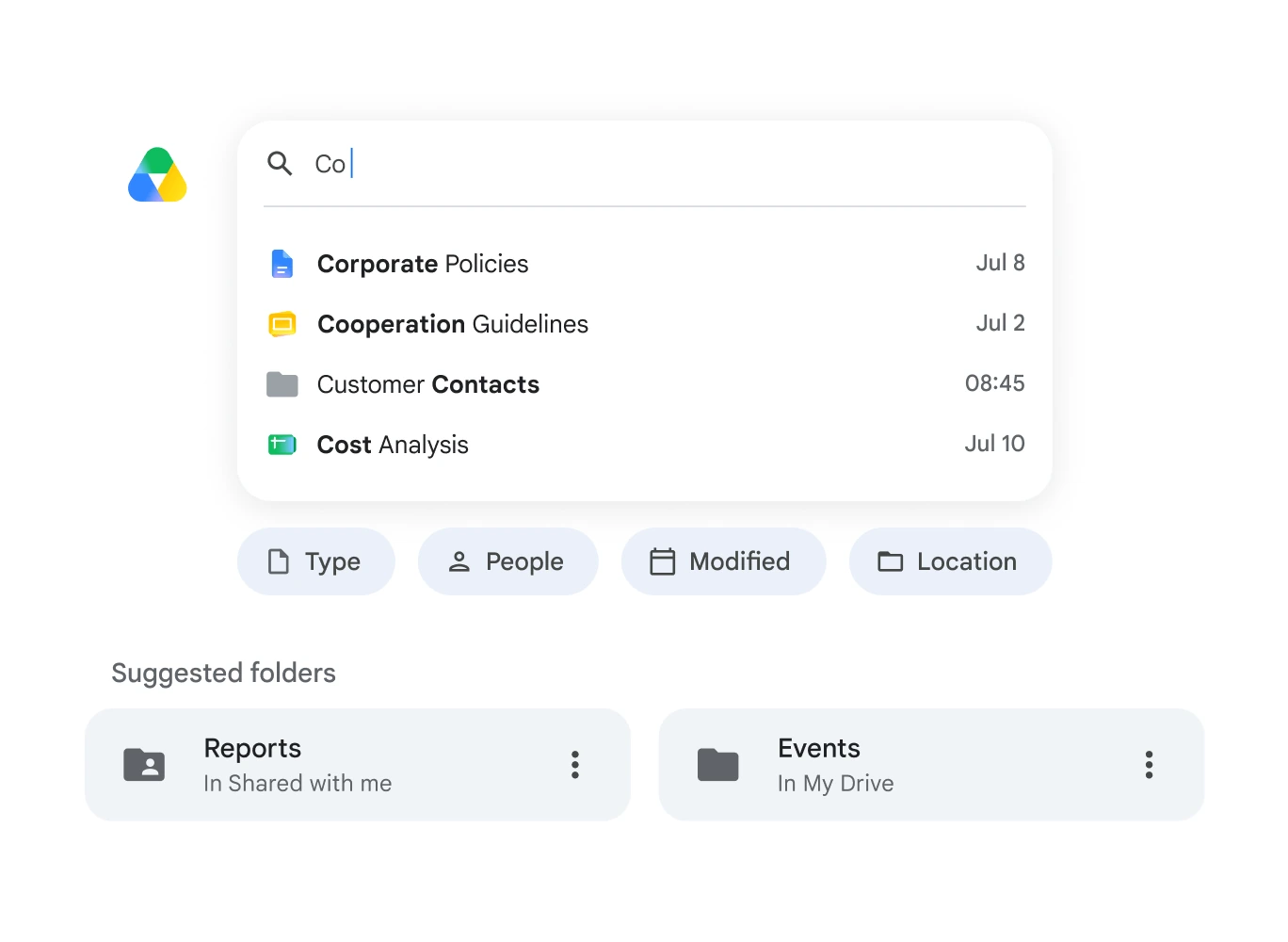
Windows Search only sees files that are already on your PC. Drive for desktop has its own search window that looks through your whole Drive, including streamed files.
Press Ctrl + Alt + G from anywhere to open it. You can set a different shortcut in the advanced settings.
Roll files back after ransomware
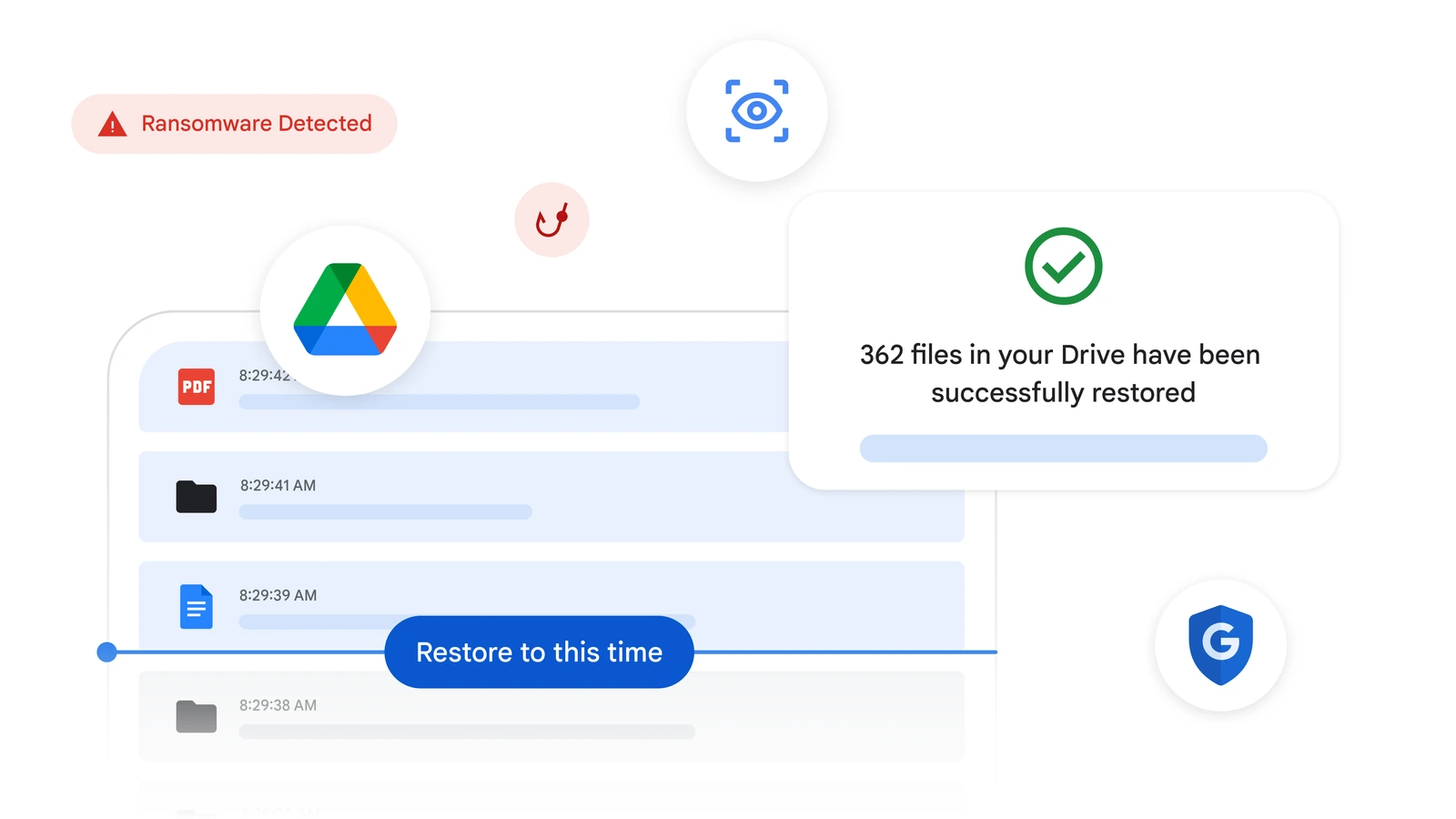
Ransomware (malware that locks your files and demands payment) can sync encrypted copies to the cloud. Google lets you restore many files at once to a version from before the attack.
That bulk restore works on free personal Google accounts. Automatic ransomware detection, which pauses syncing the moment it spots an attack, is limited to paid Google Workspace business and school plans.
You can also sign in with up to four Google accounts at once, for example a personal and a work account, and each one gets its own section in File Explorer.
How to Install Google Drive on Windows
Google hands out Drive for desktop from its own website. It is not on the Microsoft Store, and you need admin rights on the PC to install it.
1 Open Google’s download page at google.com/drive/download and click Download Drive for desktop.
2 Run GoogleDriveSetup.exe from your Downloads folder and follow the prompts.
3 Click Sign in and sign in to your Google account in the browser tab that opens.
4 Open File Explorer and click Google Drive in the left sidebar to see your files.
5 Pin it if you like. Right-click Google Drive in the Start menu and choose Pin to Start or Pin to taskbar.
Using a work or school account? Your organization may block the install or push the app to your PC for you. If the installer refuses to sign you in, ask your IT team before trying again.
Stream or Mirror: Which Should You Pick?
This is the one setting worth deciding on day one. Streaming keeps files in the cloud and downloads them when you open them. Mirroring keeps a full copy of My Drive on your PC. You switch between them in Settings, Preferences, Google Drive, under My Drive syncing options.
Our pick
Start with streaming. It is the default, it saves disk space, and you can mark the folders you need on the go as offline. Switch to mirroring only if you edit large media files from Drive or often work without internet. Neither mode changes how much Google storage you use.
Where Did Google Photos Backup Go?
Drive for desktop stopped backing up PC folders to Google Photos on August 10, 2026. Google moved that job to the Google Photos website. Photos and videos that were already backed up stay in Google Photos, and nothing was deleted.
To keep backing up a photo folder automatically, set it up at photos.google.com in Chrome or Edge. Google says folder backup needs a Chromium-based browser (one built on the same engine as Chrome). The steps are on Google Photos Help.
Drive for desktop can still sync those same folders to Google Drive. They just land in Drive as files, not in your Photos library.
How Much Storage Do You Get?
The app is free. What you pay for, if anything, is storage in your Google account. Every Google account starts with 15 GB, shared between Drive, Gmail and Google Photos. A full Gmail inbox eats into the same space as your Drive files.
15 GB per account
Enough for documents and a modest photo collection. When it fills up, Drive stops syncing new files and Gmail stops receiving mail until you free space or upgrade.
Paid plans for more space
Google One adds storage in larger tiers, and most plans can be shared with family members. The higher plans also bundle Google’s AI features. Prices change often, so check Google One plans for current ones.
Two details trip people up. Files other people share with you never count against your storage, but they can still fill your PC’s disk if you mirror them or mark them offline. And the space bar inside Drive for desktop shows free space on your PC, not your Google storage.
Google Drive vs OneDrive on Windows
Most Windows PCs already have OneDrive, Microsoft’s cloud storage, built in. If your files live in Google Docs and Gmail, Drive for desktop makes more sense. If they live in Word, Excel and Outlook, OneDrive is the easier fit.
You can run both at the same time. Many people keep OneDrive for Windows backups and use Drive for desktop for files they share with Google users. If you are weighing office apps as well, see our Microsoft Office alternatives guide.
Tips for Getting Started
1 Mark travel folders offline before you leave. Right-click the folder in File Explorer, choose Offline access, then Available offline, and wait for the sync check mark.
2 Change the drive letter if G: is taken. Open the tray icon, then Settings, Preferences, the gear icon for advanced settings, and pick a new Google Drive letter.
3 Cap bandwidth on a slow connection. The same advanced settings let you limit upload and download speed, so a big sync does not choke video calls.
4 Pause syncing instead of quitting. The tray menu lets you pause and resume sync, which is handy during a game or a large download.
5 Let syncing finish before you switch modes. Moving from mirror to stream with changes still uploading can lose those changes. Wait until the tray icon shows everything is up to date.
Common Problems and How to Fix Them
These are the problems Google’s own troubleshooting page covers most, with the fix for each.
Files stopped syncing
Click the tray icon, then Settings, Quit, and open the app again. Still stuck? Restart the PC, then disconnect and reconnect your account in Preferences. Copy anything in the Lost & Found folder somewhere safe first, because disconnecting deletes it.
A PC cleaner broke it
Google warns that cleanup apps such as CCleaner and Advanced SystemCare can edit Drive for desktop’s settings and cause errors or lost files. Exclude Google Drive from their cleanup lists.
Disk space is low
Offline and mirrored files live on your C: drive. Turn off Available offline on big folders, or switch My Drive from mirror to stream, then restart the app.
Storage full, but you have space
Edits to a shared file count against the owner’s storage, not yours. If the owner is out of space, your changes cannot sync. Ask them to free space or transfer ownership to you.
A Google Doc file will not upload
The .gdoc files on your PC are only links. Editing them with another program corrupts them. Make a copy of the original on drive.google.com and delete the broken file.
Sign-in fails on a work account
Some organizations do not allow Drive for desktop, or install it for you. Your IT admin can tell you which applies.
Official Video
Watch Google’s own walkthrough of Drive for desktop to see the sign-in, the Google Drive entry in File Explorer and the sync settings.
Frequently Asked Questions
What are the system requirements for Google Drive for desktop?
Does Google Drive for desktop work on Windows on Arm?
Is Google Drive for desktop the same as Backup and Sync?
Can I use more than one Google account?
How do I uninstall Google Drive for desktop?
Does Google Drive for desktop work with external drives or network drives?
Support and Community
These places cover most Drive for desktop questions.
- Google Drive, Google’s own product page for Drive.
- Fix problems in Drive for desktop, Google’s full troubleshooting guide, including error messages.
- Google Drive Help Community, Google’s official forum, where product experts answer questions.
- r/googledrive on Reddit, for tips and troubleshooting from other Drive users.
More Windows software guides: Dropbox for Windows · iCloud for Windows · Google Chrome for Windows · Gemini for Windows
Discover more from Windows Mode
Subscribe to get the latest posts sent to your email.












I have had this crash 3 times in the past year for no apparent reason. The last one was after a Windows update. I have wasted a huge amount of time after each crash.( The past one is 3 days and still no fix.) An uninstall and reload only gives an error message telling me to do what i just did. Of course there is basically no help form Google. I am in the process dumping Windows and moving to Linux on my Win10 computers. (the current problem is in Win11) I have researched extensively and no answer to my problem. My solution – Dump Google along with Windows. This is nice when it works but a horror story when it does not.
I think it does still have some annoying bugs with Windows 11 but I still use it on my Windows 11 machine and so far no problems. Have you decided which Linux OS you will try?