Readers like you help support this site. When you make a purchase using links on our site, we may earn an affiliate commission. All opinions remain our own.
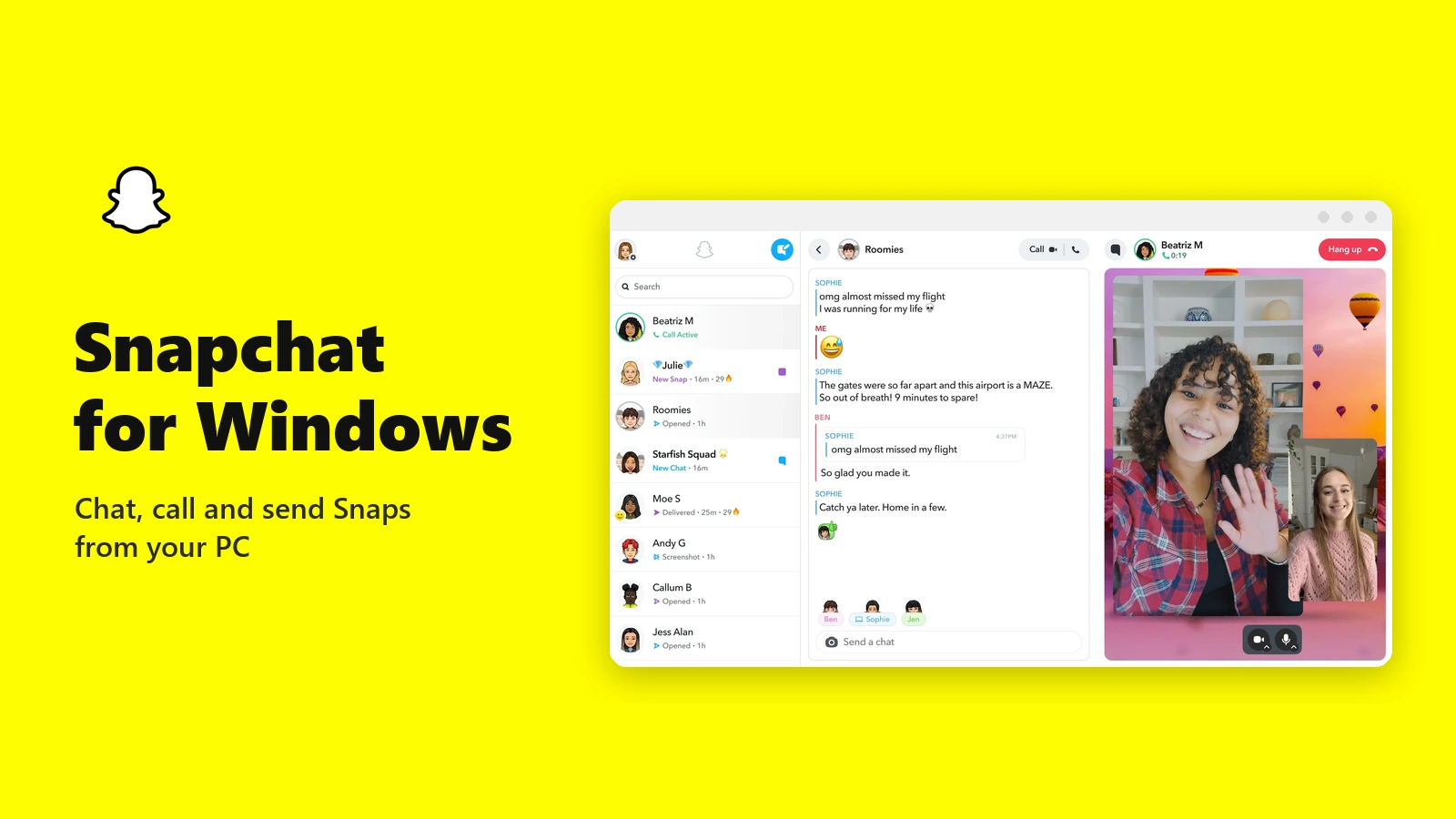
Snapchat on a PC: your chats on the left, a group chat and a video call side by side. App screenshot: Snap Inc., from its Microsoft Store listing.
Snapchat for Windows is the official Snapchat app for PC from Snap Inc., available free on the Microsoft Store or in your web browser. You can chat with friends, make voice and video calls, and send Snaps from your webcam without picking up your phone.
It is not a copy of the phone app. The PC version is built around chatting and calling, and things like Memories and Snap Map still live on your phone. Knowing that up front saves a lot of hunting through menus.
It runs on Windows 10 and Windows 11 through Microsoft Edge, and it also works in Chrome. You sign in with your existing Snapchat account.
This guide covers how to install it, what works on PC and what does not, and how to fix the camera, mic and notification problems people hit first. Stuck on something else? Reach out to us directly.
What Is Snapchat for Windows?
The Windows app is Snapchat for Web in its own window. Snap built the PC version as a web app, and the Microsoft Store version installs it through Microsoft Edge so it gets a Start menu icon, a taskbar spot and desktop notifications.
That is why the download is tiny, about 1.3 MB. The Store listing says it needs the latest version of Microsoft Edge, which Windows already includes and keeps up to date.
You can skip the Store entirely and open web.snapchat.com in Chrome, Edge or Safari instead. It is the same Snapchat either way, with the same chats and the same limits.
What You Can Do in Snapchat on PC
These screenshots come from Snap’s own Microsoft Store listing and show the three main things the PC version is for.
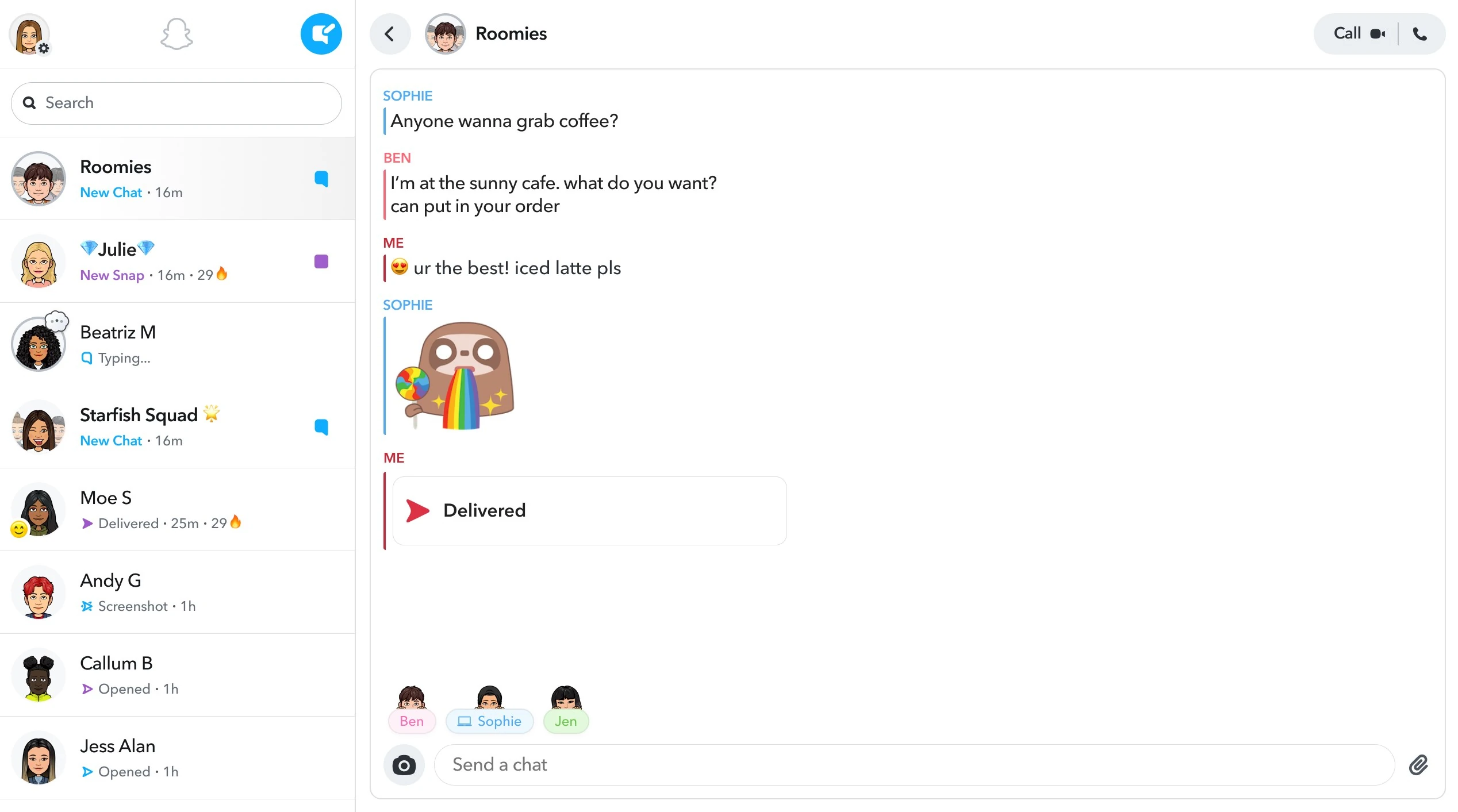
Text your friends and groups
Your chat list sits on the left, the same as on your phone, and a full keyboard makes long conversations much easier. Group chats, stickers and Snaps all show up in the conversation.
Voice and video calls on a big screen
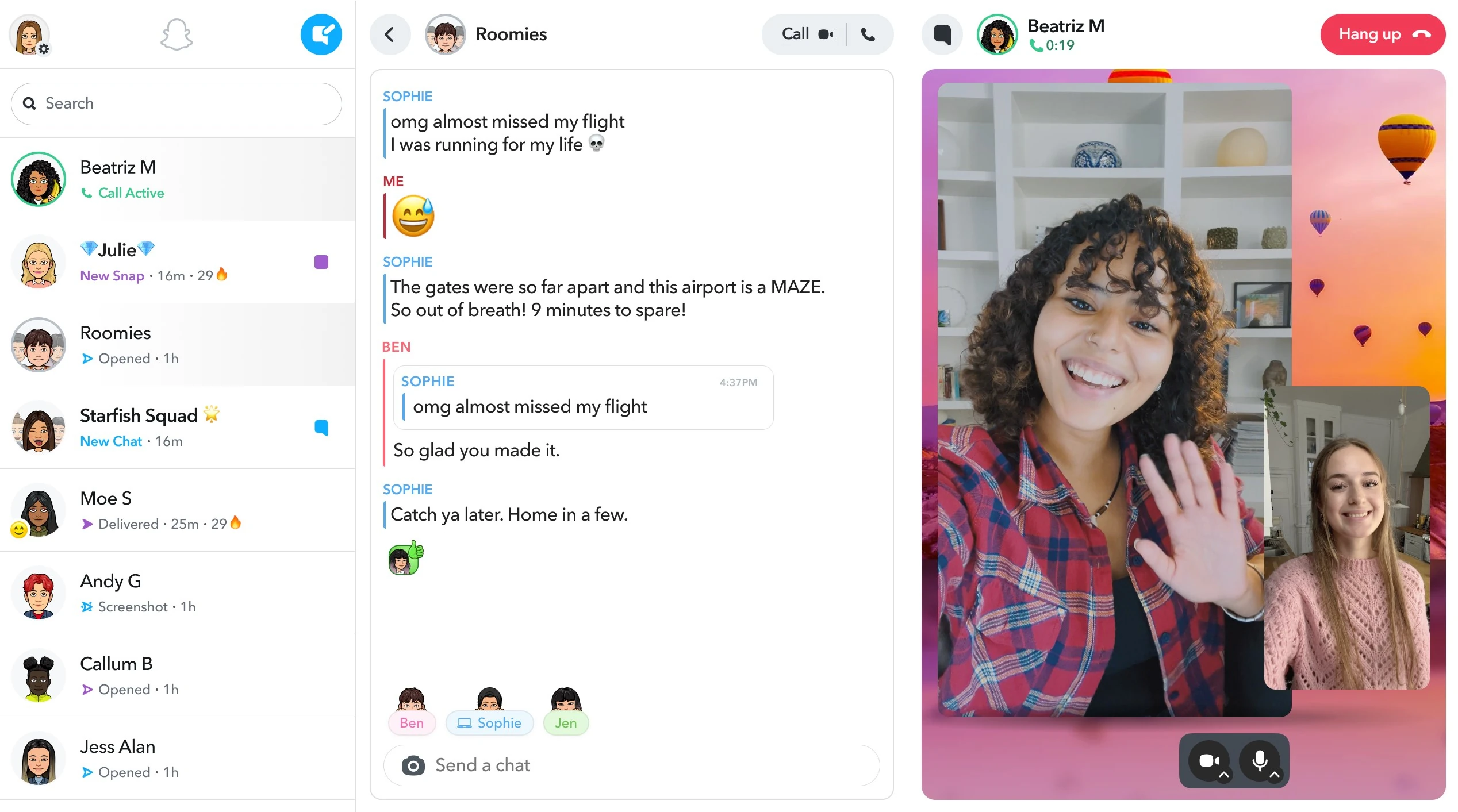
Click a friend’s name, then the phone icon for a voice call or the video camera icon for a video call. The call runs beside your chat, so you can keep typing.
During a call, the share button next to the camera and mic controls shares your screen.
Send Snaps from your webcam
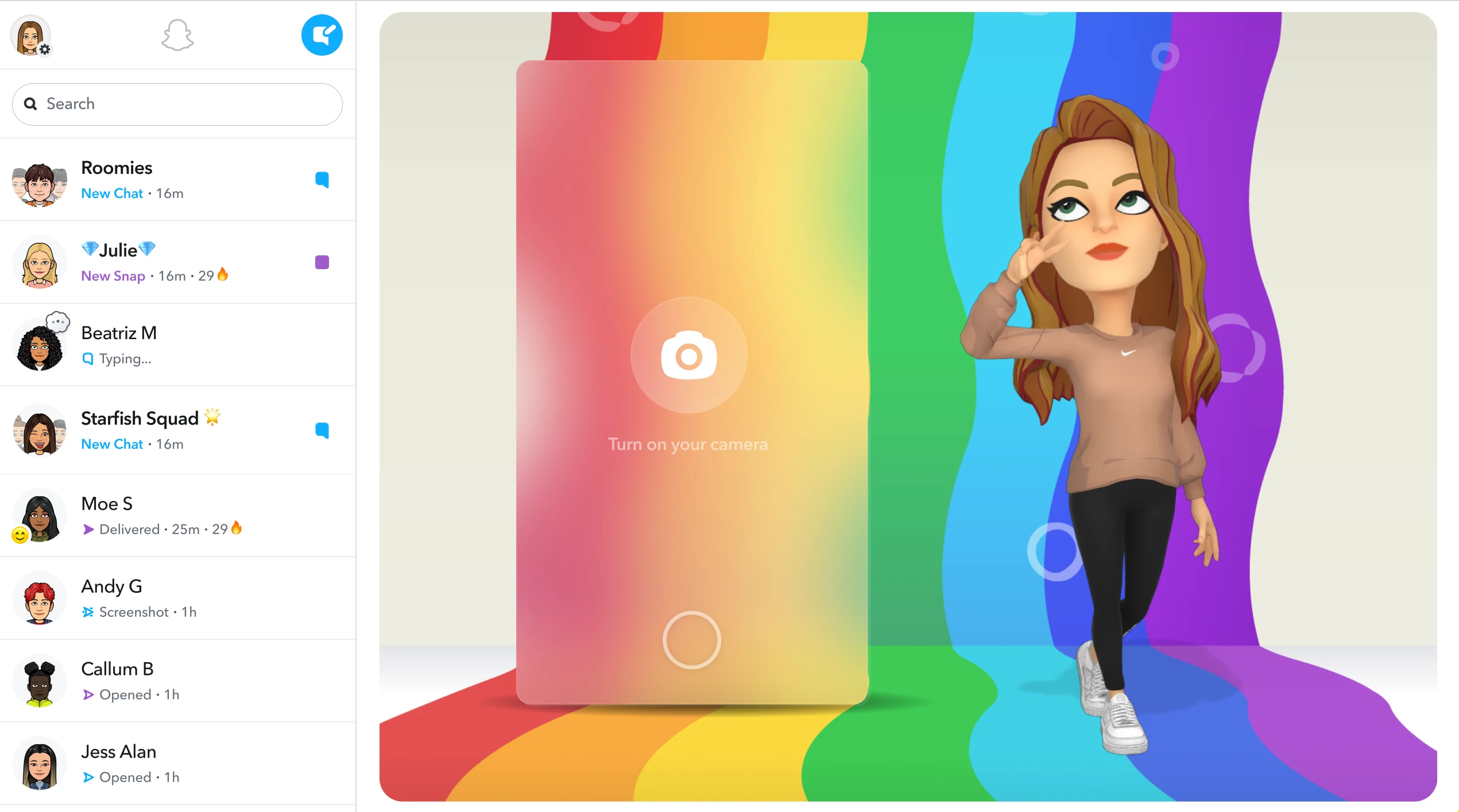
Click the Camera, then click the round button to take a photo, or hold it down to record a video. You can send the Snap to friends or post it to your Story, though you view your Story in the phone app.
Drop in photos from your PC
Drag a picture into the chat bar, click the picture icon, or paste it straight in. Snapchat on PC takes PNG, JPG and GIF files.
Bitmoji Plaza
When you sign in on a computer, your Bitmoji appears in a shared 3D space where online friends can join you. It is opt-in, and you turn it on or off in the web settings.
Snapchat on PC vs the Phone App
The PC version handles the everyday stuff well. Anything to do with your saved Snaps, your location or your account settings still needs the phone app. Here is the split, taken from Snap’s own help pages.
Our take
Snapchat on PC is worth having if you chat a lot or spend your day at a desk. Typing is faster, video calls look better on a monitor, and screen sharing is something the phone cannot match. It will not replace the phone app, and it is not trying to. Treat it as a second screen for your conversations, not a full Snapchat.
How to Install Snapchat on Windows
The Microsoft Store is the simplest route. It is free, and you need a Snapchat account to sign in.
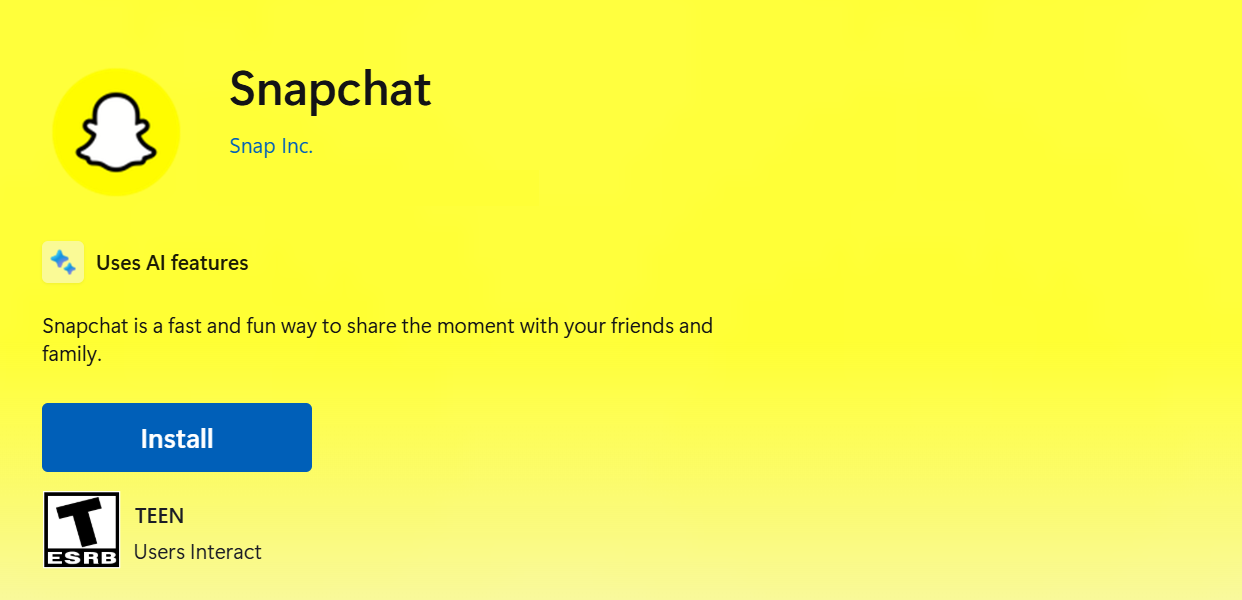
1 Open the Snapchat page on the Microsoft Store. Check that the publisher reads Snap Inc.
2 Click Install. The Store sets it up in a few seconds.
3 Open Snapchat from the Start menu.
4 Log in with your username, email or phone number, a passkey, or Continue with Google.
5 Allow the camera, microphone and notifications when Snapchat asks, so calls and new message alerts work.
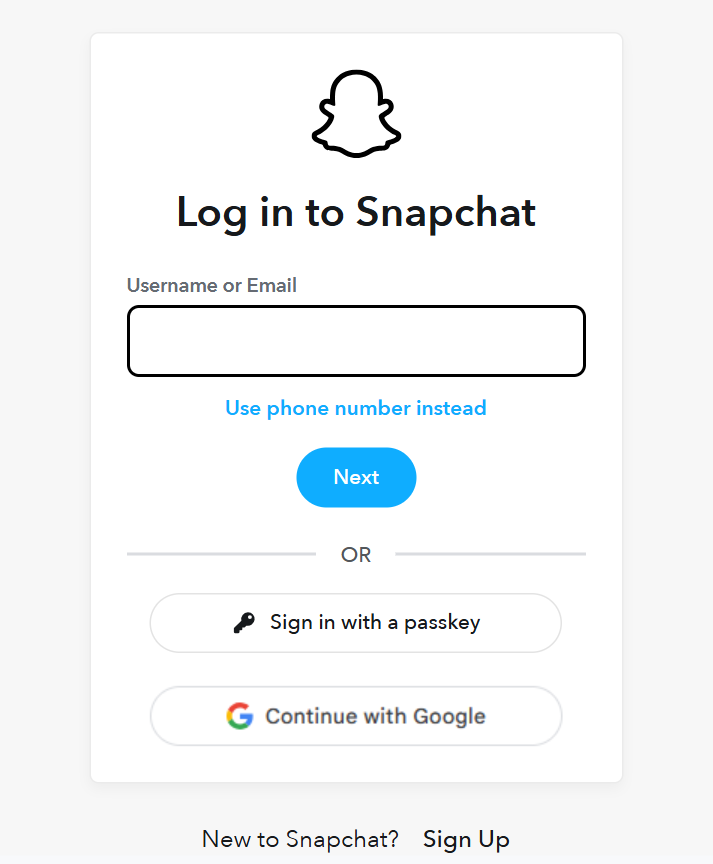
Prefer Chrome? Go to web.snapchat.com and log in. To give it its own window, click your Bitmoji, then Create Desktop Shortcut. It works the same as the Store version.
Common Problems and Fixes
Most problems on PC come down to permissions. These fixes come from Snap’s own support pages.
Camera or mic does not work
In Edge or Chrome, click the lock icon in the address bar, switch on Camera and Microphone, then refresh. During a call, the small up arrow next to the camera or mic icon lets you pick a different device.
No alerts for new chats or calls
Click your Bitmoji and check that notifications are on. Then open Windows Settings, go to System, then Notifications, and make sure Edge or Chrome is allowed to notify you.
Snapchat will not load
Use the latest Edge, Chrome or Safari. Snap also says to update the Snapchat app on your phone and make sure it is signed in to the same account.
Friends cannot hear you
Check your PC’s microphone volume, then try a different mic from the up arrow next to the mic icon. Unplugging headphones and turning off Bluetooth helps when Windows picks the wrong device.
Tips for Getting Started
1 Pin it to the taskbar. Right-click the Snapchat icon while it is open and choose Pin to taskbar, so it is one click away.
2 Share your screen to show, not tell. On a call, the share button sits next to the camera and mic controls. It is handy for helping a friend with homework or a game setting.
3 Paste screenshots straight into a chat. Press Windows + Shift + S to grab part of your screen, then press Ctrl + V in the chat bar to send it.
4 Remember that people can still save what you send. Snap’s own help page says anyone viewing your Snaps or Chats on a computer can capture them, just like on a phone.
5 Keep the phone app for the rest. Memories, Snap Map and your privacy settings only live on your phone, so do not go looking for them on PC.
Watch: Using Snapchat on PC
This walkthrough from GuideRealm shows how to log in to Snapchat on a computer and find your way around chats, calls and the camera.
Frequently Asked Questions
What do I need to run Snapchat on Windows?
Can I stay logged in to Snapchat on two computers?
Does someone know if I screenshot their Snap on PC?
Can I use Snapchat Lenses in Zoom or Teams?
How do I uninstall Snapchat from Windows?
Support and Community
- Snapchat, Snap’s own site.
- Snapchat Support: Snapchat for Web, Snap’s guide to calls, Snaps and chats on a computer.
- What is not on the web yet, Snap’s own list of phone-only features.
- r/SnapchatHelp on Reddit, a user-run community for login and account problems.
More Windows software guides: Instagram for Windows · WhatsApp for Windows · Messenger for Windows · TikTok for Windows · Discord for Windows · Telegram Desktop
Discover more from Windows Mode
Subscribe to get the latest posts sent to your email.














Add your first comment to this post