


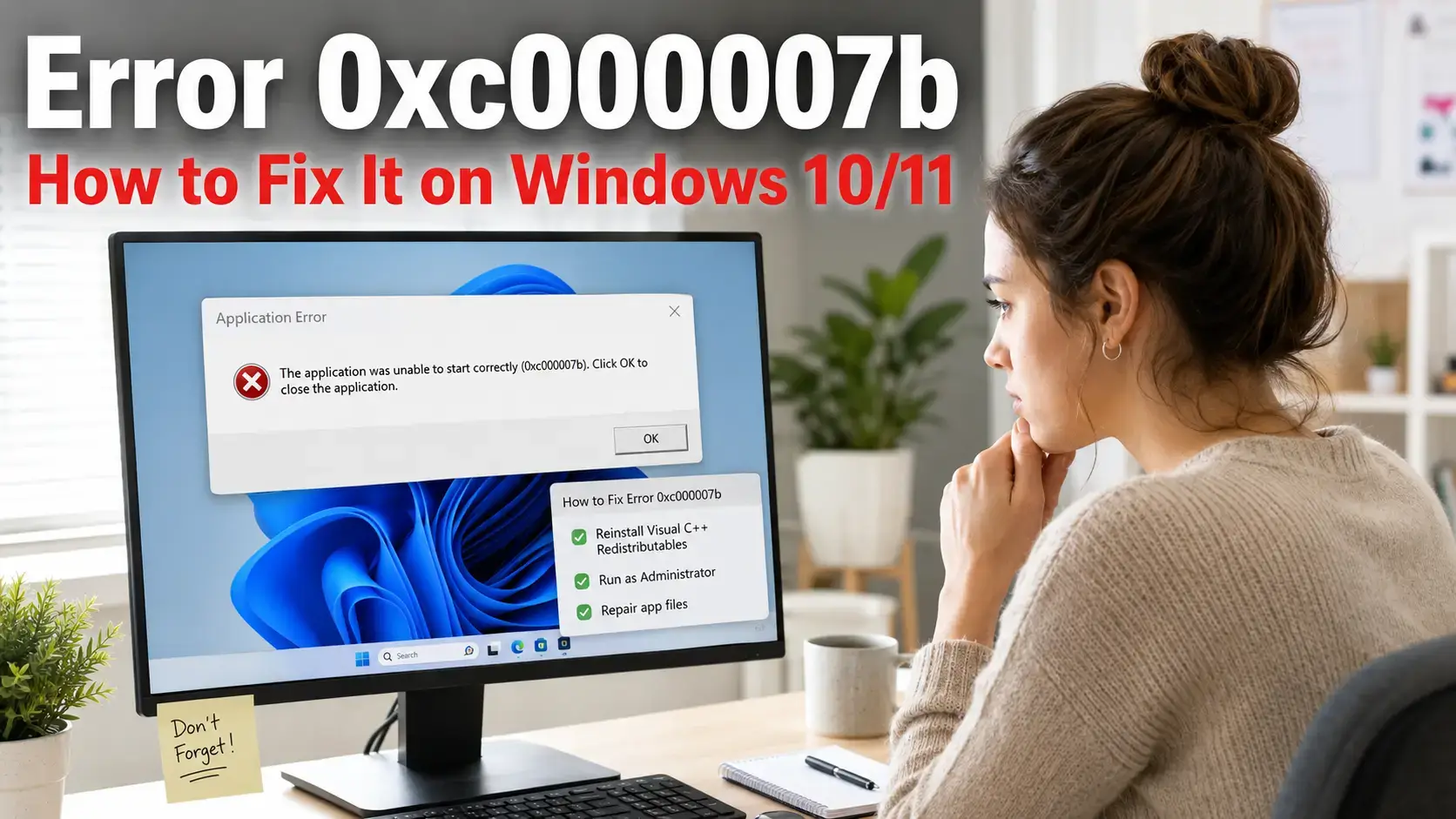
Getting error 0xc000007b when you try to launch a game or app on Windows? This error means Windows blocked the program from starting because of a mismatch between 32-bit and 64-bit components, usually a broken or missing DLL file (a shared code file that apps borrow from Windows).
The full message reads: “The application was unable to start correctly (0xc000007b). Click OK to close the application.” It shows up most often with games, video editors, and older software that depends on Visual C++ or .NET runtime libraries.
This guide walks through 6 fixes in order from quickest to most thorough. Most people solve it by Fix 2 or Fix 3.
What This Error Means at a Glance
- A 32-bit app tried to load a 64-bit DLL, or the reverse.
- Most common cause: missing or broken Visual C++ Redistributable files.
- Also triggered by corrupted .NET Framework, outdated DirectX, or a bad app install.
- Almost always fixable without reinstalling Windows.
- Affects Windows 10 and Windows 11. More common on freshly built PCs and after major updates.
Error Code
0xc000007b
Root Cause
32/64-bit DLL mismatch
Affects
Windows 10 / 11
Difficulty
Beginner friendly
Time to Fix
5 – 20 minutes
Video: How to Fix Error 0xc000007b on Windows
Watch the full fix walkthrough for error 0xc000007b on Windows 10 and 11, covering the Visual C++ reinstall, DISM scan, and app repair steps shown below.

What Causes Error 0xc000007b?
Understanding the cause saves you time. There are four common triggers. Check which one fits your situation before jumping to the fixes.
Missing Visual C++ Runtimes
The most common cause. Many apps and games rely on Microsoft Visual C++ Redistributable packages. If one is missing or corrupted, the app cannot start. Installing all versions fixes this in most cases.
Corrupted .NET Framework
.NET Framework is a set of Windows tools that many apps use. A corrupted install, or a failed Windows update that touched .NET files, can break apps that depend on it.
Incomplete or Bad App Install
If the app or game was installed incorrectly, interrupted during setup, or installed with the wrong permissions, it may be missing internal DLL files from the start.
Outdated or Missing DirectX
Games especially rely on DirectX components. If DirectX is outdated, or if certain runtime DLLs inside it are broken, game launches will fail with this error code.
How to Fix 0xc000007b Error
Work through these fixes in order. Fix 1 takes 30 seconds. Most people are done by Fix 3. Only move to the later fixes if the earlier ones do not work.
Run the App as Administrator
Sometimes 0xc000007b is a permissions issue, not a DLL problem. Try this first. It takes 10 seconds.
- Step 1. Right-click the app or game shortcut.
- Step 2. Select Run as administrator.
- Step 3. If it launches, right-click the shortcut again, go to Properties, open the Compatibility tab, and check Run this program as an administrator to make it permanent.
Reinstall Visual C++ Redistributables (Most Effective Fix)
This fixes the error in the majority of cases. Visual C++ Redistributables are shared code packages that most apps and games need. Install all versions — both x86 (32-bit) and x64 (64-bit) — even on a 64-bit PC.
Why install x86 on a 64-bit PC?
Many games and apps are 32-bit even on modern PCs. They need the x86 (32-bit) versions of Visual C++, not just the 64-bit ones. Install both to cover all scenarios.
- Step 1. Go to the Microsoft Visual C++ Redistributable downloads page.
- Step 2. Download and install every version listed — 2015, 2017, 2019, and 2022 — for both X86 and X64.
- Step 3. Restart your PC after all installs are done.
- Step 4. Try launching the app again.
Reinstall or Repair .NET Framework
.NET Framework is another set of Windows runtime components that many apps depend on. A broken or outdated version can trigger 0xc000007b on its own.
- Step 1. Press Windows key + R, type
optionalfeatures, and press Enter. - Step 2. In the Windows Features dialog, check .NET Framework 3.5 and .NET Framework 4.8 Advanced Services.
- Step 3. Click OK. Windows will download and install the missing components.
- Step 4. Restart your PC and test the app again.
Note: If .NET Framework 3.5 fails to install from Windows Features, you may need to install it manually from the Microsoft .NET download page.
Run SFC and DISM to Repair System Files
If Windows system files were corrupted by a bad update, crash, or malware, SFC and DISM can find and restore them. Run both, in this order.
- Step 1. Click Start, type cmd, right-click Command Prompt, and select Run as administrator.
- Step 2. Type
sfc /scannowand press Enter. Wait for it to finish. This can take 10 to 20 minutes. - Step 3. Once SFC is done, run this DISM command:
DISM /Online /Cleanup-Image /RestoreHealth - Step 4. Restart your PC when both scans are complete, then test the app.
Reinstall the App or Game
If the error only affects one specific app, the problem may be in that app’s install rather than Windows itself. A clean reinstall replaces any missing or broken internal DLL files the app shipped with.
- Step 1. Open Settings and go to Apps.
- Step 2. Find the affected app, click it, and select Uninstall.
- Step 3. If the app installed to a custom folder (like C:\Games), delete that folder manually after uninstalling to remove leftover files.
- Step 4. Restart your PC, then reinstall the app fresh and test.
Steam tip: If the app is a Steam game, right-click the game in your library, go to Properties, then Local Files, and click Verify integrity of game files before doing a full reinstall. This often fixes broken DLLs without a full redownload.
Update DirectX and Check for Windows Updates
Games and some creative apps depend on DirectX components that ship as part of Windows updates. If your system is behind on updates, some of these DLLs may be missing or out of date.
- Step 1. Go to Settings, then Windows Update, and install all pending updates.
- Step 2. Download the DirectX End-User Runtime Web Installer from Microsoft and run it. This installs older DirectX components that Windows Update does not include.
- Step 3. Restart your PC and try the app again.
Quick Checklist: What to Try First
| Fix | Time Needed | Best If |
|---|---|---|
| Run as administrator | 30 seconds | Error just started, nothing else changed |
| Reinstall Visual C++ Redistributables | 5 – 10 min | New PC or fresh Windows install |
| Repair .NET Framework | 5 – 15 min | Error affects productivity or creative apps |
| SFC and DISM scan | 15 – 30 min | Error appeared after a Windows update or crash |
| Reinstall the app | Varies | Only one specific app is affected |
| Update DirectX and Windows | 10 – 20 min | Error on a game that worked before a Windows update |
Still Getting Error 0xc000007b? Advanced Steps
Run a malware scan
Malware can replace or corrupt system DLL files, which causes exactly this error. If none of the above fixes worked, run a full scan with Windows Defender or Malwarebytes before going further.
Check if a 32-bit app is installed in the wrong folder
On 64-bit Windows, 32-bit apps should install to C:\Program Files (x86), not C:\Program Files. If an app ended up in the wrong folder, uninstall and reinstall it to let the installer place files correctly.
Perform a clean boot to rule out conflicts
A third-party tool running in the background could be interfering. Open System Configuration (search msconfig), go to Services, check Hide all Microsoft services, click Disable all, then restart and test. If the app works, re-enable services one at a time to find the conflict.
Windows reset as a last resort
If nothing else has worked, a Windows reset (Settings, System, Recovery, Reset this PC) with the “Keep my files” option will reinstall Windows while leaving your personal files in place. This fixes the vast majority of persistent DLL problems.
Frequently Asked Questions
What does error 0xc000007b mean?
It means Windows could not start the app because of a mismatch between 32-bit and 64-bit components. A 32-bit app tried to load a 64-bit DLL, or a 64-bit app tried to load a 32-bit one. The fix is usually reinstalling Visual C++ Redistributables or repairing .NET Framework.
Does error 0xc000007b only affect games?
No. It can affect any app, including creative software like Photoshop, video editors, and older productivity tools. Games trigger it most often because they depend on many runtime libraries at once.
Can I fix error 0xc000007b without reinstalling Windows?
Yes. In most cases you can fix it by reinstalling Visual C++ Redistributables, repairing .NET Framework, running DISM and SFC, or reinstalling the affected app. A Windows reinstall is a last resort.
Is error 0xc000007b caused by malware?
Occasionally. Malware can replace or corrupt DLL files, which causes this error. If the standard fixes do not work, run a full malware scan before assuming the problem is hardware.
Does running the app as administrator fix error 0xc000007b?
Sometimes, if the error is caused by a permissions issue rather than a DLL mismatch. It is worth trying early because it takes 10 seconds and costs nothing.
Which Visual C++ Redistributable version should I install?
Install all of them. Games and apps rarely publish which exact version they need, and installing the full set from Microsoft covers every common scenario. Both x86 and x64 versions are needed even on a 64-bit PC.
Error 0xc000007b appeared after a Windows update. What do I do?
Run SFC and DISM first to check for corrupted system files the update may have affected. If that does not help, reinstall Visual C++ Redistributables and check if the app has its own update or patch available.
Related Windows Error Fixes
- Fix: DRIVER_IRQL_NOT_LESS_OR_EQUAL
- Fix: CRITICAL_PROCESS_DIED
- Fix: WHEA_UNCORRECTABLE_ERROR
- Fix: Error 0xc0000005 (Application unable to start correctly)
- Fix: Error 0x80070005 (Access Denied)
- Fix: Error 0x80070002 (Windows Update failed)
- Fix: Error Code 43 (Device Manager)
- Fix: Error 0x800f0923 (Driver compatibility)
Still stuck? Leave a comment below or contact us directly and we will help you figure it out.