

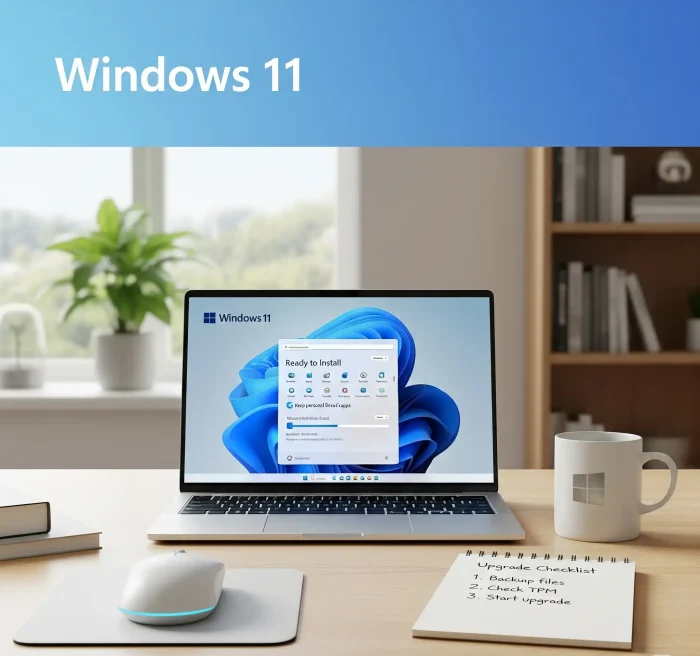
Four official ways to get Windows 11, and how to pick the right one.
- The latest version is Windows 11 26H2, released September 29, 2026.
- Windows 10 support ended on October 14, 2025. Only PCs enrolled in Extended Security Updates still get security fixes.
- There are four official ways to upgrade: Windows Update, the Installation Assistant, the Media Creation Tool and the ISO.
- Check your PC first with the free PC Health Check app.
- You have 10 days to go back to your old version if something goes wrong.
Upgrading to Windows 11 is straightforward when you use Microsoft’s own tools. This guide shows the four safe ways to do it, which one fits your PC, and how to fix the problems people run into most.
Already on Windows 11? Our Windows 11 26H2 guide covers what is new in the latest version. Questions or stuck on a step? Contact us or leave a comment. We keep this guide updated based on your feedback.
Which Upgrade Path Fits Your PC
The right method depends on what you are running today. Find your version in the first column.
Upgrade Paths to Windows 11 26H2
Check your version in Settings > System > About
| You are on | What happens | Easiest method |
|---|---|---|
| Windows 11, version 24H2 or 25H2 | A small enablement package switches on 26H2. One restart, and your apps and files stay. | Windows Update |
| Windows 11, version 23H2 or older | A full upgrade to the latest version. Your apps and files stay. | Windows Update or the Installation Assistant |
| Windows 10, version 2004 or newer | A full upgrade to Windows 11, if your PC meets the requirements. Your apps and files stay. | Installation Assistant |
| A new or wiped PC | A fresh install from a USB drive or disk image. | Media Creation Tool or ISO |
Ways to Upgrade to Windows 11
All four methods are free and come from Microsoft. The first two keep your files and apps with the least effort.
1. Windows Update
Best for: PCs already on Windows 11, and Windows 10 PCs that Microsoft has offered the upgrade to.
Open Settings > Windows Update.
Turn on “Get the latest updates as soon as they’re available” to get new versions sooner.
Select Check for updates. If the upgrade is offered, select Download and install.
Restart when asked to finish.
2. Windows 11 Installation Assistant
Best for: Upgrading the PC you are on, when Windows Update has not offered it yet.
Download the Installation Assistant from Microsoft’s Windows 11 download page.
Run it and accept the license terms. It checks your PC and installs the latest version.
Keep the PC on and plugged in while it downloads and installs, then restart.
You need Windows 10, version 2004 or newer, and at least 9 GB of free space. Full walkthrough: how to use the Windows 11 Installation Assistant.
3. Media Creation Tool
Best for: Making a bootable USB drive to install Windows 11 on another PC, or starting fresh.
Download the Media Creation Tool from Microsoft’s Windows 11 download page.
Plug in a blank USB drive of 8 GB or more. Anything on it gets erased.
Run the tool and follow the prompts to build the installer, then start the target PC from the drive.
Step-by-step guide: how to use the Windows 11 Media Creation Tool.
4. Windows 11 ISO
Best for: In-place upgrades where the other methods fail, clean installs, and virtual machines.
Download the Windows 11 ISO from Microsoft’s download page. The download link works for 24 hours.
Double-click the ISO to open it, then run setup.exe.
Choose what to keep: your files and apps, or nothing for a clean install.
Follow the prompts to finish.
More detail in our Windows 11 ISO guide.
Go to Microsoft’s Windows 11 Download Page
Watch: How to Upgrade to Windows 11
This video walks through the full upgrade from Windows 10 to Windows 11, on both supported and unsupported PCs.

Why You Should Upgrade to Windows 11
The biggest reason is security. Windows 10 stopped getting regular updates on October 14, 2025. Home users can still sign up for Extended Security Updates, which Microsoft now runs until October 12, 2027, but that only buys time.
A layout you can make your own
The latest version lets you move the taskbar to any edge of the screen, resize the Start menu, and hide the sections you do not use.
Better multitasking
Snap Layouts arrange windows in a grid with one hover, and virtual desktops keep work and personal apps apart.
Security built in
TPM 2.0, Secure Boot and Smart App Control protect the PC at the hardware and app level from day one.
Better gaming
Auto HDR and DirectStorage make games look better and load faster on supported hardware.
Windows 11 System Requirements
Your PC needs to meet these minimums. The quickest check is the free PC Health Check app, which shows exactly what passes and what does not.
Minimum Requirements
From Microsoft’s Windows 11 specifications page
| Component | Minimum |
|---|---|
| Processor | 1 GHz or faster with 2 or more cores, on a compatible 64-bit processor |
| RAM | 4 GB |
| Storage | 64 GB or larger |
| System firmware | UEFI, Secure Boot capable |
| TPM | Trusted Platform Module (TPM) version 2.0 |
| Graphics | Compatible with DirectX 12 or later, with a WDDM 2.0 driver |
| Display | 720p, larger than 9 inches diagonally, 8 bits per color channel |
| Internet and account | Home and Pro need internet and a Microsoft account during first setup |
If your PC does not meet the requirements, a new device may be the simplest fix. Before you buy, see our best Surface laptops guide.
Common Problems and Fixes
The upgrade does not show up
Make sure you are on Windows 10, version 2004 or newer. Turn on “Get the latest updates as soon as they’re available” in Windows Update, or use the Installation Assistant instead. New versions roll out in waves, so a short wait is normal.
TPM or Secure Boot errors
Turn on TPM 2.0 and Secure Boot in your PC’s BIOS or UEFI settings (the menu you reach by pressing a key like F2 or Delete at startup), then try again.
Not enough storage
Uninstall apps you do not use, run Disk Cleanup, or move large files to an external drive. The Installation Assistant needs 9 GB free.
Slow or stuck download
Switch to a wired connection if you can, and pause other downloads on your network. If it stays stuck, restart and try the Installation Assistant.
Apps or devices stop working
Check Windows Update for driver updates, or get the latest driver from the device maker’s website.
You want to go back
You have 10 days after upgrading to return to your old version from Settings > System > Recovery. After that, the option disappears.
More Windows software guides: Windows 11 26H2 · Installation Assistant · Media Creation Tool · Windows 11 ISO · PC Health Check