

Readers like you help support this site. When you make a purchase using links on our site, we may earn an affiliate commission. All opinions remain our own.


You will be able to download LinkedIn on your Windows PC via the Microsoft Store, packed with tools to connect, post, and job hunt.
It’s free with optional premium tiers, built by LinkedIn Corp. (part of Microsoft), and works on Windows 10 and 11, plus iOS, Android, and web.
Launched in 2003, it’s a staple for millions building their careers.
As someone who’s chasing opportunities or showcasing skills, you need a way to manage your professional life without being glued to your phone.
This guide covers installing it on Windows, its key features, and tips to get started. Share your best networking tip below, or contact us for help.
How to Download & Install LinkedIn on PC
To get LinkedIn on your Windows PC, download it from the Microsoft Store. Here’s how:
- Microsoft Store
- Visit the page: LinkedIn.
- Click Get (free) and sign in with your Microsoft account.
- Hit Install and wait for it to download (about 150 MB).
- Launch it and log in with your LinkedIn account.
Quick Tip: 💡 Pin it to your Start menu for fast job checks.

What is LinkedIn About?
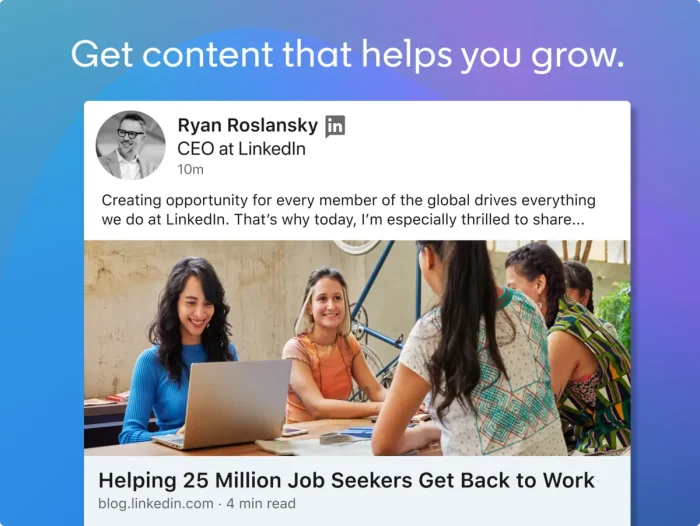
LinkedIn, launched in 2003 by LinkedIn Corp. (now under Microsoft), is a professional networking app for Windows 10 and 11, plus other platforms. It’s got jobs, posts, and connections, with recent updates improving search and messaging.
Core Features: Build a profile, find jobs, and network with industry folks.
Why Use LinkedIn on Windows?
It’s free, career-focused, and makes managing your profile easier on a big screen.
- Job search
- Networking
- Profile updates
- Messaging
- Content sharing
Quick Start Guide for LinkedIn
New to LinkedIn? Get going quick:
- Log in with your LinkedIn account.
- Update your profile from the Me tab.
- Search for jobs or connect with someone.
Best Settings for LinkedIn on PC
Tweak these for a better experience:
- Notifications: Filter alerts in Settings > Communications.
- Privacy: Hide your profile views in Settings > Visibility.
- Jobs: Set job alerts in Jobs > Preferences.
Common Issues & Fixes for LinkedIn
- Won’t Load: Reinstall from the Microsoft Store.
- No Notifications: Check Settings > Communications.
- Sync Issues: Log out and back in.
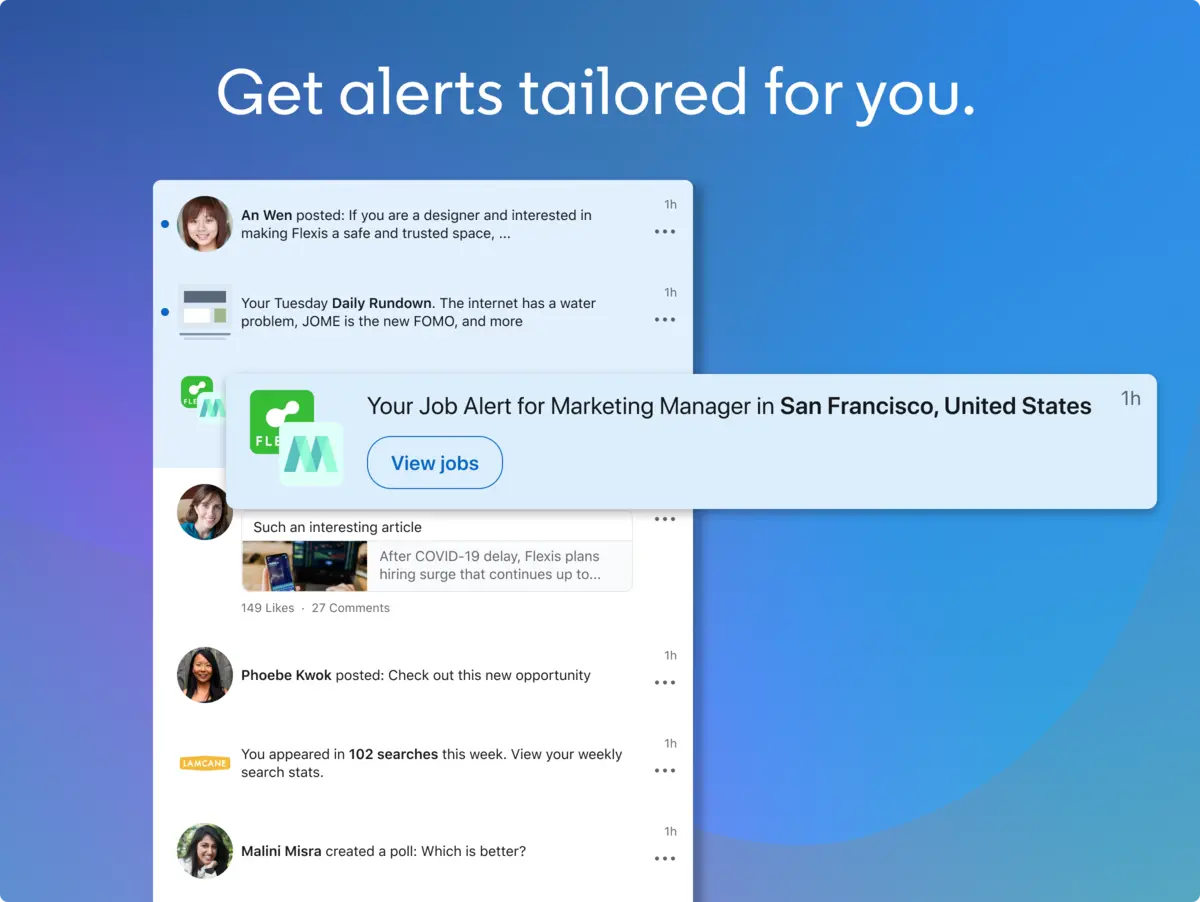
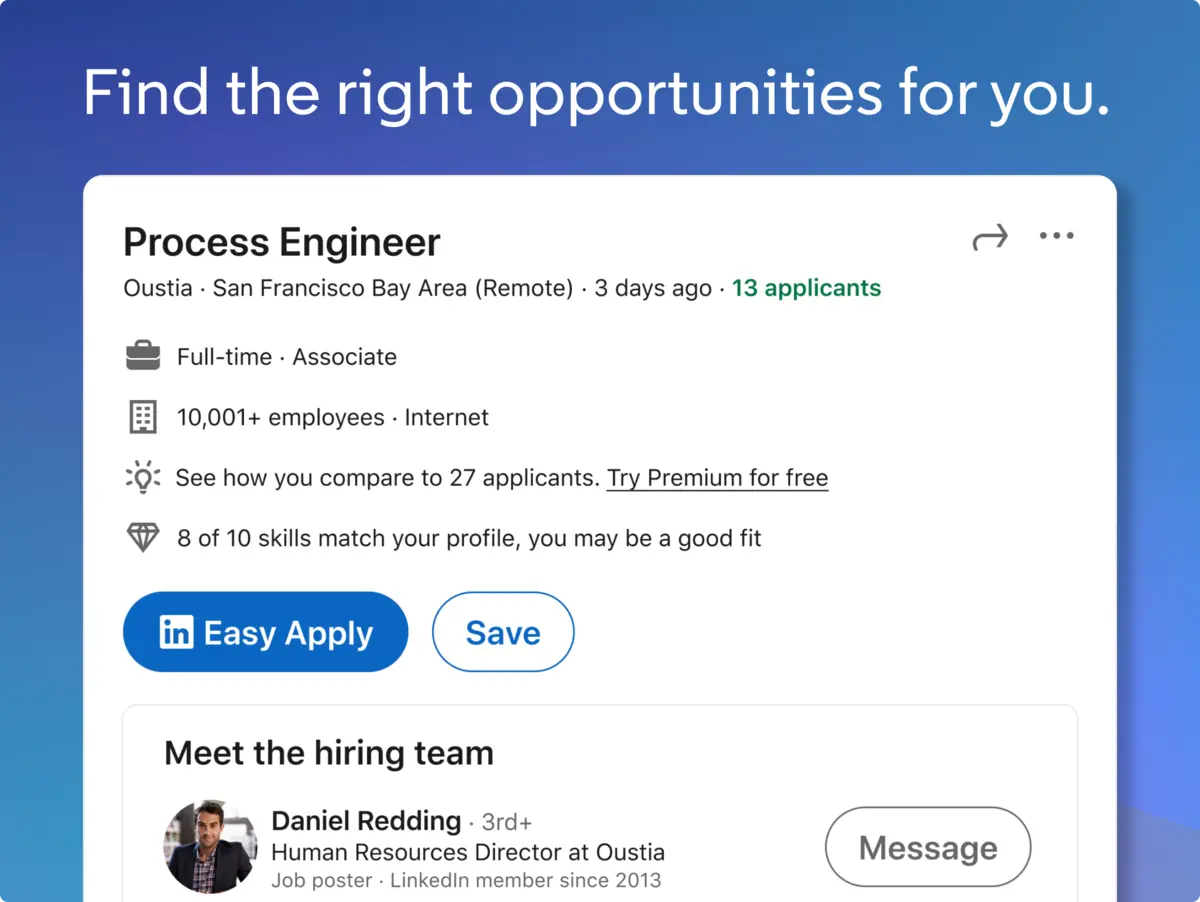
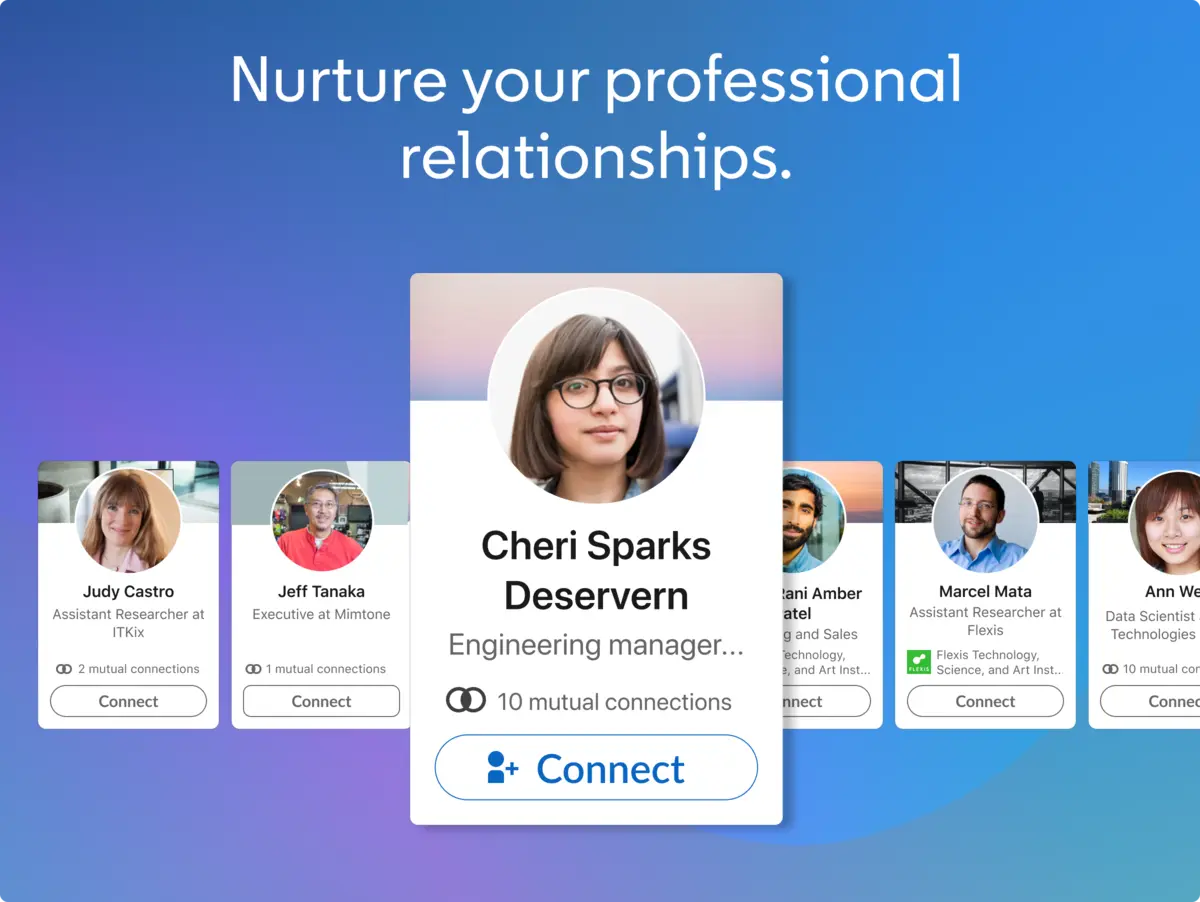
LinkedIn Screenshots


LinkedIn Beginner’s Video
Watch this quick guide to learn how to use LinkedIn on your PC:

System Requirements for LinkedIn on Windows
- OS: Windows 10 or 11 (64-bit)
- CPU: 1 GHz or faster
- RAM: 2 GB minimum
- Storage: 200 MB free
- Internet: Required for networking and jobs
LinkedIn on Windows FAQ
- Can I apply for jobs from the app? Yes, directly through listings.
- Does it sync with my phone? Yes, profile and messages stay linked.
- Is premium worth it? Yes, for job seekers or recruiters.
Support and Community
Explore More Windows Apps: Snapchat, Instagram, Messenger, Telegram, Reddit for PC