



Readers like you help support this site. When you make a purchase using links on our site, we may earn an affiliate commission. All opinions remain our own.


Malwarebytes Premium is a lightweight security tool that runs in the background on your Windows PC. It blocks viruses, stops ransomware, and keeps you off dangerous websites while you browse, work, or game without slowing anything down.
It goes beyond traditional antivirus with AI-powered scans, real-time threat blocking, and a Browser Guard extension that catches phishing sites and malicious ads before they load. Malwarebytes has been around since 2008 and runs on Windows 7 through 11, plus Mac, Android, and iOS.
This guide covers setup, key features, best settings, and common fixes. Have a question? Drop a comment below or contact us.
Get Malwarebytes Premium
14-day free trial included. 60-day money-back guarantee.
How to Install Malwarebytes Premium on PC
- Step 1: Visit the Malwarebytes Premium page and pick a plan.
- Step 2: Download the installer (about 250 MB) and run it.
- Step 3: Open the app and activate your subscription or start the 14-day trial.
- Step 4: Run a full Threat Scan from the Dashboard right away to catch anything lurking.
First thing to do after install
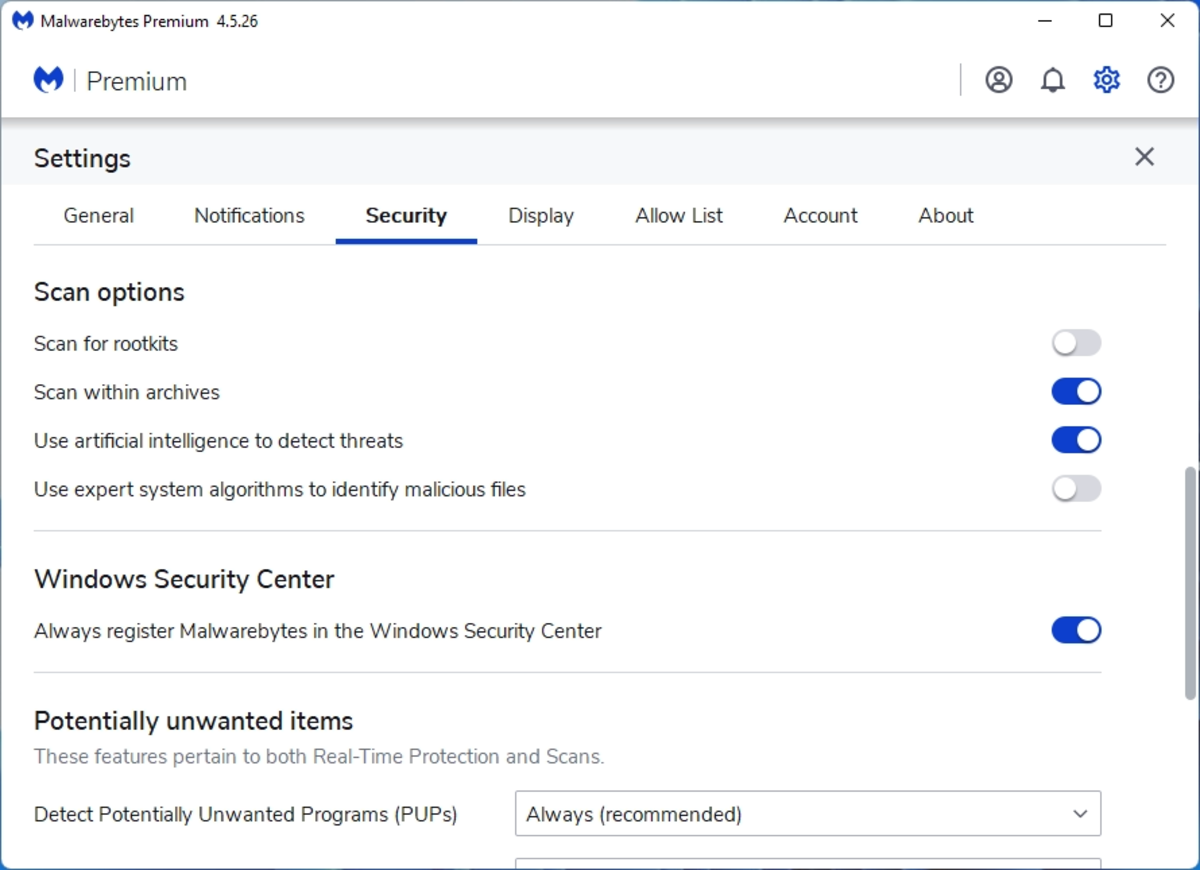
Run a full scan immediately. Then go to Settings > Security and schedule daily scans so threats get caught automatically.

Key Features
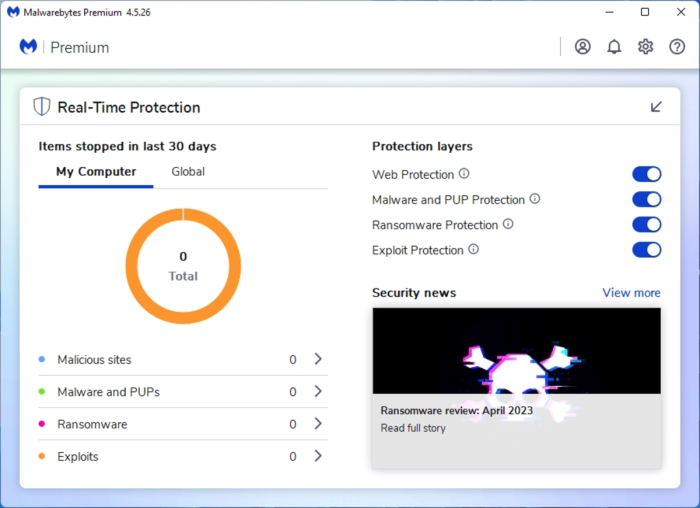
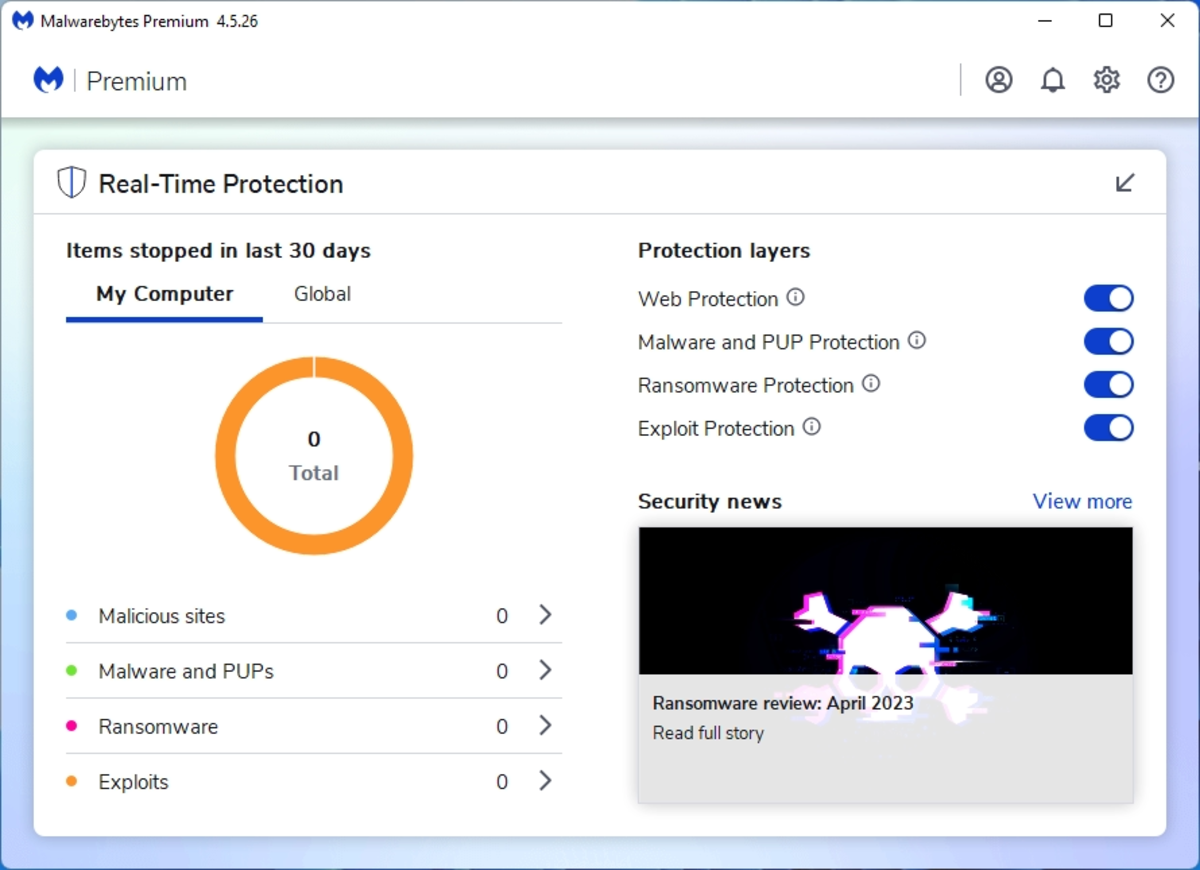
Real-Time Protection
Blocks malware, ransomware, and exploits as they happen. Runs in the background without interrupting your workflow.
AI-Driven Scans
Uses machine learning to detect zero-day threats and new malware variants before traditional signature-based tools catch them.
Browser Guard
Free browser extension that blocks ads, trackers, and phishing sites. Works in Chrome, Firefox, and Edge.
Lightweight Performance
Uses about 50% less CPU than competing security tools. You will not notice it running during gaming, video editing, or browsing.
Recommended Settings
1
Schedule Daily Scans
Go to Settings > Security and set a daily scan time. Pick a time when your PC is on but you are not actively using it.
2
Enable Web Protection
Turn on Web Protection in the Real-Time Protection panel. This blocks malicious websites before they load in your browser.
3
Turn on Auto-Updates
Go to Settings > General and make sure automatic updates are enabled. This keeps your threat database current against new malware.
System Requirements
| Spec | Requirement |
|---|---|
| OS | Windows 7, 8, 10, 11 (32 or 64-bit) |
| Processor | 800 MHz or faster |
| RAM | 2 GB minimum |
| Storage | 250 MB free space |
| Internet | Required for updates and real-time protection |
Common Issues and Fixes
Scans are running slowly
Switch to Hyper Scan mode for a faster check. Hyper Scan focuses on active threats and memory instead of scanning every file on your drive. Full scans are still recommended weekly.
The app will not open or is crashing
Download the latest installer from the official site and reinstall. Your subscription and settings are tied to your account, so you will not lose anything.
Web Protection keeps turning off
Go to Real-Time Protection in the settings panel and toggle Web Protection back on. If it keeps disabling itself, check if another security tool is conflicting. Malwarebytes works alongside Windows Defender, but some third-party antivirus tools may cause conflicts.
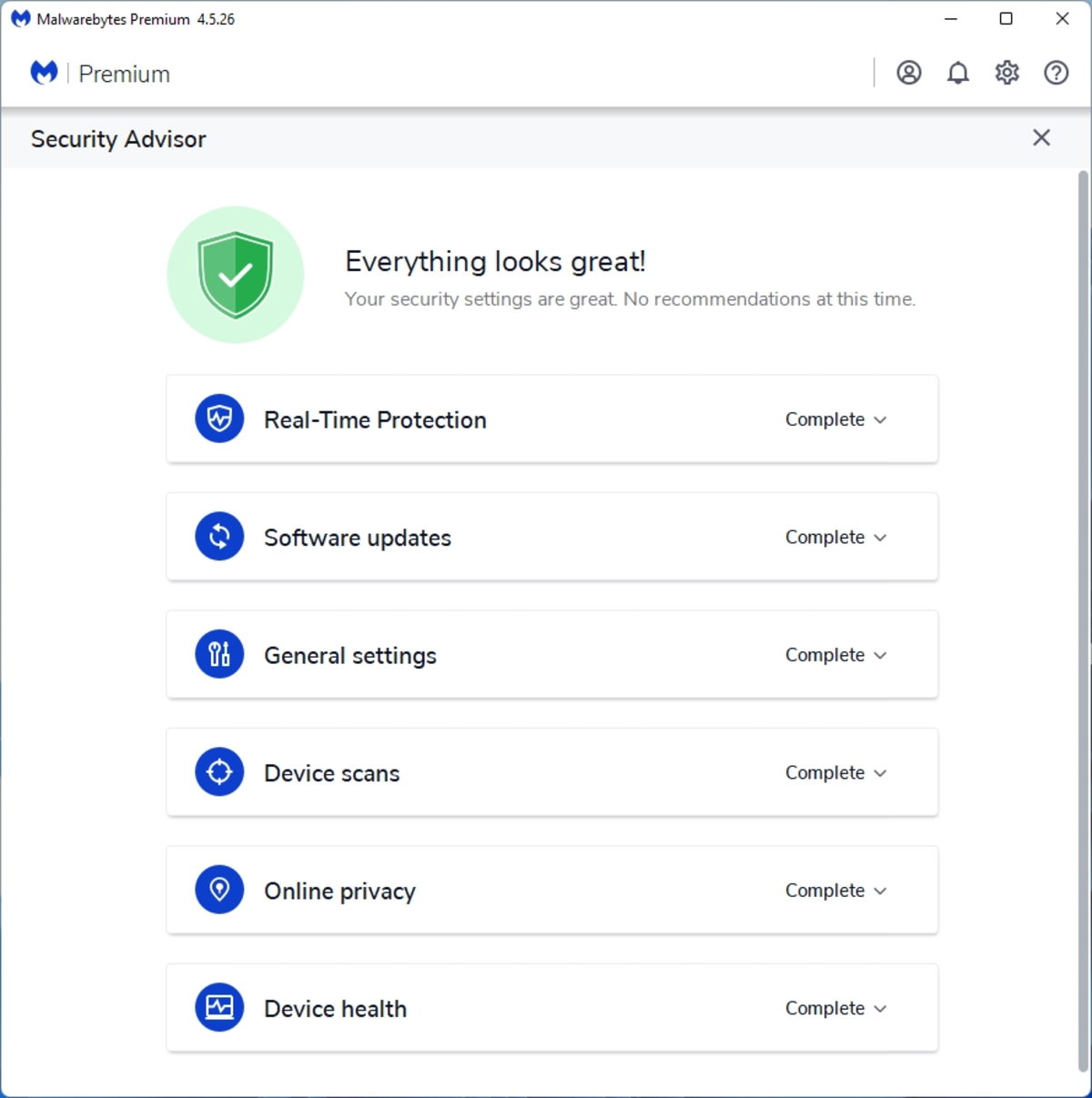
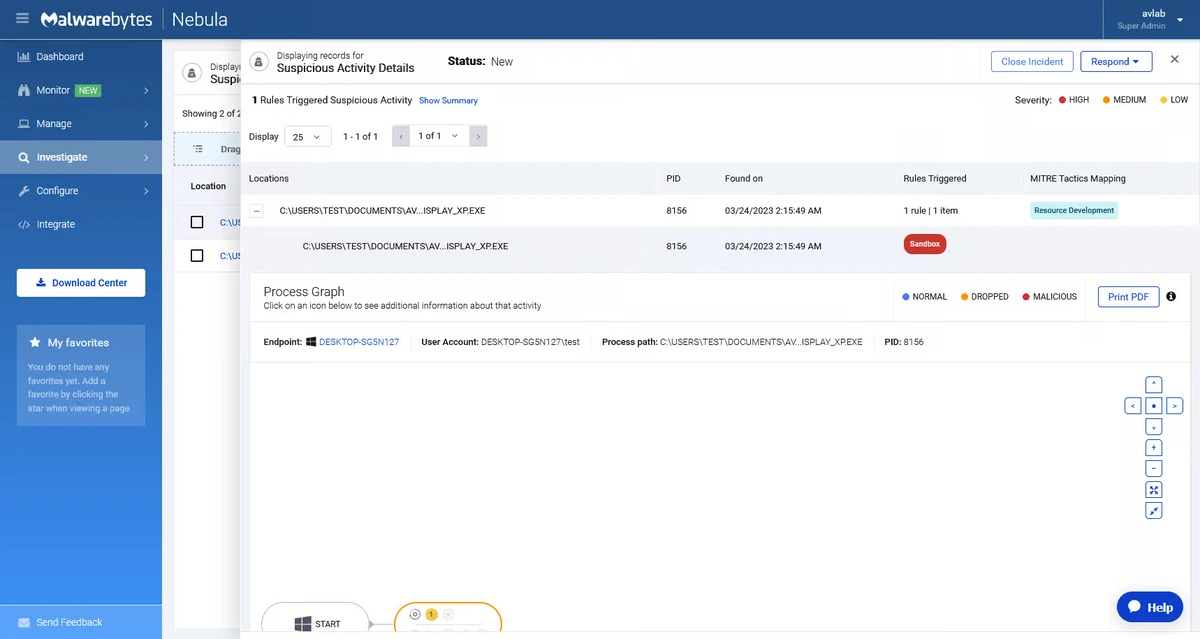
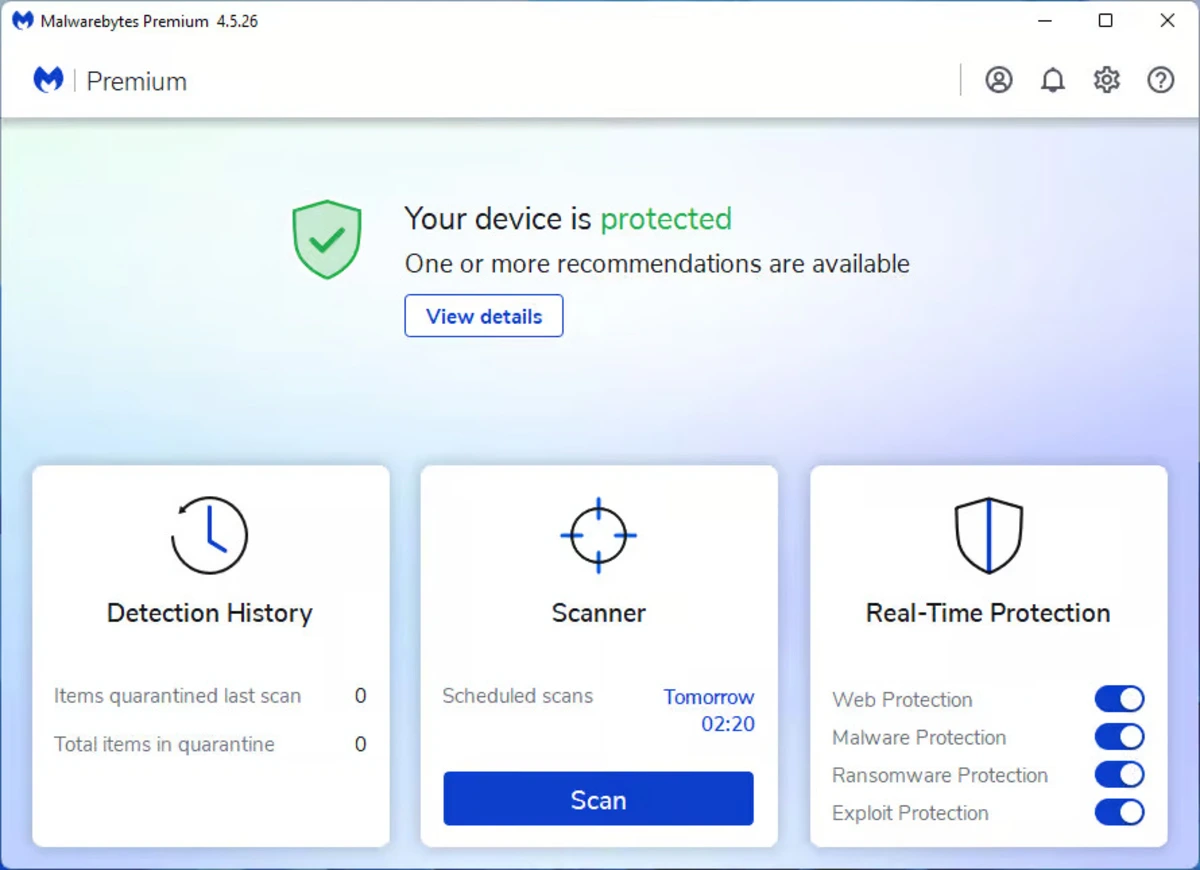
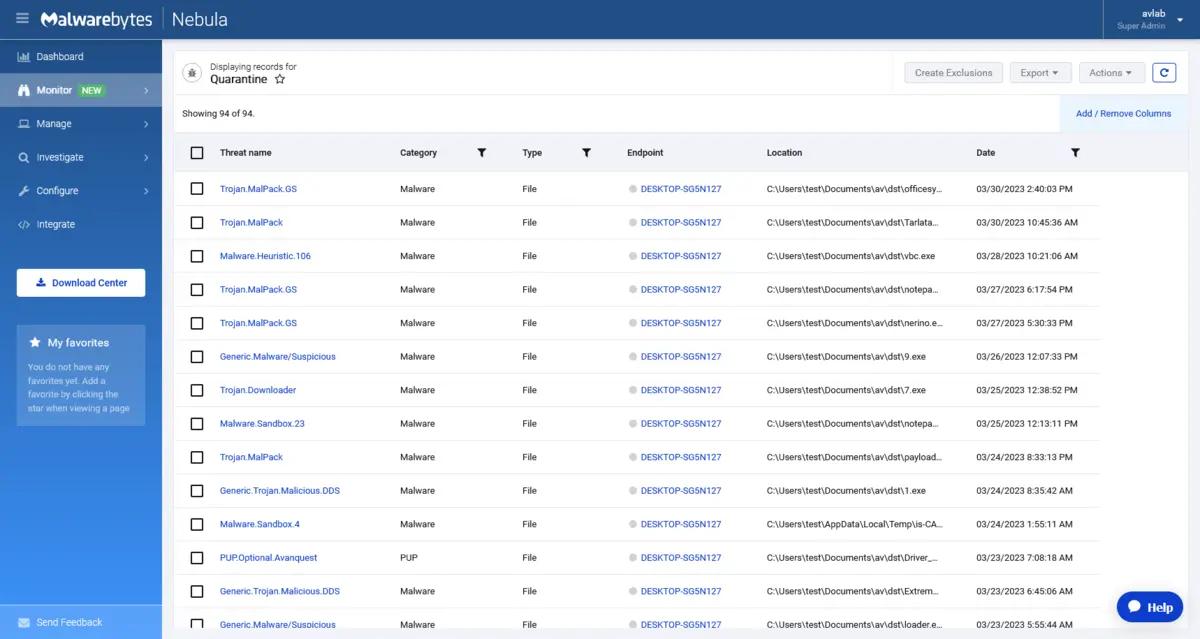
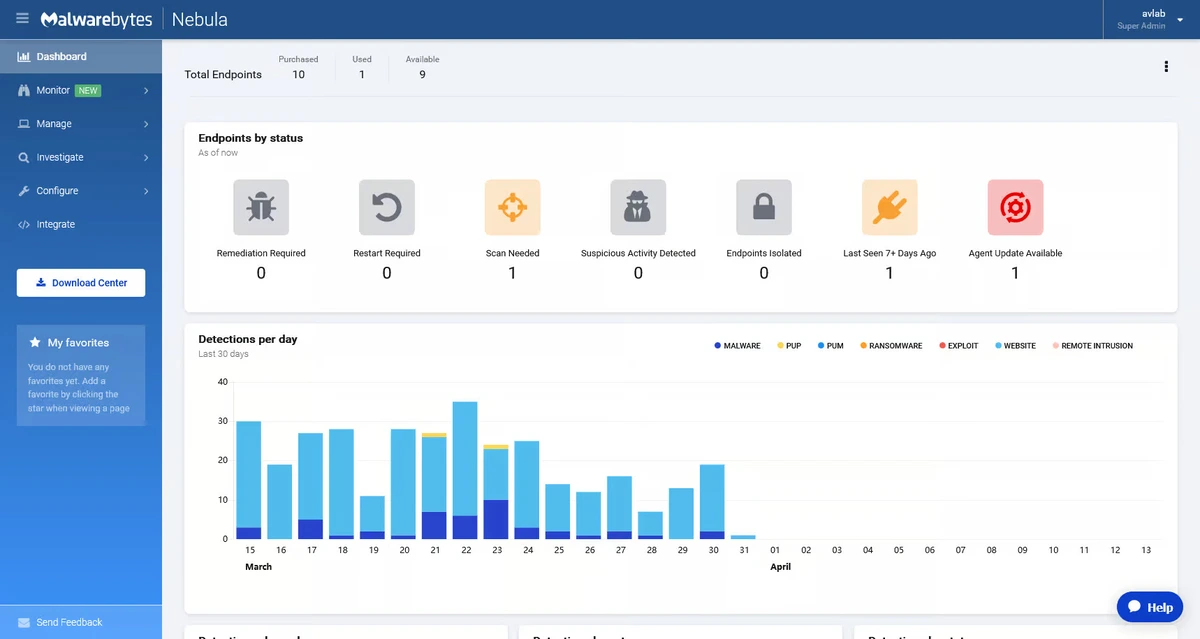
Malwarebytes Premium Screenshots
Malwarebytes Premium Setup Guide (Video)
Watch this quick walkthrough to learn how to install and use Malwarebytes Premium:

Frequently Asked Questions
Is Malwarebytes Premium better than free antivirus?
For most users, yes. Free antivirus tools scan for threats but do not block them in real time. Malwarebytes Premium runs in the background and actively stops malware, ransomware, and phishing attacks before they reach your PC. It also includes Browser Guard, which blocks malicious ads and scam websites.
Does it slow down my PC?
No. Malwarebytes is built to be lightweight and uses around 50% less CPU than many competing security tools. It runs quietly in the background and you should not notice any impact during browsing, gaming, or normal work.
Can I try it before buying?
Yes. Every install comes with a 14-day free trial of Premium features. After the trial ends, you can either subscribe or keep using the free version, which still allows manual scans but loses real-time protection.
Does it work alongside Windows Defender?
Yes. Malwarebytes is designed to run alongside Windows Defender without conflicts. Many users keep both active. Defender handles baseline Windows security while Malwarebytes adds real-time malware blocking, browser protection, and AI-driven threat detection.
What platforms does it support?
Malwarebytes works on Windows 7 through 11, macOS, Android, and iOS. Multi-device plans let you protect up to 5 devices across different platforms with a single subscription.
Is there a money-back guarantee?
Yes. Malwarebytes offers a 60-day money-back guarantee on all Premium plans. If you are not satisfied, you can request a full refund within that period.
Support and Community
Malwarebytes Supportsupport.malwarebytes.com
Reddit Community (r/Malwarebytes)reddit.com/r/Malwarebytes
Official Malwarebytes Websitemalwarebytes.com
Ready to protect your PC?
14-day free trial. 60-day money-back guarantee. Works alongside Windows Defender.
Related Guides: Best Antivirus for PC, Avast Premium Security, McAfee Antivirus for PC