

Readers like you help support this site. When you make a purchase using links on our site, we may earn an affiliate commission. All opinions remain our own.


You can download Microsoft Designer for free on your Windows PC via the Microsoft Store or access it instantly on the web, with optional premium features via Microsoft 365 subscriptions.
Developed by Microsoft, it works on Windows 10 and 11, trusted by users for its intuitive AI design suggestions.
If you’re a student, marketer, or small business owner creating visuals, you need a tool that’s fast and beginner-friendly.
This guide covers installing it on Windows, its key features, and tips to get started.
Share your favorite Designer creation below, or contact us for help.
How to Download & Access Microsoft Designer on PC
To get Microsoft Designer on your Windows PC, download it from the Microsoft Store or use the web version. Here’s how:
- Microsoft Store
- Visit the page: Microsoft Designer.
- Click Download to install the free app (about 200 MB).
- Launch from the Store or Start menu and sign in with a Microsoft account.
- Start designing with AI or templates.
- Web Version
- Visit the page: Microsoft Designer Web.
- Click Access and sign in with a Microsoft account.
- Create designs without installing anything.
- Save or share your work online.
Quick Tip: 💡 Use the AI image generator by typing a prompt like “vibrant poster for a café” to create visuals instantly.
Download via Microsoft Store | Access via Web


What is Microsoft Designer About?
Microsoft Designer, launched by Microsoft in 2023, is a free AI-powered design app for creating social media posts, invitations, graphics, and more.
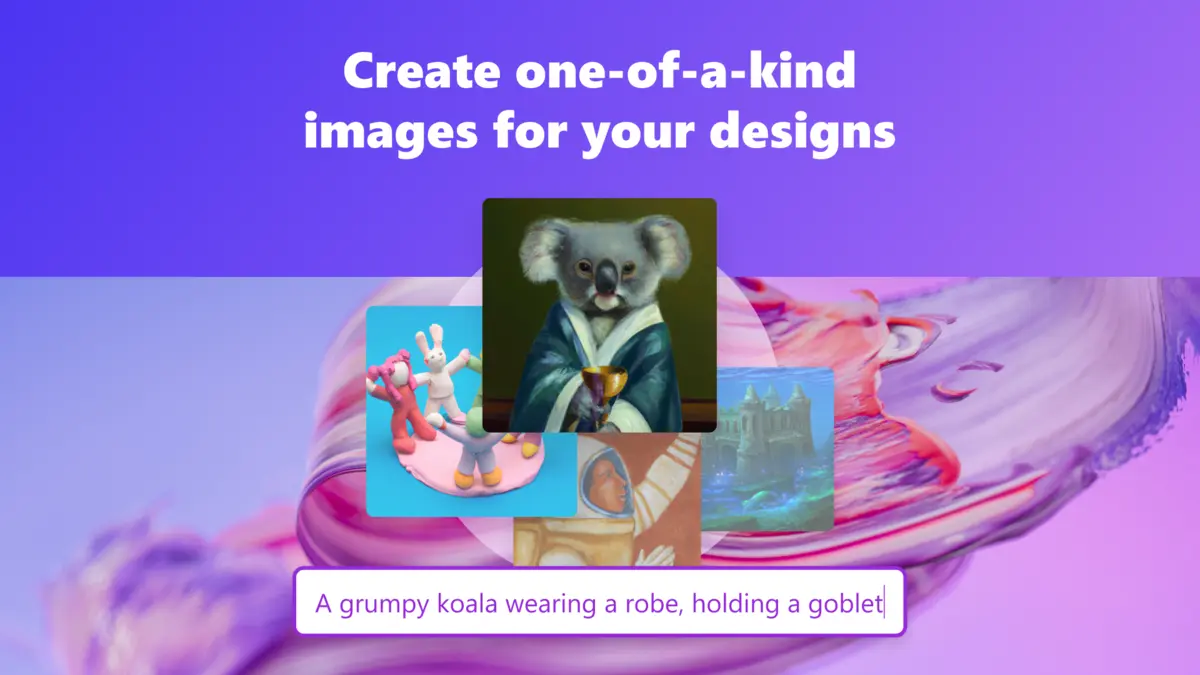
It uses DALL·E for AI-generated images and offers hundreds of templates.
Users on X praise its ease and Canva-like features but note occasional lag with complex designs.
It syncs across devices via Microsoft accounts and supports high-quality exports.
It’s ideal for quick, professional visuals without design expertise.
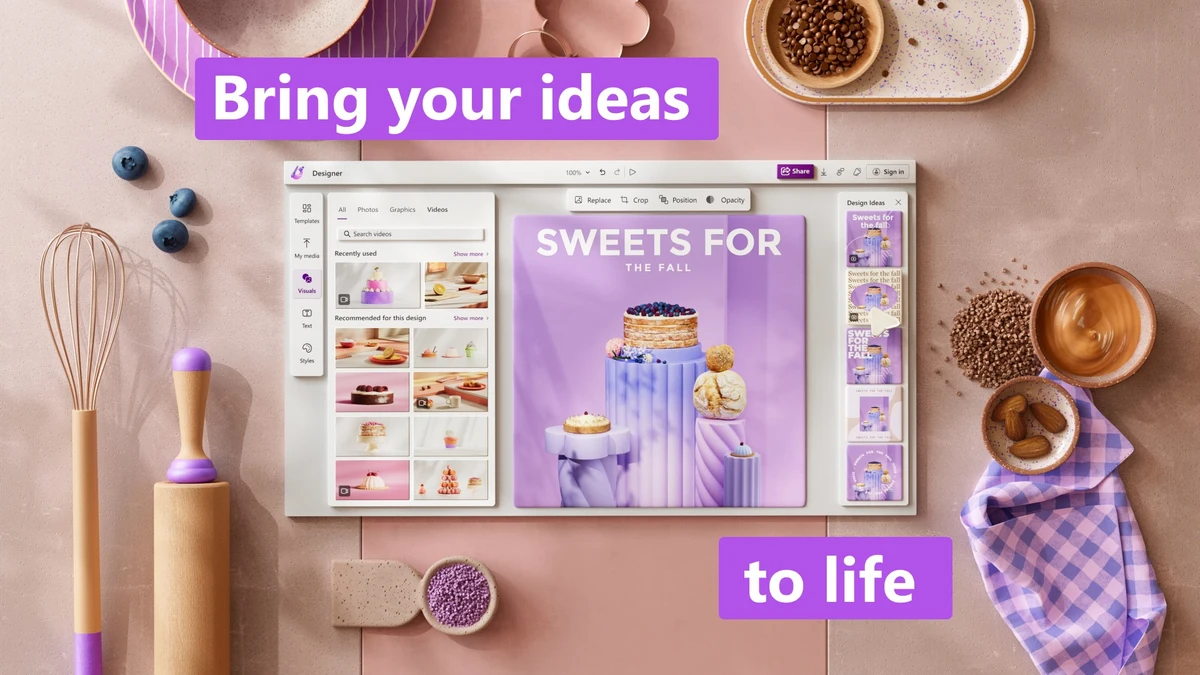
Core Features: Design stunning visuals with AI and templates.
Why Use Microsoft Designer on Windows?
It’s free, intuitive, and perfect for non-designers.
- Create visuals with AI-generated images via DALL·E
- Remove backgrounds from images in one click
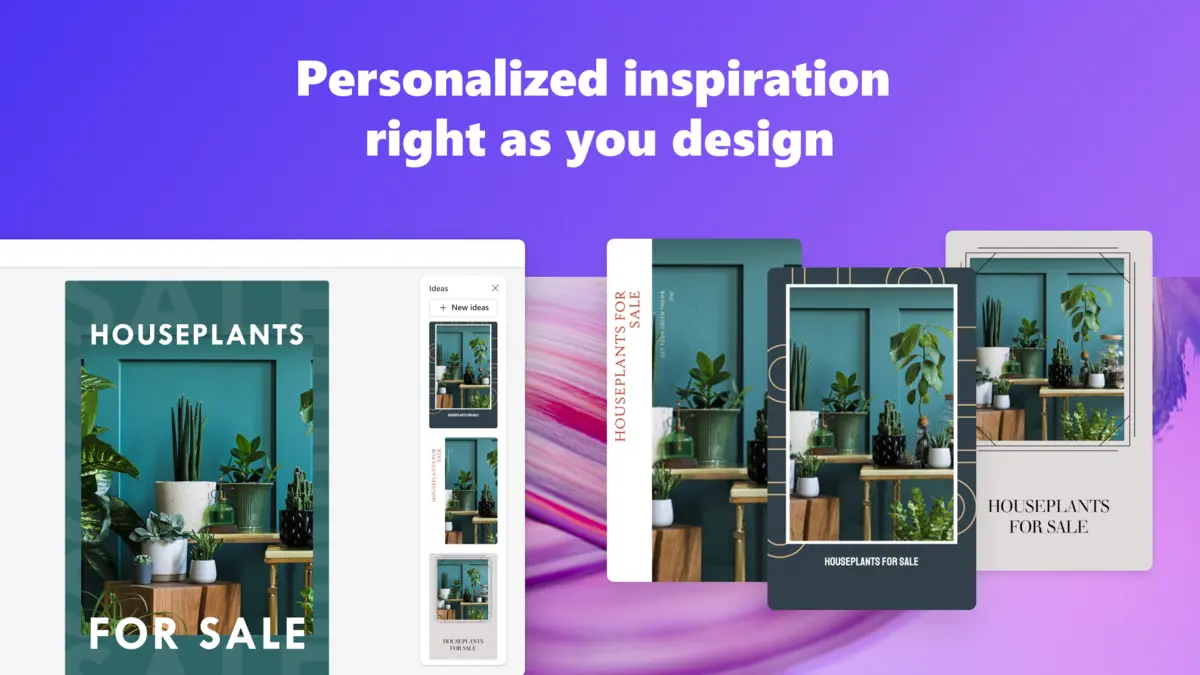
- Choose from hundreds of customizable templates
- Access fonts, icons, and shapes for unique designs
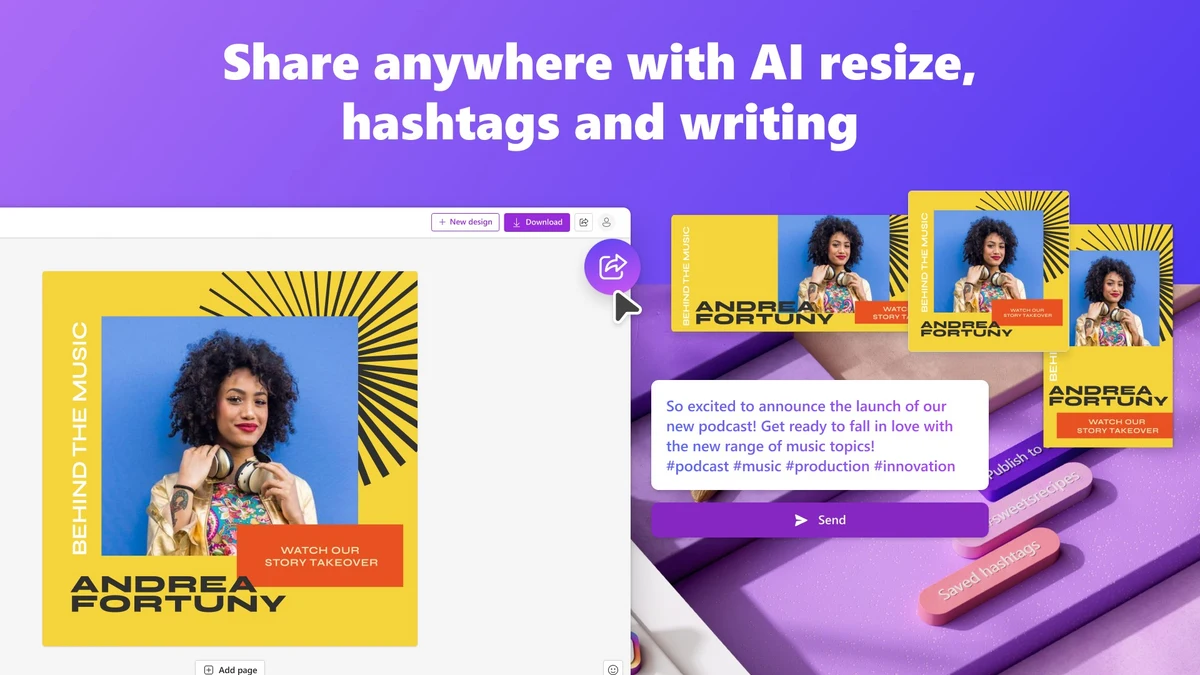
- Export in PNG, JPEG, or PDF, or share online
Popular Industries and Use Cases for Microsoft Designer
Designer is used across industries and tasks, including:
- Industries: Marketing (social media, ads), Education (presentations, posters), Small Business (flyers, logos)
- Use Cases: Designing Instagram stories, creating event invitations, crafting business cards, editing digital postcards
Quick Start Guide for Microsoft Designer
New to Designer? Get going quick:
- Pick a template for a social media post or invitation.
- Use AI to generate an image with a text prompt.
- Customize with fonts and colors, then export or share.
Best Settings for Microsoft Designer on PC
Tweak these for a better experience:
- Interface: Enable dark mode in Settings for easier viewing.
- Sync: Link your Microsoft account to save designs across devices.
- AI: Adjust AI image settings for higher detail output.
Common Issues & Fixes for Microsoft Designer
- Lag with Complex Designs: Simplify layers or update the app.
- Sign-In Issues: Verify Microsoft account or internet connection.
- Limited Templates: Upgrade to Microsoft 365 for premium options.
Microsoft Designer Screenshots
Microsoft Designer Beginner’s Video
Watch this quick guide to learn how to use Microsoft Designer for your PC:

System Requirements for Microsoft Designer on Windows
- OS: Windows 10 (version 19041.0 or higher), 11
- CPU: 1 GHz or faster
- RAM: 4 GB minimum, 8 GB recommended
- Storage: 1 GB free
- Other: Internet for AI features and syncing
Microsoft Designer on Windows FAQ
- Is Microsoft Designer free? Yes, with premium features via Microsoft 365.
- Can I create AI images? Yes, with DALL·E integration.
- Does it sync across devices? Yes, with a Microsoft account.
Support and Community
Explore More Windows Apps: Microsoft Copilot, Canva, ChatGPT, Best PDF Editors for Windows