

Readers like you help support this site. When you make a purchase using links on our site, we may earn an affiliate commission. All opinions remain our own.

Microsoft PC Manager is a free app from Microsoft that cleans up your Windows PC and keeps it running fast. It removes junk files, frees up memory with one click, and stops other apps from changing your browser or search settings without permission.
It is built for everyday users, not just tech-savvy ones. You do not need to understand what is running in the background. The app handles it and tells you what it did in plain language.
Already using it? Share your experience in the comments, or reach out to us directly.
What You Need to Know
- It is 100% free and works on Windows 10 and Windows 11.
- It actively cleans and speeds up your PC, unlike the PC Health Check App which only checks for problems.
- Since April 2025, some users have seen promotional content inside the app. You can turn this off in settings.
Price
100% Free
Developer
Microsoft
Windows
10 / 11
Install Size
~50 MB
How to Get Microsoft Manager on Windows
Microsoft PC Manager is available on the Microsoft Store. It is free and takes about a minute to install.
- Step 1. Go to the Microsoft PC Manager page on the Microsoft Store.
- Step 2. Click Get or Install. The app is about 50 MB.
- Step 3. Sign in with your Microsoft account if prompted, then wait for the install to finish.
- Step 4. Open the app from the Start menu and click Boost to run your first cleanup.

What is Microsoft PC Manager?
Microsoft PC Manager is a free app from Microsoft that keeps your Windows PC clean and fast. It frees up memory, removes files your PC no longer needs, and blocks other programs from changing your browser or search engine without asking you first.
It is aimed at everyday users who want their PC to run well without digging into settings or running manual checks. One click clears out the junk. Another shows you which large files are taking up space. You stay in control without needing to know how Windows works under the hood.
PC Manager vs. PC Health Check App
PC Manager cleans and speeds up your system. The PC Health Check App only checks whether your PC meets the requirements to upgrade to Windows 11. They are not the same tool, and one does not replace the other. If you want to upgrade Windows, also see the Windows 11 Upgrade Assistant or Windows 11 Installation Media.
Core Features Explained
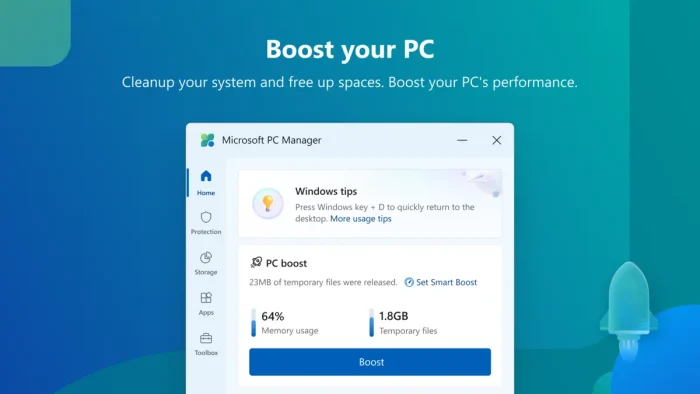
One-Click Boost
Frees up memory and stops background apps that are running for no reason. Your PC feels faster right away, especially if it slows down during normal use or gaming.
Storage Clean-Up
Finds and removes temporary files, old downloads, and items sitting in your recycle bin. This frees up space on your drive without you having to hunt for the files yourself.
File Management
Helps you find and delete large files taking up space. Useful if you keep getting low-storage warnings and are not sure what is filling up your drive.
Settings Protection
Stops other apps from changing your default browser or search engine without asking. If you have ever installed something and found your homepage changed afterward, this is the feature that prevents that.
🤔 Is This App for You?
✅ Best for you if:
- Your PC feels slow during normal use.
- You keep seeing low disk space warnings.
- You want a simple way to keep Windows clean without changing settings manually.
❌ Not for you if:
- You already manage your system with built-in Windows tools and do not need another layer.
- You use your own cleanup tools and prefer to keep it that way.
- Ads inside free software bother you and you do not want to deal with them.
Tips for Best Settings
These three settings make the biggest difference once the app is installed.
Turn on Auto-Boost
Find this in settings and turn it on. The app will automatically free up memory when your PC starts slowing down, so you do not have to remember to click Boost yourself.
Turn on Storage Sense
This makes the app delete temporary files on a schedule without you needing to press anything. Set it once and it runs quietly in the background.
Check the Ad Settings
Since April 2025, some users see promotional content inside the app. Go into settings and look for notification or recommendation options. Turning them off reduces what appears inside the interface.
System Requirements
| Requirement | Minimum Spec |
|---|---|
| Operating System | Windows 10 (version 1809 or higher) or Windows 11 |
| Processor | 1 GHz or faster, 32-bit or 64-bit |
| Memory (RAM) | 2 GB minimum, 4 GB recommended |
| Storage | 100 MB free space |
| Connection | Internet connection and Microsoft account required |
App Screenshots
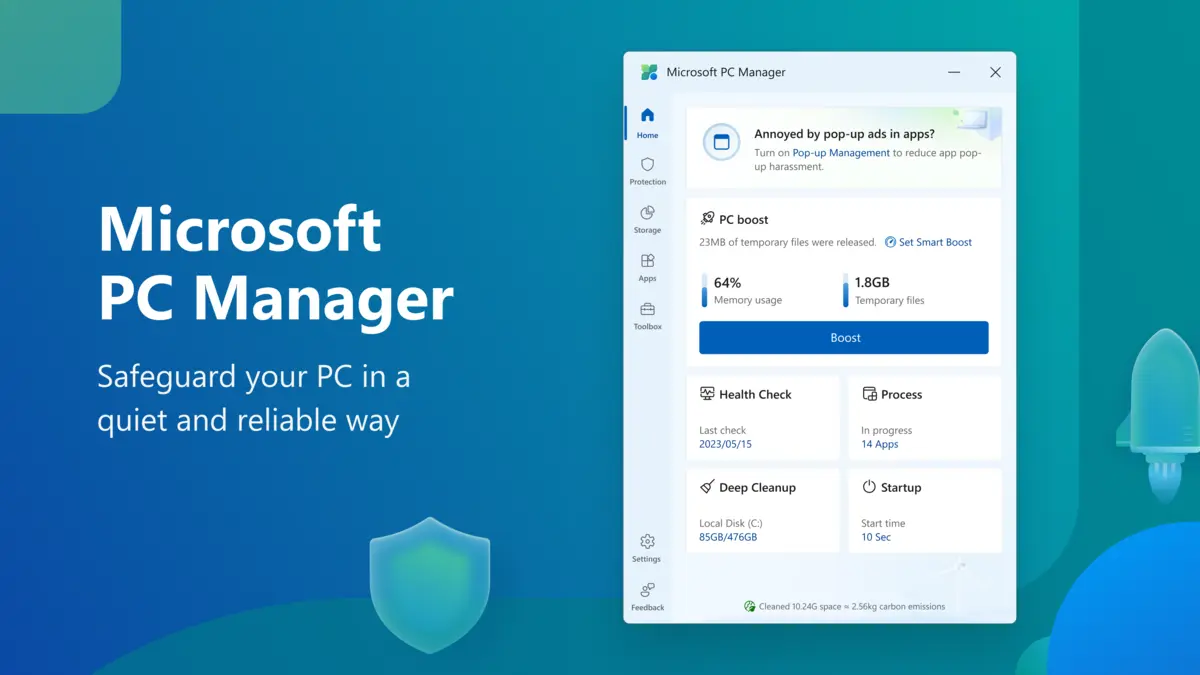
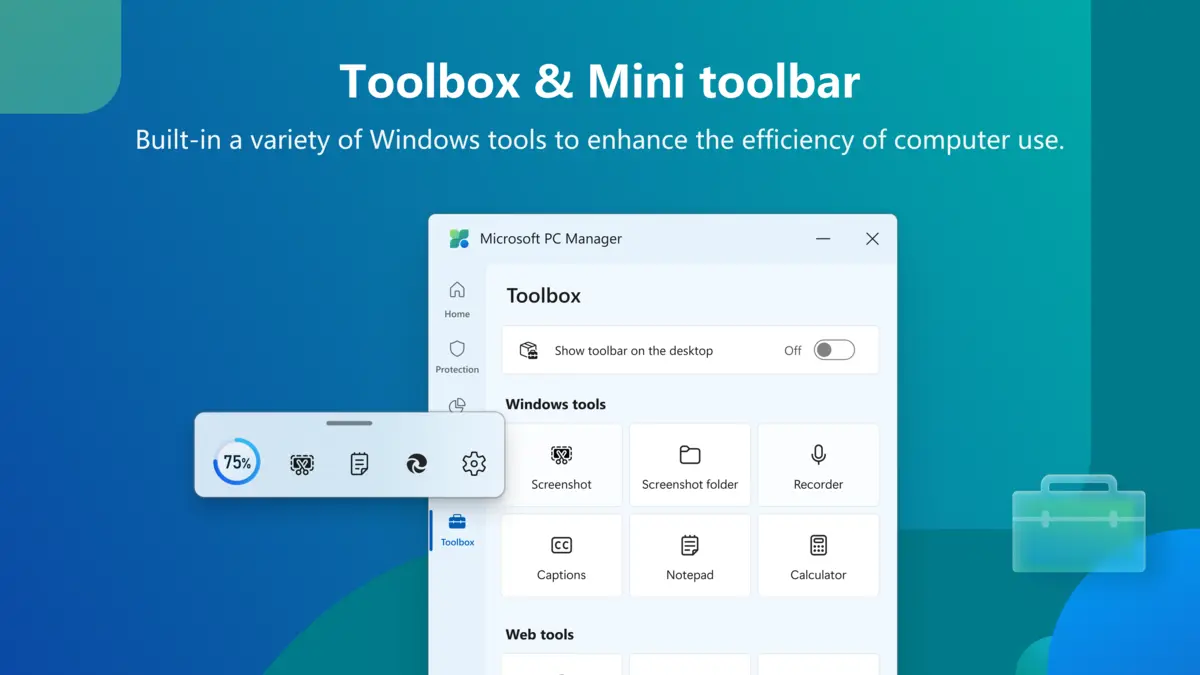
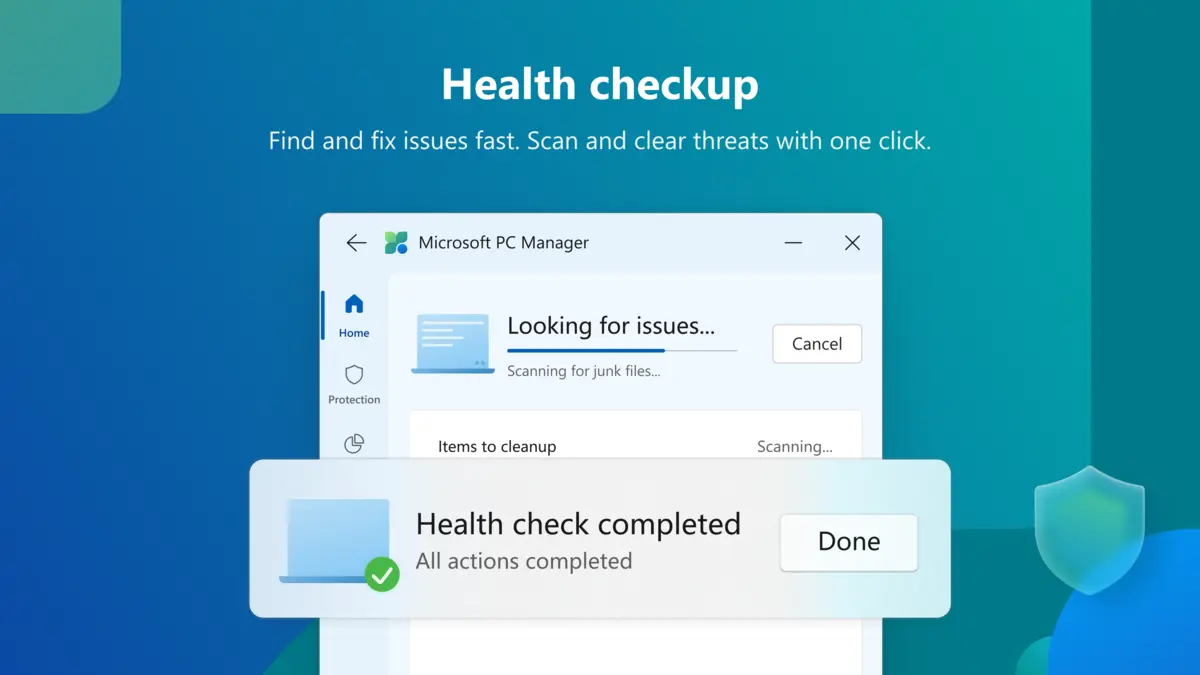
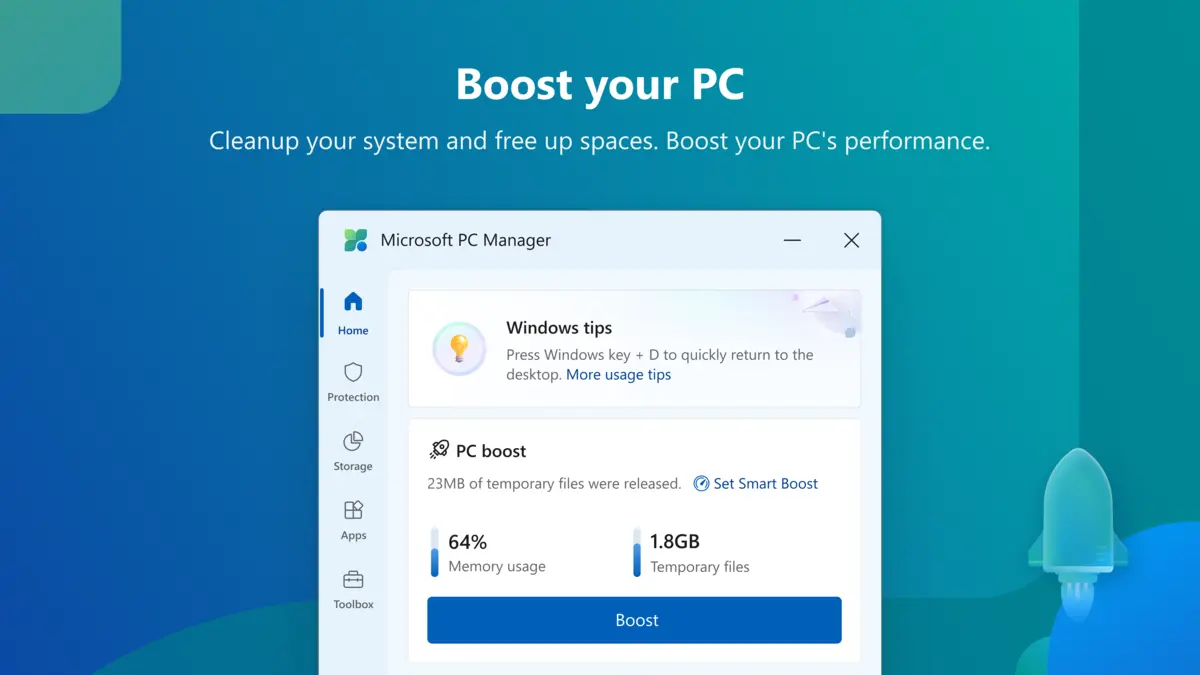
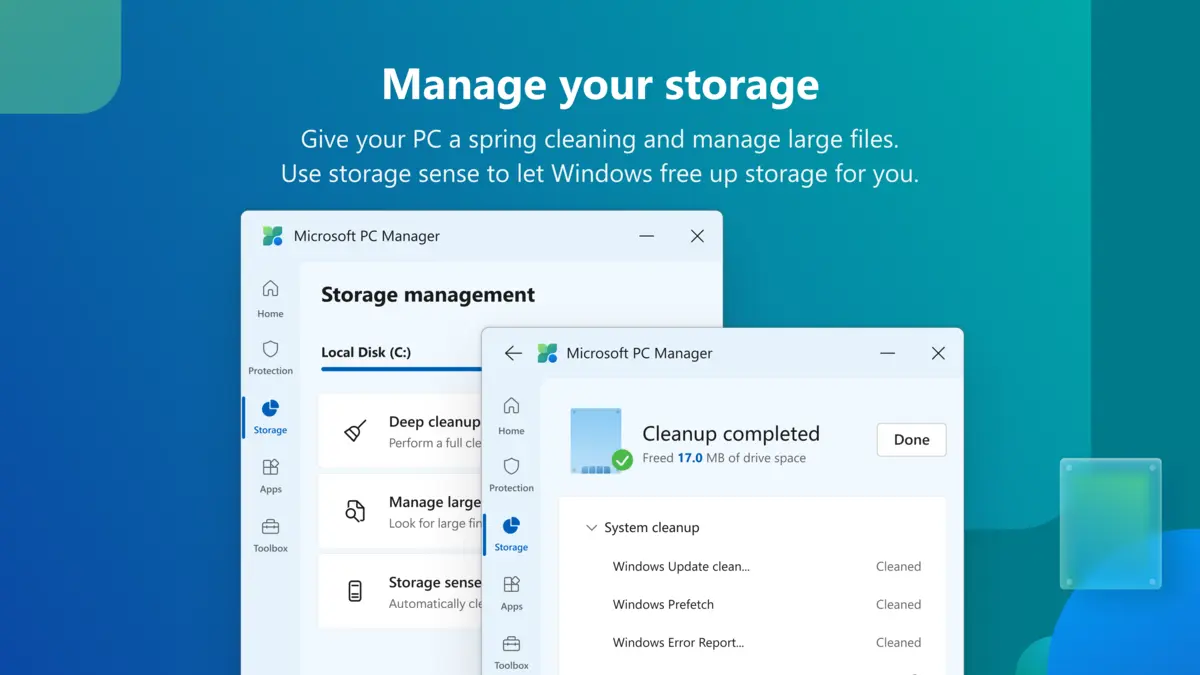
Microsoft PC Manger running on Windows 11 showing Toolbox, Storage management and the Health checkup feature.
Beginner’s Video Guide
Watch this quick guide to learn how to use Microsoft PC Manager on your PC.

Frequently Asked Questions
Is Microsoft PC Manager free?
Yes, it is completely free. Microsoft develops and distributes it at no cost.
Does the app show ads?
Since April 2025, some users have seen promotional content inside the app. You can reduce this through the app settings by turning off notification and recommendation options.
Is it better than the PC Health Check App?
They do different things. PC Manager cleans your system and frees up memory. PC Health Check only checks whether your PC meets the requirements to upgrade to Windows 11. One does not replace the other.
Does PC Manager slow down Windows?
No. The app is lightweight and runs in the background without any noticeable impact. The Boost feature actually frees up memory, which makes most PCs feel faster after running it.
Is Microsoft PC Manager safe to use?
Yes, as long as you download it from the Microsoft Store. It is made by Microsoft and does not send your files anywhere. Avoid downloading it from third-party websites, as some host fake versions.
Support and Community
- Official Microsoft Support
- r/Windows11 on Reddit (community discussions, tips, and troubleshooting)
Explore More Windows Apps: Windows 10 Update Assistant · Windows 10 Installation Media · Windows Terminal