Readers like you help support this site. When you make a purchase using links on our site, we may earn an affiliate commission. All opinions remain our own.
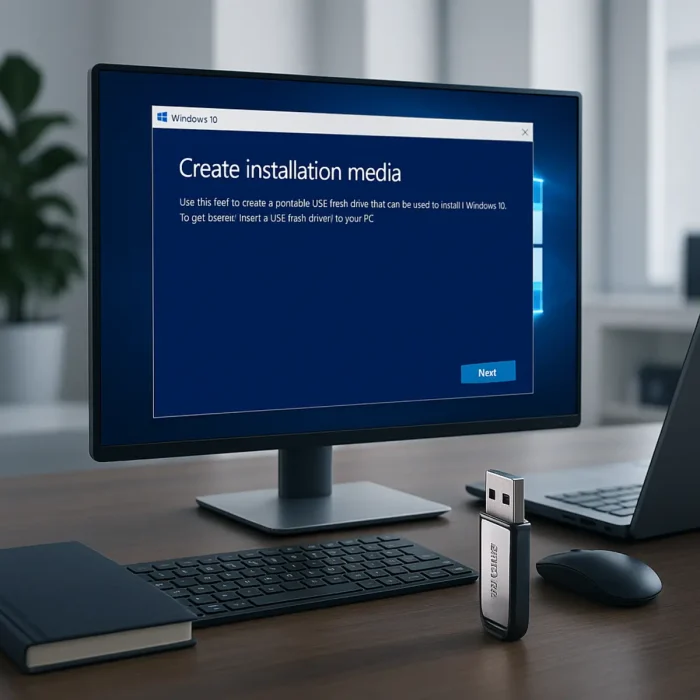
The Media Creation Tool builds a bootable Windows 10 USB drive or ISO for free.
The Windows 10 Media Creation Tool is Microsoft’s free app for making Windows 10 installation media, available from Microsoft’s official download page. It builds a bootable USB drive or an ISO file you can use to install, reinstall or repair Windows 10 22H2, the final version.
Windows 10 support ended on October 14, 2025, so a fresh install no longer gets security fixes unless you join Extended Security Updates, which Microsoft runs until October 12, 2027. If your PC can run it, the Windows 11 Media Creation Tool is the better choice.
Share your tips in the comments, or contact us if you get stuck.
Price
Free
Straight from Microsoft
You need
8 GB USB
Or a blank DVD. It gets erased
Installs
Windows 10 22H2
64-bit or 32-bit
Best for
Reinstalls
And repairing older PCs
How to Create Windows 10 Installation Media
Back up anything on the USB drive first, because the tool erases it. Then:
Open Microsoft’s Windows 10 download page and select the download button under Create Windows 10 installation media.
Run the tool as an administrator and accept the license terms.
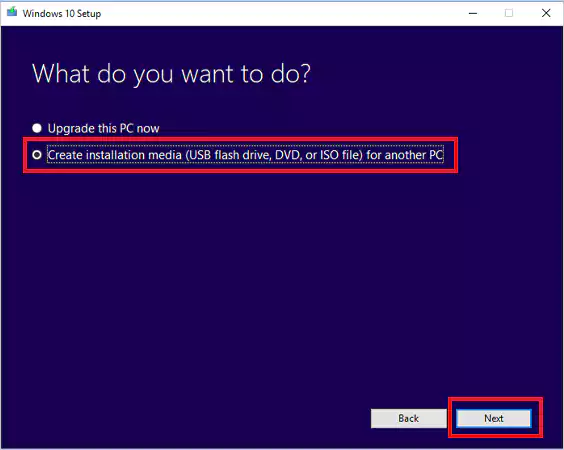
Select Create installation media for another PC, then Next.
Pick the language, edition and architecture. Choose 64-bit unless the target PC only supports 32-bit.
Choose USB flash drive and select your drive, or ISO file to save it for later.
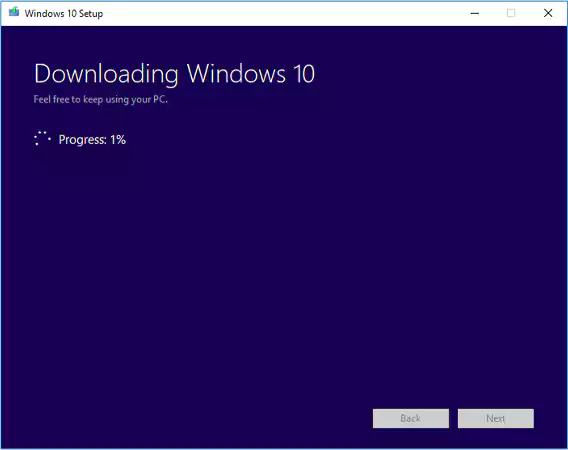
Wait for the download and build to finish, then select Finish.
The Media Creation Tool builds the USB drive or ISO for you.
To install, plug the drive into the target PC, start it and open the boot menu (usually F12, F11 or Esc at startup, depending on the maker). Pick the USB drive and follow the setup screens. Prefer to download the ISO directly? See our Windows 10 ISO guide.
Before You Start
Microsoft lists a few things to check on the PC you will install Windows 10 on.
Match the language
Pick the same language the PC uses now. You can find it in Settings > Time & Language.
Match the edition
Choose the edition the PC already has, such as Home or Pro. Windows 10 Enterprise is not available in this tool.
Check 64-bit or 32-bit
See Settings > System > About, under System type, and build media for that processor type.
Your product key
Reinstalling on a PC that already ran an activated Windows 10? You do not need to enter a key. It activates on its own once online.
What Is Windows 10 Installation Media?
Installation media is a USB drive or DVD that holds a full copy of Windows. Because it can start a PC on its own, it lets you install Windows 10 on an empty drive, wipe and reinstall a slow PC, or reach repair tools when Windows will not load.
To upgrade the PC you are on instead, the Windows 10 Update Assistant is simpler. Moving to Windows 11? Use the Windows 11 Installation Assistant.
When to Use It
Reinstall Windows 10
Wipe the drive and start over with a clean copy, with none of the old clutter or maker’s extra apps.
Repair a broken PC
Start from the USB drive to reach Startup Repair, System Restore and other recovery tools.
Set up an older PC
PCs that cannot run Windows 11 can still run Windows 10, as long as you plan for the end of security updates.
Keep a spare copy
Save the ISO for a virtual machine or for a future reinstall.
Tips for Getting Started
Use a USB 3.0 drive
It makes both building the drive and installing Windows much faster.
Stay connected
The tool downloads all of Windows 10, so use a stable connection and keep laptops plugged in.
Save the ISO too
Choosing ISO file keeps a copy you can reuse later without downloading again.
Burning a DVD?
If the ISO is too large for a standard DVD, Microsoft says to use a dual-layer DVD.
Common Issues and Fixes
USB drive not detected
Try another USB port or another drive, and unplug other USB storage while the tool runs.
Windows is not activated
Connect to the internet after installing so the digital license can activate, or enter your product key in Settings > Update & Security > Activation.
Slow download
Use a wired connection and close other apps that are downloading.
The tool will not start
Right-click it and select Run as administrator, and check your antivirus is not blocking it.
Screenshots
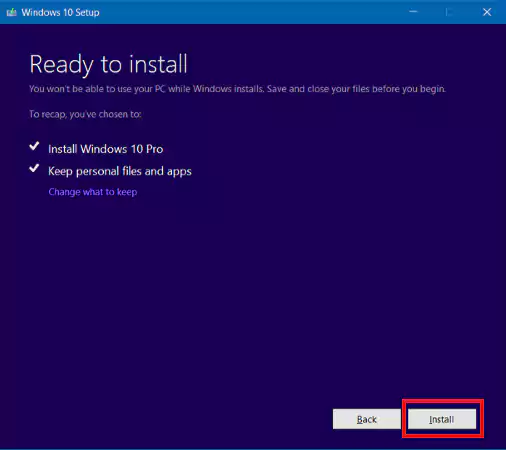
The tool’s screens, from the license terms to picking a USB drive.


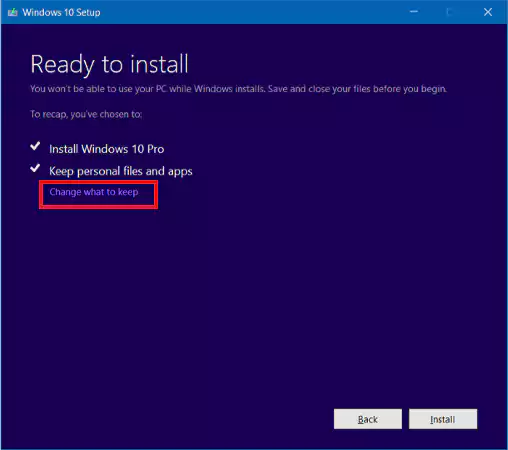
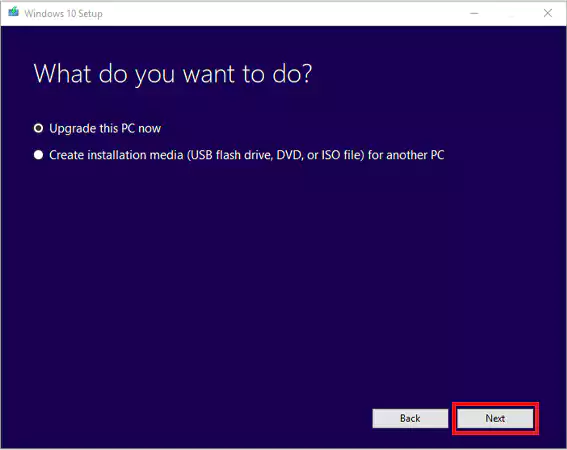
Watch: Create Windows 10 Installation Media
This video walks through building Windows 10 installation media and doing a clean install.
What You Need
Frequently Asked Questions
Is Windows 10 Installation Media free?
Does the media still work after support ended?
Can I get Windows 10 Enterprise with it?
Support and Community
Get help on Microsoft Support, read more on the official Windows site, or ask other users on r/Windows10.
More Windows software guides: Windows 10 ISO · Windows 10 Update Assistant · Windows 11 Media Creation Tool · Upgrade to Windows 11 · PC Health Check
Discover more from Windows Mode
Subscribe to get the latest posts sent to your email.













Add your first comment to this post