Readers like you help support this site. When you make a purchase using links on our site, we may earn an affiliate commission. All opinions remain our own.
Grok Bot is xAI’s AI agent product, giving you named AI teammates with their own jobs and their own cloud computer.
You message a Bot much like you would message a coworker, and it can handle multi-step work across real apps and websites instead of simply handing you a draft to finish yourself.
What separates it from a normal AI chat window is persistence. A Bot runs on a cloud computer with its own browser, filesystem and terminal. It can continue working after you close the app and return when something genuinely needs your input.
Grok Bot launched in beta in August 2026 and has native apps for Windows, macOS and Linux, with mobile access on iOS and Android. You can sign in using an eligible Cursor or SuperGrok account.
This guide explains how to get Grok Bot on Windows, what it can do, how it works and how much it costs. If you have a question before setting it up, reach out to us directly.
What You Need to Know
- A Bot has its own computer. Work can continue in the cloud after you close the desktop app, your laptop or your phone.
- You set it up by messaging it. Describe the job, grant access to the tools it needs and let it work.
- Grok Bot requires a paid plan. Access is available through eligible Cursor or SuperGrok subscriptions.
What Is Grok Bot?
Grok Bot is xAI’s app for creating named AI agents that can carry out work for you. Each Bot can have its own job description, memory and persistent cloud computer, and you authenticate using an eligible Cursor or SuperGrok account.
That computer includes a browser, filesystem and terminal. A Bot can also use computer controls to click, type and move through websites and apps, allowing it to work with services that do not have dedicated plugin support.
Setup happens through conversation instead of a visual workflow builder. You create a Bot, describe its job and grant access as required. You can then check its progress from the Windows app or mobile app when it needs approval or a decision.
Key Features
Grok Bot is built around persistent AI agents rather than disposable chat sessions. These are the capabilities that make the biggest difference.
Its Own Computer
Every Bot runs on a persistent cloud computer with its own browser, filesystem and terminal, so work can continue after you close your laptop.
Message-Based Setup
Create a Bot, describe its job and grant access when requested. No workflow builder is required.
Multi-Bot Coordination
Bots can run in parallel, share context, message one another and hand work between agents.
Skill Learning
Walk a Bot through a task and it can save the process as a reusable skill for later use or scheduling.
Persistent Memory
A named Bot keeps relevant memory, files, browser sessions and preferences rather than starting from scratch every time.
Approval Checkpoints
A Bot can work independently but stop when something requires a human decision or explicit permission.
How to Get Grok Bot on Windows
Grok Bot is available as a standalone desktop app. You do not need Cursor installed first, but you do need an eligible Cursor or SuperGrok account to sign in.
1 Go to x.ai/bot and open the downloads page.
2 Choose the Windows build that matches your PC, either x64 or Arm64. Check Settings > System > About > System type if needed.
3 Run the installer and open Grok Bot from the Windows Start menu.
4 Sign in using your Cursor account or connect an eligible SuperGrok subscription.
5 Create your first Bot and give it a clear name and defined job.
6 Send the Bot its first task and approve any required sign-ins or permissions while it works.
Note: Download Grok Bot from its official x.ai/bot page. Native versions are also available for macOS and Linux, with mobile access on iOS and Android.
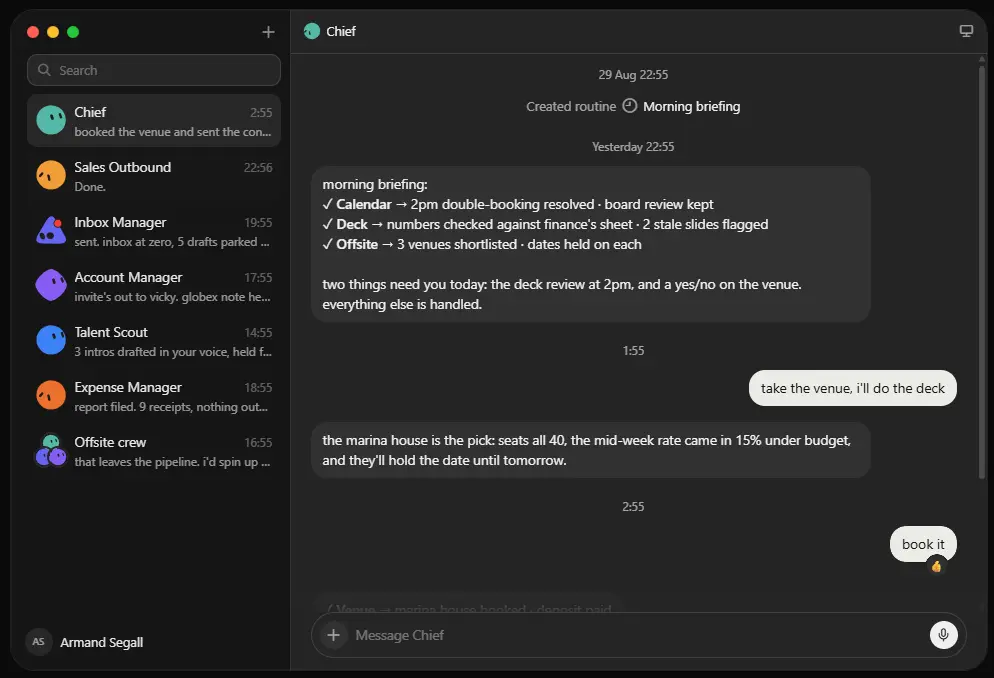
Picture: Grok Bot in action with a created custom routine.
What Can You Use Grok Bot For?
Grok Bot can handle jobs across sales, hiring, finance, engineering and operations. These examples show the types of recurring work an agent can take on.
Research accounts, score potential leads and prepare personalized outreach for review before anything is sent.
Find and research candidates, then prepare personalized outreach without contacting anyone automatically.
Collect campaign performance data and recommend budget changes using the underlying numbers.
Match receipts with charges, prepare reports and flag transactions that do not line up.
Reproduce reported bugs in a staging environment and return the exact steps, evidence and screenshots.
Combine usage, support and renewal data into a prioritized watch list with supporting evidence.
Investigate issues such as slow checkout and prepare a report backed by the information it finds.
Review activity across chat, email and calendar and surface the items that actually require a decision.
The same pattern applies to all of them: give a Bot a defined job, connect the tools that job requires and clearly state which actions it must ask about before proceeding.
Grok Bot vs a Regular AI Chat Assistant
If you already use ChatGPT or Claude Desktop, this is the comparison that matters. All three can take actions, but Grok Bot is built around persistent named agents rather than a single conversation window.
A regular AI assistant generally waits for your next message inside a chat. Grok Bot’s main difference is persistence and identity: each Bot has a name, a defined job and its own computer that can continue running tasks or scheduled routines after you move on to something else.
ChatGPT picked up the same idea later. At its DevDay event in September 2026, OpenAI announced dots, always-on ChatGPT agents with their own cloud computer. We compared the two in our OpenAI dots breakdown.
Manus joined the same race with its 2.0 release, but it leans toward finished work, like websites, slide decks and videos, rather than a standing assistant. See our Manus for Windows guide for how the three compare.
If you mainly need quick answers, research or drafts, a standard chat assistant is simpler. Grok Bot makes more sense when a job repeats, spans several tools or genuinely needs to keep running while you are away from your PC.
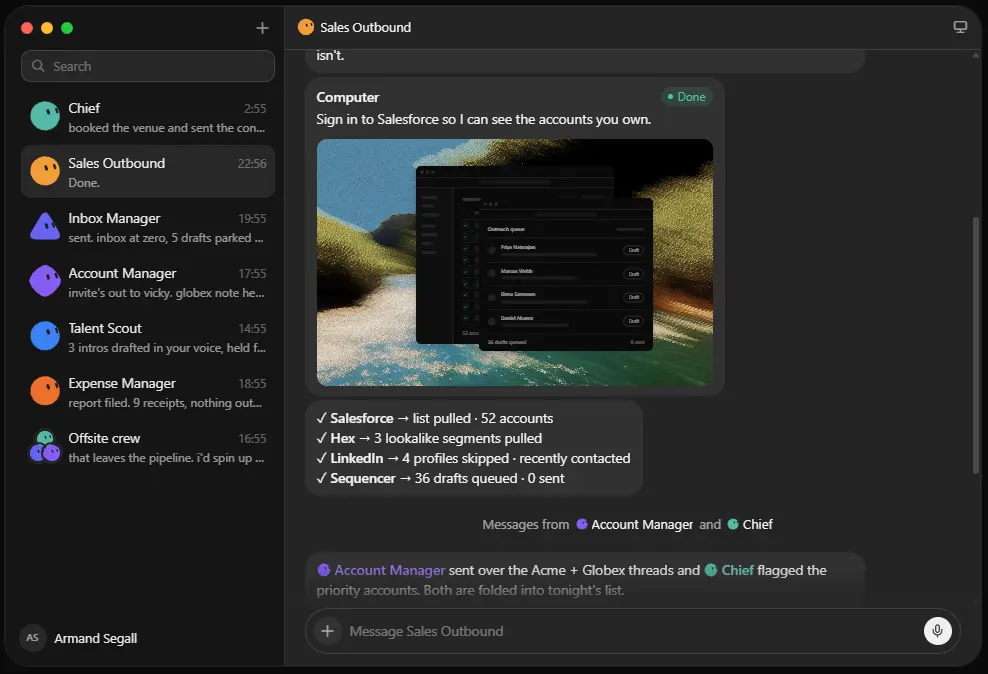
Picture: Grok Bot using it’s own computer to access a Salesforce account.
Is Grok Bot Safe?
Grok Bot performs its work on its own cloud computer rather than directly on your Windows PC. Bots associated with one account cannot simply browse another account’s files, logins or browser sessions.
The larger consideration is access. Only connect the accounts a Bot genuinely needs, review sign-in prompts and set clear limits for sensitive actions such as sending messages, spending money or making important changes.
Plans and Pricing
Grok Bot does not have a separate standalone subscription. Access is available through eligible Cursor plans or through supported SuperGrok subscriptions from xAI. You only need one qualifying route.
Cursor Pro · $20/month
Based on the plans listed above, Cursor Pro is the cheapest individual entry point at $20 per month. Higher tiers mainly provide larger usage allowances alongside the other benefits included with those subscriptions.
Enterprise access is rolling out separately. Because AI subscription pricing changes frequently, check x.ai/bot or your Cursor billing page before paying for a plan.
Tips for Getting Started
1 Start with one narrow job. A Bot assigned to a specific task such as expense reconciliation is easier to supervise than one told to help with everything.
2 Give the Bot a specific name. Names tied to roles become easier to manage once several Bots are running.
3 State what it must never do without permission. This can include sending messages, spending money, deleting data or changing important settings.
4 Turn successful tasks into reusable skills. Once a Bot handles a process correctly, save the steps rather than explaining everything again.
5 Use scheduled routines for predictable work. Recurring reports and regular checks are where persistent agents become more useful than normal chat sessions.
See Grok Bot for Windows in Action
Watch the official walkthrough showing a Grok Bot agent being created and used from start to finish.
Screenshots
A look at the Grok Bot interface, including the agent switcher and Bots working through tasks.
-
- Grok bot windows app sidebar empty chat from
-
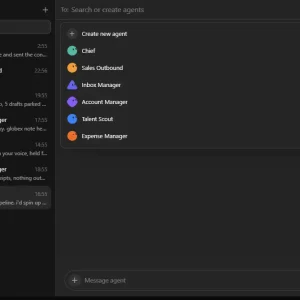
- Grok bot agent switcher list from
-
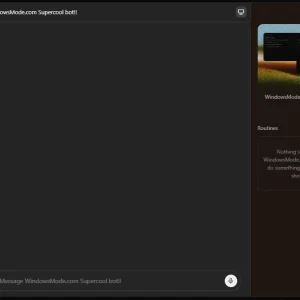
- Grok bot routines panel and screen preview from
-
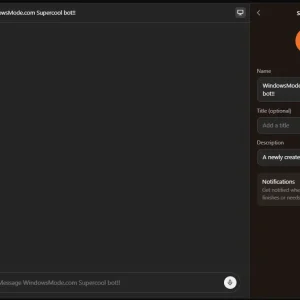
- Grok bot agent settings name and notifications from
-
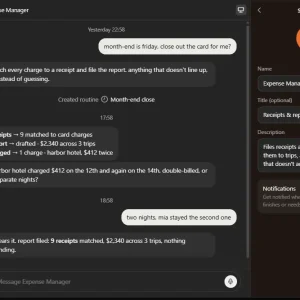
- Grok bot expense manager receipt matching chat from
-
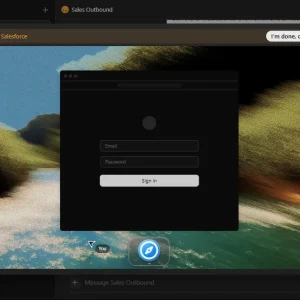
- Grok bot sales outbound salesforce signin approval from
-
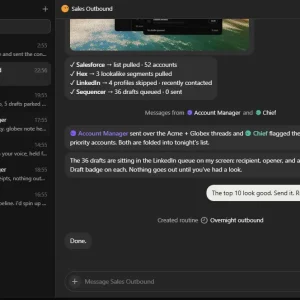
- Grok bot sales outbound task summary completed from
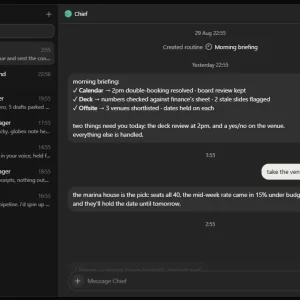
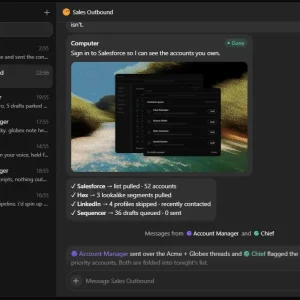
-
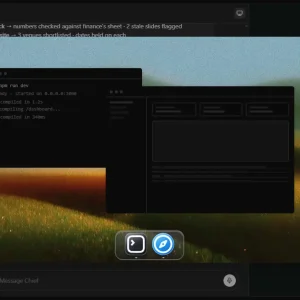
- Grok bot computer use terminal and browser approval from
FAQ
What is Grok Bot?
Does Grok Bot keep working when I close my laptop?
Is Grok Bot free?
Can I run more than one Bot at the same time?
Which platforms support Grok Bot?
Does a Bot remember what I told it before?
Support and Community
For downloads, setup information and examples of what Grok Bot can do, these are the main official resources:
- Grok Bot official page, for downloads and product updates.
- Grok Bot documentation, for setup help, FAQs and platform-specific installation information.
- Cursor’s Grok Bot use cases, for example Bot roles and starter workflows.
More Windows software guides:
Best AI Code Editors for PC ·
ChatGPT for Windows ·
Claude Desktop for Windows
·
Discover more from Windows Mode
Subscribe to get the latest posts sent to your email.











Add your first comment to this post