

Readers like you help support this site. When you make a purchase using links on our site, we may earn an affiliate commission. All opinions remain our own.

Telegram Desktop is a free messaging app for Windows from Telegram, available at desktop.telegram.org. It works on its own on your PC with no phone required. You can send messages, make calls, share large files, and join massive groups or channels, all for free.
Telegram has been around since 2013 and is one of the most widely used messaging apps in the world, with over 900 million active users. Unlike WhatsApp, the desktop app is fully standalone. You do not need your phone nearby or even turned on to use it.
The app runs on Windows 7, 8, 10, and 11. It is free for everyday use, with an optional Premium plan for people who need larger file uploads and extra features.
Already using Telegram? Share your setup in the comments, or reach out to us directly if you have questions.
What You Need to Know
- Telegram Desktop works on Windows without needing your phone nearby. Sign in once and you are done.
- Regular chats are not end-to-end encrypted by default. Use Secret Chats if you need full privacy.
- Free users can send files up to 2 GB each. That is 20 times larger than WhatsApp.
Price
Free / $4.99 mo
Developer
Telegram
Windows
7 / 8 / 10 / 11
Also On
Android, iPhone, Mac, Linux, Web
Download from Official Site Get it on Microsoft Store
How to Get Telegram Desktop on Windows
Telegram Desktop installs like any standard Windows app. You will need a phone number to verify your account the first time, but after that the desktop app runs on its own. The Microsoft Store version updates automatically through Windows, which some people prefer.
- Step 1. Go to desktop.telegram.org and click the download button. You can also get it from the Microsoft Store.
- Step 2. Run the installer. It sets up in about 30 seconds.
- Step 3. Open Telegram Desktop. Enter your phone number to receive a verification code.
- Step 4. Enter the code sent to your phone (via SMS or your Telegram app if you already have it). Your account is now linked.
- Step 5. Your chats, contacts, and media load automatically. Your phone does not need to stay on.

What is Telegram?
Telegram is a free messaging app founded by Pavel Durov in 2013. It has grown into one of the largest messaging platforms in the world, with over 900 million active users. People use it for private chats, massive group conversations, public channels, large file sharing, and voice or video calls.
One thing that sets Telegram apart is how it handles the desktop app. You do not need your phone nearby to use Telegram on Windows. It is a fully independent app. Sign in once with your phone number to verify your identity, and after that your PC works on its own. All your messages are stored in Telegram’s cloud and sync across every device you log into.
It is worth knowing that regular Telegram chats are not end-to-end encrypted (meaning Telegram’s servers can technically read them). Telegram stores messages in encrypted form, but the company can access them if needed. If you need full end-to-end encryption, use Secret Chats instead. These are stored only on your devices and leave no trace on Telegram’s servers.
Key Features
Secret Chats
The only Telegram chats with full end-to-end encryption. Messages are stored on your device only, not in the cloud. You can set them to delete automatically from both devices after a chosen time.
Large File Sharing
Send files up to 2 GB each for free (4 GB with Premium). Documents, videos, software, archives, anything. Far larger than WhatsApp’s 100 MB cap or most email providers.
Massive Groups and Channels
Groups can hold up to 200,000 members. Public channels have no subscriber limit. Many news outlets, communities, and creators run their entire audience through Telegram channels.
Voice and Video Calls
One-on-one and group calls with screen sharing. Group video calls support up to 1,000 participants. All free.
Multi-Device, No Phone Needed
Log in on up to 5 devices at the same time. The desktop app works fully on its own. Your phone can be off, out of battery, or in another country.
Bots and Automation
Telegram has a large library of bots that can do things like schedule messages, run polls, manage groups, deliver news, and more. Many are free and easy to add to any chat or group.
Free vs. Telegram Premium
| Feature | Free | Premium ($4.99/mo) |
|---|---|---|
| Messaging, calls, groups | Yes | Yes |
| Max file size per transfer | 2 GB | 4 GB |
| Download speed | Standard | Faster |
| Voice-to-text (voice-to-text (converts voice messages to readable text)) | No | Yes |
| Real-time chat translation | No | Yes |
| Ads in public channels | Sometimes | No |
| Exclusive stickers and reactions | No | Yes |
System Requirements
| Requirement | Minimum |
|---|---|
| Operating System | Windows 7, 8, 10, or 11 |
| Phone Required | Phone number for first-time verification only |
| Storage | ~100 MB for the app |
| RAM | 2 GB minimum |
| Internet | Required for messaging and calls |
Tips for Using Telegram on Windows
These settings and features are worth knowing once you are set up.
Use Secret Chats for sensitive conversations
Regular Telegram chats sit in the cloud. For full privacy, start a Secret Chat instead. Go to any contact, tap the three-dot menu, and select Start Secret Chat. These messages never leave your devices.
Set up two-step verification
Go to Settings, then Privacy and Security, and turn on Two-Step Verification. This adds a password on top of your phone number so no one can take over your account even if they get hold of your SIM card.
Use folders to organize your chats
If you are in a lot of groups and channels, folders keep things manageable. Go to Settings, then Chat Folders, and create folders for things like Work, Family, or News. Free users get up to 10 folders.
Control who can find you
By default, anyone who has your phone number can find you on Telegram. Go to Settings, then Privacy and Security, and change who can see your phone number and who can add you to groups. Worth doing before you join any public communities.
Use Saved Messages as a personal notebook
Telegram has a built-in Saved Messages chat, which is just a private space to store links, notes, files, and anything you want to access across devices. It syncs instantly to your phone and any other device you are logged into.
App Screenshots
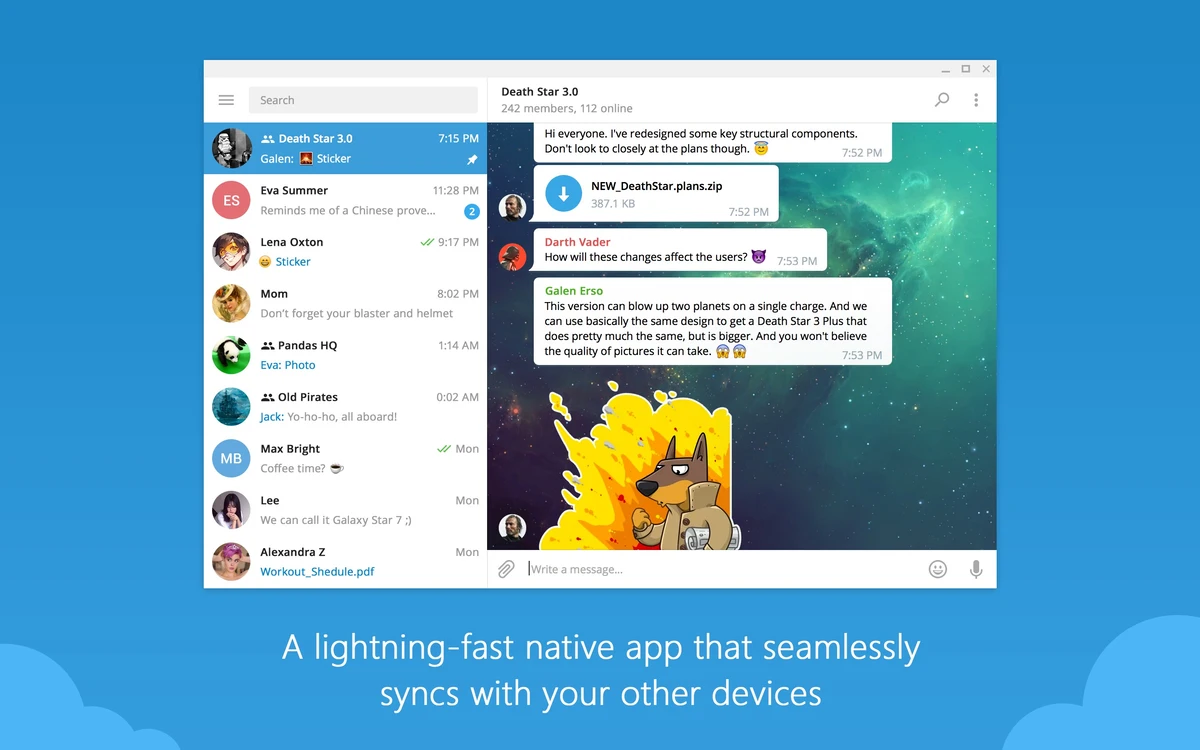
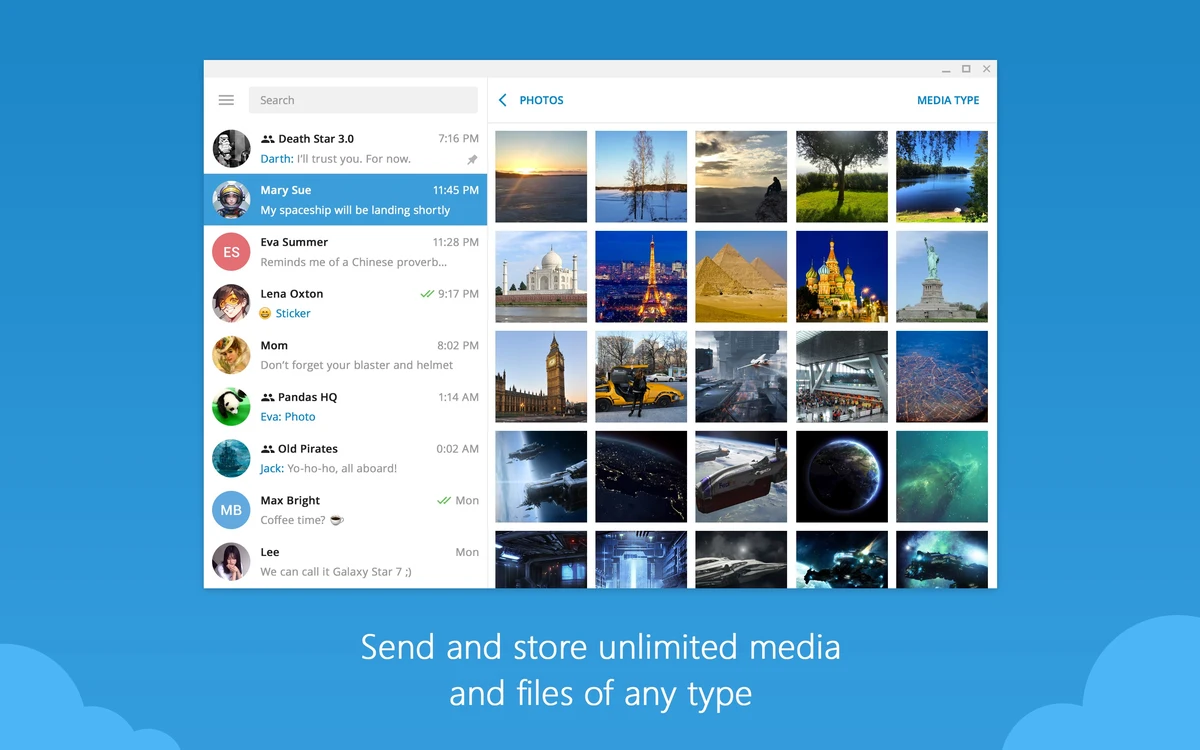
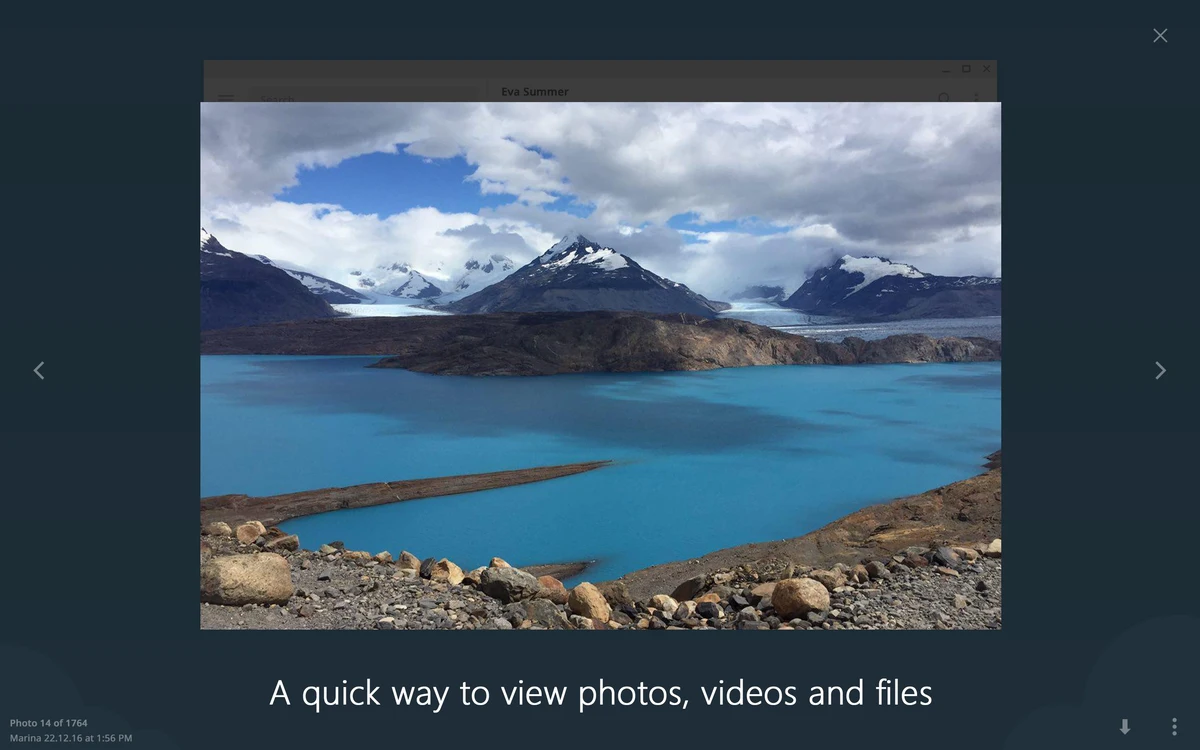
Here is what Telegram Desktop looks like on Windows.
Beginner’s Video
A quick video that teaches how to use install Telegram on Windows 11.

Poll
Frequently Asked Questions
Is Telegram free?
Yes. Telegram is free to use. Messaging, calls, file transfers, and groups are all free with no ads. There is an optional Telegram Premium plan at $4.99 per month that unlocks extras like 4 GB file uploads and faster downloads, but you do not need it for everyday use.
Do I need a phone to use Telegram on Windows?
No. Unlike Signal or WhatsApp, Telegram Desktop works as a fully standalone app on Windows. You sign in with your phone number to verify your account, but after that the desktop app works on its own. Your phone does not need to be on or nearby.
Are Telegram messages private?
Regular Telegram chats are not end-to-end encrypted. They are stored on Telegram’s servers in encrypted form, but Telegram can technically access them. If you want full end-to-end encryption, use Secret Chats. These are stored only on your devices and leave no trace on Telegram’s servers.
How big can files be on Telegram?
Free users can send files up to 2 GB each. Telegram Premium users can send files up to 4 GB each. Both are far larger than WhatsApp (100 MB) or email attachments.
What is Telegram Premium?
Telegram Premium is an optional paid plan at $4.99 per month. It adds 4 GB file uploads, faster download speeds, voice-to-text (converts voice messages to readable text), real-time chat translation, no ads in channels, and exclusive stickers and reactions. All core features remain free.
Support and Community
- Telegram FAQ (official answers to common questions)
- r/Telegram on Reddit (community discussions, tips, and help)
Explore More Windows Apps: Signal for Windows · WhatsApp for Windows · Microsoft PC Manager