Readers like you help support this site. When you make a purchase using links on our site, we may earn an affiliate commission. All opinions remain our own.

Signal Desktop runs on Windows and stays linked to Signal on your phone.
Signal is a free private messaging app from the nonprofit Signal Foundation, available for Windows from signal.org or the Microsoft Store. You chat, call and send files from your PC, and everything is end-to-end encrypted, so only you and the people you talk to can read it.
The Windows app is a linked device, not a separate account. You need Signal working on an Android phone or iPhone first, then you scan a QR code to connect your PC. After that, chats stay in sync on both.
Signal Desktop runs on Windows 10 and Windows 11. There are no ads, and the app is open source (anyone can read its code).
Below: setup steps, how to move your old chats over, the privacy settings worth changing, and fixes for common problems. Questions? Reach out to us directly.
What Is Signal?
Signal is a messaging app built around one idea: nobody but the people in a chat should be able to read it. Texts, voice notes, photos, files, voice calls and video calls are all end-to-end encrypted (scrambled on your device and only unscrambled on the other person’s). That includes Signal itself.
It is run by the Signal Foundation, a US nonprofit funded by donations, so there is no ad business behind it. The code for every Signal app is public on GitHub.
On Windows, Signal Desktop mirrors your phone. Messages you send on the PC appear on your phone, and the other way round, so you can type on a real keyboard and drag files straight into a chat.
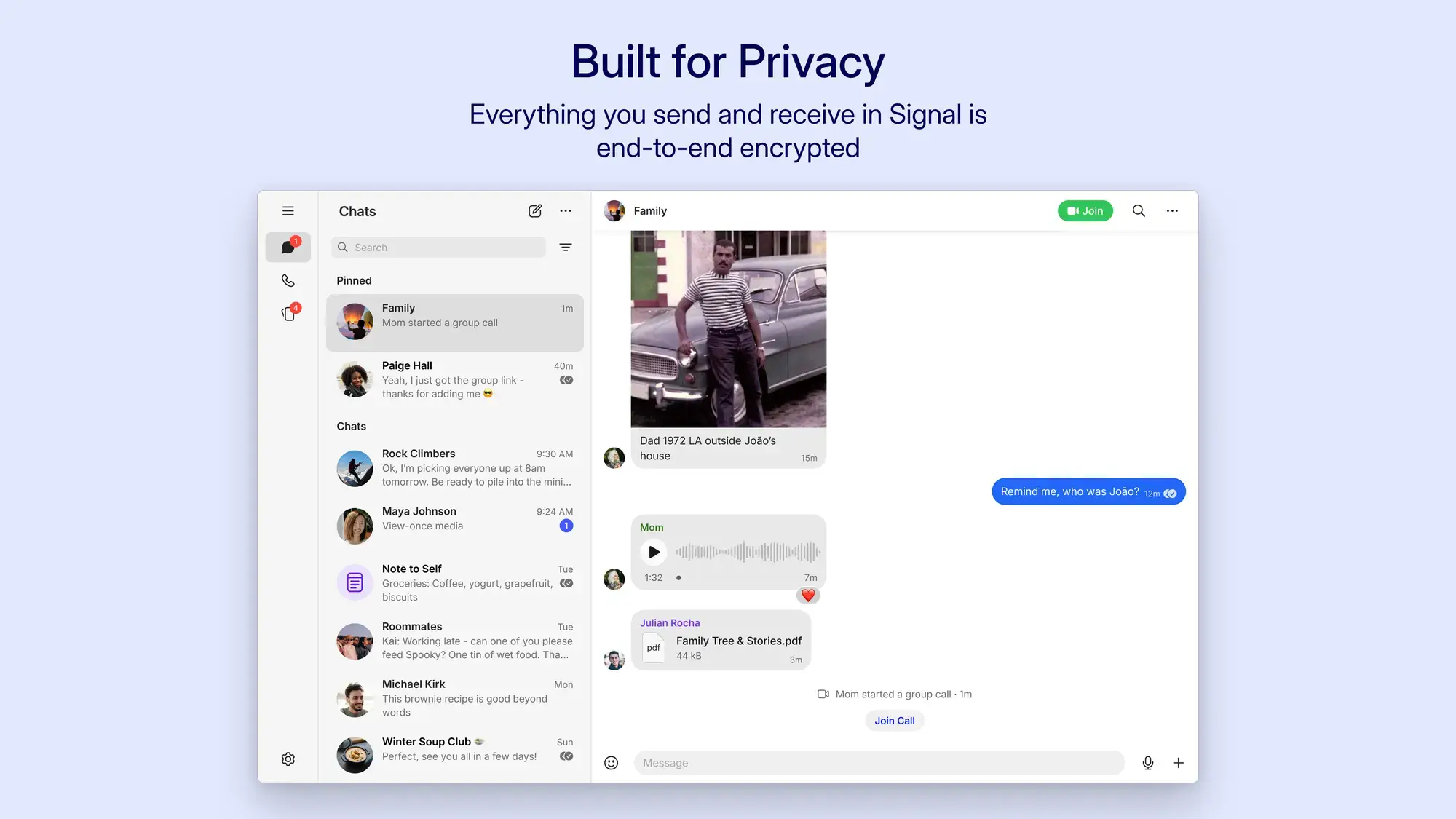
Signal Desktop: chat list on the left, the open conversation on the right. Image from Signal.
Key Features of Signal Desktop
These are the features that matter most once Signal is on your PC.
Encryption you cannot switch off
Every chat and call is end-to-end encrypted by default. There is no unencrypted mode to fall back to, in one-to-one chats or groups.
Usernames instead of your number
Your phone number is hidden from people who do not already have it. You can share a username instead, and choose whether anyone can find you by number at all.
Bring your chats to the PC
When you link Signal Desktop, you can transfer your chats and the last 45 days of media from your phone. You choose this once, during setup.
Screen security on Windows 11
Signal stops Windows, including Microsoft’s Recall feature, from taking screenshots of its window. It is on by default on Windows 11.
Backups from your PC
Signal Desktop can save an encrypted backup to a folder you choose, protected by a 64-character recovery key. You can restore it to Signal on an Android phone.
Calls, groups and disappearing messages
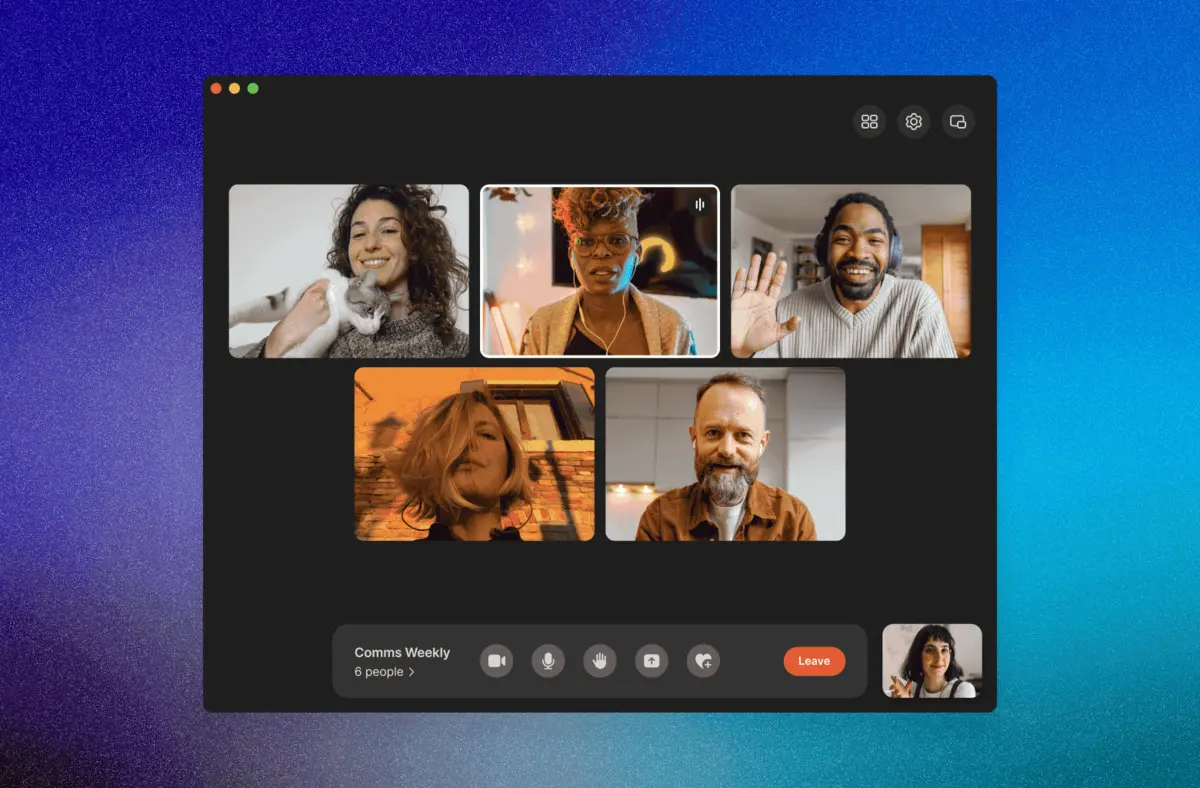
Make voice and video calls from your PC, including group calls. Set a timer on any chat and its messages delete themselves after the time you pick.
How to Install Signal on Windows
Set up Signal on your phone first, from the Google Play Store or the App Store. Signal Desktop cannot create an account on its own.
1 Download Signal from signal.org/download/windows or the Microsoft Store.
2 Run the installer. Signal opens and shows a QR code.
3 Open Signal on your phone and go to Settings, then Linked devices, then Link a new device.
4 Unlock with your phone’s PIN or fingerprint to open the camera. This is your phone’s own unlock, not your Signal PIN.
5 Scan the QR code on your PC screen.
6 Choose Transfer Message History to copy your chats over, or Don’t Transfer to start empty.
7 Send a test message from your PC to finish linking.
The history choice is a one-time choice. If you pick Don’t Transfer and change your mind, you have to reinstall Signal Desktop and link it again.
Keep your phone in use. Signal unlinks your PC if your phone has not been online for 30 days, or if the PC has not been used for 45 days. You can link up to five devices to one account.
Only download Signal from signal.org or the Microsoft Store. Copies on other download sites can be modified. Signal does not need any extra plug-in or “PC version” from anywhere else.
Is Signal Free?
Yes. Signal itself is free, with no ads and no paid plan for messaging or calls. The one optional paid extra is for backups stored on Signal’s servers, which you set up from your phone.
Price checked on Signal’s support site in October 2026. Backups that Signal Desktop saves to a folder on your PC cost nothing and have no size limit.
Signal vs WhatsApp on Windows
WhatsApp is the app most Signal users are coming from. Both encrypt what you write, but they differ in who runs them and what else they collect. Our WhatsApp for Windows guide covers the other side.
Our take
If privacy is the reason you are looking, Signal is the stronger choice, because it protects who you talk to as well as what you say. The catch is the same as always: it only helps with people who also use it. Many people keep both apps and move their closest contacts to Signal first. For a more public, channel-style app, see our Telegram Desktop guide.
Common Signal Desktop Problems and Fixes
These come straight from Signal’s own help pages, and they are the ones Windows users hit most.
Signal Desktop says it is unlinked
Your phone was offline for 30 days, or the PC sat unused for 45. Open Signal on your phone so it connects, then click the banner in Signal Desktop and scan the new QR code.
Old chats are missing on the PC
You chose Don’t Transfer while linking. To get them, reinstall Signal Desktop, link it again and pick Transfer Message History. Media older than 45 days does not come across.
Screenshots of Signal come out blank
That is Screen security doing its job on Windows 11. Turn it off in Signal Desktop under Settings, then Privacy, if you really need a screenshot. Windows will warn you first.
A screen reader cannot read Signal
Screen security can block some accessibility tools. If you rely on one, turning Screen security off is the fix Signal itself suggests.
Privacy Settings Worth Changing
Signal is private out of the box. These settings take it further, and most take under a minute.
1 Set up a username. Share it instead of your phone number. Then go to Settings, Privacy, Phone Number and choose who can see your number and who can find you by it.
2 Turn on a default disappearing-message timer. In Settings, then Privacy, set a timer for new chats so old messages do not pile up on your PC and phone.
3 Check safety numbers for important contacts. Open the contact’s details and compare the safety number with them in person or on a call. A match means nobody is sitting in the middle.
4 Make a backup from your PC. In Signal Desktop, open Settings, then Backups, and under Other ways to back up choose Set up. Store the recovery key somewhere safe, because nobody can recover it for you.
5 Turn off read receipts if you want. In Settings, then Privacy. People will not see when you read their messages, and you will not see theirs.
Signal Desktop Screenshots
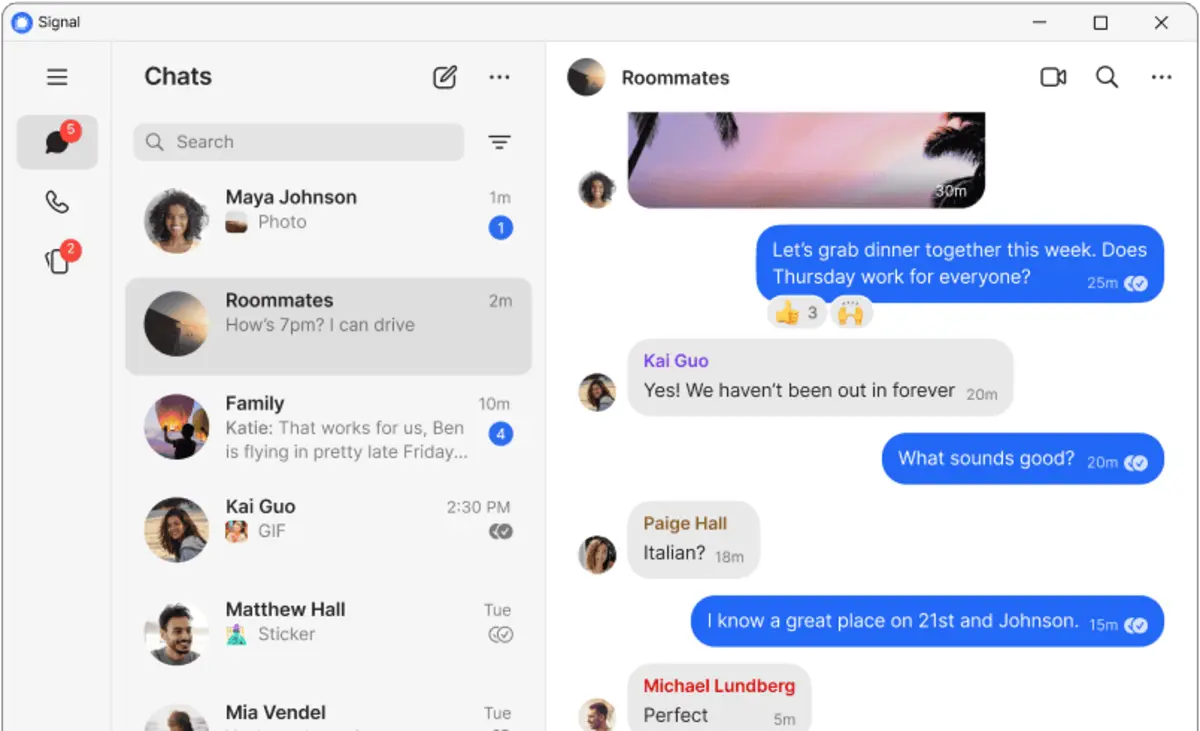
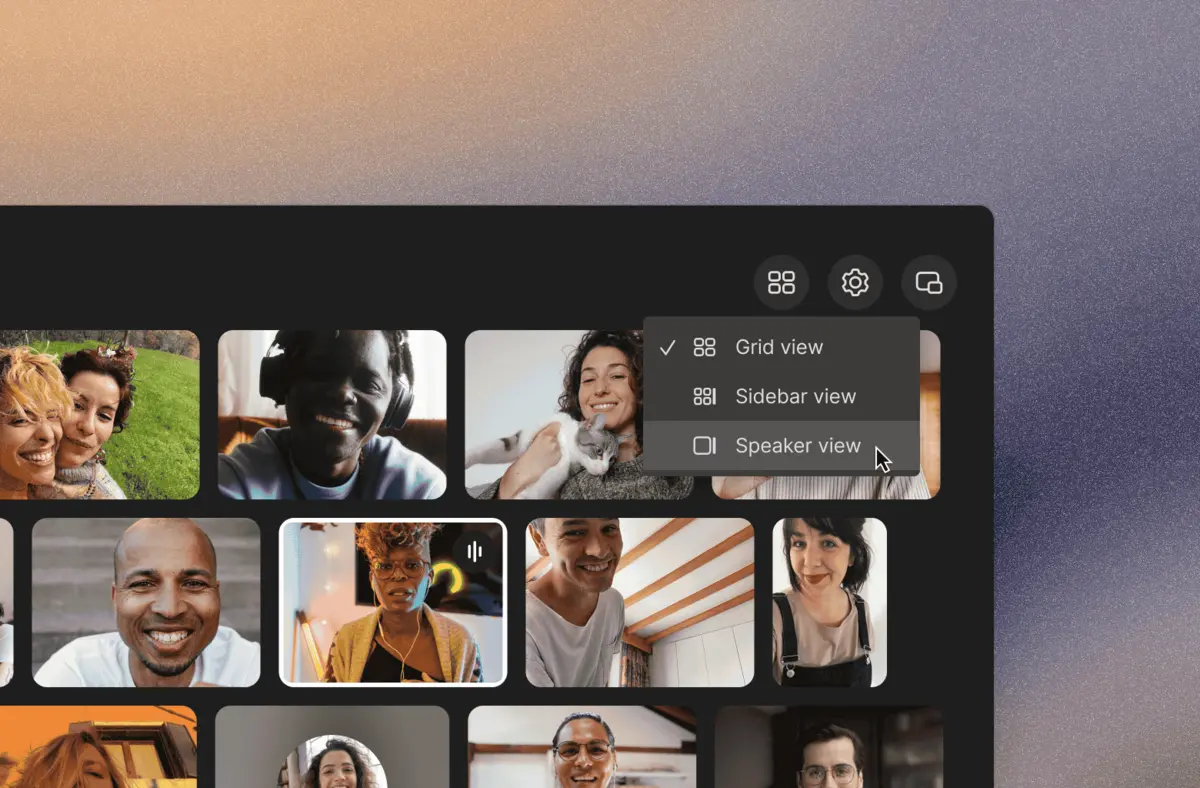
Group video calls, the call layout menu and the chat window on Windows, all from Signal’s own images.
Frequently Asked Questions
Can I use Signal on Windows without a phone?
What are the system requirements for Signal on Windows?
Can I use Signal on more than one computer?
Can I make video calls from Signal on my PC?
Is the Microsoft Store version of Signal official?
Support and Community
- Signal.org, the official site of the Signal Foundation.
- Signal Support, Signal’s own help center, with guides for linking, backups and troubleshooting.
- Signal Community forum, linked from signal.org, for questions and feature requests.
- Signal Desktop on GitHub, the app’s public code and release history.
- r/signal on Reddit, a user-run community that is not run by Signal.
More Windows software guides: WhatsApp · Telegram Desktop · Discord · Avast Secure Browser
Discover more from Windows Mode
Subscribe to get the latest posts sent to your email.












Add your first comment to this post