

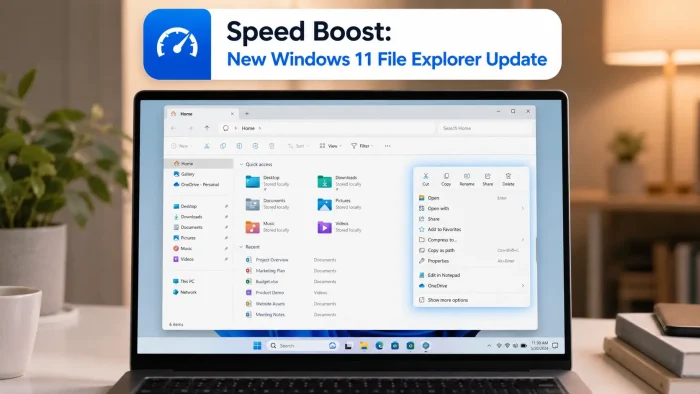

- Faster Startup: File Explorer opens quicker and stops freezing when you browse large folders.
- Instant Right-Click Menu: The context menu pops up instantly with less clutter on screen.
- New Customization Settings: You can now choose which apps and commands appear in your right-click menu.
- Smoother File Management: Renaming files, using the address bar, and opening the details pane now feel more responsive.
What Is Changing in File Explorer?
Microsoft has updated File Explorer to make it faster, lighter, and more reliable. By improving how the app handles background tasks and system memory, Windows 11 now reduces the annoying pauses that used to happen when opening folders or selecting multiple items.
| Feature | What Changed | How It Helps You |
|---|---|---|
| Launch Speed | Loads faster with optimized background processes | No more waiting for folder windows to open |
| Right-Click Menu | Opens instantly with fewer unnecessary items | Speeds up daily tasks like copying or sharing |
| Menu Personalization | New settings page to show or hide shortcuts | Keeps your menu clean and organized |
| Everyday Tools | Usability fixes for file renaming and the address bar | Prevents lag when renaming or moving large batches of files |
New Right-Click Menu Customization
The right-click (context) menu has received a major upgrade. Instead of being stuck with a long list of options you never use, you can now personalize what shows up.
You can manage these options directly through Windows Settings:
- Open Settings and go to Personalization.
- Select Context menu.
- Toggle options like Send to, Create shortcut, or standard tools like Cut, Copy, and Paste on or off.
- Turn off third-party app extensions that crowd your menu.
If your setup ever feels too cluttered, a single click lets you reset everything back to the default layout.
Why These Improvements Matter
If you work with files every day, even small delays add up. Whether you are a student organizing class projects or an office worker managing documents, you will notice three immediate improvements:
- Fewer freezes: Browsing through heavy folders with lots of images or videos no longer locks up the window.
- Faster workflows: Common actions like moving files, creating shortcuts, and renaming folders take fewer clicks and zero lag.
- A cleaner desktop experience: Hiding tools you do not use makes it easier to find the commands you actually need.
How to Test and Share Feedback
To try out these adjustments:
- Open Settings > Personalization > Context menu to set up your preferred options.
- If you are part of the Windows Insider Program, you can test upcoming tweaks early and vote on which tools should stay visible by default.
- Report any issues or suggestions directly through the built-in Feedback Hub app.
How does the new File Explorer speed feel on your PC? Drop your thoughts in the comments below.