

Readers like you help support this site. When you make a purchase using links on our site, we may earn an affiliate commission. All opinions remain our own.
The focus is unmistakable: seamless AI integration, raw performance, and a refined, modern experience. It’s designed to eliminate friction, reduce cognitive load, and keep you in a state of flow. From the moment you launch it, the difference is palpable.
This isn’t just another Preview; Microsoft has replaced that channel with a new, committed Insiders program, promising monthly updates and a faster feedback loop.
This post is my hands-on breakdown after running it on Windows 11. I’ll cover what’s new, how to get it, and how it compares to VS 2022 and other tools.
What Is Visual Studio 2026 Insiders?
Visual Studio 2026 Insiders is the next-generation IDE from Microsoft, available as an early build for developers who want to shape its future. It represents a massive investment in three core areas: an AI-integrated development environment, blazing-fast performance at enterprise scale, and a modernized Fluent Design UI that feels both calm and intentional.
The most groundbreaking shift is the deep integration of AI, branded as “Beyond IntelliCode.” This isn’t a bolted-on chatbot; it’s a context-aware partner that understands your entire solution. It offers real-time correctness, performance, and security insights directly as you code, often running locally on your machine for privacy and speed.
Coupled with this are performance gains that are immediately noticeable, especially in large solutions. Microsoft has optimized core workflows, solution load, build times, debugging (F5), and branch switching; to feel snappier and more responsive.
It’s built for the future, with native support for .NET 10 and modern C++, and it installs side-by-side with VS 2022, making it a zero-risk trial for any curious developer.
Visual Studio 2026 is now available for everyone.
How to Download and Install Visual Studio 2026 Insiders
Installing the Insiders build is simple and safe, as it runs perfectly alongside your existing VS 2022 installation without any disruption.
- Choose your edition and download the installer directly:
- Community: https://aka.ms/vs/18/insiders/vs_Community.exe
- Professional: https://aka.ms/vs/18/insiders/vs_Professional.exe
- Enterprise: https://aka.ms/vs/18/insiders/vs_Enterprise.exe
- Run the downloaded installer (e.g.,
vs_Community.exe). - If prompted by User Account Control, select Yes.
- Accept the Microsoft License Terms and Privacy Statement.
- The Visual Studio Installer will launch. You will be presented with options to either manually select workloads or migrate your configuration from an existing Visual Studio 2022+ installation, copying your workloads, settings, and components.
- Select your desired workloads (e.g., “.NET desktop development,” “ASP.NET and web development”).
- Click Install and wait for the process to complete.
Upon first launch, VS 2026 Insiders will offer to import your settings from a previous version, making the transition instantly familiar.
What’s New and What Can You Do?
The changes in VS 2026 are both profound and practical. After a day of use, going back to the previous version feels like a step backward.
- Beyond IntelliCode AI Assistant: This is the crown jewel. It provides proactive, context-aware assistance that feels like a true partner. Right-click on code for options like Explain, Optimize, Generate Tests, and Add to Chat. The “Adaptive Paste” feature intelligently adjusts pasted code to fit your project’s context, syntax, and style, saving immense manual effort. Crucially, many AI features run locally, and GitHub Copilot Free is included at no cost, unlocking powerful AI completions and chat without a subscription.
- Blazing-Fast Performance: Microsoft has focused intensely on performance. Early testers report solution load times slashed by up to 30-40% on large projects, with builds and debug launch times (F5) significantly faster. The UI is more responsive, reducing the risk of freezes during heavy operations.
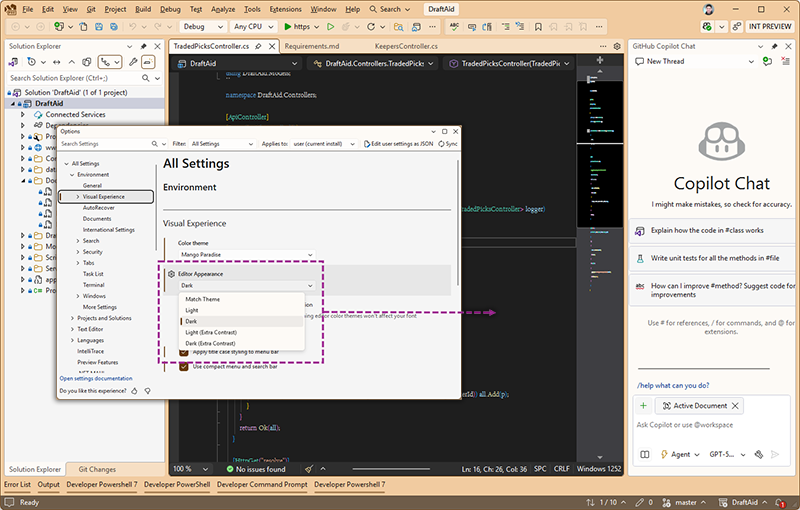
- Modernized UI & Fluent Design: The interface has been refreshed with a cleaner Fluent Design, 11 new tinted themes, improved iconography, and better spacing. It creates a calmer, more focused workspace that reduces visual clutter.
- Enhanced Editor & Debugger: The editor’s bottom margin is now a unified, information-rich hub showing line/column position, selection counts, and file encoding. The debugger’s Text Visualizer now supports Ctrl+F to search within long strings and JSON blobs, a massive quality-of-life improvement.
- Revolutionized Hot Reload: For .NET web developers, especially those using Blazor, Hot Reload is now incredibly fast and reliable. A new
<HotReloadAutoRestart>option can automatically restart the app process on “rude edits” instead of killing the debug session, maintaining your flow. - File Exclusions in Search: You can now set global patterns to exclude generated files, build artifacts, and other noise from your search results, helping you focus on what matters.
Visual Studio 2026 Insiders vs Other IDEs
How does it compare? This table breaks down where VS 2026 Insiders shines and where other tools might still compete.
| IDE | Workflow Approach | AI Capabilities | Performance | Platform Focus | Cost |
|---|---|---|---|---|---|
| VS 2026 Insider | Enterprise, AI-Integrated | Beyond IntelliCode (Advanced, Local+Cloud) | Excellent (New Core) | Windows, Web, Cloud, Multi | Free (Insider Preview), Paid (Final) |
| VS 2022 | Enterprise, Stable | IntelliCode (Basic) | Very Good | Windows, Web, Cloud, Multi | Free (Community) / Paid |
| VS Code | Lightweight, Editor-based | Copilot (Extension, Subscription) | Good (Depends on Extensions) | Web, Cross-Platform | Free |
| JetBrains Rider | .NET-centric, Cross-Platform | AI Assistant (Powerful) | Excellent | Cross-Platform .NET | Paid Subscription |
Visual Studio 2026 Edition Comparison: Community vs Professional vs Enterprise
Choosing the right edition depends on your needs and use case. Here’s a breakdown of the key differences.
| Feature | Community | Professional | Enterprise |
|---|---|---|---|
| Primary User | Students, OSS, Individuals | Professional Developers | Teams & Enterprises |
| License | Free for eligible users | Paid | Paid |
| Commercial Use | Restrictions Apply | Yes | Yes |
| Advanced AI (Beyond IntelliCode) | ✔️ | ✔️ | ✔️ |
| Included GitHub Copilot | Copilot Free | Copilot Free | Copilot Free |
| Premium Support | ✖️ | Limited | Priority |
| Architecture & Modeling Tools | ✖️ | Limited | ✔️ |
| Advanced Testing Tools | ✖️ | Basic | ✔️ (Load Test, IntelliTest) |
| Cloud & DevOps Tools | Basic | ✔️ | ✔️ (Advanced) |
Is Visual Studio 2026 Insiders for You?
This preview is powerful, but it’s important to know where it fits.
- Great fit for: .NET and C++ developers on Windows, enterprise teams working with large solutions, early adopters who want to influence development, Blazor developers (for the Hot Reload improvements), anyone curious about AI-assisted coding.
- Less ideal for: Developers who need absolute stability for critical production work (this is a preview), those on older hardware, or those whose workflow is entirely centered on macOS or Linux (where VS Code or JetBrains Rider may remain the primary tools).
Quick Start Guide: First Steps with VS 2026 Insiders
- Open a Large Solution: The performance gains are most dramatic on big projects. Open one you know well.
- Enable Copilot Free: Sign in with your GitHub account to activate the included AI features without a subscription.
- Try Adaptive Paste: Copy a code snippet from another project or the web and paste it (Ctrl+V) into your editor. Press TAB to see Copilot adapt it to your current context.
- Right-Click for AI: Select a block of code, right-click, and explore the new context menu options: Explain, Optimize Selection, Generate Tests.
- Test the Debugger Search: Debug an app, hover over a long string variable in the debugger, and use Ctrl+F in the Text Visualizer to find text inside it.
Best Settings and Tips for VS 2026 Insiders
- Adjust AI Privacy: Go to Tools > Options > Beyond IntelliCode to control how much context is sent to cloud-based AI services based on your privacy needs.
- Customize the Bottom Margin: Right-click the new unified bottom margin in the editor to toggle which information displays (encoding, position, etc.).
- Configure File Exclusions: Head to Tools > Options > Environment > Search to add glob patterns (e.g.,
**/bin/**,**/obj/**) to exclude generated files from searches. - Enable Auto-Restart for Hot Reload: For .NET projects, add
<HotReloadAutoRestart>true</HotReloadAutoRestart>to your project file to minimize debug session interruptions.
Common Issues and Fixes
Remember, this is an insiders build. I encountered a few minor hiccups:
- Extension Incompatibility: While most VS 2022 extensions work, some older ones may not load or could cause instability. Disable them and check the marketplace for updates.
- AI Features Slow to Respond: The Beyond IntelliCode service can sometimes be slow during peak usage times. If it fails, just try again later.
- UI Glitches: Occasionally, the new UI might render oddly. Restarting Visual Studio typically fixes this.
- Installer Errors: If the installer fails, ensure you have the latest Windows updates and .NET Framework versions installed.
What Does Visual Studio 2026 Look Like?
New Welcome Screen with Adaptive Theme
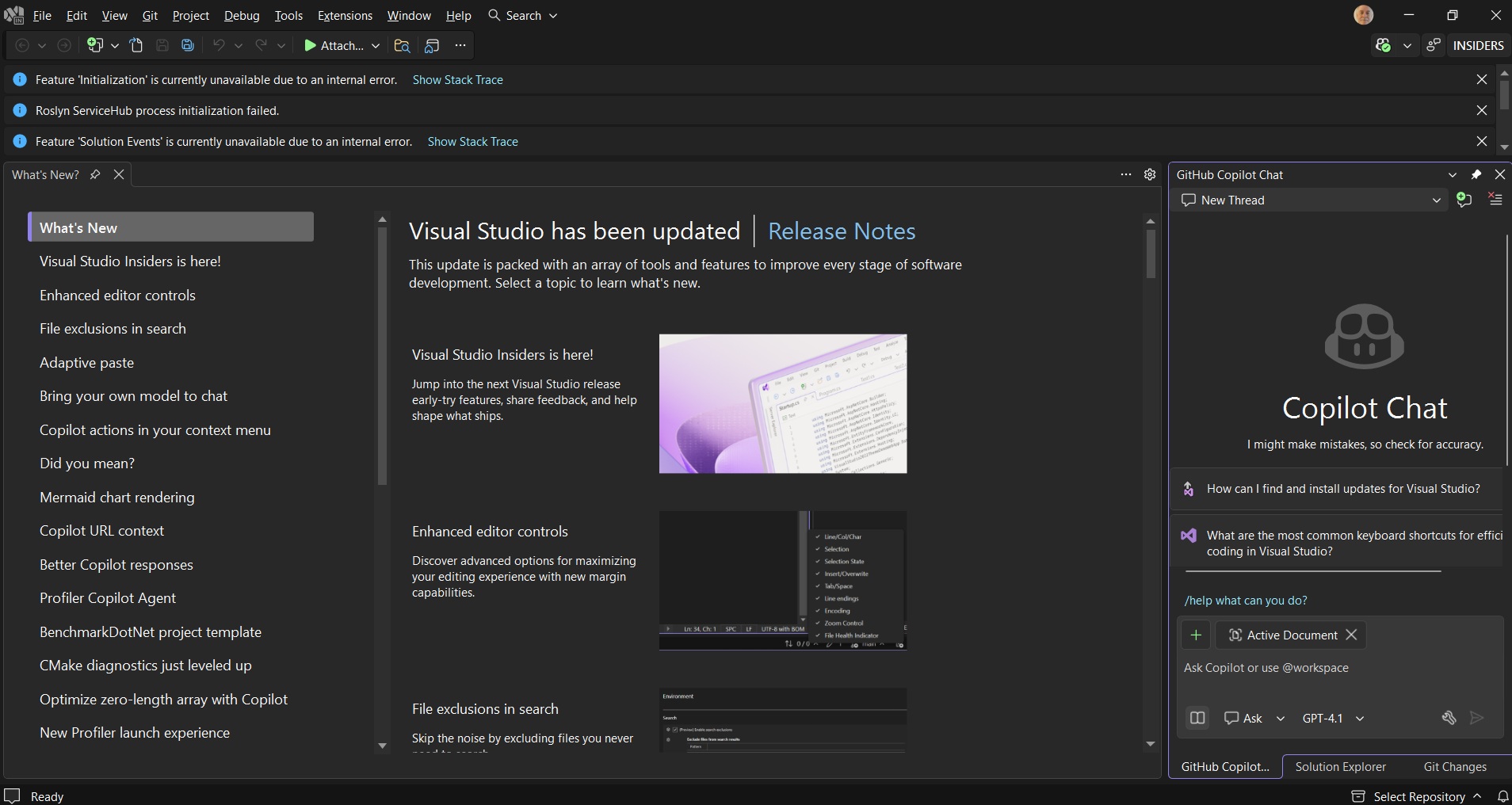
The refreshed welcome screen, showing the cleaner design and quick access to recent projects and new features.
Beyond IntelliCode AI Analysis in Action
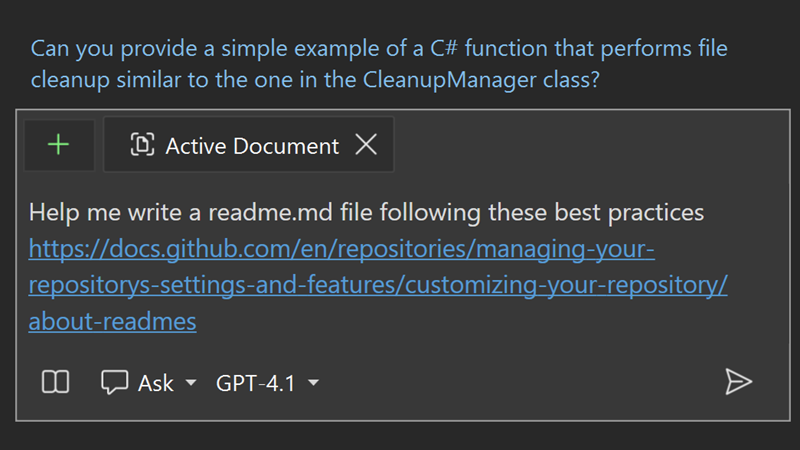
The AI Analyze feature providing a breakdown of a selected code section, suggesting optimizations and generating relevant tests.
Choose your own AI Model
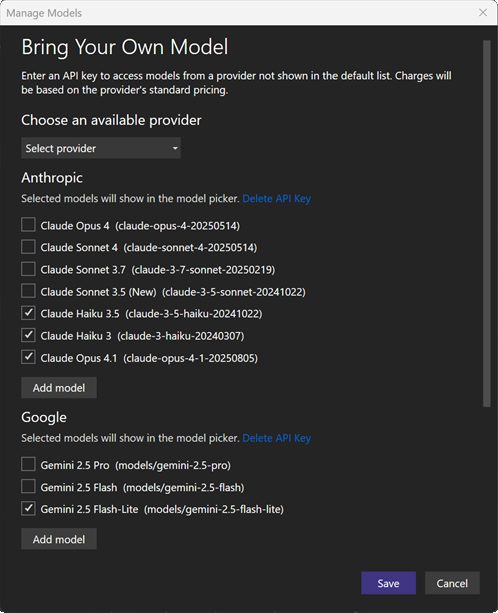
Choose your own AI model by supplying your own API Keys and you can custom models as well.
VS 2026 Video Preview

System Requirements
VS 2026 is optimized for modern hardware:
- OS: Windows 11 version 22H2 or higher, or Windows 10 version 21H2 or higher (64-bit)
- CPU: 64-bit, 4 cores minimum (6+ cores recommended)
- RAM: 8 GB minimum (16 GB highly recommended, 32+ GB for very large solutions)
- Storage: SSD with at least 20 GB of free space
- GPU: DirectX 11 capable card recommended for the improved UI experience
Visual Studio 2026 FAQ
- Is Visual Studio 2026 free? The Insiders Preview is free to use and test. The final release will likely follow the same licensing model as VS 2022 (Community, Professional, Enterprise).
- Can I run it alongside VS 2022? Yes, absolutely. They install and run independently without conflict.
- Is it stable enough for production work? No. This is a pre-release build intended for testing and feedback. Do not use it for critical commercial projects.
- Where do I report bugs or give feedback? Use the “Send Feedback” button in the top right corner of the IDE, which links directly to the Developer Community portal.
- When will the final version be released? Microsoft has not announced a release date. Based on typical cycles, a final release could be 12-18 months away.
Where to Follow Development and Give Feedback
The best way to stay updated and influence the product’s direction is through official channels:
- Official Insiders Page: visualstudio.microsoft.com/insiders/
- Visual Studio Blog: devblogs.microsoft.com/visualstudio/
- Developer Community (Bug Reports): developercommunity.visualstudio.com
- Twitter/X: Follow @VisualStudio for announcements.
That’s my take on the Visual Studio 2026 Insiders Preview. If you have any questions or run into issues, feel free to leave a comment below or contact us directly.
Don’t forget to also check out Kiro IDE by Amazon and Google Antigravity IDE by Google.