

Readers like you help support this site. When you make a purchase using links on our site, we may earn an affiliate commission. All opinions remain our own.
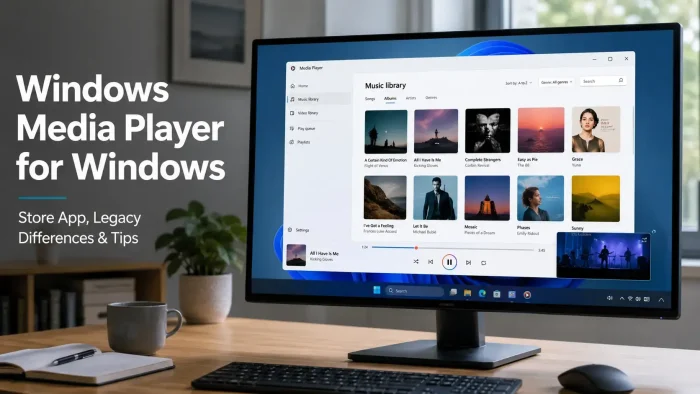

Windows Media Player is Microsoft’s modern media app for Windows, available through the Microsoft Store. It plays local music and videos, builds a library from your Music and Videos folders, and gives normal Windows users a simple built-in player for everyday files.
The confusing part is the name. The current Store app is not the same thing as Windows Media Player Legacy, which is the older optional Windows add-on many people remember from Windows 7 and earlier Windows releases.
This guide explains how to get Windows Media Player from Microsoft Store, what it can play, when you may need extra add-ons, why DVD playback is still messy, and when VLC is the better tool.
What You Need to Know
- Use the Microsoft Store page if you want the modern Windows Media Player app.
- Windows Media Player Legacy is separate and appears as an optional Windows add-on on some PCs.
- Media Player is best for common music files, common video files, local folders, playlists, and simple playback.
- Some videos from newer phones, cameras, web downloads, or DVD-style sources may need extra Store add-ons before they play.
- DVD playback is not something to promise. If DVDs matter, compare VLC or a dedicated DVD app.
Free
Microsoft Store app
Microsoft
Publisher
Music
Store category
PC
Windows device
| App Name | Windows Media Player |
| Publisher | Microsoft Corporation |
| Price | Free |
| Category | Music |
| Best For | Local music, videos, playlists, and simple media library playback |
| Also Compare | VLC Media Player, Movies & TV, Windows Media Player Legacy |
Get Windows Media Player from Microsoft Store
Use the official Microsoft Store listing to avoid old installers, fake download buttons, and third-party repackaged files.
Who Should Use Windows Media Player?
- Use it if you want a clean Microsoft app for MP3s, local videos, playlists, and media stored in your Music or Videos folders.
- Skip it if your main need is DVD playback, unusual video files, videos from network links, heavy subtitle control, or extra playback controls.
- Be careful if you are searching for the old Windows Media Player. That older app is now Windows Media Player Legacy, and it is handled through Windows optional add-ons.
How to Get Windows Media Player on Windows
The safest way to install or open the modern app is through Microsoft Store. This keeps the app tied to Microsoft’s listing, Microsoft Store updates, and the right Microsoft app.
- Step 1. Open the official Windows Media Player Microsoft Store page.
- Step 2. Select Get or Open in Store, depending on what your browser shows.
- Step 3. Let Microsoft Store install or update the app.
- Step 4. Open Windows Media Player from the Start menu.
- Step 5. Add extra folders in the app settings if your music or videos are stored outside the default Music and Videos folders.
Legacy note: If you specifically need Windows Media Player Legacy, go through Windows optional add-ons. On Windows 11, Microsoft lists it under Optional Features as “Windows Media Player Legacy”.
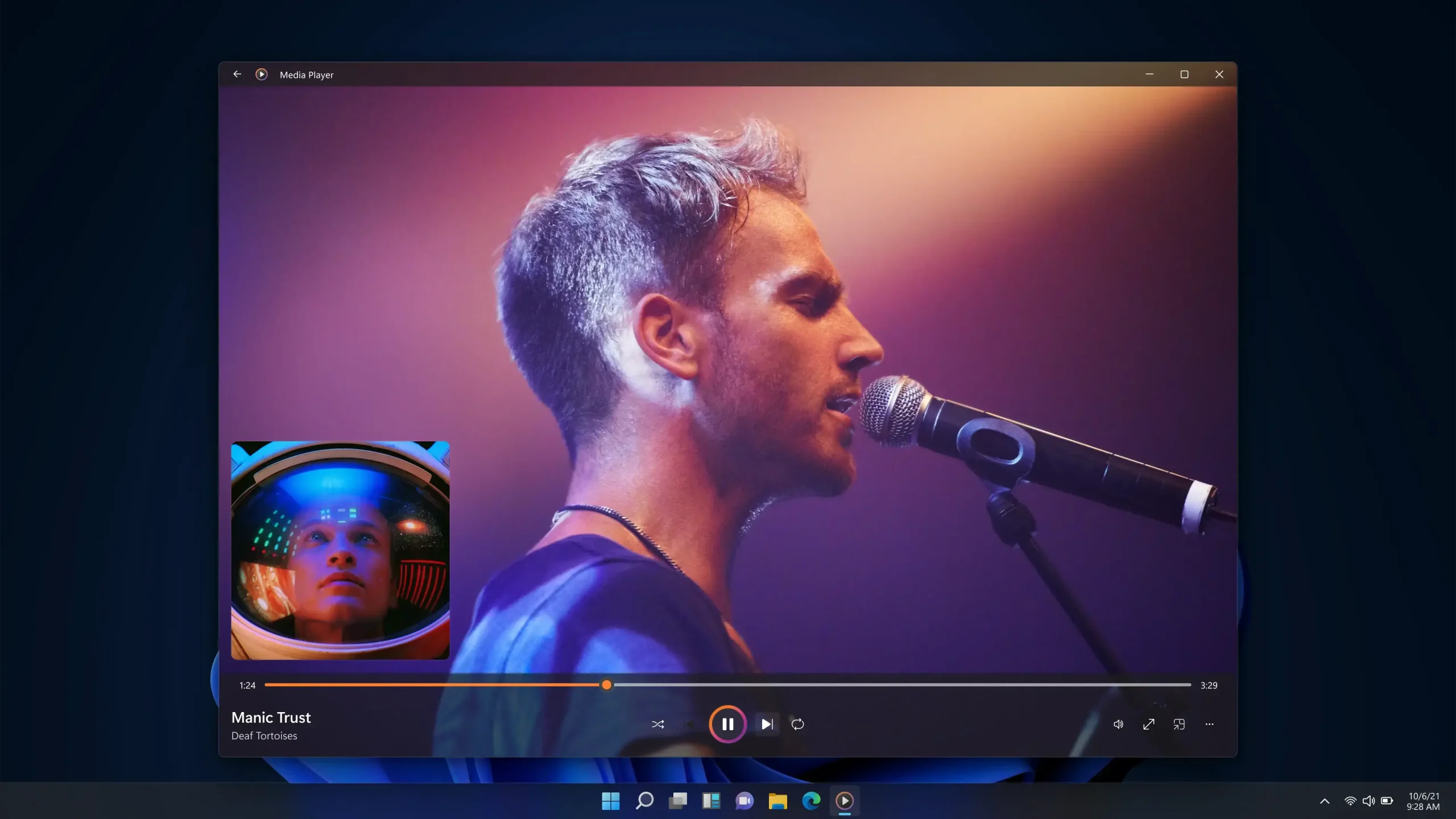
This Microsoft Store screenshot shows the modern Windows Media Player app, not the older Windows Media Player Legacy interface.
What Is Windows Media Player?
Windows Media Player is Microsoft’s current media app for playing local music and video files on Windows. Microsoft describes Media Player as a built-in player for music and video files, and the app reads your Music and Videos library folders so it can show your local collection inside one player.
It also replaces the old Groove Music experience. Microsoft says Media Player replaced Groove Music and can migrate existing Groove libraries and playlists, which is why some users remember this app as the newer version of Groove rather than the old Windows Media Player from earlier Windows versions.
Key Features
Music Library
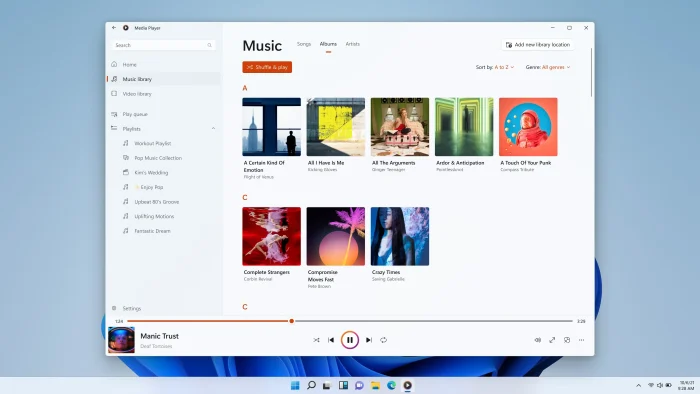
Browse songs, albums, artists, and playlists in a cleaner Windows app instead of opening files one at a time.
Video Playback
Play common local video files with a simple Microsoft interface that fits modern Windows.
Folder Scanning
Media Player can show content from your Music and Videos folders, and you can point it to extra folders in settings.
Playlist Management
Create and manage playlists for music collections, background listening, or organized local audio files.
Album Art
The app can show album and artist art for music, with a setting to turn off some online art lookup behavior.
Keyboard Controls
Microsoft says the redesigned Media Player added better keyboard shortcuts for people who prefer the keyboard or use assistive tools.
What You Get After Install
| Area | What it does |
|---|---|
| Music | Shows songs, albums, artists, playlists, and local audio files. |
| Videos | Plays common local video files stored on your PC. |
| Folders | Scans default Music and Videos folders and lets you add more media locations. |
| Playlists | Lets you create and manage local playback queues. |
| Album Info | Can show album and artist art, with privacy settings available inside the app. |
System Requirements
The Store listing is the best place to confirm the exact requirement shown for your device. In practice, use a current Windows PC with Microsoft Store access and enough app storage space.
| Requirement | Details |
|---|---|
| Operating system | Windows 11 or Windows 10 PC with Microsoft Store access |
| Store access | Required for the Microsoft Store install and Store updates |
| Storage | Small Store app, exact size can change with updates |
| Music and video folders | Reads local Music and Videos folders when you use the app library |
| Extra add-ons | Some video or audio files may need extra Microsoft Store add-ons or support from your PC maker |
Common Issues and Compatibility Notes
A file opens with audio but no video
That usually means Windows does not understand that video format yet. Microsoft supports many common files, but not every file you download, record, or export will match what Windows can play by default.
Newer phone videos may need an add-on
Newer phones and cameras often record video in HEVC, also called H.265. Some PCs can play it right away. Others may need Microsoft’s HEVC Video Extension from the Store.
Some surround-sound audio changed on newer Windows 11 installs
Microsoft says AC-3 audio is no longer included by default starting with Windows 11 version 24H2. Some PC makers still include it, and upgraded PCs may keep it, but a fresh Windows install can behave differently.
DVD playback is still confusing
Microsoft’s Windows Media Player Legacy support page says DVD playback is not included. If your main goal is playing movie discs, start with VLC or a dedicated DVD player app instead.
Your media library may miss files
Check whether the file is stored inside a folder Media Player watches. If not, add that folder in the app settings or open the file directly from File Explorer.
Windows Media Player vs the Alternatives
| Feature | Windows Media Player | VLC Media Player | Movies & TV |
|---|---|---|---|
| Best fit | Simple local music and video playback | Unusual files, DVDs, subtitles, videos from links | Previously purchased Microsoft video content |
| Price | Free | Free | Free app, content purchases no longer sold by Microsoft |
| File support | Good for common files, extra add-ons may be needed | Plays more file types out of the box | Depends on Windows and Store media support |
| DVD playback | Not a safe bet | Usually the better free option | Not the main choice for discs |
| Ease of use | Simple and familiar on Windows | More powerful, busier settings | Useful for owned Microsoft video purchases |
Supported File Notes
Microsoft says Windows can play many common music and video files without extra downloads. That includes familiar music files like MP3, AAC, FLAC, WAV, and WMA, plus common video formats used by many phones, cameras, and editing apps.
That does not mean every file will play. Some files still need extra help from Microsoft Store add-ons, your PC maker, or another media app. If you often receive random videos from phones, cameras, editing apps, or old archives, keep VLC installed as a backup.
Tips for Getting Started
1. Add your real media folders
If your files live on another drive, NAS sync folder, or custom folder, add that location in Media Player settings.
2. Keep VLC installed for stubborn files
Windows Media Player is fine for everyday playback. VLC is still better when you hit rare file types, DVDs, videos from links, or videos with tricky subtitles.
3. Check Store add-ons before downloading random playback packs
Microsoft lists several Store add-ons for extra file support. Be careful with random playback packs from the web because they can cause playback problems.
4. Use Movies & TV only for the right job
Movies & TV still matters if you bought Microsoft video content in the past. It is not the same as Media Player, and Microsoft no longer sells new movie or TV purchases through the Store.
5. Use Legacy only when you need old workflows
If you need older library behavior, CD workflows, or an interface you already know, Windows Media Player Legacy may still be worth enabling as an optional add-on.
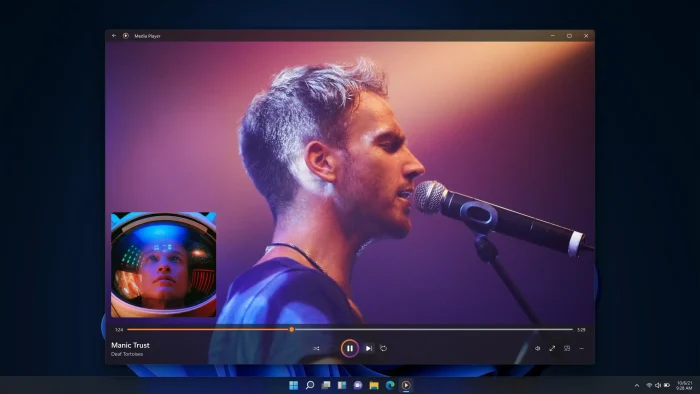
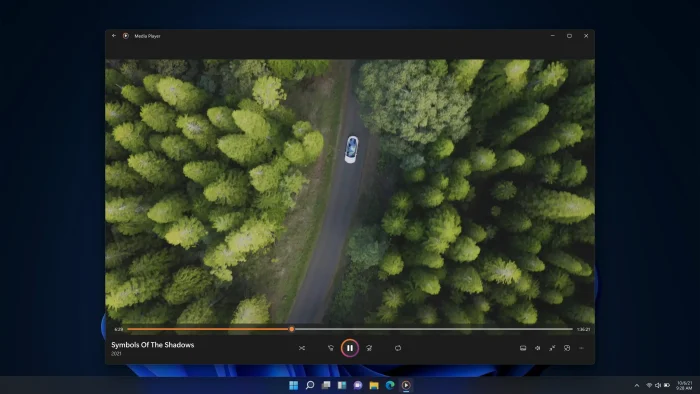
Windows Media Player Screenshots
These official Microsoft Store screenshots show the modern library and video playback screens, which look different from Windows Media Player Legacy.
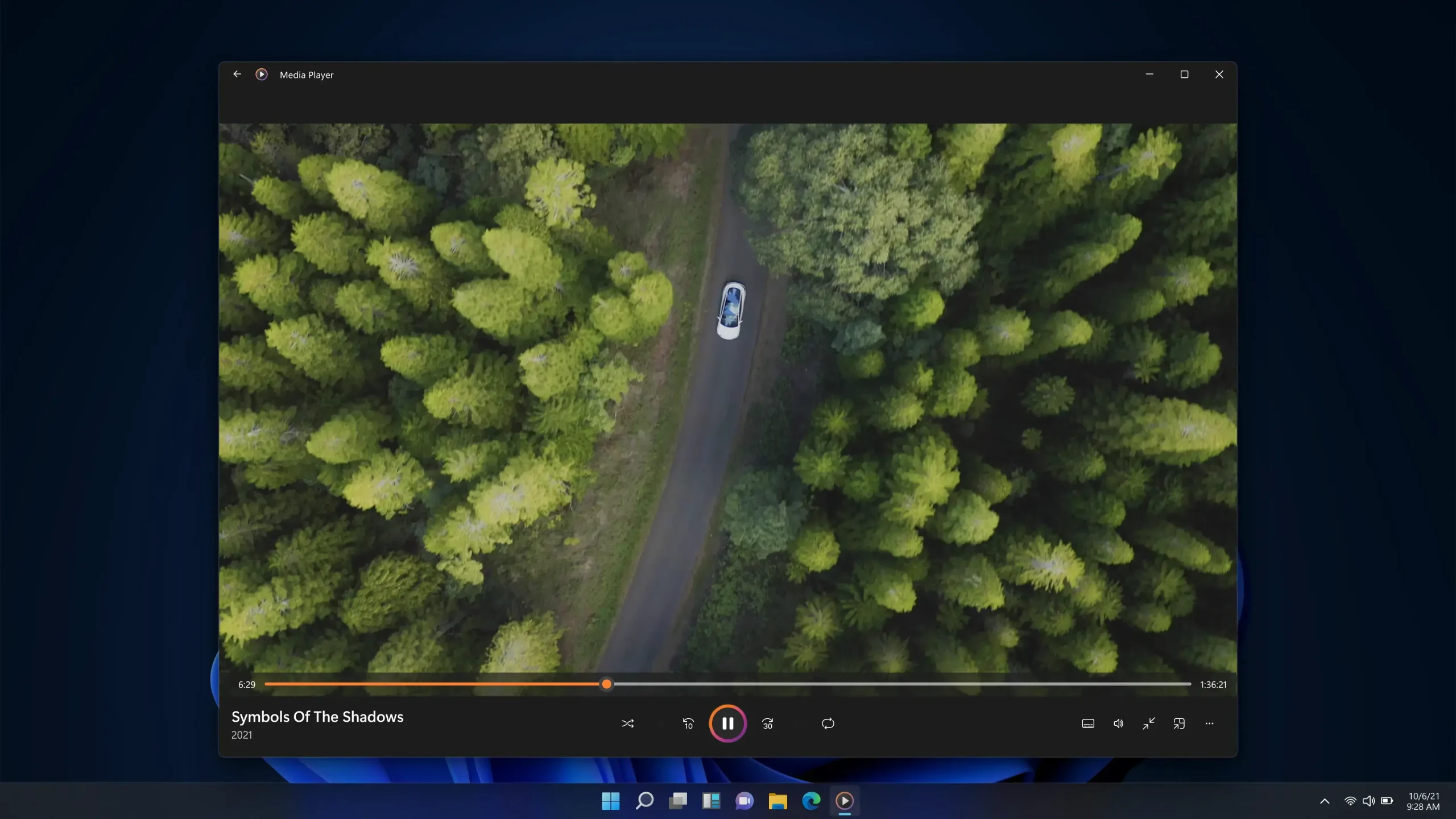
The modern Media Player app keeps video playback controls in a clean window that matches current Windows design.
Frequently Asked Questions
Is Windows Media Player free?
Yes. The modern Windows Media Player app is free from the Microsoft Store. Use the official Store listing from Microsoft, not a random installer site.
Is the modern Windows Media Player the same as Windows Media Player Legacy?
No. The modern Media Player app is the current Microsoft Store app for music and video playback. Windows Media Player Legacy is the older Windows add-on, and Microsoft separates the two in its support pages.
Does Windows Media Player work on Windows 10?
Yes, the Store listing is for Windows PCs, and Microsoft support still discusses Media Player and Windows Media Player Legacy across Windows 10 and Windows 11. Keep in mind that Microsoft ended free Windows 10 security updates on October 14, 2025.
Can Windows Media Player play DVDs?
Do not count on it for DVD playback. Microsoft says DVD playback is not included with Windows Media Player Legacy, and DVD movies may need a separate DVD player app, extra file support, or another media player.
Why will some videos not play in Windows Media Player?
Some videos use a format Windows does not understand yet. Microsoft supports many common music and video files, but newer phone videos, web videos, DVD-like files, and some surround-sound audio may need extra Store add-ons or support from your PC maker.
Should I use VLC instead of Windows Media Player?
Use Windows Media Player for simple local music, videos, playlists, and a clean Microsoft app. Use VLC if you often play unusual files, DVDs, videos from a network link, tricky subtitles, or videos that fail in the Microsoft app.
What happened to Groove Music and Movies & TV?
Microsoft says Media Player replaced Groove Music and can migrate Groove libraries and playlists. Movies & TV still matters for previously purchased Microsoft video content, but Microsoft no longer sells new movies and TV shows through the Microsoft Store.
Support and Community
For Microsoft app problems, start with Microsoft Support and the Microsoft Community. For real-world playback comparisons, Reddit can be useful when users are comparing Media Player, VLC, Movies & TV, and file playback behavior across different Windows builds.
- r/Windows11 on Reddit: user discussion around built-in Windows apps, Media Player behavior, and playback problems.
- Microsoft Support for Windows Media Player errors: official troubleshooting for playback and app issues.
- Microsoft Support for Windows Media Player Legacy: official guidance for the older optional Windows add-on.
More Windows software guides: VLC Media Player for Windows | Best Free Media Players for Windows | Best Free Music Players for Windows | Windows DVD Player for Windows