What’s new in this week’s Windows 11 Insider builds? Quick Settings, the panel that opens when you click the Wi-Fi, sound or battery icons on the taskbar, picks up two handy additions: controls for your connected phone and a built-in internet speed test. Microsoft announced both in its October 23, 2026 Windows Insider Blog post.
Both features are only in the Experimental channel for now, and Microsoft is rolling them out gradually, so not every Insider sees them right away. Regular Windows 11 PCs don’t have them yet.
| Channel | Build |
|---|---|
| Beta | 26220.9757 |
| Beta (26H1 PCs) | 28020.3292 |
| Experimental | 26340.9767 |
| Experimental (26H1 PCs) | 28120.3302 |
| Experimental (Future Platforms) | 29695.1001 |
Microsoft ships different build numbers depending on which version of Windows 11 a PC runs. To check yours, press Windows + R, type winver and press Enter.
Control your phone from Quick Settings
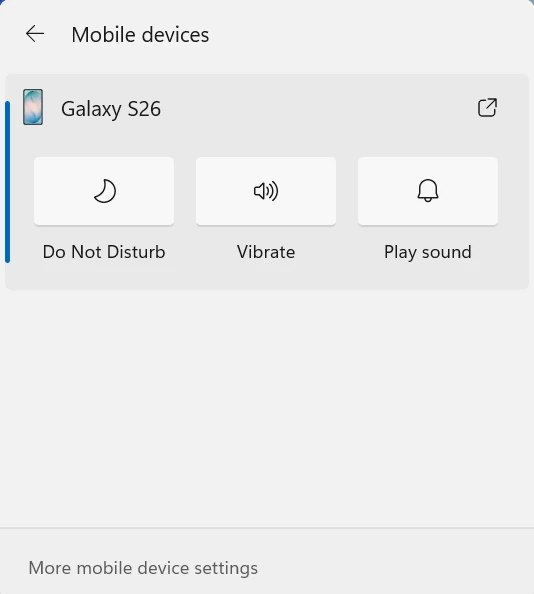
A new Mobile devices section in Quick Settings lets you handle quick phone tasks without picking up your phone or opening another app. With a supported Android phone connected to your PC, you can:
- Turn on Do Not Disturb before a call or meeting.
- Change the ringer mode, for example switching to vibrate.
- Play a sound to find a phone that’s lost under a cushion or in another room.
iPhone users
Android phones get the full set of controls first. Microsoft says iPhone support starts with a more limited experience focused on showing your phone’s status, and what you see can vary by phone and setup.
Test your internet speed without opening a browser
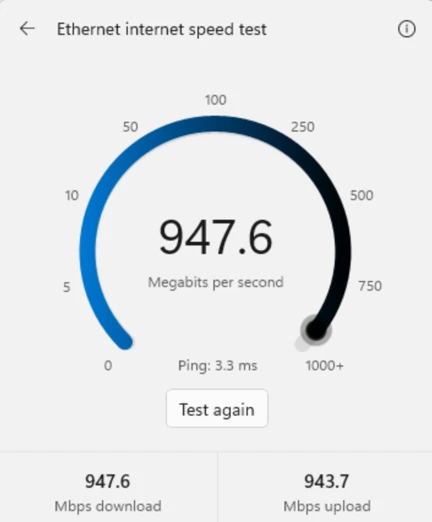
Insiders can now run an internet speed test right inside Quick Settings. You can start it in three ways:
- Click the new Speed test tile in Quick Settings.
- Open the Wi-Fi or Cellular flyout and start it from there.
- Right-click the network icon on the taskbar and choose Test internet speed.
Quick Settings shows the test’s progress and then your download speed, upload speed and ping (how long your connection takes to respond). The test runs on whichever connection you’re using at the time, so it’s a quick way to tell whether slow video calls or downloads come from your Wi-Fi or something else.
Microsoft had already tested a speed test for Insiders that sent you to a browser. This version keeps the whole thing inside Windows.
Insider settings: filter feature flags
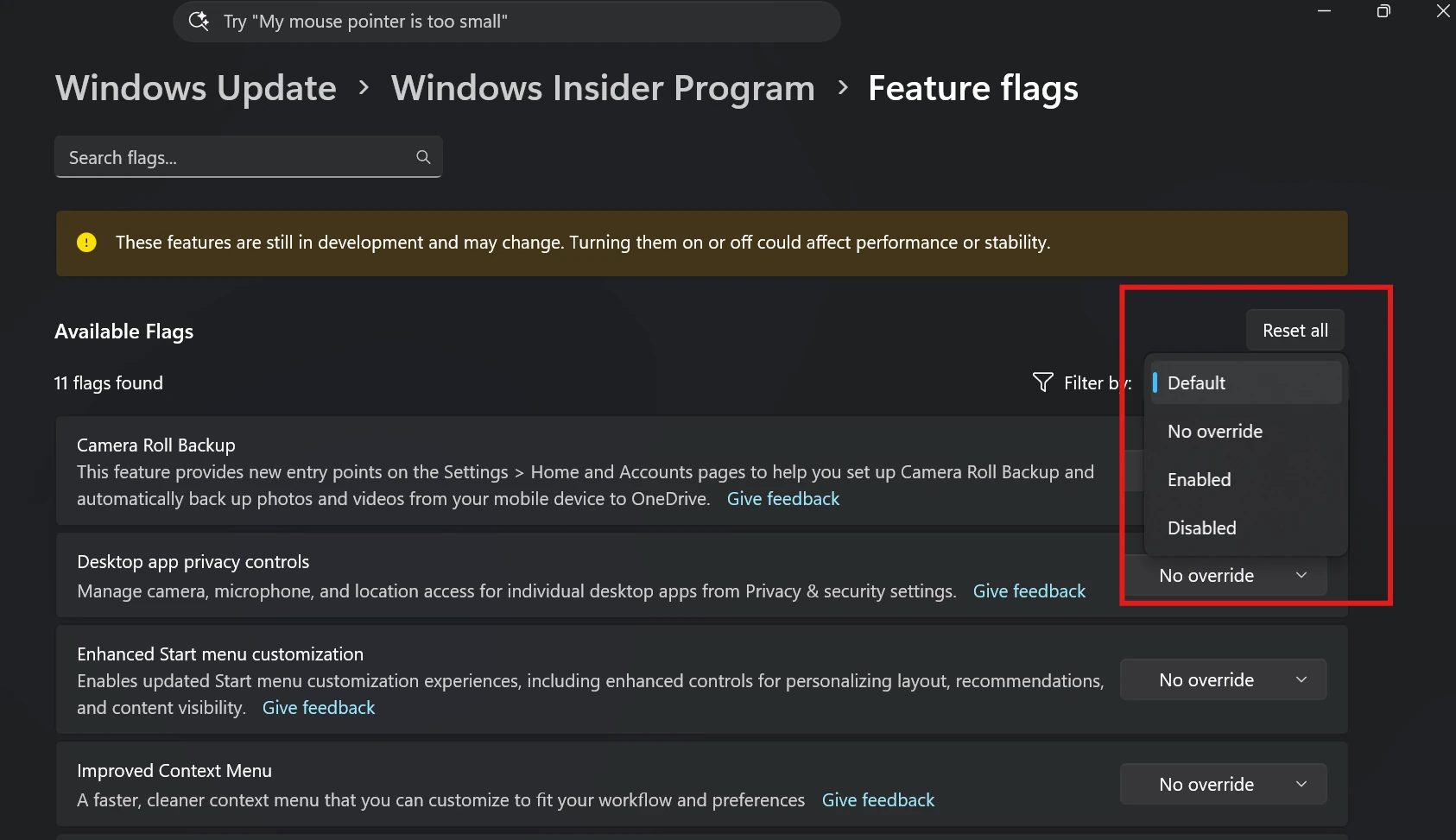
The third change is for people testing preview features. The Feature flags list on the Windows Insider Program settings page can now be filtered by whether each flag is turned on or off, which makes it quicker to see what you’ve enabled. This one is also Experimental channel only.
When will everyone get these features?
Microsoft hasn’t given a date. Features in the Experimental channel can change, slip or be dropped before they reach regular Windows 11 PCs. If you want to try them now, you’ll need to join the Windows Insider Program and pick the Experimental channel, which is best kept to a spare PC rather than the one you rely on every day.
For last week’s round, see our October 16 Insider builds roundup, which covers the Xbox mode navigation bar and the Windows Hello brightness option.
Discover more from Windows Mode
Subscribe to get the latest posts sent to your email.














Add your first comment to this post