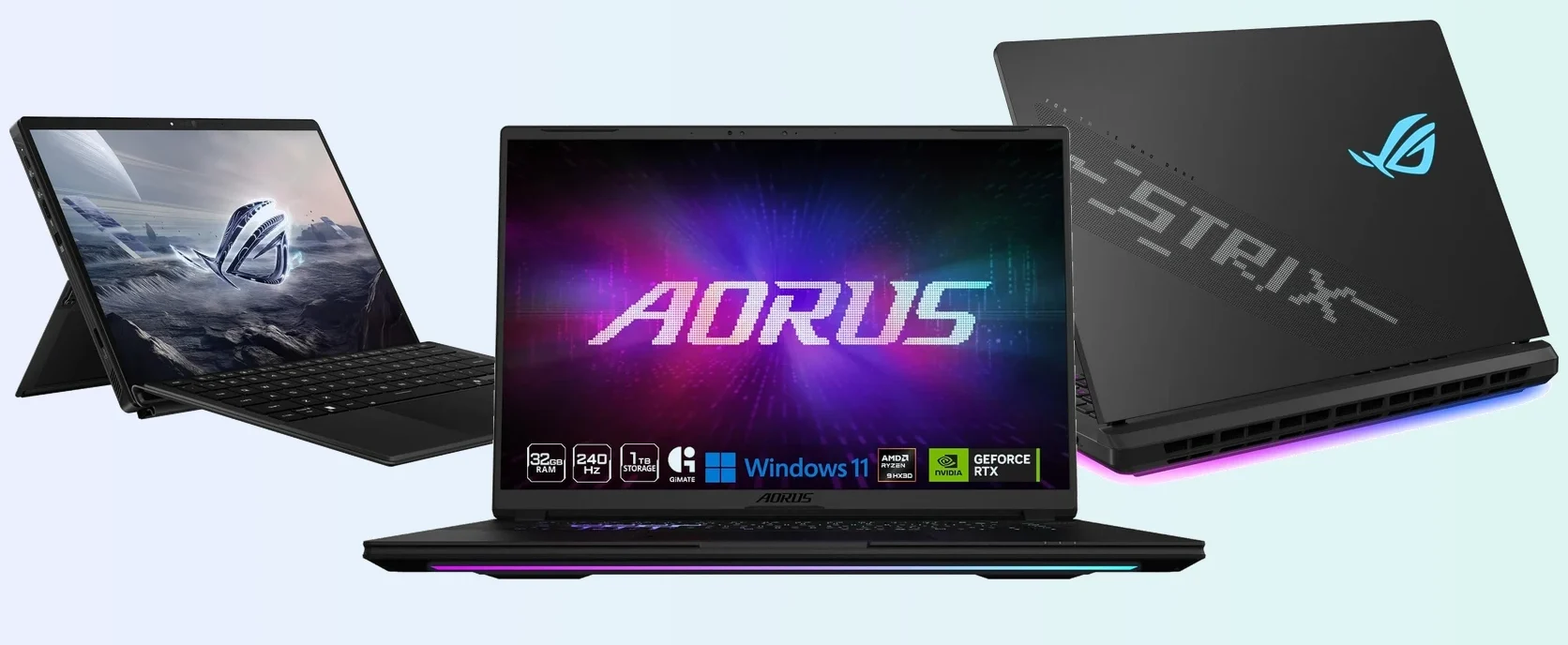
The top Windows laptops for running AI locally are the GIGABYTE AORUS MASTER 16 with an RTX 5080 for most people, the ASUS ROG Flow Z13 with 128GB of memory for very large models, the ASUS ROG Strix SCAR 18 with an RTX 5090 for the most speed, and the Acer Predator Helios Neo 16 AI for value. The Acer Nitro V 16S AI is the budget way in.
We picked these from manufacturer specs and published AI testing, not hands-on use, and linked the exact configuration we describe. Every link goes to a listing shipped and sold by Amazon. We earn a commission if you buy through these links, at no extra cost to you. Questions about a model? Get in touch with us.
Quick Picks
- Best for most people: GIGABYTE AORUS MASTER 16 GEN 2 (16GB RTX 5080)
- Best for large models: ASUS ROG Flow Z13 (128GB shared memory)
- Fastest: ASUS ROG Strix SCAR 18 (24GB RTX 5090)
- Best value: Acer Predator Helios Neo 16 AI (12GB RTX 5070 Ti)
- Best budget: Acer Nitro V 16S AI (8GB RTX 5060)
Best Laptops for Running AI Locally
Each pick lists the graphics memory, system memory, processor and screen of the exact model we link.
1
GIGABYTE AORUS MASTER 16 GEN 2 (RTX 5080)
Best for most people
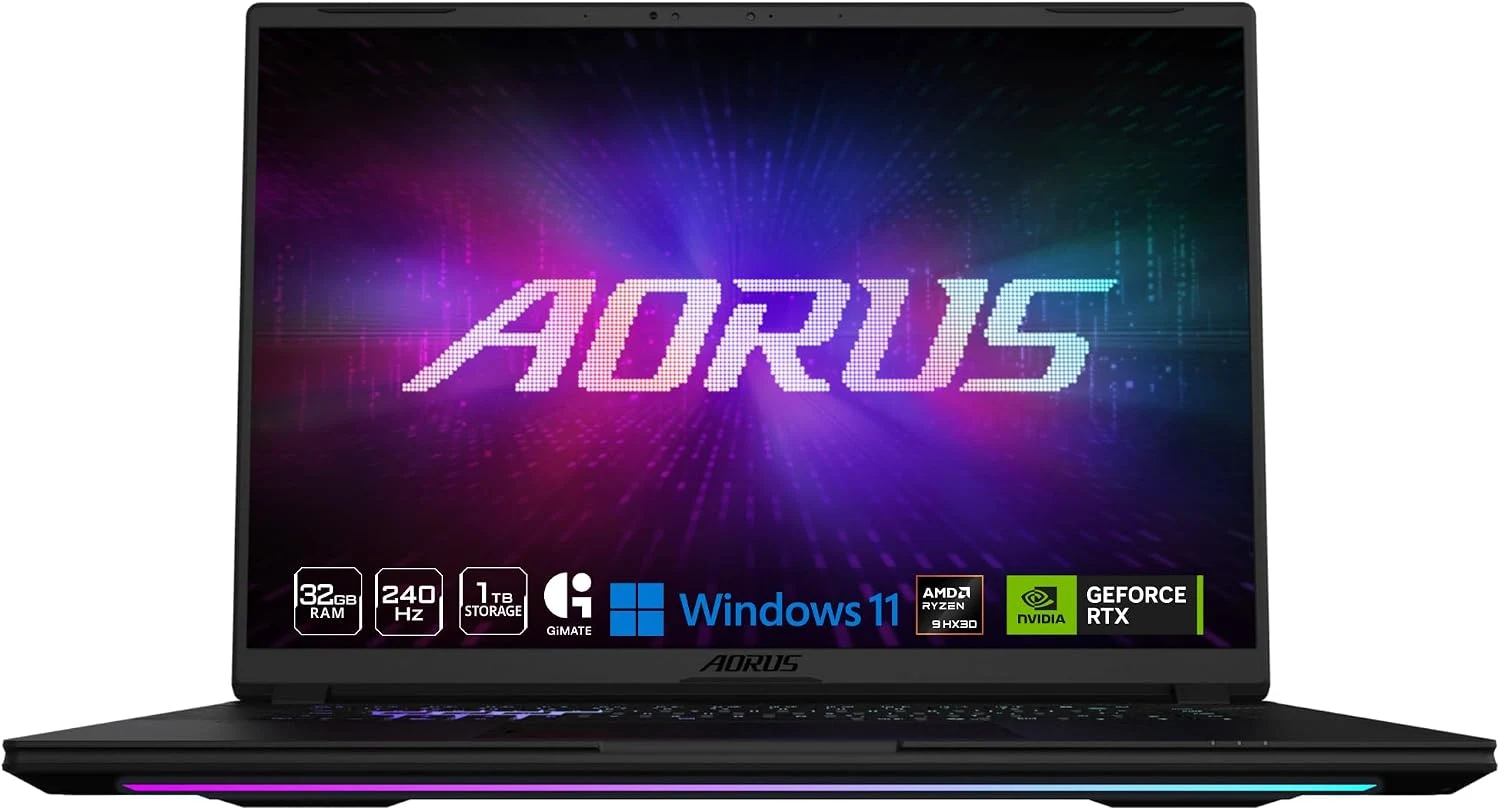
Graphics
RTX 5080, 16GB
System memory
32GB DDR5, up to 64GB
Processor
Ryzen 9 9955HX3D
Screen
16-inch OLED, 240Hz
The RTX 5080 has 16GB of graphics memory, which is the sweet spot for local AI on a laptop. It holds 4-bit versions of models up to about 14 billion parameters with plenty of room left for long chats, and some 20 to 24 billion parameter models with a shorter context. Because it is NVIDIA, Ollama, LM Studio and ComfyUI all use CUDA (NVIDIA’s AI software layer), so most guides and tools work without extra setup.
What to consider
- 16GB is a hard ceiling. A model bigger than that spills into system memory and runs several times slower.
- It weighs about 5.1 lb and uses a 330W charger, so long AI jobs mean staying near an outlet.
Good to know: the Ryzen 9 9955HX3D has no NPU (a small chip for light AI tasks), so it misses Windows’ on-device AI features such as Recall, which need a 40+ TOPS NPU. GIGABYTE lists two memory slots, so you can raise system memory to 64GB later.
2
ASUS ROG Flow Z13 (128GB)
Best for large models
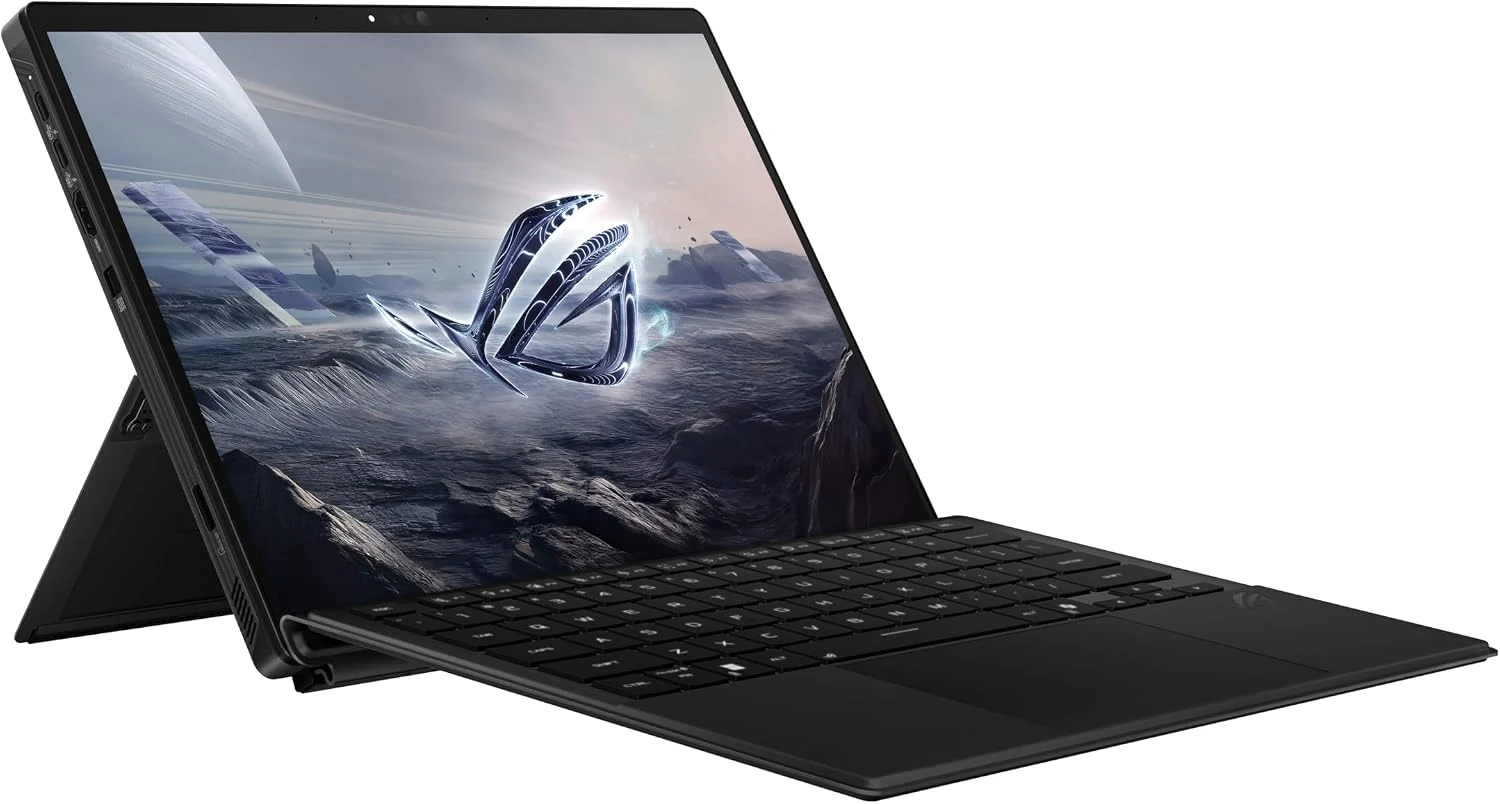
Graphics
Radeon 8060S (built in)
Memory
128GB shared, up to 96GB for graphics
Processor
Ryzen AI Max+ 395
Screen
13.4-inch touch, 180Hz
This 13-inch tablet has no separate graphics card. Instead, its graphics share one big 128GB pool of memory, and AMD says Windows can give up to 96GB of it to the graphics. That lets it load models far too large for any RTX laptop. AMD’s own test shows Meta’s Llama 4 Scout (a 109 billion parameter model) running at up to 15 tokens per second in LM Studio, roughly 10 words a second.
What to consider
- Big models load, but large “dense” models answer slowly. It trades speed for capacity, and an RTX 5080 is faster on any model that fits in its 16GB.
- There is no CUDA. LM Studio and Ollama run on its graphics through Vulkan, and ComfyUI labels its AMD support on Windows experimental.
Good to know: memory is soldered, so buy the 128GB model. The 32GB version looks identical on Amazon, so check the title says 128GB. Its 50 TOPS NPU clears Windows’ 40 TOPS bar, so it also gets Windows’ on-device AI features such as Recall. Before loading a big model, raise the graphics memory share in AMD Software. AMD explains the setting in its LM Studio guide.
3
ASUS ROG Strix SCAR 18 (RTX 5090)
Fastest laptop for local AI
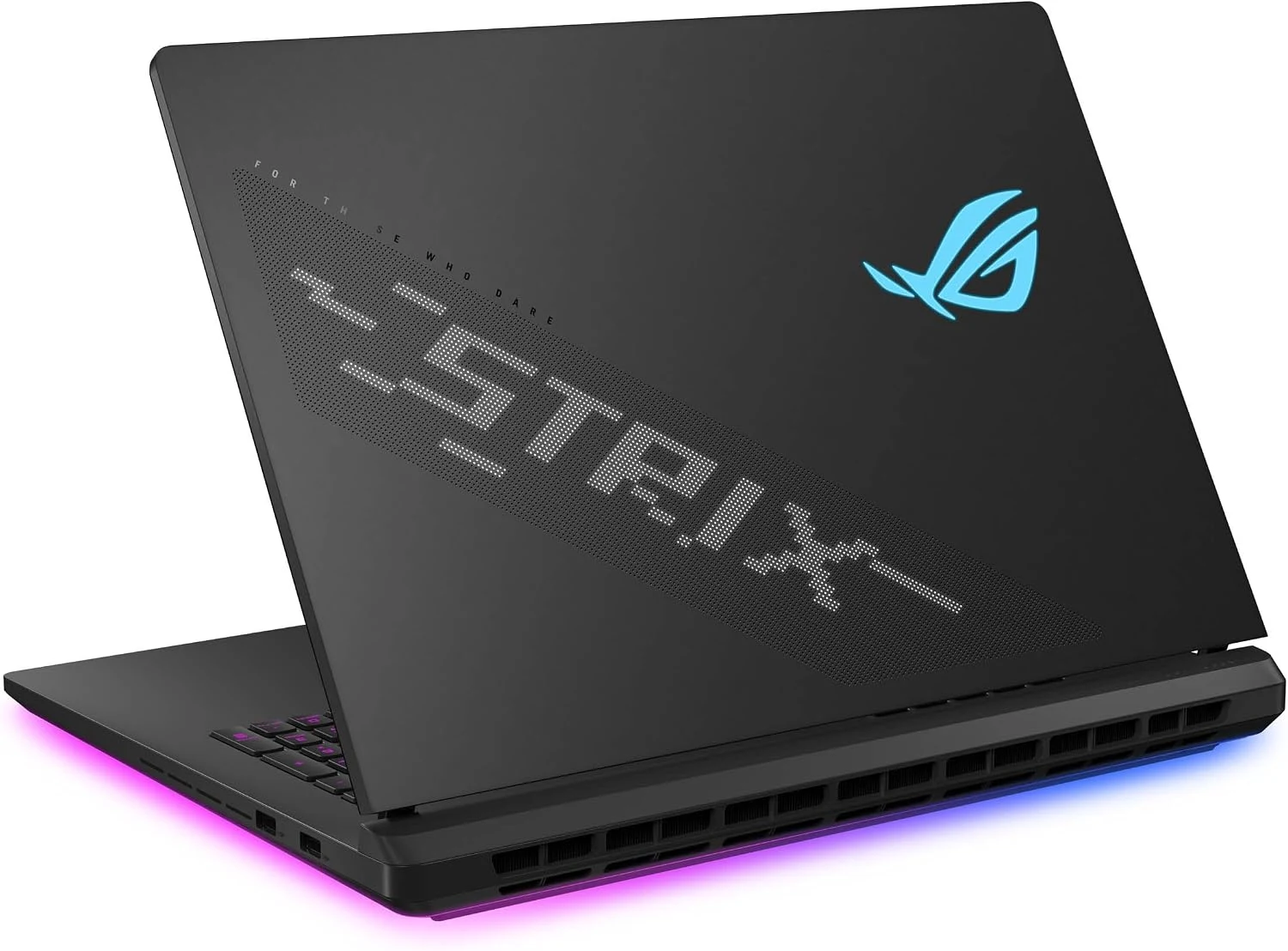
Graphics
RTX 5090, 24GB
System memory
32GB DDR5, up to 64GB
Processor
Core Ultra 9 275HX
Screen
18-inch Mini LED, 240Hz
The RTX 5090 has 24GB of graphics memory, the most of any laptop graphics chip, running at up to 175W. It fits 4-bit versions of models around 27 to 32 billion parameters entirely in graphics memory, and gives image and video tools in ComfyUI the most room. Pick it if you want NVIDIA speed and the biggest models a graphics card can hold.
What to consider
- At about 7.3 lb with a 380W charger, it is a desk machine you can move, not a laptop you carry daily.
- A desktop RTX 5090 card has 32GB and more power. If the machine will never leave your desk, a desktop gives you more AI headroom for the money.
Good to know: this is the 2025 model with 32GB of system memory and a 2TB SSD. ASUS lists two memory slots and up to 64GB. Its 13 TOPS NPU is below the 40 TOPS needed for Windows’ on-device AI features.
4
Acer Predator Helios Neo 16 AI (RTX 5070 Ti)
Best value
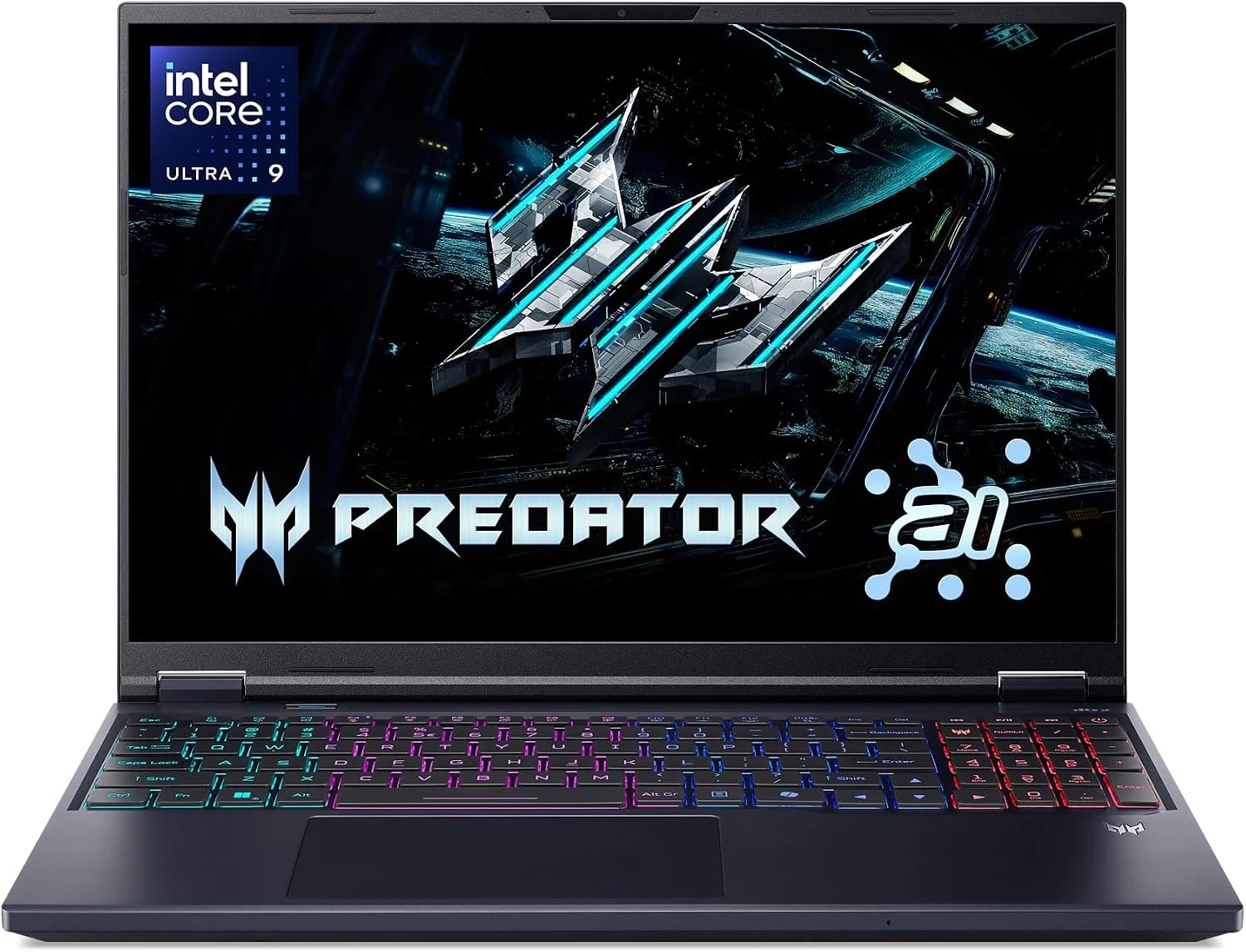
Graphics
RTX 5070 Ti, 12GB
System memory
16GB DDR5, up to 64GB
Processor
Core Ultra 9 275HX
Screen
16-inch 2560 x 1600, 240Hz
The cheapest laptop sold by Amazon itself that we found with 12GB of graphics memory. That runs 7 to 8 billion parameter models with lots of room for long conversations, and 12 to 14 billion parameter models at 4-bit. It is a good first machine for a local coding assistant or for learning ComfyUI.
What to consider
- 16GB of system memory is the weak spot. It is fine while the model fits in graphics memory, but image workflows and a browser full of tabs will push it, so plan to add memory.
- It weighs about 6 lb, heavy for a 16-inch laptop.
Good to know: it has two memory slots, so moving to 32GB is a simple upgrade.
5
Acer Nitro V 16S AI (RTX 5060)
Best budget starter
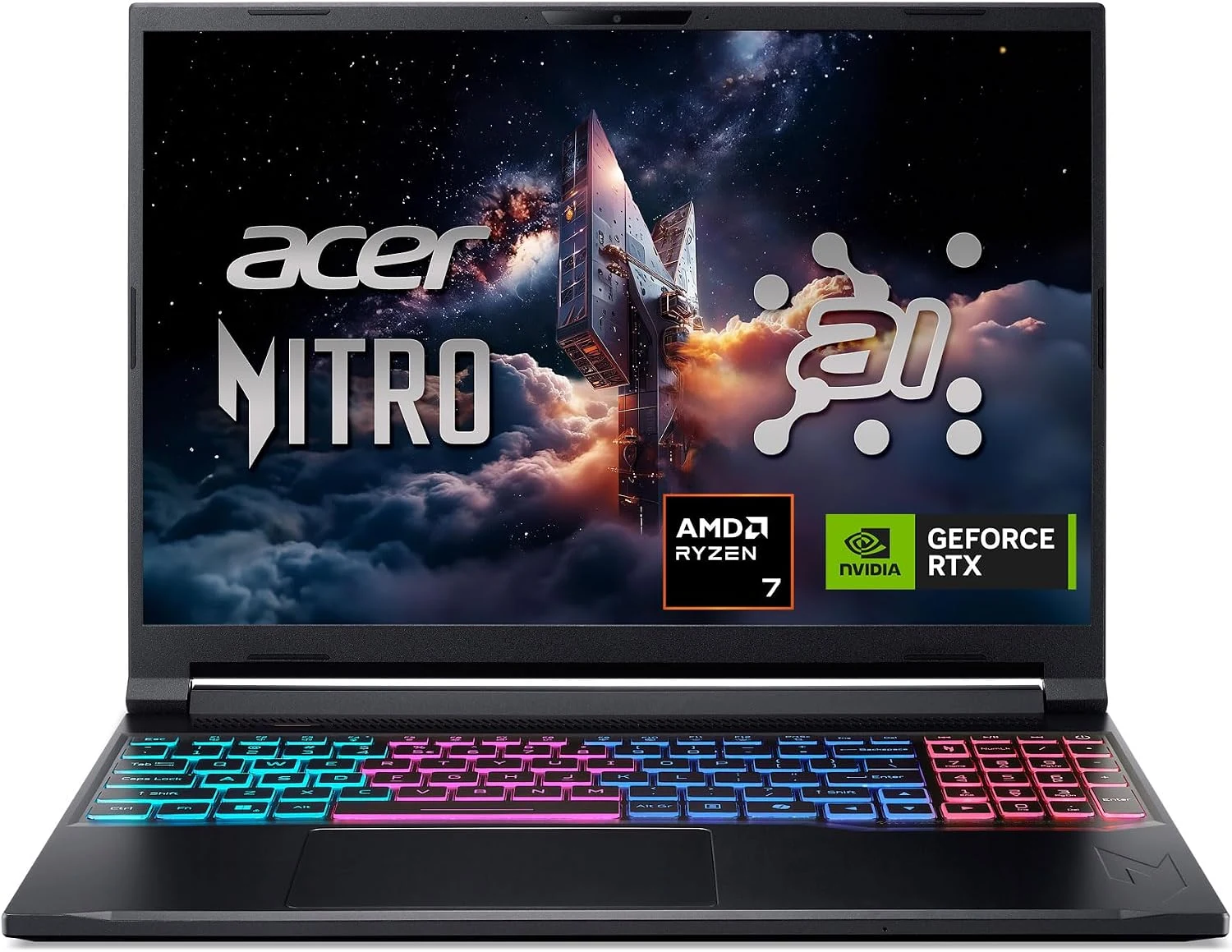
Graphics
RTX 5060, 8GB
System memory
32GB DDR5
Processor
Ryzen 7 260
Screen
16-inch 1920 x 1200, 180Hz
The most affordable way into local AI with an NVIDIA graphics chip. Its 8GB of graphics memory handles 7 to 8 billion parameter models at 4-bit, which is enough for a private chatbot or a small coding assistant. It already ships with 32GB of system memory, which is rare at this price.
What to consider
- 8GB is the real limit. 14 billion parameter models do not fit fully, and newer image models are slow or will not run.
- The screen is a plain 1080p-class panel, fine for work but nothing special.
Local AI Laptops Compared
Swipe the table sideways on a phone to see every column.
Do You Need a Laptop Built for AI?
It depends on where the AI runs. Most people only need the first case.
Cloud AI: any laptop works
ChatGPT, Copilot, Claude and Gemini run on the company’s servers. Your laptop only shows the chat, so these alone are no reason to buy special hardware.
Windows AI features: a 40+ TOPS NPU
Features such as Recall and Click to Do run on an NPU (a small chip for light AI tasks) rated at 40 TOPS or more. Laptops that meet this bar were sold as Copilot+ PCs. Of our picks, only the Flow Z13 qualifies.
Your own models: graphics memory
Ollama, LM Studio and ComfyUI run models on your own machine, offline and private. That is what this guide is about, and the next section explains what to look for.
What Actually Matters for Local AI
Graphics memory comes first
A model runs fast only when it fits in graphics memory (VRAM). At 4-bit, a common compressed format, a model’s download is roughly 0.6GB per billion parameters, so an 8B model needs about 5GB. Leave extra room for the conversation itself.
System memory is a separate pool
16GB of VRAM plus 32GB of system RAM does not make 48GB for AI. Tools can spill a model into system RAM, but it runs several times slower. System RAM still matters for Windows, your apps and image tools.
Shared memory is different again
On the Flow Z13, graphics and Windows share one 128GB pool. Set aside what Windows and your apps need. AMD caps the graphics share at 96GB on Windows.
NVIDIA or AMD changes the software
CUDA works only on NVIDIA, and it is what most AI tools expect. On AMD, Ollama and LM Studio use Vulkan, and ComfyUI added AMD support on Windows through AMD’s ROCm, a path ComfyUI labels experimental.
Ignore TOPS for local models
NPU TOPS and “AI TOPS” on the box measure something Ollama and LM Studio barely use. Compare graphics memory, then the graphics chip.
Running, not training
These laptops run models and can fine-tune small ones with extra tools. Training a large model from scratch needs data center hardware, not a laptop.
Run Your First Local Model
Each of our step-by-step guides uses free tools such as Ollama and works on every laptop above: OpenAI gpt-oss, Gemma 3, DeepSeek R1, Llama 4 and Qwen 3 VL. If you want AI help while you code, see our best AI code editors, several of which can use a local model.
Local AI Laptops FAQ
Can I run AI locally on a laptop without a graphics card?
Yes, for small models. Ollama and LM Studio can run models on the processor alone, or on built-in graphics. A 7 to 8 billion parameter model at 4-bit needs about 5GB of memory, so 16GB of system RAM is a sensible minimum. Replies come noticeably slower than on a laptop with an RTX graphics chip.
Is 16GB of RAM enough to run AI locally?
It is enough when the model fits in your graphics memory, because the graphics chip does the work. It gets tight with image tools, many open apps, or models running on the processor. 32GB is the safer choice, and laptops with memory slots, such as the Acer Predator Helios Neo 16 AI, can be upgraded later.
Does local AI work offline?
Yes. Once a model is downloaded, Ollama, LM Studio and ComfyUI run it without an internet connection, and your prompts stay on your computer. You only need internet to download models and app updates.
Should I start with Ollama or LM Studio?
Both are free and run on every laptop in this guide. LM Studio is the easier start, with a chat window and a built-in model browser. Ollama is lighter and easy for other apps, such as coding assistants, to connect to.
Is a laptop or a desktop better for running AI locally?
A desktop gives you more for the money. A desktop RTX 5090 card has 32GB of graphics memory against 24GB on the laptop version, and it stays cooler and quieter during long jobs. Buy a laptop if you need to carry it. Our best gaming desktops guide covers the desktop side.
More Windows hardware guides: Best Gaming Laptops · Best Gaming Desktops · Best Surface Laptops
Discover more from Windows Mode
Subscribe to get the latest posts sent to your email.














Add your first comment to this post