

Readers like you help support this site. When you make a purchase using links on our site, we may earn an affiliate commission. All opinions remain our own.
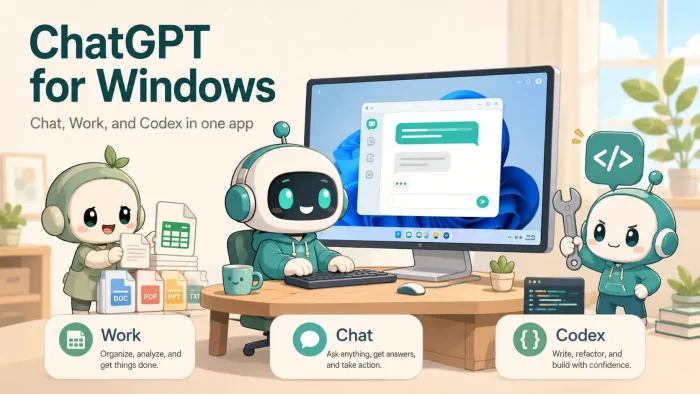

ChatGPT for Windows is OpenAI’s official free desktop app, available via the Microsoft Store. As of July 2026, the app is no longer just a chat window. It now has three modes built into one window: Chat for everyday questions, ChatGPT Work for handing off full projects, and Codex for coding.
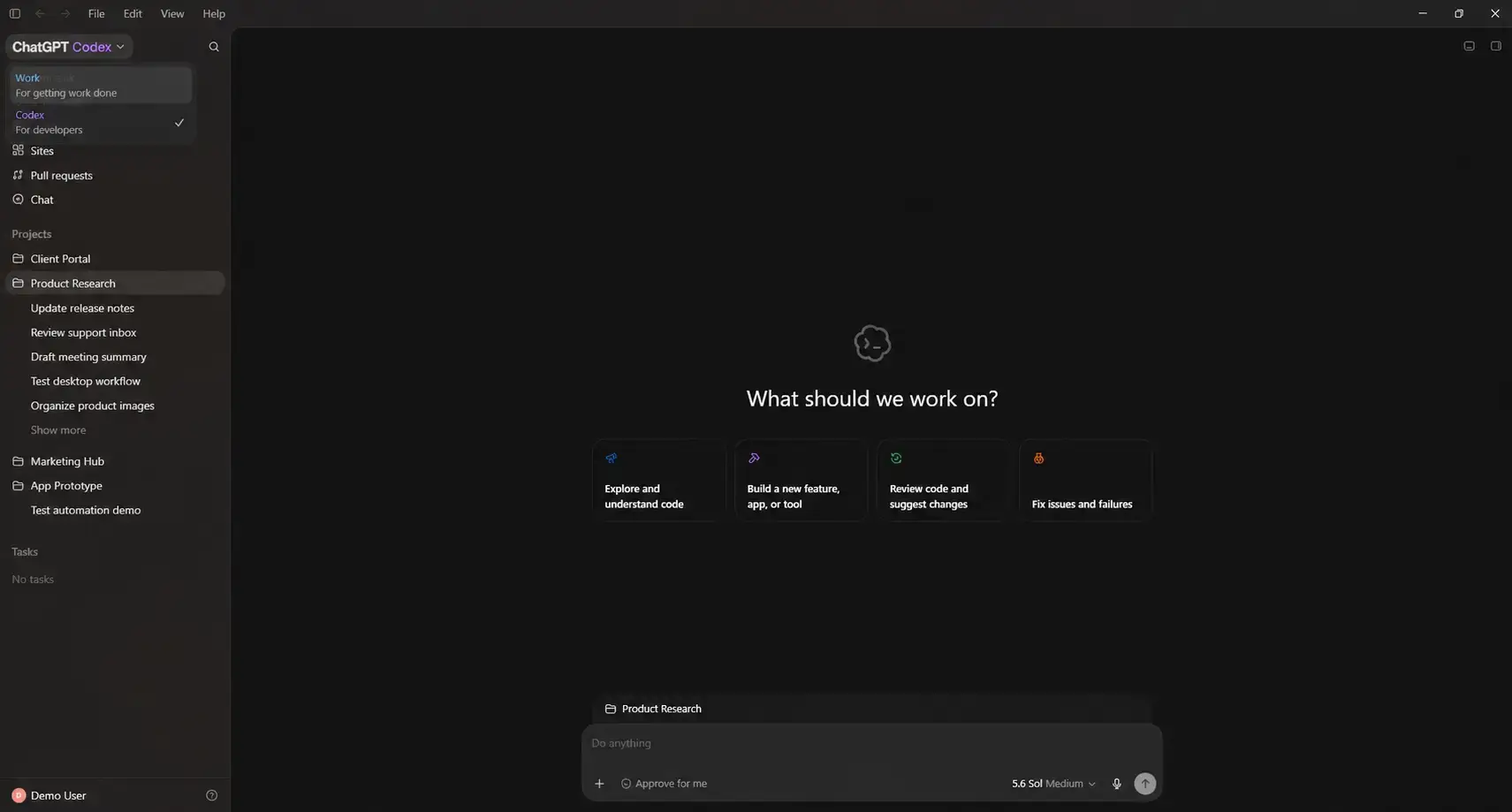
You switch between Work and Codex from a dropdown in the top-left corner, with Chat sitting in the sidebar as its own item. All three are free to use on every plan, including the Free plan.
If you used to run Codex as its own separate app, that app is gone. OpenAI folded it into ChatGPT on July 9, 2026, so it updated on its own into this combined app. Nothing about Codex was removed. It just moved in next to Chat and a brand new agent called Work, which can gather context from your files and apps and turn it into a finished document, spreadsheet, or presentation while you do something else.
This page covers how to install ChatGPT on Windows, what each of the three modes actually does, keyboard shortcuts for Codex, plans and pricing, and how it stacks up against Copilot and Claude. If you have questions, leave a comment below or contact us.
What You Need to Know
- Codex is now part of ChatGPT, not a separate app. The two apps merged on July 9, 2026. Existing Codex installs updated automatically.
- Work is a new agent, not just a longer chat. It can gather context across your files and apps and build a finished document, sheet, or slide deck while it keeps working in the background.
- Free plan users get all three modes. Chat, Work, and Codex all work on Free, just with lower usage limits than paid plans.
Who Should Use ChatGPT for Windows?
- Use it if you want one app that handles quick questions, longer document or spreadsheet projects, and coding tasks without switching between three separate tools.
- Skip it if you only need inline code suggestions while you type. A plugin like GitHub Copilot sitting inside your editor will feel faster for that specific job than opening a separate app.
- Be careful if you already have the Codex app open in a lot of projects at once. Give the merge a look before a big deadline in case a workflow or shortcut moved.
How to Get ChatGPT on Windows
There are two ways to install ChatGPT on Windows. The Microsoft Store is the easiest option for most people. The second uses winget, Windows’ built-in tool for installing software from a terminal.
Already have Codex installed? You do not need to reinstall anything. Updating your existing Codex app through the Microsoft Store turns it into the new combined ChatGPT app automatically, with Chat, Work, and Codex all in one place.
Option 1: Microsoft Store
- Step 1. Open the Microsoft Store on your Windows 10 or Windows 11 PC.
- Step 2. Search for ChatGPT or go straight to the ChatGPT listing on the Microsoft Store.
- Step 3. Click Get or Install and wait for it to finish.
- Step 4. Open the app and sign in with your OpenAI account. New users can create a free account during setup.
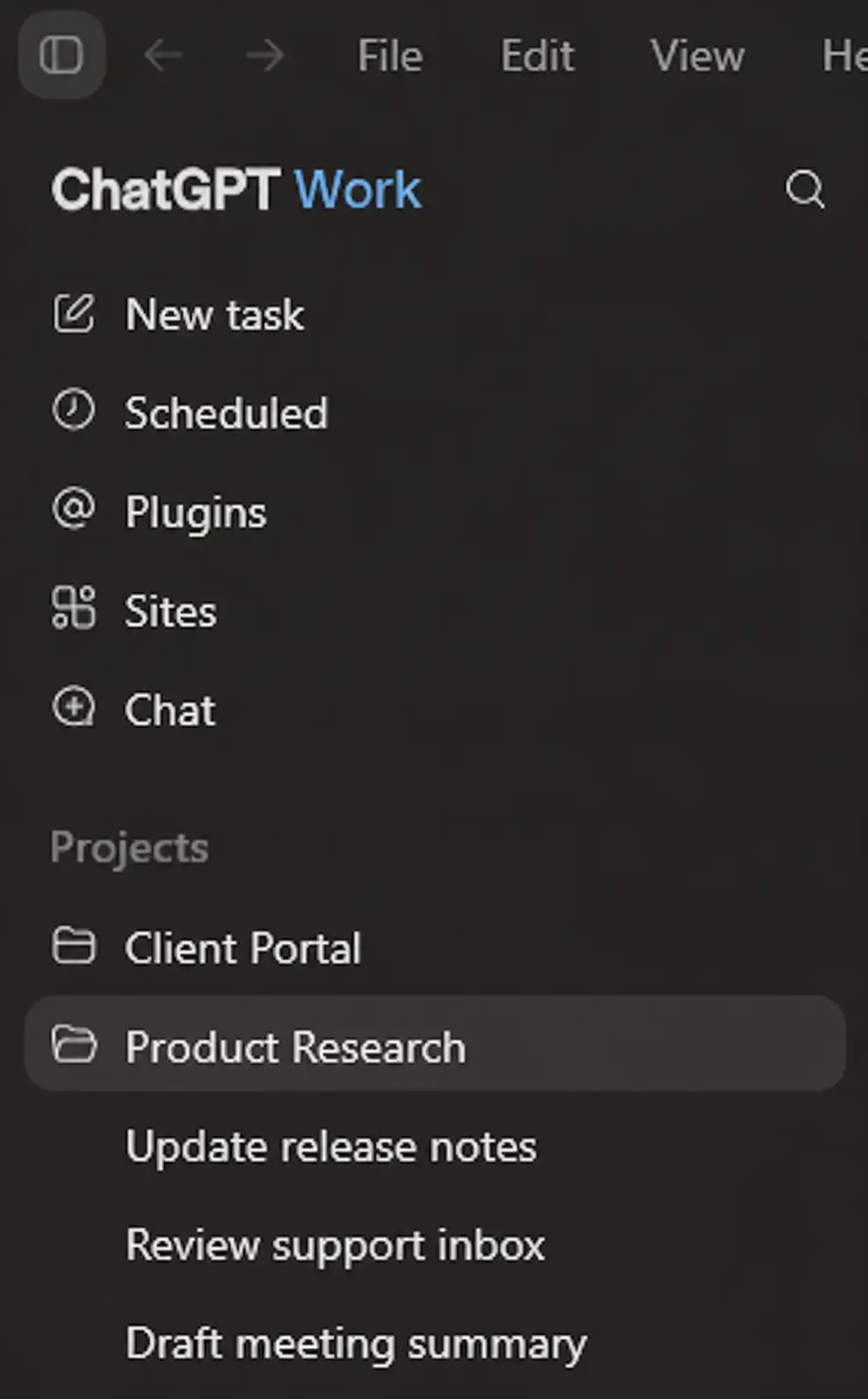
- Step 5. Click the mode name in the top-left corner (it shows “ChatGPT Work” or “ChatGPT Codex”) to switch between them. Chat lives as its own item in the sidebar.
Option 2: winget (Command Line)
Open a terminal window and run this command:
Sign in the same way as the Store version once the install finishes. This method is mainly useful for ChatGPT Enterprise IT admins deploying the app across a team.

What Is ChatGPT?
ChatGPT is OpenAI’s AI assistant, and on Windows it now ships as one desktop app built around three modes instead of a single chat window. Chat is the classic experience: ask a question, get an answer, have a back-and-forth conversation. It is the fastest option when you just need information or a quick draft.
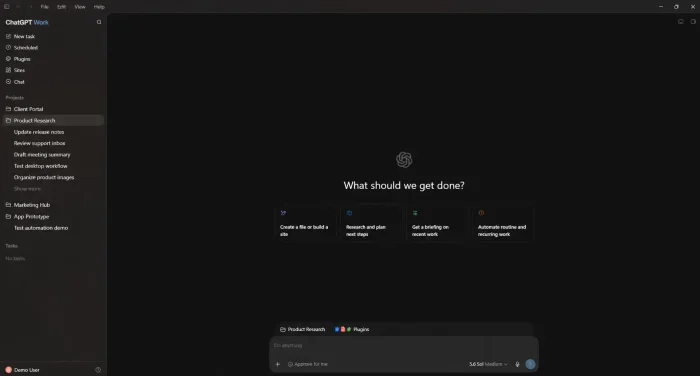
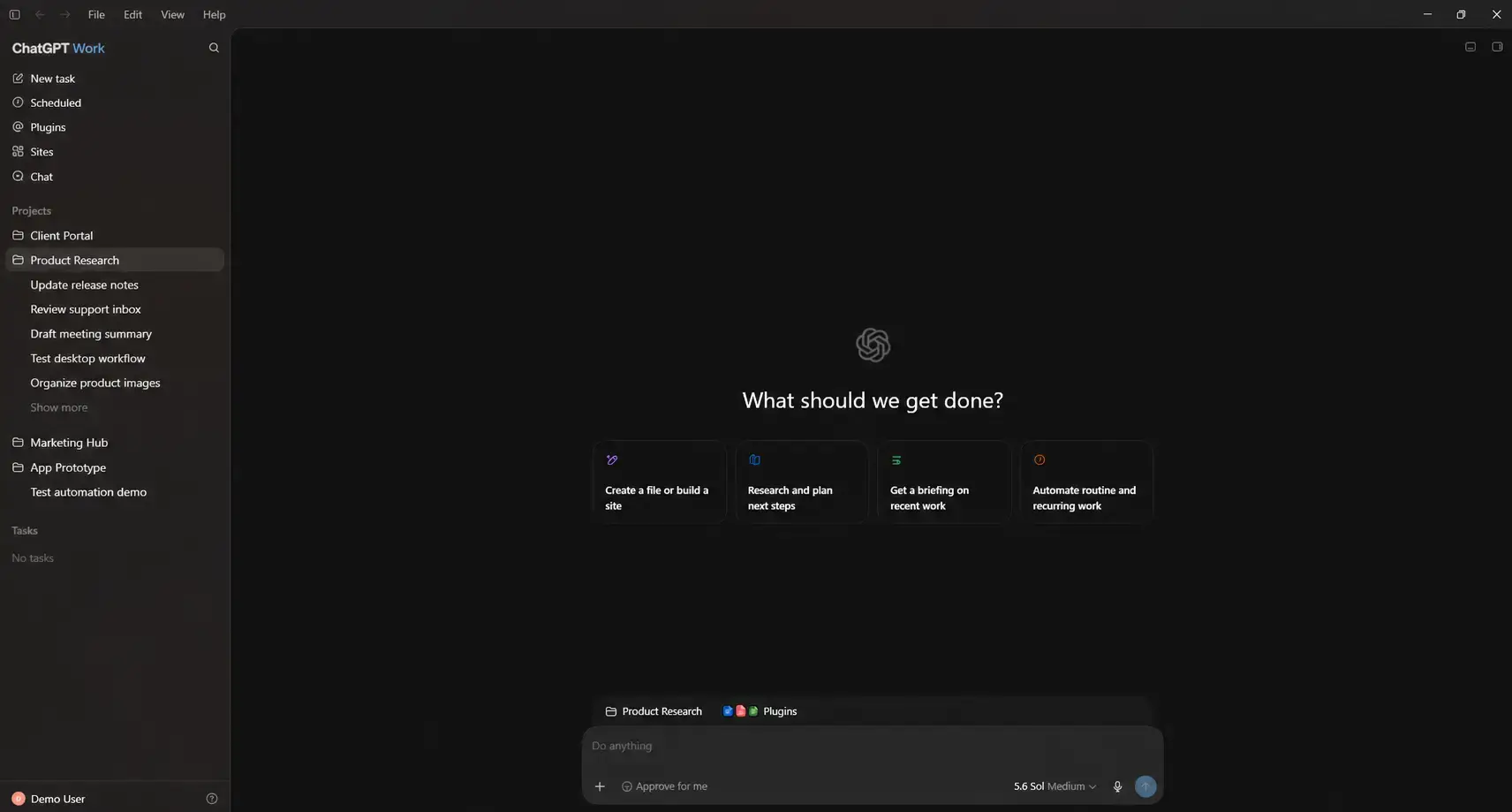
Work is new as of July 2026. It is an agent, not a chat, meaning you can give it a goal like “turn these meeting notes into a client-ready report” and it will gather context from your connected apps and files, plan out the steps, and build the finished document on its own. Work greets you with “What should we get done?” and four starting points (Create a file or build a site, Research and plan next steps, Get a briefing on recent work, Automate routine and recurring work). It can keep a task moving for hours, and you can check on progress or approve important actions from your phone while it runs.
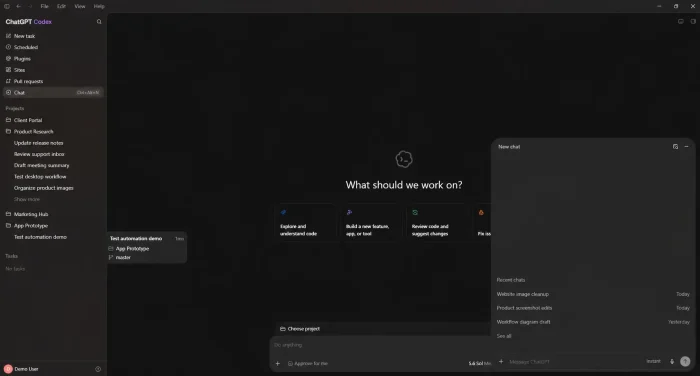
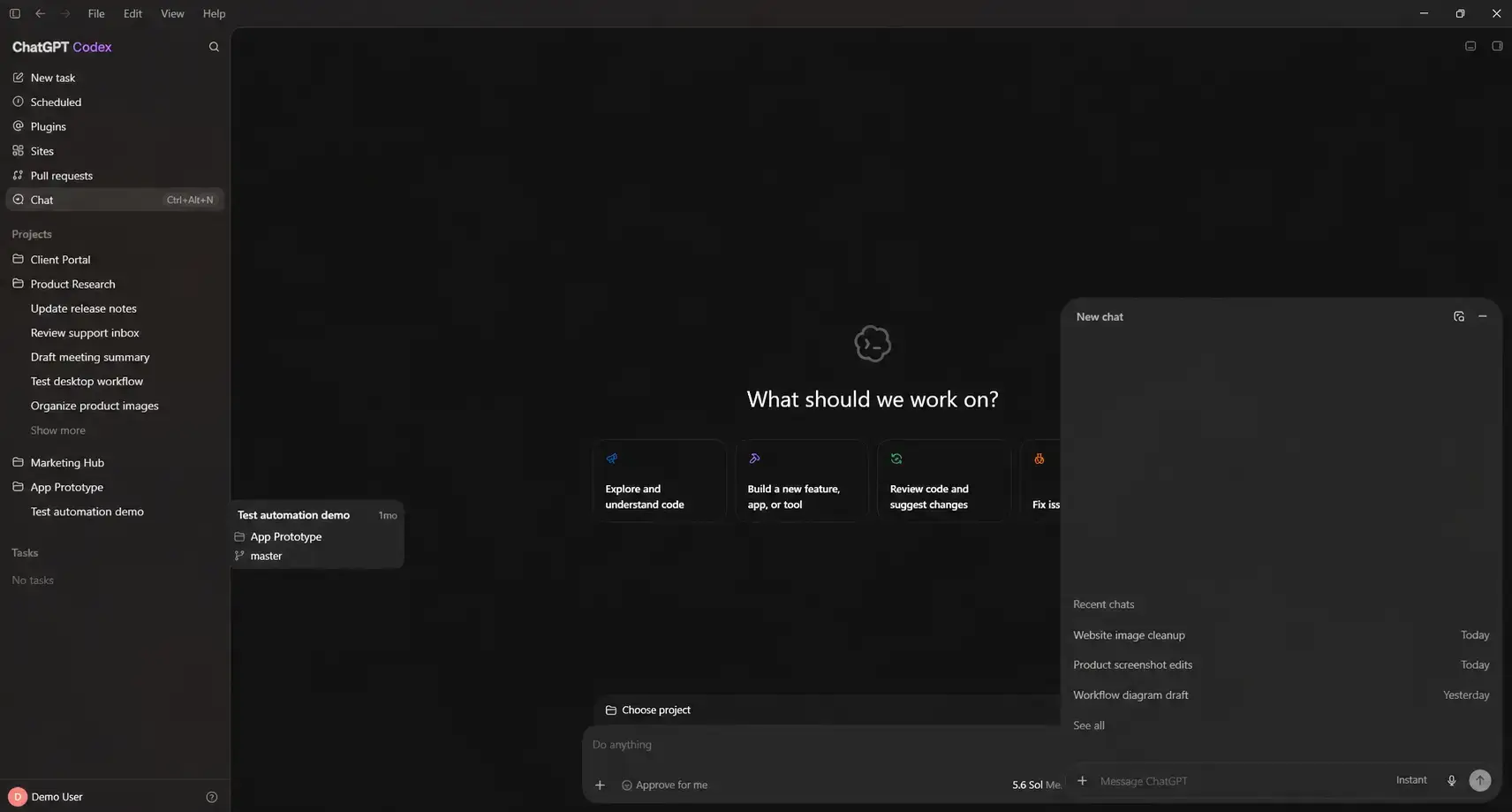
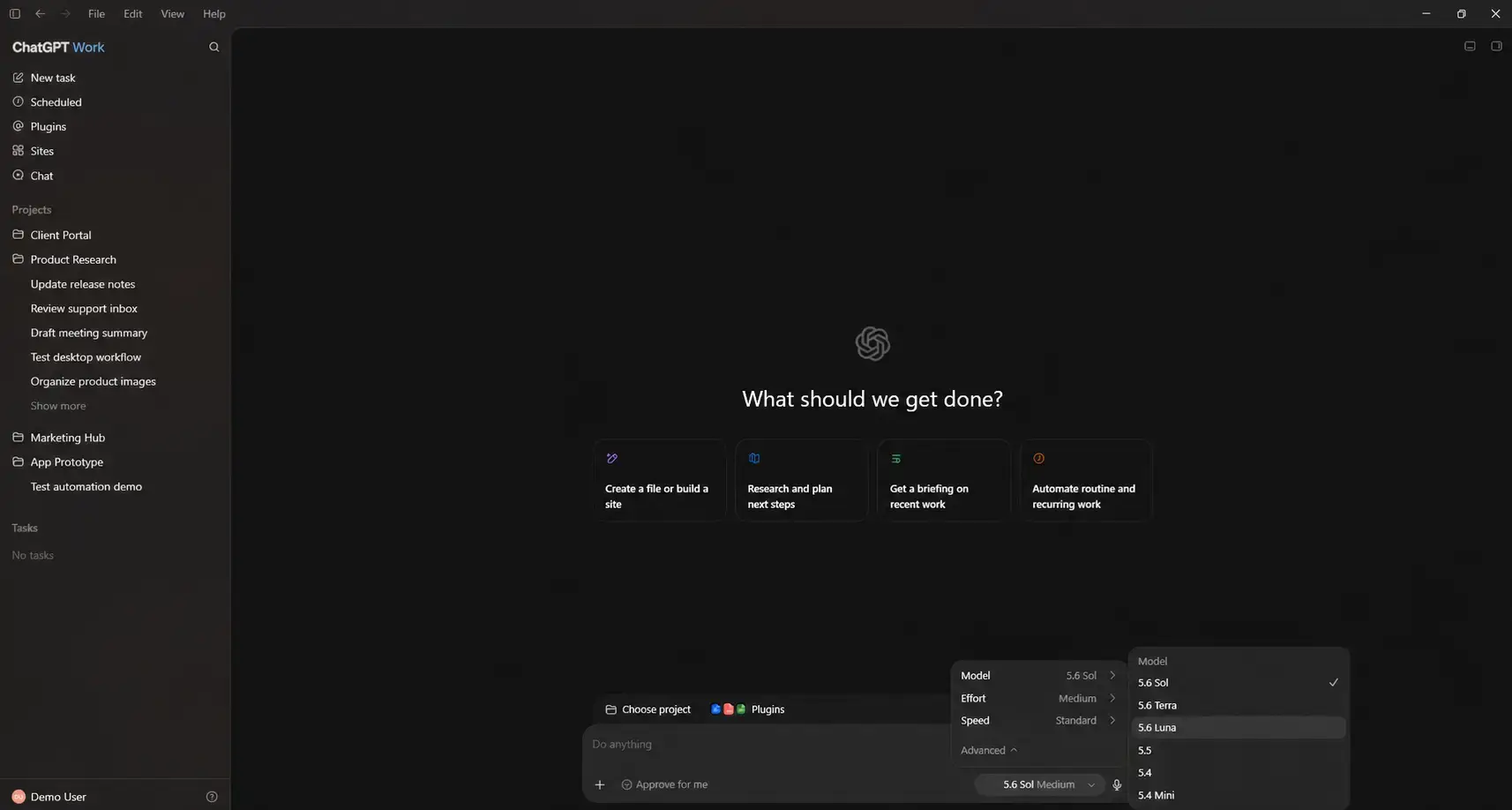
Codex used to be a standalone app for developers. It still is exactly that, just living inside ChatGPT now. Its own start screen asks “What should we work on?” with shortcuts for Explore and understand code, Build a new feature, app, or tool, Review code and suggest changes, and Fix issues and failures. You hand it a coding task, it reads your project, writes the code, runs tests, and shows you a full diff (a summary of every line it added, changed, or removed) before anything gets saved. All three modes run on OpenAI’s GPT-5.6 model family (Sol, Terra, and Luna), with separate Effort and Speed settings you can adjust per task, and the fastest models used for quick chat while the more capable ones handle longer Work and Codex tasks.
Chat, Work, and Codex Explained
Each mode is built for a different kind of task. Chat sits in the sidebar on its own, while a dropdown in the top-left corner switches the whole window between Work and Codex without opening a second app.
Chat
- ✓Answers in seconds. Ask a question, get a reply, keep the conversation going. No setup or context gathering needed.
- ✓Handles files and images. Upload a PDF, spreadsheet, or photo and ask questions about it directly in the conversation.
- ✓Free on every plan. The mode most people already know, unchanged in how it works day to day.
Work
- ✓Builds finished work. Turns scattered notes and files into a real document, spreadsheet, slide deck, or website.
- ✓Keeps working while you’re away. Scheduled Tasks let it run once, on a repeat schedule, or when something changes, and check in from your phone.
- ✓Connects to your tools. Pulls context from apps like Slack, Google Drive, and email through plugins, only when you approve it.
Codex
- ✓Works inside your codebase. Reads your project, edits files, runs tests, and shows a full diff before saving anything.
- ✓Reviews pull requests. Pull requests get their own item in the sidebar, with inline diff editing and PR review happening in a side panel without leaving the app.
- ✓Handles multiple repos. One project can now span more than one repository at a time.
All three modes run on the GPT-5.6 model family (Sol, Terra, and Luna). Free and Go plans use Terra in Work and Codex; Plus and higher can choose between all three and pick a reasoning effort level.
Key Features
Built-In Browser
ChatGPT can now browse the web from inside the desktop app, with support for multiple tabs, to research, compare sources, and pull in live information without leaving the window.
Computer Use
On desktop, ChatGPT can click, type, and move files on your behalf to finish a task in the background, either as a one-time job or as part of a Scheduled Task.
Scheduled Tasks
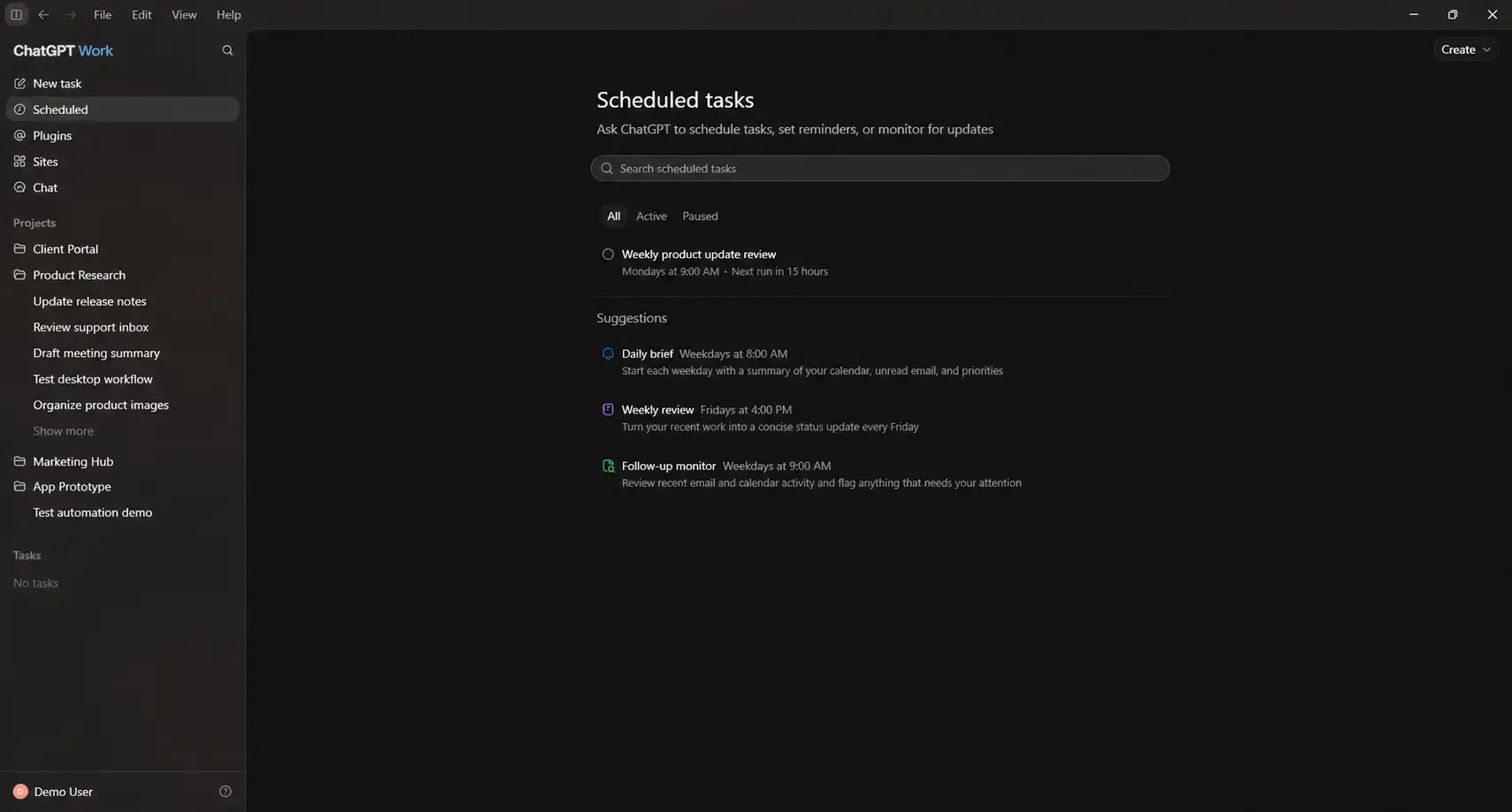
Its own screen in the sidebar, with ready-made suggestions like a daily brief, a weekly review, and a follow-up monitor. Ask ChatGPT to run something once, on a repeat schedule, or whenever a change happens.
Sites
A public beta feature that turns your work into a real interactive website or web app you can share with a link, useful for dashboards, trackers, or prototypes.
Plugins
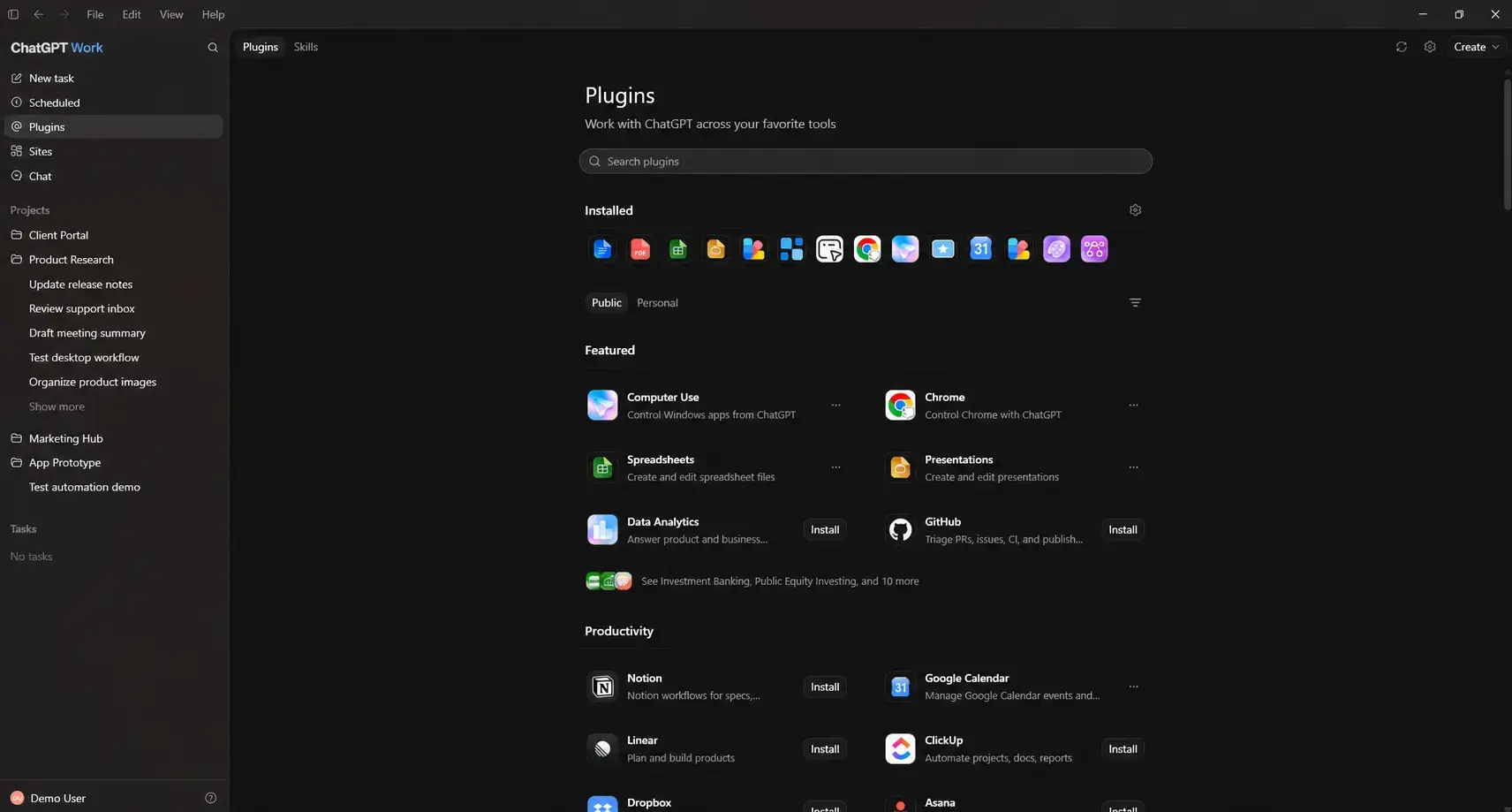
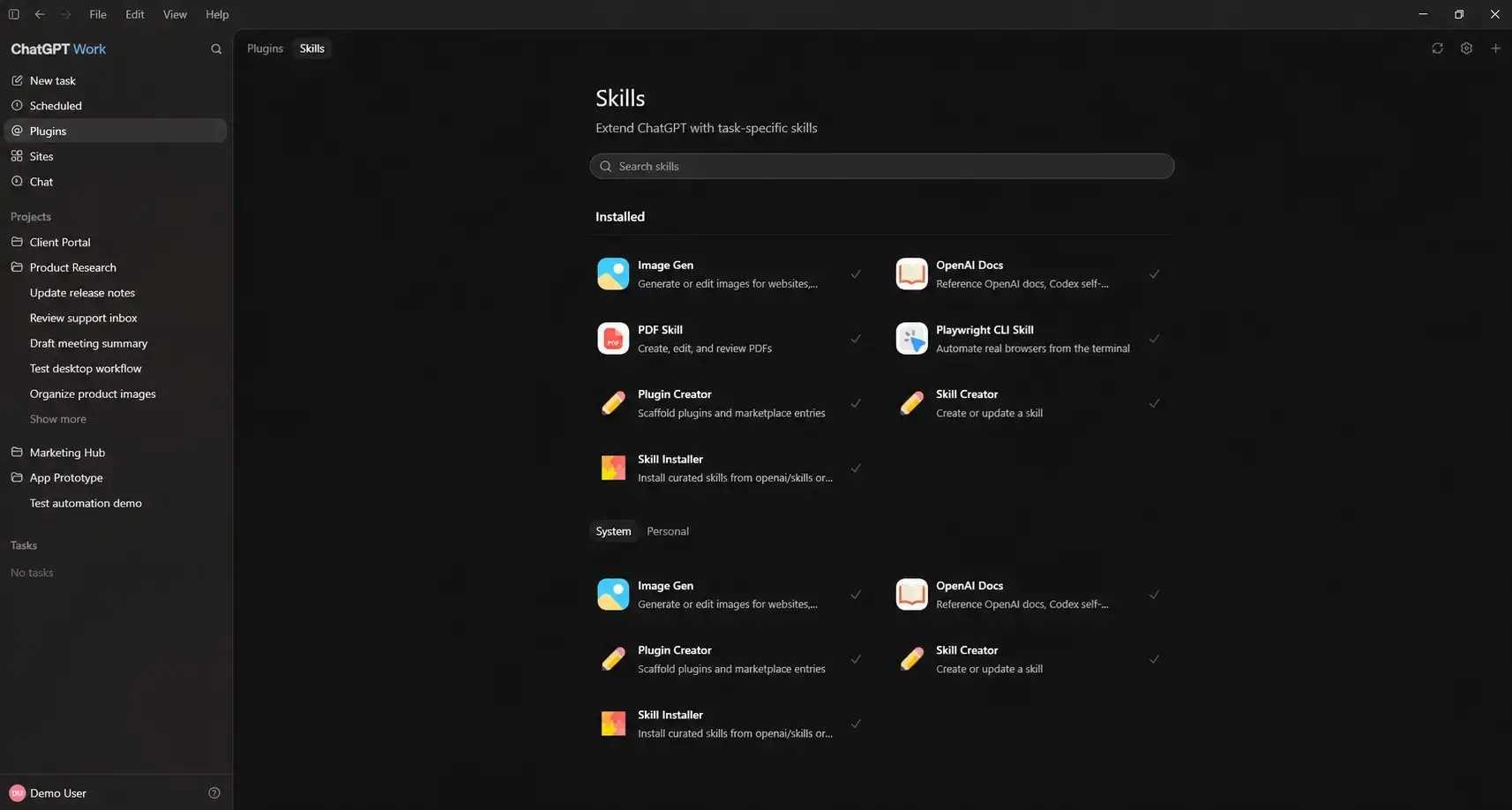
A dedicated Plugins screen lists installed and featured connections like Computer Use, Chrome, Spreadsheets, Presentations, GitHub, Notion, and Google Calendar. Type @ followed by an app name to pull in context from a specific tool.
Reusable Skills
A separate Skills tab next to Plugins, with built-ins like Image Gen, PDF Skill, and Skill Creator. Save a task you repeat often as a Skill, then run it again with one command instead of retyping instructions.
System Requirements
ChatGPT is a lightweight app since the AI processing happens in the cloud. Almost any modern Windows PC can run it.
| Operating System | Windows 10 (x64 or ARM64) or Windows 11 |
| Account | Free OpenAI account (no payment required) |
| Internet | Required (the AI runs in the cloud) |
| WSL | Optional (for Codex Linux-based development only) |
What are the ChatGPT Plans & Prices?
Chat, Work, and Codex are all available on every plan, including Free. Paid plans raise usage limits and unlock stronger models in the GPT-5.6 family. Prices and plans can change, so check chatgpt.com/pricing for the current rates.
| Plan | Price | Best For |
|---|---|---|
| Free | $0 | Trying Chat, Work, and Codex with limited usage |
| Go | $8/mo | More messages and uploads at a low price |
| Plus | $20/mo | Regular use of Work and Codex with stronger models |
| Pro | From $200/mo | Heavy daily use with the highest usage limits |
| Business / Enterprise | From $20/user/mo | Teams needing admin controls and shared workspaces |
Codex Keyboard Shortcuts and Commands
These shortcuts work inside the Codex mode of the ChatGPT desktop app on Windows. OpenAI’s official docs are written for Mac; these have been converted to their Windows equivalents. The message box also has its own Model, Effort, and Speed dropdowns (for example 5.6 Sol at Medium effort and Standard speed) if you would rather set those with a click than a shortcut.
| Action | Windows Shortcut |
|---|---|
| Open command palette | Ctrl + Shift + P or Ctrl + K |
| Settings | Ctrl + , |
| Open project folder | Ctrl + O |
| Show / hide sidebar | Ctrl + B |
| Show / hide terminal | Ctrl + J |
| New thread | Ctrl + N |
| Search in thread | Ctrl + F |
| Show changes panel (diff) | Ctrl + Alt + B |
| Go back / forward | Ctrl + [ / Ctrl + ] |
| Voice dictation | Ctrl + M |
Slash Commands
Type / in the Codex message box to see and use these built-in commands:
| Command | What it does |
|---|---|
| /init | Sets up project instructions for a new codebase |
| /mcp | Check which external tool connections are active |
| /review | Start a code review on the current thread |
| /status | Show the current thread ID and how much context has been used |
| /feedback | Send feedback and app logs to OpenAI |
How ChatGPT Desktop Works
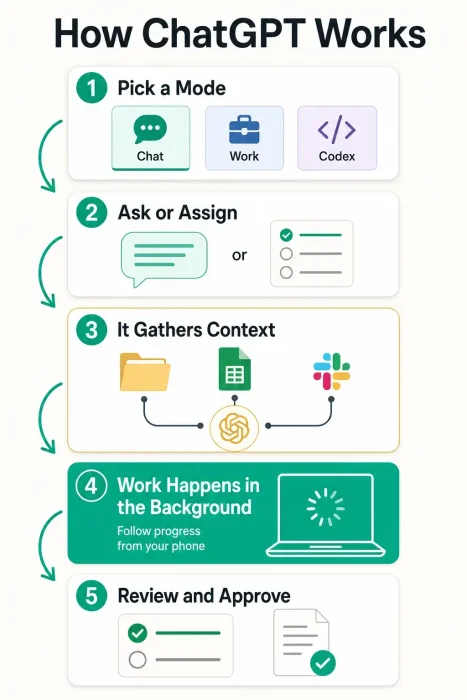
See how a task moves from picking a mode to finished, reviewed work, in the infographic below.

ChatGPT vs the Alternatives
How ChatGPT compares to other AI tools available on Windows in 2026.
| Application | Type | Starting Price | Best For |
|---|---|---|---|
| ChatGPT | Chat, agent, and coding bundle | Free / $8 mo | One app for chat, documents, and code |
| Claude Desktop | Chat, agent, and coding bundle | Free / from $17 mo | Cowork agent, Claude Code, computer use |
| Microsoft Copilot | Windows-native assistant | Free / $20 mo | Office 365 integration |
| Cursor | VS Code fork with AI built in | Free / $20 mo | Developers who want AI built into their editor |
| Perplexity | Search hub | Free / $20 mo | Real-time sourcing and citations |
Official Trailer
Watch a review of real use cases of the merged app to see the Chat, Work, and Codex modes side by side, including how a Work task hands off to your phone.

5 Tips for Getting Started
1. Start in Chat, move to Work for real projects
If a task needs more than a quick answer, like turning research into a report, switch to Work instead of trying to do it in one long Chat conversation. Work is built to plan and execute multi-step jobs.
2. Use Plan mode before a big Work task
Before Work starts a large project, it can gather context, ask clarifying questions, and show you a step-by-step plan first. Review and approve the plan before it starts building, so you are not correcting course halfway through.
3. Keep Codex tasks small and specific
“Write a function that validates a phone number” works better than “clean up the codebase.” Get comfortable with how Codex handles small, well-defined tasks before handing it something large.
4. Always review before approving
Whether it’s a Codex diff or a Work document, read what changed before you approve it. The agent does not know your business rules, only the context you gave it. A quick review catches problems early.
5. Save repeat tasks as Skills
If you keep typing the same instructions in Work or Codex, save it as a Skill and reuse it with one command. Good candidates: “add unit tests to this file,” “format these notes into a weekly report,” or “check this code for security issues.”
Quick Poll
Screenshots
Here is what ChatGPT looks like on Windows. Click any image to see it full size.
Frequently Asked Questions
Is ChatGPT free on Windows?
Yes. The ChatGPT desktop app is free to download and use. Chat, Work, and Codex are all included on the Free plan, though Free accounts get limited usage of each. Paid plans raise those limits and unlock stronger models.
What happened to the Codex app?
OpenAI merged the standalone Codex app into the main ChatGPT desktop app on July 9, 2026. If you already had Codex installed, it updated automatically into the new combined app. Codex did not lose any features. It is now one of the modes inside ChatGPT, switched to from a dropdown in the top-left corner, alongside Chat and the new Work agent.
What is ChatGPT Work and how is it different from Chat?
Chat answers questions in a conversation. Work is an agent that can take longer, multi-step jobs, like turning your notes and files into a finished spreadsheet, slide deck, or document, and it can keep working on a task for hours while you do other things.
Do I need a paid plan to use Codex?
No. Codex works on the Free plan with limited usage. Plus, Pro, Business, and Enterprise plans get expanded or unlimited Codex access, plus the ability to pick between the GPT-5.6 Sol, Terra, and Luna models and set an effort level for each. Free and Go accounts are set to Terra automatically.
What are the system requirements for the ChatGPT Windows app?
The app needs Windows 10 (x64 or ARM64) or Windows 11, an internet connection, and a free OpenAI account. There is no minimum RAM or graphics card requirement since the AI processing happens in the cloud.
Can I use ChatGPT for coding without switching to Codex mode?
Yes. Chat can still answer coding questions and write short snippets like it always could. Codex is for when you want the app to work inside your actual project, edit files, and run tests on its own.
Is the old ChatGPT desktop app still available?
The pre-merge version is now called ChatGPT Classic. New downloads from the Microsoft Store install the current merged app with Chat, Work, and Codex built in.
Support and Community
Stay updated and connect with other ChatGPT users:
- r/ChatGPT on Reddit
- OpenAI Developer Community
- Codex on GitHub (open-source repo, issues, and release notes)
More Windows software guides: Claude Desktop for Windows · Cursor IDE for Windows · Microsoft Copilot for Windows
Looking for more free AI tools for Windows? See our Best Free Windows AI Software guide.