

Readers like you help support Windows Mode. When you make a purchase using links on our site, we may earn an affiliate commission. All opinions remain my own.

To get Spotify on a Windows PC, install the official Spotify app from the Microsoft Store.
This is the best option if you want the full desktop experience, including better Windows integration, local files, and (for Premium) offline downloads.
While you can listen instantly via the Spotify Web Player in your browser, the desktop app unlocks exclusive features like the Miniplayer, Xbox Game Bar control, and higher quality streaming options.
Need help setting it up? Contact us
How to Install Spotify on PC
1
Download from Microsoft Store
This is the cleanest install method and it updates automatically.
2
Log in or create an account
Sign in with your Spotify account. Your playlists and settings sync across devices.
3
Set your audio quality
Open Settings, then go to Media Quality and choose the best option for your connection. Premium users can also enable downloads for offline listening.
Download Spotify (Microsoft Store)


Why use the App instead of the Web Player?
- Offline listening: Premium can download music for offline use in the Windows app. Free users can typically download podcasts, not full music playlists.
- Better audio options: The Windows app offers more quality settings than the web player. Premium users can usually select Very High and may see Lossless if it is enabled for their account and region.
- Local files: Add and play MP3s stored on your PC, then optionally sync them to mobile with the same account and network setup.
- Windows integration: Media keys, notifications, and background behavior are generally more consistent in the app than in a browser tab.
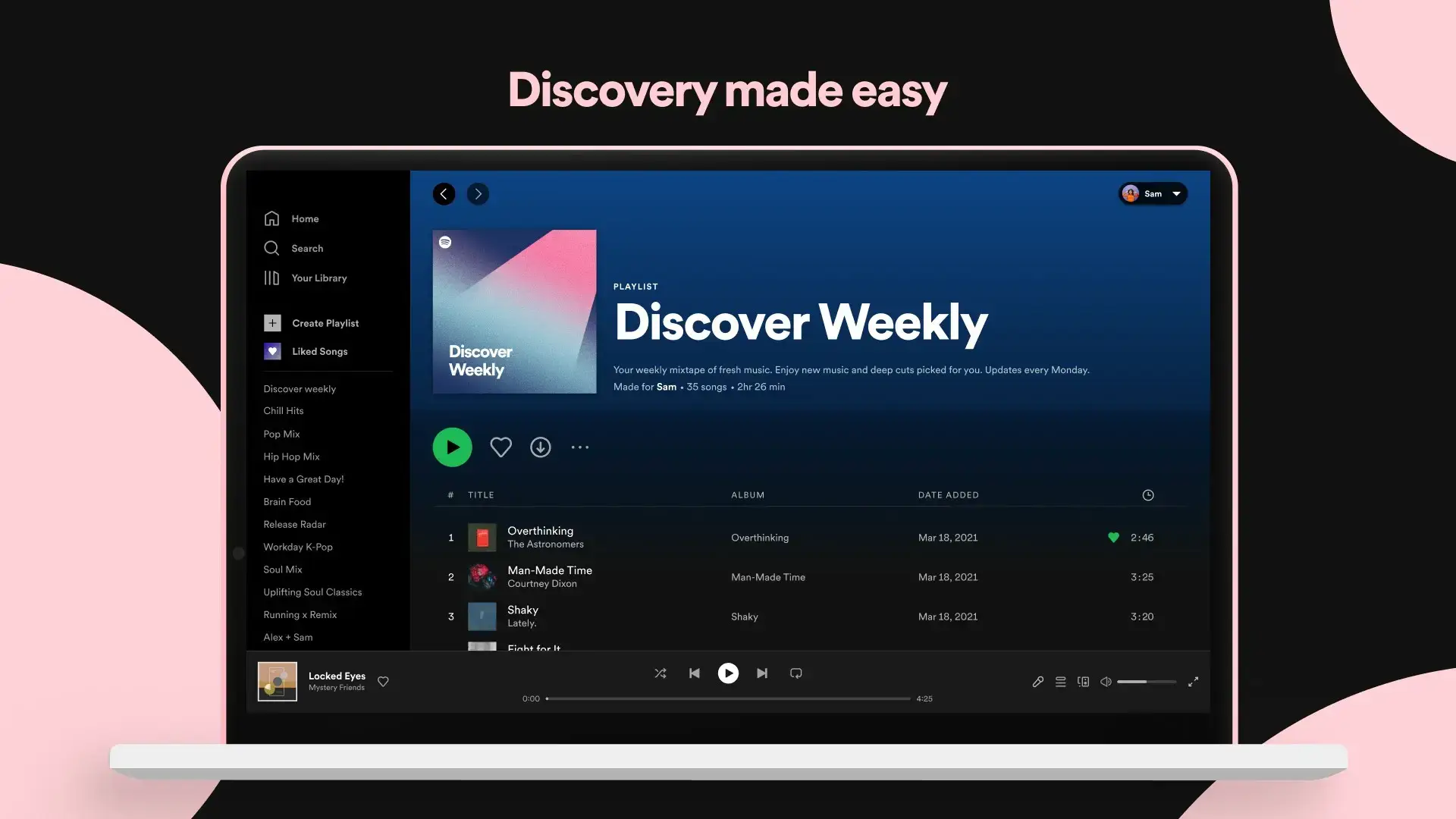
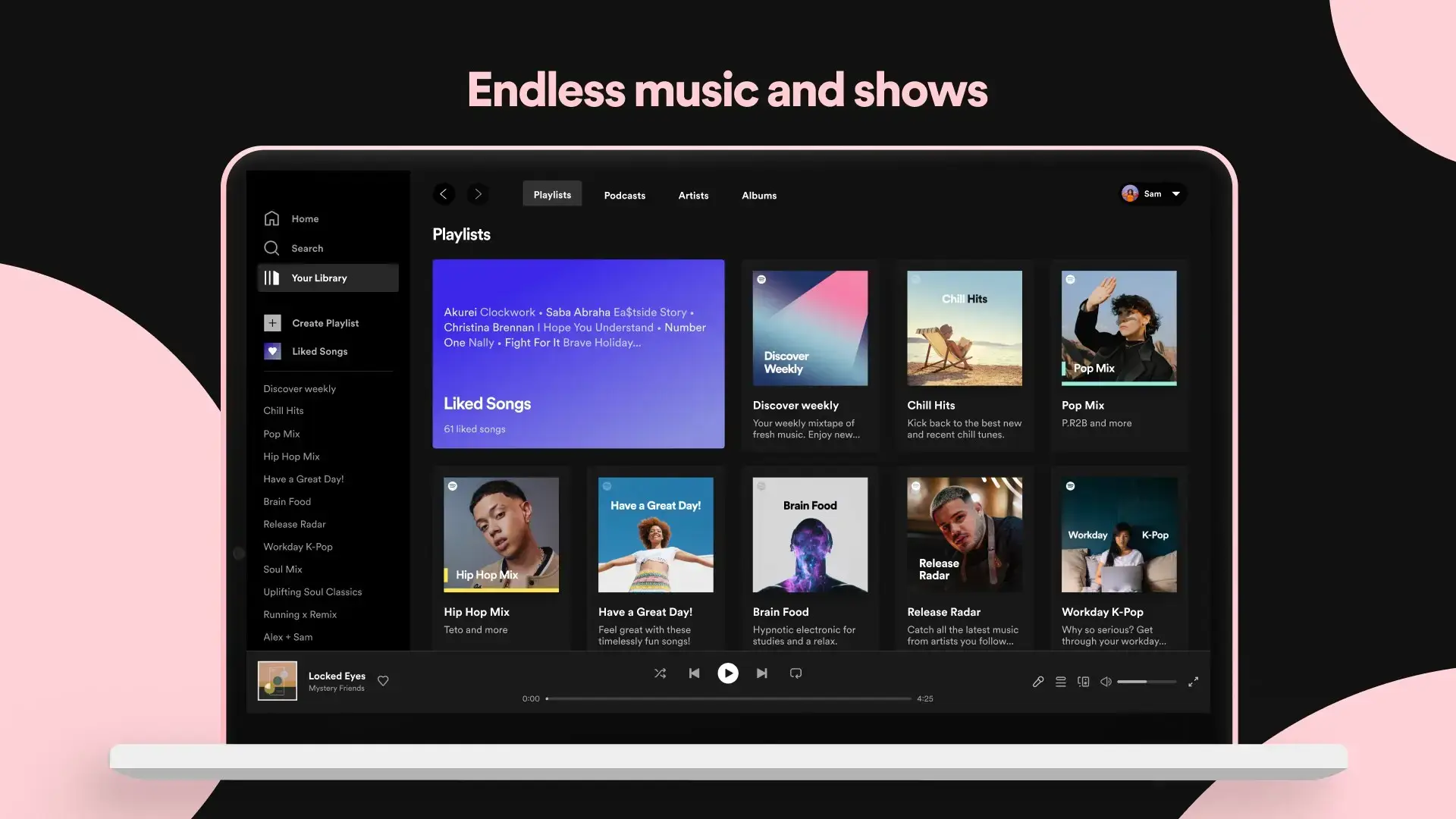
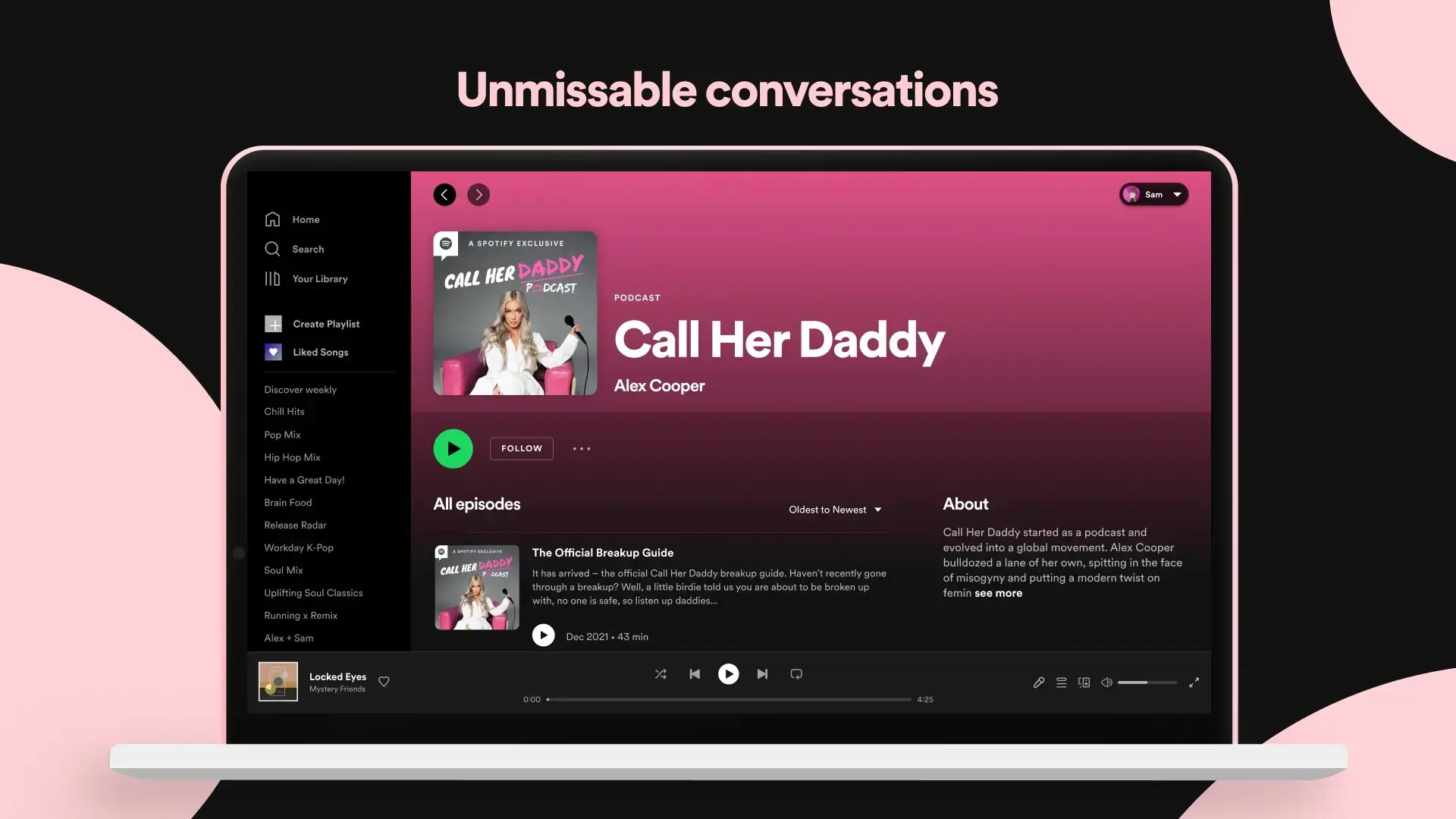
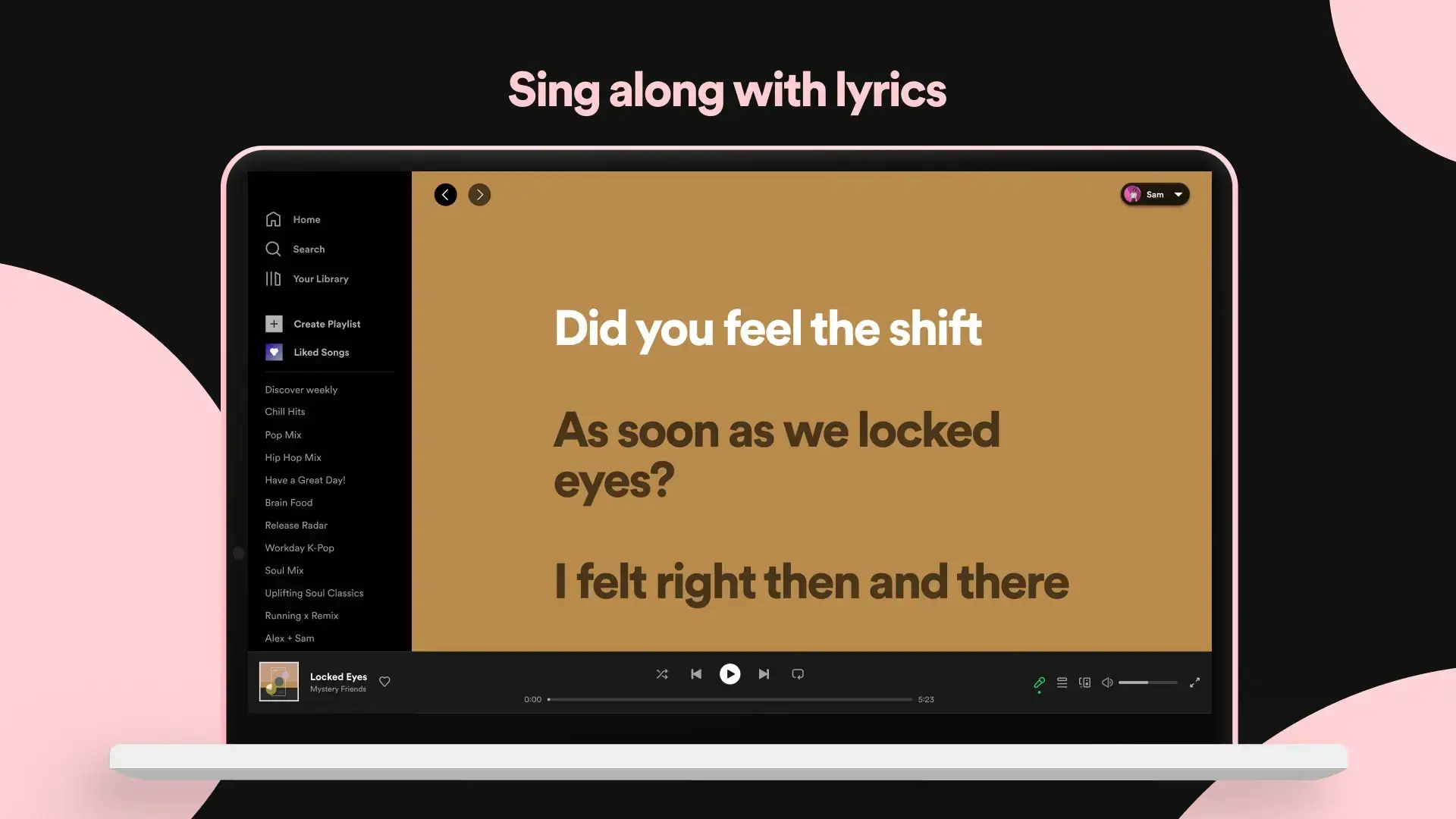
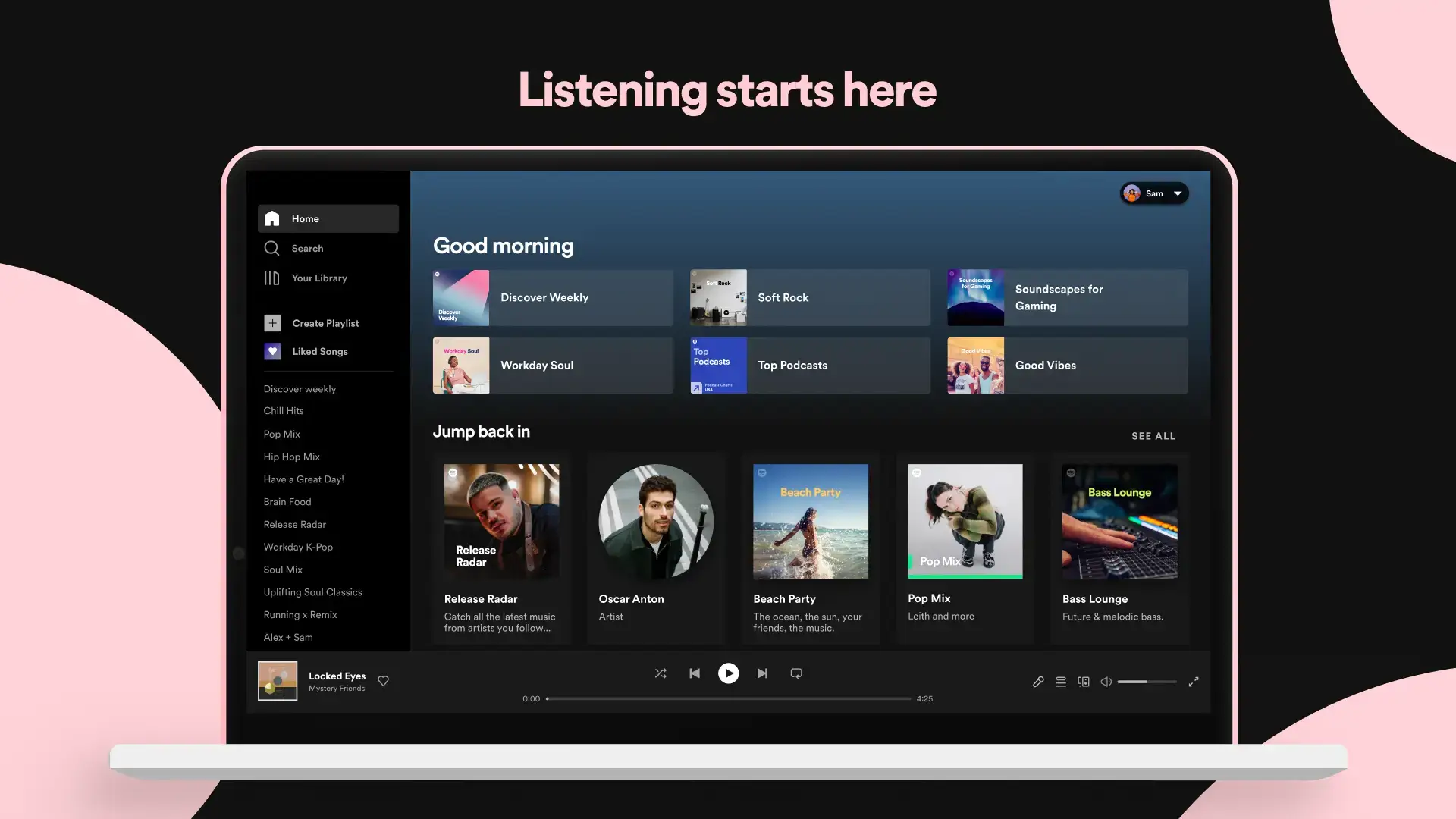
Spotify Interface Gallery

Key Features on Windows
Some features roll out gradually, so your account might not show every option on day one. These are the features that matter most on PC.
Spotify Connect
Move playback between your Windows PC, phone, console, or smart speaker instantly without losing your queue.
Mini player
A small floating player that keeps play and skip controls visible while you work. (Premium users get extra resizing options).
Xbox Game Bar control
Use Win + G to open Game Bar and control Spotify while gaming. This works best when Xbox Game Bar is enabled and up to date.
Media Quality settings
Choose Low, Normal, High, or Very High. Some Premium plans and regions may show a Lossless option. If you do not see it, your account may not have it yet.

Troubleshooting Common Issues
The app feels slow or laggy
Try toggling Hardware Acceleration in Spotify settings, then restart the app. Also close heavy background apps that are using GPU or disk.
Lossless option is missing
Update Spotify, then check Settings and Media Quality. If you still do not see Lossless, it is likely not available for your plan, region, or account rollout.
Game Bar control not showing
Press Win + G, open the Widget menu, and add or pin Spotify. If it is missing, update Xbox Game Bar in Microsoft Store and confirm Game Bar is enabled in Windows Settings.
Local files not syncing to phone
Ensure PC and phone are on the same Wi-Fi network and that Spotify is allowed through Windows Firewall on private networks. Then re-scan your Local Files folder in Spotify settings.
Help & Resources
If you have account trouble or run into a specific Windows error, check these official sources:
- Spotify Support Center – The official help site for billing, login, and technical issues.
- Spotify Community (Windows) – A forum dedicated to solving Windows-specific bugs.
- r/spotify on Reddit – Real-time discussion, news, and user tips.
Explore More Music Apps
- Apple Music for PC – Stream Apple Music on Windows with Lossless options.
- iTunes for Windows – Classic Apple media app for older workflows.
- Best Free Music Players – Top apps for playing local MP3 and FLAC files.