

Readers like you help support this site. When you make a purchase using links on our site, we may earn an affiliate commission. All opinions remain our own.
Microsoft Copilot is a free AI assistant by Microsoft for Windows 10 and Windows 11. You can download it from the Microsoft Store or use it right in your browser at copilot.microsoft.com. It handles everyday tasks like answering questions, writing drafts, creating images, and summarizing information.
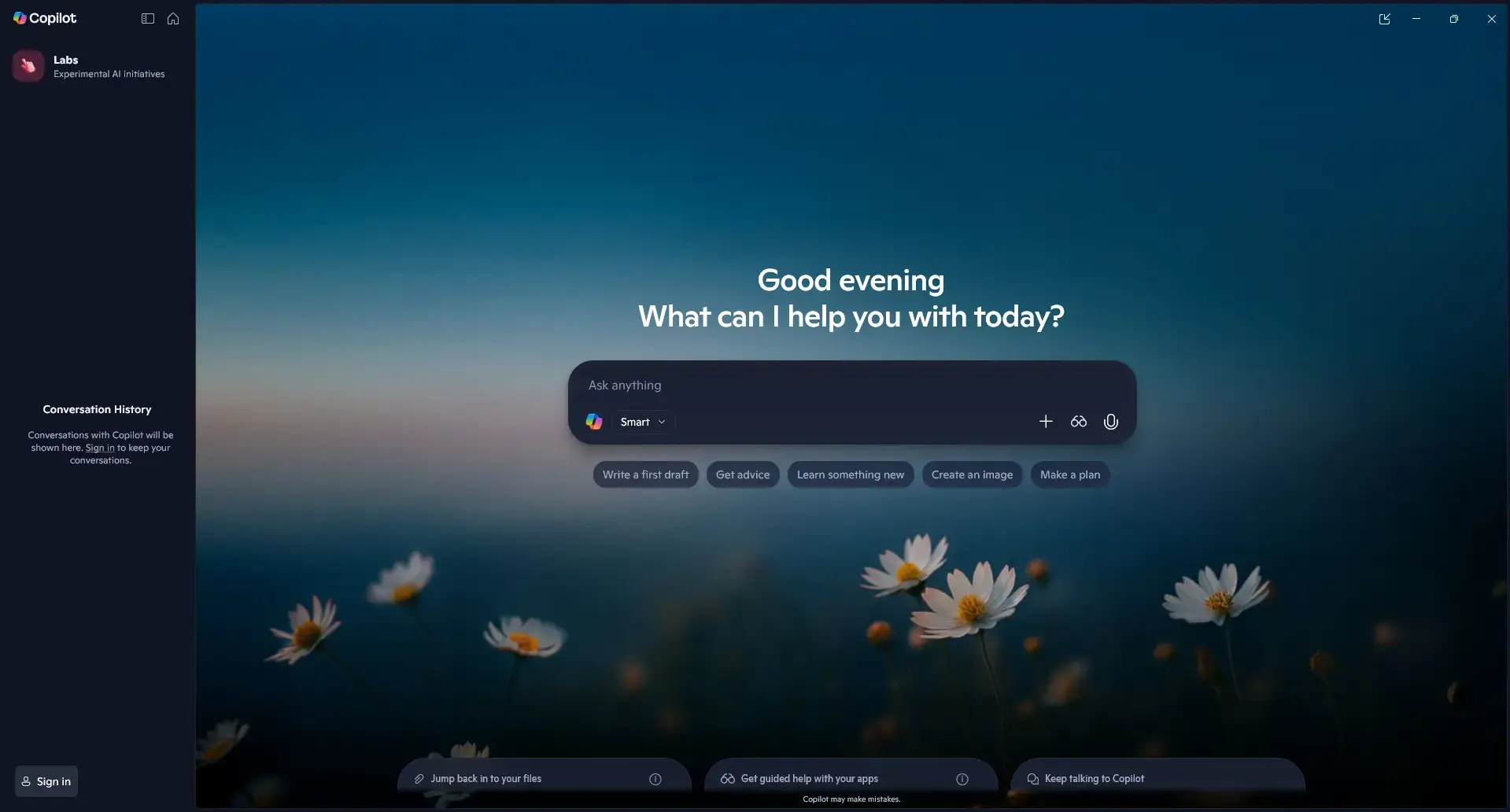
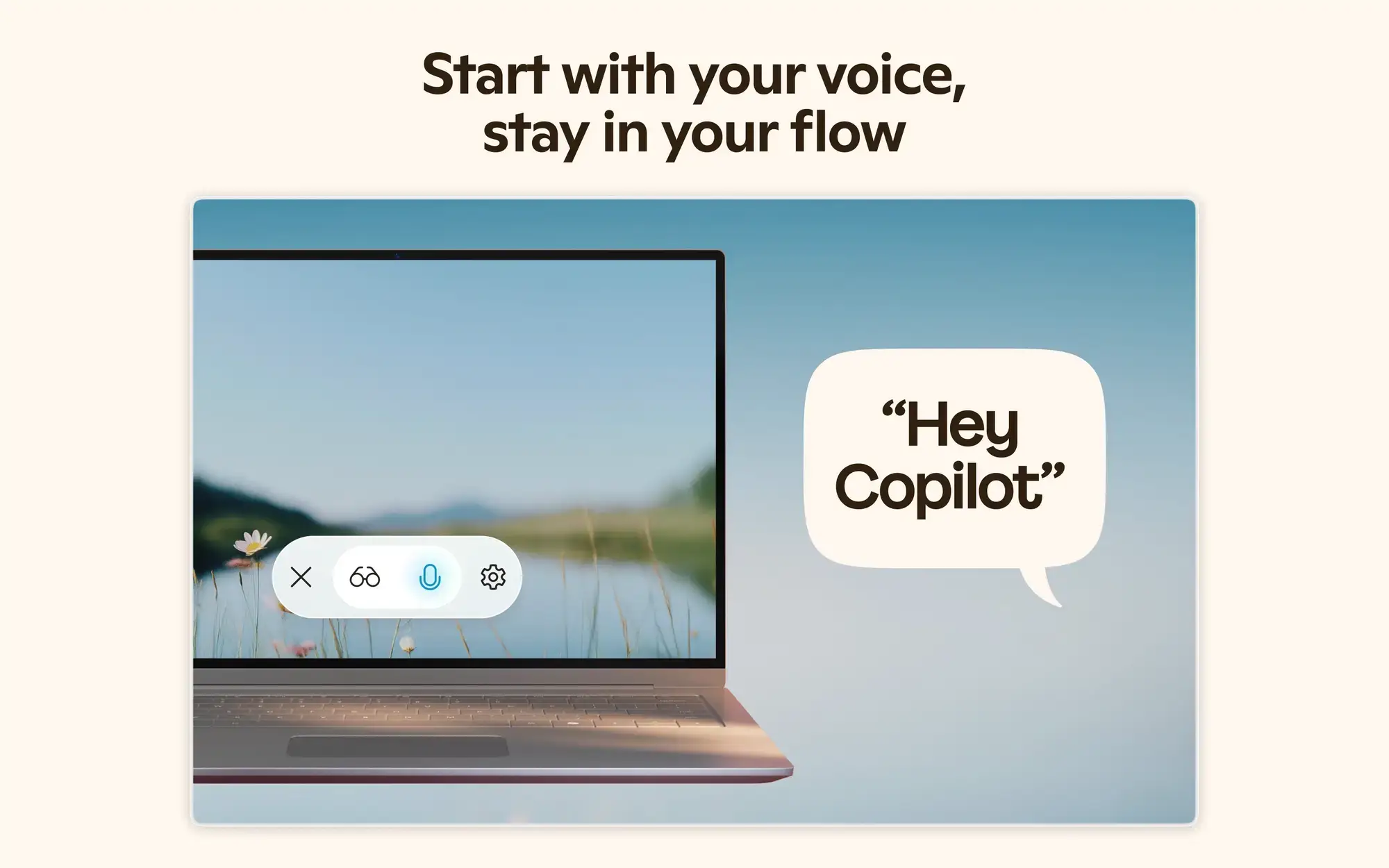
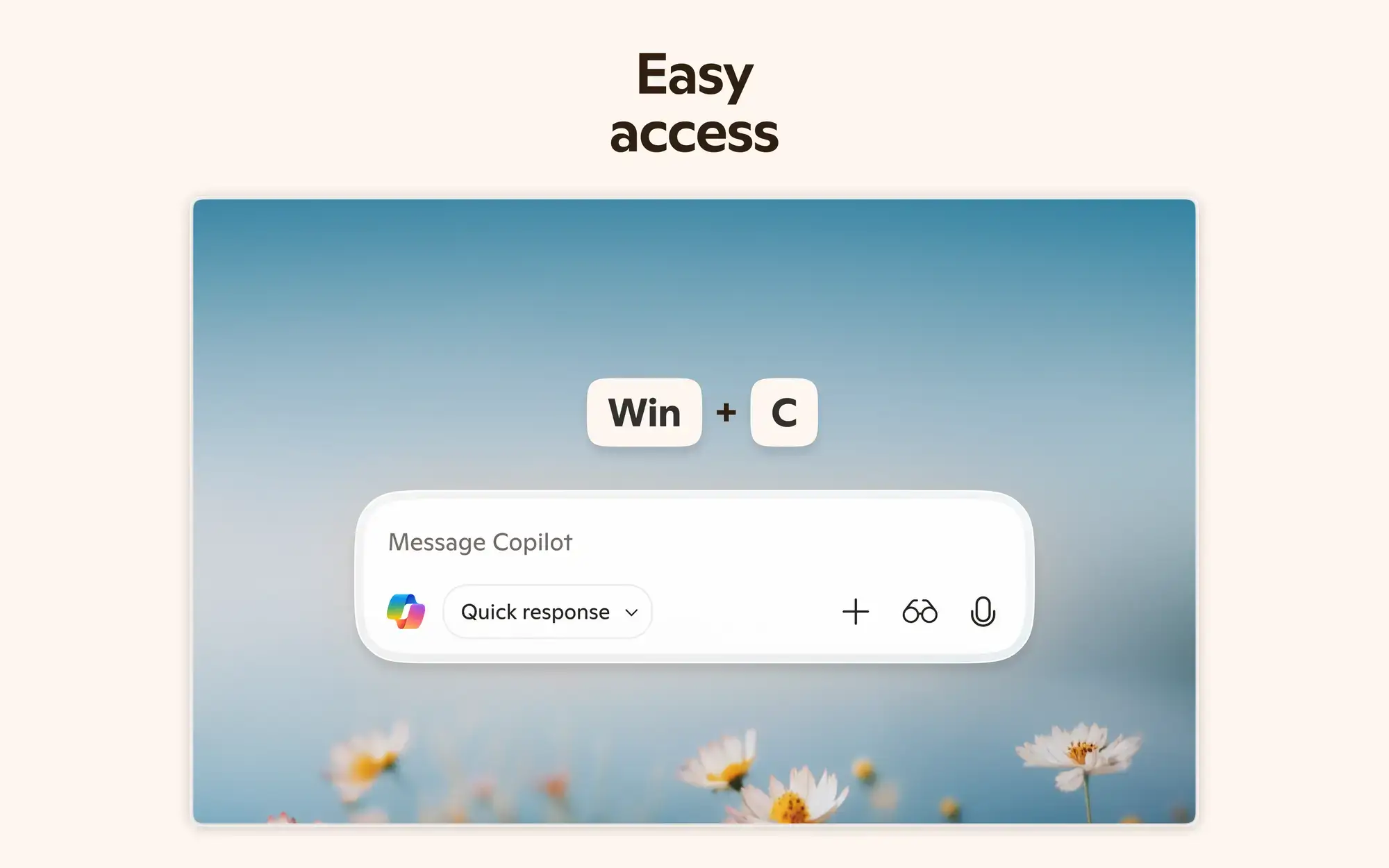
Unlike tools that only work in a browser tab, Copilot has its own Windows app. You can open it with the Win + C keyboard shortcut, start a voice conversation with “Hey Copilot,” or share your screen so it can see what you are looking at and help in real time.
This page covers how to download and install Copilot on Windows, what it can do, how it compares to other AI tools, and tips for getting started. If you have any questions or comments, don’t be shy, leave a comment below or contact us.
What You Need to Know
- Free with a Microsoft account. Download from the Microsoft Store or use it on the web. No payment required.
- Works across devices. Copilot runs on Windows, the web, iOS, and Android. Your conversations sync between them.
- Built into Windows. Press Win + C to open Copilot instantly, or say “Hey Copilot” to start a voice conversation without touching the keyboard.
How to Get Microsoft Copilot on Windows
There are three ways to start using Copilot on Windows. The Microsoft Store app is the easiest. You can also use it directly in your browser, or open it with a keyboard shortcut if it is already installed on your PC.
Option 1: Microsoft Store
- Step 1. Open the Microsoft Store on your Windows 10 or Windows 11 PC.
- Step 2. Search for Copilot or go straight to the Copilot listing on the Microsoft Store.
- Step 3. Click Get and wait for it to finish installing.
- Step 4. Open Copilot and sign in with your Microsoft account. If you do not have one, you can create a free account during setup.
Option 2: Use It on the Web
No install needed. Open any browser and go to:
Sign in with your Microsoft account and you get the same features as the desktop app.
Option 3: Keyboard Shortcut
If Copilot is already installed on your PC, press Win + C to open it instantly in a quick view window. No need to find it in the Start menu.
What Is Microsoft Copilot?
Microsoft Copilot is an AI assistant built by Microsoft. You can ask it questions in plain English, have it write or rewrite text, create images from a description, summarize long documents, and more. It responds in a conversational way, similar to ChatGPT, but with deeper ties to the Windows and Microsoft 365 ecosystem.
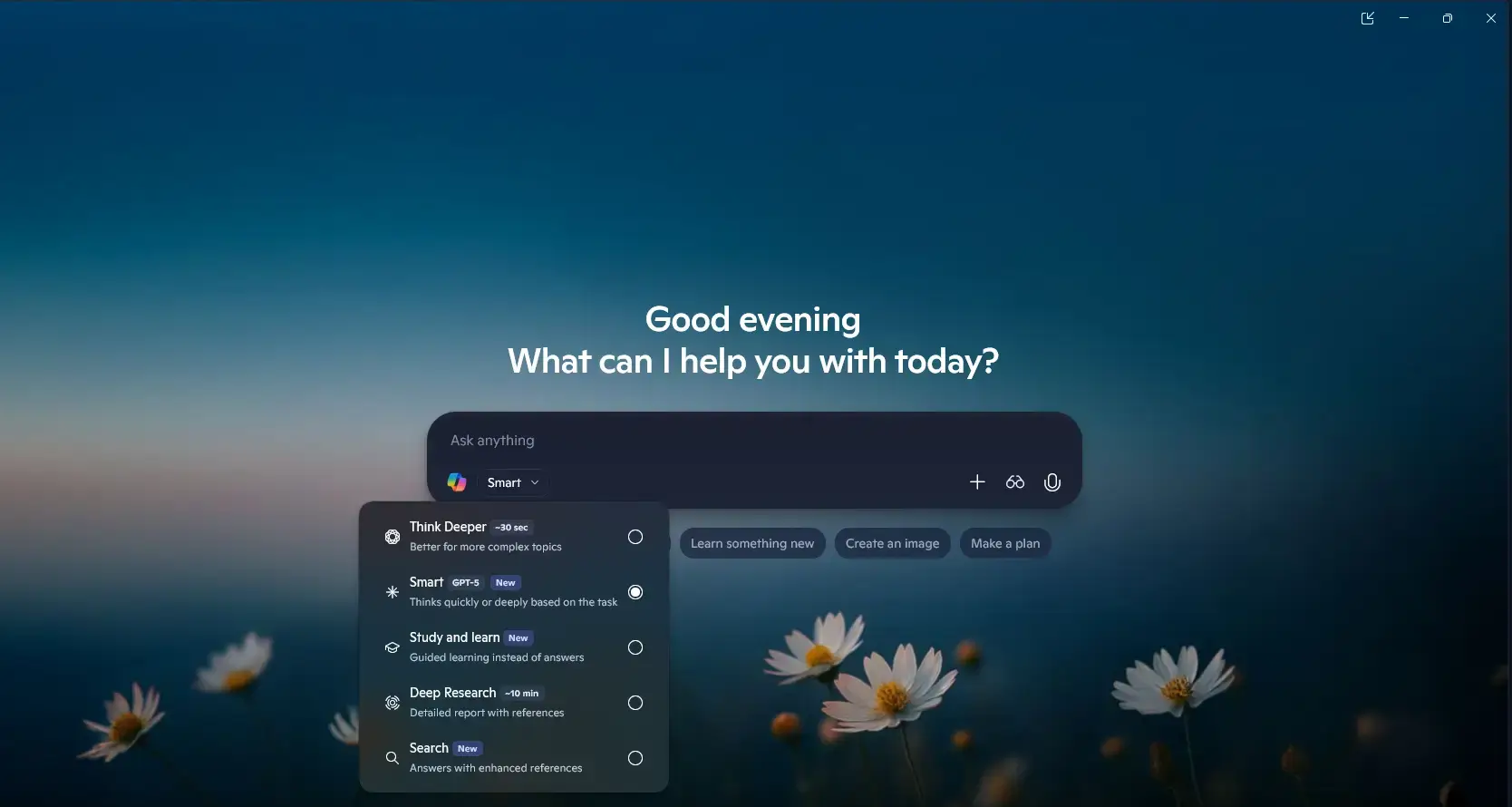
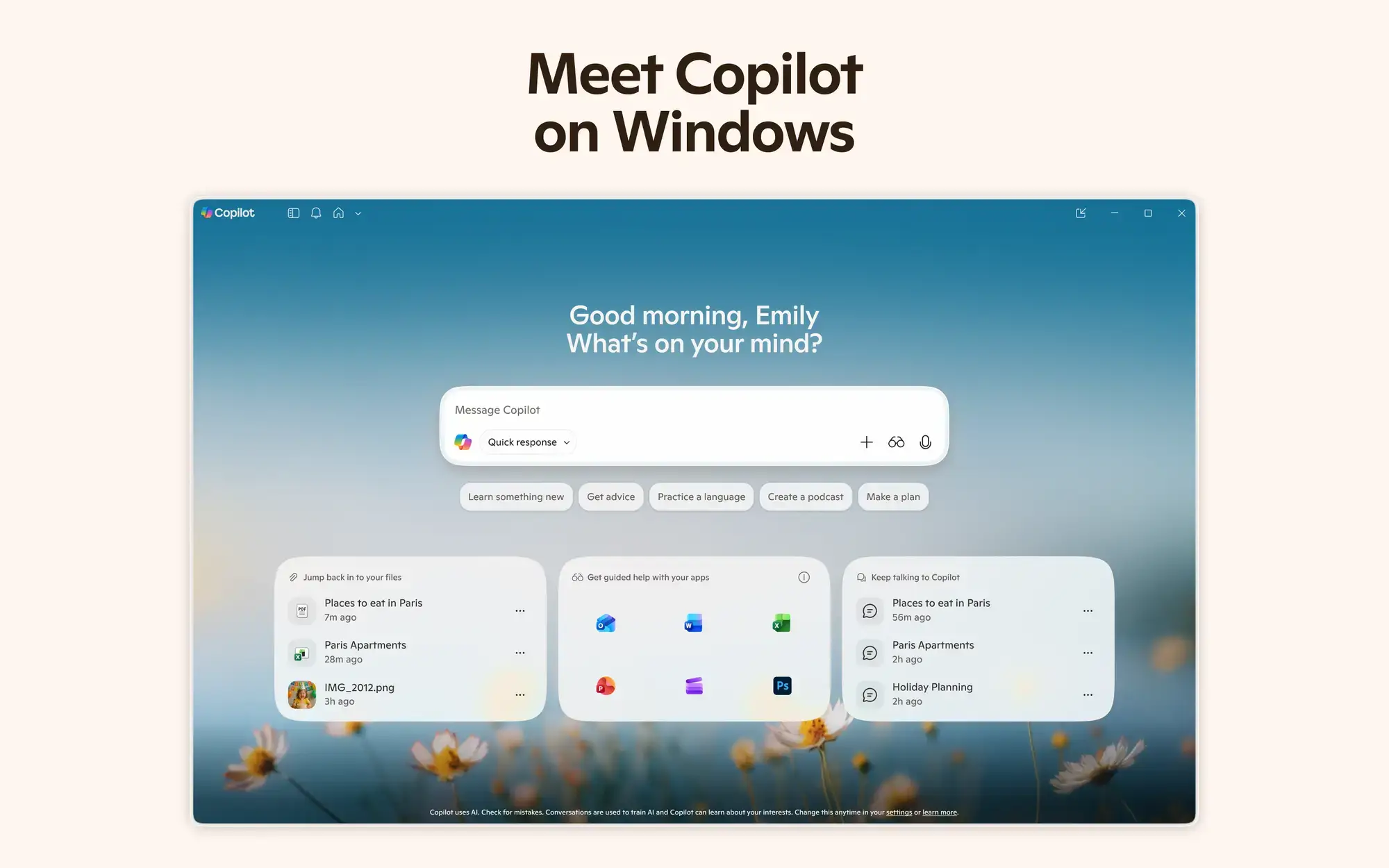
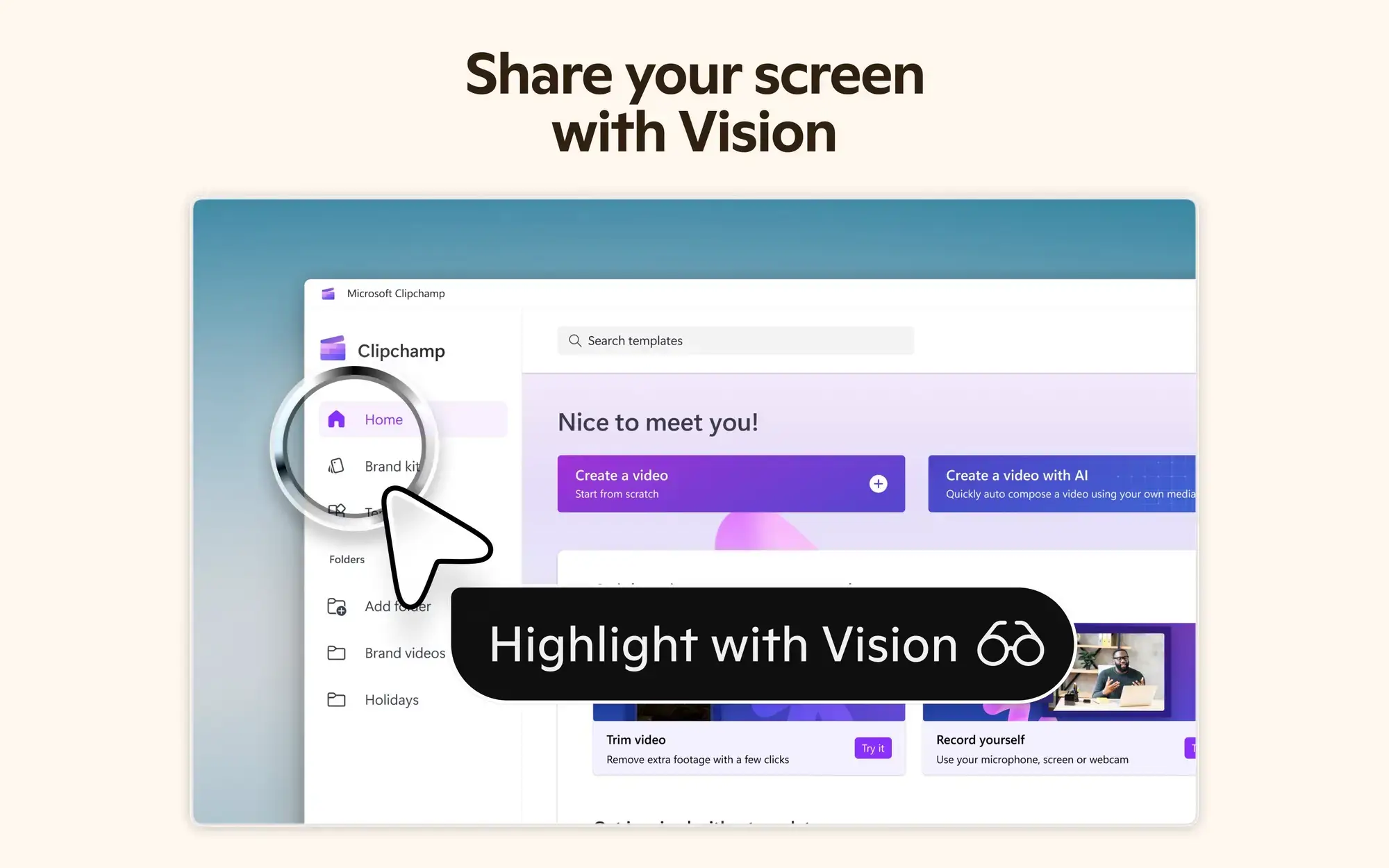
On Windows, Copilot runs as its own app with a clean chat interface. You can type or talk to it. The Copilot Vision feature lets you share your screen so it can see what you are looking at and answer questions about it in real time. Your conversation history syncs across devices, so you can start a chat on your PC and continue on your phone.
If you subscribe to Copilot Pro ($20 per month) and have a Microsoft 365 subscription, Copilot can also work inside Word, Excel, PowerPoint, Outlook, and Teams. It can draft documents, analyze spreadsheets, build presentations from a prompt, summarize email threads, and recap meetings you missed.
Key Features
AI Chat
Ask Copilot anything in plain language. It can answer questions, explain topics, help with research, brainstorm ideas, and write or rewrite text in whatever tone you need. No technical knowledge required.
Image Creation
Describe what you want and Copilot generates images for you. Useful for social media posts, presentations, or just exploring ideas visually. Built on DALL-E, so the quality is solid.
Copilot Vision
Share your screen and Copilot can see what you are looking at. Ask it to explain a chart, help fill out a form, or walk you through something on screen. It responds based on what it sees in real time.
Voice Conversations
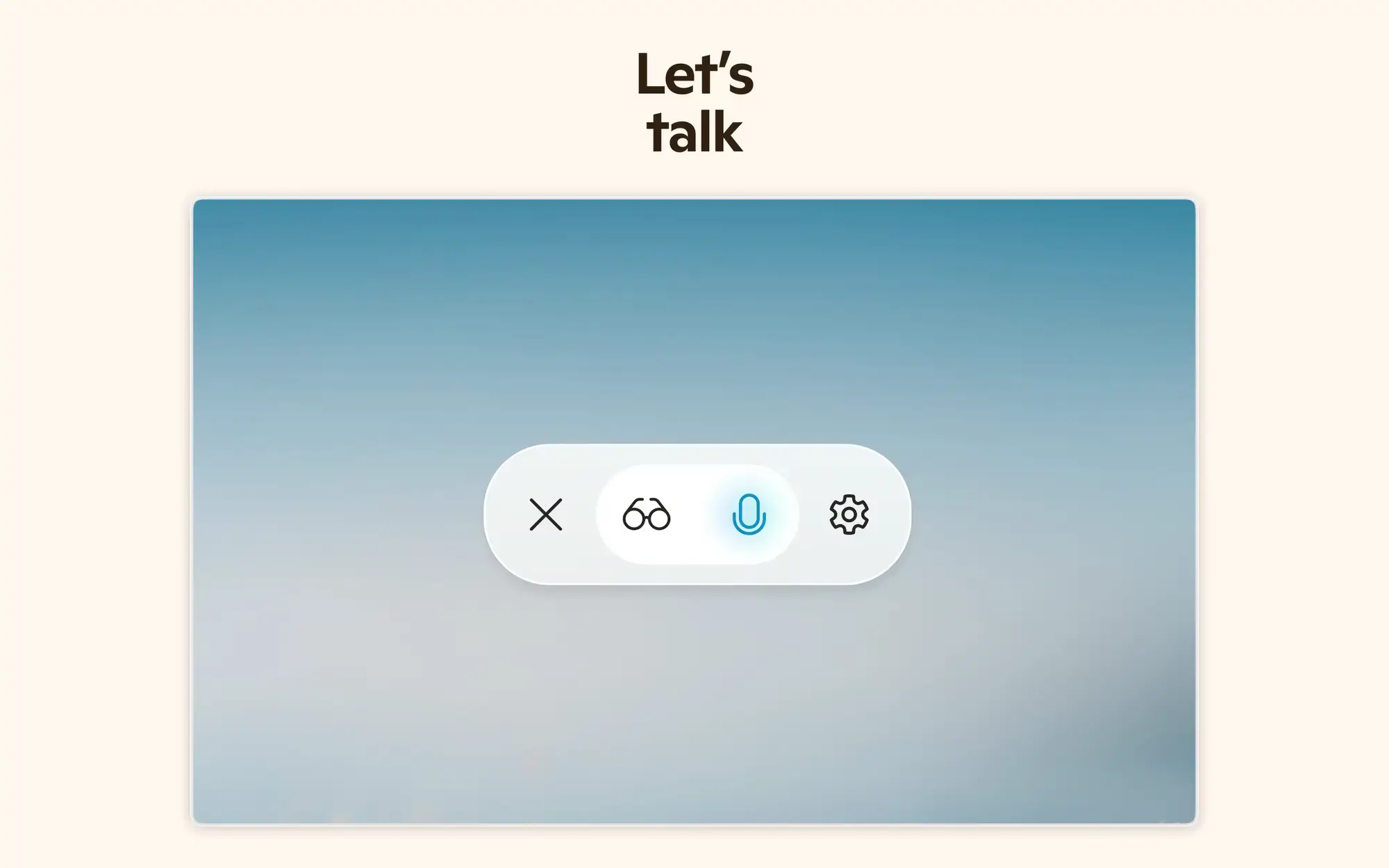
Talk to Copilot out loud instead of typing. Say “Hey Copilot” to start a voice conversation, or press Win + C and use the microphone button. It speaks back naturally, like a phone call.
Microsoft 365 Integration
With Copilot Pro and a Microsoft 365 subscription, Copilot works inside Word, Excel, PowerPoint, Outlook, and Teams. It drafts documents, analyzes data, builds slides, and summarizes emails without leaving the app.
Web and Cross-Platform Access
Copilot is not limited to the Windows app. You can also use it at copilot.microsoft.com in any browser, or download the mobile app for iOS and Android. Your conversations sync across all of them.
System Requirements
Copilot is a lightweight app. Any modern Windows PC can run it.
| Operating System | Windows 10 or Windows 11 |
| Account | Free Microsoft account (no payment required) |
| Internet | Required (the AI runs in the cloud) |
| Web Alternative | copilot.microsoft.com (works in any browser, any OS) |
Plans and Pricing
Copilot has a free tier and a paid tier. Here is what each one includes.
| Feature | Free | Copilot Pro ($20/mo) |
|---|---|---|
| AI Chat | ✅ | ✅ (faster responses) |
| Image Creation | ✅ | ✅ (priority queue) |
| Voice Conversations | ✅ | ✅ |
| Copilot Vision | ✅ | ✅ |
| Use Inside Word, Excel, PowerPoint, Outlook | ❌ | ✅ (needs M365 sub) |
| Priority Access During Peak Hours | ❌ | ✅ |
Copilot vs the Alternatives
How Copilot compares to other AI assistants available on Windows in 2026.
| Tool | Type | Price | Best For |
|---|---|---|---|
| Microsoft Copilot | Windows app + web | Free / $20 per month | Windows users, Microsoft 365 integration |
| ChatGPT | Desktop app + web | Free / $20 per month | General-purpose AI chat, code, research |
| Google Gemini | Web + mobile app | Free / $20 per month | Google Workspace users, search-integrated answers |
| Perplexity | Desktop app + web | Free / $20 per month | Research with cited sources |
| Claude | Web + desktop app | Free / $20 per month | Long-form writing, analysis, coding |
Video
Watch an overview of Microsoft Copilot in action on Windows.

5 Tips for Getting Started
1. Be specific with your questions
“Summarize this 10-page report into 5 bullet points” works much better than “help me with this document.” The more specific your request, the more useful the response. Tell Copilot what format you want the answer in.
2. Use voice when your hands are busy
Say “Hey Copilot” or press Win + C and use the microphone button. Voice conversations are useful when you are multitasking, cooking, or just prefer talking over typing. Copilot speaks back naturally.
3. Try image creation for quick visuals
Need a quick graphic for a presentation or social media post? Describe what you want and Copilot generates it. You do not need any design skills. Experiment with different descriptions to get the style you like.
4. Share your screen with Copilot Vision
If you are stuck on something on screen, share it with Copilot Vision. It can read charts, help you fill out forms, explain error messages, or guide you through unfamiliar software. It is like having someone look over your shoulder.
5. Check out copilot.microsoft.com on other devices
Copilot is not limited to the Windows app. Open copilot.microsoft.com in any browser on any device. Your conversations sync, so you can start a task on your PC and continue on your phone or tablet.
Quick Poll
Screenshots
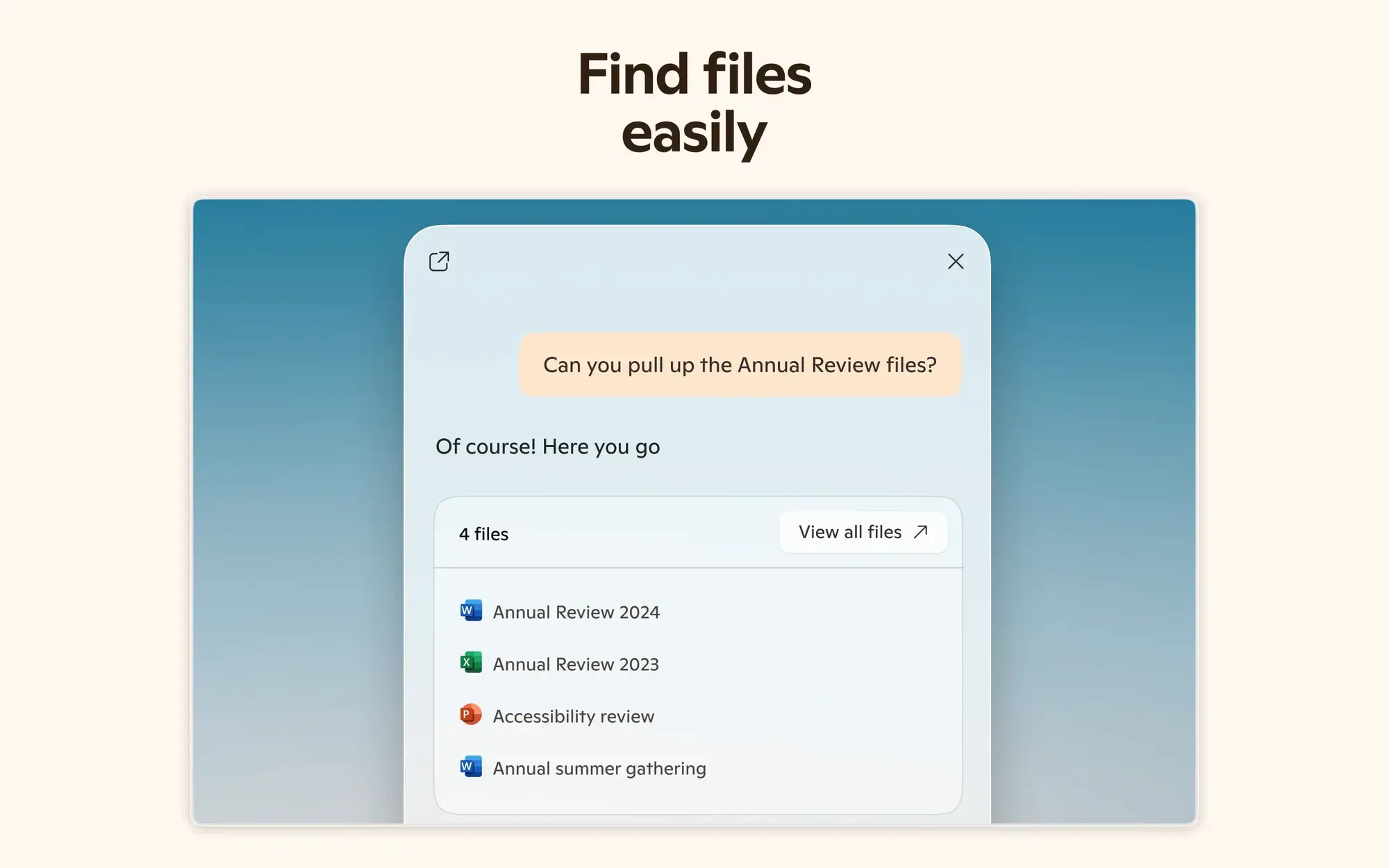
Here is what Microsoft Copilot looks like on Windows. Click any image to see it full size.
Frequently Asked Questions
Is Microsoft Copilot free on Windows?
Yes. You can download Copilot for free from the Microsoft Store or use it on the web at copilot.microsoft.com. You need a Microsoft account to sign in. Copilot Pro is available for $20 per month if you want faster responses and access inside Microsoft 365 apps.
What is the difference between Copilot and Copilot Pro?
The free version gives you access to AI chat, image creation, and voice conversations. Copilot Pro costs $20 per month and adds faster responses, priority access during busy times, and the ability to use Copilot inside Word, Excel, PowerPoint, and Outlook (requires a separate Microsoft 365 subscription).
Can I use Copilot without a Microsoft account?
You can ask basic questions without signing in, but most features require a free Microsoft account. Signing in gives you chat history, image creation, and personalized responses.
Does Copilot work on Windows 10?
Yes. Copilot is available on Windows 10 and Windows 11 through the Microsoft Store app. You can also use it in any browser at copilot.microsoft.com regardless of your Windows version.
How is Microsoft Copilot different from ChatGPT?
Both are AI chat tools, but they focus on different things. Copilot is built into the Windows and Microsoft 365 ecosystem. It can access your files in OneDrive, summarize emails in Outlook, and work inside Word and Excel if you have Copilot Pro. ChatGPT is a standalone tool that works across platforms and focuses on general-purpose conversation and code.
Support and Community
Stay updated, learn more, and connect with other Copilot users:
- Free Microsoft Copilot Books (free guides to get started)
- Best Microsoft Copilot Books to Buy (top picks from Amazon)
- Copilot Support (official Microsoft help center)
- r/MicrosoftCopilot on Reddit (community discussions and tips)
- Official Copilot Site (features, pricing, and updates from Microsoft)
Explore more Windows apps: Canva · Perplexity · ChatGPT · Copilot for PC · Claude Desktop for PC · Claude Desktop for PC · Microsoft Designer
Want to learn more about AI on Windows? Check out our Free Microsoft Copilot Books collection and compare the best AI code editors for PC to make writing code easier.