

Readers like you help support this site. When you make a purchase using links on our site, we may earn an affiliate commission. All opinions remain our own.


You can access Microsoft Forms for free through any web browser or via the Microsoft Store app, requiring only a Microsoft account (personal, work, or school).
If you’re an educator, business professional, researcher, or event organizer who needs to gather information efficiently, this tool provides everything you need for professional-grade form creation.
This guide covers downloading the app, accessing the web version, core features, and practical tips for creating effective forms.
Share your form creation experiences below, or contact us for assistance.
How to Get Microsoft Forms
To start using Microsoft Forms, choose between the web version or download the Microsoft Store app:
- Web Version (Recommended)
- Visit: Microsoft Forms Website
- Sign in with your Microsoft account
- Click New Form or New Quiz to begin
- Add questions using the intuitive form builder
- Microsoft Store App
- Download: Microsoft Forms App
- Click Install from Microsoft Store
- Launch and sign in with your account
- Access the same features as web version
Quick Tip: 💡 The web version works on any device with a browser and doesn’t require installation.
Use Web Version | Get Store App
🗳️ Readers’ Poll
How do you primarily use Microsoft Forms?
What is Microsoft Forms?
Microsoft Forms is a cloud-based survey and quiz tool integrated with Microsoft 365. It enables quick creation of professional forms with automatic data analysis and real-time response tracking.
Unlike basic form builders, Microsoft Forms provides:
- Instant Analytics: Automatic charts and summaries as responses arrive
- Microsoft Ecosystem Integration: Seamless connection with Teams, SharePoint, and PowerPoint
- Smart Features: Branching logic, automatic grading, and response validation
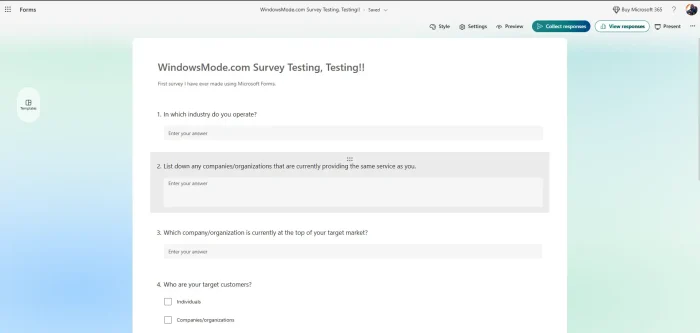

Core Features: Why Choose Microsoft Forms
Here’s what makes Microsoft Forms essential for data collection:
- Comprehensive Question Types: Multiple choice, text, rating, date, ranking, and file upload
- Advanced Logic: Create dynamic forms that adapt based on user responses
- Professional Templates: Pre-designed templates for common use cases
- Collaborative Editing: Multiple users can create and manage forms together
Quick Start Guide
Get productive with Microsoft Forms in minutes:
- Create New Form: Click New Form and add title/description
- Build Questions: Use Add new for different question types
- Customize Design: Apply themes, colors, and background images
- Configure Settings: Set response limits, timing, and privacy options
- Distribute Form: Share via link, QR code, email, or embedding
Common Issues & Solutions
- Access Problems: Ensure you’re using a supported Microsoft account type (personal, work, or school)
- Missing Features: Some advanced features require Microsoft 365 subscription
- Response Limits: Free version has response limits; upgrade for higher volumes
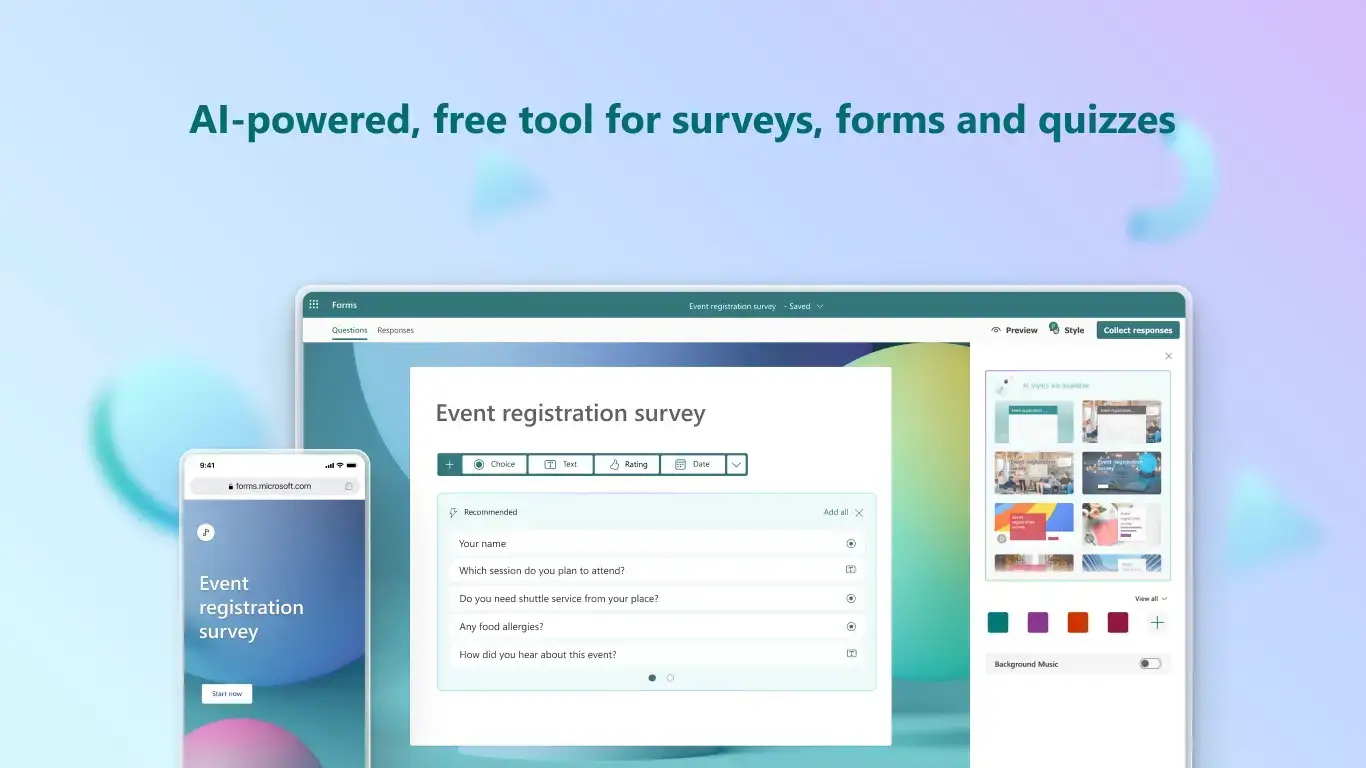
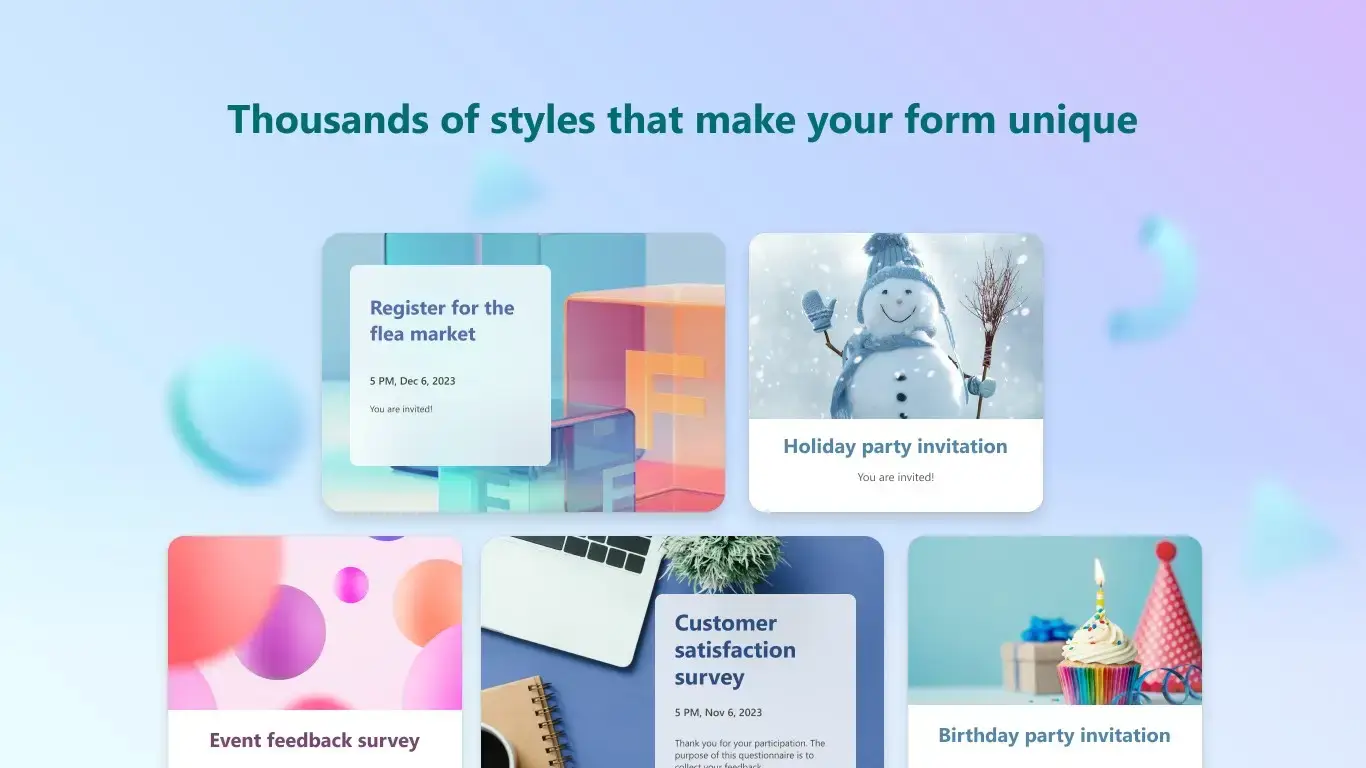
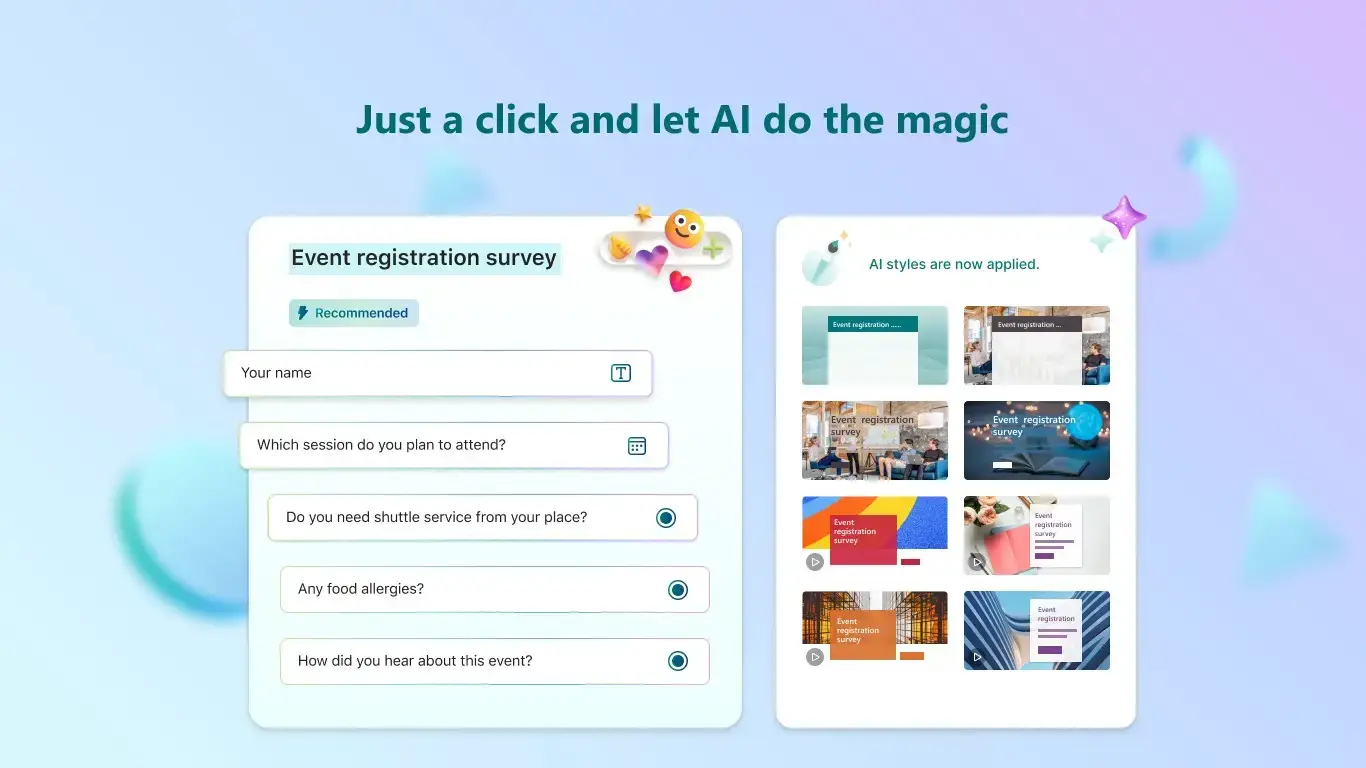
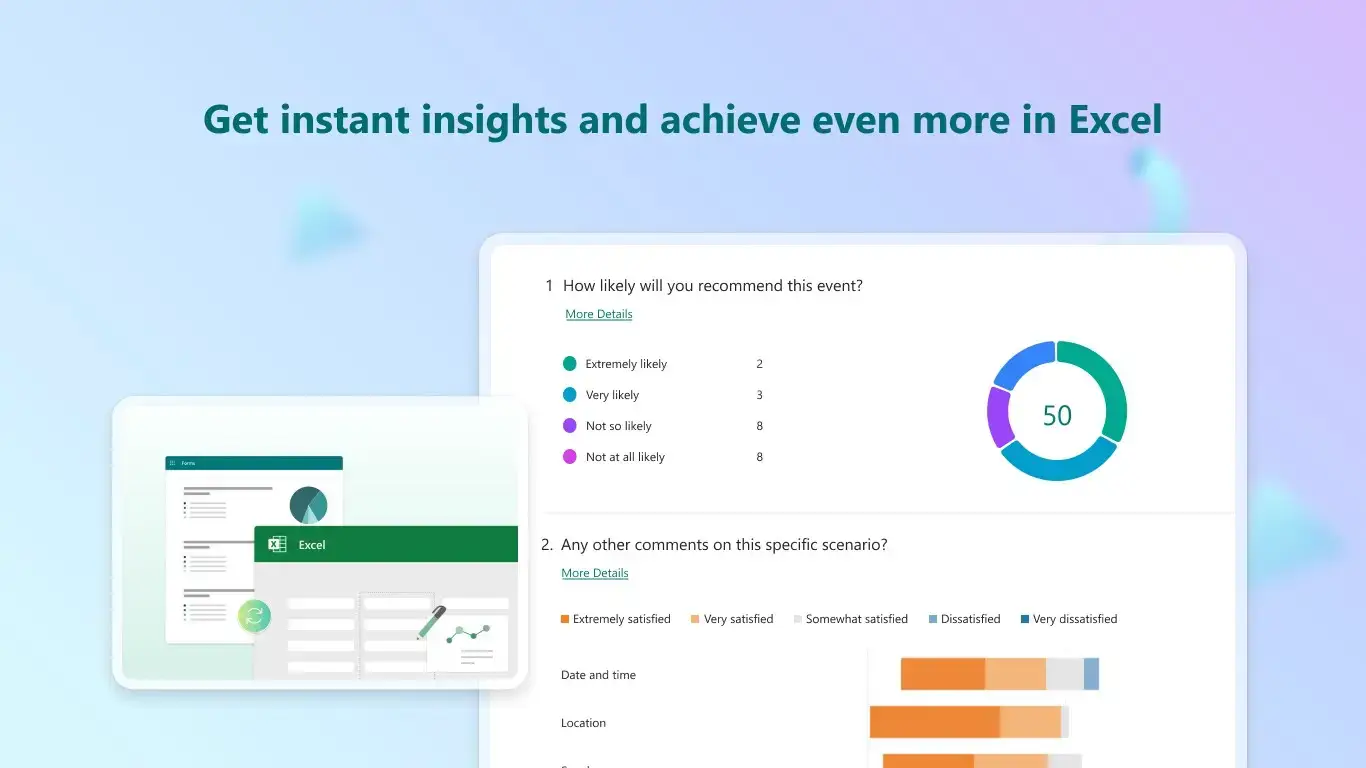
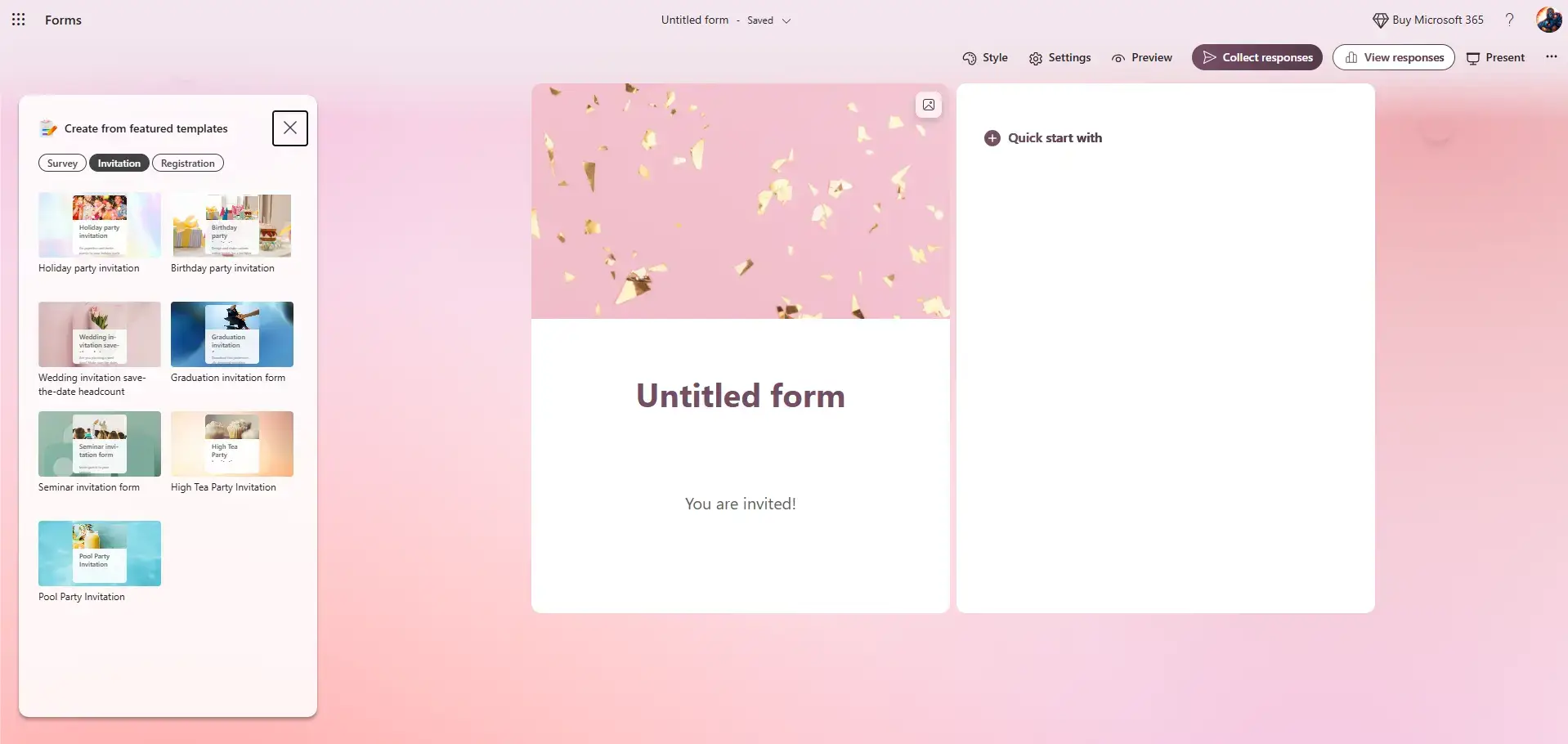
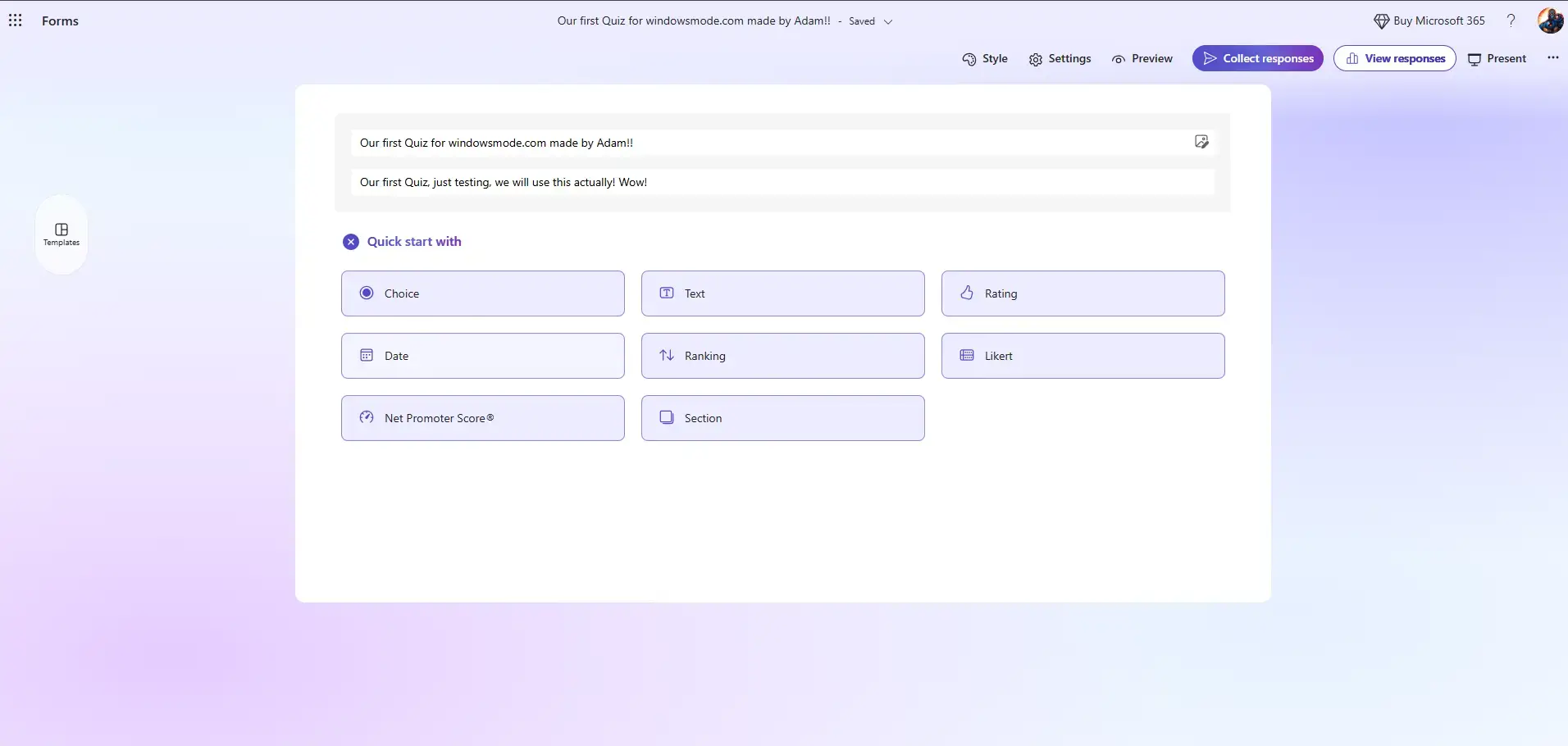
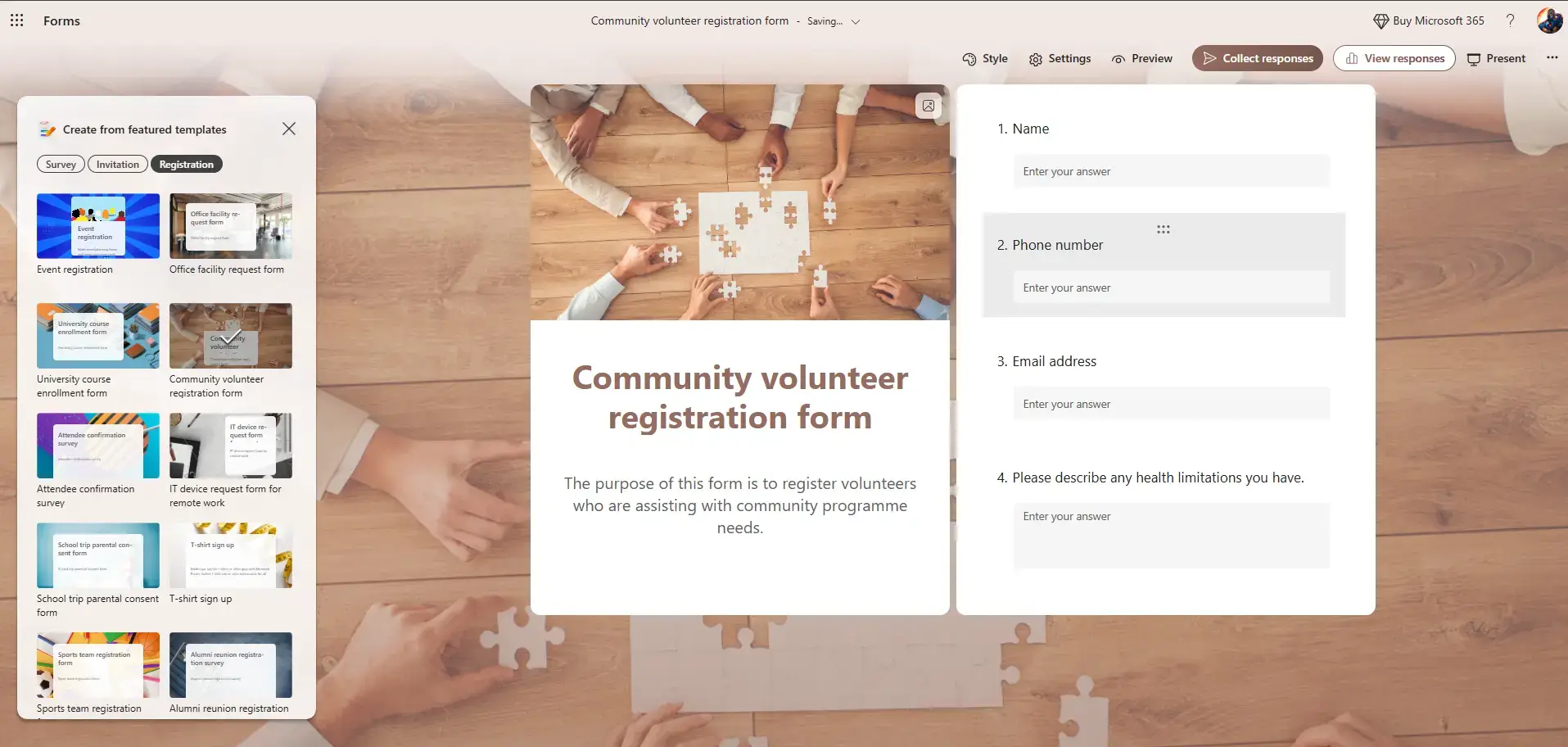
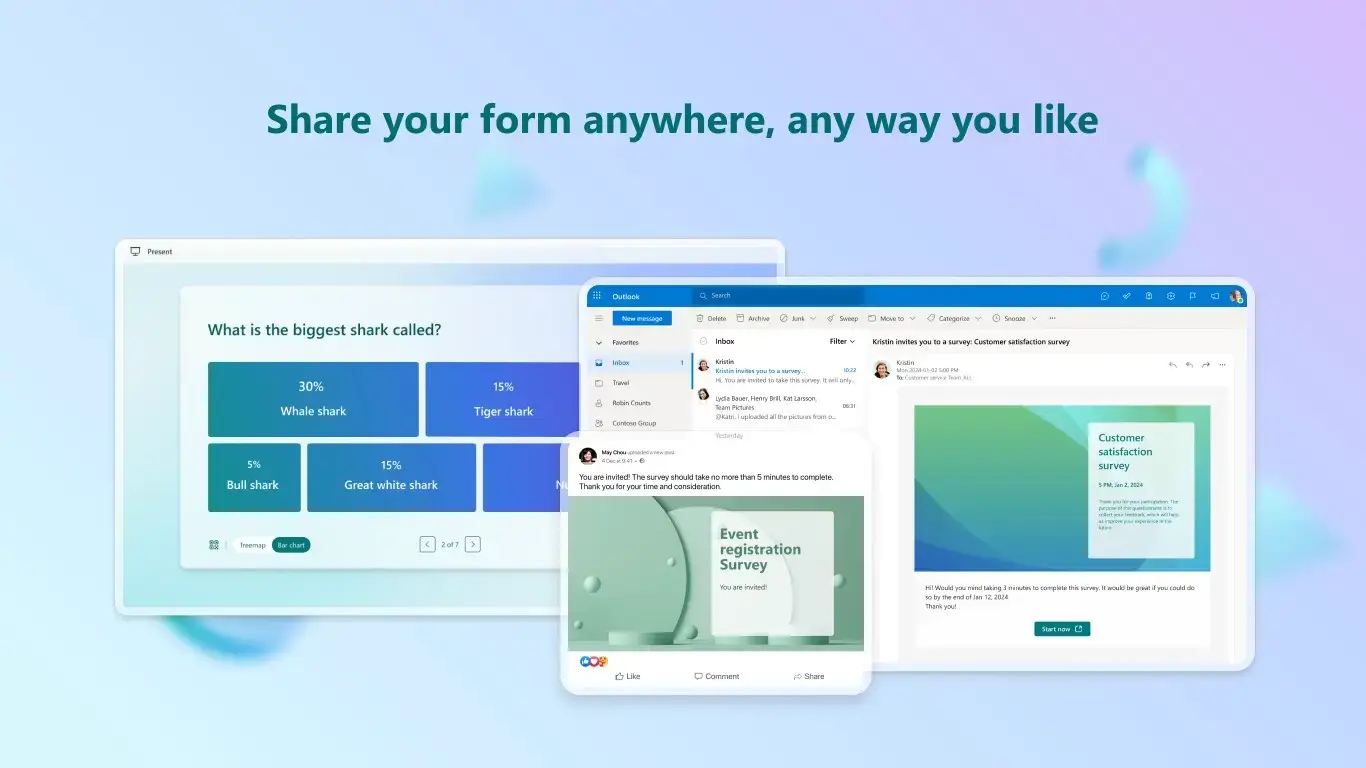
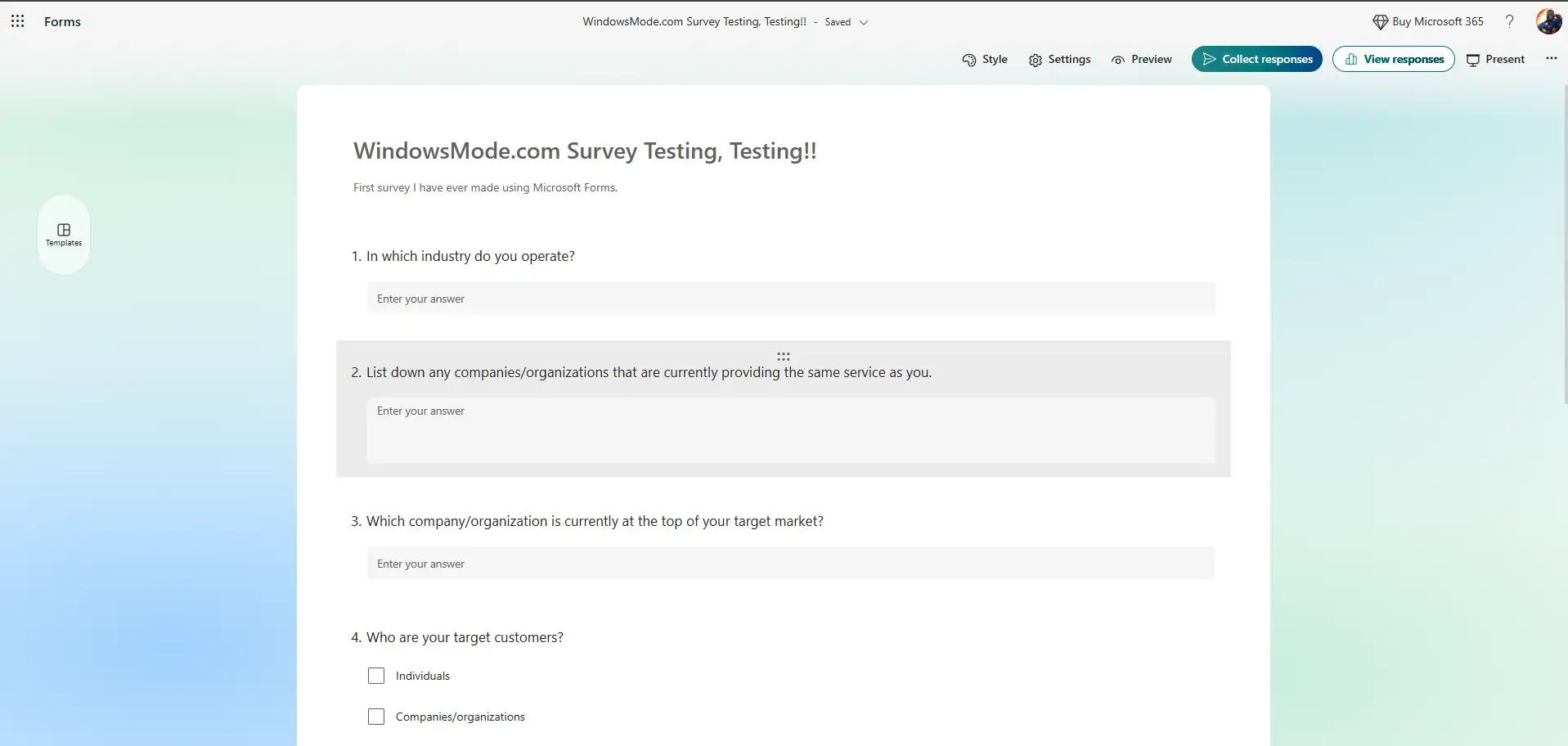
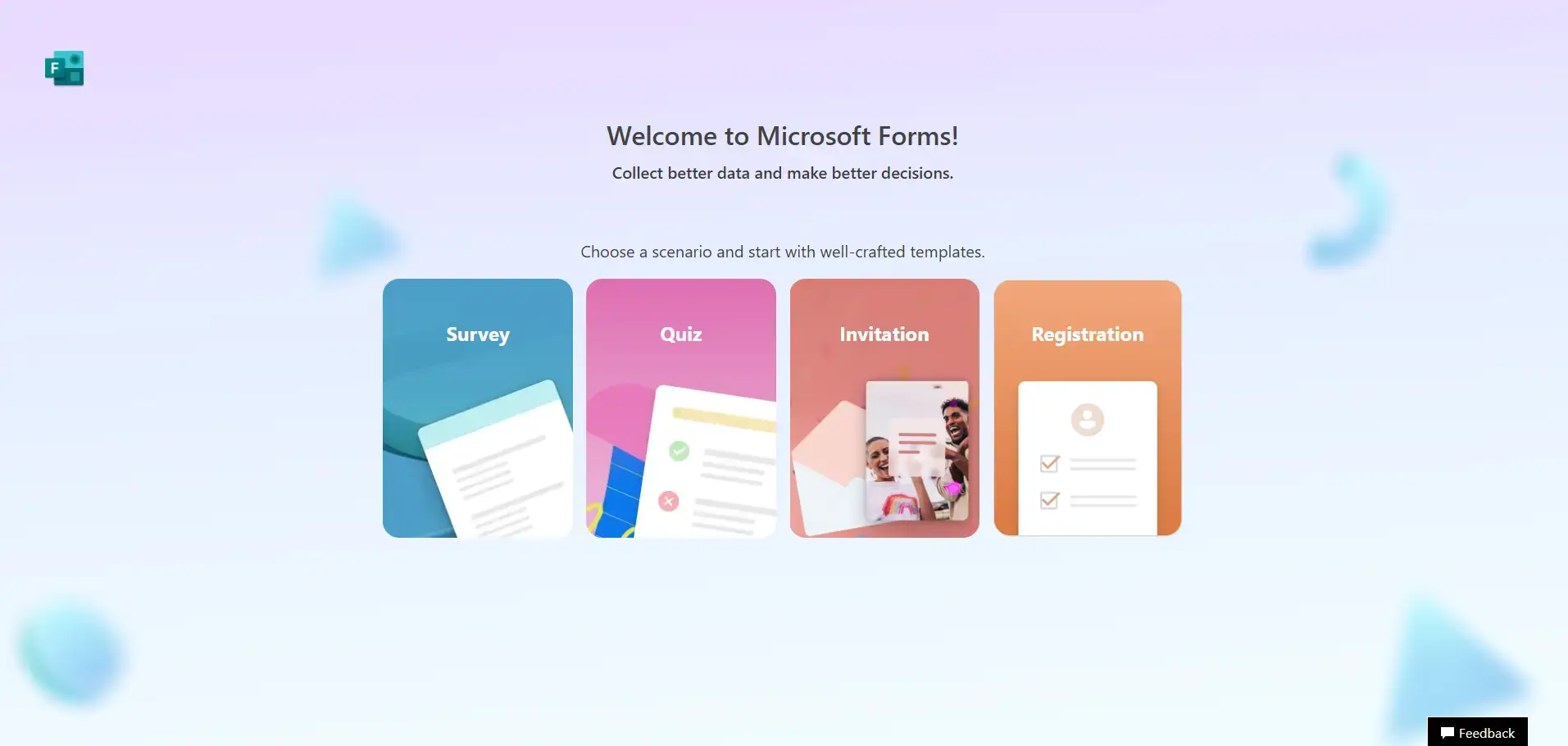
What does Microsoft Forms look like?
Some screenshots of how Microsoft Forms looks like if you are using the App or if you are using the online version.
Microsoft Forms Beginners Video
Watch this quick guide to master form creation and advanced features with an easy to understand video:

System Requirements
- Platform: Web browser or Windows 10/11 for Store app
- Account: Microsoft account (free or subscription)
- Browser: Modern browser with JavaScript enabled
Microsoft Forms FAQ
- Is Microsoft Forms completely free? Basic features are free; advanced features require Microsoft 365 subscription
- Can I export results? Yes, export to Excel for detailed analysis and reporting
- Is data secure? Yes, enterprise-grade security with compliance standards
Explore More Microsoft Applications
Master other essential Microsoft tools for productivity:
- Microsoft PC Manager: Optimize Windows Performance
- Windows Terminal: Modern Command Line Interface
- Microsoft Outlook: Manage your emails and calendars
- Microsoft Photos: Find all your photos on your PC.