

Readers like you help support this site. When you make a purchase using links on our site, we may earn an affiliate commission. All opinions remain our own.


You can download Microsoft Journal for free on your Windows PC via the Microsoft Store, with optional Microsoft 365 subscriptions for advanced AI and cloud features.
Developed by Microsoft’s Garage project since 2021, it works on Windows 10 and 11, trusted by users for its ink-first design.
If you’re a student, artist, or planner brainstorming ideas, you need a tool that’s free and expressive.
This guide covers installing it on Windows, its key features, and tips to get started.
Share your favorite Journal sketch below, or contact us for help.
How to Download Microsoft Journal on PC
To get the Microsoft Journal app on your Windows PC, download it from the Microsoft Store. Here’s how:
- Microsoft Store
- Visit the page: Microsoft Journal.
- Click Download to install the free app (about 100 MB).
- Launch from the Store or Start menu and start sketching.
- Add notes, drawings, or annotations with a digital pen.
Quick Tip: 💡 Use the lasso tool to select and move your ink strokes for easy reorganization.
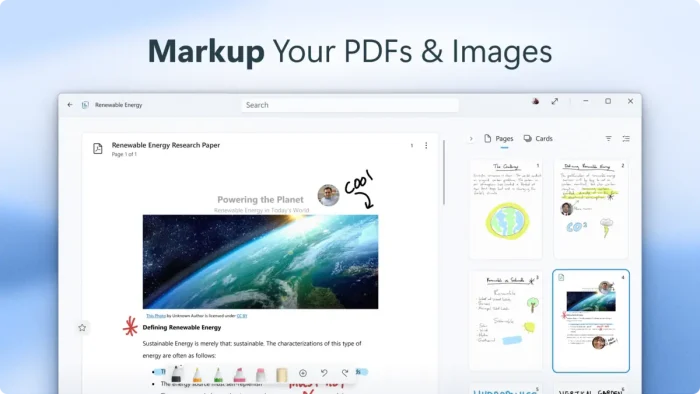

What is Microsoft Journal About?
Microsoft Journal, launched by Microsoft’s Garage project in 2021, is a free app for digital journaling with a focus on digital ink.
It supports sketching, annotating, and connecting ideas with AI-driven search and gestures. X posts praise its freeform style but note limited updates since launch.
It integrates with Microsoft 365 for cloud sync and advanced AI (subscription required).
It’s ideal for brainstorming, note-taking, or creative sketching.
Core Features: Sketch and annotate with a digital pen on a freeform canvas.
Why Use Microsoft Journal on Windows?
It’s free, intuitive, and great for pen-based creativity.
- Sketch ideas with digital ink and natural gestures
- Annotate notes or PDFs with freeform tools
- Search handwritten notes with AI-powered recognition
- Connect ink to Microsoft 365 apps (subscription required)
- Organize ideas with tags and searchable text
Popular Use Cases for Microsoft Journal
Microsoft Journal is used for various creative tasks, including:
- Use Cases: Brainstorming project ideas, sketching lecture notes, annotating PDFs, creating mind maps, journaling daily thoughts
Quick Start Guide for Microsoft Journal
New to Microsoft Journal? Get going quick:
- Open the app and start a new journal page.
- Sketch or annotate with a digital pen or stylus.
- Use the search bar to find specific notes.
Best Settings for Microsoft Journal on PC
Tweak these for a better experience:
- Ink: Adjust pen thickness in Settings for better control.
- Sync: Enable Microsoft 365 sync for cloud access (subscription).
- Gestures: Customize gestures for faster navigation.
Common Issues & Fixes for Microsoft Journal
- Subscription Needed: Get Microsoft 365 for cloud sync and AI features.
- Ink Lag: Update pen drivers or lower display resolution.
- Search Issues: Ensure notes are tagged for better AI recognition.
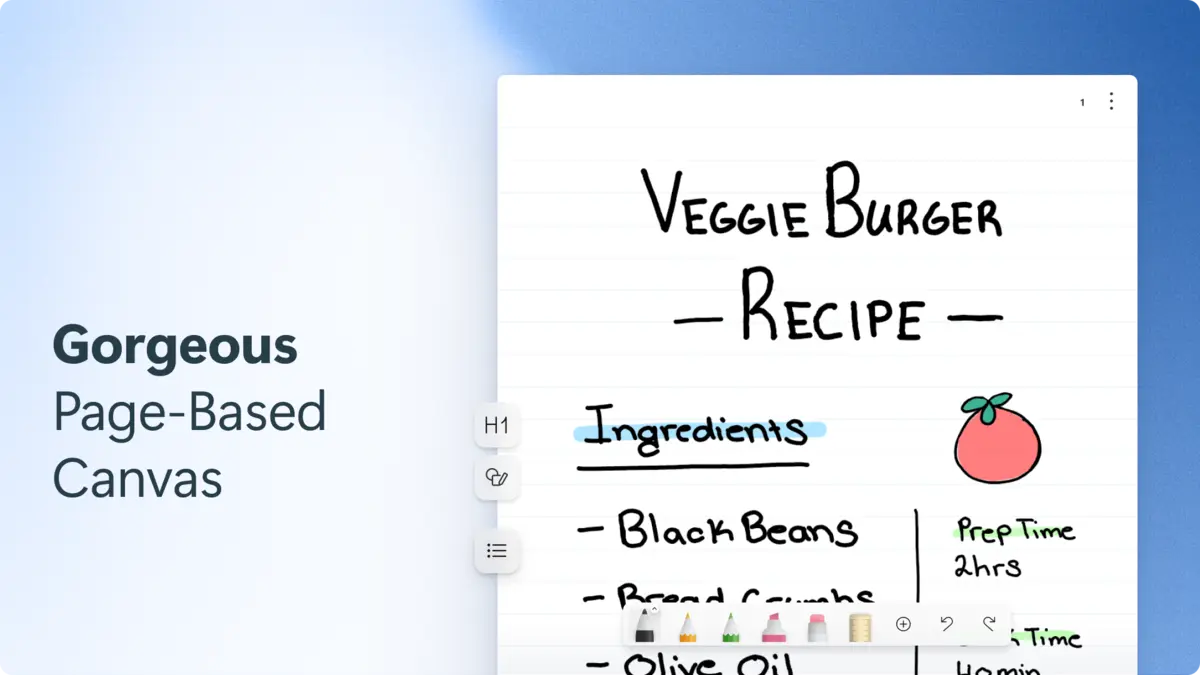
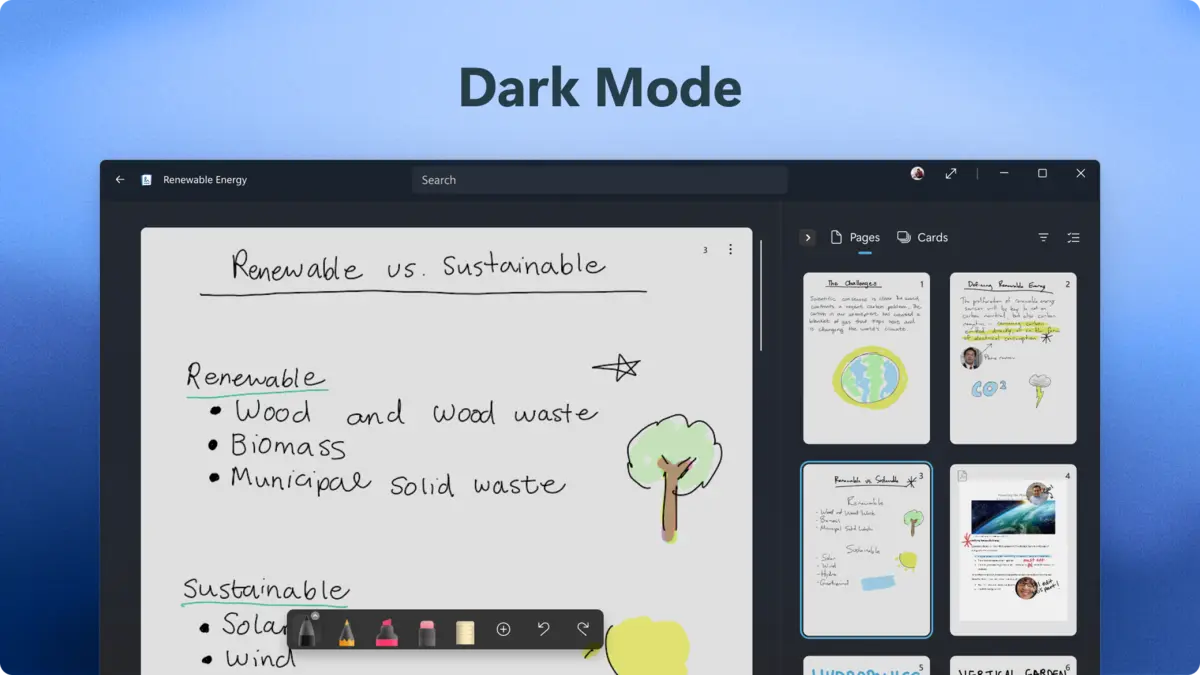
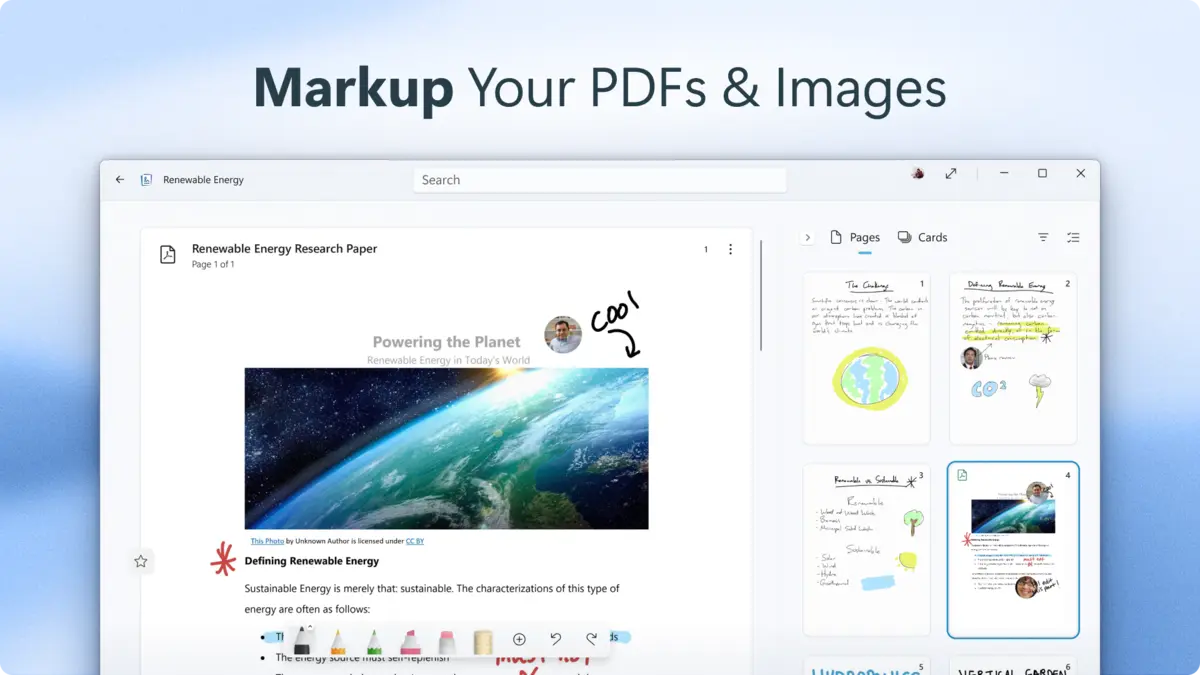
Microsoft Journal Screenshots






Microsoft Journal Beginner’s Video
Watch this quick guide to learn how to use Microsoft Journal on your PC:

System Requirements for Microsoft Journal on Windows
- OS: Windows 10 (version 16299.0 or higher), 11
- CPU: 1 GHz or faster
- RAM: 4 GB minimum, 8 GB recommended
- Storage: 500 MB free
- Other: Digital pen or stylus, internet for Microsoft 365 features
Microsoft Journal on Windows FAQ
- Is Microsoft Journal free? Yes, with optional Microsoft 365 subscription for extras.
- Do I need a stylus? Recommended for best experience, but not required.
- Does it sync with other apps? Yes, with Microsoft 365 apps (subscription).