

Readers like you help support this site. When you make a purchase using links on our site, we may earn an affiliate commission. All opinions remain our own.


You will be able to download Stardew Valley on Steam for Windows 10 and 11, launched February 26, 2016, with Update 1.6 adding new festivals and pet hats.
It’s also on PS4, Xbox One, Switch, and mobile, with Mac and Linux support too.
From ConcernedApe, it’s got an ‘Overwhelmingly Positive’ Steam rating (98% positive from 742,000+ reviews) and mixes farming with town life and cave adventures.
As fans, we like its chill vibe, endless to-do list and retro graphics that somehow still look great!
This guide covers installing it on Windows, its main features, and tips for new players.
Tell us your favorite crop below, or contact us for help.
How to Install Stardew Valley on Windows 11 and 10
To play Stardew Valley on your Windows PC, download it from Steam. Here’s how:
- Method 1: Steam
- Go to the Steam page: Steam.
- Click Add to Cart ($14.99, often cheaper).
- Log into your Steam account or make one.
- Finish the purchase and click Install in your Steam Library.
- Wait for the download (about 1 GB with updates).
- Start it from your Steam Library or desktop.
Quick Tip: 💡 Plant crops on day one; they’ll grow while you explore.

What is Stardew Valley About?
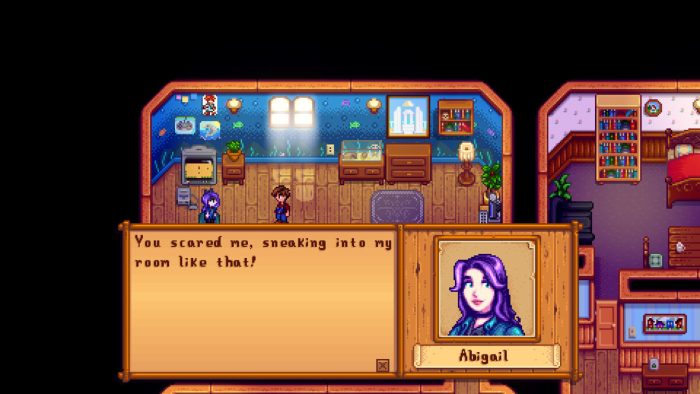
Stardew Valley, launched February 26, 2016 by ConcernedApe, is a farming game for Windows 10 and 11 plus other platforms, where you fix up an old farm, grow stuff, meet townsfolk, and explore caves, all at your own pace.
Main Gameplay: Plant crops, fish, mine, and chat with over 30 neighbors who have their own schedules and stories. Update 1.6 adds fresh festivals and pet hats for more fun down the road.
Key Features
- Farming with crops and animals
- Town life with friends and festivals
- Cave trips for loot and fights
- Play solo or with up to 8 buddies
- Lots of crafting and cooking
Why Play Stardew Valley on Windows?
Windows 10 and 11 give you smooth play, crisp pixel art, and easy modding for a full farm life feel.
Tips for PC Beginners in Stardew Valley
New to Stardew Valley on PC? Here are five tips to get started:
- Set Keys: Put hoe on a mouse button in Settings > Controls for fast digging.
- Speed Up: Lower resolution in Graphics if it lags.
- Plant Early: Sow seeds (menu) on day one for cash.
- Meet Folks: Talk to everyone (map) to unlock stuff.
- Save Energy: Eat food (inventory) to keep going.
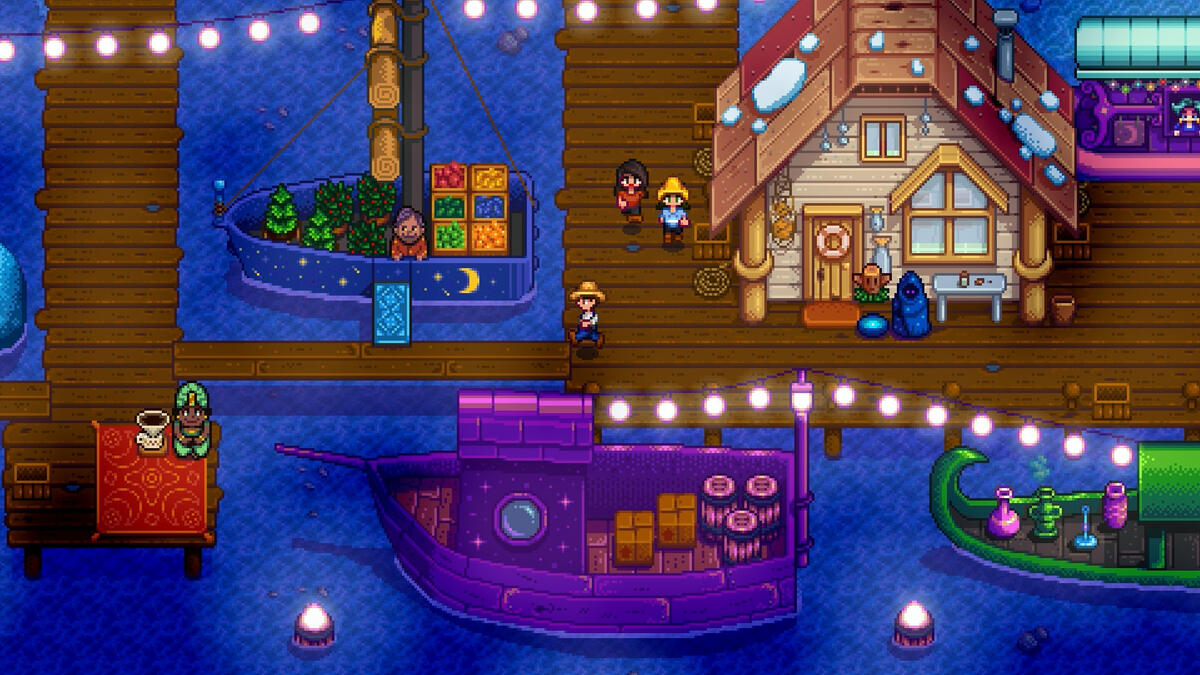
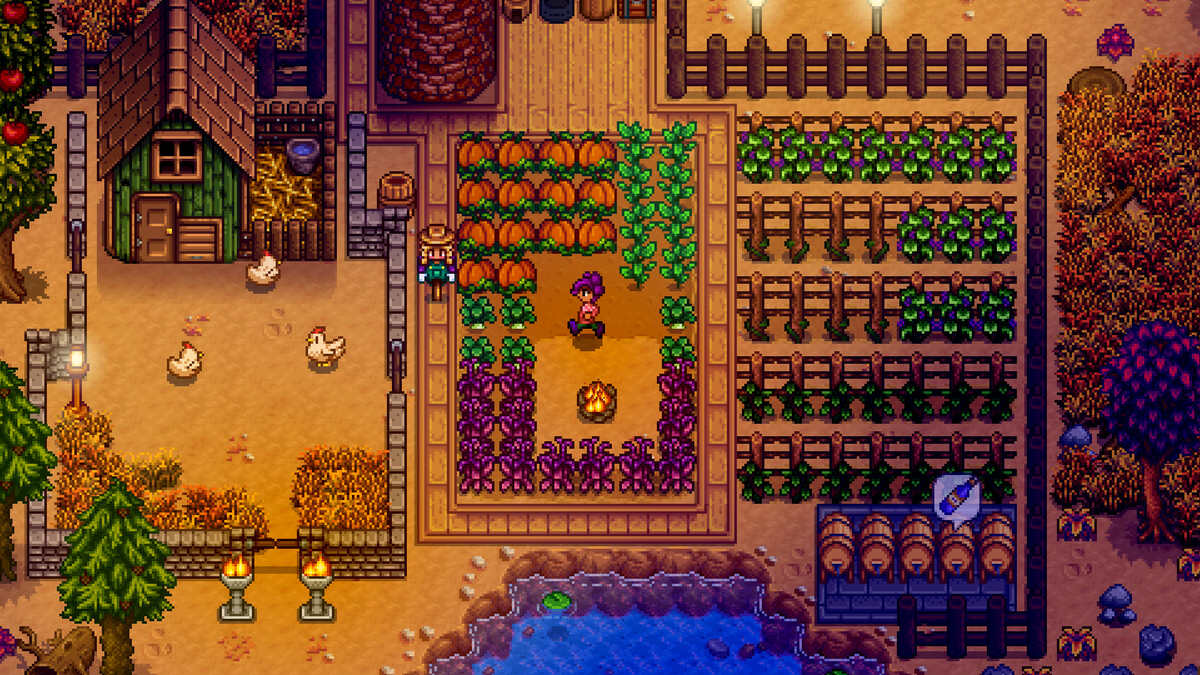
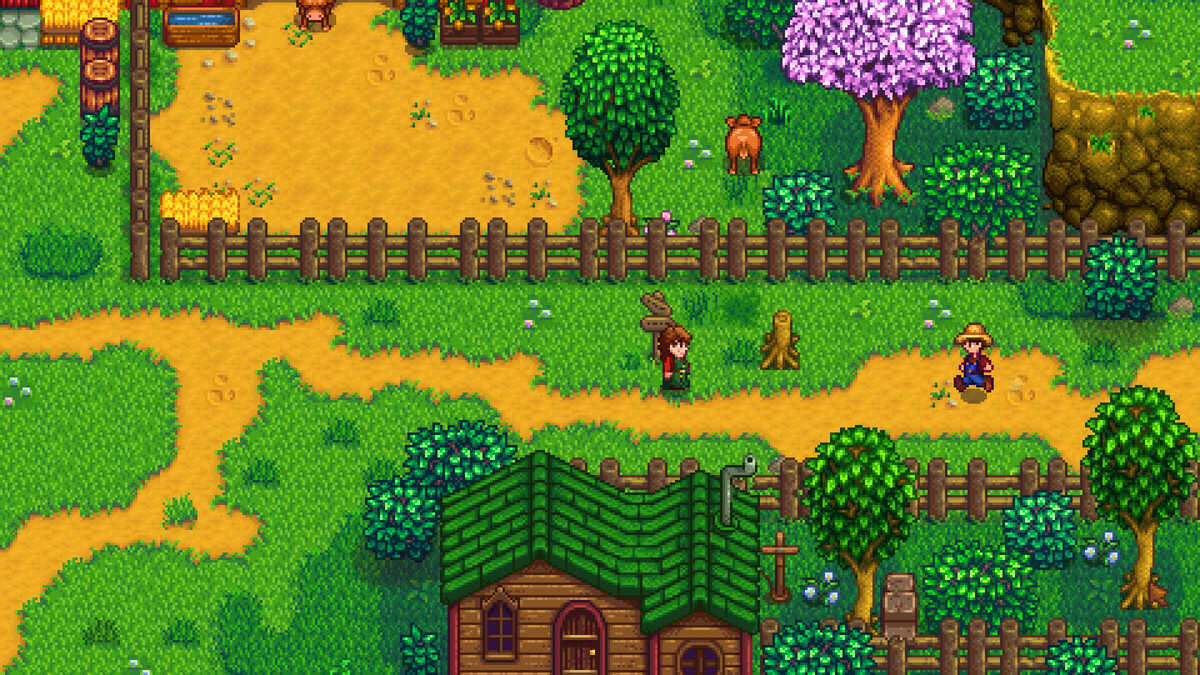
Stardew Valley Gameplay Screenshots
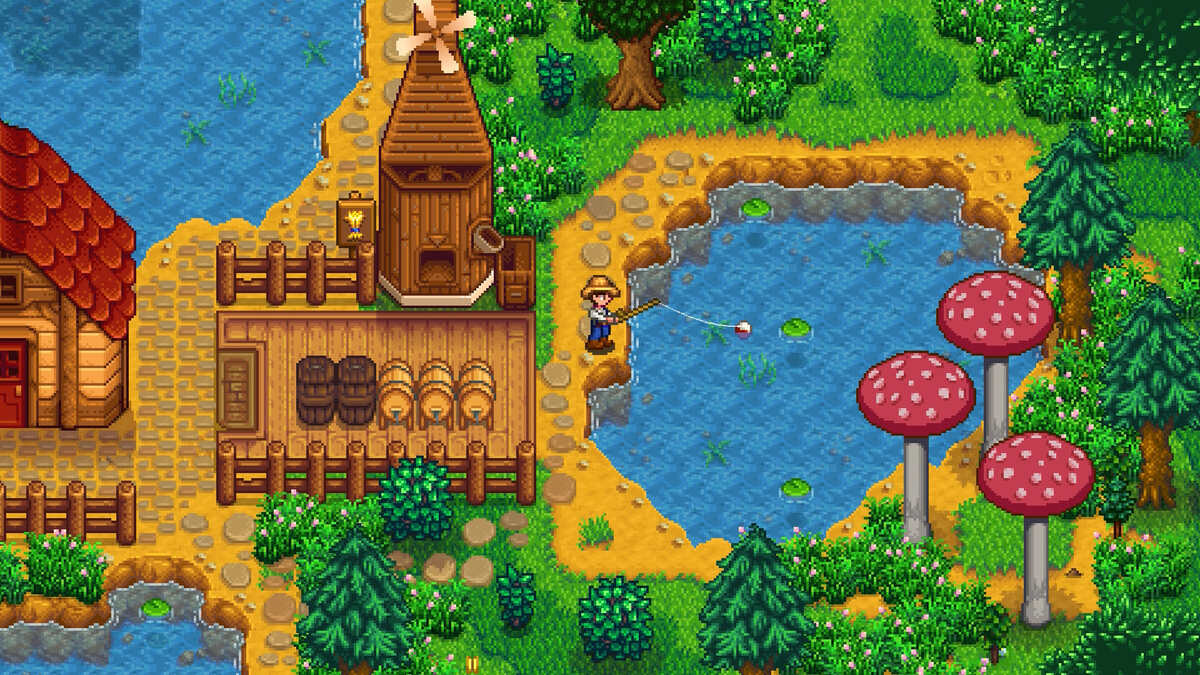
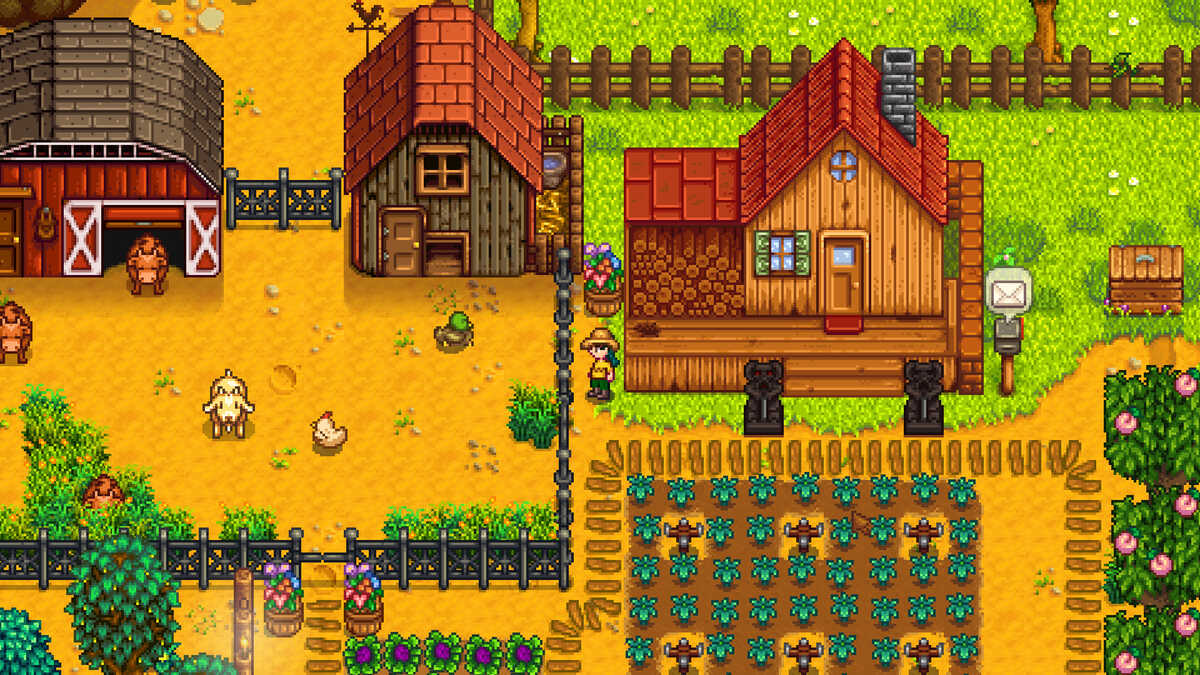
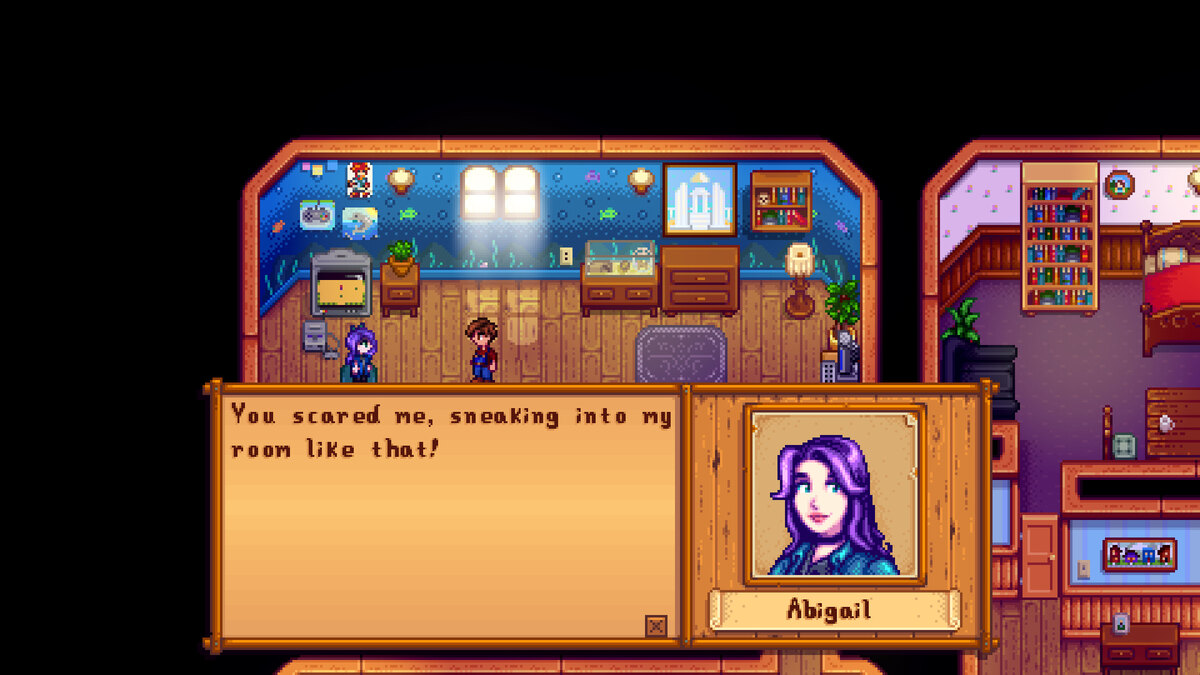
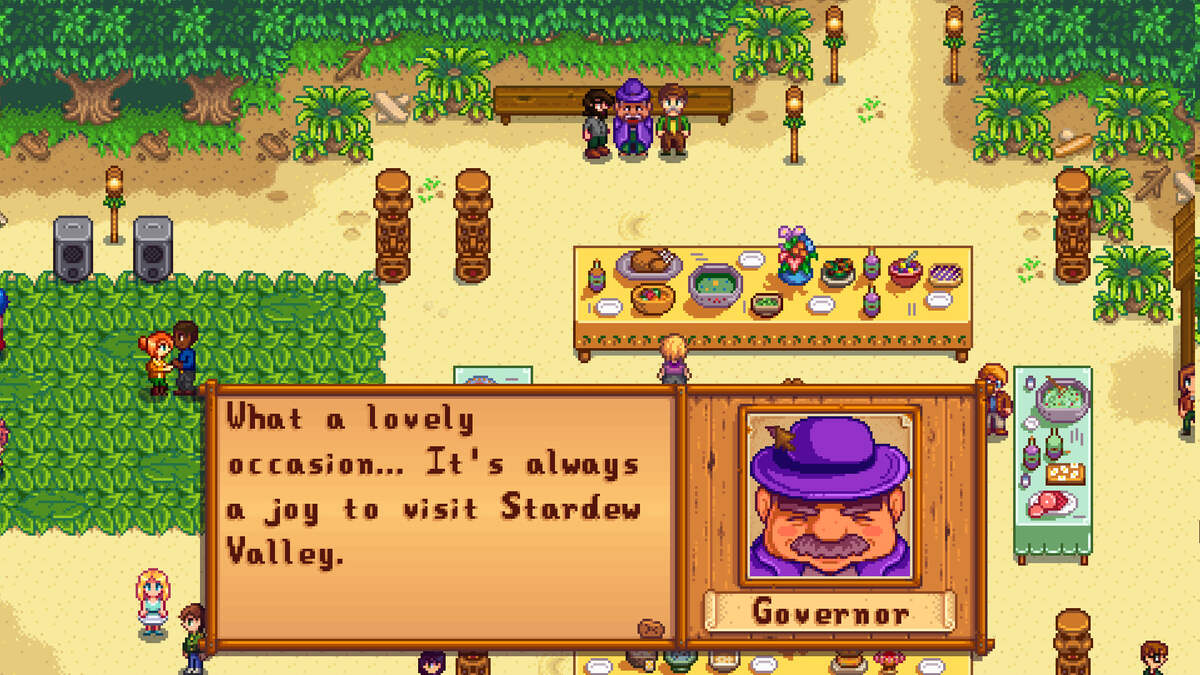
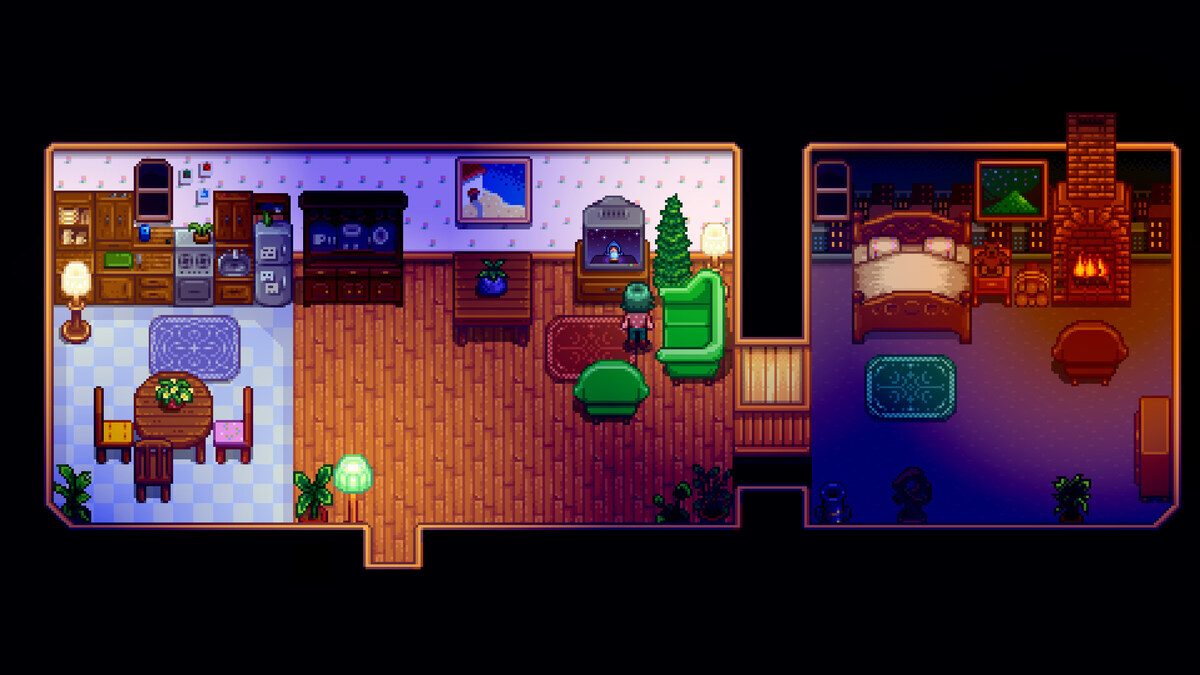
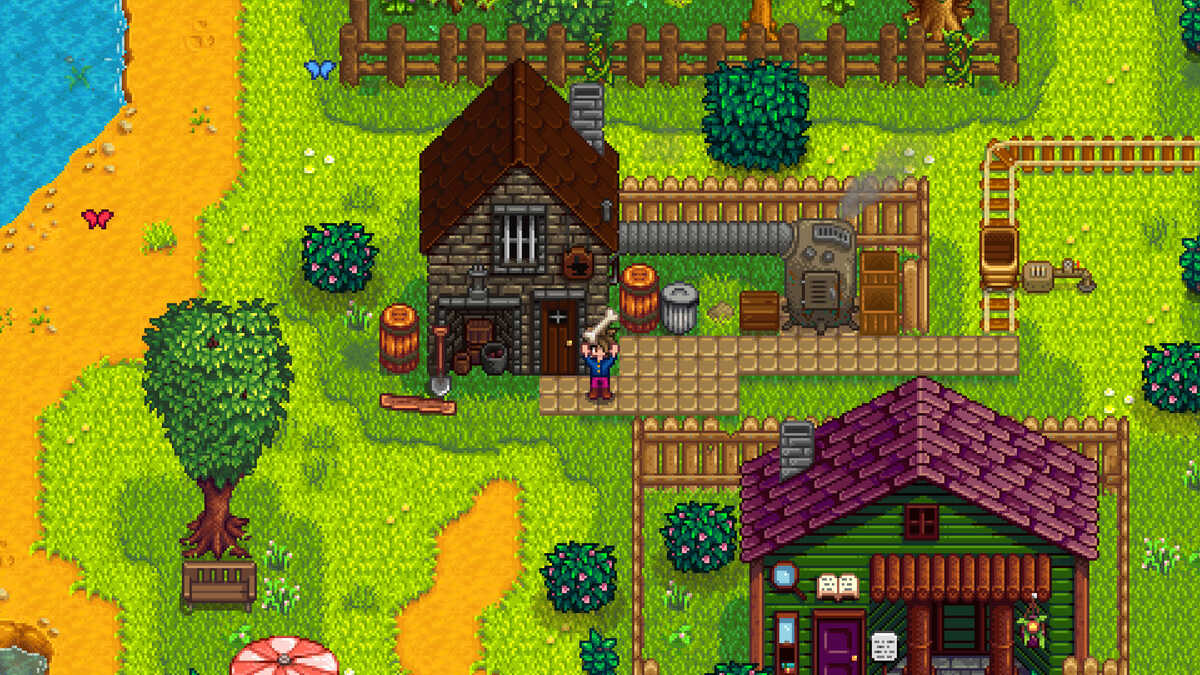
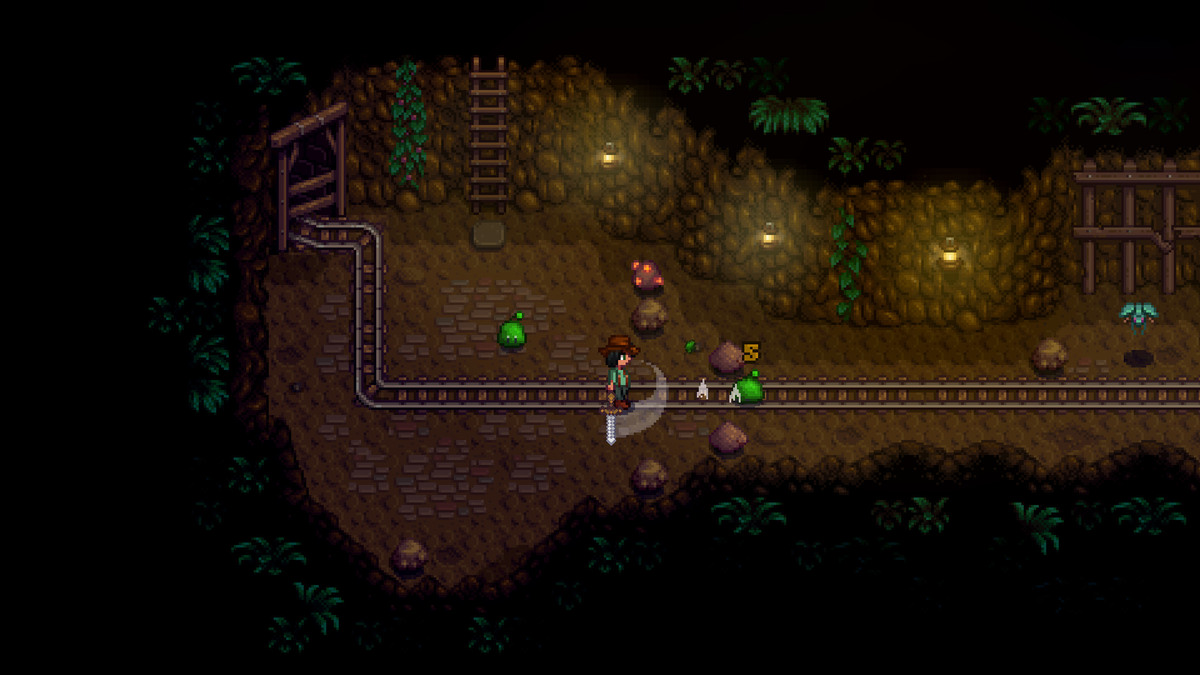
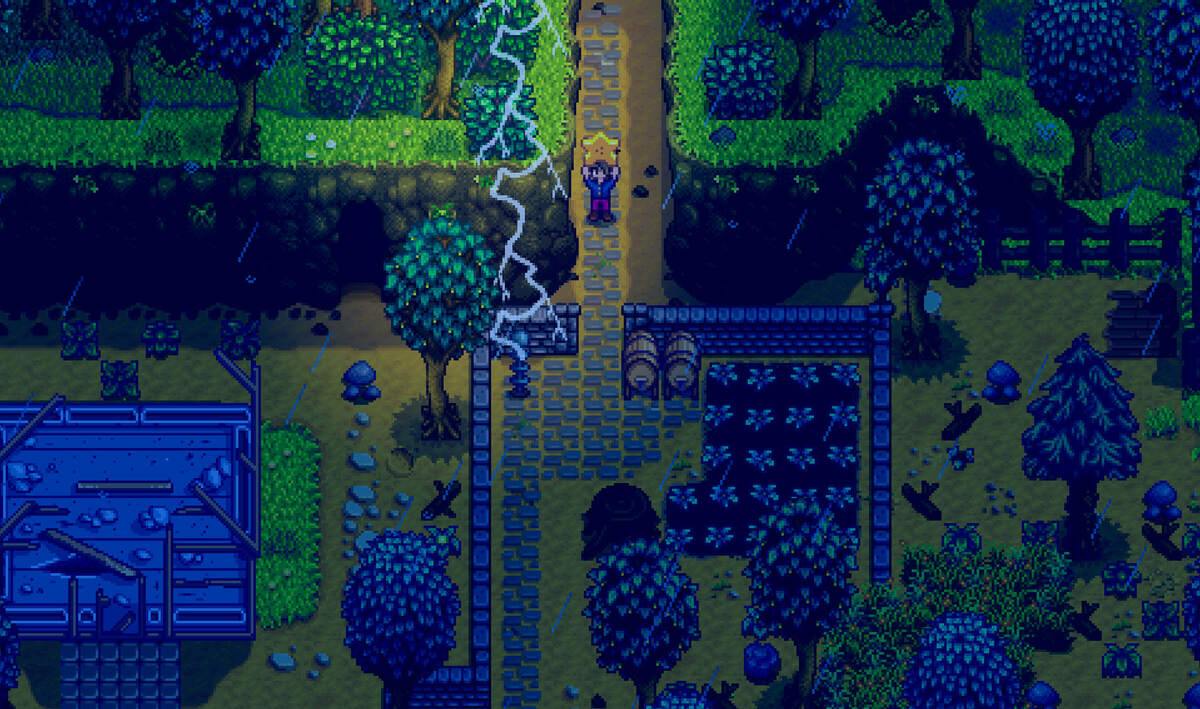

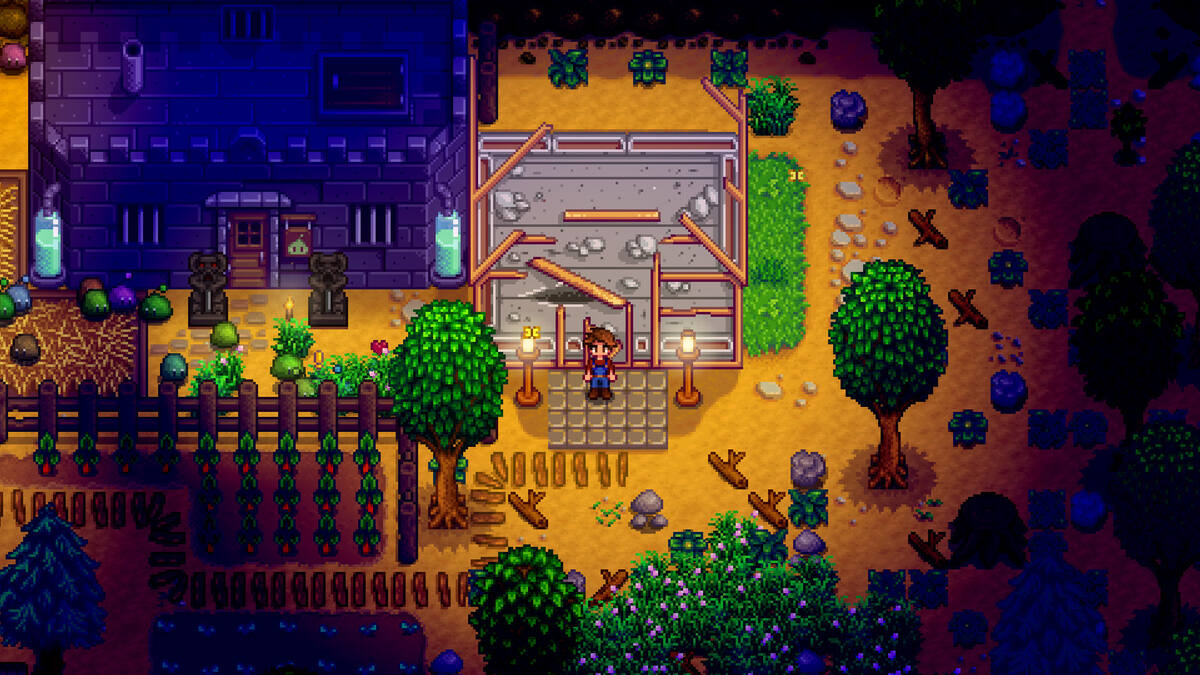
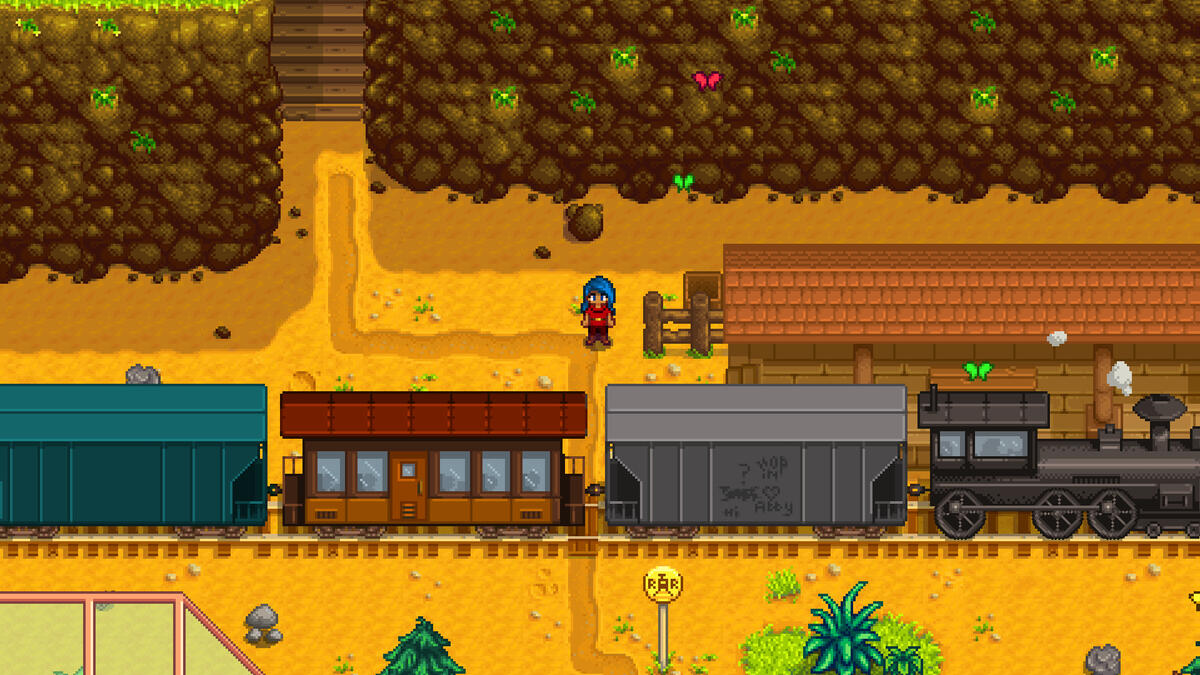
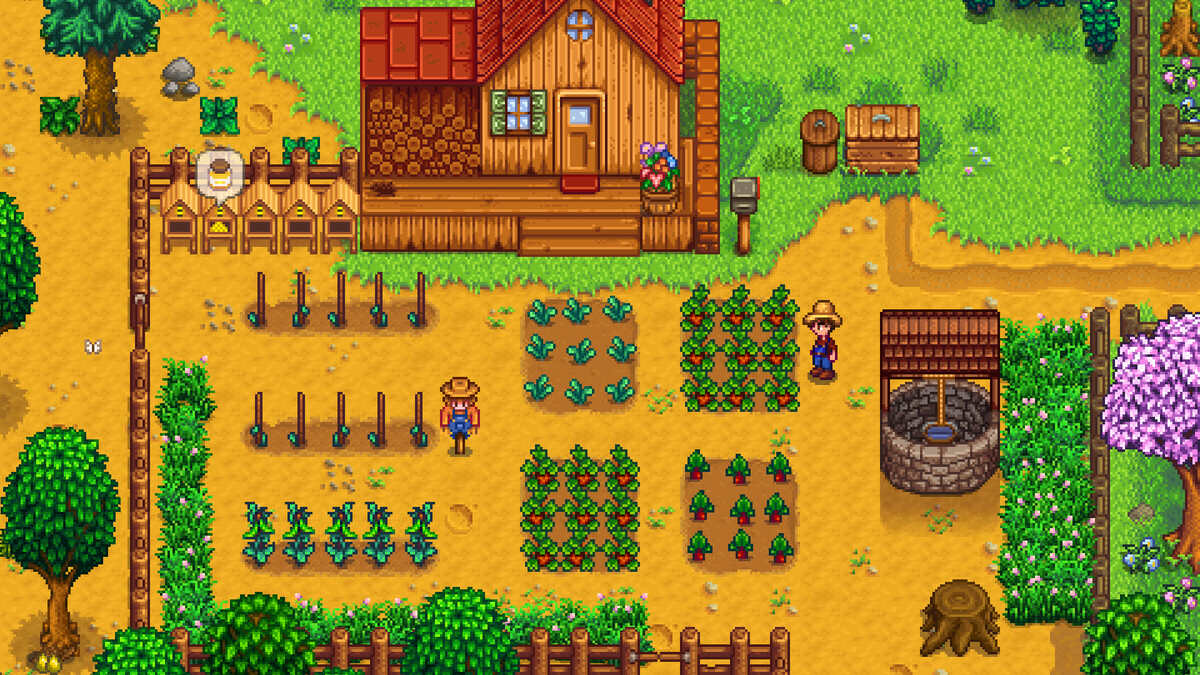
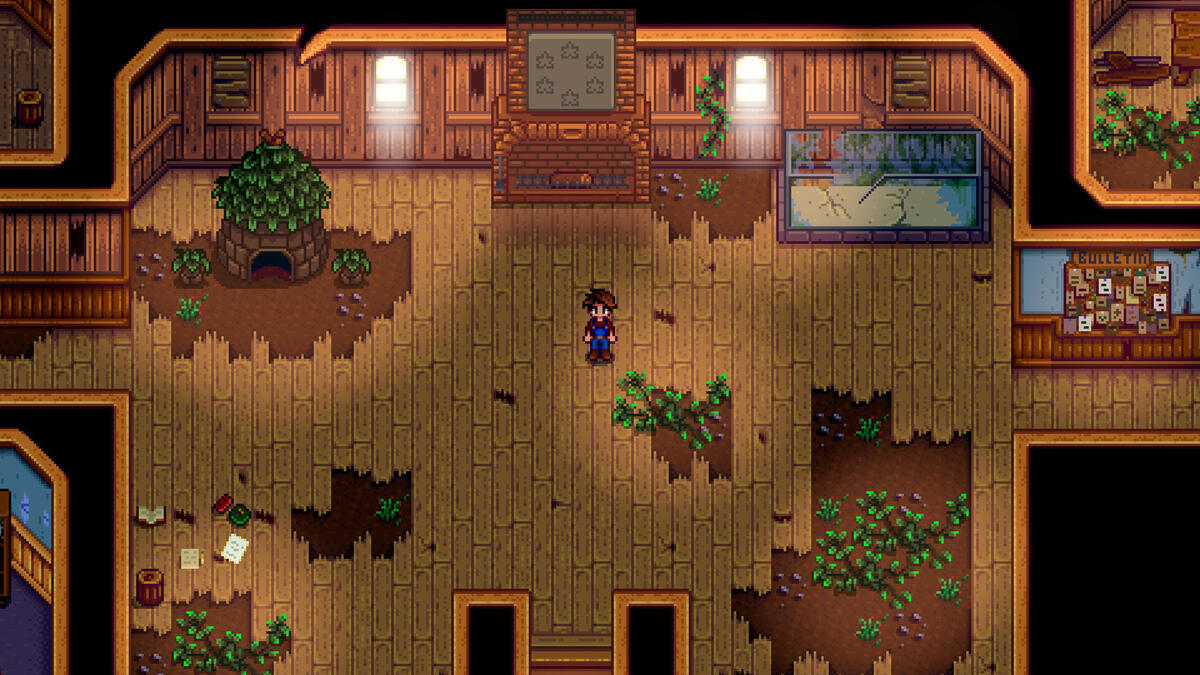
Stardew Valley Beginner’s Guide Video
Watch this beginner’s guide for Stardew Valley to jump in:

Stardew Valley PC Requirements for Windows
Minimum:
- OS: Windows 10 64-bit (latest update)
- CPU: Intel Core 2 Duo E4300 or AMD Athlon 64 X2 4000+
- RAM: 2 GB
- Storage: 1 GB free (SSD recommended)
- GPU: NVIDIA GeForce 9600 GT or AMD Radeon HD 3850
- DirectX: Version 11
Recommended:
- OS: Windows 11 64-bit (latest update)
- CPU: Intel Core i3-2100 or AMD Phenom II X4 965
- RAM: 4 GB
- Storage: 1 GB free (SSD)
- GPU: NVIDIA GTX 660 or AMD Radeon HD 7870
- DirectX: Version 11
Stardew Valley on Windows FAQ
- Is it free? No, it’s $14.99.
- Can I play offline? Yes, after first setup.
- Does it run on Windows 11? Yes, works fine.
- What’s the download size? About 1 GB with updates.
Support and Community
Explore More Windows Games: ENA: Dream BBQ, best simulation games on PC, farming simulator 25 on PC, South of Midnight for PC