

Readers like you help support this site. When you make a purchase using links on our site, we may earn an affiliate commission. All opinions remain our own.


You can download uTorrent for free on your Windows PC via the official uTorrent website, requiring Windows 10 (build 10240 or higher) or Windows 11, 100 MB free space, and an internet connection.
Developed by BitTorrent, Inc., it’s a trusted torrent client used by millions to download files via the BitTorrent P2P protocol.
If you’re a professional, student, or home user needing to download large files like software or media (legally), you need a tool that’s fast and lightweight.
This guide covers downloading uTorrent on Windows, its key features, and tips to get started.
Share your uTorrent experience below, or contact us for help.
How to Download uTorrent on PC
To get uTorrent on your Windows PC, download it from the official website. Here’s how:
- uTorrent Website
- Visit the page: uTorrent Classic.
- Click Download uTorrent Classic (about 2 MB, named utorrent.exe).
- Run the installer, click Next, and decline any bundled adware offers by clicking Decline.
- Click Finish to launch uTorrent, then add a torrent file or magnet link to start downloading.
Quick Tip: 💡 Download only from the official uTorrent site to avoid fake versions with malware.

What is uTorrent About?
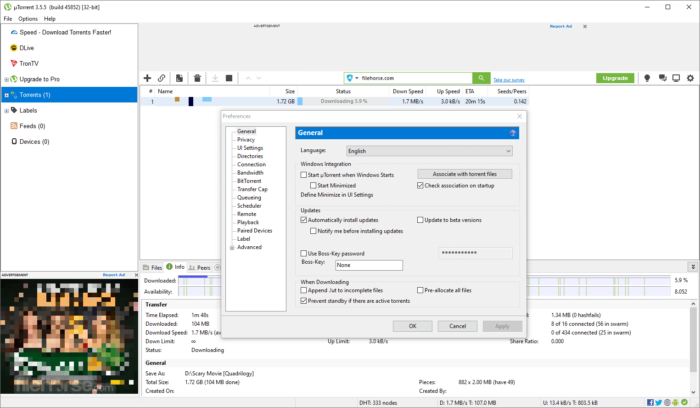
uTorrent, developed by BitTorrent, Inc., is a free torrent client for Windows 10 (build 10240 or higher) and Windows 11 that downloads large files using the BitTorrent P2P protocol.
Unlike the PC Health Check App, which diagnoses system health, uTorrent lets you download torrents like software, media, or game files (use only legal sources).
It’s lightweight, fast, and supports Windows XP to 11. Users on X praise its speed but note ads and occasional antivirus flags.
Always download legal content to stay safe.
For system diagnostics, see our guide: PC Health Check App.
Core Features: Downloads torrents efficiently with customizable settings.
Why Use uTorrent on Windows?
It’s free, fast, and handles large file downloads with ease.
- Downloads multiple torrents at once
- Controls internet speed usage
- Lets you manage downloads remotely
- Schedules downloads for off-peak times
- Auto-downloads from RSS feeds
uTorrent Features Explained
Here’s what uTorrent does and why it matters to you:
- Bulk Downloading: Downloads multiple torrent files at once, like a whole software package or media series. This saves time if you need lots of files quickly.
- Bandwidth Management: Lets you set how much internet speed uTorrent uses. This keeps your browsing or streaming smooth while downloading.
- Remote Access: Control uTorrent from your phone or another PC using the uTorrent Android app or a browser. This is handy if you’re away from your computer.
- Scheduling: Set times for uTorrent to start or stop downloads, like overnight when your internet is free. This avoids slowing your network during the day.
- RSS Feeds: Auto-downloads new content from websites you follow, like podcast episodes. This keeps you updated without manual checks.
Is uTorrent for You?
- It’s for you if: You need to download large files (legally) like software, open-source tools, or media, and want a fast, lightweight tool.
- It’s not for you if: You’re uncomfortable with ads, worried about antivirus warnings, or don’t need to download torrents.
Popular Industries and Use Cases for uTorrent
uTorrent is used across industries and tasks, including:
- Industries: Home (personal PCs), Education (student projects), Open-Source Communities (software distribution)
- Use Cases: Downloading large files, sharing open-source software, accessing legal media, managing bulk downloads
Quick Start Guide for uTorrent
New to uTorrent? Get going quick:
- Download and install uTorrent from the official site.
- Open the app and add a torrent file or magnet link from a legal source.
- Adjust bandwidth settings to avoid slowing your internet.
Best Settings for uTorrent
Tweak these for a better experience:
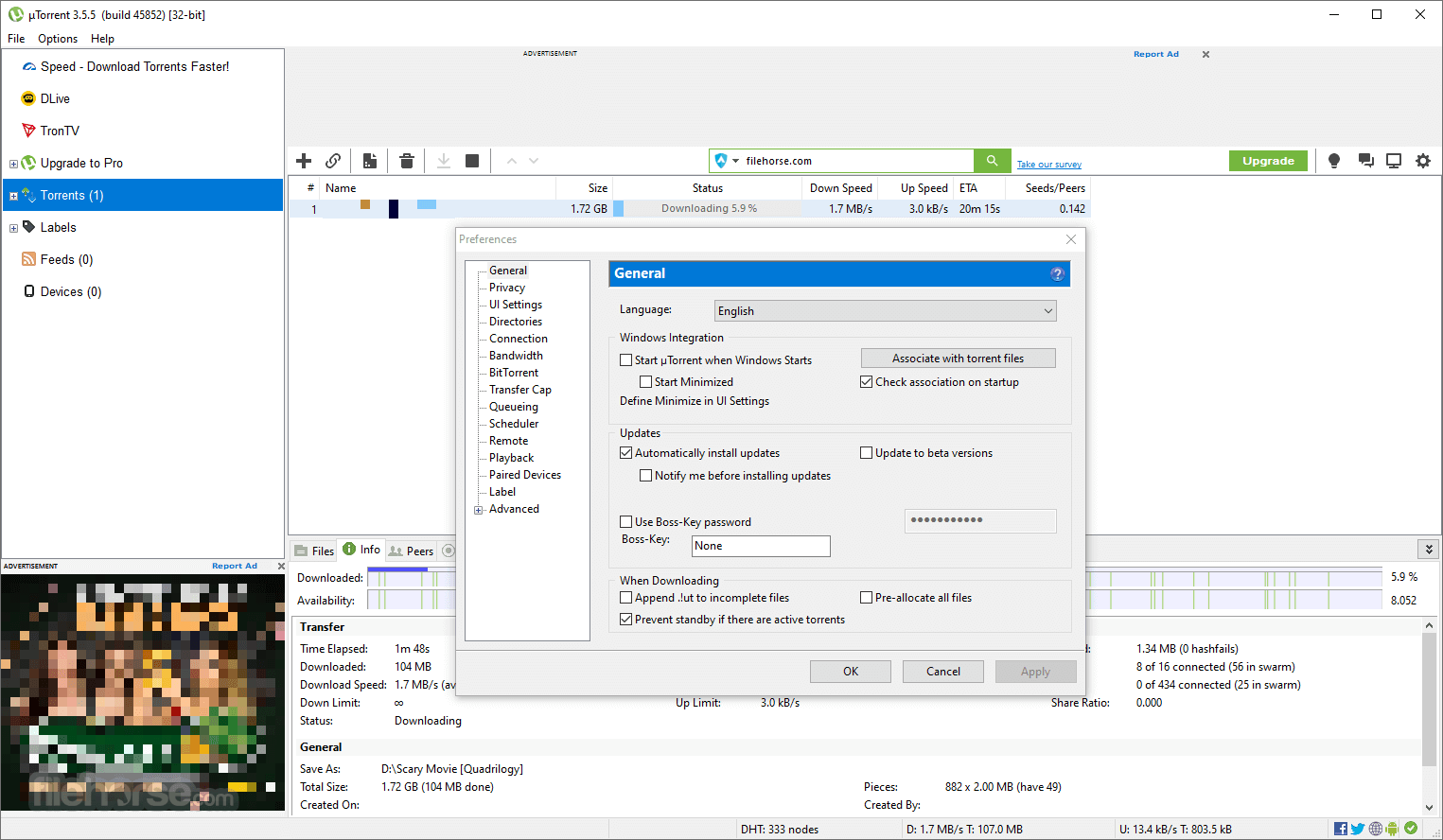
- Bandwidth: Set upload/download limits in Options > Preferences > Bandwidth to balance speed and internet use.
- Scheduling: Enable in Preferences > Scheduler to download during off-peak hours.
- Ad-Free (Optional): Consider uTorrent Pro (paid) to remove ads, or decline adware during installation.
Common Issues & Fixes for uTorrent
- Antivirus Warnings: If Windows Defender flags uTorrent, verify you downloaded from the official site. Submit the file to Microsoft’s lab for review if needed.
- Slow Downloads: Right-click the torrent, select “Allocate Bandwidth” to high, or add more trackers in Properties.
- Ads Annoying: Decline adware during installation or upgrade to uTorrent Pro for an ad-free experience.
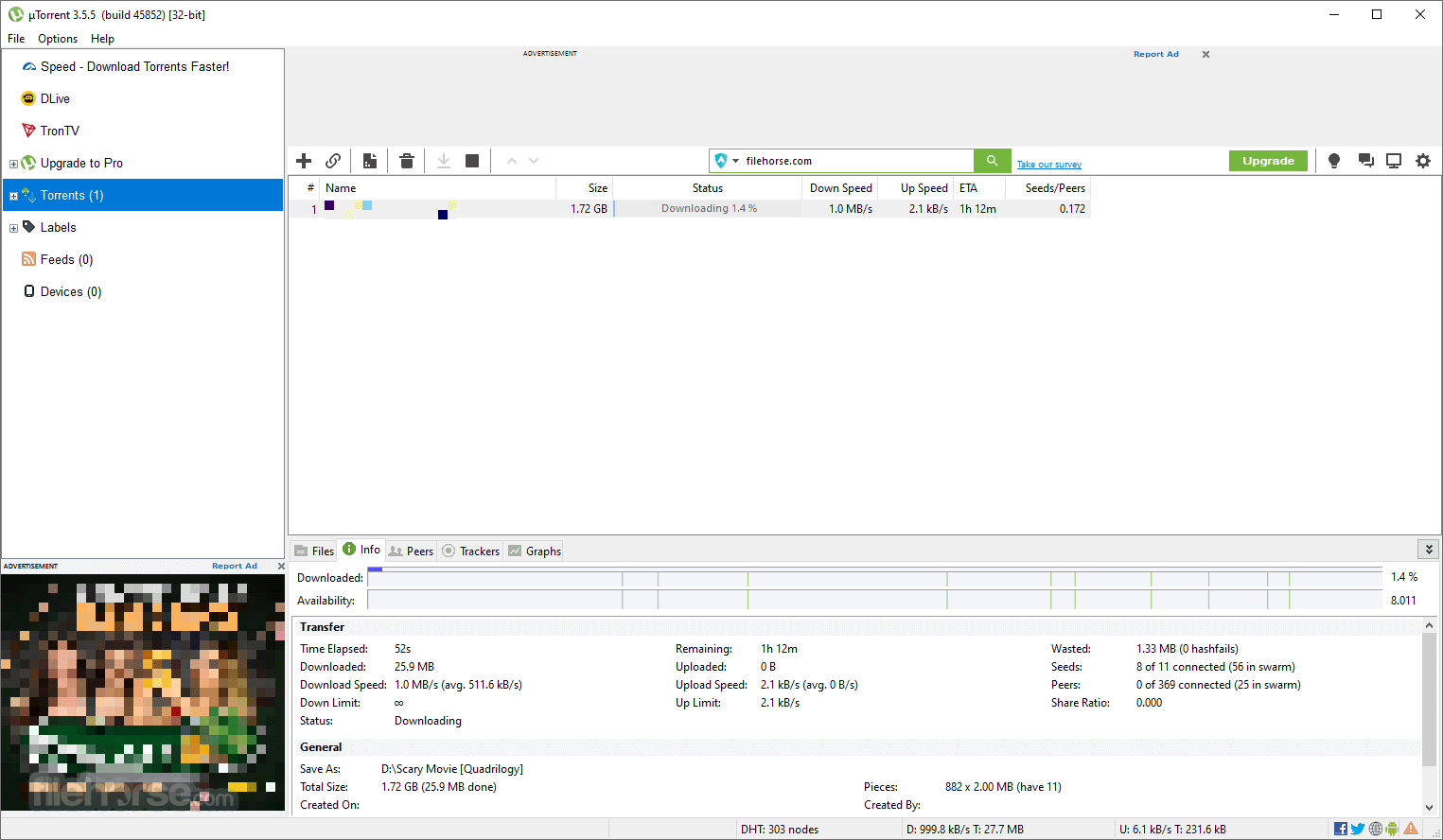
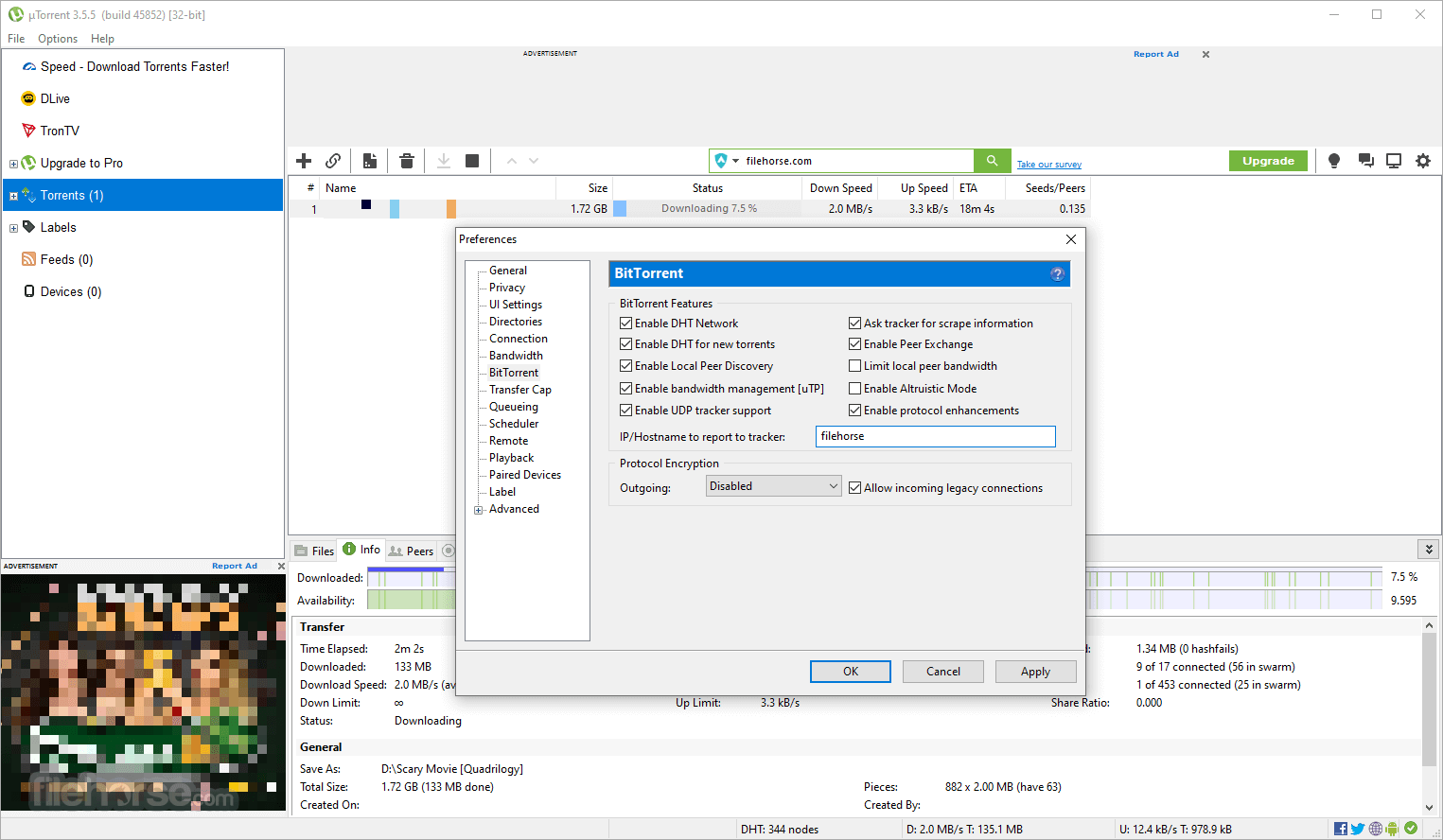
uTorrent Screenshots
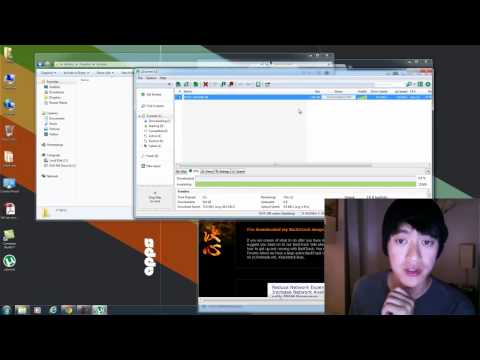
uTorrent Beginner’s Video
Watch this quick guide to learn how to use uTorrent on your PC:
System Requirements for uTorrent
- OS: Windows 10 (build 10240 or higher), Windows 11, or XP/Vista/7/8
- CPU: 1 GHz or faster, 32-bit or 64-bit
- RAM: 512 MB minimum, 1 GB recommended
- Storage: 100 MB free space
- Other: Internet connection
uTorrent on Windows FAQ
- Is uTorrent free? Yes, uTorrent Classic is free, but it includes ads.
- Is uTorrent safe? It’s safe if downloaded from the official site, but antivirus programs may flag it due to bundled adware. Always decline extra offers during installation.
- Does it have ads? Yes, the free version has ads, but you can upgrade to uTorrent Pro for an ad-free experience.
Support and Community
Explore More Windows Apps: WhatsApp on PC, Free FTP Clients, Free Torrent Clients