

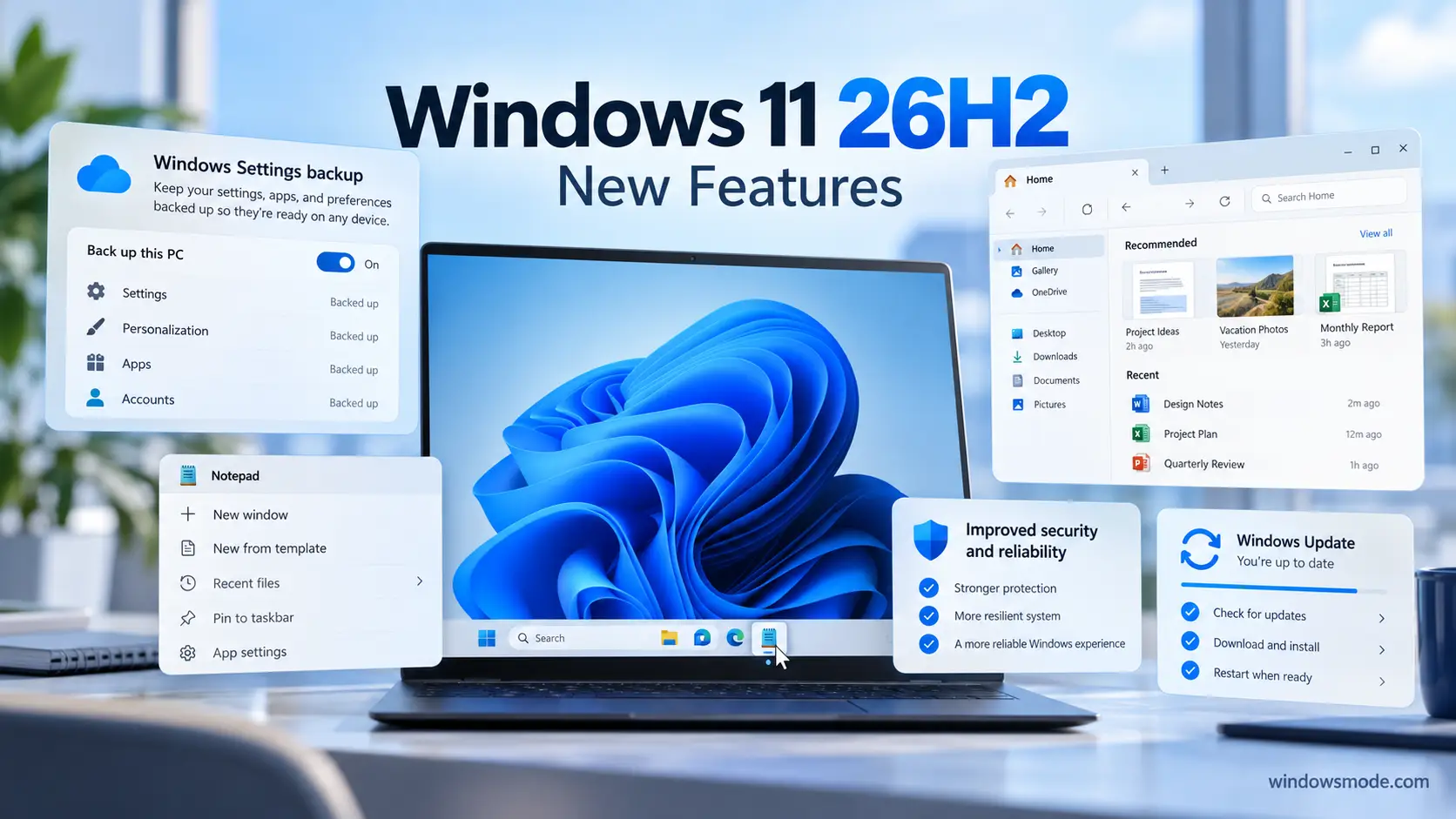
Windows 11 26H2 brings settings backup, taskbar app actions, a faster File Explorer and fewer update restarts.
Key Takeaways
- Microsoft released Windows 11, version 26H2 on September 29, 2026. It is also called the Windows 11 2026 Update.
- On PCs running 24H2 or 25H2 it is a small download with a single restart, not a full reinstall.
- It switches on the redesigned Start menu, a taskbar you can move to any edge of the screen, and faster File Explorer and Search.
- It resets the support clock: two years of updates on Home and Pro.
- The rollout is gradual, so your PC may not see it on day one.
Windows 11 26H2 is this year’s feature update for Windows 11. Most of what it brings has been arriving in monthly updates over the past year. Version 26H2 turns those features on for everyone and starts a fresh support period.
We installed it on one of our own PCs, so the screenshots below are from a real Windows 11 26H2 machine. This guide covers what changed, how to get the update, how to check your version, and the known issues Microsoft lists. If you followed our Release Preview coverage in August, this is the finished release.
What Is Windows 11 26H2?
Windows 11 now gets one big update a year, named after the half of the year it ships in. 26H2 means the second half of 2026. Versions 24H2, 25H2 and 26H2 share the same core system files, which is why the update is so small.
Microsoft calls the delivery method an enablement package (a small switch file that turns on features your PC already has). That is why it takes minutes instead of an hour, and why only one restart is needed.
Released
Sept 29, 2026
Rolling out in phases over the following months
OS build
26300
Shown as 26300.xxxx in Settings, changing with each monthly update
Install
One restart
Small enablement package on 24H2 and 25H2 PCs
Support
2 years
Home and Pro. Enterprise and Education get 3 years
How to Get the Windows 11 26H2 Update
If your PC runs Windows 11, version 24H2 or 25H2, the update comes through Windows Update. Microsoft is offering it first to people who ask for new updates early.
1
Open Settings by pressing Windows + I.
2
Select Windows Update in the left menu.
3
Turn on “Get the latest updates as soon as they’re available.”
4
Select Check for updates. If 26H2 is ready for your PC, it downloads and installs on its own.
5
Restart your PC when Windows asks. One restart finishes the job.
Not showing up yet? Microsoft releases feature updates in waves and holds them back on PCs with a known problem, such as a driver that is not ready. That is normal. Leave the setting on and check again later, and the update will appear once your PC is cleared.
Still on Windows 10? You need to move to Windows 11 first. Our guide on how to upgrade to Windows 11 covers the checks, and the Windows 11 Installation Assistant handles the upgrade itself.
Download the Windows 11 26H2 ISO or Installer
Want to install 26H2 fresh, or put it on a USB drive? Microsoft’s Windows 11 download page now hands out 26H2 through all three of its tools. Pick the one that matches what you want to do.
Installation Assistant
Upgrades the PC you are using right now, keeping your files and apps. The easiest choice if Windows Update has not offered 26H2 yet.
Media Creation Tool
Makes a bootable USB drive or DVD. Use it to set up another PC or do a clean install. Our Media Creation Tool guide walks through it.
Disk image (ISO)
One file that covers Home, Pro and the other consumer editions. Your product key decides which edition installs. Handy for virtual machines. See our Windows 11 ISO guide for the full steps.
Get Windows 11 26H2 from Microsoft
Before a clean install: deleting partitions during setup wipes everything on them, so back up first. The ISO download link Microsoft generates only works for 24 hours, so start the download soon after you get it.
Watch: How to Get the Update
Microsoft’s own short video shows where the update appears in Settings and what the install looks like from start to finish.
Check Which Version of Windows 11 You Have
Open Settings > System > About and scroll to Windows specifications. The Version line reads 26H2 once the update is installed, and the OS build starts with 26300.
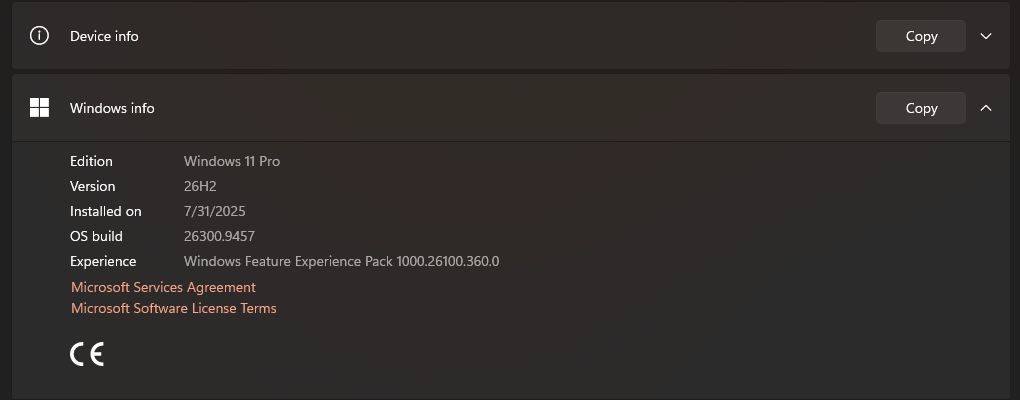
The About page on our test PC after the update: version 26H2, build 26300.
Faster route: press Windows + R, type winver and press Enter. A small window shows the same version and build.
What’s New in Windows 11 26H2
These are the changes most people will notice. Some may already be on your PC through monthly updates, since Microsoft rolls features out gradually before the yearly release.
A redesigned Start menu
Start now has a scrollable All section with category and grid views for finding apps. You can pick a Start menu size and show or hide the Pinned, Recent and All sections one by one.
A taskbar you can move
The taskbar can sit at the bottom, top, left or right of the screen again. There is also a smaller taskbar option that shrinks the icons and the bar’s height.
Faster File Explorer
File Explorer Home opens faster. Explorer keeps your View and Sort choices in folders like Downloads, opens more archive types (uu, cpio, xar and nupkg), and lets you rename files by voice typing.
Smarter Windows Search
You can preview a result without opening it. App search copes better with typos and half-typed names, and each result says clearly whether it is an app, a setting, a file or a web result.
Fewer restarts
Windows Update now installs eligible updates together with the monthly security update when it can, so you restart less often. A PC you put to sleep also goes back to sleep after an update.
NPU columns in Task Manager
On PCs with an NPU (a chip built for AI tasks), Task Manager can show NPU use per app. See how to open Task Manager if you want to add the new columns.
We covered the Start and taskbar changes in more depth when Microsoft first announced them, in our taskbar and Start personalization breakdown.
How to Move the Taskbar to the Top, Left or Right
This is the change a lot of people waited years for. Windows 10 let you move the taskbar; Windows 11 did not, until now.
1
Right-click an empty spot on the taskbar and select Taskbar settings.
2
Expand Taskbar behaviors.
3
Pick a spot under Taskbar position: Bottom, Top, Left or Right. The taskbar moves right away, no restart needed.
4
Use the Taskbar size menu if you want a smaller bar.
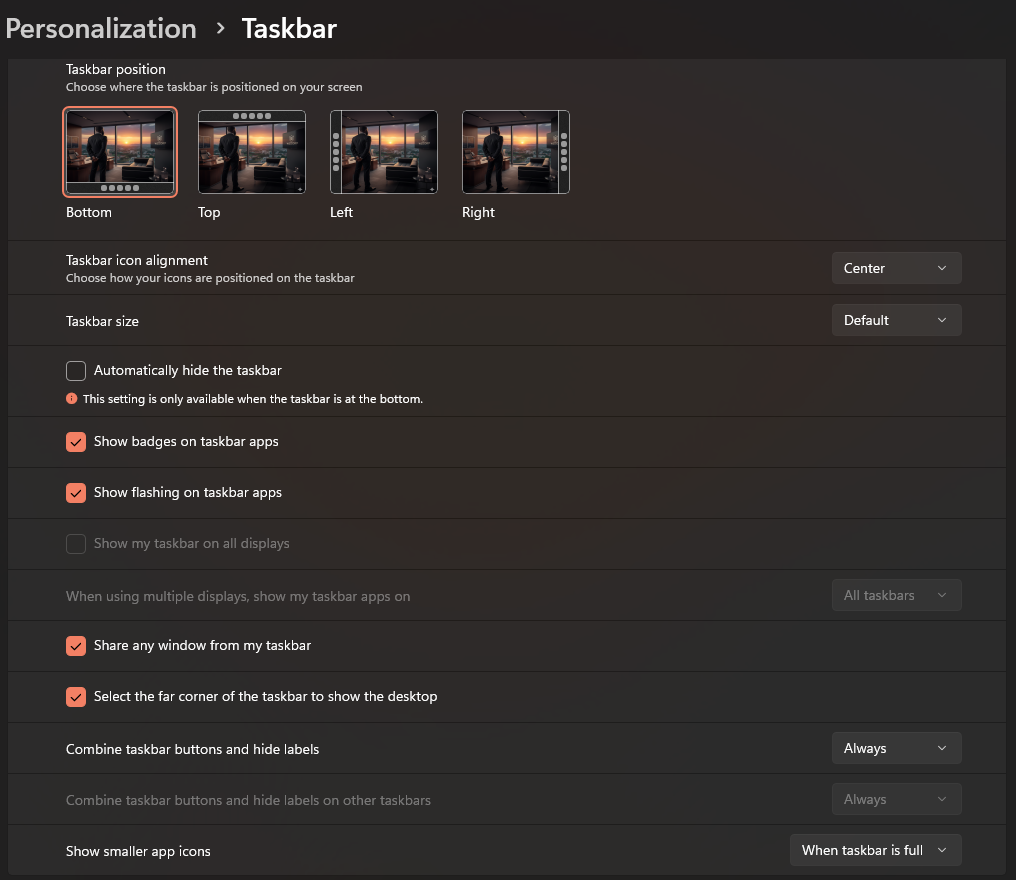
Taskbar behaviors on Windows 11 26H2, with the new position picker at the top.
Worth knowing
On our test PC, Settings says auto-hide only works when the taskbar is at the bottom. If you rely on a hidden taskbar, keep it there. For more ways to change the taskbar, see our guide to customizing the Windows taskbar.
Security and Recovery Changes
Several changes happen out of sight. Here is what each one means for you, and whether you need to do anything.
Security and Recovery in 26H2
What changed and whether it is on by default
| Change | What it means for you | Turned on? |
|---|---|---|
| Smart App Control | You can turn this app blocker on or off without reinstalling Windows. Before, turning it off was permanent. | Your choice |
| Passkeys in password managers | Windows can use passkeys (password-free sign-ins) saved in a supported third-party password manager. | After you install a supported manager |
| Point-in-time restore | Rolls your PC back, including apps, settings and files, to a recent automatic restore point. | Recovery option |
| Quick machine recovery | If Windows cannot start, it can scan once for a fix before sending you to other recovery options. | Off on work PCs unless IT turns it on |
| Driver trust | Windows stops trusting old cross-signed drivers by default. It watches for 100 hours and three restarts before enforcing this. | Automatic |
| Fingerprint sign-in | Windows Hello Enhanced Sign-in Security now works with supported plug-in fingerprint readers, not only built-in ones. | With a supported reader |
| Administrator protection and Sysmon | Tools aimed at IT teams: temporary admin rights and a built-in system event logger. | Off by default |
Smaller Changes and One Removal
Accessibility
Magnifier lets you type an exact zoom level and add a color tint. Narrator gains a Braille Viewer. Voice access adds French, German, Spanish and Korean, and accepts natural phrasing on Copilot+ PCs.
Bluetooth and USB
Better Bluetooth LE Audio, call quality and mic mute sync, and more reliable reconnects after hibernation. Displays on USB4 docks come back more reliably after sleep.
Removed: WMIC. The old WMIC command-line tool is gone and can no longer be added back as an optional feature. If a script you use calls wmic, switch it to PowerShell.
Known Issues in Windows 11 26H2
Microsoft lists three known issues on its release health page. The table shows them as they stood on launch day, September 29, 2026. Check the Windows 11 26H2 release health page for the current status.
Known Issues at Launch
From Microsoft’s release health page, September 29, 2026
| Issue | Who it affects | What to do |
|---|---|---|
| USB audio stops working | Some older USB audio devices (USB Audio Class 1.0) show Code 10 in Device Manager or make no sound. | Microsoft marked it mitigated and is working on a full fix in a future update. |
| Work PCs lose the domain connection | Company PCs on an on-premises domain with a Credential Guard setting called Machine Identity Isolation. | An IT job. Microsoft’s page has the steps to turn the setting off. |
| Black screen after sign-in | Mainly Azure Virtual Desktop setups using FSLogix profiles. | Open Task Manager, select Run new task, type explorer.exe and select OK. |
Should You Install Windows 11 26H2?
Our Take
For most people, yes. This is one of the least risky yearly updates Windows has had, because nearly everything in it has already been tested on millions of PCs through monthly updates. The movable taskbar alone is worth the one restart for anyone who has missed a top or side taskbar since Windows 10.
If you are on 24H2, do not wait long. Microsoft ends updates for 24H2 Home and Pro on October 13, 2026, and 26H2 gives you two more years. If you are on 25H2, you have until October 2027 and can let Windows Update offer it in its own time.
The one reason to hold off: an older USB headset, DAC or audio interface you depend on. Check the known issues page first, or wait until Microsoft marks that issue resolved.
Frequently Asked Questions
Is Windows 11 26H2 free?
Will updating to 26H2 delete my files or apps?
Why can my new PC not get Windows 11 26H2?
How long will Windows 11 26H2 get updates?
Does Windows 11 26H2 need new hardware?
Official Sources
Everything here comes from Microsoft’s own pages. Read how to get the Windows 11 2026 Update on the Windows Experience Blog, the full feature list in what is new in Windows 11 26H2 on Microsoft Learn, and support dates on the Windows 11 lifecycle page.
More Windows software guides: Upgrade to Windows 11 · Windows 11 ISO · Customize the Taskbar · Windhawk · Open Task Manager