Readers like you help support this site. When you make a purchase using links on our site, we may earn an affiliate commission. All opinions remain our own.
Windhawk is a free, open source customization marketplace for Windows, available as a direct download from the developer’s own site.
It lets you install small “mods” that change how the taskbar, Start menu, File Explorer, and other programs look and behave, without editing a single system file. Each mod is a plain text file of source code, and installing one takes just a couple of clicks.
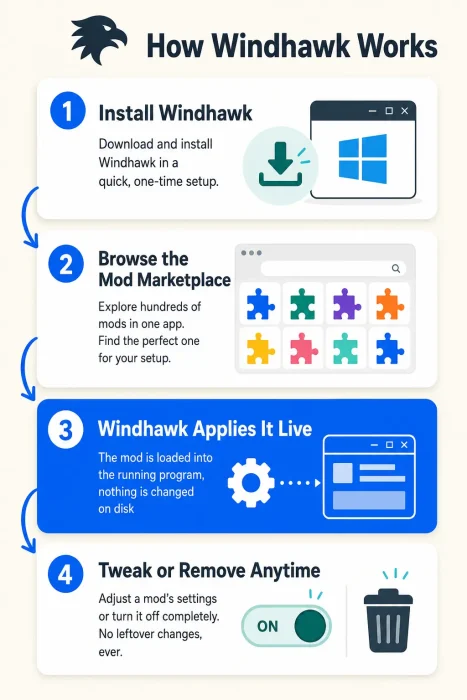
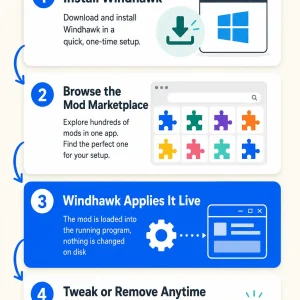
The taskbar and Start menu mods are what most people install Windhawk for. Windhawk applies every mod to a live copy of the program in memory, so nothing is ever patched or overwritten on disk. Turn a mod off, and the program goes right back to how it looked before.
Windhawk runs on Windows 10 and Windows 11, 64-bit or ARM64, and comes from Michael Maltsev, the developer behind the long-running 7+ Taskbar Tweaker. It has been out of beta since late 2024 and is still updated regularly.
Already running Windhawk? Tell us which mods made your desktop feel like your own in the comments. Got a question before you install it? Reach out to us directly.
What You Need to Know:
- Windhawk is free and open source, and every mod is plain source code you can review before installing
- It customizes programs while they run, not by editing files on disk, so turning a mod off reverses the change instantly
- Because it injects code into running processes, some antivirus tools and game anti-cheat systems may flag it, more on that in the safety section below
Who Should Use Windhawk?
- Use it if you want deep control over how the Windows taskbar, Start menu, or other programs look, and you don’t mind occasionally tweaking a setting to get things right.
- Skip it if you want something you install once and never think about again. Windhawk mods sometimes need an update after a Windows update.
- Be careful if you play online games with strict anti-cheat. Exclude the game’s folder in Windhawk’s settings, or close Windhawk before you play.
How to Get Windhawk on Windows
Windhawk is a free direct download from the developer’s own site, not the Microsoft Store, so your browser or antivirus may show a normal “unrecognized app” warning the first time you run the installer.
- Step 1. Go to the official Windhawk website and click Download.
- Step 2. Run the installer. Choose the standard install, or pick the portable option if you’d rather Windhawk run from a single folder with no registry changes.
- Step 3. Open Windhawk once installation finishes. It sits quietly in the system tray from now on.
- Step 4. Click Explore and browse the mod marketplace.
- Step 5. Click Install on a mod, review its settings if it has any, and the customization applies right away, no restart needed for most mods.
Worth knowing: Windhawk can update itself with a single click from the About tab once installed, and the portable version is a good fit if you’d rather not touch the registry at all.
What Is Windhawk, Really?
Windhawk is a marketplace of small customization “mods” for Windows and the programs you run on it, built so you don’t need programming skill to use them.
It grew out of the same idea behind 7+ Taskbar Tweaker, Michael Maltsev’s older taskbar tool for Windows 7 through 10. When Windows 11 rebuilt the taskbar from scratch, that older approach stopped working, so Windhawk was built to do the same job for any program, not just the taskbar.
- One tool, hundreds of mods. Browse a single marketplace instead of hunting for separate tools for each customization.
- Every mod is source code. You can open and read exactly what a mod does before you install it.
- Nothing is patched on disk. Mods apply to a running program in memory, so removing one reverses it instantly.
Is Windhawk Safe?
Yes, with a couple of things to know. Windhawk is free and open source, with over 8,000 stars on GitHub and regular updates. It never patches or overwrites system files, so nothing it does is permanent.
Windhawk works by loading itself into other running programs, which is how it applies mods. That same behavior can trip up antivirus tools and game anti-cheat systems. A single antivirus engine once flagged it as a false positive, later confirmed harmless. Windhawk already excludes popular game launchers like Steam, Epic Games, Battle.net, and Riot Games by default, but a few players have still reported bans in games like World of Warcraft and League of Legends. If you play anything with strict anti-cheat, add it to Windhawk’s exclusion list or close Windhawk before you play.
Most popular mods come from Windhawk’s own creator, but anyone can submit one. Check an unfamiliar mod’s author and update history before installing it, and create a system restore point before trying your first few mods.
Key Features
Live Mod Marketplace
Browse and install hundreds of customizations from one app
No File Patching
Mods apply in memory and reverse instantly when disabled
Open Source Mods
Every mod is readable code, not a hidden binary
Deep Taskbar & Start Menu Control
Reskin, resize, or rearrange core Windows UI
Runs Quietly in the Background
Sits in the tray with a light resource footprint
Regularly Updated
Actively maintained with frequent releases
What You Can Customize
| Area | What Changes |
|---|---|
| Taskbar | Height, icon size, background, colors, and full custom themes |
| Start Menu | Layout, transparency, colors, and full custom themes |
| Notification Center | Background, colors, and custom themes for the Action Center |
| File Explorer | Visual styling through the Windows 11 File Explorer Styler mod |
| Individual Apps | Any program you target, from volume controls to window transparency |
| System Behavior | Small fixes Microsoft hasn’t addressed, like timer resolution or file size display |
Top Windhawk Mods to Try
The five most installed mods in the Windhawk marketplace, ranked by how many users currently run each one.
These five only scratch the surface. The full Windhawk mods directory covers everything from File Explorer styling to per-app tweaks for programs that have nothing to do with the taskbar.
System Requirements
| Requirement | Details |
|---|---|
| Operating System | Windows 10 or Windows 11 |
| Processor | 64-bit (x64) or ARM64 |
| Permissions | Administrator access needed to install and run most mods |
| Internet Connection | Needed to browse and download mods from the marketplace |
Windhawk is free and supported by optional donations. There is no paid tier, subscription, or premium mod pack.
How Windhawk Works
See how a mod goes from the marketplace to your live desktop, with nothing ever written to disk, in the infographic below.
Common Issues and Compatibility Notes
Antivirus false positive warnings
A single antivirus engine has occasionally flagged the installer or a mod’s compiled cache file as suspicious. This is a known false-positive pattern for small developer tools that use code injection. Report it to the antivirus vendor if it happens to you.
Game anti-cheat conflicts
Some multiplayer games flag Windhawk’s code injection as suspicious even though it excludes many game folders by default. Add the game’s install folder to Windhawk’s exclusion list, or close Windhawk before playing anything with strict anti-cheat.
Conflicts with other tweaking tools
Only one program can use XAML diagnostics at a time, so running Windhawk’s taskbar or Start menu stylers alongside a tool like TranslucentTB can cause one of them to stop working. Windhawk’s settings let you choose which program wins when this happens.
Not compatible with StartAllBack
Windhawk’s taskbar and Start menu mods do not work alongside StartAllBack. The developer has said a full rewrite would be needed to support it, so pick one tool or the other, not both.
Windhawk vs the Alternatives
| App | Price | Open Source | Approach |
|---|---|---|---|
| Windhawk | Free | Yes | Mod marketplace, customizes many programs |
| ExplorerPatcher | Free | Yes | Restores the older taskbar and Start menu look |
| StartAllBack | Paid, one-time | No | Paid utility focused on Start menu and Explorer styling |
See Windhawk in Action
Watch this walkthrough to see the Start Menu Styler, Taskbar Styler, and Notification Center Styler mods installed and themed live on a real Windows 11 desktop.
Tips for Getting Started
Create a system restore point before installing your first few mods, especially the taskbar or Start menu stylers.
Start with one mod at a time so you know exactly what changed if something looks off.
Check a mod’s settings tab before assuming it can’t do what you want. Most stylers hide options like corner radius or spacing behind a details panel.
Add any game with strict anti-cheat to Windhawk’s exclusion list before you play it.
Update Windhawk and your installed mods together after a major Windows update, since some mods target very specific Windows builds.
Windhawk Screenshots
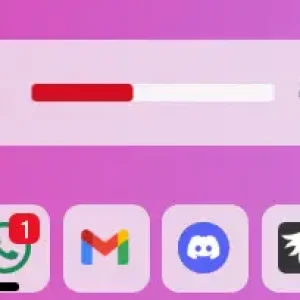
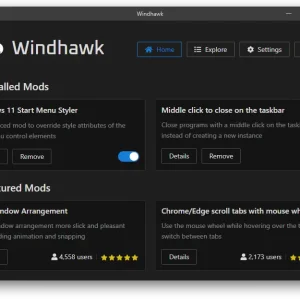
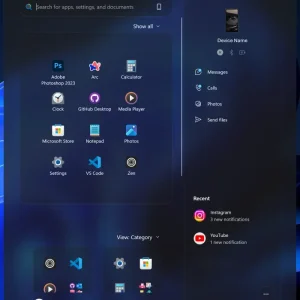
A look at Windhawk and a few of its most popular taskbar and Start menu themes on Windows.
-
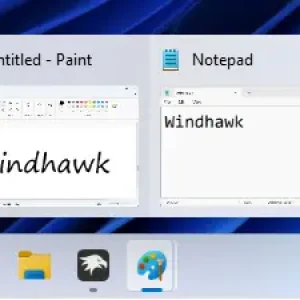
- Disable grouping from Windhawk for Windows – Setup, Mods & Safety Guide
-
- Fluent glass screenshot from Windhawk for Windows – Setup, Mods & Safety Guide
-
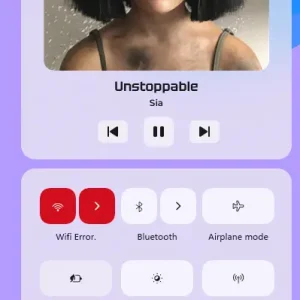
- Notification custom from Windhawk for Windows – Setup, Mods & Safety Guide
-
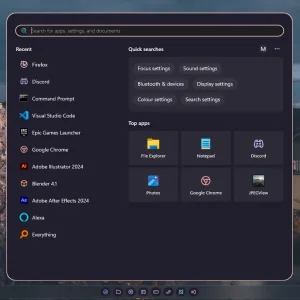
- Rosepine screenshot from Windhawk for Windows – Setup, Mods & Safety Guide
-
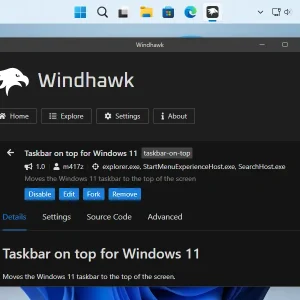
- Taskbar on top from Windhawk for Windows – Setup, Mods & Safety Guide
-
- Tb light example from Windhawk for Windows – Setup, Mods & Safety Guide
-
- Windhawk screenshot from Windhawk for Windows – Setup, Mods & Safety Guide
-
- Windowglass screenshot from Windhawk for Windows – Setup, Mods & Safety Guide
Frequently Asked Questions
Is Windhawk free to use?
Will Windhawk get me banned in online games?
Does Windhawk work on Windows 10, or only Windows 11?
Can I remove a mod or Windhawk itself without leaving anything behind?
What are the system requirements for Windhawk?
Support and Community
Need help or want to see what other users are building? Join the r/Windhawk community on Reddit, the official Windhawk Discord server, or the Windhawk GitHub Discussions board for more technical questions.
More Windows software guides: Seelen UI for Windows · Customize the Windows Taskbar · DesktopHut for Windows · Raycast for Windows · Rainmeter for Windows
Discover more from Windows Mode
Subscribe to get the latest posts sent to your email.













Add your first comment to this post