Readers like you help support this site. When you make a purchase using links on our site, we may earn an affiliate commission. All opinions remain our own.

Yandex Browser is a fast, AI-powered browser for Windows that you can download from the official Yandex website or the Microsoft Store. Built on the Chromium engine, it comes with the Alice AI voice assistant built directly into the browser, allowing you to summarize videos, generate text, and answer complex questions without ever leaving the page.
What makes Yandex stand out is its Kaspersky-powered security system that actively scans every file you download for malware, encrypts your DNS traffic via DNSCrypt, and secures your connection on public Wi-Fi.
Below, we break down the standout features, walk you through the installation, cover common fixes, and answer frequently asked questions.
If you need any help, feel free to contact us or leave a comment below.
Alice AI
Built-in AI assistant
Kaspersky Scan
Active malware defense
DNSCrypt
Encrypted web traffic
Turbo Mode
Data compression
📋 System Requirements
| Requirement | Details |
|---|---|
| Operating System | Windows 11, Windows 10, 8, 7 (32/64-bit) |
| Processor | Intel Pentium 4 or later |
| RAM | 1 GB minimum (4GB Recommended) |
| Storage | 400 MB available space |
| Network | Broadband internet connection |
What Makes Yandex Browser Different
Yandex has taken the reliable Chromium chassis and retrofitted it with enterprise-grade security features and native AI tools that eliminate the need for third-party extensions.
🤖 The Alice AI Assistant
Alice is deeply integrated into the browser. She can automatically translate foreign websites, summarize long YouTube videos into concise bullet points, and even provide real-time audio dubbing for foreign media directly in the media player.
🛡️ Kaspersky “Protect” Core
Before a downloaded file ever touches your Windows hard drive, Yandex’s “Protect” system scans the incoming packet utilizing Kaspersky Anti-Virus technology to ensure you are safe from hidden malware, ransomware, and trojans.
🔒 DNSCrypt and Wi-Fi Security
When you connect to an open, public Wi-Fi network (like at a cafe), Yandex automatically kicks in to encrypt your browsing traffic and utilize DNSCrypt to mask your DNS requests from malicious actors and ISP tracking.
🎨 Highly Customizable “Tableau”
Rather than a boring new tab page, Yandex utilizes an animated “Tableau.” You can set rich HD video backgrounds (or upload your own) and utilize interactive, widget-like bookmarks for your most visited websites.
How to Download and Install Yandex Browser on Windows
1
Navigate to the official Yandex Browser download hub and click download to acquire the lightweight installer for Windows.
2
Open the `YandexBrowserSetup.exe` file. During installation, you will have the option to set Yandex as your default browser and import your bookmarks/passwords from Chrome or Edge.
3
Once launched, you can immediately begin utilizing Alice from the sidebar or by interacting with supported media players directly in the browser window.
Screenshots of Yandex Browser
-
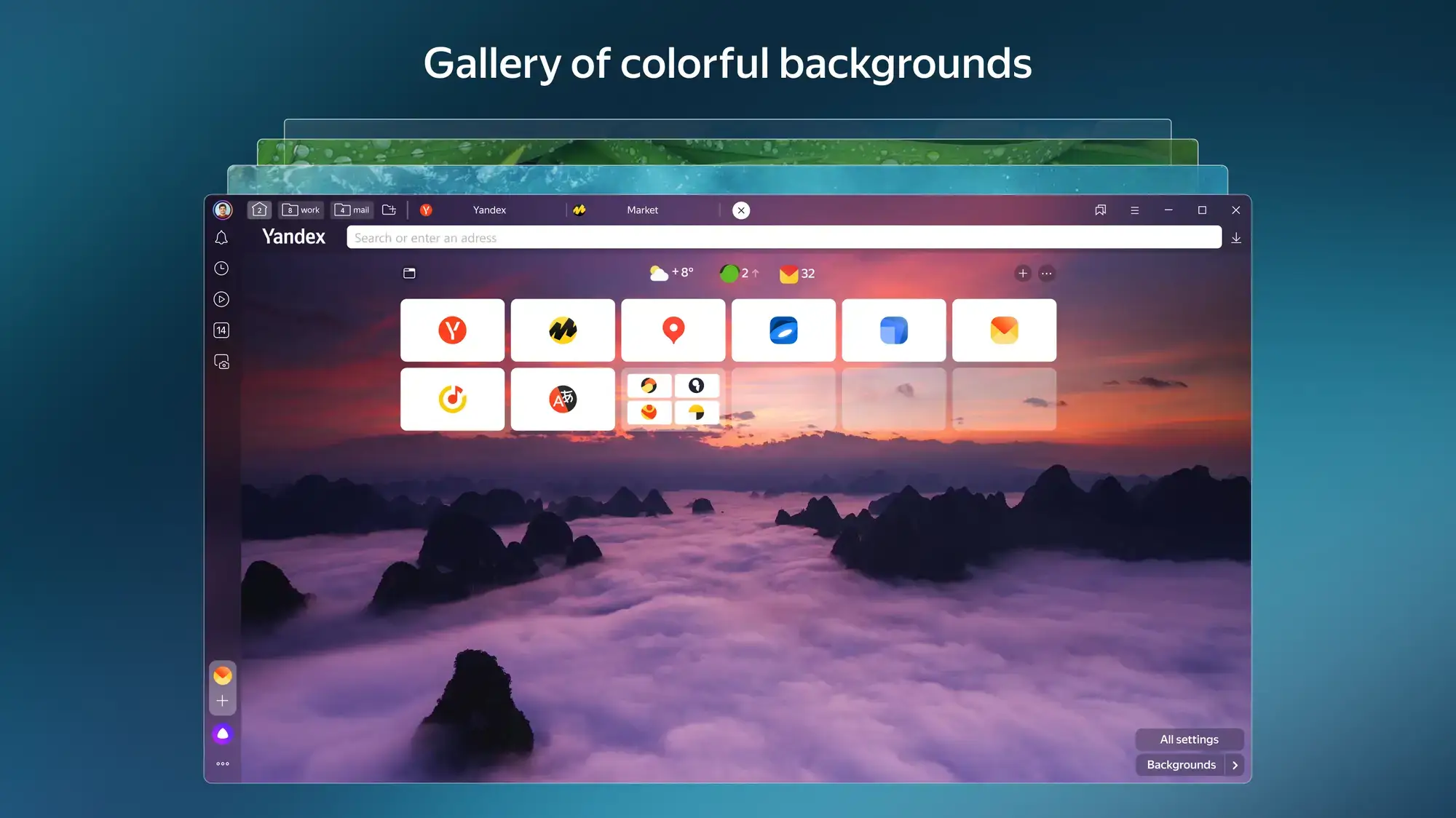
- Custom colorful backgrounds from Yandex Browser for Windows – The AI-Powered Secure Browser
-
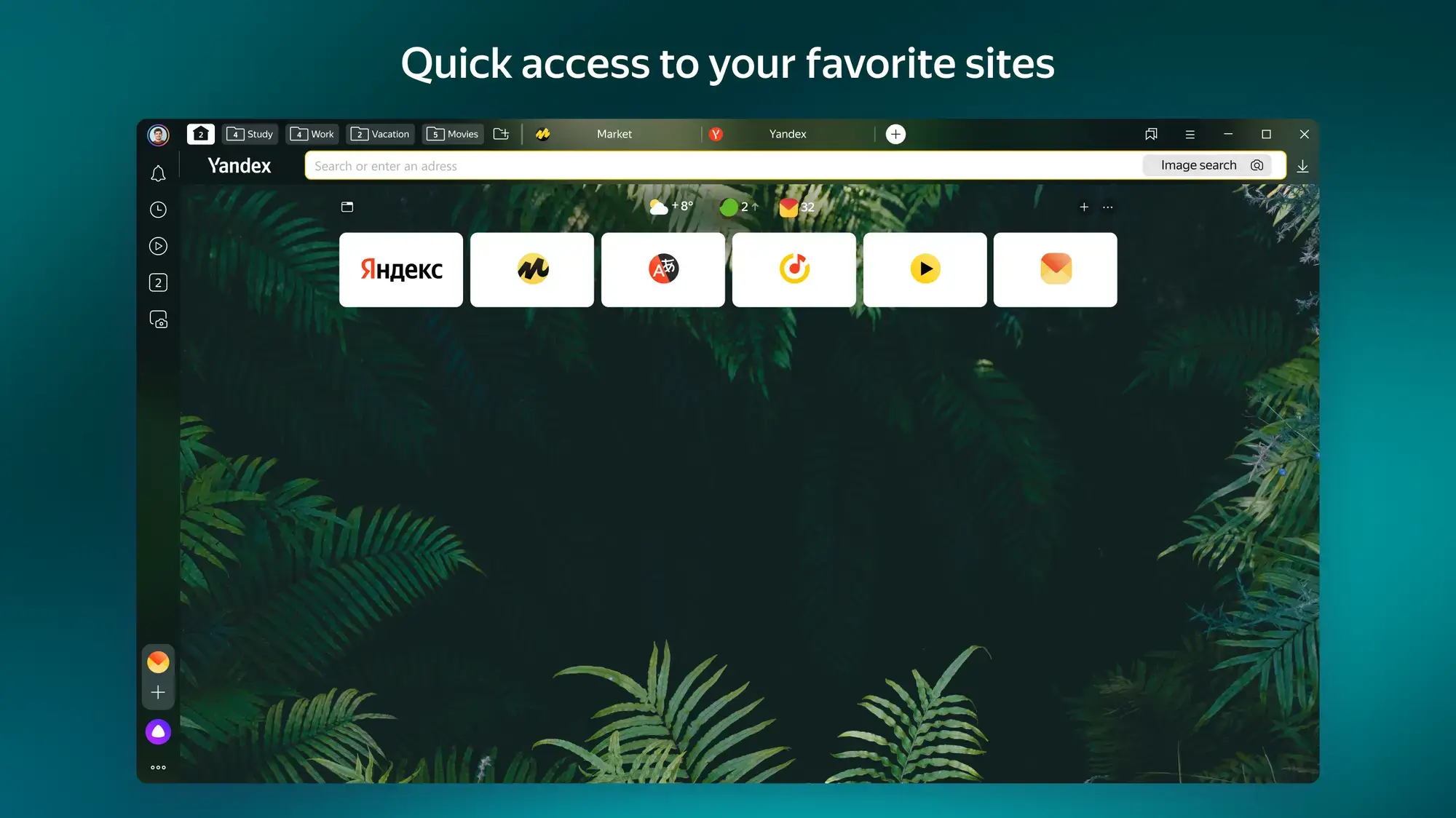
- Home page from Yandex Browser for Windows – The AI-Powered Secure Browser
-
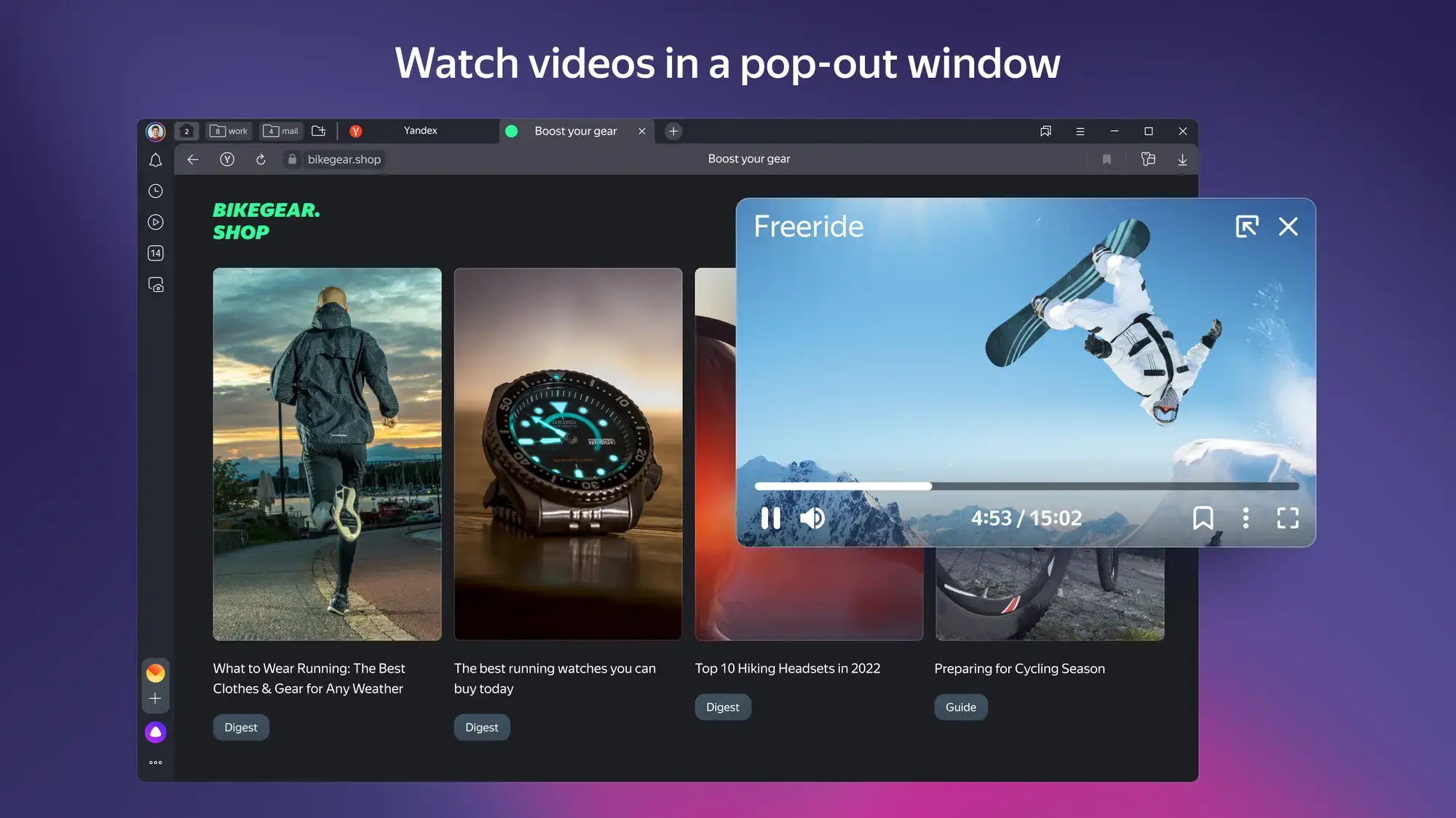
- Pop out window from Yandex Browser for Windows – The AI-Powered Secure Browser
-
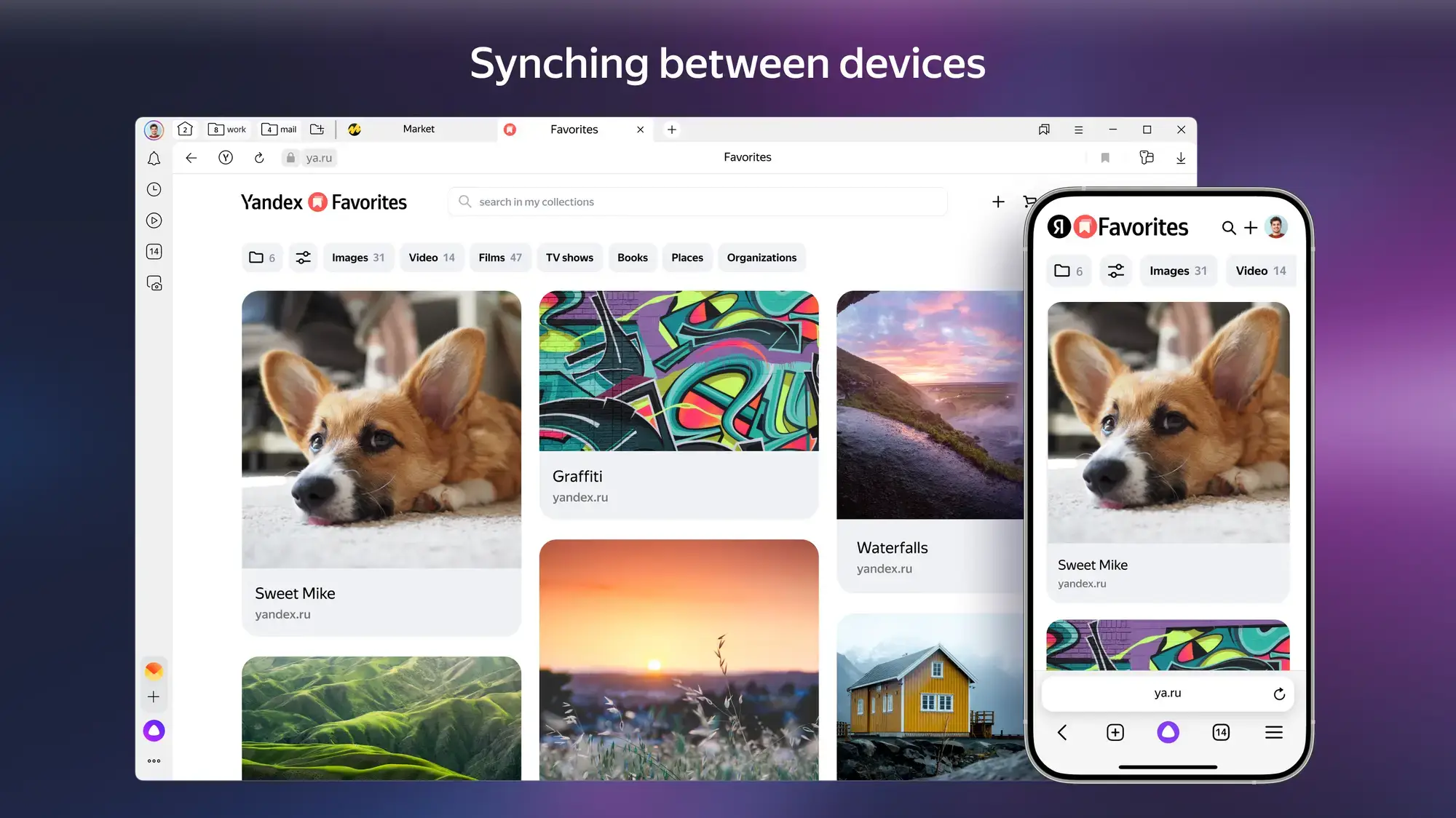
- Synching between devices from Yandex Browser for Windows – The AI-Powered Secure Browser
Common Issues and Fixes
Because Yandex Browser uses aggressive security protocols like DNSCrypt, it can occasionally trigger false positives with Windows firewalls.
Unable to connect to the network (Blocked by Firewall)
If you receive an “Unable to resolve DNS” or network block error, your third-party antivirus (like McAfee or Norton) or Windows Defender may have blocked Yandex. Open your Windows Firewall settings, click “Allow an app through firewall,” and ensure both Private and Public boxes are checked for Yandex Browser.
Browser is running slowly or freezing
While Yandex is incredibly fast, heavy use of the animated “Tableau” backgrounds and accumulated cache will eventually slow down any PC. Click the menu icon, navigate to Settings, search for “Clear browsing data,” and wipe your cached images and files. Additionally, disable any Live Video backgrounds if your PC has less than 4GB of RAM.
Alice AI is not appearing
If the Alice assistant or the video summarization tools vanish, ensure your browser is fully updated. Go to Settings > About browser to force an update check. Also, verify that Alice is toggled to “On” in your sidebar settings.
Frequently Asked Questions
Is Yandex Browser for Windows safe to use?
Yes, Yandex Browser is built upon the open-source Chromium engine. Its standout security feature is “Protect,” an active security system that scans every downloaded file using Kaspersky Anti-Virus technology and encrypts your DNS traffic via DNSCrypt.
What does the Alice AI assistant do in Yandex Browser?
Alice is an integrated AI assistant available directly in your browser. She can summarize long YouTube videos, provide authentic text-to-speech dubbing for foreign media, generate text, and answer complex queries instantly without leaving the webpage.
Can Yandex Browser run Google Chrome extensions?
Yes. Because it is Chromium-based, Yandex Browser fully supports the vast majority of extensions available on the Google Chrome Web Store.
Why is my Yandex Browser running slowly or freezing?
Intermittent freezing is almost always caused by an overloaded browser cache or conflicting Chromium extensions. Going to Settings and clearing your “Cached images and files” is the fastest way to restore top performance.
Why can’t I access certain websites, or why is the browser blocked?
If the browser returns network errors while other apps work fine, Windows Defender or your third-party antivirus may have aggressively blocked it. You can resolve this by adding Yandex Browser to your firewall’s whitelist or temporarily disabling the firewall to test the connection.

Community Poll: Share Your Thoughts
Helpful Resources and Community
Looking for advanced security settings or want to learn more about the Alice AI features? Check out these official channels.
📚 Official Yandex Browser Hub
The official homepage for pulling the cleanest, malware-free PC installers and checking for the latest version patch notes.
💬 Yandex Help Center
The official support documentation covering everything from extension compatibility to advanced DNSCrypt troubleshooting.
🗨️ r/YandexBrowser
A community-driven subreddit for Yandex Browser users to discuss features, troubleshoot issues, and share tips on Alice AI and security settings.
Get Yandex Browser for PC
Experience the most secure AI-powered browser. Featuring Kaspersky malware scanning, encrypted Wi-Fi connections, and the built-in Alice voice assistant.
Compatible with Windows 11, 10, 8, and 7 (32/64-bit)
Related Browsers: Tor Browser for Windows, Vivaldi Browser for Windows, UC Browser for Windows, DuckDuckGo for PC.
Discover more from Windows Mode
Subscribe to get the latest posts sent to your email.