Readers like you help support this site. When you make a purchase using links on our site, we may earn an affiliate commission. All opinions remain our own.

Zen Browser is a free, open-source browser for Windows built on Firefox that you can download from the official website or from GitHub Releases. It replaces the traditional tab bar with a vertical sidebar, adds workspaces to keep your tabs organized by topic, and lets you preview links without opening them in a new tab.
If you have seen Arc Browser and liked the idea but did not want to use a Chromium browser, Zen is probably what you are looking for.
It is still in beta, but it is actively developed and already works well for daily browsing.
In this guide, we cover the main features, how to install it, known limitations, and common questions.
If you need help, feel free to contact us or leave a comment below.
Vertical Tabs
Sidebar layout
Workspaces
Group tabs by topic
Zen Glance
Preview links inline
Zen Mods
Community themes
📋 System Requirements
| Requirement | Details |
|---|---|
| Operating System | Windows 10 or Windows 11 (64-bit) |
| Architecture | 64-bit (x64) |
| Memory | 4 GB RAM |
| Engine | Gecko (same as Firefox) |
What Makes Zen Browser Stand Out
Most browsers look the same. Tabs across the top, bookmarks bar, address bar. Zen changes that. It moves everything into a collapsible sidebar on the left, which frees up screen space and makes it easier to manage a lot of open tabs.
📐 Vertical Tabs and Sidebar
Your tabs sit in a list on the left side of the screen instead of along the top. You can collapse the sidebar for more space or expand it to see tab titles. If you have 30 tabs open, it is much easier to find the one you want compared to a traditional tab bar where tabs shrink to nothing.
📂 Workspaces
Workspaces let you group tabs by project or topic. You might have one workspace for work, one for personal browsing, and one for research. Switching between them is instant, and each workspace keeps its own set of tabs separate from the others.
👁️ Zen Glance
When you hover over a link, Zen can show you a preview of that page in a small popup. You can read the content without actually navigating away from your current page. This is similar to Arc’s “Peek” feature.
🎨 Zen Mods and Themes
Zen has a built-in Mod Store where community members share custom themes and layout changes. You can change the look and feel of the browser without touching any settings files. All standard Firefox themes work too.
How to Download and Install Zen Browser on Windows
1
Go to the Zen Browser download page and pick the Windows installer. You can also get it from their GitHub Releases page if you prefer. The browser is currently in beta.
2
Open the downloaded file and follow the prompts. When the browser opens for the first time, it will walk you through picking a theme, setting up your sidebar, and importing data from your current browser.
3
Zen supports all Firefox extensions. Head to the Mozilla Add-ons store and install your favorites. uBlock Origin, Bitwarden, and Dark Reader all work perfectly.
Screenshots of Zen Browser
-
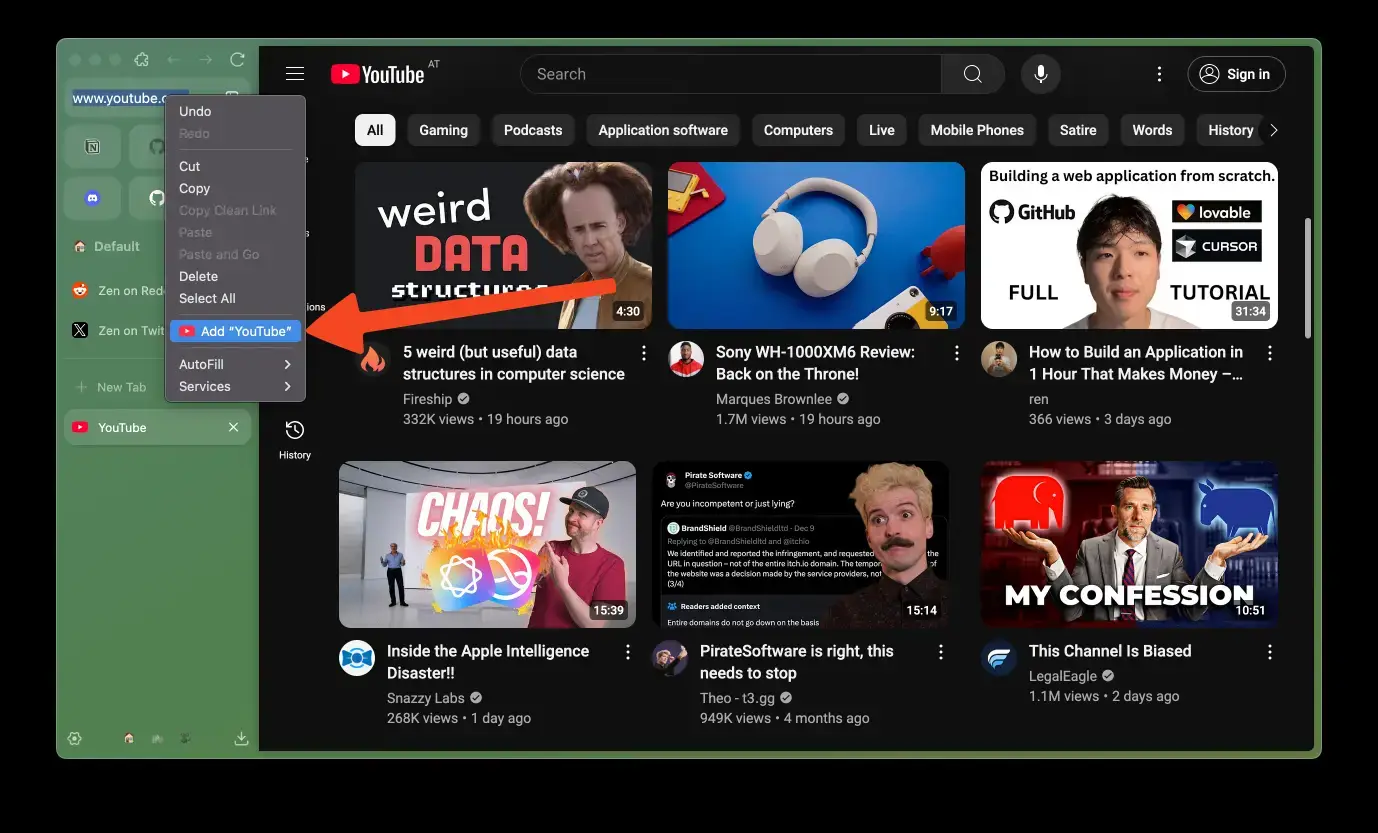
- Add website as search engine from Zen Browser for Windows – Firefox with Vertical Tabs
-
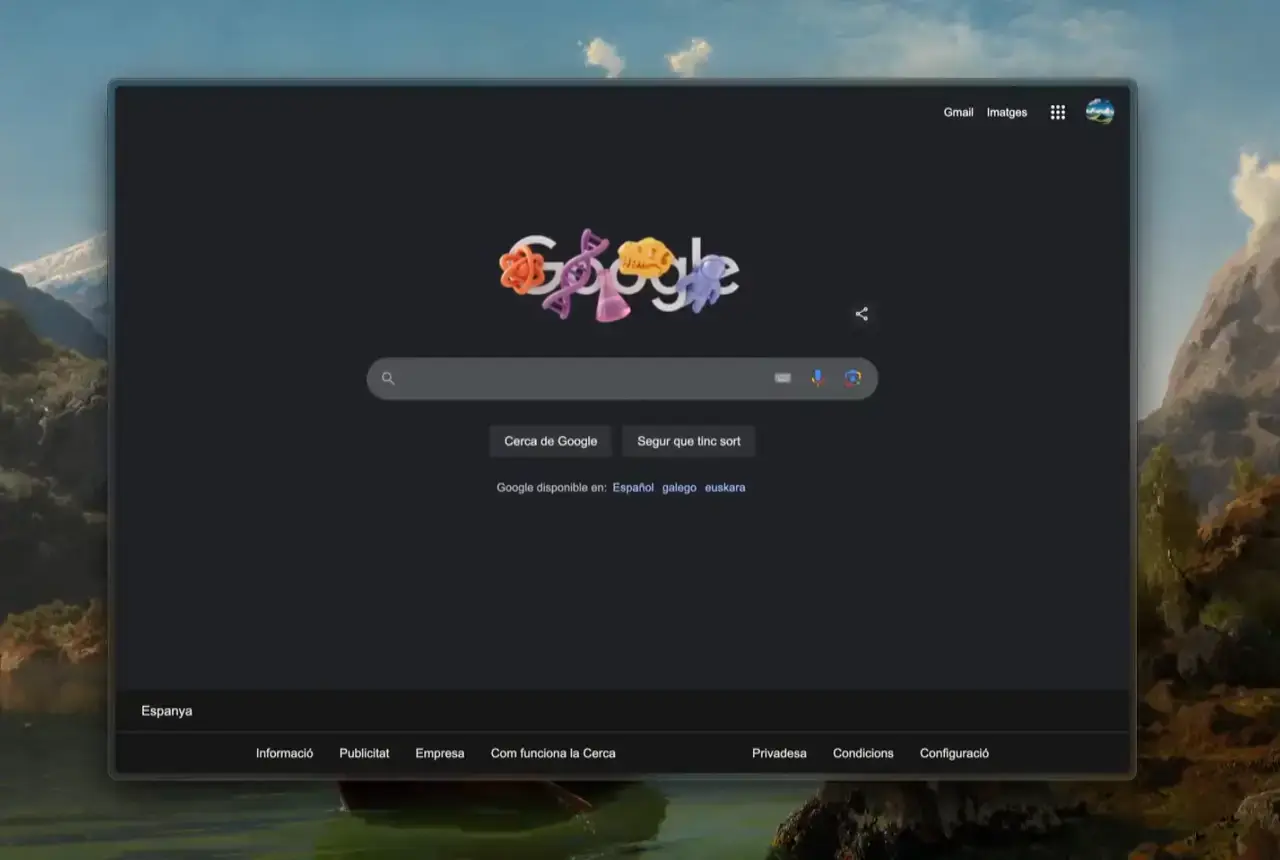
- Compact mode from Zen Browser for Windows – Firefox with Vertical Tabs
-
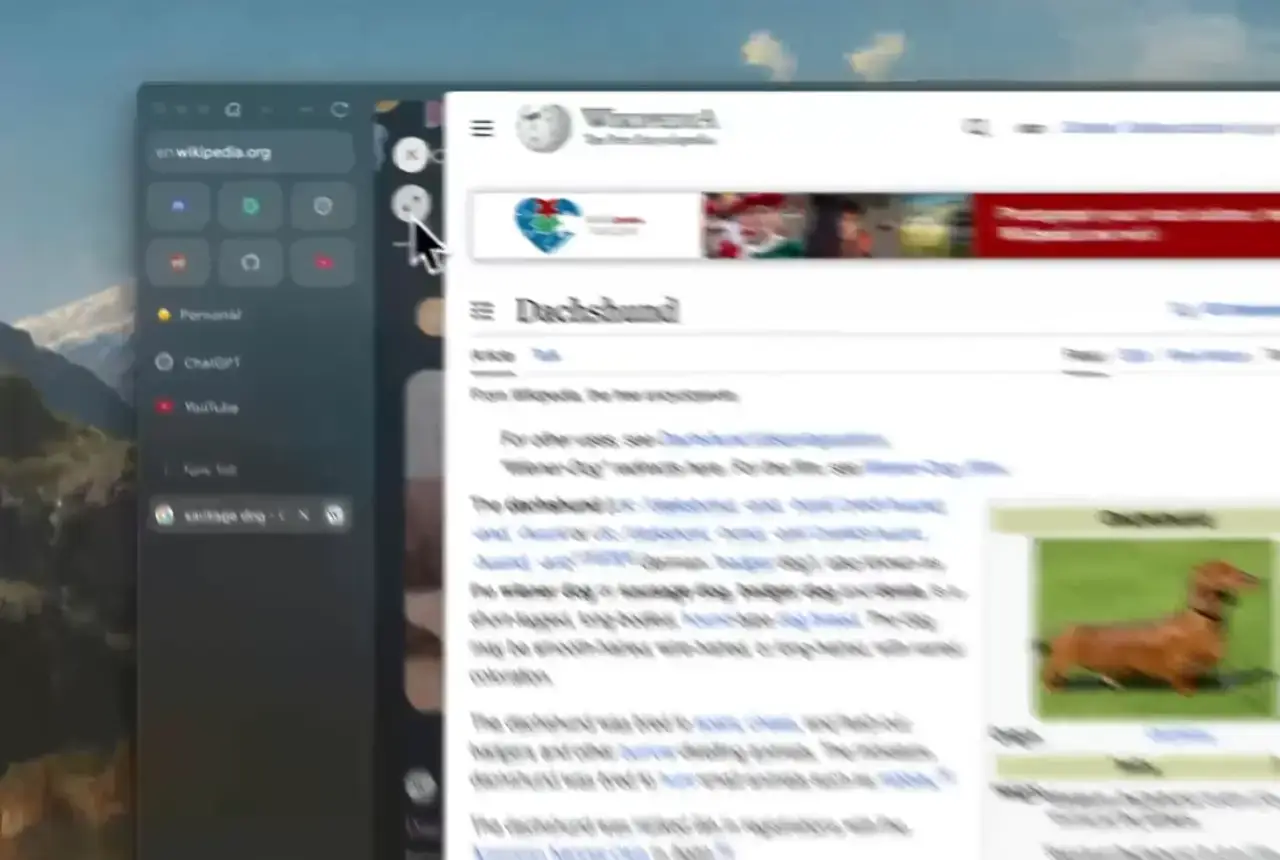
- Glance view from Zen Browser for Windows – Firefox with Vertical Tabs
-
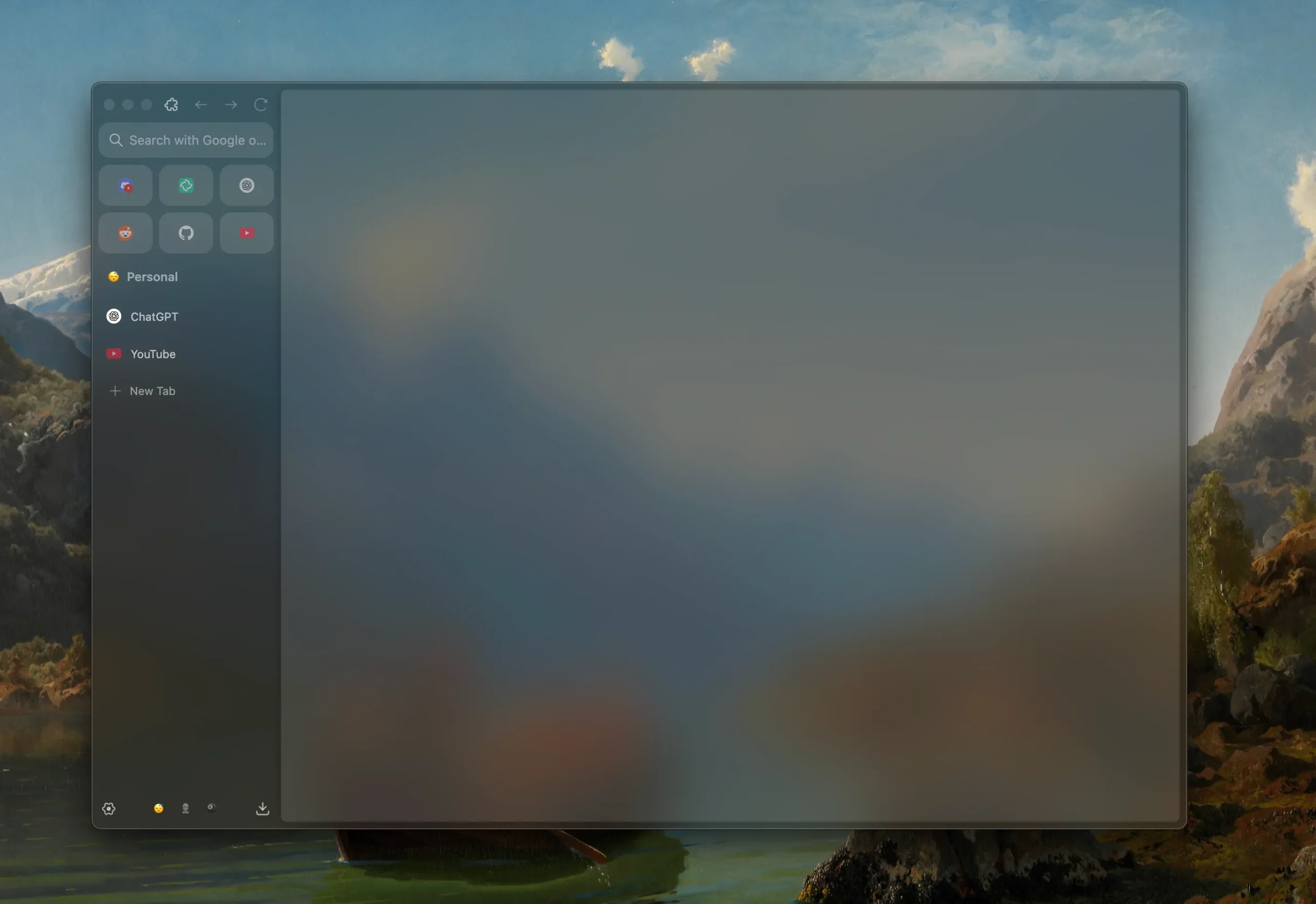
- Homepage clear from Zen Browser for Windows – Firefox with Vertical Tabs
-
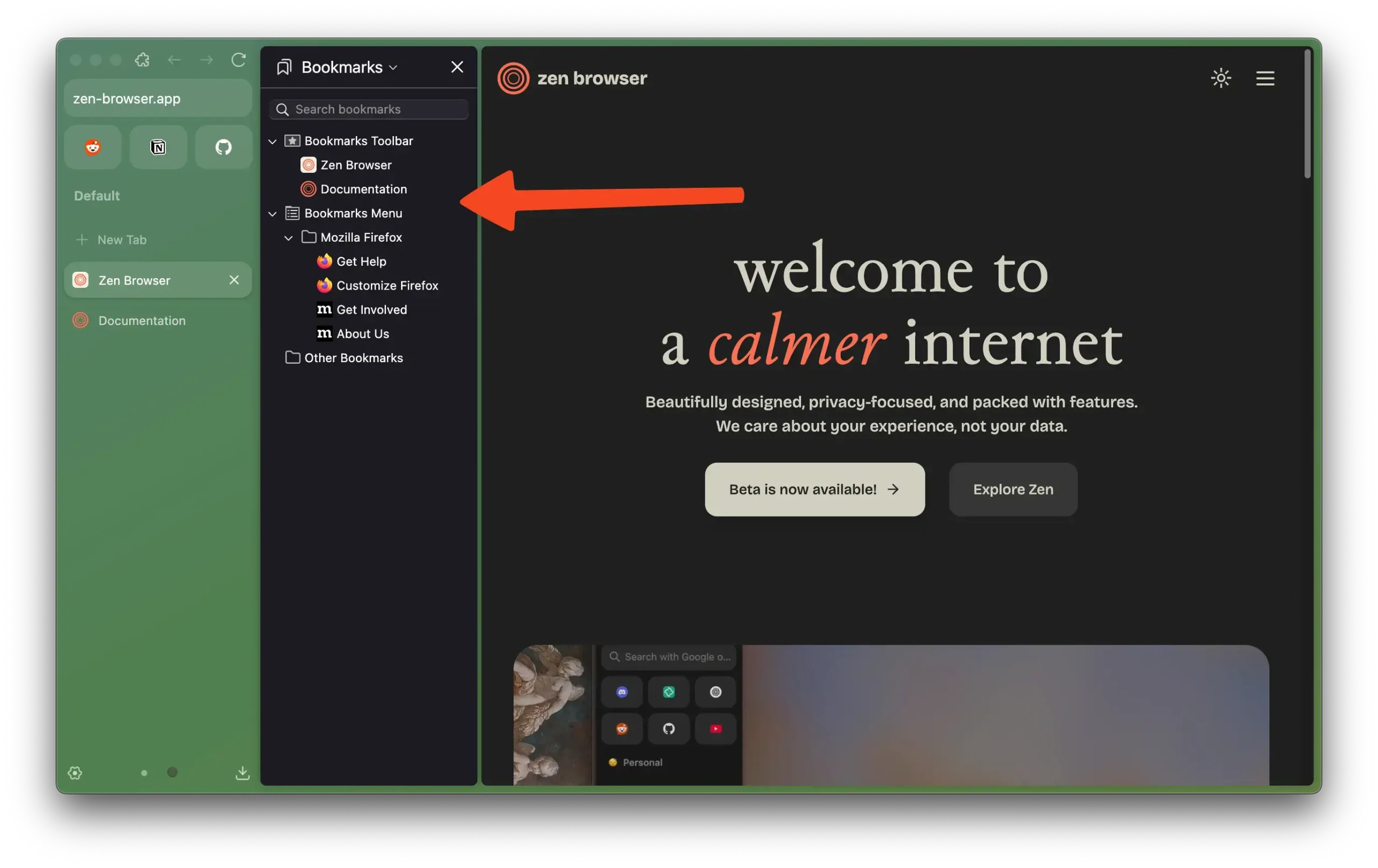
- Manage bookmarks from Zen Browser for Windows – Firefox with Vertical Tabs
-
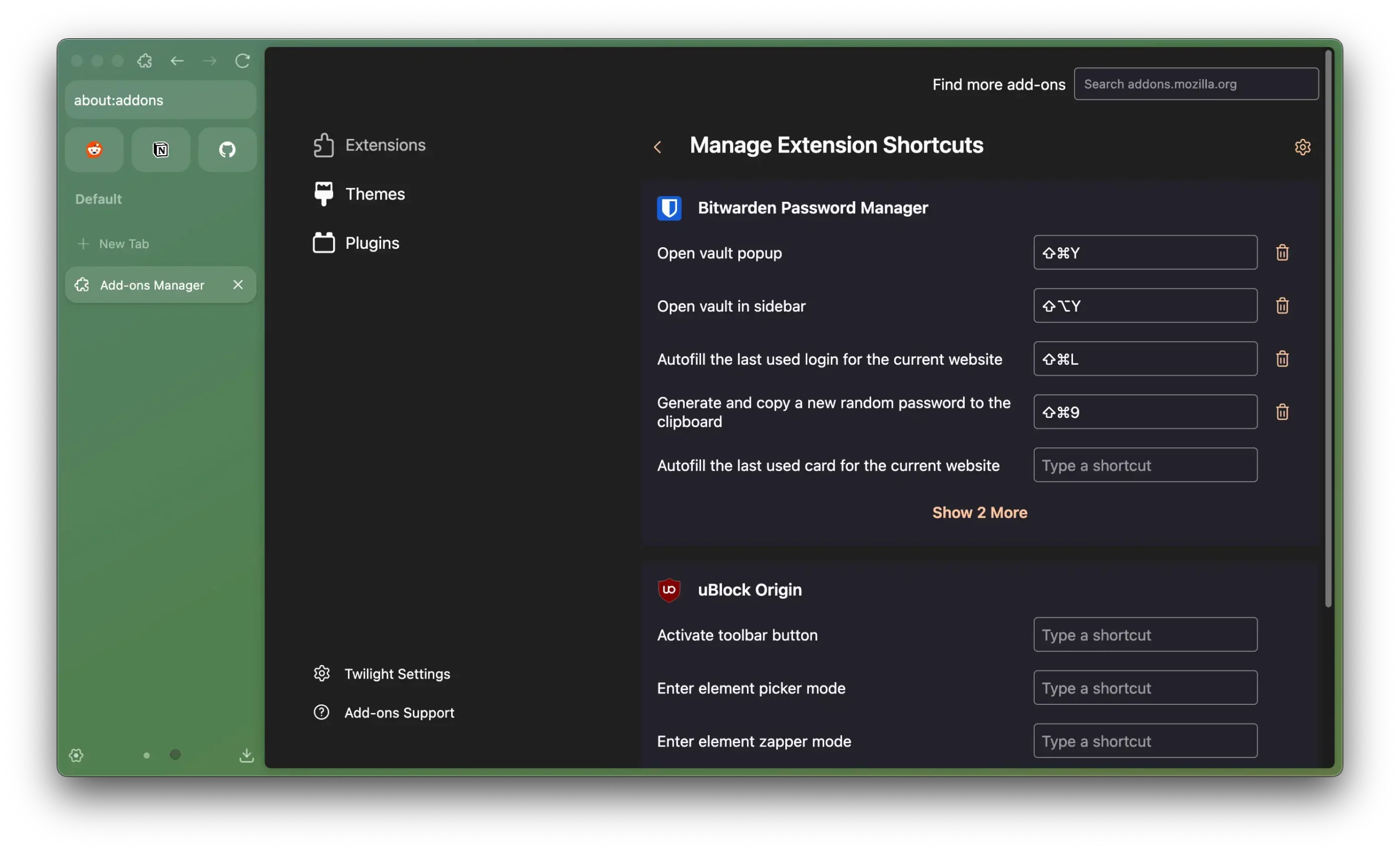
- Manage extensions shortcut from Zen Browser for Windows – Firefox with Vertical Tabs
-
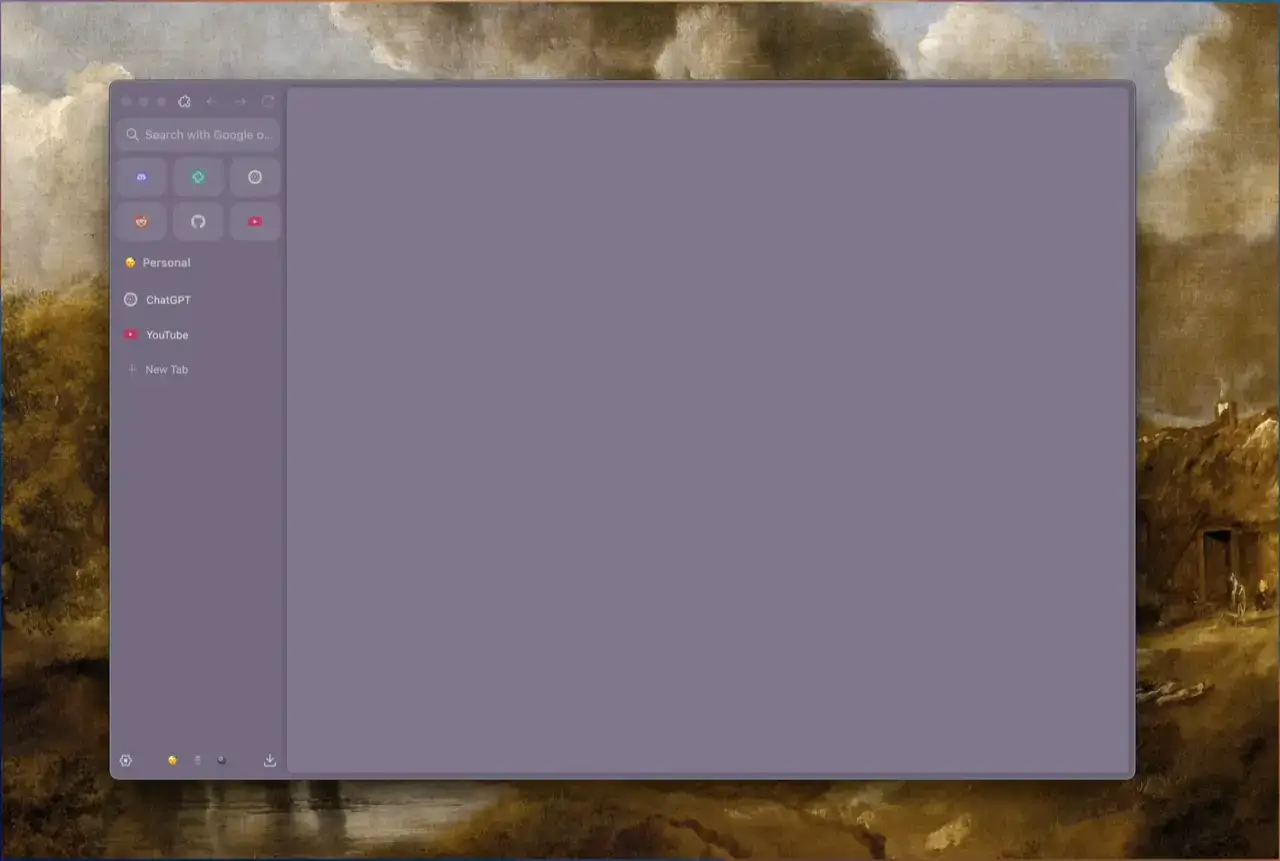
- Showing favorite panels from Zen Browser for Windows – Firefox with Vertical Tabs
-
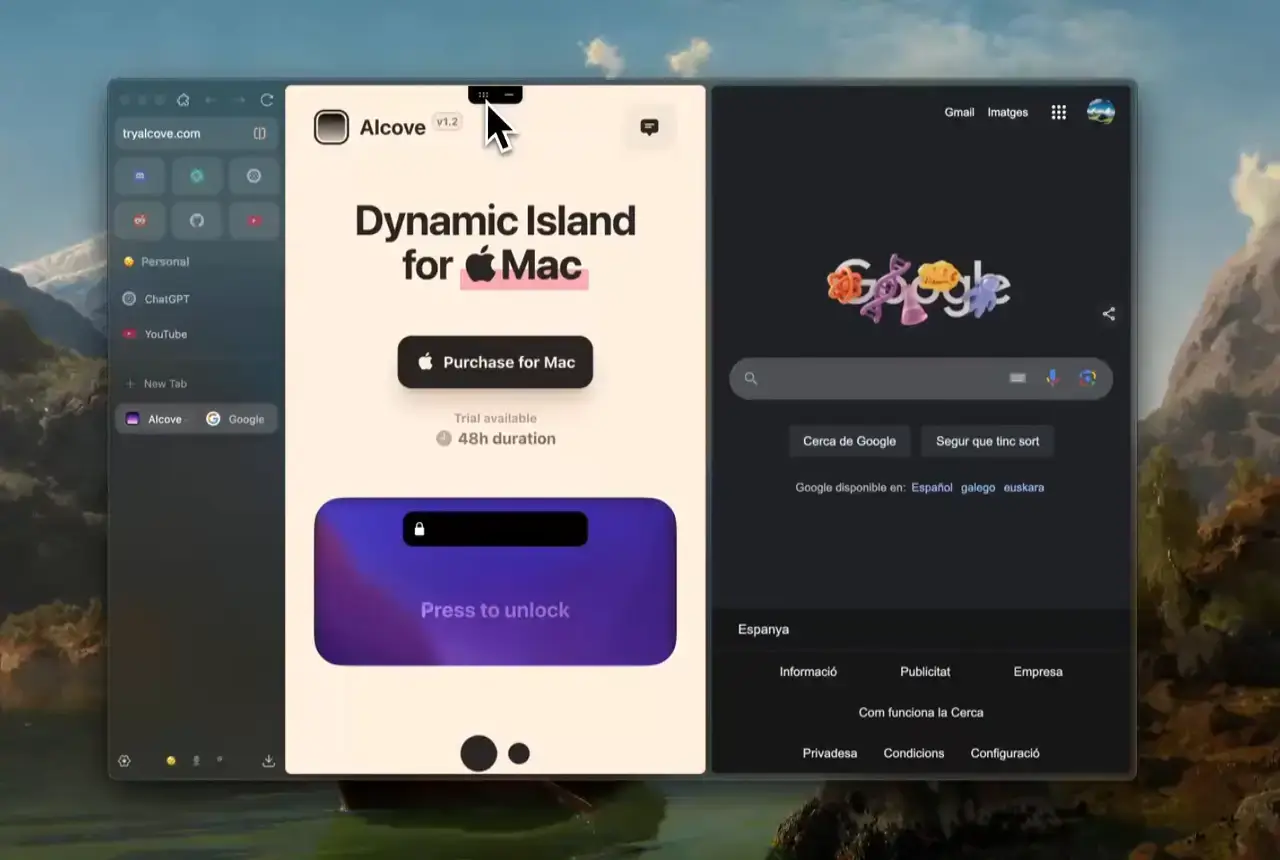
- Split view from Zen Browser for Windows – Firefox with Vertical Tabs
Video of Zen Browser in Action
Keyboard Shortcuts
Zen has its own shortcuts on top of the standard Firefox ones. You can also customize all of these in Settings > Keyboard Shortcuts.
| Shortcut | What It Does |
|---|---|
| Alt + B | Toggle sidebar width (full or icons only) |
| Ctrl + Alt + C | Toggle Compact Mode (hides all toolbars) |
| Alt + Ctrl + S | Toggle floating sidebar |
| Alt + 1 to Alt + 3 | Switch to pinned Essential tabs |
| Alt + Shift + Ctrl + C | Copy current URL as Markdown link |
| Ctrl + T | Open a new tab |
| Ctrl + W | Close the current tab |
| Ctrl + L | Jump to the address bar |
| Ctrl + Shift + T | Reopen the last closed tab |
| F11 | Toggle full screen |
Known Limitations
Zen is still being developed, so there are a few things it cannot do yet. These are not bugs; they are features that have not been built or licensed yet.
Netflix, Disney+, and Spotify do not work
Zen does not include Widevine DRM, which streaming services require to play protected content. This is a licensing issue, not a technical one. The developer has said the Widevine license is too expensive for a free project right now. You will need to use a different browser for streaming.
Some websites look broken or refuse to load
Because Zen is in beta, some websites may display incorrectly. If a page looks wrong, try turning off any content-blocking extensions for that specific site. You can also report the issue on their GitHub so the developers can investigate it.
The browser crashes or freezes occasionally
Beta software can be unstable. If Zen freezes, close it from Task Manager (Ctrl + Shift + Esc) and reopen it. If crashes happen often, check that you are running the latest version from the download page, as updates fix bugs frequently.
Frequently Asked Questions
Is Zen Browser safe to use?
Yes. Zen is open-source and built on Firefox, so the code is public and anyone can review it. It blocks trackers and ads by default. Keep in mind that it is still in beta, so you may run into occasional bugs.
Can I use my Firefox extensions in Zen Browser?
Yes. Zen is built on Firefox’s Gecko engine, so every extension from the Mozilla Add-ons store works in Zen.
Does Zen Browser support Netflix and other streaming services?
Not right now. Zen does not include Widevine DRM support, so streaming services that require it (like Netflix, Disney+, and Spotify web player) will not play protected content. You will need a separate browser for those.
What are Zen Mods?
Zen Mods are community-made themes and layout tweaks you can install from the built-in Mod Store. They let you change how the browser looks and behaves without editing any code.
How is Zen Browser different from Arc?
Zen has a similar look to Arc, with a vertical sidebar and workspaces, but it is built on Firefox instead of Chromium. It is also fully open-source and free, while Arc is closed-source. Zen has no AI features, which some users prefer.

Community Poll: Share Your Thoughts
Helpful Resources and Community
📦 Zen Browser GitHub
The full source code, bug tracker, and release downloads. This is where the development happens.
🗨️ r/ZenBrowser
The community subreddit for sharing mods, reporting issues, and discussing updates with other Zen users.
🌐 Zen Browser Website
The official homepage with downloads, the Mod Store, and release notes for every version.
Get Zen Browser for Windows
A Firefox-based browser with a clean sidebar layout, workspaces, and a growing library of community themes. Open-source and free.
Requires Windows 10 or Windows 11 (64-bit)
Related Browsers: Vivaldi Browser for Windows, Waterfox for Windows, Samsung Internet for PC, Floorp Browser for Windows, Thorium Browser for PC
Discover more from Windows Mode
Subscribe to get the latest posts sent to your email.