

Readers like you help support this site. When you make a purchase using links on our site, we may earn an affiliate commission. All opinions remain our own.


Want to streamline your projects, organize tasks, and capture ideas effortlessly on your Windows PC? Zenkit is a versatile project management app that helps individuals and teams manage everything from simple to complex workflows with flexible views.
You can download Zenkit for free on your Windows PC via the Microsoft Store or Zenkit’s official site. For advanced features and team collaboration, optional paid plans start at just $9/month.
Developed by Zenkit since 2016, this powerful yet distraction-free tool works seamlessly on Windows 10 and Windows 11. Its offline mode and intuitive design make it a trusted choice for improving productivity.
Whether you’re a team leader, freelancer, student, or anyone managing personal tasks or complex projects, Zenkit offers the flexibility you need.
This comprehensive guide covers how to download Zenkit on Windows, its key features, essential setup tips, and how to get started mastering your projects right away.
Share your favorite Zenkit collection below, or contact us for help getting started!
How to Download Zenkit on PC: Your Essential Guide
Getting the Zenkit desktop app on your Windows PC is straightforward. You can download it directly from the Microsoft Store or Zenkit’s official website. Both methods provide the same great software.
Here’s a quick step-by-step guide:
- Microsoft Store (Recommended for easy updates)
- Visit the Zenkit page: Zenkit in Microsoft Store.
- Click Download (or “Get”) to install the free app (approx. 120 MB).
- Once installed, launch it from the Store or your Start menu. Sign in with your Zenkit account or create a new one, then set up your first collection.
- Start adding items, notes, or tasks, and switch between various project views to manage your work efficiently.
- Zenkit Website (Direct Download)
- Go to the official Zenkit for Windows download page: Zenkit for Windows.
- Click the Download button for Windows (approx. 120 MB file size).
- Run the downloaded installer, sign in with your Zenkit account, and open an existing collection or create a new one.
- Begin organizing your tasks, ideas, or team projects.
Quick Tip: 💡 Press Ctrl+Shift+Space to quick-add items to any collection from anywhere on your desktop. This is a powerful productivity shortcut!
Download Zenkit via Microsoft Store | Download Zenkit via Zenkit.com
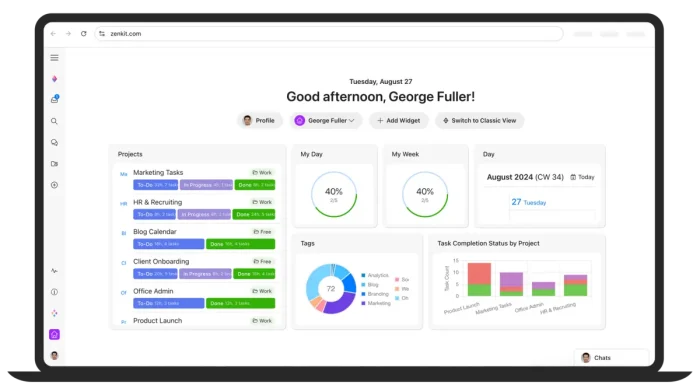

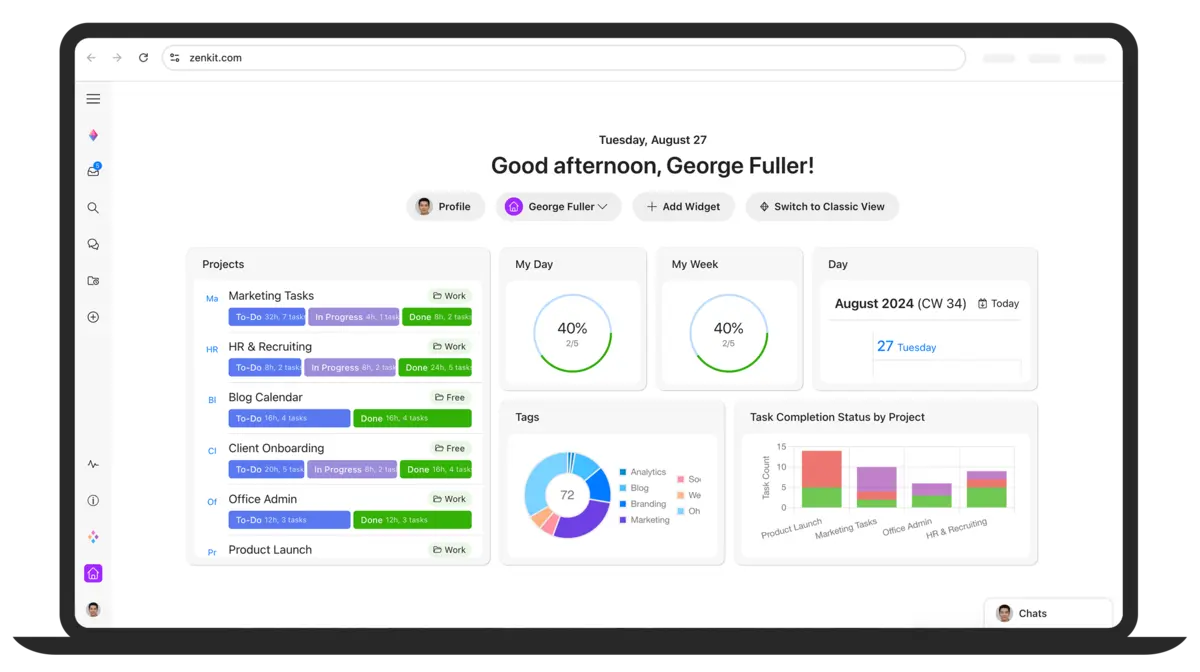
What is Zenkit About? A Flexible Project & Task Manager
Zenkit, launched in 2016, is much more than just a task list app. It’s a versatile project management software that allows you to organize tasks, ideas, and information into dynamic “collections” with highly flexible views. This means you can visualize your work in the way that makes the most sense to you or your team.
Zenkit supports powerful integrations with popular tools like Slack, Zapier, and Google Drive, enhancing your workflow automation.
Crucially, it also features a robust offline mode, allowing you to continue working even without an internet connection, syncing seamlessly when you’re back online.
Users frequently praise its clean, distraction-free design and time-saving keyboard shortcuts.
While it’s not compatible with Windows 10S (as noted by some users on platforms like X), it excels on standard Windows 10 and Windows 11 installations.
It’s an ideal tool for project tracking, brainstorming ideas, personal planning, or building robust databases.
Zenkit offers a generous free plan for individual use, with scalable paid tiers designed for growing teams and advanced features.
Core Features at a Glance:
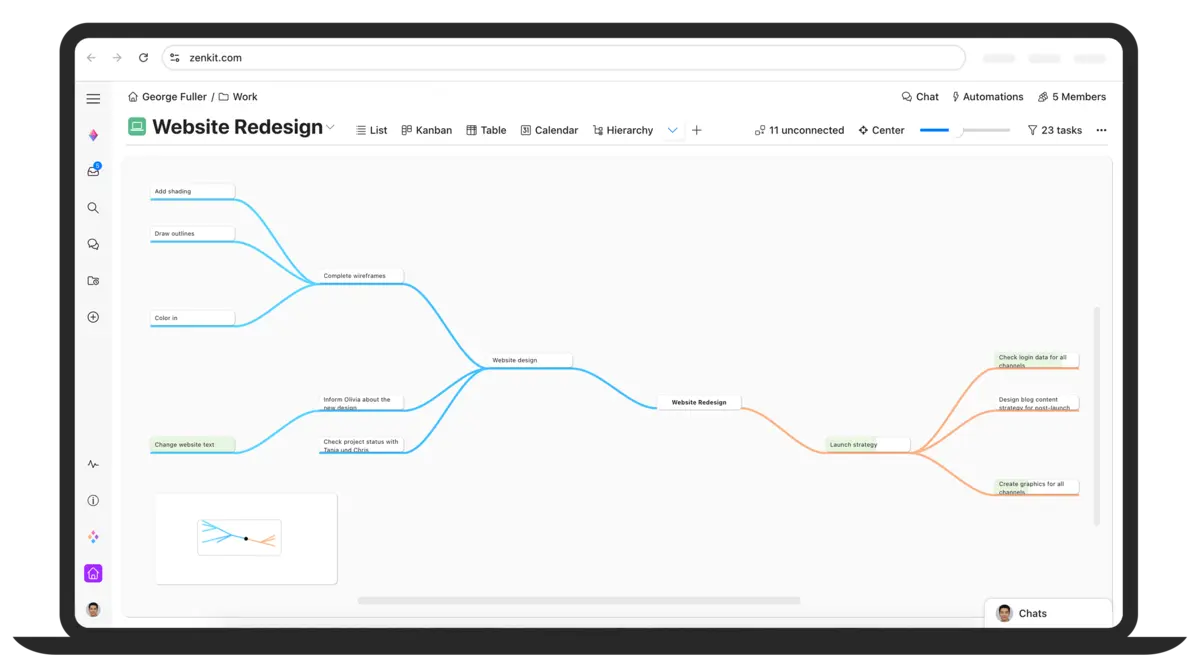
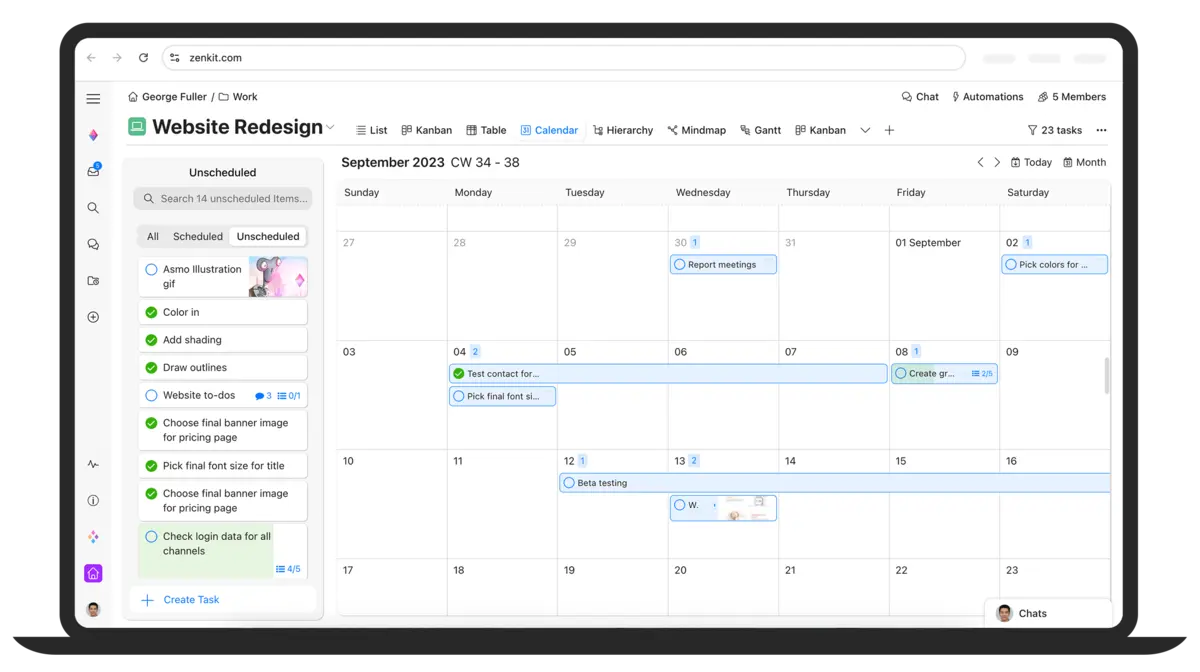
- Customizable Views: Effortlessly switch between Kanban boards, traditional lists, calendars, mind maps, Gantt charts, and more to visualize your data.
- Powerful Integrations: Connect with Slack, Zapier, Google Drive, and other essential tools to centralize your work.
- Offline Mode: Work on your projects anywhere, anytime, without worrying about internet connectivity.
- Real-time Collaboration: Work with team members on shared collections to keep everyone aligned.
- Intuitive Interface: A clean design focused on minimizing distractions, enhancing your focus.
Why Use Zenkit on Windows for Productivity?
Zenkit on Windows is designed to boost your productivity and bring order to your projects. Its versatility and focus on a distraction-free experience make it an excellent choice for a wide range of users, from individuals to large teams.
- Create dynamic collections for tasks, ideas, notes, or entire projects, adapting to your specific needs.
- Instantly switch between Kanban, List, Calendar, Mind Map, or Gantt chart views for optimal organization and insight.
- Seamlessly integrate with Slack, Zapier, Google Drive, and other apps to connect your workflow and automate tasks.
- Work offline and ensure all your changes sync automatically when reconnected, providing uninterrupted workflow.
- Utilize shortcuts like Ctrl+Shift+Z to open the app quickly, saving valuable time and enhancing efficiency.
- It’s ideal for comprehensive task organization, detailed project tracking, and streamlined team collaboration.
Popular Industries and Use Cases for Zenkit
Zenkit’s adaptability means it’s used across diverse industries and for a multitude of tasks. Its ability to handle different types of data makes it a powerful data organization software.
| Industry/Area | Common Use Cases |
|---|---|
| Business | Project management, client tracking, agile workflows, CRM, meeting notes |
| Education | Study planning, research organization, group projects, curriculum design |
| Creative | Content calendars, design project tracking, brainstorming, asset management |
| Personal | To-do lists, habit tracking, event planning, recipe collections, personal knowledge base |
| Development | Bug tracking, sprint planning, feature roadmaps, code snippets, project backlog management |
Common applications include:
- Tracking team projects with intuitive Kanban boards and detailed Gantt charts.
- Brainstorming ideas using dynamic mind maps for visual organization.
- Organizing events from start to finish, managing vendors, schedules, and tasks.
- Managing personal tasks and to-do lists for daily productivity and goal setting.
- Creating flexible, custom databases for any type of information you need to store and manage.
Quick Start Guide for Zenkit on PC
New to Zenkit? Here’s how to get going quickly and make the most of this powerful task organizer:
- Open the Zenkit app and click “New Collection” to start your first project, task list, or idea board.
- Add items (tasks, notes, files, links) to your collection. Think of each item as a card you can move and customize.
- Switch between Kanban, List, or Calendar view (and explore others like Mind Map or Gantt!) for the best way to organize and visualize your work.
Best Settings for Zenkit on PC
Optimize your Zenkit experience on Windows with these recommended tweaks for better flow and efficiency:
- Shortcuts: Set Ctrl+Shift+Z (or your preferred combination) to open Zenkit instantly. This is a game-changer for quick access to your projects.
- Default Views: Customize the default view (e.g., Kanban, List, Calendar) for each of your collections to match your primary workflow and enhance efficiency.
- Notifications: Enable desktop alerts for task deadlines or team mentions to stay on top of important updates and never miss a beat.
- Offline Sync: Ensure Zenkit is set to auto-sync when online, so your offline work is always backed up and up-to-date across all your devices.
Common Issues & Fixes for Zenkit on Windows
Encountering a snag? Here are some common issues and their quick fixes to keep your project management workflow smooth:
- Not Compatible with Windows 10S:
- Fix: Zenkit requires a full version of Windows 10 (version 16299.0 or higher) or Windows 11. If you’re on Windows 10S, please use the Zenkit web version in your browser instead.
- Free Plan Limits:
- Issue: The free plan has limits on the number of collections, items, or integrations.
- Fix: For more capacity or advanced team collaboration features, consider upgrading to one of the affordable paid plans starting at $9/month.
- Sync Delays or Offline Issues:
- Issue: Your data isn’t syncing, or offline work isn’t updating correctly when you reconnect.
- Fix: First, check your internet connection. If it’s stable, try refreshing the app manually (often by closing and reopening or checking for a sync button within the app).
Zenkit Screenshots
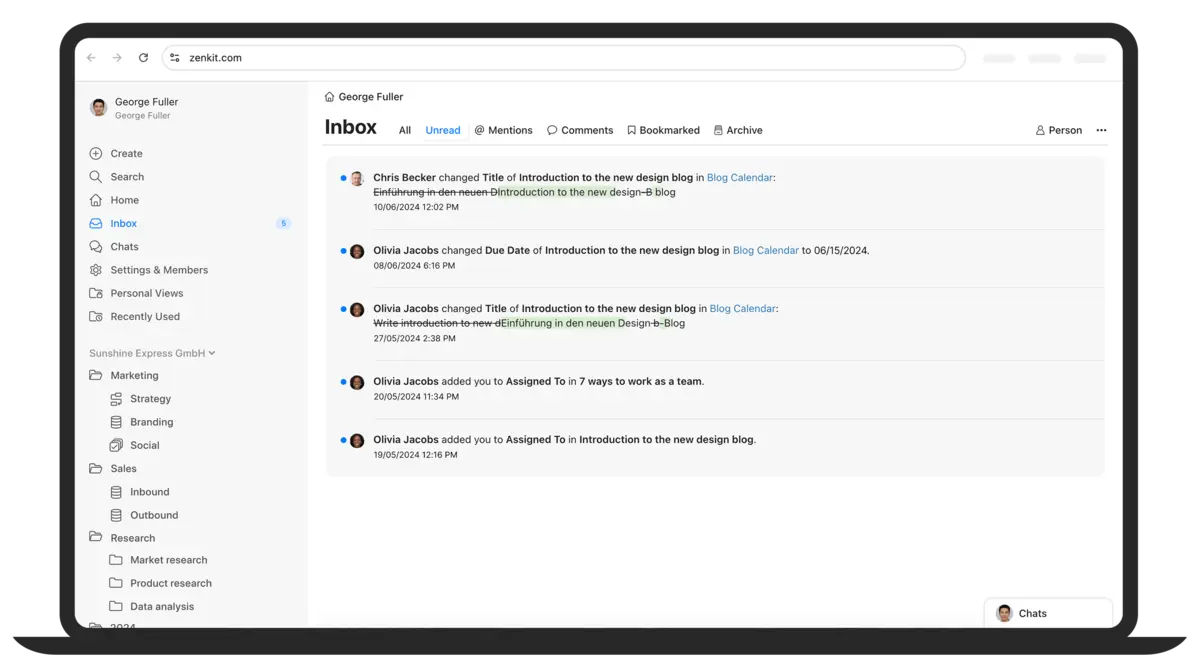
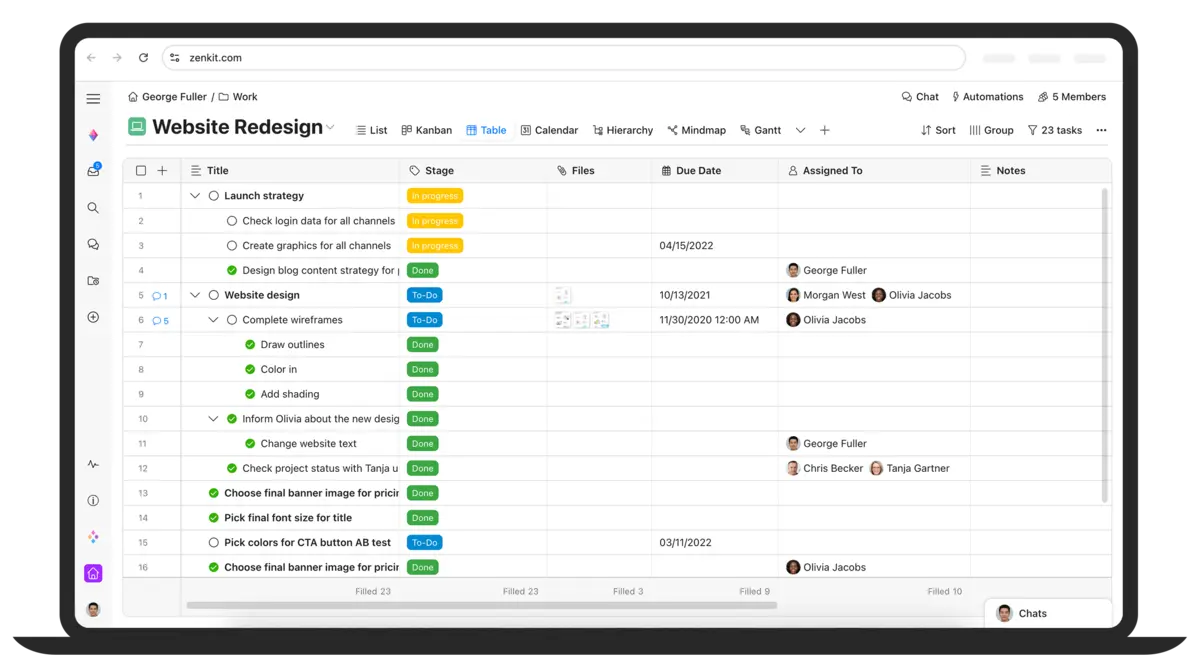
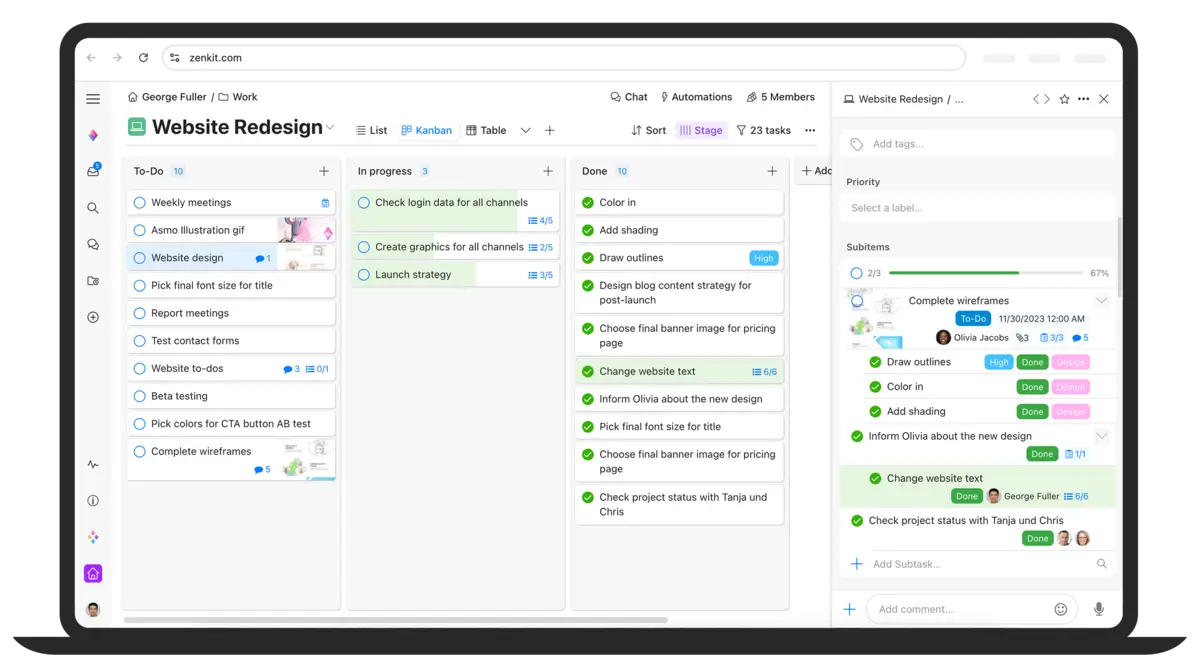
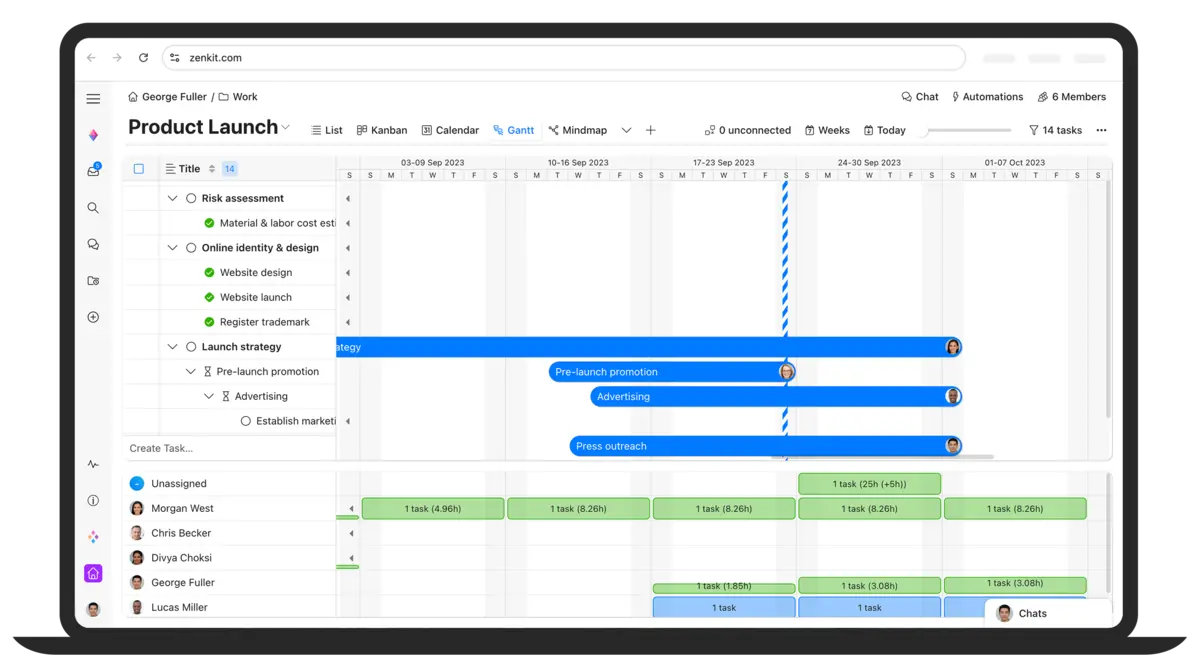
Zenkit Beginner’s Video Tutorial
Watch this quick guide to learn how to use Zenkit on your PC and unlock its full potential for collaboration and project organization:

System Requirements for Zenkit on Windows PC
To ensure Zenkit runs smoothly, make sure your Windows PC meets these minimum system requirements:
- Operating System: Windows 10 (version 16299.0 or higher), Windows 11 (Note: Not compatible with Windows 10S).
- Processor (CPU): 1 GHz or faster.
- Memory (RAM): 4 GB minimum, 8 GB recommended for optimal performance.
- Storage: At least 500 MB free disk space for installation and data.
- Other: Internet connection required for initial download, sync, and integrations.
Zenkit on Windows FAQ: Your Questions Answered
Here are some frequently asked questions about Zenkit on Windows:
- Is Zenkit free to use?Yes, Zenkit offers a robust free plan. Paid plans are available starting from $9/month for additional features and team capabilities.
- Can I use Zenkit offline on my PC?Absolutely! Zenkit has an offline mode, allowing you to continue working on your projects even without an internet connection. Your data will sync automatically when you’re back online.
- Does Zenkit integrate with other productivity tools?Yes, Zenkit offers powerful integrations with popular tools like Slack, Zapier, and Google Drive to enhance your workflow and connectivity.
Support and Community
Need more help or want to connect with other Zenkit users? Check out these resources:
Explore More Windows Apps: Trello, Slack, Microsoft Journal, Zoom Workplace