Readers like you help support this site. When you make a purchase using links on our site, we may earn an affiliate commission. All opinions remain our own.
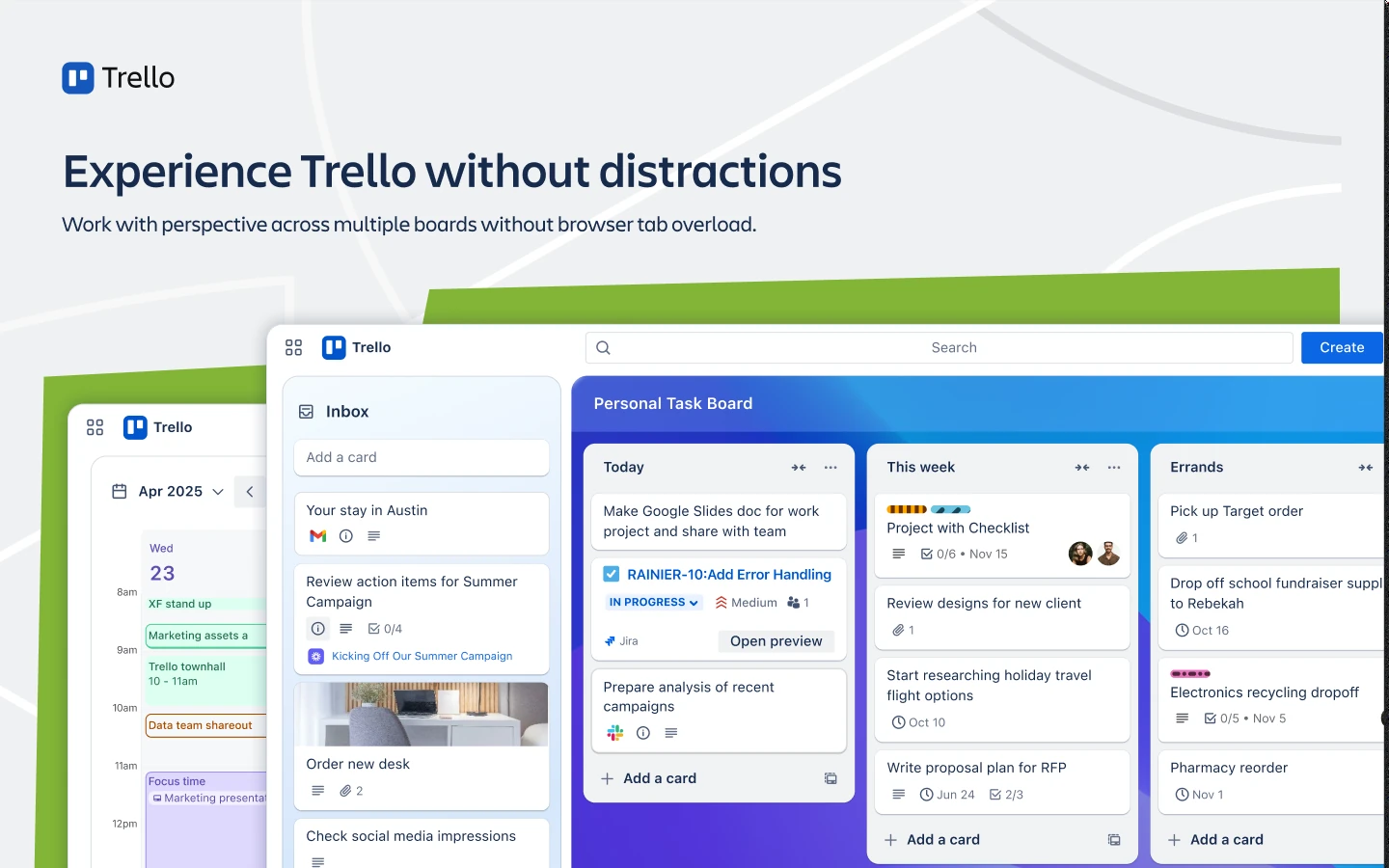
The Trello desktop app for Windows, with Inbox, a board and Planner side by side. Image from Trello.
Trello is a free visual task app from Atlassian, and its Windows desktop app is available from the Microsoft Store. You sort work into boards, lists and cards, then drag cards from one list to the next as things get done.
The desktop app is the same Trello you use in a browser, in its own window. What it adds is system-wide shortcuts, so you can open Trello or add a card from anywhere on your PC. It also sends Windows notifications instead of browser alerts.
It runs on Windows 10 and Windows 11 and needs an internet connection. Your boards sync with the web and the phone apps through your Trello account.
Below: install steps, the shortcuts worth learning, what each plan costs, and fixes for the limits people run into. Questions? Reach out to us directly.
What Is Trello?
Trello turns a to-do list into a board you can see at a glance. A board holds lists, such as To Do, Doing and Done, and each list holds cards. A card is one task, with room for a checklist, a due date, files, comments and the people working on it.
It started in 2011 and has been part of Atlassian, the company behind Jira and Confluence, since 2017. Teams use it for projects and sprints, and plenty of people use it alone for chores, study plans or a reading list.
Trello also has a personal side now. Inbox collects to-dos before you sort them, and Planner puts your cards on a calendar next to the events from your other calendars.
Key Features of Trello on Windows
These are the parts of Trello you will use most, plus the extras only the desktop app has.
Boards, lists and cards
Drag a card to a new list to show progress. Every board looks like a wall of sticky notes, so you can see what is stuck without opening anything.
Quick Add from anywhere
Press Ctrl+Alt+Space in any app and a small window opens to create a card, straight into your Inbox or onto a board.
Inbox and Planner
Inbox holds loose to-dos until you file them. Planner shows your cards on a calendar. Everyone can view Planner; dragging cards onto it to block time needs a paid plan.
Native Windows notifications
Card moves, comments and mentions show up as Windows notifications, even when the Trello window is closed.
Built-in automation
Set rules like “when a card moves to Done, check off every item”. The free plan includes 250 automation runs a month per Workspace.
Power-Ups
Connect Trello to Slack, Google Drive, Microsoft Teams and over 200 other tools. Some partner Power-Ups charge their own fee.
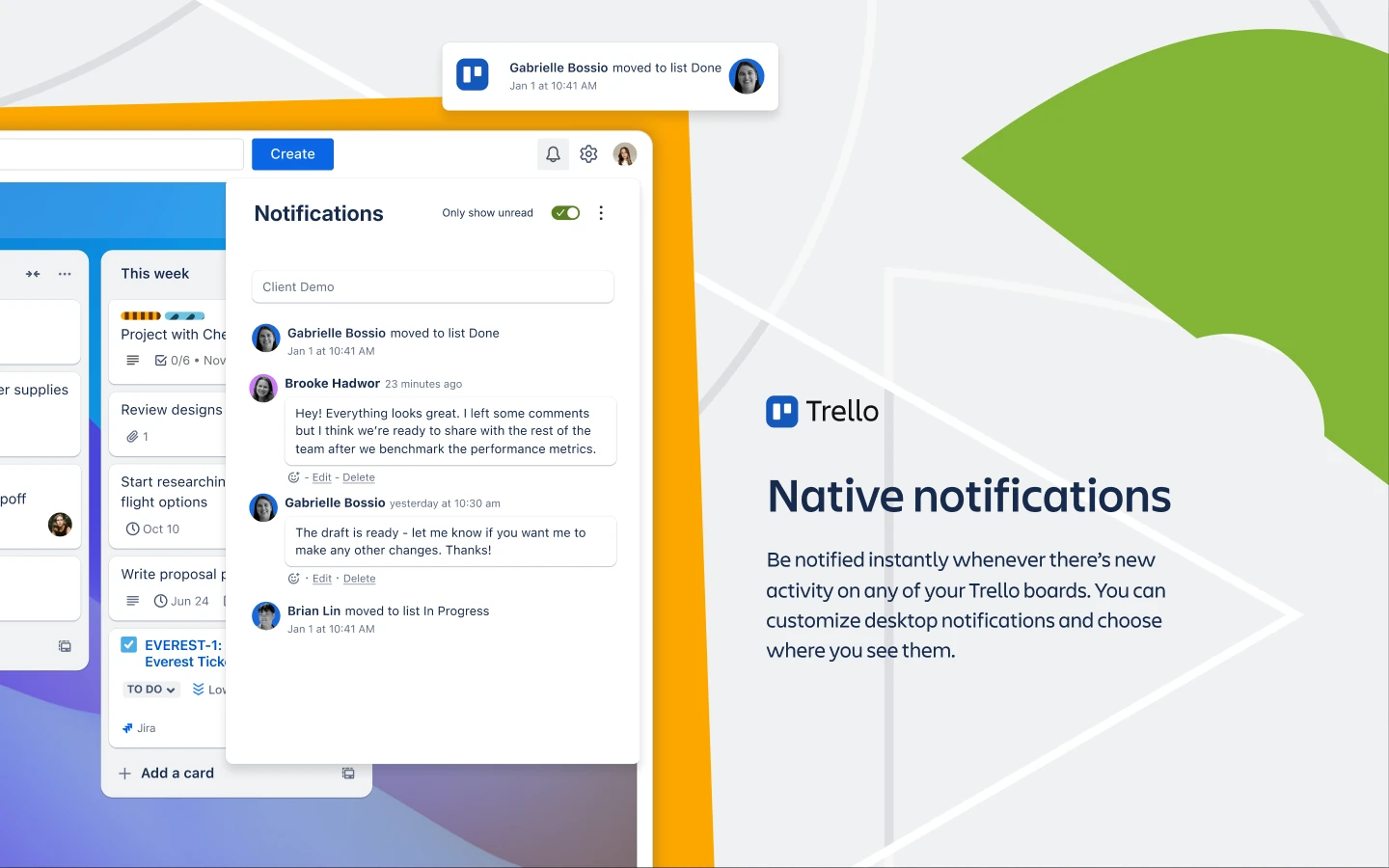
The notifications panel. The desktop app also passes these to Windows. Image from Trello.
How to Get Trello on Windows
Atlassian publishes the Windows app through the Microsoft Store. The Windows link on trello.com sends you to the same Store page, so there is no separate installer to look for.
1 Open the Trello page in the Microsoft Store.
2 Click Get or Install. The download is about 160 MB.
3 Open Trello from the Start menu.
4 Log in with your Trello or Atlassian account, or sign up with an email, Google, Microsoft or Apple account.
5 Open a board or create one from a template to start.
Skip the download sites. Pages that offer a Trello .exe are repackaging Atlassian’s app. The Store version updates itself, and the publisher is listed as Trello, Inc.
No Store on your PC? Trello works in any browser at trello.com. You get the same boards, just without the global shortcuts and Windows notifications.
Trello Desktop Shortcuts for Windows
These shortcuts are the main reason to use the desktop app over a browser tab. The first two work even when Trello is not the window in front.
All of Trello’s normal keyboard shortcuts work too, such as N to add a card and Q to show only your cards. Press ? inside Trello to see the full list.
Is Trello Free?
Yes. The Windows app is free, and so is the Free plan behind it. The paid plans add AI tools, more boards and more ways to view your work. You pay per person, and yearly billing costs less.
Files are capped per upload: 10 MB each on Free and 250 MB each on Standard. Enterprise adds admin and security controls and is sold through Atlassian’s sales team. See trello.com/pricing for the current numbers.
Trello Desktop App vs Trello in Your Browser
Most people already have Trello open in a browser tab, so this is the real choice. Your boards are identical in both; the difference is how Trello fits into Windows.
Our take
If you check Trello a few times a week, a pinned browser tab is enough. If Trello is where your day lives, install the app: Quick Add alone saves you from losing ideas while you are in another program. Want notes and docs in the same place as your tasks? Look at our Notion for Windows guide instead.
Common Trello Problems and Fixes
These are the limits and snags Windows users run into most, with what to do about each one.
Boards turned view-only
A free Workspace can have up to 10 collaborators, counting members, guests and pending invites. Go over that and its boards become view-only. Remove people or invites, or upgrade the Workspace.
You cannot create another board
The Free plan allows 10 boards per Workspace. Close boards you no longer use, or move some to a second Workspace.
Nothing loads without internet
The desktop app has no offline mode, just like the website. Changes you try to make while offline do not save, so check your connection first.
No pop-up notifications
Check that Trello is allowed in Windows Settings, then System, then Notifications. Focus or Do Not Disturb also hides them until you turn it off.
A shortcut does nothing
Another app may already use Ctrl+Alt+T or Ctrl+Alt+Space. Pick a different key combination in the Trello app’s settings.
A Power-Up asks you to pay
Power-Ups are included in every plan, but some made by other companies need their own subscription. The Power-Up’s page says if it does.
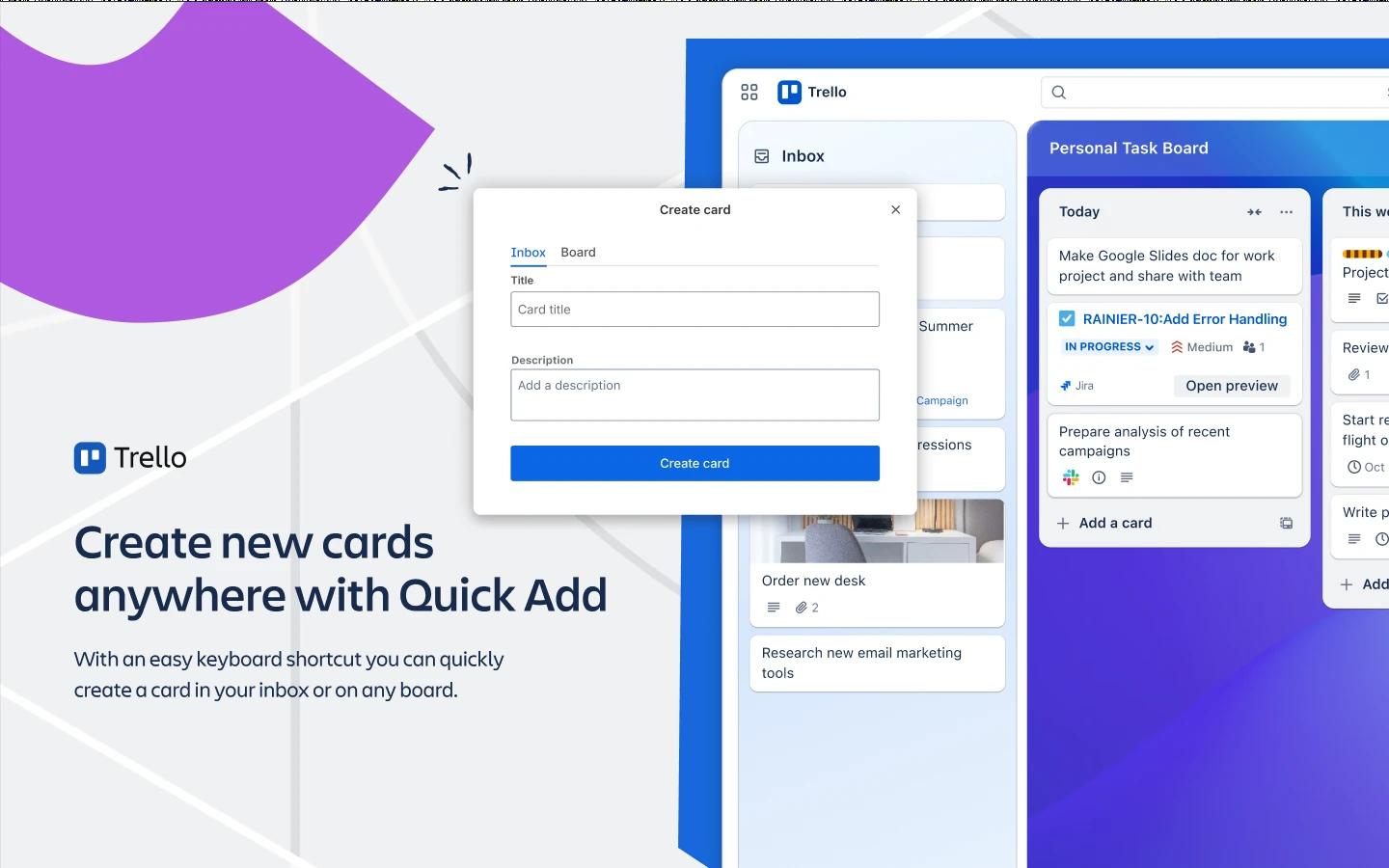
Quick Add can drop a card into your Inbox or straight onto a board. Image from Trello.
Tips for Getting Started with Trello
1 Start with three lists. To Do, Doing and Done covers most projects. Add more lists only when a step keeps getting stuck.
2 Star the boards you use daily. Starred boards get Ctrl+1 to 9 in the desktop app, so you can jump between them without the mouse.
3 Set a default board. Open your main board and press Ctrl+Shift+D. Ctrl+D then takes you back to it from anywhere in Trello.
4 Send everything to Inbox first. Use Quick Add to capture ideas fast, then sort your Inbox onto boards once a day.
5 Use a template for new boards. Trello’s template gallery has ready-made boards for things like sprints, content calendars and moving house, so you do not start from a blank page.
Trello Beginner Video
Watch this step-by-step walkthrough from Tutorials by Manizha & Ryan to see how boards, lists and cards work on a real project.
Frequently Asked Questions
What are the system requirements for Trello on Windows?
Does Trello work offline on Windows?
Can I get Trello on Windows without the Microsoft Store?
Does Trello on my PC sync with my phone?
Does Trello work with Microsoft Teams and Outlook?
Support and Community
- Trello at Atlassian, the developer’s own page for Trello.
- Trello Support, Atlassian’s help center, including the desktop app guide.
- Trello on Atlassian Community, for questions answered by other users and Atlassian staff.
- r/trello on Reddit, a user community for board ideas and Power-Up tips.
More Windows software guides: Notion · Slack · Microsoft Teams · OneNote · Zenkit
Discover more from Windows Mode
Subscribe to get the latest posts sent to your email.















Add your first comment to this post