Readers like you help support this site. When you make a purchase using links on our site, we may earn an affiliate commission. All opinions remain our own.
VTube Studio is the industry-standard app for animating Live2D models on Windows. You can install VTube Studio by downloading it through Steam.
It bridges the gap between your webcam (or smartphone) and your desktop, allowing a 2D avatar to track your face in real-time for streaming, recording, or Discord calls.
While the app is popular for its ease of use, the setup can be confusing due to the different tracking methods (Webcam vs. iOS vs. Android) and how they handle watermarks.
In this guide, we cover the official Windows installation, which tracking hardware offers the smoothest results, and the specific settings needed to get your model moving correctly.
If you run into trouble during setup or have a specific question we didn’t cover, please leave a comment below or contact us directly. We are happy to help you get started.
Download and install VTube Studio on Windows
The official Windows version is distributed exclusively through Steam. This ensures you get automatic updates and compatibility with the Steam Workshop for assets.
VTube Studio (Steam)
The official verified version for Windows 10/11.
Once you navigate to the Steam page:
- Click Install (if you don’t have Steam installed, you will be prompted to set that up first).
- Once downloaded, launch VTube Studio from your library.
- On the first launch, the app will ask you to select your preferred tracking method:
- Webcam: The quickest way to start if you have a decent USB camera.
- Phone (iPhone/Android): Requires linking the mobile app to your PC, but often provides higher quality tracking.
Core features
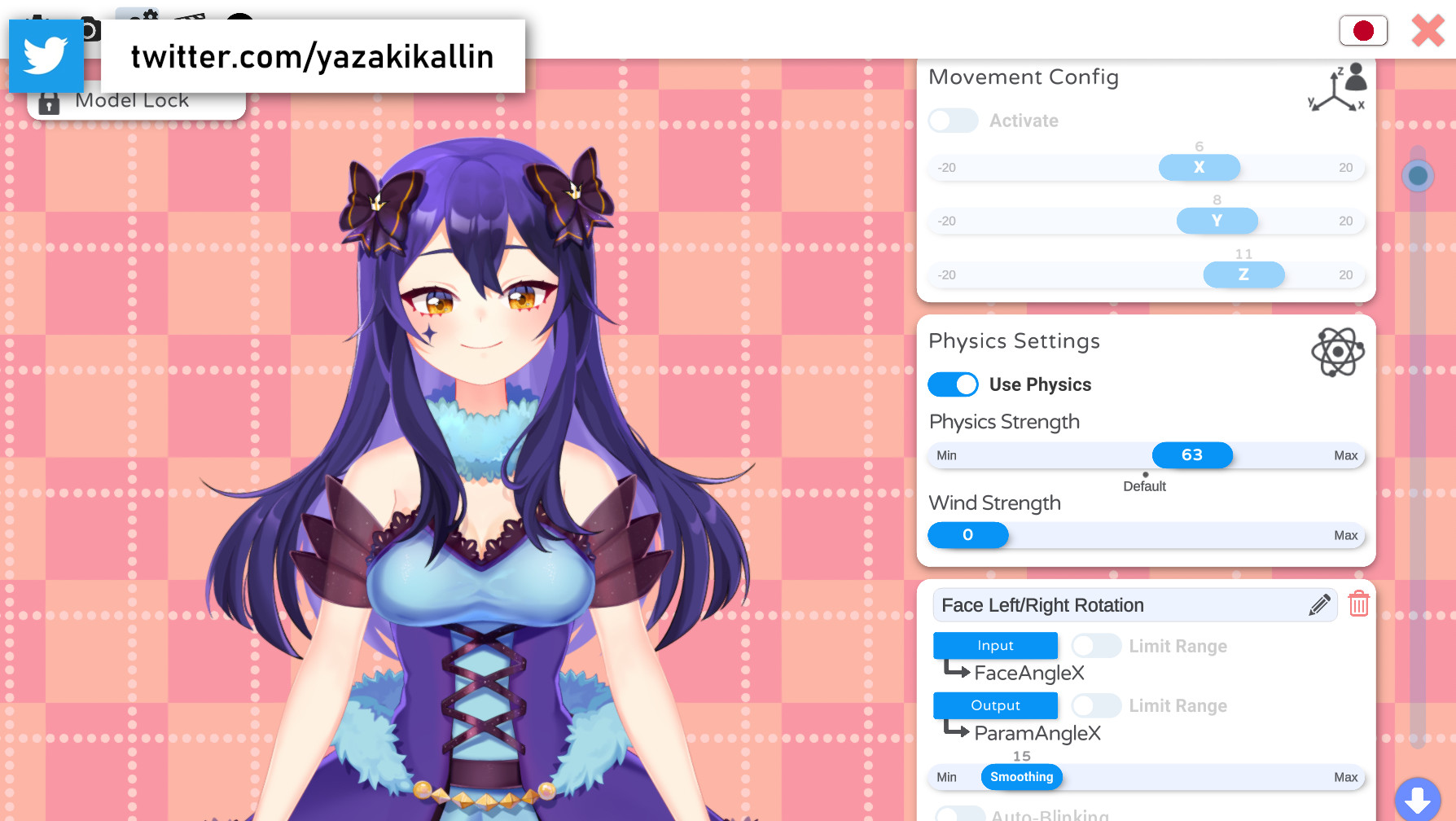
VTube Studio handles the complex translation of “face data” to “model movement.” Once installed, these are the primary tools you will use:
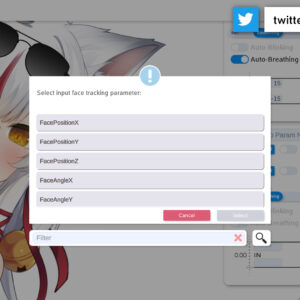
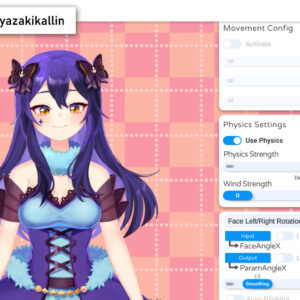
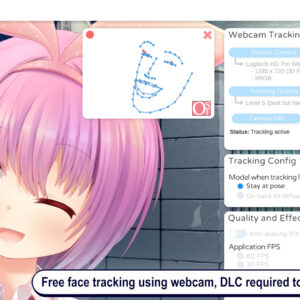
- Face Tracking: Drives head angles, eye blinking, and mouth shapes using your camera input.
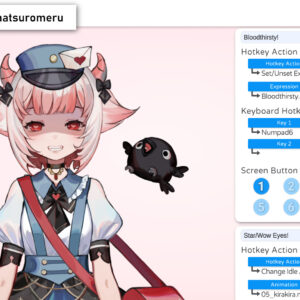
- Expression Hotkeys: Allows you to trigger emotions (like anger, tears, or blushing) instantly using keyboard shortcuts.
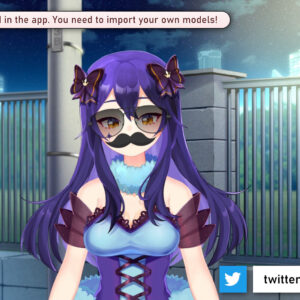
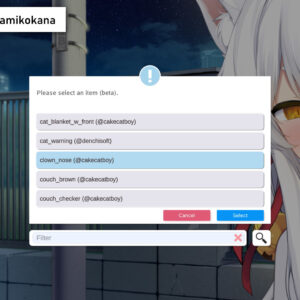
- Props System: Lets you attach PNG images or animated assets (like glasses, animal ears, or microphones) to your model.
- Plugin API: Enables third-party tools to interact with your model (e.g., throwing items at your model when someone subscribes on Twitch).
Tracking options: Webcam vs. Smartphone
Choosing the right tracker impacts your CPU usage and animation smoothness. Use this comparison to decide which method fits your current hardware.
| Option | What you need | Why choose it? | Tradeoffs |
|---|---|---|---|
| Webcam tracking | 720p+ Webcam | Fastest setup; everything happens on the PC. | Relies on PC lighting; uses more CPU resources; free version has a watermark. |
| iPhone/iPad tracking | iOS device with FaceID | Industry standard for smooth eye/mouth movement. | Requires network setup; separate watermark removal purchase (on the phone). |
| Android tracking | ARCore-capable phone | Better than a cheap webcam; offloads processing from PC. | Tracking quality varies significantly by phone model. |
Understanding the watermark and pricing
VTube Studio is free to use, but a watermark is displayed depending on your setup. The payment model confuses many new users—here is the breakdown:
Important: Buy the correct DLC
- Using a Webcam? Buy the “Remove Watermark” DLC on Steam to remove the floating icon.
- Using a Phone? Do not buy the Steam DLC. You must purchase the upgrade inside the mobile app (App Store or Google Play) to remove the watermark from the phone’s data stream.
PC system requirements
For most Windows 10/11 users, VTube Studio is lightweight. However, if you are streaming games on the same PC, ensure you have enough RAM overhead.
| Spec | Minimum | Recommended |
|---|---|---|
| OS | Windows 7 (64-bit) | Windows 10 / 11 |
| CPU | 1.8 GHz+ | 2.5 GHz+ (i5 or Ryzen 5) |
| RAM | 4 GB | 6 GB+ |
| Graphics | 2 GB VRAM, DX11 | 4 GB VRAM, DX11 |
Setup tips for better tracking
If your avatar’s movement feels jittery or loses connection, try these adjustments before changing hardware:
- Even Lighting: Ensure your face is lit from the front. A bright window behind you silhouetting your face is the #1 cause of tracking failure.
- Camera Position: Place the webcam at eye level or slightly above. “Nostril cam” angles make it hard for the software to track eye blinks.
- Frame Rate Priority: If using a webcam, ensure it is set to 30fps or 60fps stable. A blurry image is better than a laggy one for tracking algorithms.
Pro Tip: Background Aesthetics
Once your model is running, you will want a professional background for your stream layout. We recommend checking out Wallpaper Engine to create animated scenes behind your avatar.
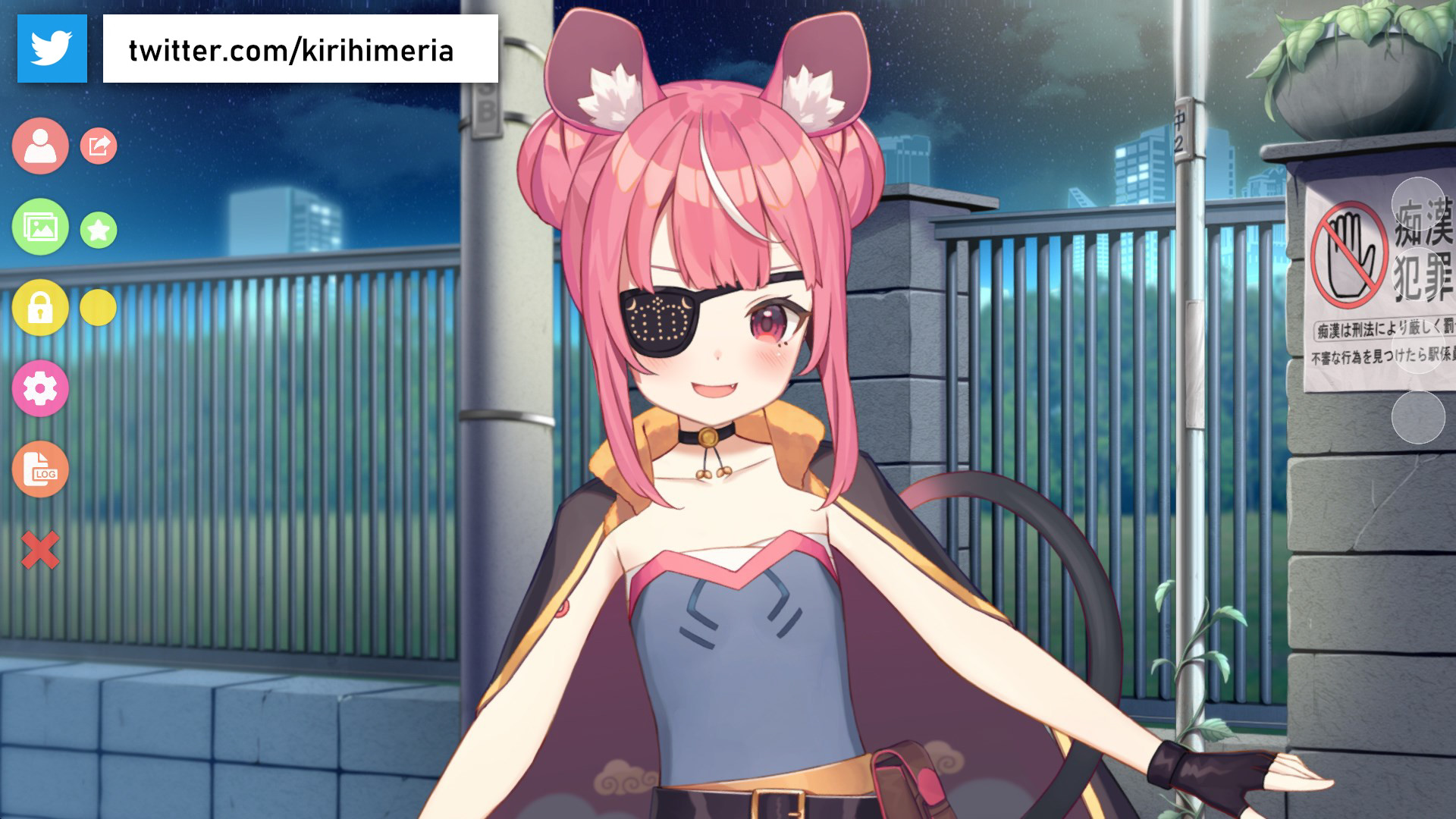
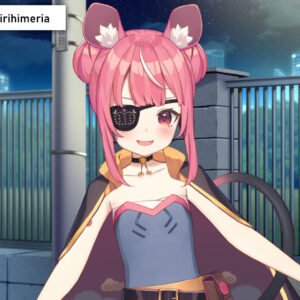
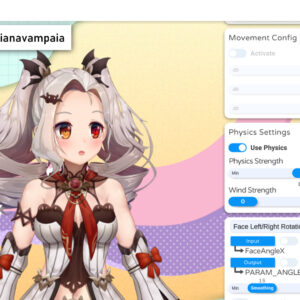
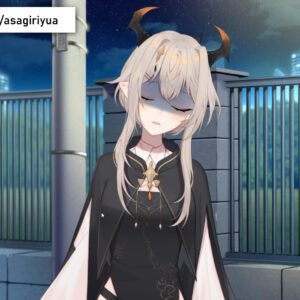
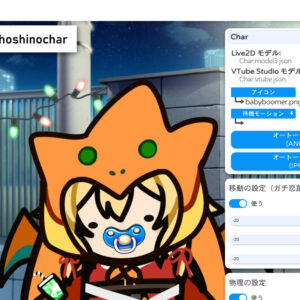
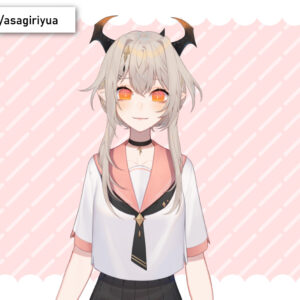
VTube Studio screenshots
VTube Studio video overview
Related resources
Discover more from Windows Mode
Subscribe to get the latest posts sent to your email.
















Add your first comment to this post