Readers like you help support this site. When you make a purchase using links on our site, we may earn an affiliate commission. All opinions remain our own.

WinRAR is a powerful file compression and archive management tool for Windows. While Windows 11 can now open basic ZIP and RAR files natively, WinRAR offers advanced features like creating encrypted archives, splitting large files, repairing corrupted downloads, and working with dozens of archive formats.
This guide covers everything you need to know about WinRAR: how to download and install it safely, what features make it different from built-in Windows tools, common use cases, and troubleshooting tips. We’ve also included a beginner-friendly video tutorial to help you get started.
40-Day Trial
Error Repair
AES-256
Windows 11/10
How to Download and Install WinRAR
1
Download the Installer
Visit the official WinRAR website (link below). Choose the 64-bit version for modern Windows systems, or 32-bit if you’re running older hardware.
2
Run Setup and Select File Types
During installation, you can choose which file formats WinRAR should handle. Click “Toggle All” to make WinRAR the default for ZIP, RAR, 7Z, ISO, TAR, and other archives.
3
Enable Context Menu Integration
Make sure “Add WinRAR to Shell context menu” is checked. This allows you to right-click any file or folder in Windows Explorer to quickly compress or extract it.
Direct link to WinRAR.com
Beginner’s Tutorial: How to Use WinRAR
New to WinRAR? This video tutorial walks you through the basics of extracting and creating archives, setting passwords, and using the most common features.
📚 What You’ll Learn:
- How to extract RAR, ZIP, and 7Z files
- Creating your own compressed archives
- Adding password protection to sensitive files
- Splitting large files into smaller parts
- Using the right-click context menu shortcuts
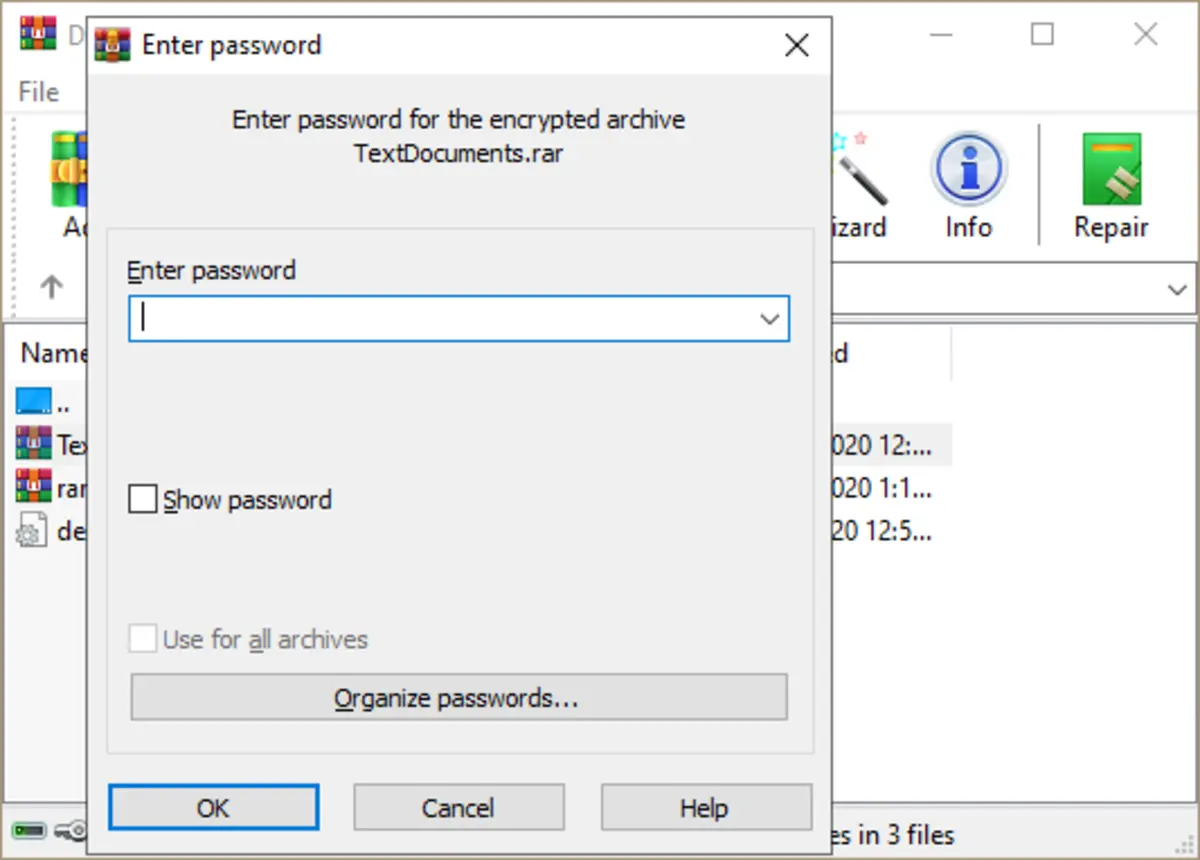
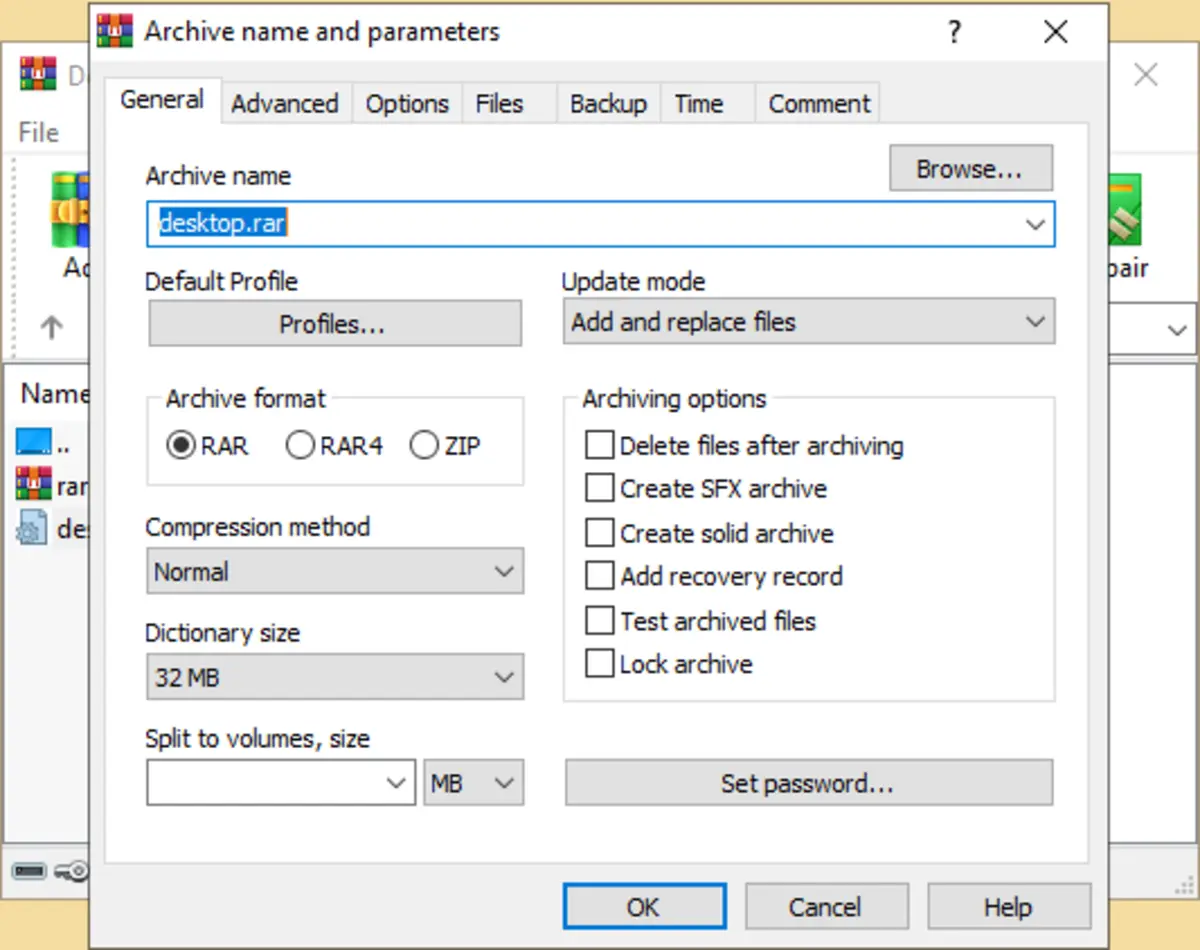
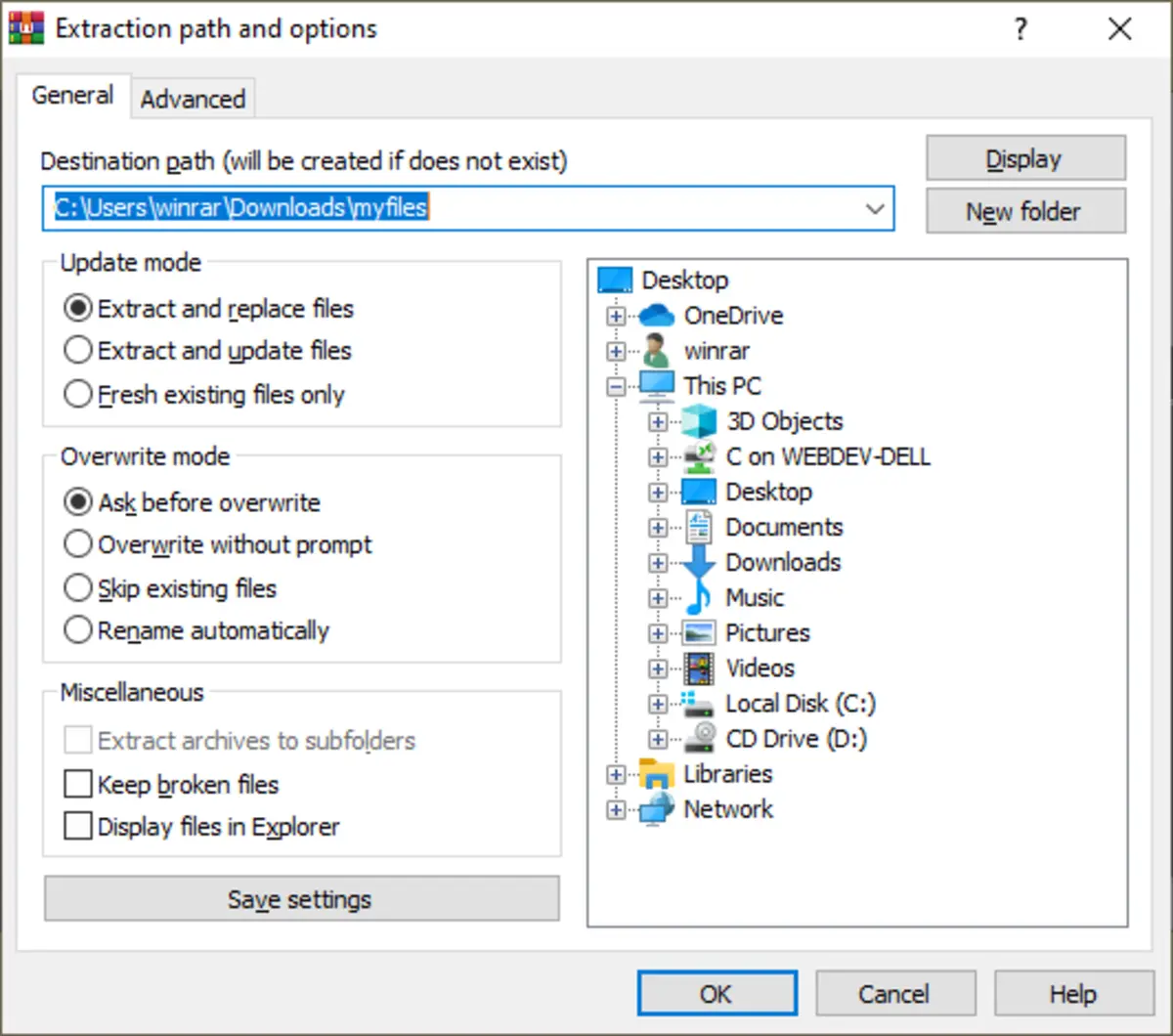
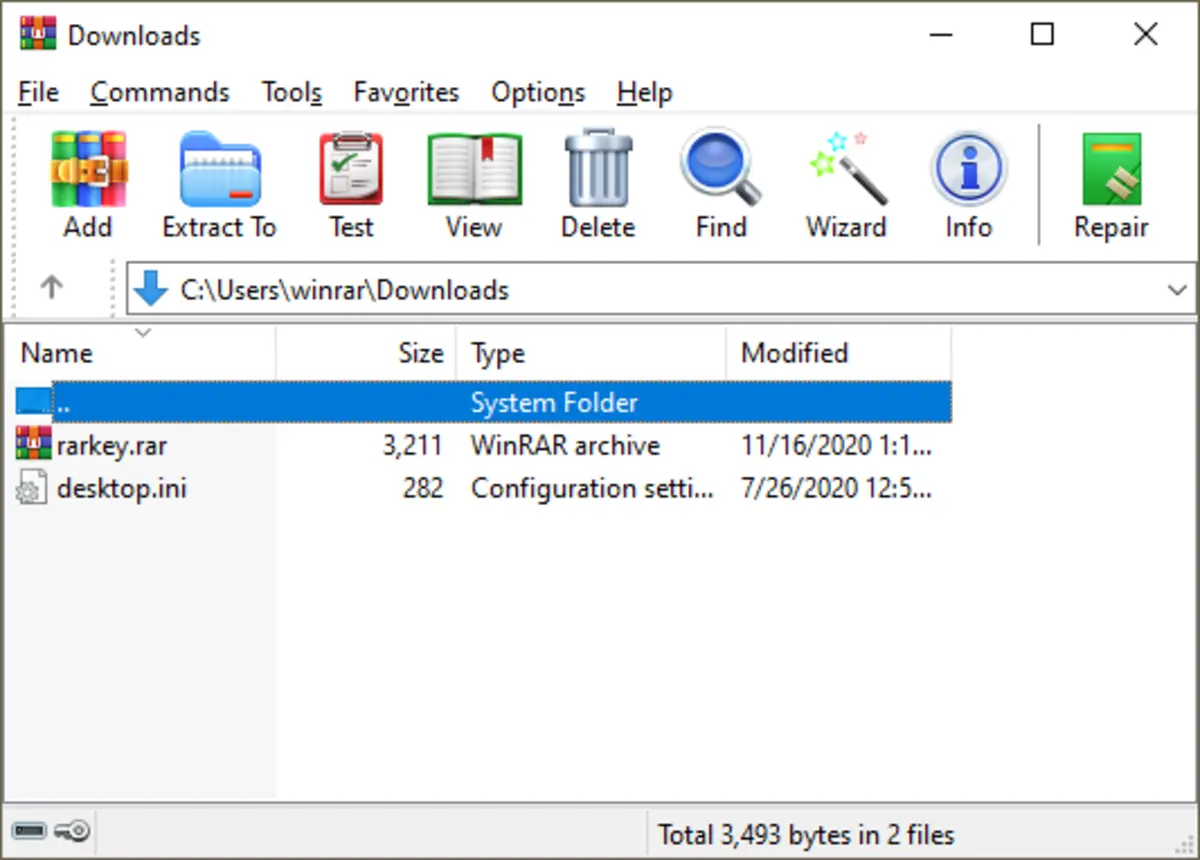
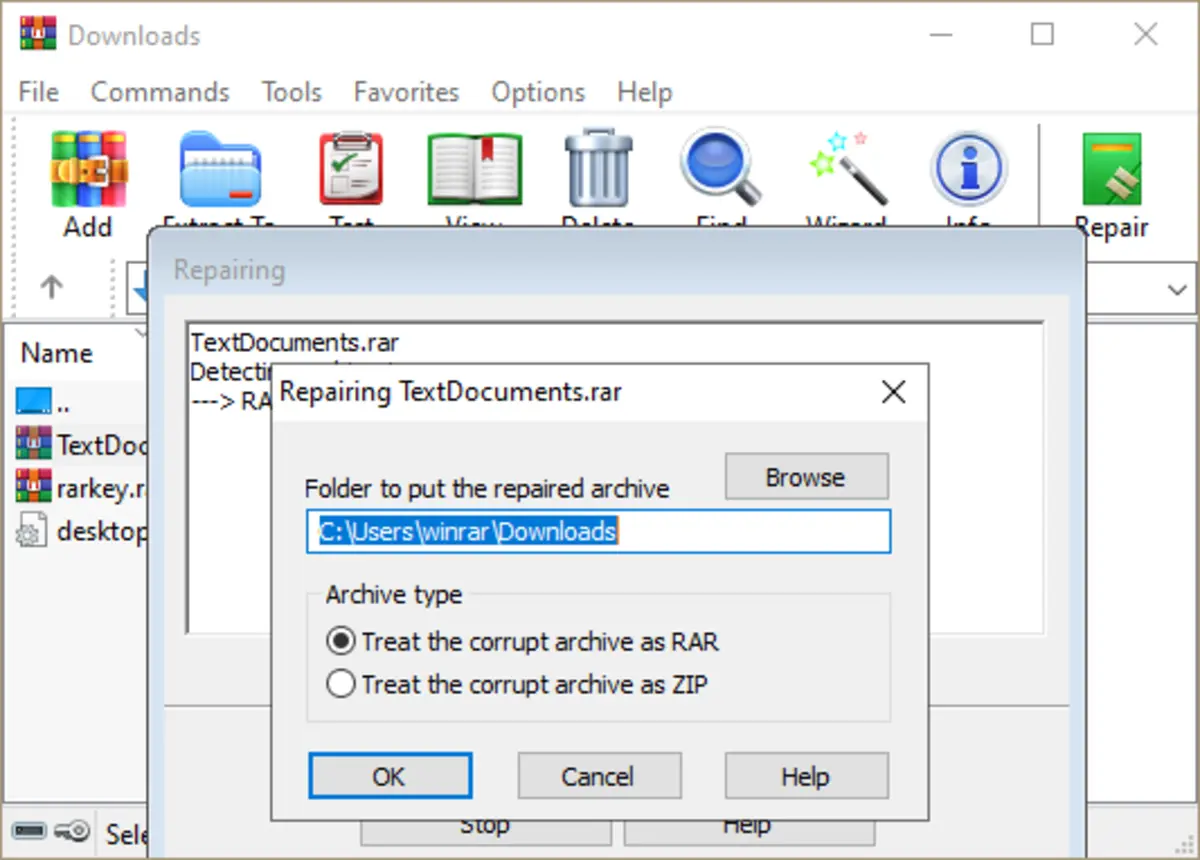
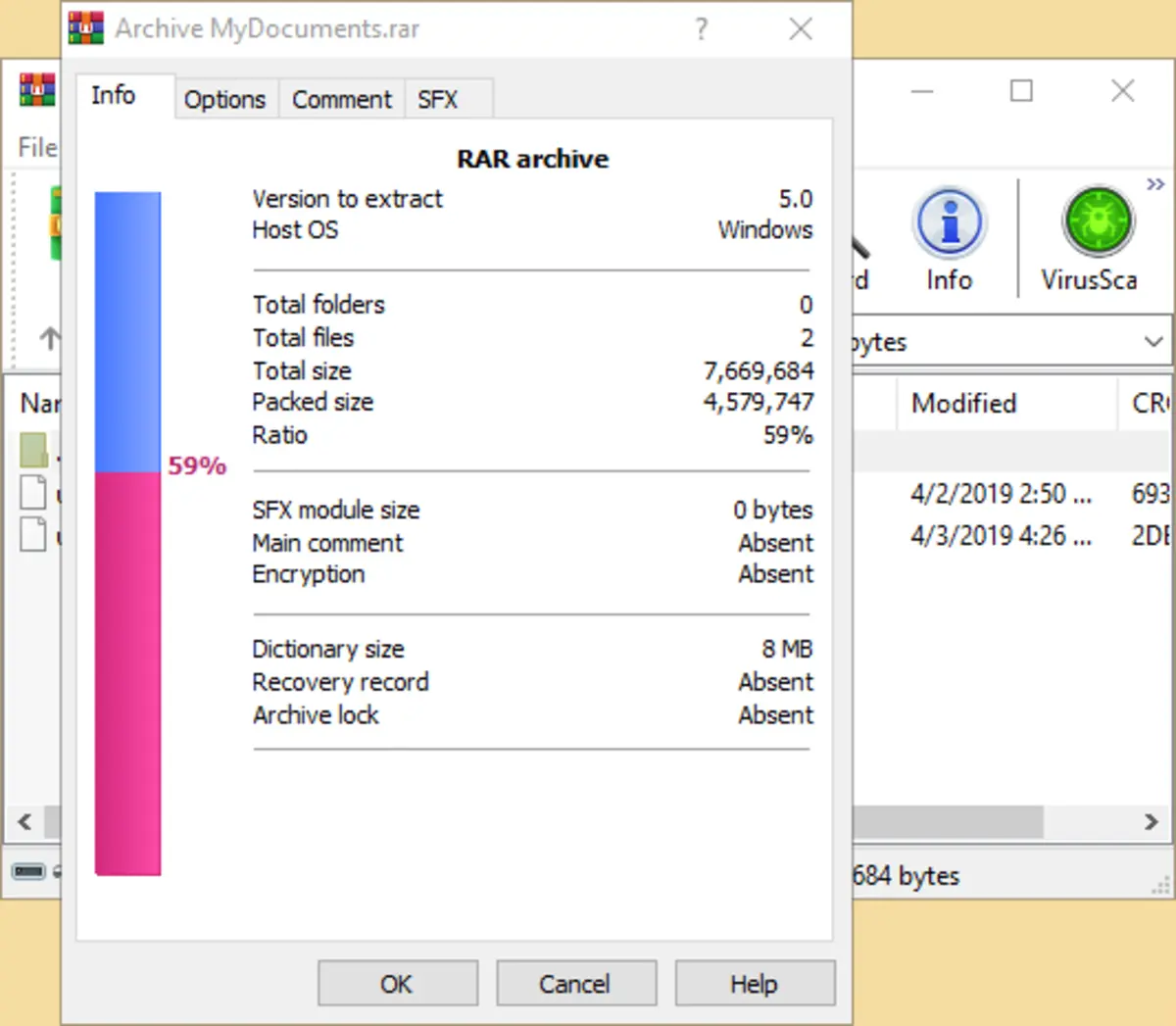
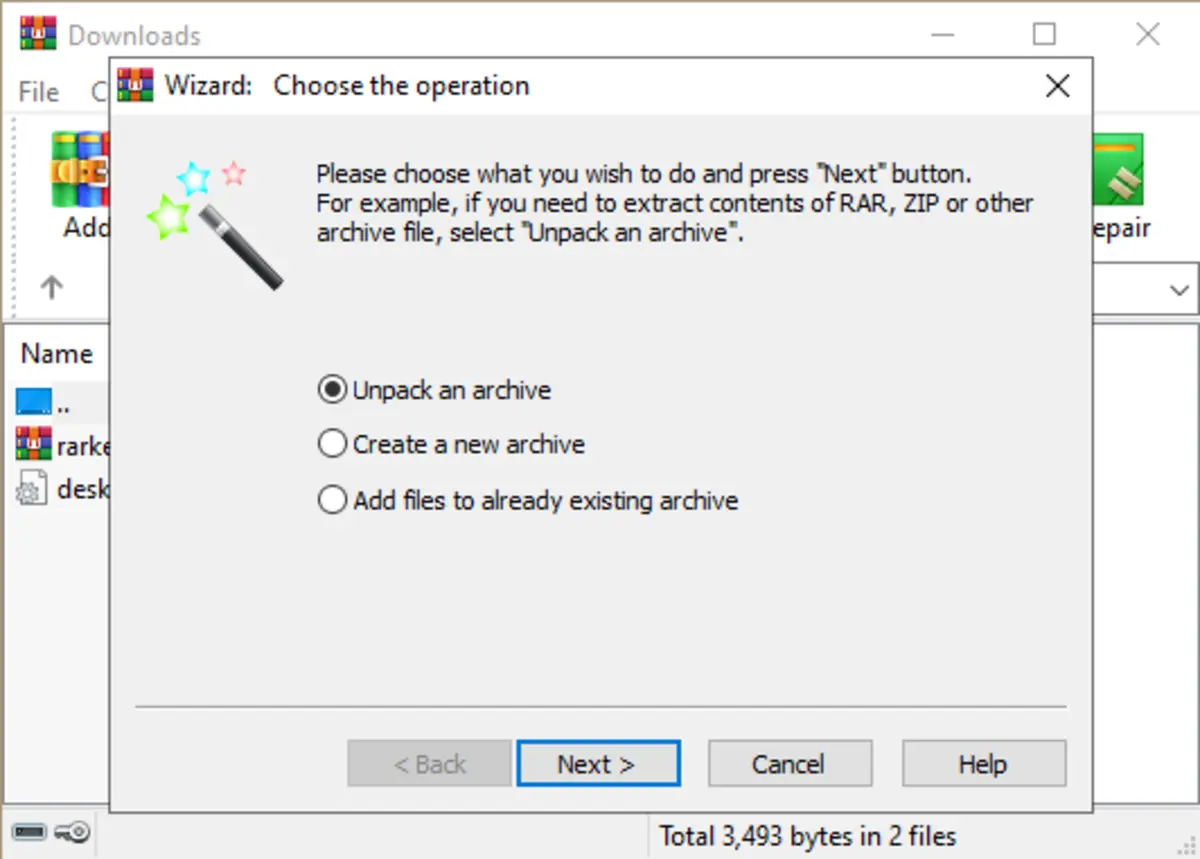
WinRAR Interface Screenshots
Here’s a visual overview of WinRAR’s interface and main features to help you understand how the program works before you install it.
WinRAR vs. Windows 11 Native Extraction: Key Differences
Windows 11 added native support for opening RAR and 7Z files. However, there are important functional differences between the built-in Windows tool and WinRAR that affect what you can actually do with archive files.
| Capability | WinRAR | Windows 11 Native |
|---|---|---|
| Extract RAR files | Yes | Yes (read-only) |
| Create RAR archives | Yes | No |
| Password encryption | AES-256 | No |
| Repair damaged archives | Yes (Recovery Record) | No |
| Split large files into parts | Yes (multi-volume) | No |
| Supported formats | RAR, ZIP, 7Z, TAR, ISO, CAB, ARJ, LZH, GZ, and more | ZIP, TAR, 7Z, RAR (extract only) |
| Best for | Creating archives, encryption, repairs | Basic extraction only |
Understanding the Use Cases:
If you only need to extract files occasionally, Windows 11’s native support may be sufficient. However, if you need to create compressed files, protect them with passwords, or work with corrupted downloads, WinRAR provides capabilities that the built-in tools cannot match.
Key Features and Capabilities
🛡️ AES-256 Encryption
Password-protect your archives with military-grade encryption. Even if someone gains access to your compressed file, they cannot read the contents without the correct password.
🚑 Recovery Record
WinRAR can embed recovery information into archives. If a file becomes corrupted during download or transfer, WinRAR can often reconstruct the damaged portions and successfully extract the data.
📚 Solid Compression
The “Solid Archive” option treats multiple files as a continuous data stream, achieving better compression ratios especially for collections of similar files like documents, source code, or text logs.
✂️ Multi-Volume Archives
Split large files into smaller parts for easier sharing via email or cloud storage with file size limits. WinRAR creates part1.rar, part2.rar, etc., which automatically reassemble during extraction.
🗂️ Universal Format Support
Open and extract from dozens of archive formats including RAR, ZIP, 7Z, TAR, GZ, ISO, CAB, ARJ, LZH, and more. No need for multiple tools.
⚡ Batch Processing
Process multiple archives at once. Extract dozens of compressed files simultaneously or create multiple archives from different folders in a single operation.
System Requirements
| Component | Requirement |
|---|---|
| Operating System | Windows 11, 10, 8.1, 7, Vista, XP |
| Processor | Any modern Intel or AMD processor |
| RAM | 128 MB minimum, 256 MB+ recommended |
| Storage Space | ~15 MB for installation |
| Display | 1024×768 or higher resolution |
Common Use Cases
1. Sending Large Files via Email
Most email providers limit attachment sizes to 25MB or less. Use WinRAR to compress large files and reduce their size, or split them into multiple smaller parts that fit within email limits.
2. Protecting Sensitive Documents
Password-protect financial records, legal documents, or personal photos before storing them in cloud services or sending them to others. The AES-256 encryption ensures only recipients with the password can access the contents.
3. Archiving Old Projects
Compress completed work projects, old photos, or historical documents to save disk space while keeping everything organized. Solid compression works especially well for archiving folders with many similar files.
4. Repairing Corrupted Downloads
If you download a large game, software installer, or media file that becomes corrupted, WinRAR’s repair function can often recover the data if the archive was created with recovery records enabled.
💡 Understanding the 40-Day Trial
WinRAR operates on a “try before you buy” model. After 40 days, you’ll see a reminder to purchase a license when opening the program. However, the software continues to work fully even after the trial period ends. This approach has made WinRAR one of the most widely used compression tools worldwide, as users appreciate being able to evaluate the full feature set before deciding whether to purchase.
Frequently Asked Questions
Is WinRAR safe to download and use?
Yes, when downloaded from the official WinRAR website (linked in this guide). WinRAR has been a trusted compression utility since 1995 and is used by millions of people worldwide. Always download from the official source to avoid modified versions that may contain malware.
What happens after the 40-day trial ends?
After 40 days, WinRAR displays a reminder window asking you to purchase a license. However, the software remains fully functional for personal use. You can close the reminder and continue using all features. To remove the reminder permanently, you would need to purchase a license from the official website.
Can WinRAR open 7-Zip and other archive formats?
Yes. WinRAR supports a wide range of formats including 7Z, ZIP, TAR, GZ, ISO, CAB, ARJ, LZH, and many others. This makes it a universal tool for working with archives regardless of which program created them.
Should I use 32-bit or 64-bit WinRAR?
If you’re running Windows 10 or 11, use the 64-bit version for better performance, especially when working with very large files. The 64-bit version can use more system memory and processes data faster. Only use the 32-bit version if you have older hardware or an older 32-bit version of Windows.
How do I password-protect a RAR file?
When creating an archive, click “Set password” in the archive creation dialog. Enter your desired password and check “Encrypt file names” if you want to hide the contents list as well. Make sure to remember this password as there is no recovery option if you forget it.
Why does extraction take so long?
Extraction speed depends on several factors: the compression method used, your hard drive speed (SSDs are much faster than traditional hard drives), the size of the archive, and your CPU speed. Archives created with maximum compression take longer to extract but result in smaller file sizes.
Can I use WinRAR on multiple computers?
The free trial can be used on any computer. If you purchase a license, the terms depend on the license type you buy. Personal licenses are typically valid for one user across their devices, while business licenses have different terms. Check the official WinRAR website for current licensing details.
How do I repair a corrupted archive?
Open WinRAR, select the corrupted archive, and click Tools > Repair Archive. WinRAR will attempt to reconstruct the damaged file. This works best if the archive was created with recovery records enabled. The repaired archive will be saved with a “rebuilt” prefix in the filename.
WinRAR Alternatives to Consider
While WinRAR is a popular choice, there are several other compression tools available for Windows. Here’s how they compare:
7-Zip (Free & Open Source)
Completely free with no trial period or purchase prompts. Excellent compression ratios with the 7Z format. However, it has a more basic interface and lacks some advanced features like built-in file repair.
PeaZip (Free & Open Source)
Another free alternative with support for over 200 archive formats. Includes encryption and file splitting. Good middle ground between features and simplicity.
Windows Built-in Tools
Windows 11 can now extract RAR, 7Z, TAR, and other formats natively. Suitable for basic extraction needs but cannot create these formats or add passwords.
Download WinRAR
Get WinRAR from the official website. The 40-day trial includes all features with no limitations.
Available for Windows 11, 10, 8, 7 (32-bit and 64-bit)
More software to try: VLC Media Player, WinZip BreeZip for Windows & Notion
Discover more from Windows Mode
Subscribe to get the latest posts sent to your email.